A supplier’s revised price list, a seasonal sale, or a currency shift can each mean having to update WooCommerce product prices across an entire catalog. WooCommerce’s built-in tools handle small changes, but they do not provide a way to apply changes from a price list provided as a file.
WP All Import reads a supplier price update file in whatever column layout it uses, matches each row to a WooCommerce product by SKU, and updates the regular and sale prices while leaving titles, descriptions, and stock untouched. The sections below cover the built-in methods and then a step-by-step update using WP All Import’s Automatic Setup.
Ways to Update Product Prices in WooCommerce
WooCommerce’s built-in tools cover most one-off price changes. The table below shows where each one fits:
| Method | Best for | Limitation |
|---|---|---|
| Edit product | A single price change | One product at a time |
| Quick Edit | Small changes from the product list | No percentage or bulk adjustments |
| Bulk Edit | Fixed or percentage changes across selected products | Simple products only; no variation prices |
| Product CSV Importer | Price updates from a CSV, matched by ID or SKU | CSV only; file must follow WooCommerce’s CSV schema |
WP All Import updates WooCommerce product prices from CSV, XML, or Excel files without requiring a fixed column structure. It matches each row to a product by SKU, updates only the fields you select, and runs the same import on a schedule when prices change regularly. Because the update is limited to the price fields, product titles, descriptions, images, and stock levels stay exactly as they are, even when the import file contains nothing but SKUs and prices.
How to Update WooCommerce Product Prices with Automatic Setup
WP All Import’s Automatic Setup reads a price file, detects which columns hold SKUs and prices, and maps them to WooCommerce’s product fields. A few changes in Import Settings turn that mapping into an update that changes product prices and nothing else.
Step 1: Prepare the Price File
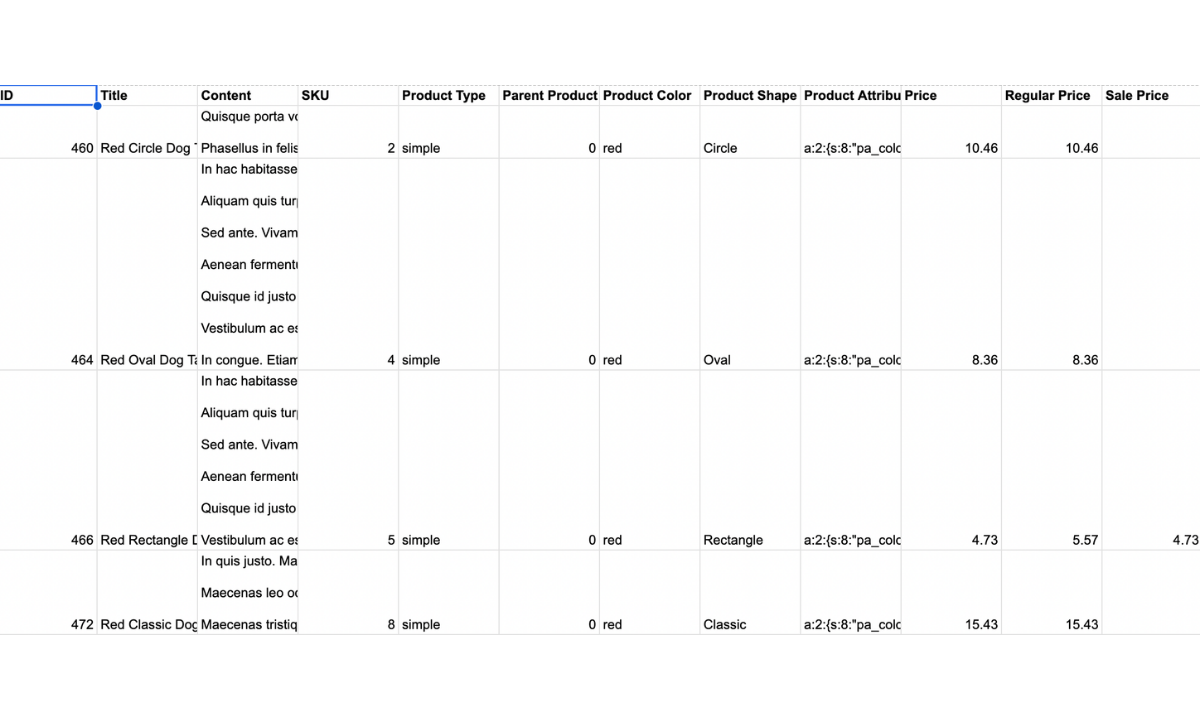
A supplier price list or internal pricing sheet can be used as is without any reformatting requirements. Before importing it, confirm two things:
- The SKUs match the store. WP All Import finds each product by SKU, so the SKU column must use the same codes as the products in WooCommerce. Rows with a SKU the store doesn’t recognize are skipped.
- The prices are in their own columns. The file needs a regular price column, a sale price column, or both, under any header name.
Other columns, such as titles, descriptions, or stock, can stay in the file. The update settings in Step 4 limit the import to price fields only.
Automatic Setup accepts CSV, XML, JSON, TXT, ZIP, and GZ files up to 256 MB.
Step 2: Upload the File with Automatic Setup
Go to All Import › New Import and click Set up automatically. Upload the file from your computer, or use Download from URL, Existing File, or FTP/SFTP if the price list is stored elsewhere.
On the Choose What to Import screen, select WooCommerce, then Products, and click Start Automatic Setup. Approve the data processing prompt to start the mapping.

Step 3: Review the Field Mappings
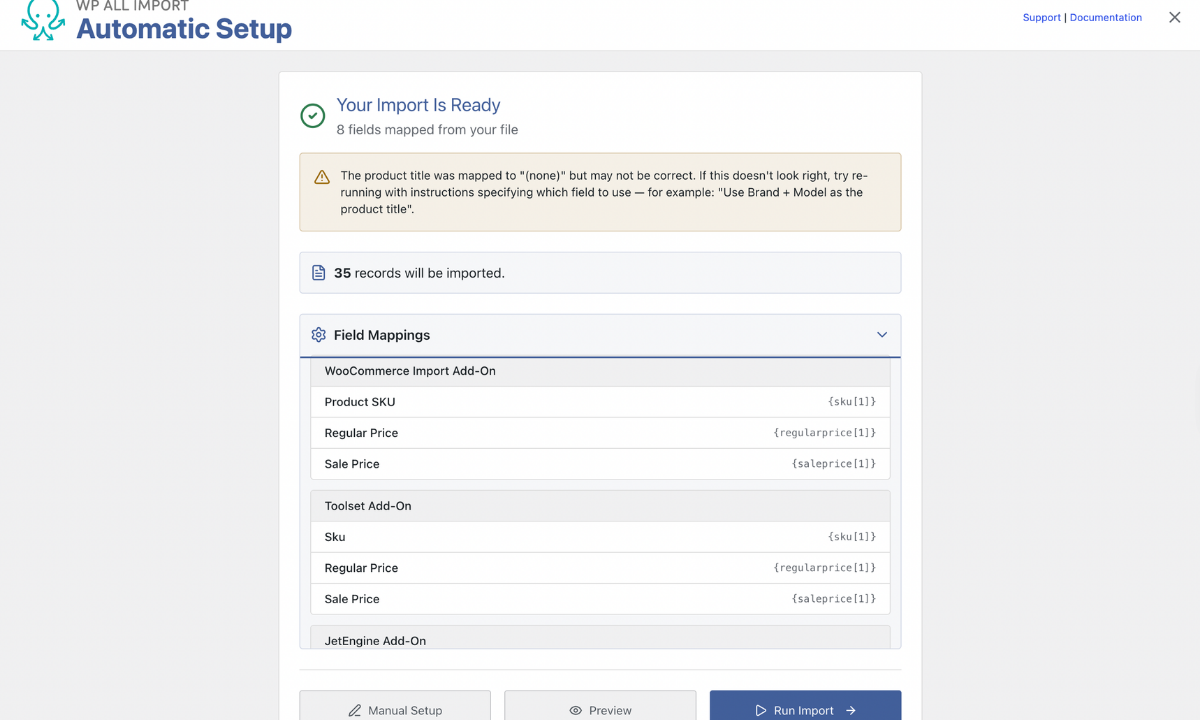
The Your Import Is Ready screen shows the number of mapped fields and the number of records in the file. Expand Field Mappings and confirm that the SKU column maps to Product SKU and the price columns map to Regular Price and Sale Price.
A warning that the product title was mapped to “(none)” is expected for a price-only file. Titles aren’t part of this update, so the warning can be ignored.
Click Manual Setup to open the full import settings. The mappings that Automatic Setup created carry over.
Step 4: Limit the Import to Price Updates
Scroll down and click Continue to proceed to the Import Settings screen and set the following:
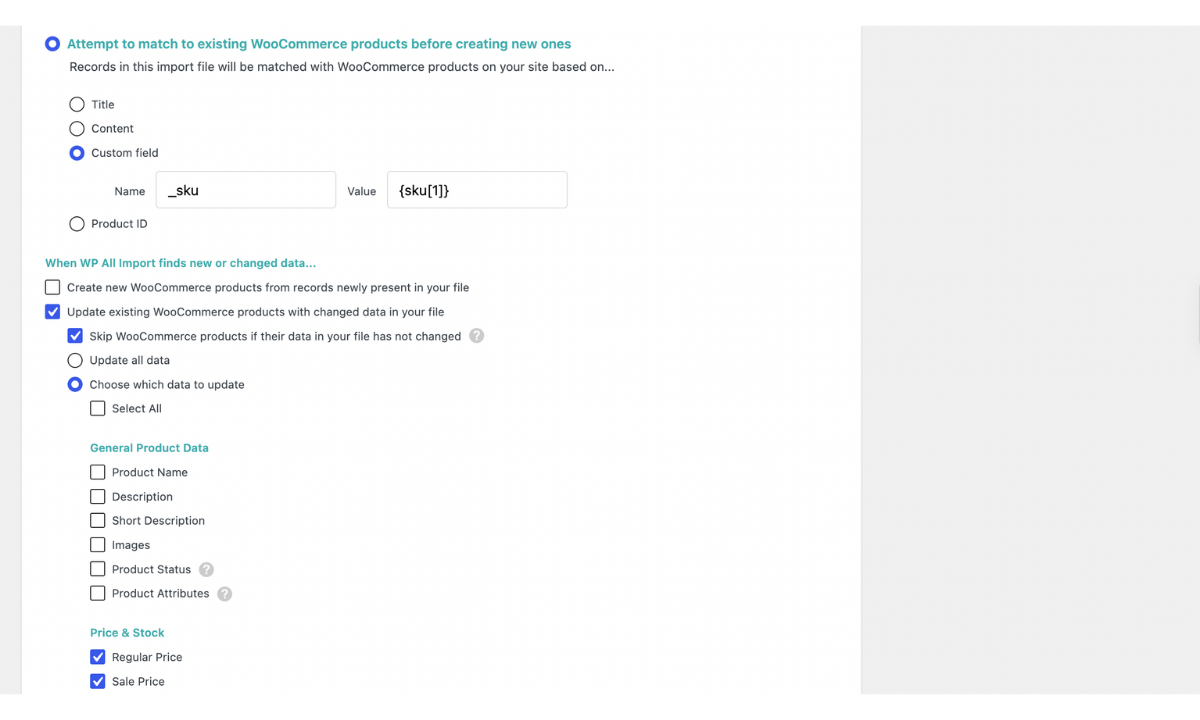
- Select Attempt to match to existing WooCommerce products before creating new ones.
- Choose Custom field. WP All Import fills in _sku as the Name. Drag the SKU column from the file into the Value box.
- Uncheck Create new WooCommerce products from records newly present in your file, so rows with no matching product are skipped.
- Keep Update existing WooCommerce products with changed data in your file checked.
- Select Choose which data to update, then tick Regular Price and Sale Price only.
The “Warning: your title is blank” message at the top of this screen refers to the same missing title and doesn’t affect the update.
Step 5: Run the Update and Check the Prices
The Import Summary on the Confirm & Run screen shows the SKU matching rule and lists Regular Price and Sale Price as the only data being updated. Click Confirm & Run Import.
When the import finishes, WP All Import reports how many products were updated. Open Products › All Products to check the new prices. Sale prices appear next to the regular price, which is shown struck through.

WP All Import saves the import under All Import › Manage Imports with its matching and update settings intact. On later runs, keeping Skip WooCommerce products if their data in your file has not changed enabled passes over any product whose price stayed the same.
Update Prices from a Product Export
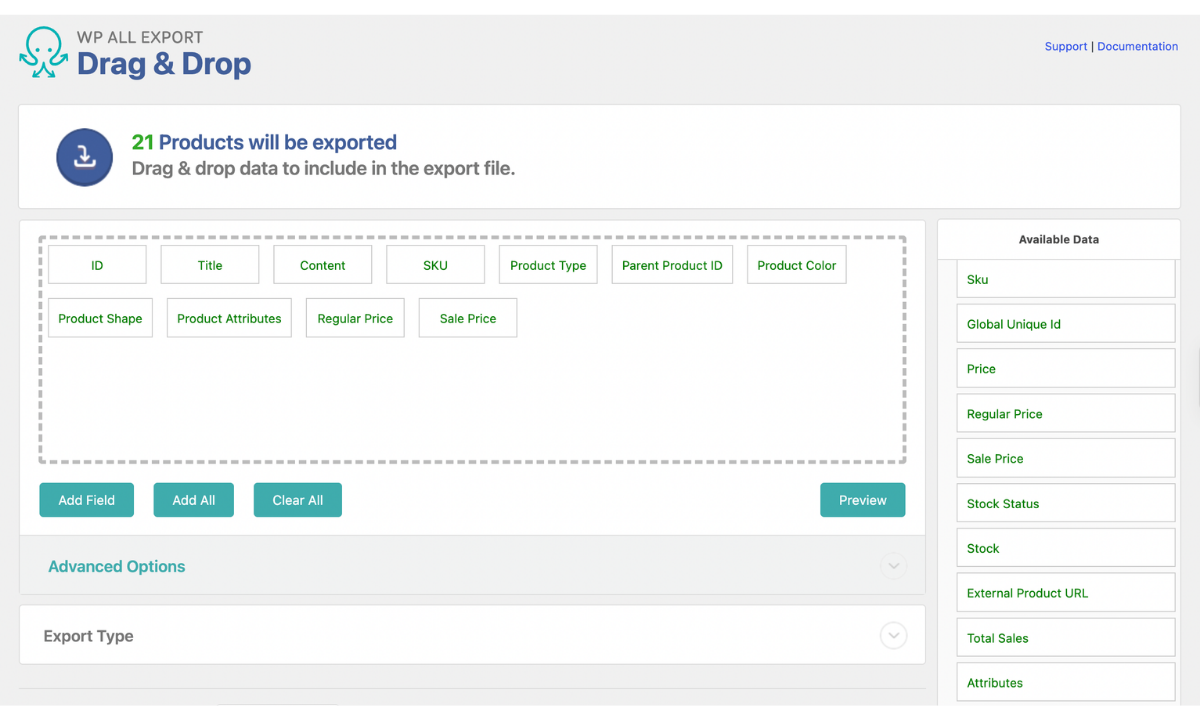
Some price changes do not have a supplier file behind them. A store that is raising prices by 8% across one category, for example, starts with the prices already set in WooCommerce. WP All Export exports WooCommerce products to CSV, Excel, or XML with their SKU, regular price, and sale price columns, and those prices can then be edited in any spreadsheet app with a formula applied down the column.
The edited file goes back into the store through the same Automatic Setup steps shown above. Because the export already uses the store’s own SKUs, every row matches its product without any cleanup. For a full walkthrough of this round trip, see How to Bulk Edit WooCommerce Products.
Keep Product Prices Updated on a Schedule
Suppliers that publish price lists at a fixed URL or on an FTP server make it possible to automatically update WooCommerce product prices. When the import is set up with Download from URL or FTP/SFTP in Step 2, each run fetches the current version of the file, not a copy saved at setup.
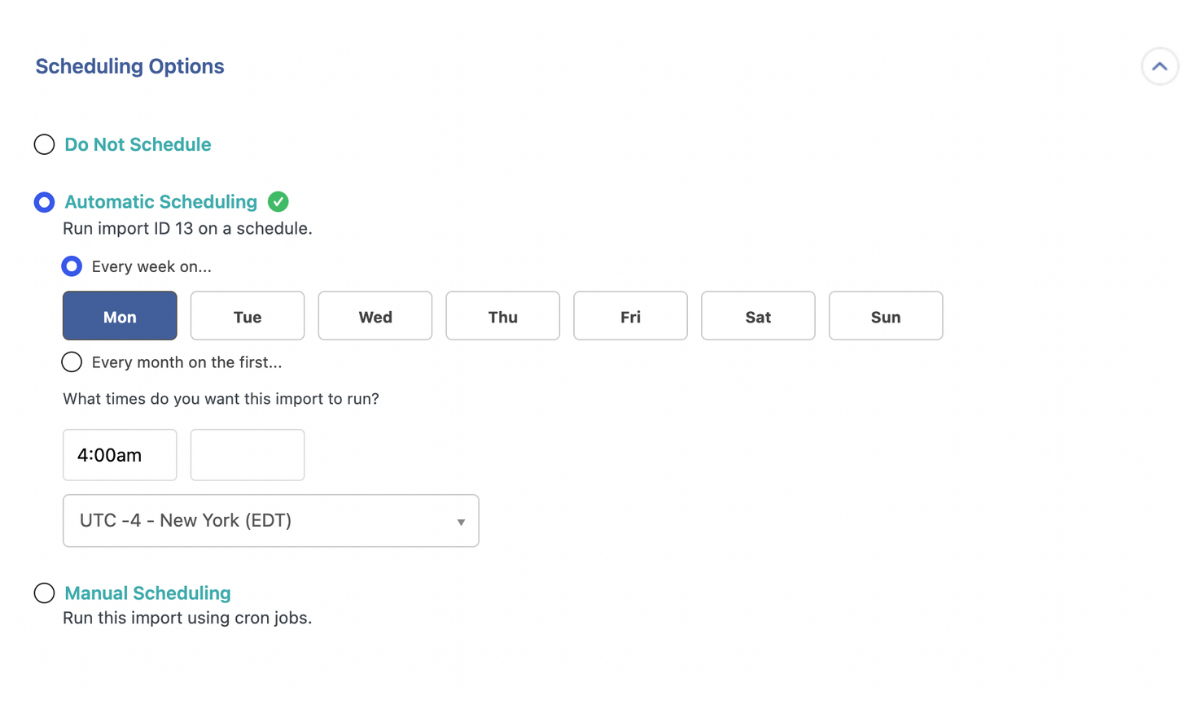
WP All Import runs saved imports on a schedule through its paid Automatic Scheduling service, which is configured inside the plugin, or through cron jobs set up on the server. Each scheduled run applies the same SKU matching and price-only settings. With Skip WooCommerce products if their data in your file has not changed enabled, products whose prices stayed the same are skipped See How Do I Automatically Import Products into WooCommerce? for the scheduling setup.
Final Thoughts — Update WooCommerce Product Prices
WooCommerce’s built-in tools cover single price changes and simple percentage adjustments, but they don’t apply changes from a price list that arrives as a file outside the native CSV format. WP All Import updates WooCommerce product prices from supplier files in their original column layout, matching each row to an existing product by SKU. Its Automatic Setup feature maps the SKU and price columns, and the Import Settings screen limits the update to the regular and sale price fields, leaving product titles, descriptions, images, and stock levels unchanged.
The same import can be saved and rerun on a schedule, making it well suited to stores whose suppliers revise prices regularly, since each run reads the latest file and applies only the price changes. After the first setup, putting a new price list into the store takes a single run of the saved import.
Frequently Asked Questions — Update WooCommerce Product Prices
How do I bulk update prices in WooCommerce?
To bulk update prices in WooCommerce from a price list, use WP All Import, which matches each row in the file to an existing product by SKU and changes only the price fields. The process takes five steps:
- Go to All Import › New Import and click Set up automatically.
- Upload the price file and select WooCommerce › Products.
- Check the SKU and price mappings under Field Mappings, then click Manual Setup.
- In Import Settings, match products by _sku, uncheck Create new WooCommerce products from records newly present in your file, and update Regular Price and Sale Price only.
- Click Confirm & Run Import.
For small changes to a few simple products, WooCommerce’s own Bulk Edit option on the All Products screen raises or lowers prices by a fixed amount or percentage.
How do I update WooCommerce product prices from a CSV file?
WP All Import updates WooCommerce product prices from a CSV file in the column layout the file already uses. To run the update:
- Confirm the CSV’s SKU column uses the same SKUs as the products in the store.
- Upload the CSV through Automatic Setup and review the price mappings.
- Open Manual Setup and select Attempt to match to existing WooCommerce products before creating new ones.
- Under Choose which data to update, tick Regular Price and Sale Price only.
- Run the import and check the new prices under Products › All Products.
Can I bulk update variation prices in WooCommerce?
Yes. WP All Import updates variation prices in bulk by matching each variation to its own SKU, using the same import settings as simple products. WooCommerce’s built-in Bulk Edit option doesn’t change variation prices, so a file-based update is the practical route for stores with many variable products.
How do I schedule automatic price updates in WooCommerce?
To schedule automatic price updates in WooCommerce, set up a WP All Import price update that reads the supplier’s file through Download from URL or FTP/SFTP, then run that saved import on a schedule with WP All Import’s Automatic Scheduling service or a server cron job. Each scheduled run fetches the current file, matches products by SKU, and applies only the price fields selected in Import Settings.
Related Information