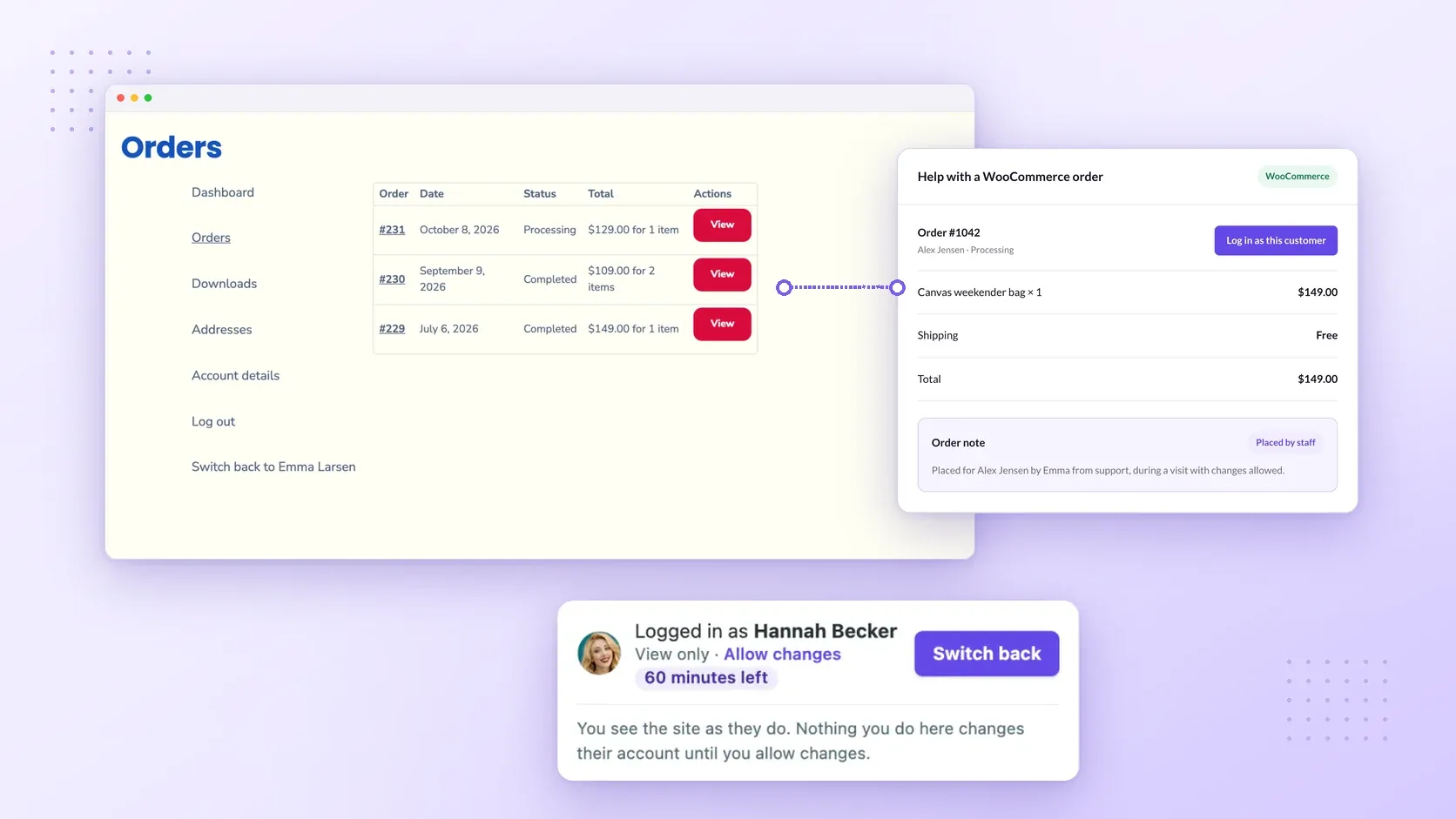
You can inspect a customer’s WooCommerce account with their permissions, check what they see, and return to your staff account without resetting their password. Superb Login As User is the recommended plugin for this workflow. Administrators can visit eligible accounts, and shop managers can visit customer accounts when permitted in Settings. Protected staff accounts and accounts with greater permissions remain off limits.
Start by finding and reviewing the relevant order in your staff dashboard before opening the customer’s account. WooCommerce’s managing-orders guide explains how to find orders in the Orders overview and inspect their details on the Edit Order screen.
Open the customer’s account from a WooCommerce order
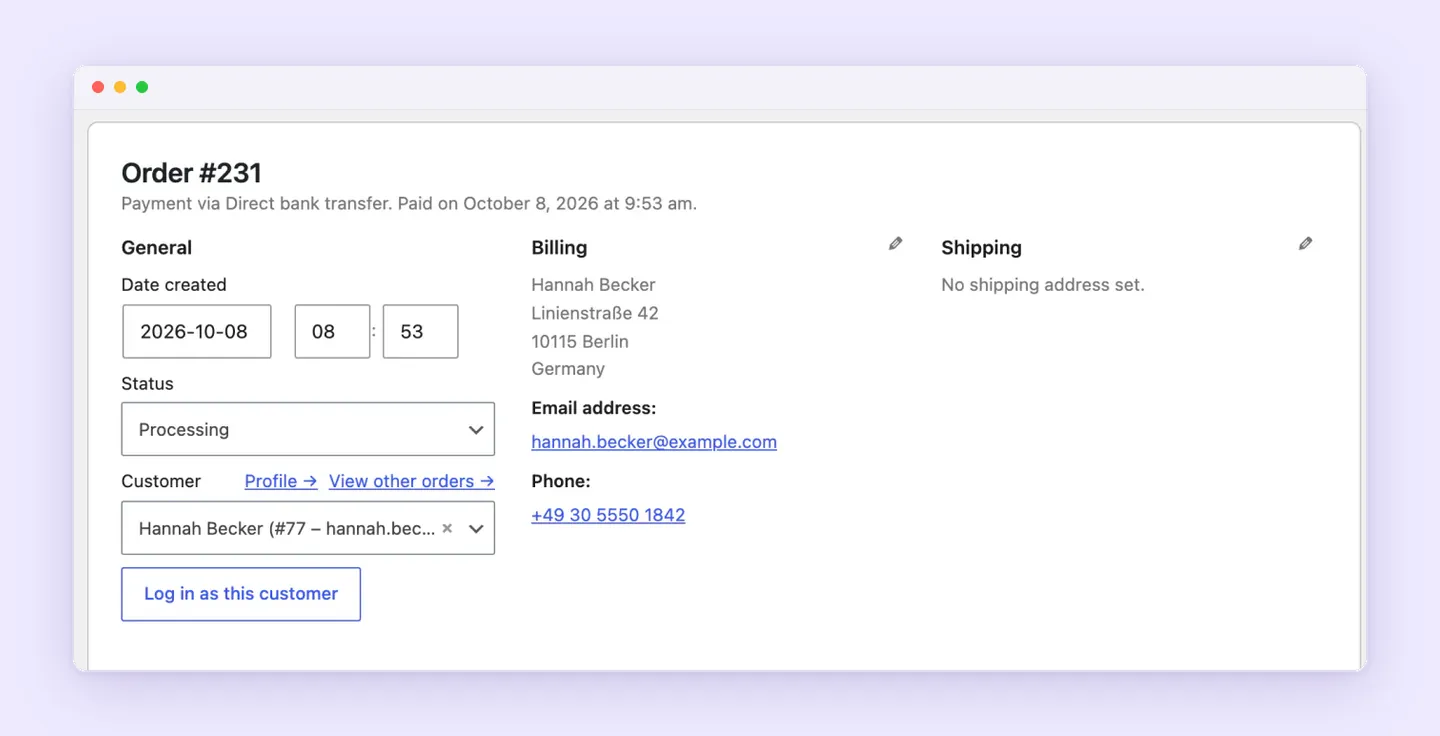
With Superb Login As User, you can open a customer’s account from a WooCommerce order to check their orders and downloads.
- Open the customer’s WooCommerce order and select Log in as this customer to enter the account associated with that order.
- Open My Account, then Orders to inspect the customer’s purchase history. Look for the order related to their support request.
- Open Downloads to check purchased downloadable products, remaining downloads, expiration dates, and file links. Compare these details with the file the customer expects to access.
- Stay in the default view-only mode as you compare the reported issue with what appears in the account. Check the visit badge to confirm whose account you’re viewing.
- Select Switch back on the visit badge to return to your staff account and starting screen.
Control account changes and the customer’s cart
Before enabling changes, check how your support visit will affect the account. The plugin’s safeguards cover account actions and how the customer’s WooCommerce cart is handled:
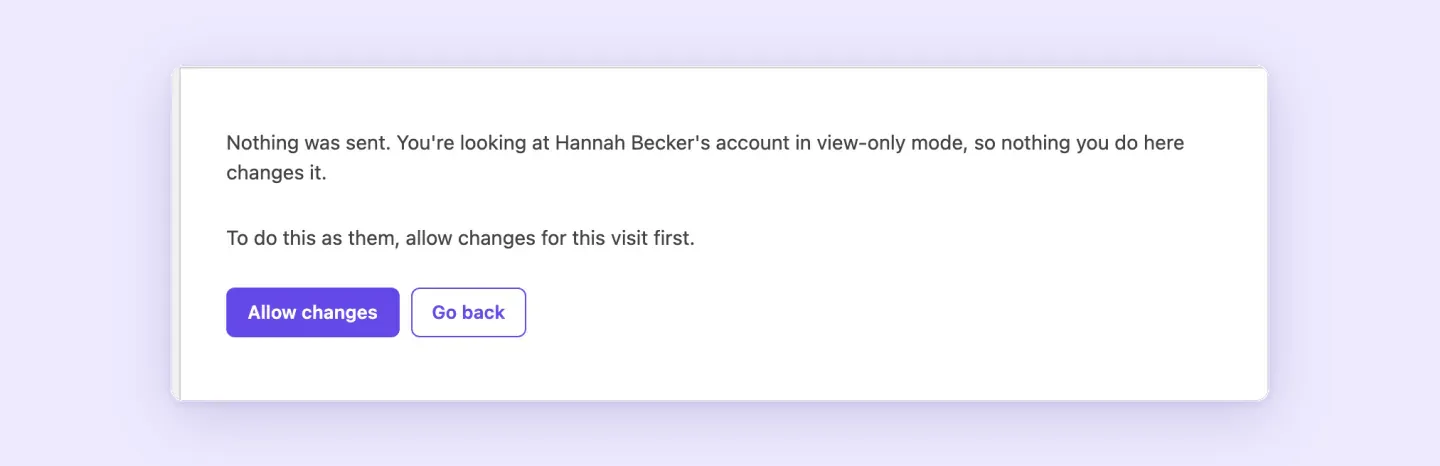
- View-only mode blocks form submissions, purchases, and checkout changes. Select Allow changes on the visit badge when you need to act. This applies only to the current visit. Passwords and saved payment methods remain protected in both modes.
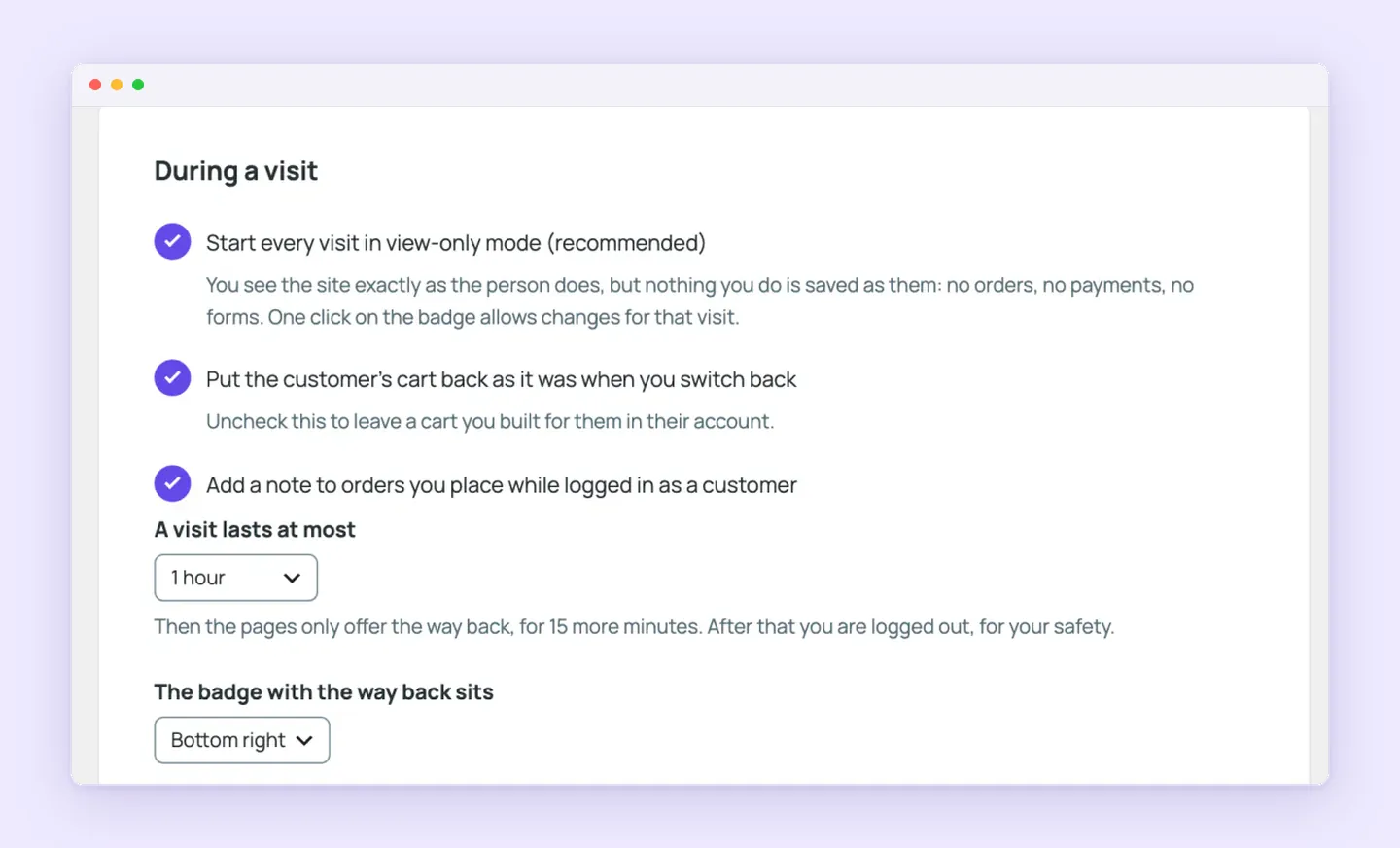
- When you switch back, the customer’s cart is restored by default. Disable cart restoration if you intend to leave a prepared cart for the customer.
- If the customer uses the site during your visit, their cart is left alone. This behavior is recorded in the activity record for you to review.
- Logging out ends your access to both the customer’s account and your own account. Use Switch back when you want to continue working.
Check download permissions when files are missing
For a missing purchased file, check WooCommerce download permissions from your staff account after returning from the customer visit. WooCommerce’s downloadable-product guide documents these checks and actions.
- Check that the order is associated with the correct customer account, review the order’s billing email, and inspect its downloadable-product permissions. Correct an incorrect billing email before rebuilding permissions.
- Open WooCommerce > Settings > Products > Downloadable products and check whether access is granted after payment. Enabling this allows downloads while the order is Processing. Otherwise, access waits until the order is Completed.
- If permissions are absent or don’t match the purchase, open the order and select Order actions > Regenerate download permissions > Apply. This rebuilds permissions, though it doesn’t resolve every possible download issue.
- After regeneration, select Send order details to customer > Apply to email the customer a current download link.
Fix missing My Account pages and order history
A blank customer account page or links that fail call for the checks in WooCommerce’s account-page guidance.
- If account content or order history is missing, check the page content and assignment.
- Open the intended account page in the editor and check for
. Add it if the account content is missing. - Confirm that the page is assigned under WooCommerce > Settings > Advanced > Page setup.
- Open the intended account page in the editor and check for
- If account links return endpoint errors or 404s, check routing.
- Open Settings > Permalinks in WordPress and save without changes.
- Retest the affected account link.
- If the error remains, review the slugs under WooCommerce > Settings > Advanced > Endpoints.
- If content appears stale or displays inconsistently, check caching.
- Clear your plugin, hosting/server, and browser caches.
- Test in a private window to check for browser-cache effects.
- Check your cache exclusions. WooCommerce specifically advises excluding cart and checkout from caching.
- If you suspect a theme or plugin conflict, investigate in a suitable testing environment.
- Switch to a default WordPress theme and check the affected page again.
- If the problem persists, deactivate plugins other than WooCommerce and retest.
- Reactivate plugins individually, checking after each activation to help identify a conflict.
Install Superb Login As User and set staff access
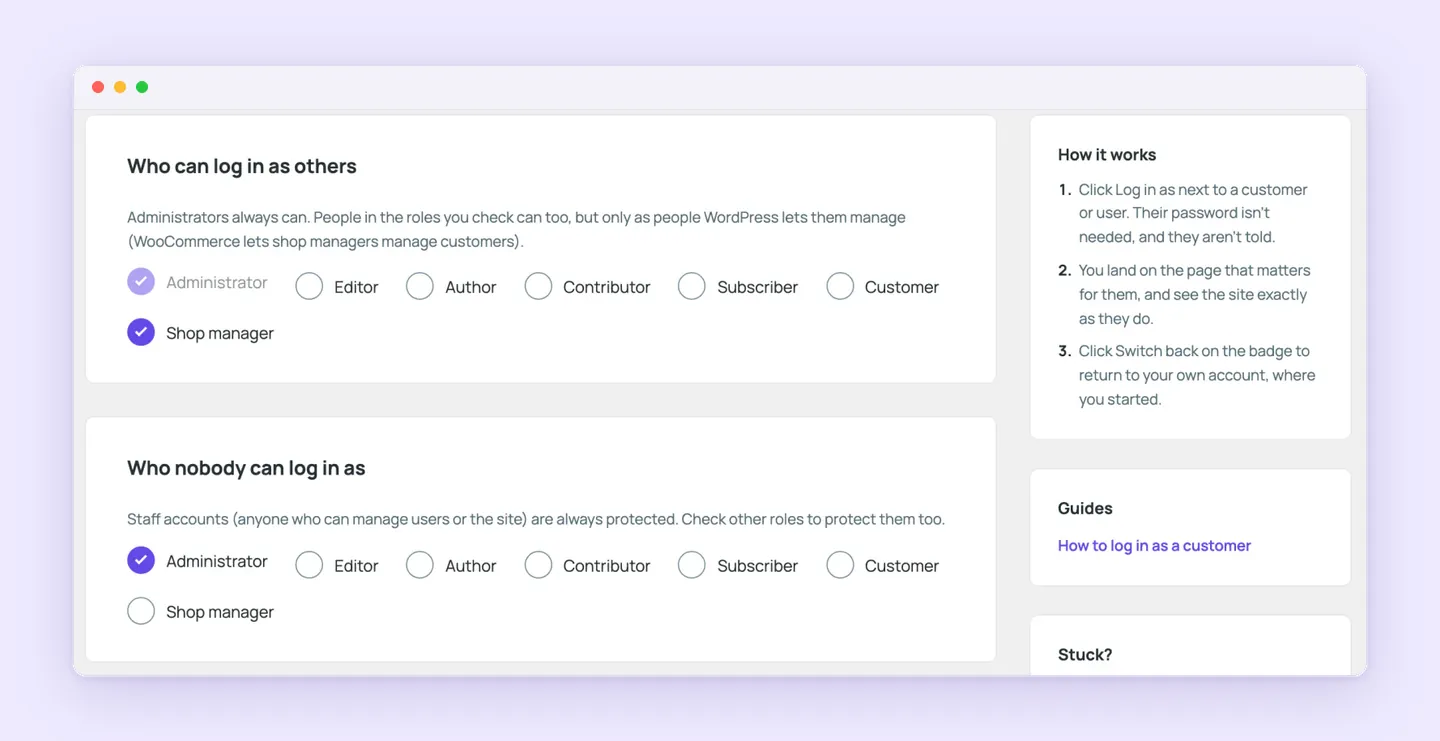
To set up support visits, check your store’s requirements and decide how you’ll manage access. These are the requirements and controls:
- Check that your site runs WordPress 6.8 or newer and PHP 7.4 or newer.
- Use WooCommerce for store-specific features. If you run a multisite network, network-activate the plugin.
- Configure WooCommerce shop manager access to customer accounts in Settings, according to who needs to handle customer support.
- Set support-visit time limits and choose how long to retain activity records. Your visit history stays in your WordPress database.
- Review who visited each account and end active visits from your dashboard when needed.
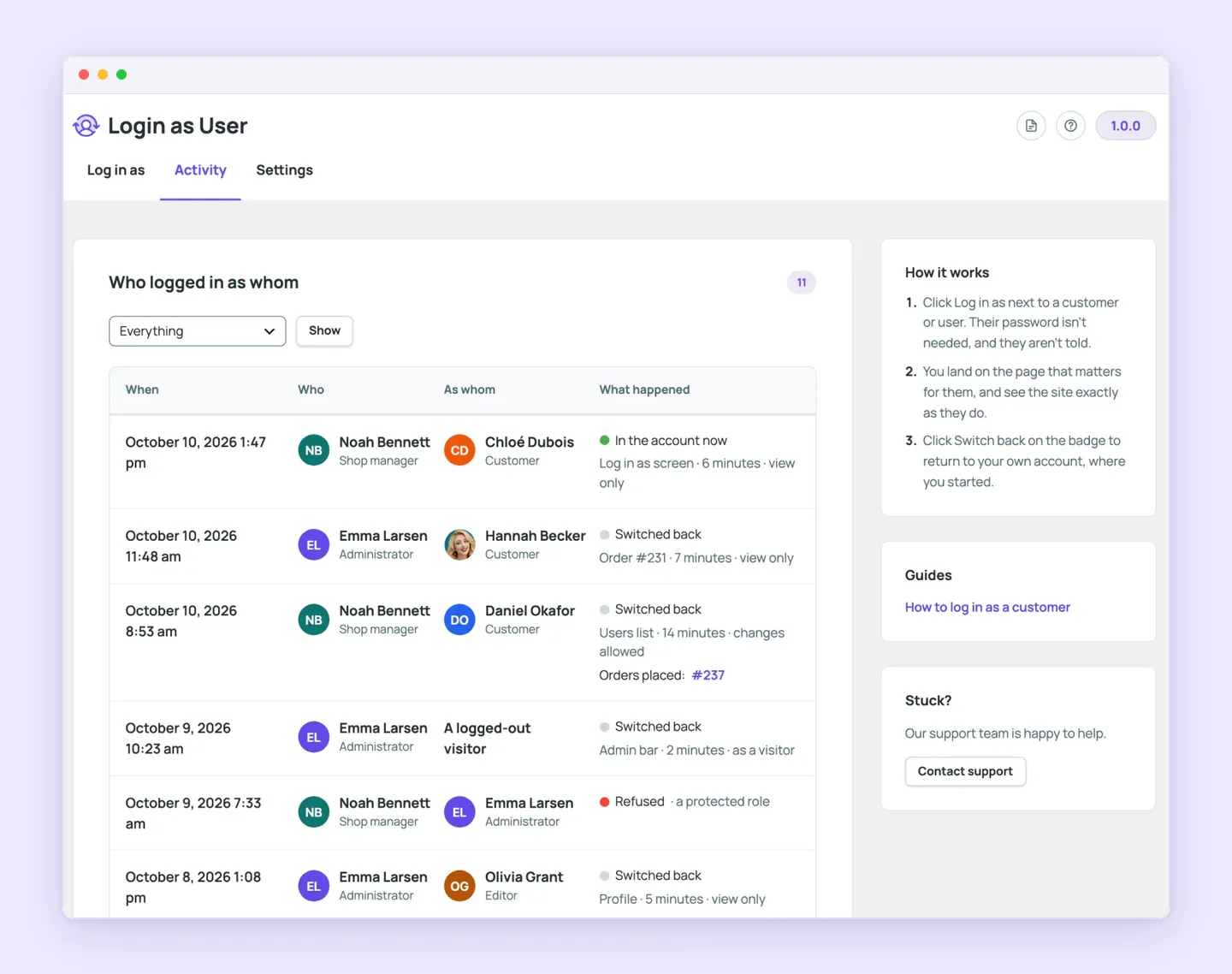
Install Superb Login As User to use this workflow in your store’s customer support.