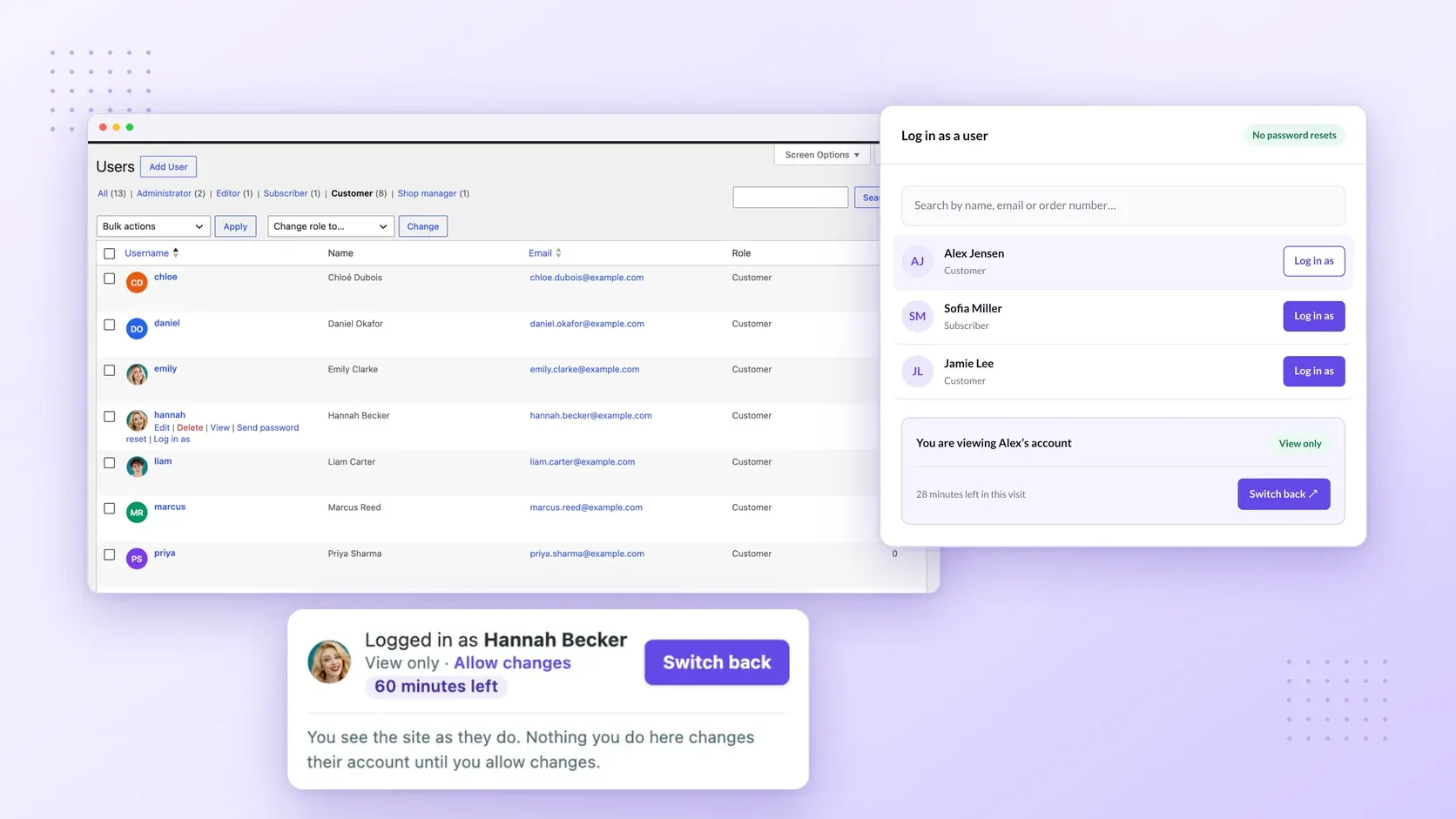
To investigate an eligible user’s account without asking for their credentials, use Superb Login As User. With it, you can visit eligible accounts without requesting a customer’s password, resetting it, or asking for a two-step login code.
Administrators can start visits and permit additional roles in Settings. Protected staff accounts and accounts with greater permissions remain off limits. Visits can begin from the Users list, a profile, a WooCommerce order, or the admin bar.
Check requirements and open the WordPress plugin uploader
Before uploading the plugin, check your site’s requirements and have the ZIP file ready.
- Obtain the Superb Login As User plugin ZIP from SuperbThemes. The plugin requires WordPress 6.8 or newer and PHP 7.4 or newer. WooCommerce is required only for store features, and multisite requires network activation. Follow any further package-specific setup instructions supplied with your download.
- Open Plugins > Add New in your WordPress administration area to begin the ZIP-upload procedure.
- Choose Upload Plugin at the top. These are standard WordPress installation controls, as described in the WordPress ZIP-upload documentation.
Upload and activate the Superb Login As User ZIP
Continue the ZIP installation with the standard controls described in the WordPress documentation.
- Select the downloaded Superb Login As User plugin ZIP from your computer. Use the ZIP itself without extracting it.
- Press Install Now to upload and install the selected package.
- Choose Activate Plugin after WordPress reports successful installation. Activation is a separate action that enables the installed plugin.
If the package includes further setup instructions, follow them. On a multisite network, make sure you network-activate the plugin.
Select a user, inspect their account, and switch back
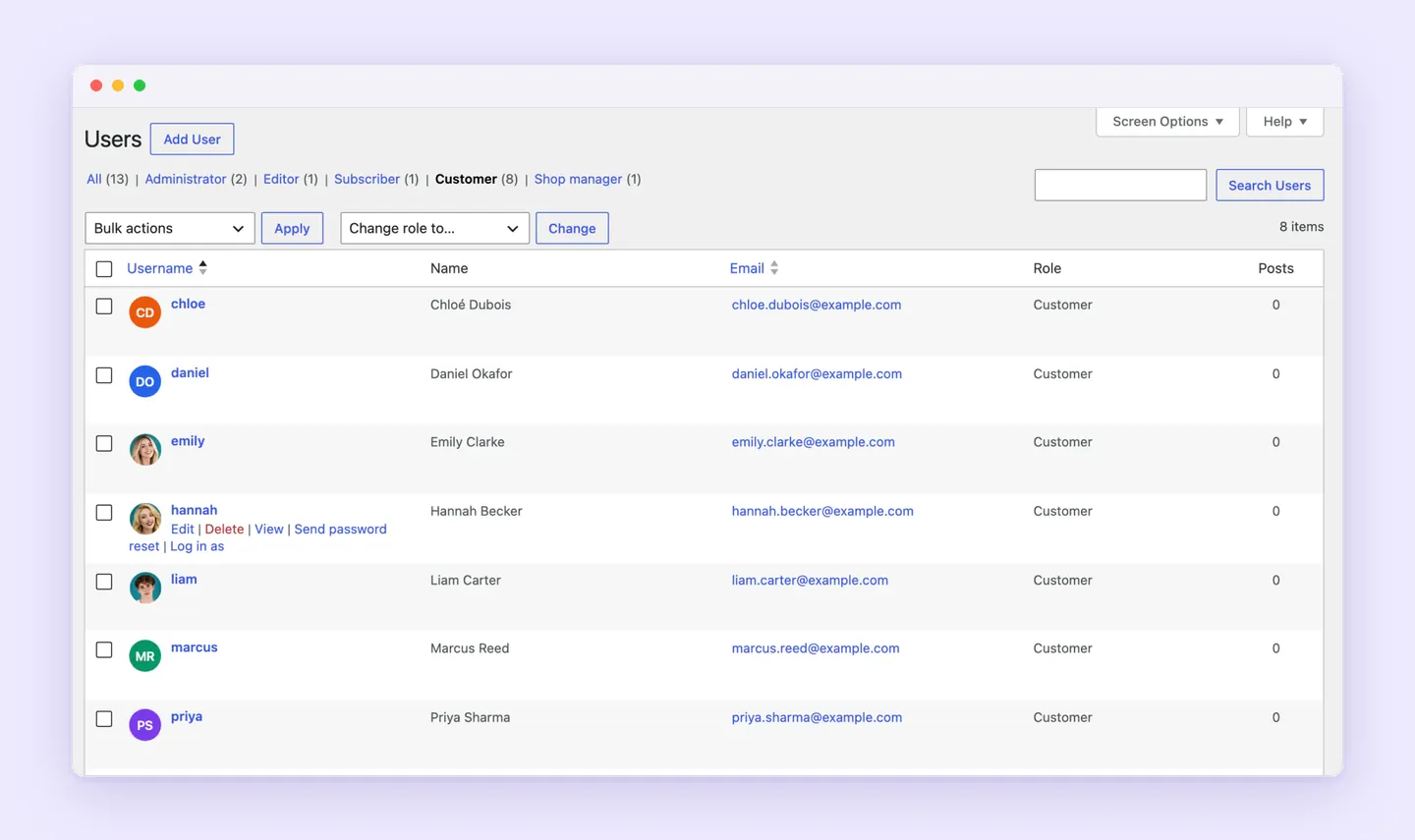
Once the plugin is active, follow these steps to log in as a user in WordPress:
- Find the eligible person by name, email address, or order number. Choose Log in as for the matching account, checking that you’ve selected the intended person.
- Inspect the account with that user’s permissions in the default View only mode. This mode blocks forms, orders, and checkout changes while you investigate. Check the pages relevant to the reported issue before deciding whether any action is needed.
- If an authorized support task requires a change, choose Allow changes on the visit badge. This choice applies to that visit. Account passwords and saved payment methods remain protected in both modes.
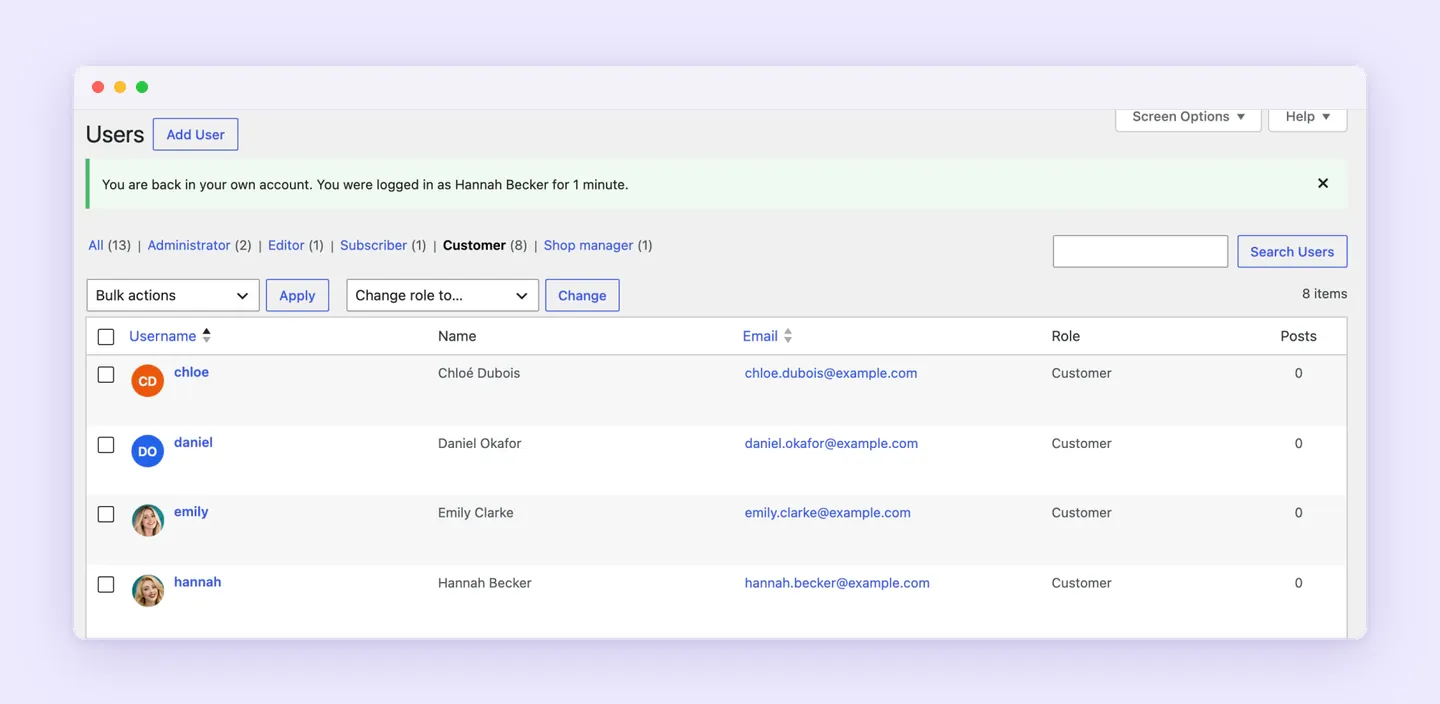
- Choose Switch back on the visit badge when you finish. The badge identifies whose account you’re viewing and displays the time remaining so you can keep track of the visit. Switching back returns you to your own account and starting screen.
Investigate a missing WooCommerce order
Suppose a customer reports that an order is missing from their account. Use Superb Login As User to troubleshoot their WooCommerce account, starting with what the customer sees and then checking the order’s details.
- Open the customer’s eligible account in View only mode. Inspect the relevant account or order page without making changes, and note whether the order is absent or the page itself displays incorrectly.
- Choose Switch back, then check the order from your administrator account to see whether it’s associated with the registered customer. Guest checkout without that association is one possible explanation for missing WooCommerce orders, as documented in a WordPress support discussion. Check the association before treating it as the cause.
- If the account page displays incorrectly, check for missing or unassigned WooCommerce pages, outdated permalink settings, blank content, and theme conflicts. These are possible causes covered in WooCommerce’s page troubleshooting guidance.
- If the complaint concerns payment status, inspect the payment method and order notes before responding. Look for gateway errors or recorded status changes that help explain what happened, following WooCommerce’s order troubleshooting guidance.
Manage support visits and get Superb Login As User
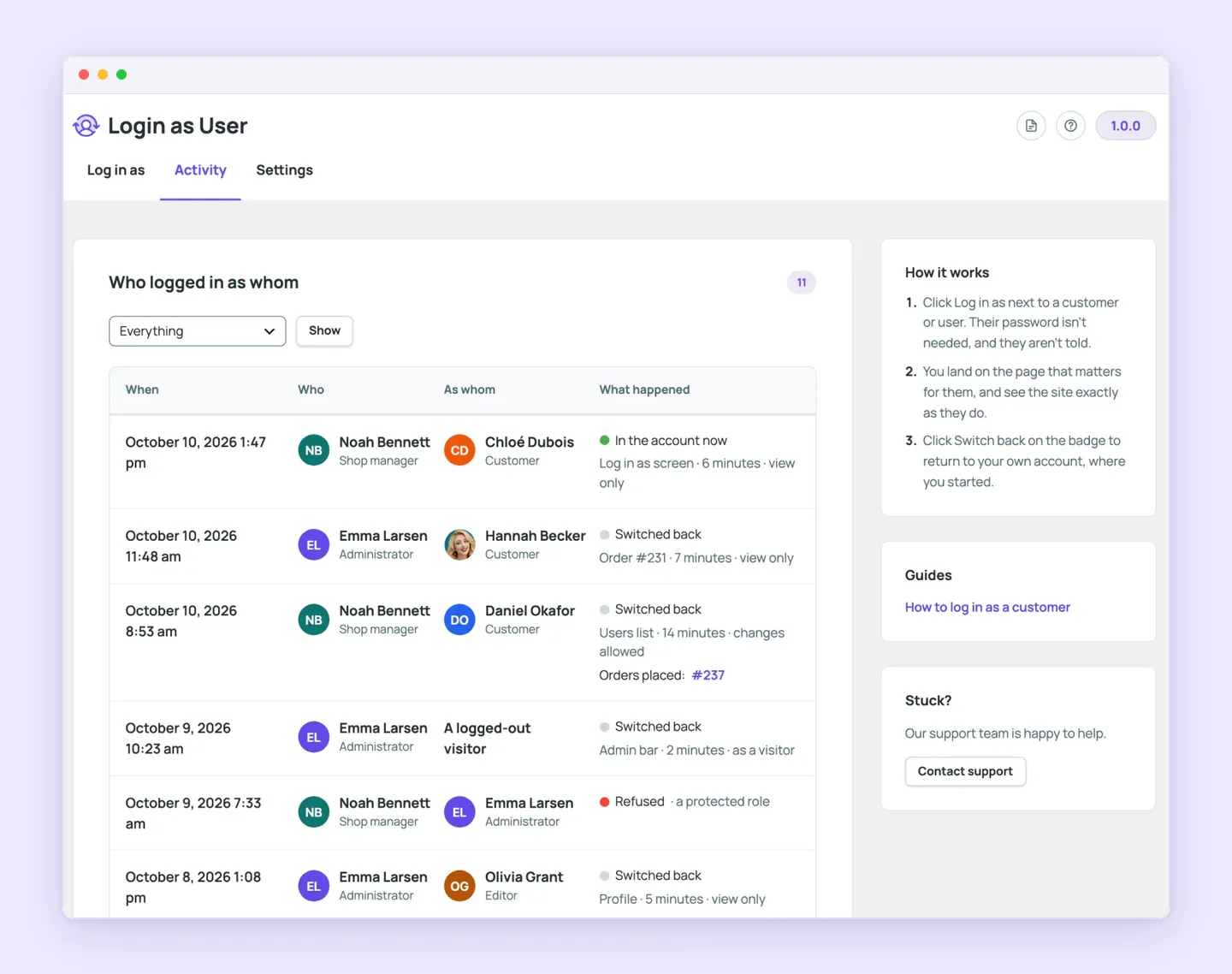
Beyond each troubleshooting task, you have controls for managing support access. You can:
- Set a time limit to control how long support visits last.
- Review who visited each account and any orders staff placed.
- End active visits from your dashboard.
- Choose how long to retain activity records, with visit history stored in your own WordPress database.
To add this workflow to your site, install Superb Login As User.