The official MCP Adapter plugin shows 50,000+ active installations on WordPress.org. The team that ships it still calls it experimental.
That gap matters if you manage client sites. WordPress MCP lets Claude, Cursor, and other AI tools change a real WordPress site from a chat window, and those changes land the moment the agent makes them.
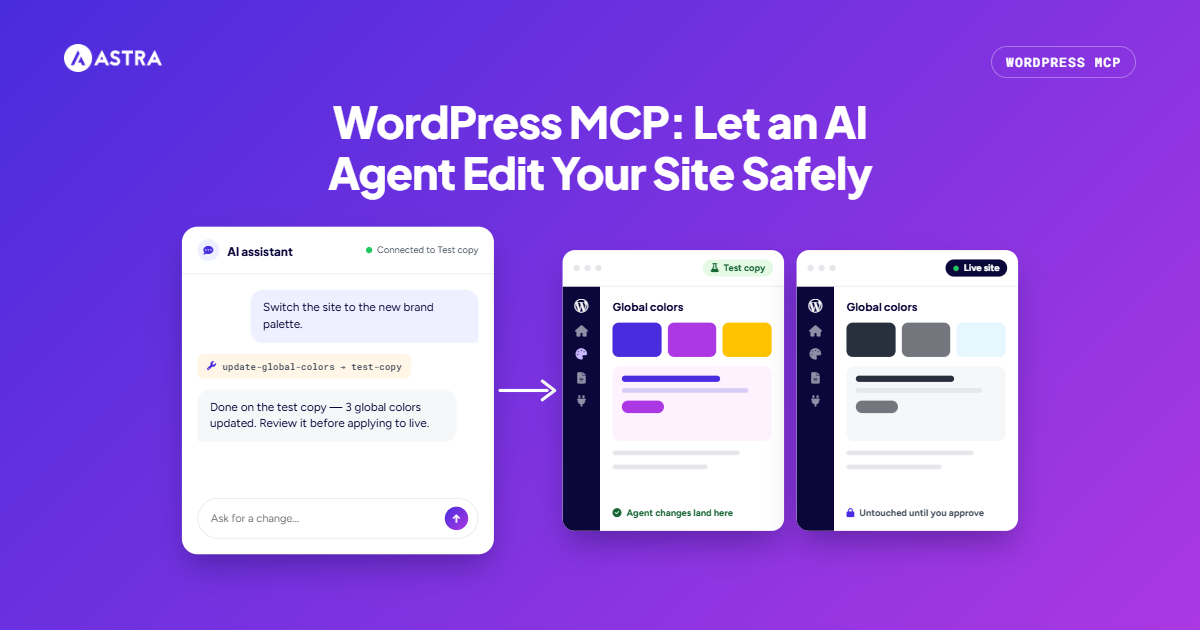
Most guides stop at “here’s how to connect it.” This one covers the part they skip: connect the agent to a disposable copy, check its work, then apply only the changes you approve to the live site.
That disposable copy comes from ZipWP, which can clone or create a WordPress site from the same chat window and delete it when you’re done. You’ll also get a permissions checklist for every layer, from your ZipWP account down to the theme.
Quick answer: WordPress MCP lets AI tools like Claude and Cursor read and change a WordPress site through the Model Context Protocol. Your site decides what the AI may do, and the MCP Adapter plugin connects the AI tool to your site. Test every change on a copy first, such as one made with ZipWP.
Astra’s own MCP abilities ship in the free theme, so you can try this whole workflow without buying anything for the theme layer.
The Safe Workflow at a Glance
Here’s the whole process in one table. Each step gets its own section below.
| Step | Where it happens | Permission it needs | Risk it removes |
|---|---|---|---|
| Connect ZipWP AI Agent to Claude | Your AI client and ZipWP | Read and write, delete off | The agent can’t remove a site by mistake |
| Make a copy of the site | ZipWP | Write | Nothing the agent does touches the live site |
| Install the MCP Adapter on the copy | The copy’s WordPress admin | A dedicated user and Application Password | Live credentials never reach the agent |
| Give the agent real work | Claude, connected to the copy | Edit abilities on the copy only | Mistakes happen where they cost nothing |
| Apply approved changes to live | Claude, connected to the live site | Read first, then edit for approved prompts only | Only reviewed changes reach visitors |
| Delete the copy | ZipWP | Delete, switched on for this step only | No forgotten test sites with live data |
The pattern is simple: broad access on the copy, narrow access on the live site, and delete access only when you need it.
What WordPress MCP Means, in Plain Language
MCP stands for Model Context Protocol. It’s a common way for AI tools to connect to other software, so each tool doesn’t need its own custom integration.
Think of it as a standard plug. Your WordPress site decides which outlets to wire up, and the AI can only use the outlets that exist.
In practice, it means this: you can make changes in WordPress admin by typing a request into Claude. Instead of clicking through the Customizer to change your colors, you write “switch the site to this palette,” and Claude makes the change for you.
Two pieces make that work:
- The AI tool you chat with, such as Claude Desktop, Claude Code, Cursor, or Windsurf.
- A plugin on your WordPress site that tells the AI tool what it’s allowed to do and carries out the requests.
So what decides what the AI is allowed to do? That’s the job of two layers inside WordPress.
Abilities API and MCP Adapter: Two Layers Inside the Site
The Abilities API decides what an AI is allowed to do on your site. The MCP Adapter lets your AI tool reach those actions. One sets the rules, and the other opens the door. You need both before Claude can change anything.
The Abilities API: What the AI Is Allowed to Do
The Abilities API is built into WordPress 6.9 and newer. Think of it as a menu of actions your site offers to AI tools.
What that means for you:
- WordPress itself only lets the AI read basic information, like your site name, your user details, and the server environment. It can’t change anything on its own.
- Your theme and plugins add the useful actions. Astra, for example, adds actions for colors, fonts, and layouts.
- Your WordPress role still applies. If the user the AI signs in as can’t change theme settings, neither can the AI.
You don’t need to build or register anything yourself. If a plugin you use supports the Abilities API, its actions are ready once the next layer is switched on.
The MCP Adapter: Why You Need to Install It
The MCP Adapter is the plugin that connects your AI tool to that menu of actions. Without it, Claude can’t see or use any of them, even if your theme supports them.
It’s a free canonical plugin on WordPress.org, which means the WordPress team maintains it, but it isn’t part of core yet.
Two things to know before you install it:
- It only shares actions that are marked public, and it still checks your user’s permissions before anything runs.
- It’s still experimental. Updates have changed how it works, so test each new version on a copy before updating a live site.
Where Astra MCP Fits
Astra MCP is the set of actions the Astra theme adds through the Abilities API. It’s included in the free Astra theme, and Astra Pro doesn’t add extra actions. It needs Astra 4.13.0 or newer and the MCP Adapter plugin.
It covers theme settings: typography, colors, buttons, the Header & Footer Builder, blog layouts, sidebars, and more. In Astra Only mode, that’s 74 abilities.
You control it from Astra → Settings → MCP in your WordPress dashboard. That panel has three switches:
- Enable Abilities makes Astra’s actions available.
- Enable MCP Server lets your AI tool connect to them.
- Enable Edit Abilities decides whether the AI can change your theme settings. With it off, the AI can only read them. The Astra MCP doc says to turn it on only when the AI tool should be able to make changes.
One more layer sits around the site. ZipWP’s MCP server lets an AI create, clone, and delete whole WordPress sites. Here, its job is to make the throwaway copy and remove it afterward. If ZipWP is new to you, this overview of ZipWP AI covers what else it does.
| Layer | What it controls | Example action |
|---|---|---|
| Abilities API | Which actions exist on the site | Read the site name |
| MCP Adapter | Whether your AI tool can reach those actions | Let Claude use Astra’s actions |
| Astra MCP | Theme settings | Change the global color palette |
| ZipWP MCP | Whole sites | Clone a site, delete a site |
With the layers clear, here’s why the first run shouldn’t happen on a site real visitors use.
Why Your First WordPress AI Agent Run Shouldn’t Touch a Live Site
A WordPress AI agent doesn’t make a draft for you to approve. Astra’s own docs say MCP changes take effect immediately, and they tell you to review changes in the Customizer afterward.
That leads to three risks on a live site.
- Unchecked edits: “Make the headings bolder” could change the H1 only, or every heading on the site. On a live site, visitors see the result before you do.
- Permissions that are too broad: An Application Password signs the agent in as a real user, with that user’s full role. All of Astra’s theme abilities also share one capability, edit_theme_options, so an agent that can change the button color can change the header layout too.
- No clean undo for settings: WordPress revisions track post fields like the title and content. Theme settings aren’t part of them, so a changed palette has no revision to roll back to.
- Add the adapter’s status: Taken together, 50,000+ installations, an “experimental” label, and nine releases in about 14 months with breaking changes point to adoption moving faster than stability. That’s not a reason to avoid MCP. It’s a reason to run the first session where a mistake costs nothing.
How to Test an AI Agent on a Copy of Your WordPress Site
Here’s the scenario we’ll follow. Say you manage a bakery’s Astra site, and the client has rebranded. They want a new color palette, new heading fonts, and a cleaner blog archive layout. That’s a good first agent job: repetitive, spread across many settings, and easy to check by eye.
Step 1: Connect ZipWP AI Agent to Claude With Delete Turned Off
ZipWP connects through OAuth, so you approve access in your browser instead of pasting a key. The ZipWP MCP docs list three scopes:
- mcp:read is always on. It lets the agent list your sites, templates, and blueprints.
- mcp:write is on by default. It lets the agent create and clone sites.
- mcp:delete is off by default. It lets the agent permanently delete a site.
In Claude Code, run this command, then start Claude, type /mcp, select zipwp, and sign in:
claude mcp add zipwp –transport http https://api.zipwp.com/mcp/zipwp
In Claude Desktop, you add ZipWP to the app’s settings file, called claude_desktop_config.json:
- Open Claude Desktop and go to Settings → Developer → Edit Config. This takes you to claude_desktop_config.json. On a Mac it lives in ~/Library/Application Support/Claude/, and on Windows in %APPDATA%\Claude\.
- Open the file in a text editor and add this block. If the file already lists other servers, add only the “zipwp” entry inside the existing “mcpServers” section.
\/+$/g,””).indexOf(“/”) - Save the file, then fully quit and reopen Claude Desktop.
- The first time Claude uses ZipWP, your browser opens the ZipWP authorization page.
The npx command comes with Node.js, so install Node.js first if your computer doesn’t have it.
In Cursor or Windsurf, add the same server address to the editor’s MCP settings file, then restart it. Cursor uses .cursor/mcp.json with “type”: “streamable-http” and “url”: “https://api.zipwp.com/mcp/zipwp”. Windsurf uses ~/.codeium/windsurf/mcp_config.json with “serverUrl” instead of “url”. The ZipWP MCP docs show the full blocks for each.
On the authorization page, check the selected team and leave delete unchecked. You can revoke the connection later under Account Settings → MCP Connections.

Step 2: Make the Copy
A plain request works: “List my ZipWP sites, then clone the bakery site and tell me the new URL.” How you get the copy depends on where the site lives and your plan:
- The site is already in ZipWP, and you’re on Pro or Business: clone it. The ZipWP clone doc says a clone keeps the same design, configuration, and login details, and that cloning is available on the Pro and Business plans.
- The site is hosted somewhere else: migrate a copy into ZipWP first. You can use your WordPress admin login, SFTP or SSH, or a backup file from All-in-One WP Migration, Duplicator, UpdraftPlus, or WPvivid. Your live domain keeps pointing at your current host, so the migrated copy is a true test site.
- You’re on the free plan, or you just want to experiment: ask the agent to create a blank site or start from a template close to your design. You won’t test against real content, but you’ll learn how the agent behaves. A WordPress sandbox site works too.
The clone finishes in 5 minutes, but can take longer depending on the size of your website. The agent can check progress with ZipWP’s get-site-progress tool.
Step 3: Install the MCP Adapter on the Copy and Connect Claude
Now connect Claude to the copy itself. This is the layer that edits settings and content.
- In the copy’s WordPress admin, go to Plugins → Add New, search for MCP Adapter, then install and activate it.
- Create a dedicated user for the agent on the copy. Don’t reuse your own account.
- Go to Users → Profile for that user, scroll to Application Passwords, add one named after the AI client, and copy it. WordPress only shows it once.
- Go to Astra → Settings → MCP. Turn on Enable Abilities and Enable MCP Server. On the copy, also turn on Enable Edit Abilities.
- Copy the JSON config Astra generates, merge it into your AI client’s MCP config file, and restart the client. The Astra MCP doc lists the file location for Claude Desktop, Claude Code, Cursor, Windsurf, and VS Code.

Step 4: Give the Agent Real Work
Start by asking what it can do: “Discover the abilities available on this site and list them.” This shows exactly which outlets are wired up, and whether a task you planned is possible yet.
Then give it the bakery job, in this order:
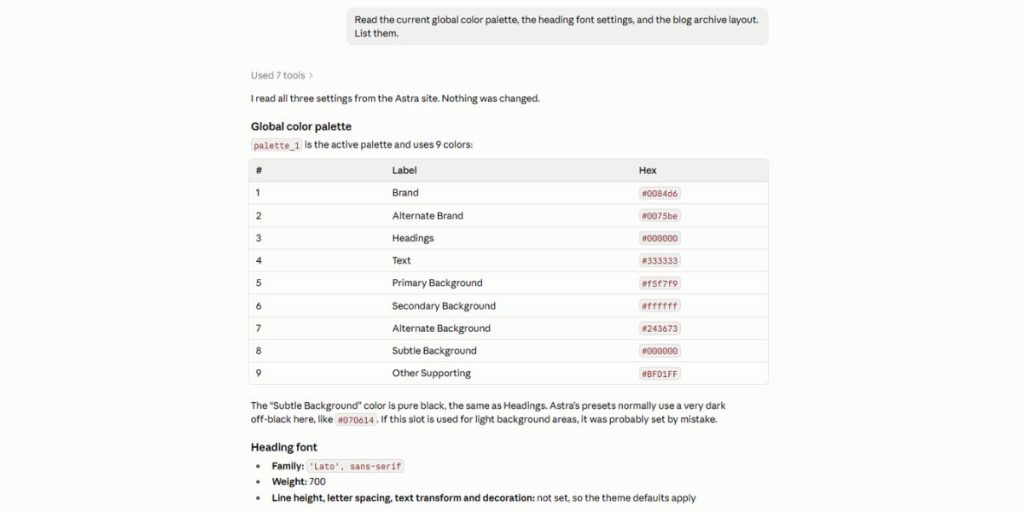
- Read first: “Read the current global color palette, the heading font settings, and the blog archive layout. List them.”
- Plan: “Here’s the new brand palette and heading font. List every setting you’d change and the new value for each. Don’t change anything yet.”
- Apply: “Apply the changes you listed.”
Save the agent’s “before” list. It’s your record of the old values, and later your rollback plan.
If the plan includes the body font too, you catch it in the list instead of on the site.
What about editing posts? Astra MCP’s Global mode adds core abilities, such as posts and pages, as WordPress releases them, and the Astra doc says that rollout is still in progress. Bulk post edits depend on what your site exposes today, so run the discover step and see.
Step 5: Review the Changes and Apply the Ones You Approve to Live
Check the copy the way a client would: the Customizer, the home page, a blog archive, a single post, and mobile. Mark each change approved or rejected.
There’s no button that syncs a copy back to live, and merging databases isn’t a safe substitute. WordPress stores serialized data and full URLs throughout the database, and the live site has likely changed since you copied it. A merge can overwrite new orders, comments, or posts.
Instead, treat the copy as a rehearsal and replay what worked:
- Back up the live site with your host’s backup or a backup plugin, and confirm it finished.
- Connect Claude to the live site with its own dedicated user and Application Password. Leave Enable Edit Abilities off.
- Read first again. Ask for the live site’s current values and compare them with the copy’s “before” list. If they differ, someone changed the live site since you copied it, so adjust your plan.
- Turn on Enable Edit Abilities and run only the approved prompts, word for word.
- Check the live site, then turn Enable Edit Abilities off again.
For the bakery, you approved the palette and fonts but rejected the archive layout, so the live session runs two prompts, not three.
ZipWP AI Agent creates and clones WordPress sites from Claude, Cursor, and other MCP clients, so your next agent session can start on a copy. See how ZipWP AI Agent works.
Step 6: Delete the Copy
A forgotten test site is a risk of its own, especially if it holds real customer data.
- Authorize the ZipWP connection again, this time with mcp:delete checked. [VERIFY: in-house test of the re-authorize flow for adding the delete scope]
- Ask the agent: “Delete the bakery copy.” Name the site clearly.
- Confirm in chat when the agent asks. The ZipWP docs describe the delete tool as “Permanently delete a site (requires confirmation).”
- Go to Account Settings → MCP Connections, and revoke that connection or authorize again without delete.
Permissions Checklist for a WordPress AI Agent
Most MCP security advice covers one layer at a time. This checklist puts all of them side by side.
| Layer | On the test copy | On the live site | Why |
|---|---|---|---|
| ZipWP mcp:read | On (always) | Not needed | Lets the agent find the copy |
| ZipWP mcp:write | On | Not needed | Needed to clone or create the copy |
| ZipWP mcp:delete | Off, on only for Step 6 | Never | Deleting is permanent |
| WordPress user | Dedicated agent user | Separate dedicated agent user | Revoke one without affecting the other |
| Application Password | One for this copy | One for the live site, revoked after the session | Signs in as that user’s full role |
| MCP Adapter exposure | Public abilities only (default) | Public abilities only, checked with the discover step | Only public abilities are reachable |
| Astra Enable Edit Abilities | On | Off, on only while replaying approved prompts | Read-first by default |
A note on roles: Astra’s theme abilities need edit_theme_options, which belongs to the Administrator role by default. So the live agent user may need admin rights for theme work, which is exactly why the read-first toggle and a revocable password matter.
Keep these off the live site, or confirm each run by hand:
What Works Well Today, and What Doesn’t Yet
Here’s what to plan around.
Works well today:
- Theme settings through Astra MCP, from colors and typography to the header, footer, and blog layouts.
- Read-only tasks, like listing settings or site info, which are the best way to start any session.
- Making and removing whole sites through ZipWP, all from the chat.
Not there yet:
- The MCP Adapter is still experimental, and updates have changed how it works.
- Post and page editing depends on what’s exposed. Astra’s Global mode rollout of core abilities is still in progress.
- There’s no one-click sync from a copy to live. You replay approved prompts instead.
- ChatGPT support varies. The ZipWP MCP docs list ChatGPT. The Astra MCP doc says it isn’t supported yet.
- Cloning has limits. It covers sites in your ZipWP account, on Pro and Business plans.
In Conclusion
The bakery rebrand ends with a new palette and new heading fonts on the live site. The archive layout the client didn’t like never reached a single visitor.
That’s the value of WordPress MCP set up this way: the agent does the repetitive work, and you only approve what you’ve seen working. Three habits carry over to every project:
- Run the first session on a copy, never the live site.
- Read first, plan second, apply third, on both sites.
- Keep delete access off until the moment you need it.
The tooling will change as the MCP Adapter matures. The workflow won’t need to.
Follow the Astra MCP setup guide to connect Claude, Cursor, or Windsurf to your copy’s theme settings.
FAQs
What is WordPress MCP?
WordPress MCP is the setup that lets AI tools like Claude and Cursor work on a WordPress site through the Model Context Protocol. Plugins and themes declare actions through the Abilities API, and the MCP Adapter plugin makes those actions available to AI clients. The AI can only use actions the site has declared and marked public.
Is the MCP Adapter part of WordPress core?
No. The MCP Adapter is a canonical plugin on WordPress.org. The WordPress AI team kept it out of core because the MCP spec is still changing. The Abilities API it builds on is in core.
Does WordPress MCP work with ChatGPT?
It depends on the product. The ZipWP MCP docs list ChatGPT as a supported client, added through its tools and integrations settings. The Astra MCP doc says ChatGPT isn’t currently supported. Claude Desktop, Claude Code, Cursor, and Windsurf work with both, so pick one of those if you want the full workflow in this guide.
Do I need WordPress 6.9 to use the Abilities API?
Yes, for the built-in version. The MCP Adapter plugin also requires WordPress 6.9 or newer. The Astra MCP doc notes that older WordPress versions need the Abilities API polyfill plugin, but upgrading WordPress is the cleaner path for an agent workflow.
Why do some setup guides use a different WordPress MCP package?
Some older guides and AI answers suggest “@automattic/wordpress-mcp” with a WP_URL setting. That came from an earlier project, and its repository now points users to the MCP Adapter. Current setups use the MCP Adapter plugin, or the @automattic/mcp-wordpress-remote package for remote sites.
Does this work if my site isn’t hosted on ZipWP?
Yes. Migrate a copy of your site into ZipWP using your admin login, SFTP or SSH, or a backup file, and use that copy as your test site. Your domain stays on your current host. If you only want to experiment, start from a blank site or a template instead.
What does it cost?
Astra MCP is included in the free Astra theme, and the MCP Adapter is a free plugin on WordPress.org. Cloning in ZipWP is available on the Pro and Business plans, according to the ZipWP clone doc. Check ZipWP’s pricing page for current plan prices.
Can an AI agent delete my site?
Only if you allow it. ZipWP’s delete scope is off by default, and its delete tool asks for confirmation before permanently removing a site. Inside WordPress, the agent can only run public abilities that its user has permission for. Keep delete access off except during cleanup, and revoke it afterward.


Sujay Pawar is the co-founder and CEO of Brainstorm Force.
He brings a one-of-a-kind fusion of tech brilliance, business savvy and marketing mojo to the table.
Sujay has consistently spearheaded the development of innovative products like Astra, CartFlows, ZipWP and many others that have become market leaders in their respective niches.
Disclosure: This blog may contain affiliate links. If you make a purchase through one of these links, we may receive a small commission. Read disclosure. Rest assured that we only recommend products that we have personally used and believe will add value to our readers. Thanks for your support!