
A color is a color until it reaches WooCommerce, where it can become three different things. A global attribute with its own taxonomy and terms. A custom attribute stored as text on the product. Or the switch that defines a variation dropdown.
The import has to pick one before it writes anything, and the file rarely says which.
In this guide, we’ll cover how to import WooCommerce products with attributes, and how to choose the attribute option that matches how the store sells.
What Makes Product Attributes Difficult to Import?
Attributes look like the simplest column in a product file. They carry a name and a value, the same as a price or a title, and nothing about them suggests a decision.
- Storage depends on the attribute type: A global attribute is registered as a taxonomy with a
pa_prefix, such aspa_color, and its values become terms inwp_terms. A custom attribute is serialized into the_product_attributespostmeta field instead. Same column in the file, two different destinations in the database. - Names have to match an existing attribute: Importing “Color” into a store that already has “Colour” creates a second taxonomy. The category page then shows two color filters, and each one lists half the catalog.
- Values create terms: Every value in the file becomes a term unless term creation is switched off. A typo in one row adds a permanent filter option that no product really uses.
- Variations depend on attributes: An attribute marked for variations produces a dropdown on the product page. The same attribute left unmarked produces a list of options and no way to add any of them to the cart.
- Filters read a separate table: The filter widgets on a category page don’t read the product directly. They read a separate lookup table that WooCommerce fills in the background.
The first and last points carry the most weight, and both come down to how WooCommerce stores the attribute rather than how the file presents it.
What Is the Difference Between Global and Custom Attributes?
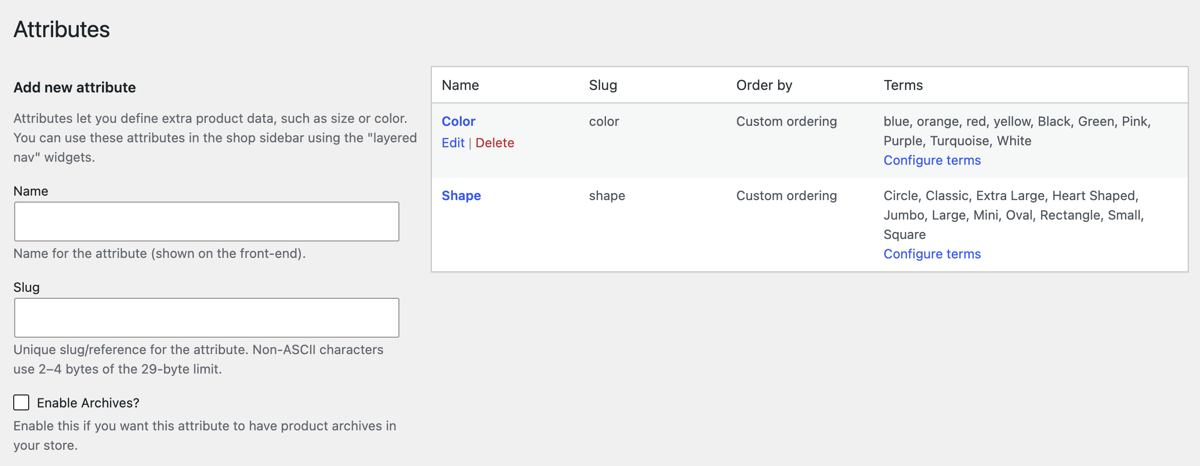
A global attribute is created once and shared by every product that uses it. WooCommerce registers it as a taxonomy, which is why it carries the pa_ prefix in the database, and its values live as terms rather than as text on each product.
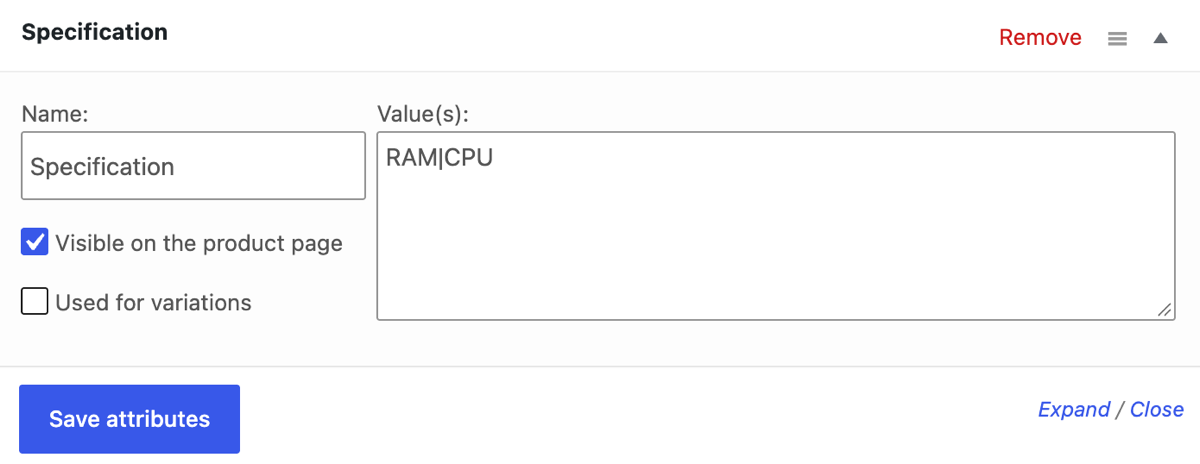
A custom attribute belongs to one product. Its name and value are typed on that product’s edit screen, and WooCommerce stores the pair in the _product_attributes field. Nothing is shared, so nothing has to be kept in sync.
| Global attribute | Custom attribute | |
|---|---|---|
| Created in | Products › Attributes, then attached to the product | The product’s own Attributes tab |
| Stored as | A taxonomy such as pa_color with terms |
A serialized entry in _product_attributes |
| Appears in filter widgets | Yes | No |
| Used for variations | Yes | Yes |
| Values shared across products | One list, reused everywhere | Retyped on each product |
| Good for | Color, size, brand, material | One-off specifications |
Which One Should the Import Create?
If a customer would filter by it, make it global. That covers color, size, brand, material, and anything else that appears in a sidebar widget on a category page.
If the value describes one product and nothing else, a custom attribute is enough. A warranty length or a country of manufacture rarely needs its own filter.
When the answer is unclear, choose global. Converting a custom attribute later means rewriting every product that carries it, and the terms do not come along.
How to Import WooCommerce Products with Attributes
Attributes arrive in whatever shape the supplier chose. One file carries a Size column and a Color column. Another lists each size on its own row. A third nests them inside an XML product node.
WooCommerce expects the same three things from all of them. An attribute name, a list of values, and a decision about whether those values result in variation.
WP All Import handles the first two on upload. It reads the columns, pairs each attribute with its values, and opens the template editor with both already filled in. A store that already has a Color attribute keeps it, since the import matches by name rather than creating a second one.
Attributes arrive in whatever shape the supplier chose. One file carries a Size column and a Color column. Another lists each size on its own row. A third nests them inside an XML product node.
WooCommerce expects the same three things from all of them. A name, a list of values, and a decision about whether those values drive a variation.
WP All Import does the mapping on upload. Automatic Setup reads the file and fills in the product fields itself, attribute names and values included, so the template editor opens with the work already done instead of a screen of blank fields. The file can arrive as CSV, Excel, XML, or a live Google Sheets URL.
The rest of the job is covered too. Attributes already defined on the store are reused rather than duplicated. A supplier feed that changes monthly can import on its own schedule. And Preview shows a finished product before anything is written to the catalog.
The four steps below cover that workflow from installation to a finished catalog.
Step 1: Install the Plugin, Upload the File, and Describe the Attribute Columns
Attributes import through the WooCommerce Import Add-On, which requires the Pro version of WP All Import. Both have to be installed and active before the product import type appears in the wizard.
Download both zips from the WP All Import account area, then go to Plugins › Add New Plugin › Upload Plugin. Choose the file, click Install Now, then Activate Plugin. Repeat for the add-on, and enter the license key on the All Import › Settings screen so updates keep arriving.
With both active, go to All Import › New Import and click the Set up automatically banner.
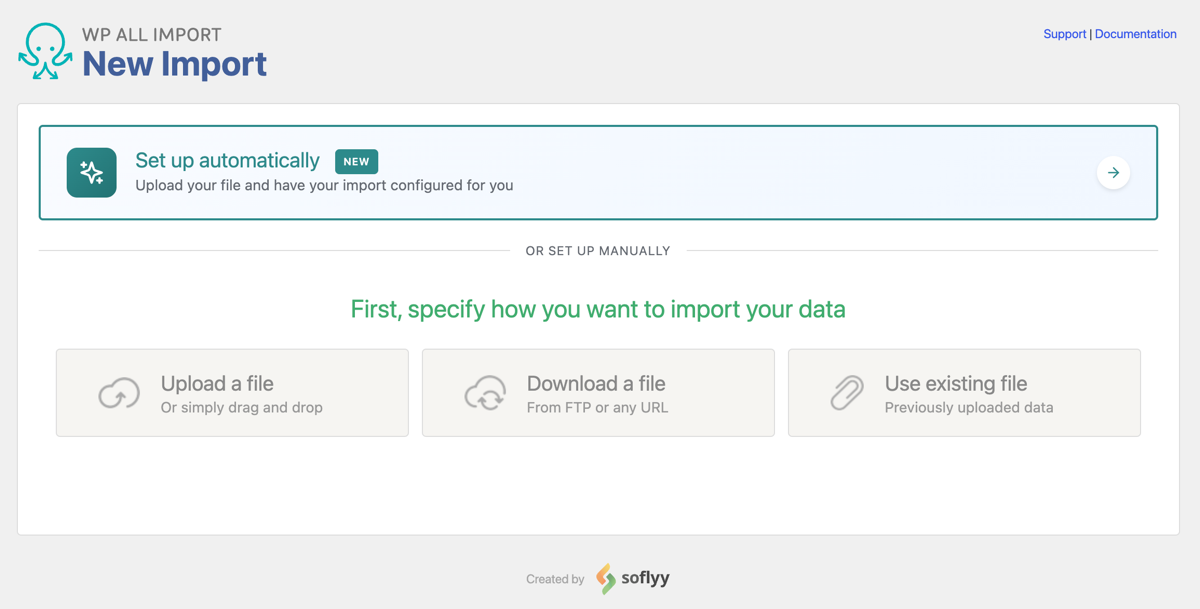
The file source tabs offer an upload, a URL, an existing file on the server, and an FTP or SFTP connection, with a 256 MB limit on each.

Set Choose What to Import to WooCommerce, then Products. In Add Setup Instructions, describe anything the WP All Import could misread, such as “Size and Color apply to variations” or “Values in the Material column are pipe-separated.”
Click Start Automatic Setup. The wizard reads the file and builds the product fields, including the attribute pairs.

Step 2: Check the Attribute Pairs It Detected
Your Import Is Ready reports two numbers: how many records the file holds, and how many fields the wizard mapped. Both are worth a glance before anything else.
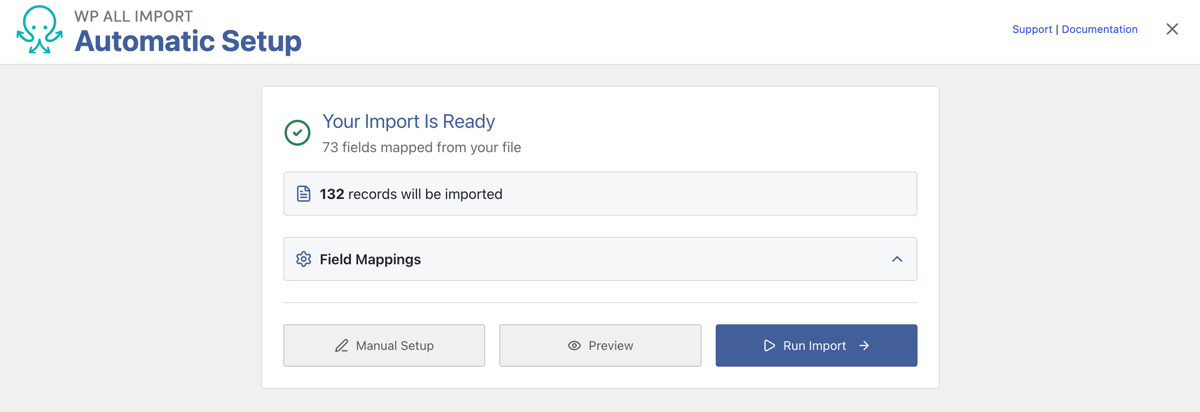
Then open Field Mappings and find the attribute entries. Each one should pair an Attribute Name with an Attribute Value, the way a Size column pairs with the word Size and a list of measurements.
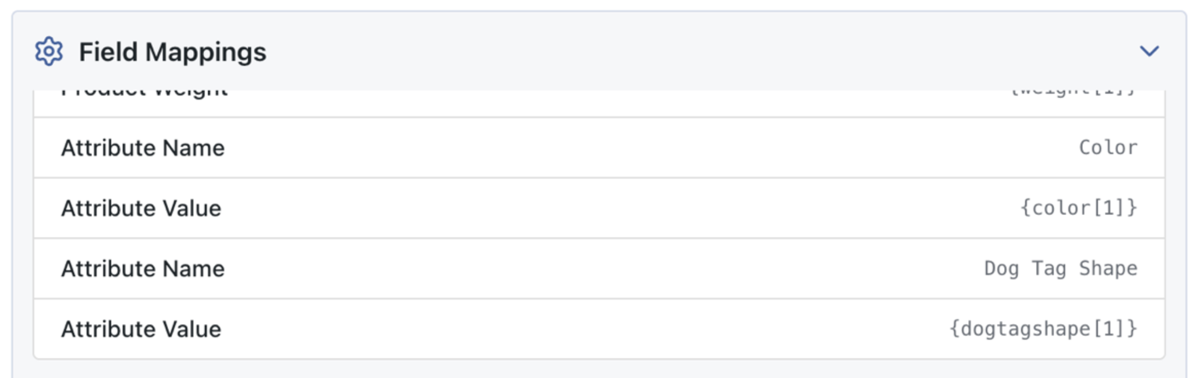
The list confirms which column feeds which field. It doesn’t confirm how those values will be split, where they’ll be stored, or whether the attribute will drive a variation. Those decisions happen one screen later, in the Attributes tab.
What is worth checking here is a half-built pair. An attribute value mapped with no name, or a name mapped with no value, produces a product page that lists the attribute and shows nothing under it.
The card below offers three ways forward: Manual Setup, Preview, and Run Import. Take Manual Setup when an attribute is missing its name or its value. The editor opens with the automatic work intact, so the fix is one added field rather than a remapped attribute.
Step 3: Set the Four Attribute Options
The template editor arranges product fields into panels, and the attribute work lives in the Attributes tab inside the WooCommerce Add-On. Every attribute in that panel has a Name and a Values field, and Add Attribute creates another row when the file carries more attributes than the wizard found.
Click Advanced under an attribute to reach the four settings that decide how it behaves.
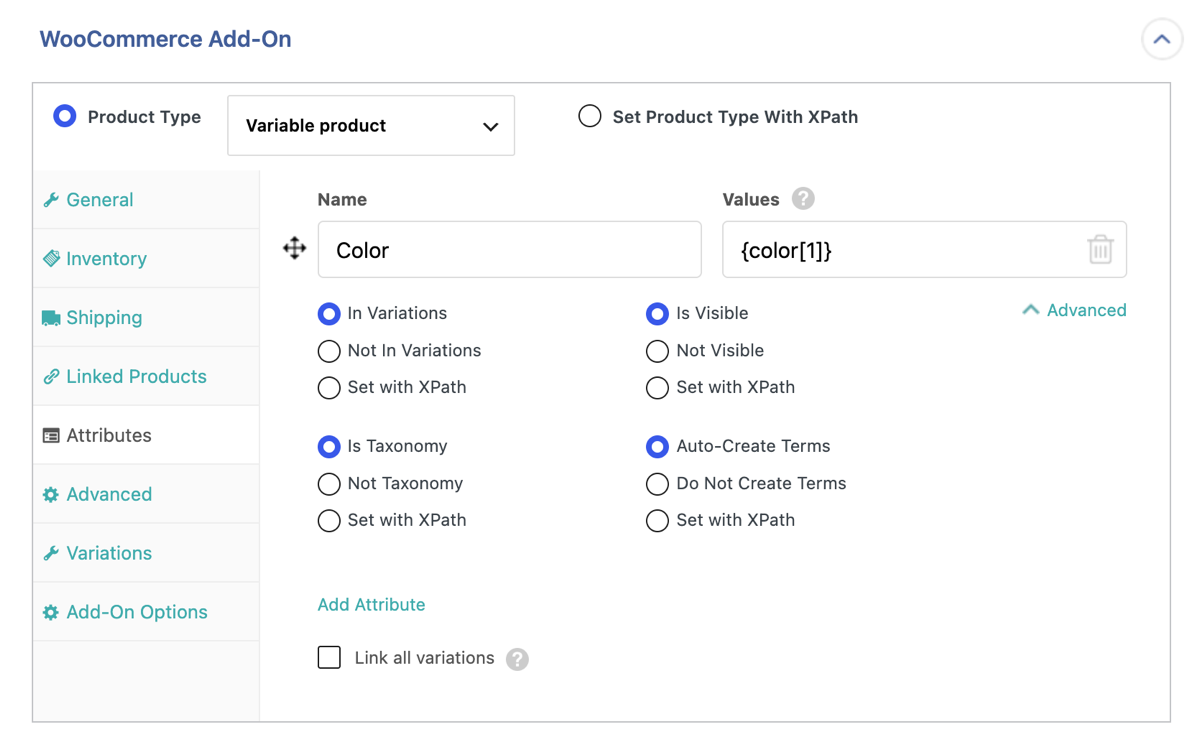
In Variations turns the attribute into a selector on the product page. Is Visible controls whether the value shows in the product details table. Is Taxonomy is the global switch from earlier, sending the attribute to its shared taxonomy rather than to the individual product.
Auto-Create Terms handles values the store hasn’t seen before. Left on, an unfamiliar size becomes a new term. Switched off, the value is skipped and the product keeps the rest of its attributes.
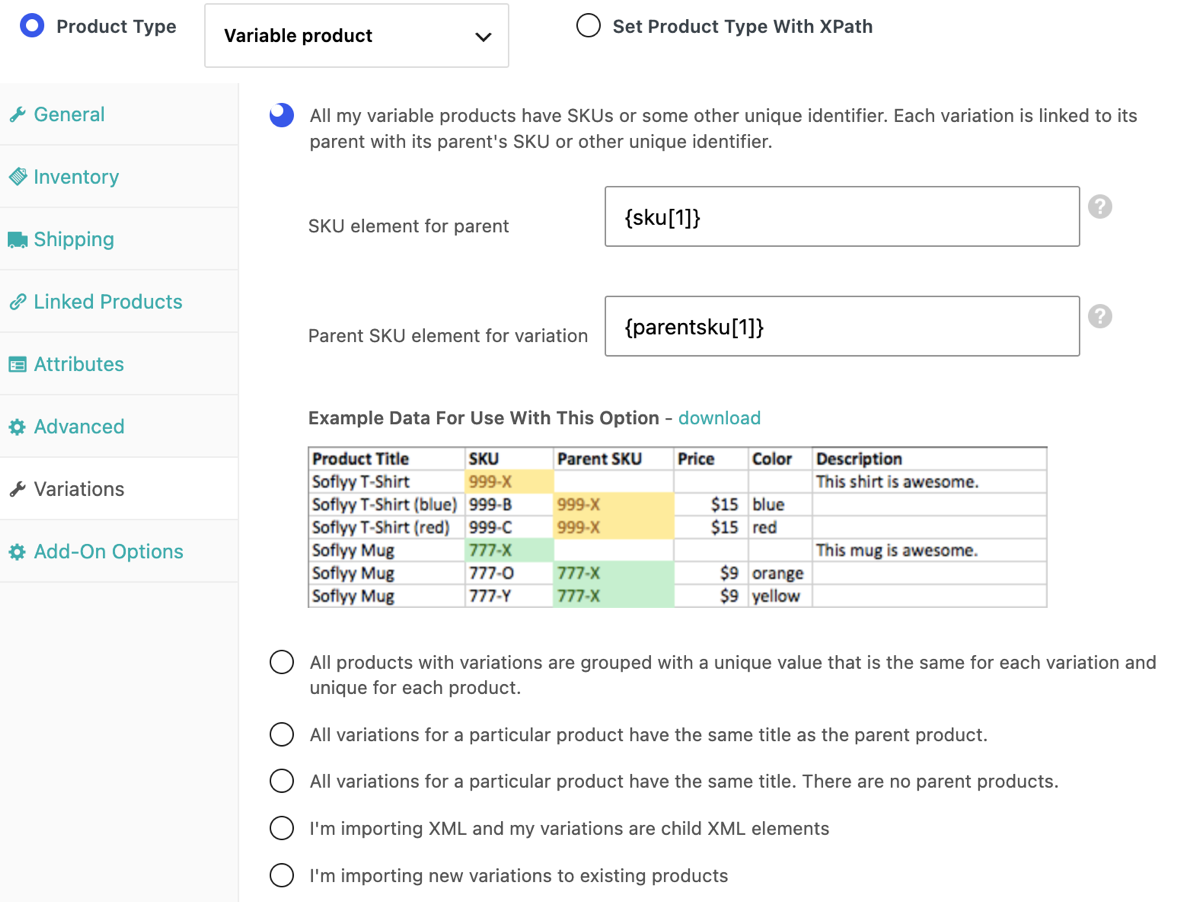
Once the attribute settings are done, move to the Variations tab, where each variation is linked to its parent. Parent SKU covers most files, child XML elements cover nested feeds, and XPath from Parent fills a value the variation record leaves empty.
Step 4: Preview the Dropdowns and Run the Import
On the same page, click Preview and switch to Frontend View. That is a real product page, so pick each option in the dropdown and watch the price, image, and SKU change with it.
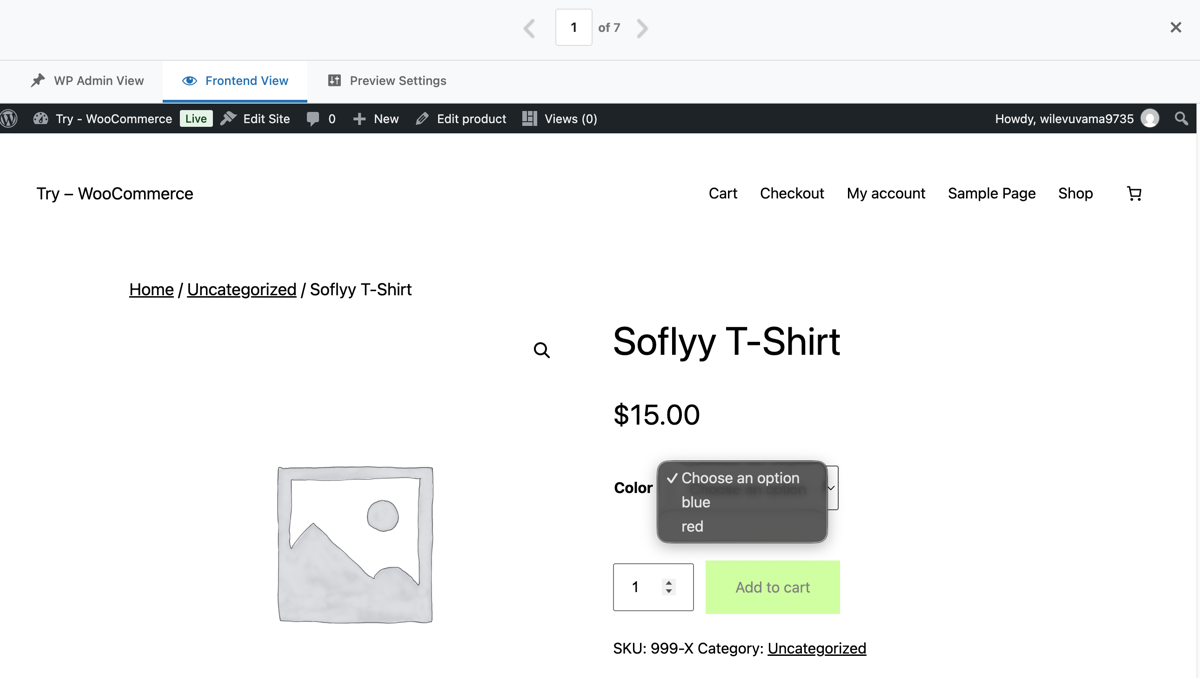
Once that looks right, close the preview and click Run Import, then confirm. Products land under Products › All Products, and the import log names any record that failed on a missing term or a duplicate SKU.

If a product later shows one option and nothing to buy, the In Variations setting from the previous step is the first place to look.
What Is the Best Way to Import WooCommerce Products with Attributes?
Attributes fail on two decisions, not on the import itself. Which type the value should become, and whether it drives a variation. Both get made before the run, and both are hard to spot afterward.
WP All Import makes both of those decisions in one place. Automatic Setup pairs each attribute with its values, and the Attributes tab holds the type, the visibility, and the variation setting.
The plugin reads CSV, Excel, XML, and Google Sheets files, matches existing global attributes by name instead of creating duplicates, and shows the product page before anything is saved.
One rule covers most imported attributes. If a customer would filter by it, import it as a global attribute. If the value belongs to a single product, keep it custom. A catalog that mixes the two ends up with filters listing half its products, which is the problem this article started with.
Frequently Asked Questions – Best Way to Import WooCommerce Products with Attributes
Can WP All Import Add Values to an Attribute That Already Exists?
Yes. WP All Import matches the attribute by name, so an existing Color attribute receives the new values instead of a second taxonomy being created. Auto-Create Terms adds any value the store doesn’t have yet, and existing terms are reused.
Why Do Imported Attributes Not Show Up as Filters?
Either the attribute was imported as custom, or the lookup table hasn’t rebuilt. Custom attributes are never filterable in WooCommerce. For global ones, run Regenerate product lookup tables under WooCommerce › Status › Tools and give Action Scheduler time to finish.
Why Did My Variable Products Import Without Dropdowns?
The attribute was not marked for variations. In WP All Import, open the Attributes tab, click Advanced under the attribute, and enable In Variations. The Variations tab also has to link each variation to its parent before WooCommerce renders a selector.
Can One Import Create Both Global and Custom Attributes?
Yes. Each attribute row in WP All Import carries its own Is Taxonomy setting, so a file can send Color to the shared taxonomy and Country of Manufacture to the product itself. The setting applies per attribute, not per import.
How Do I Stop Duplicate Attributes From Being Created?
Match the name exactly. WP All Import writes by name, so “Color” and “Colour” produce two taxonomies and two filters. Check Products › Attributes before the run, and use the existing spelling in the file rather than correcting it after.
Related Information