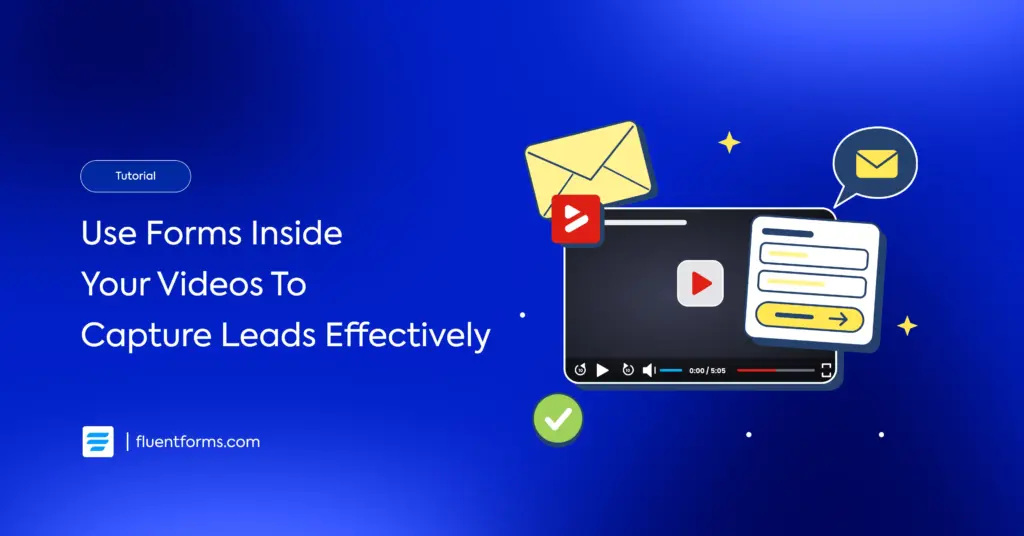
FluentPlayer adds interactive video to WordPress: a Fluent Forms form appears inside the player at a timestamp you set. Setting the timestamp takes a minute. Whether the form produces inquiries depends on the second it appears and where each submission goes.
When a viewer picks Website, Maintenance, or Redesign from the Service dropdown, the answer sets which message they see and which inbox gets the lead. You also choose the second the form appears in the video and the fields it carries.
A short form fits a quick inquiry. A long intake questionnaire belongs on its own page, and a booking calendar belongs in FluentBooking. Keep the in-video form to the fields a first reply needs. Everything else comes in the follow-up email.
This guide covers five setups with their timing, then builds the form in Fluent Forms and adds it to a video at a timestamp. Last comes routing each lead and what FluentPlayer Pro adds. Four of the five setups need only the free plugin.
TL;DR
- Place the form after the video’s payoff, not in the opening seconds
- Ask for the fewest fields and reveal more with conditional logic
- Match the confirmation to the next step: message, redirect, or conditional message
- Turn on double opt-in for nurture lists, not demo requests
- Read FluentPlayer Pro retention data to decide where the form moves next
5 Lead Capture Video Form Setups and When to Use Each
The right setup depends on the offer and the next step you want. Each row below pairs a situation with a field set and a timing window. The percentages come from FluentPlayer’s timing guide, so adjust them to your own retention data.
| Setup | Situation | Fields | When it appears | Handoff |
|---|---|---|---|---|
| Email only | Tutorial or explainer with a lead magnet | 60 to 85% in, after the main payoff | Email capture layer, then a downloadable resource | |
| Name and email | Product demo or walkthrough | Name, email | 60 to 85% in | Confirmation message plus admin notification |
| Service qualifier | Agency or coach explainer with several offers | Name, email, Service dropdown | After the section showing results | Routed notification, conditional confirmation, contact qualified in FluentCRM |
| Demo request | Sales demo or pricing walkthrough | Name, email, short message | Final 15%, with nothing else on screen | Notification to sales and a booking link, as in a call-back form |
| Lighter step first | Longer video, cold audience | CTA Banner or Hotspot, then the form | Banner at 25 to 60%, form after 60% | Banner leads to a resource, form captures the lead |
The form layer is free in FluentPlayer. The CTA Banner and Hotspot in the last row are FluentPlayer Pro layers, so the lighter first step needs the paid tier. The other four setups use only free layers. No upgrade is needed to test any of them.
Row three is the setup the rest of this guide builds: the Service dropdown from the intro, with a conditional Budget field for Website. Rows one, two and four use fewer fields. The same setup works for any offer with more than one answer.
How to Build the Lead Form in Fluent Forms
A short Fluent Forms form with three fields carries the whole setup. Start from a blank form, keep the fields to the ones a first reply needs, and add one conditional rule. The steps below build the Service dropdown form from the intro.
Create the form
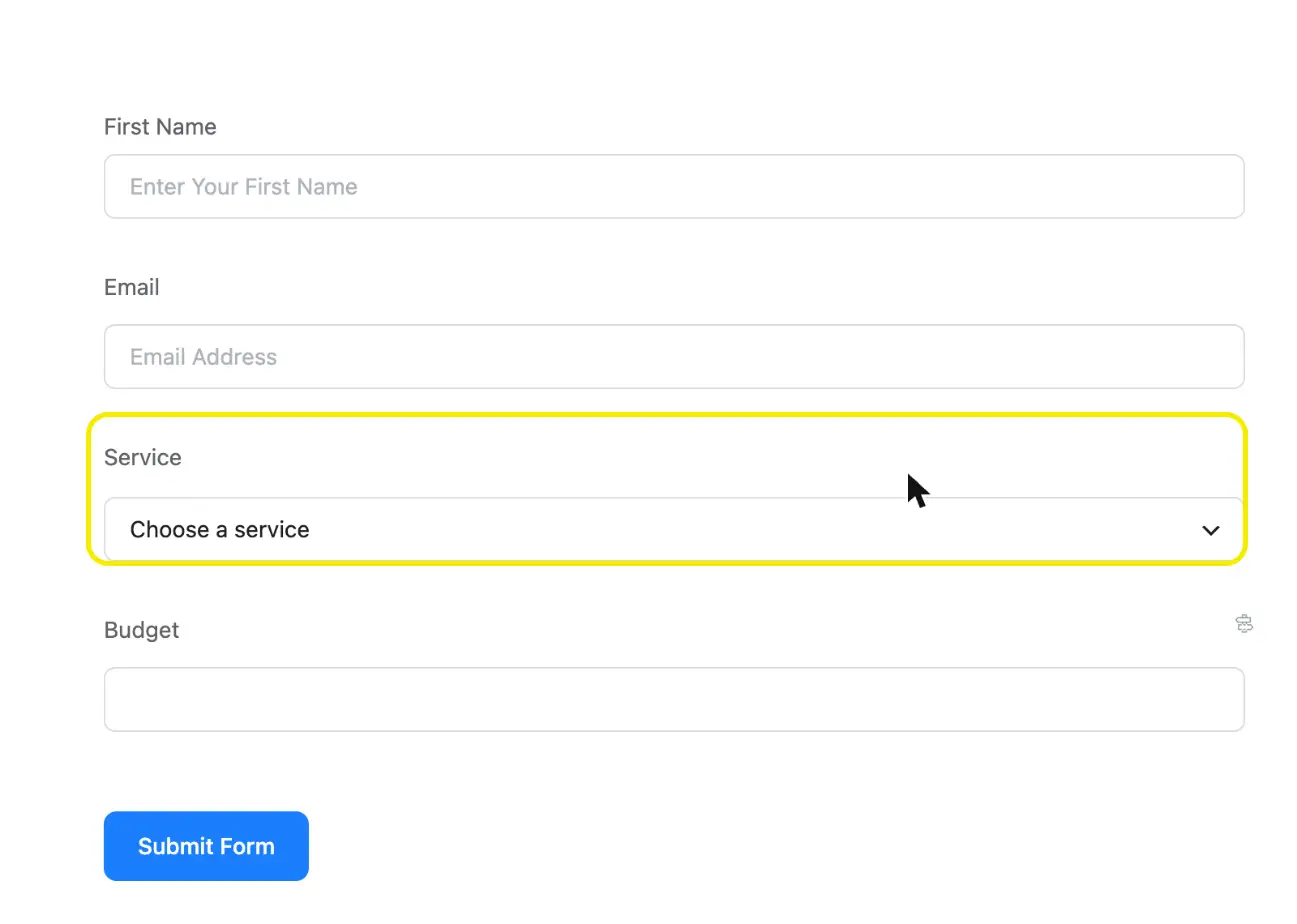
Open Fluent Forms, click Add New Form, and choose New Blank Form. Add Name Fields, Email, and a Dropdown. In Name Fields, untick Last Name. Rename the dropdown Service, set its placeholder to Choose a service, and enter Website, Maintenance, and Redesign as options.
Add one conditional rule
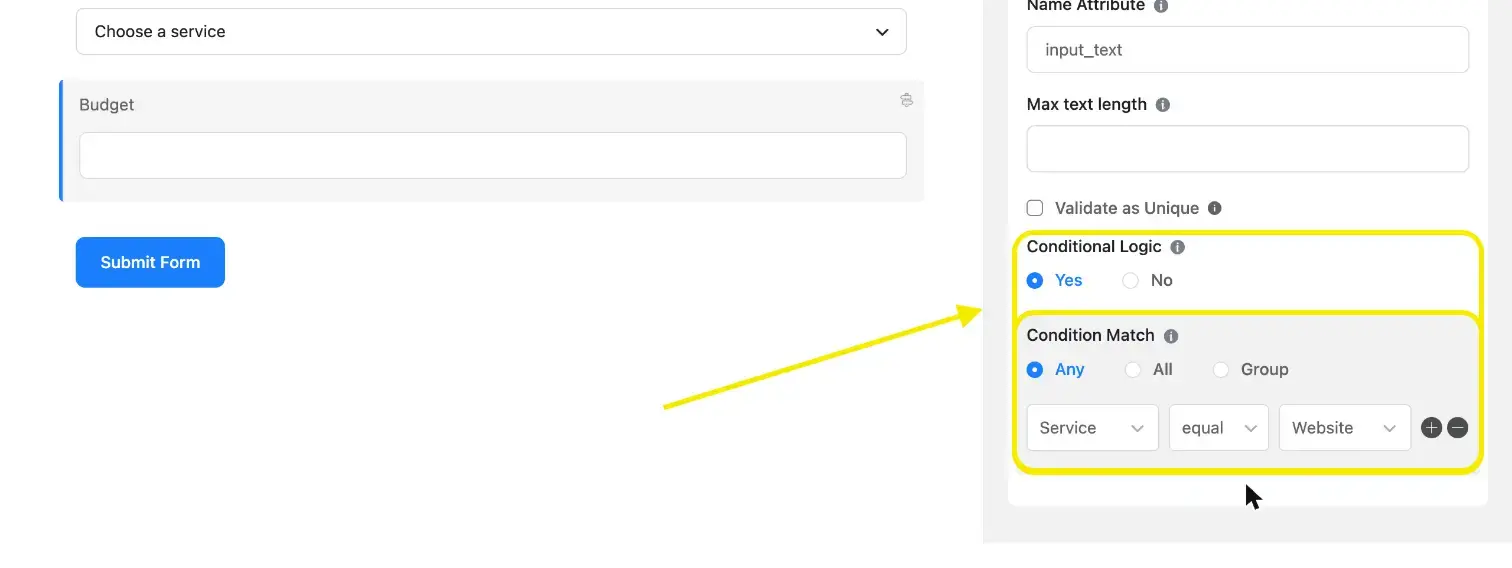
Add a simple Text Field and call it Budget. Open its Advanced Options, switch Conditional Logic to Yes, and set the rule to Service equal Website. The budget field now appears only when the answer is Website. Every other answer sees three fields.
Add the Form to Your Video With FluentPlayer
FluentPlayer shows a Fluent Forms form as an interactive layer, set per video. Each layer has its own timestamp, so one form appears at a different second in each video. The steps below add the form to one video and test it on a phone.
Install FluentPlayer and open a video
Install the free FluentPlayer plugin from WordPress.org, then open FluentPlayer from the admin menu and choose the video from the Media list. Self-hosted files, YouTube and Vimeo all work as sources, so start with the video you already publish on your site.
Add the form layer at a timestamp
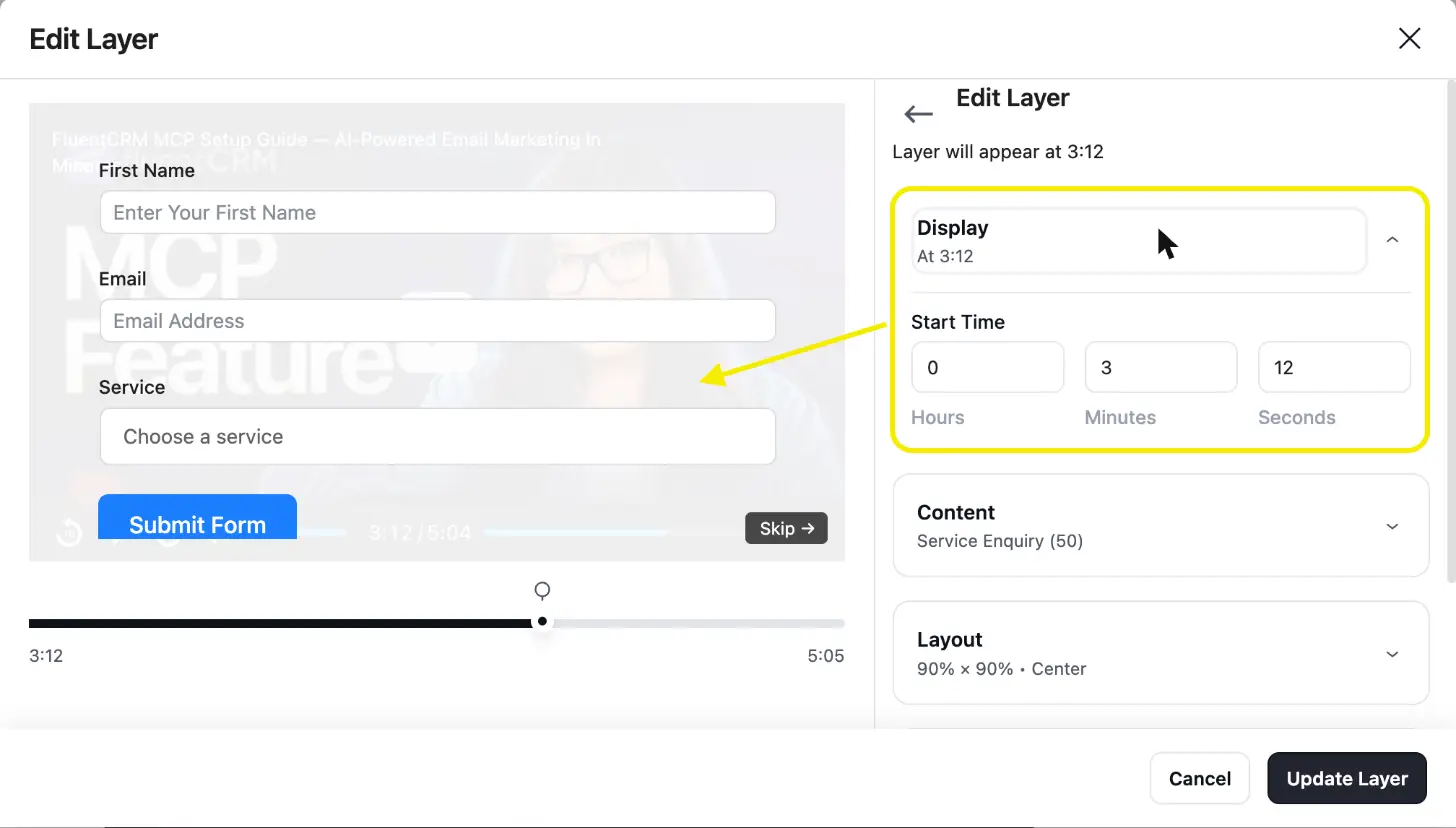
Open the video from the Media list, click the edit icon, and select the FluentPlayer block. In the Block sidebar, expand Interactive Layers and click Add Layer. Choose Fluent Forms, set Start Time in hours, minutes and seconds, then pick Service Enquiry under Content. Click Add Layer, then Save.
The Manage Layers window also holds Layout, Controls, and Appearance. Skip is enabled by default, so viewers skip the form and keep watching. Leave it on for a lead form. Place the media’s shortcode on a page to publish it. Conditions on a layer is a Pro feature.
Test it on a phone
Publish the page and test it on a phone before sending traffic. Autoplay behavior differs between desktop and iOS, so confirm the form appears at the right second on both. Submit it once with your own email to check the routing in the next section.
Choose the Right Moment for the Form
Place the form after the payoff, once the video has given something away. An earlier form asks for an email address before the video has earned it. FluentPlayer’s timing guide suggests 60 to 85 percent as a starting range, which your own data should refine.
Use your own retention data over any fixed range. FluentPlayer Pro analytics includes an Audience Retention chart showing where viewers leave. Place the form a little before the steepest drop. Anyone who left earlier never sees the form. The chart shows where viewers leave, not why.
Completion rate adds a second check. If few viewers finish, a form in the last seconds reaches few people, so move it earlier. Judge each move by one rate: form submissions divided by video viewers. Change one thing at a time.
For cold audiences, start smaller. A CTA Banner or Hotspot in the middle of the video links to a resource, and the form comes later. Both are FluentPlayer Pro layers, so the lighter first step is optional. Skip it on short videos.
Best practices for in-video forms
These habits keep a lead generation video form from costing you viewers:
- Keep it a short lead form: name and email first, extra fields only through conditional logic
- Write the button to match the promise, such as “Send me the checklist”
- Show one element at a time, never a form and a banner together
- Tell people what happens next in the form heading
- Cut every field a first reply does not need, which also limits form abandonment
- Check the layout on a phone screen against these form design rules
Route Each Lead After the Form Submits
Fluent Forms handles the handoff in three places: the confirmation message, the email notifications, and the contact record in your CRM. The service answer sets the confirmation message and the notification recipient. The CRM feed adds the contact. Set them up in this order, then test the full path.
Show a message that matches the answer
Under Settings & Integrations, open Conditional Confirmations and click Add Confirmation. Name it Website enquiry, write the message, and set the rule to service equal website. Add one confirmation per answer. Anyone else sees the default message from Confirmation Settings.
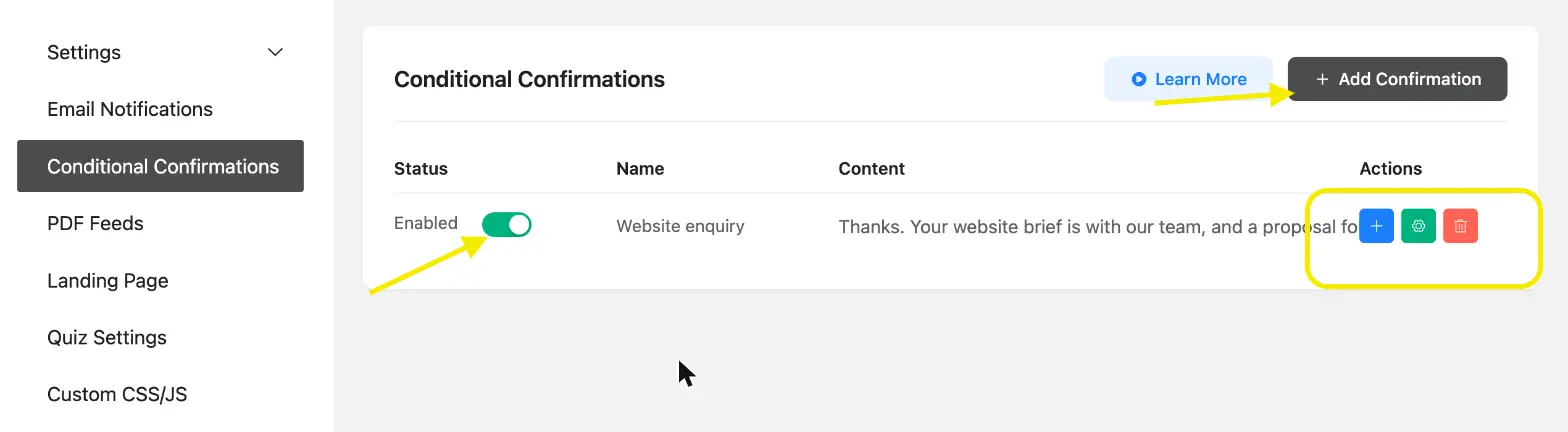
Use a message by default. Each confirmation also offers To a Page and To a Custom URL, which redirect the browser away from the video. Save redirects for a booking page or a resource download. Test any redirect on the live page first.
Turn on the notification and route it
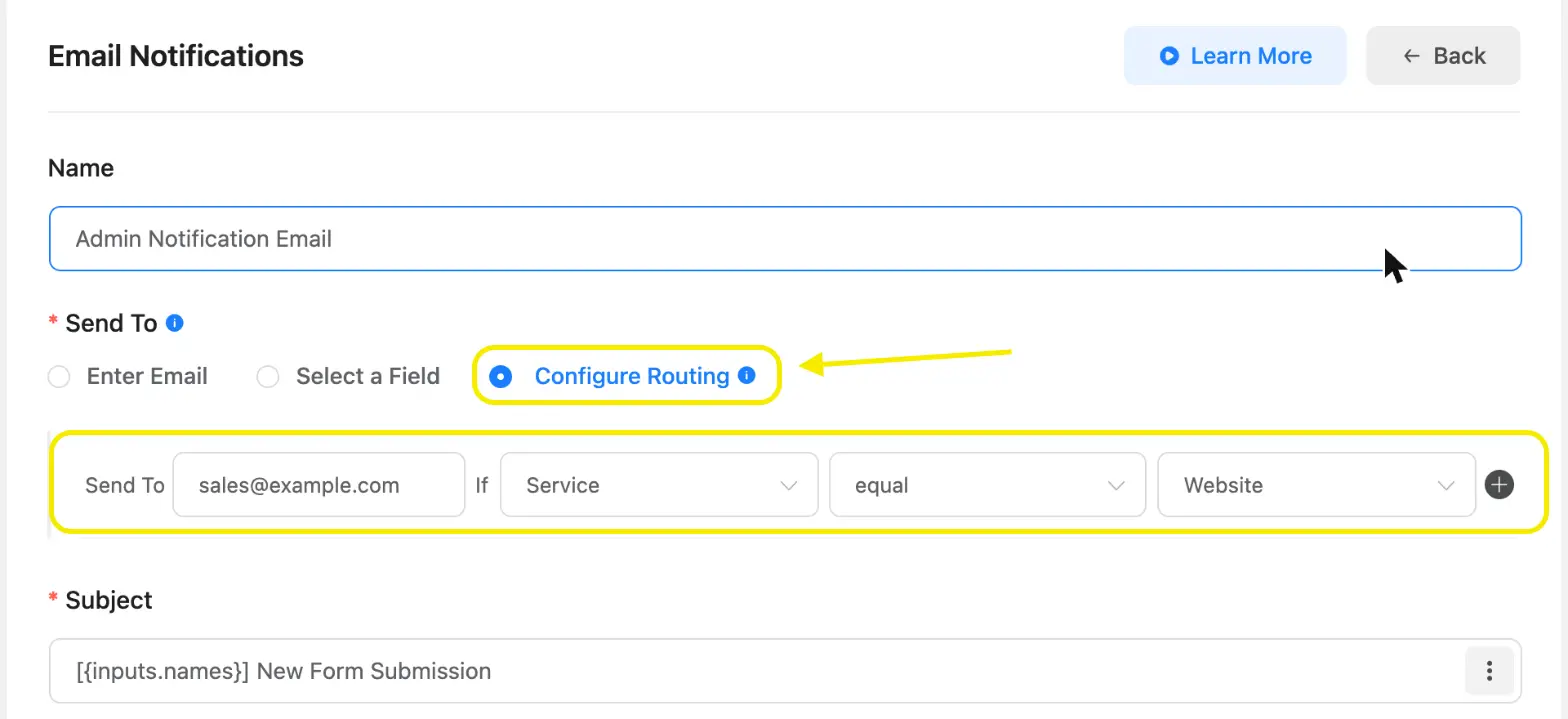
A new form ships with the default Admin Notification Email switched off. Open Email Notifications and turn it on. Then open its settings, choose Configure Routing under Send To, and add a row for each answer you route. The website, for example, goes to the sales address.
Routing reads like conditional logic. Each row has a Send To address, a field, an operator, and a value. Routing in practice works the same way on a support form. The email lists every answer and the page URL the form was submitted on.
Add the lead to FluentCRM with double opt-in
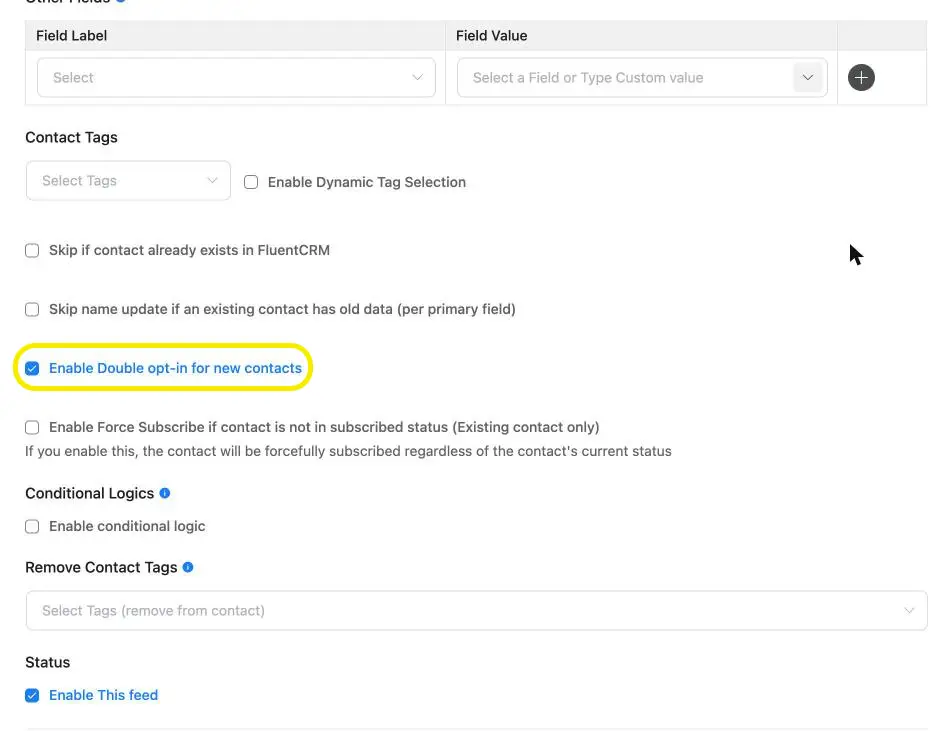
Open Configure Integrations, click Add New Integration, and choose FluentCRM Integration. Map Email Address to the Email field and First Name to the name input. The integration feed then creates the contact on every submission. Leave the list empty if the contact should not join a list.
Tick Enable Double opt-in for new contacts to send a confirmation email first. The contact stays pending until the address is confirmed. Do not use it for a demo request, where the lead expects one reply from a person. Use it for newsletters and downloads.
Once the contact exists, FluentCRM automations start the follow-up sequence. FluentPlayer adds its own FluentCRM triggers for watch milestones, covered in video-triggered automations. Those triggers need Log playback to contact timeline switched on in FluentPlayer’s FluentCRM settings, so check the toggle first.
If your list lives in Mailchimp, FluentPlayer Pro has a Mailchimp integration, and Fluent Forms connects to Mailchimp through its own feed. Pick one path, because running both risks adding the same lead twice. Check which one your plan includes, then see FluentPlayer’s integrations.
Test the Full Path Before You Send Traffic
A video form has more moving parts than a page form, so test the whole path. Submit the form once with the Website selected. Check three things: the confirmation message in the player, the routed notification in the sales inbox, and the contact in FluentCRM.
If a message or address looks wrong, conditional logic problems are the first thing to check, and a missing email points to email delivery. With double opt-in on, confirm from the test inbox and check the contact moves out of Pending. Repeat on the phone.
What FluentPlayer Pro Adds to Video Lead Capture
FluentPlayer Pro adds two things the free plugin lacks for this setup: a lighter first step and a chart for placing the form. Neither is needed to launch. Both pay off once the first form is live and you start moving the timestamp.
A lighter first step
The CTA Banner and Hotspot are Pro layers. Put a banner at 25 to 60 percent of the video with a link to a resource, then show the form later. Cold audiences get a smaller step before the email request.
A chart for placing the form
Audience Retention shows where the video loses viewers. You need that to pick the form timestamp. The free plugin has no retention chart, so the first placement has no data behind it. FluentPlayer Pro shows the drop-off point instead.
Put the Form at the Right Second
Start with one video and one form placed after its main point. Install FluentPlayer free, add the form you built as a layer, and send a test submission through the full path. Confirm the right message, inbox, and contact appear before you send traffic. Change the timestamp only after your retention data shows where viewers leave.
Frequently Asked Questions
How do I add a form to a video in WordPress?
Use FluentPlayer’s form layer. Open the video, add a Fluent Forms layer under Interactive Layers, select your form, and set the start time. The form renders inside the player. Capturing leads with WordPress videos covers the wider approach, including email capture without Fluent Forms.
Is the Fluent Forms layer free?
Yes. The Fluent Forms layer and the email capture layer are free in FluentPlayer. The CTA Banner, Hotspot and Audience Retention analytics need FluentPlayer Pro. Fluent Forms features such as conditional logic and notifications are set inside Fluent Forms itself, so check its plan for each one.
When should the form appear in the video?
Start between 60 and 85 percent of the way through, after the video has made its main point. Then move the form using retention data and the submissions-per-viewer rate.
How many fields should an in-video form have?
Keep it to the fields a first reply needs, usually name and email. Use conditional logic to reveal one extra field only when an answer calls for it. A lead generation quiz or a multi-step form suits longer qualifications on its own page.
How do I send each lead to a different inbox?
Use Configure Routing under Send To in the form’s email notification. Add a row for each Service answer you route, and that lead’s notification goes to the matching inbox. The lead management guide covers what to do with leads after they arrive.
Should I turn on double opt-in for a video form?
Turn it on for newsletter and download forms, where a confirmed list matters. Leave it off for demo requests, because the lead expects a reply from a person. The contact stays Pending until the confirmation email is answered. It is a checkbox in the FluentCRM feed.
Does this work with Mailchimp instead of FluentCRM?
Yes, through either FluentPlayer Pro’s Mailchimp integration or Fluent Forms’ own Mailchimp feed. Pick one path to avoid duplicate contacts. Check which tier each path needs before you commit. The Mailchimp guide shows the Fluent Forms setup, and FluentPlayer’s integrations page lists what connects.