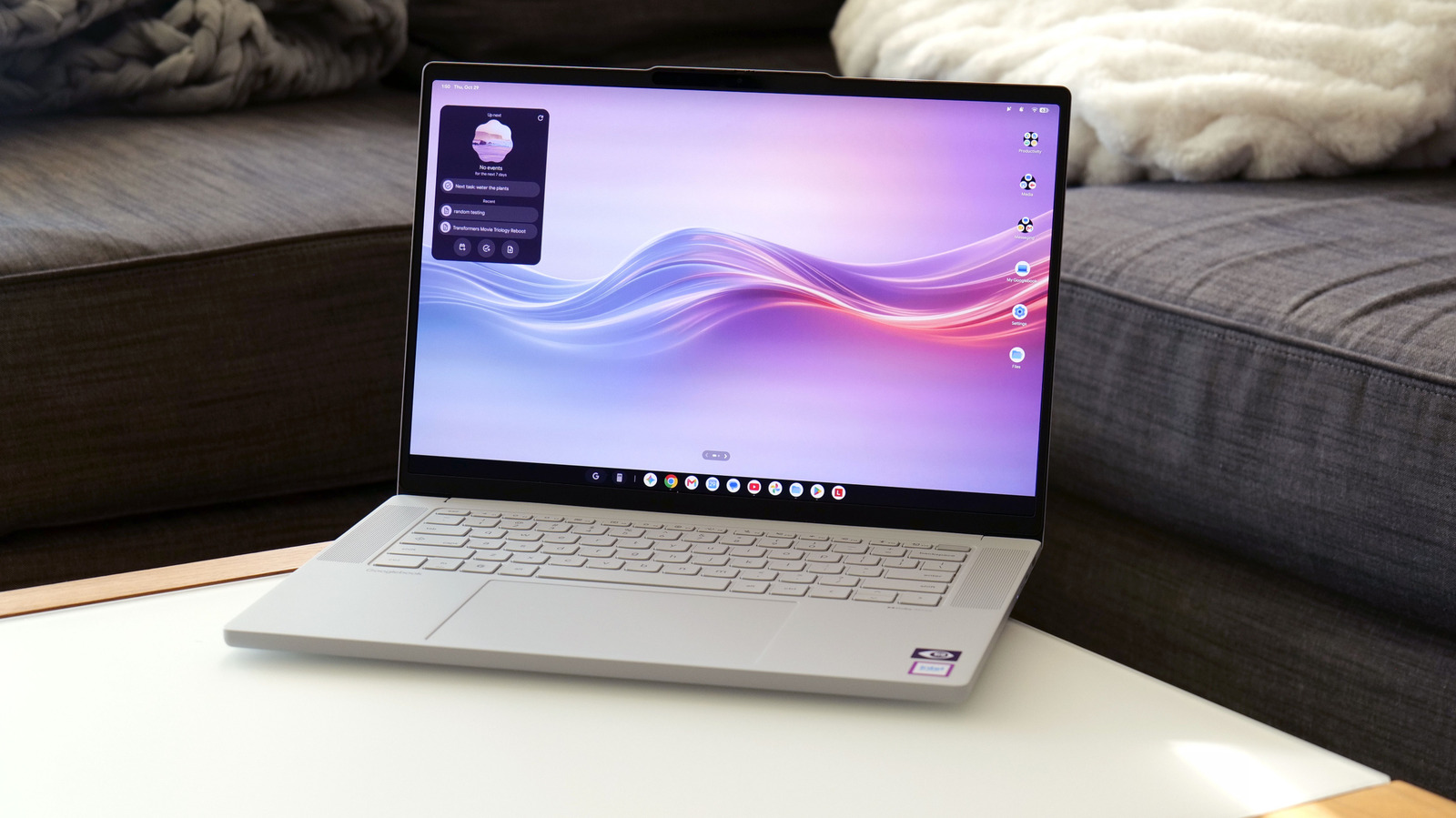
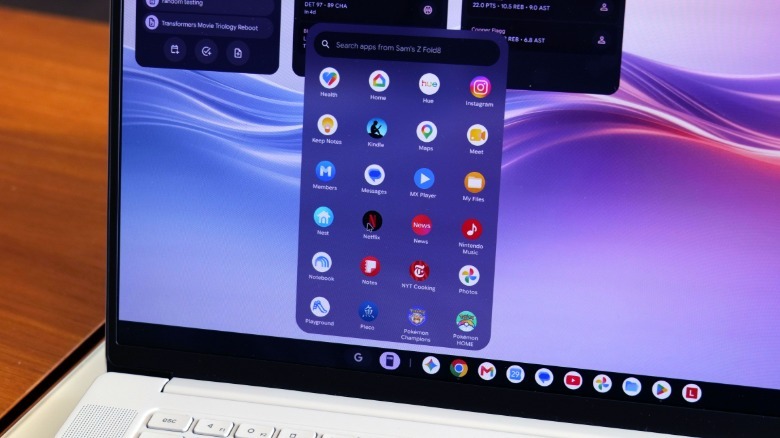
The nice thing about being a mix between an Android phone and Chromebook is that Googlebook OS feels immediately familiar and is very easy to use. You get notifications and quick settings in the top right, a row of icons in a taskbar along the bottom and drawer for all your apps. From there, it’s super simple to do stuff like side-by-side multitasking — all you need to do is open an app and drag it to the left or the right and let the OS automatically snap the window in place. For general productivity, web browsing or checking social feeds, there’s plenty of stuff to like about Googlebook OS’ streamlined approach to basic computing.
Where things get even more interesting is with some of Google’s special features, the most important of which is cross-device sharing. I’m kind of glad I waited a little bit to do this review because right at launch, a lot of Google’s “Better Together” features weren’t available with Samsung phones. That changed shortly after release and this collection of tools is the closest thing Googlebooks have to a secret weapon.
 Sam Rutherford for Engadget
Pairing your Googlebook to your Android handset works a lot like the Windows Phone Link app, except that it’s better in almost every way. Setup is as easy as scanning a QR using your phone. From there, you can do stuff like transfer things between devices simply by dragging and dropping (via the Files app), seamlessly cast apps from your phone to the Googlebook, sync notifications between devices or pick up where you were last browsing on your phone. In a lot of ways, Google has created the kind of cohesive ecosystem that Mac and iPhone users often say is one of the best things about Apple’s family of products, but centered around Android instead of iOS.
That said, there are a number of quirks and limitations that still need work. Transferring files, for example, is currently limited to things under 200MB. For anything bigger, you’ll need to rely on the Quick Share tool. And while it works, casting things from your phone to the Googlebook is a bit stuttery and less responsive than I’d like. It’s fine for checking messages or apps with a relatively static UI, but if you try to cast a game, there’s a noticeable drop in framerate and smoothness.
 Sam Rutherford for Engadget
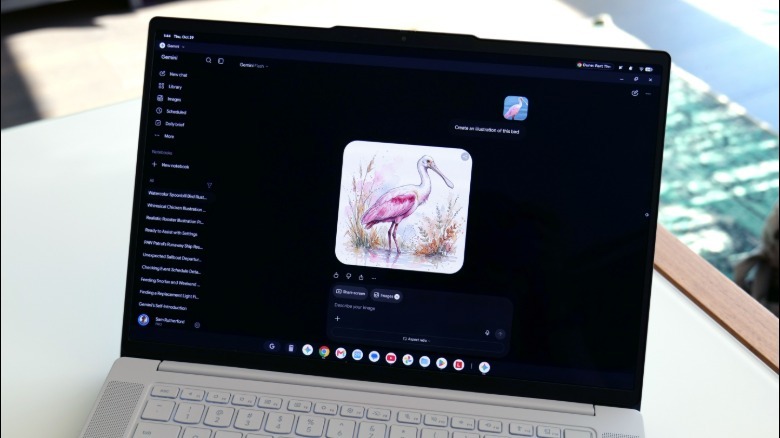
Some of Googlebook OS’ other more unique tools include the Magic Pointer, which makes it easy to select objects so you can ask Gemini about them or transform highlighted pictures into AI-generated drawings. Now, I’ll be honest, creating cute stickers or using Gemini to whip up things like party invites isn’t something I do regularly, so I sort of had to go out of my way to test these features. But your mileage may vary. Meanwhile, Rambler might be the best voice transcription tool out now, so it’s nice to see Google port that over from the Pixel 11 family. And it’s so good, there’s a dedicated button for it on the laptop’s keyboard. You can also use Gemini (and Gemini Notebook) to find, organize and summarize all sorts of different files and docs, but that’s sort of par for the course these days.
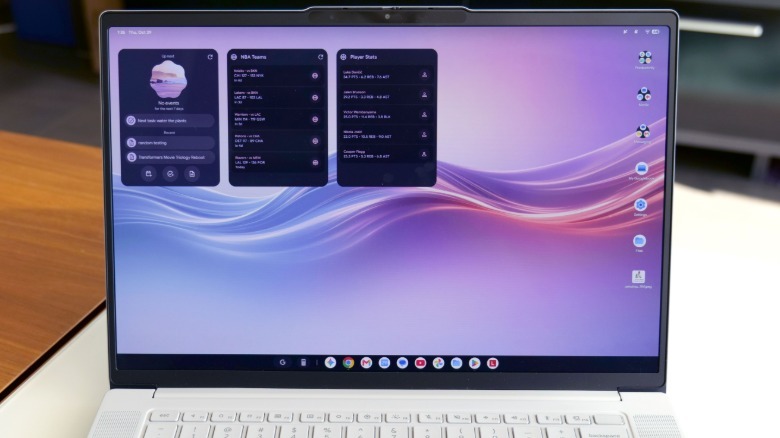
You can even use AI to create your own custom widgets, but like a lot of machine learning-based tools, the results are hit or miss. At first, I asked the Googlebook to make a basic dashboard showing the live score for all the NBA games, but that didn’t work. So then I paired the list down to just a handful of teams and it was able to display the correct scores for various matchups, but the UI remained rather barebones and a bit confusing to look at.
 Sam Rutherford for Engadget
Unfortunately, it feels Googlebook OS still needs a bit of polishing and extra developer support to make it really shine. In addition to often being limited to the mobile version for many apps, the various tiers of app compatibility can get pretty confusing. If you try to install an app from the Play Store, you’ll notice that there are five different levels of optimization ranging from “Made for desktop” to “Compatible for desktop” or simply “Better on the website.” And if a certain app hasn’t been tested, it may be labeled as “Built for mobile.”
I do appreciate that all of these tags show up front and center on the listing for each app, but it still results in a lot more trial and error that most people probably want to deal with. Some apps work great, some apps suffer from display glitches and some apps are saddled with smaller issues like awkwardly placed UI elements or not being able to maximise a window to fullscreen. So even though you have a big, beautiful display, you’ll still have bits of your desktop wallpaper peeking out from both sides of an app.