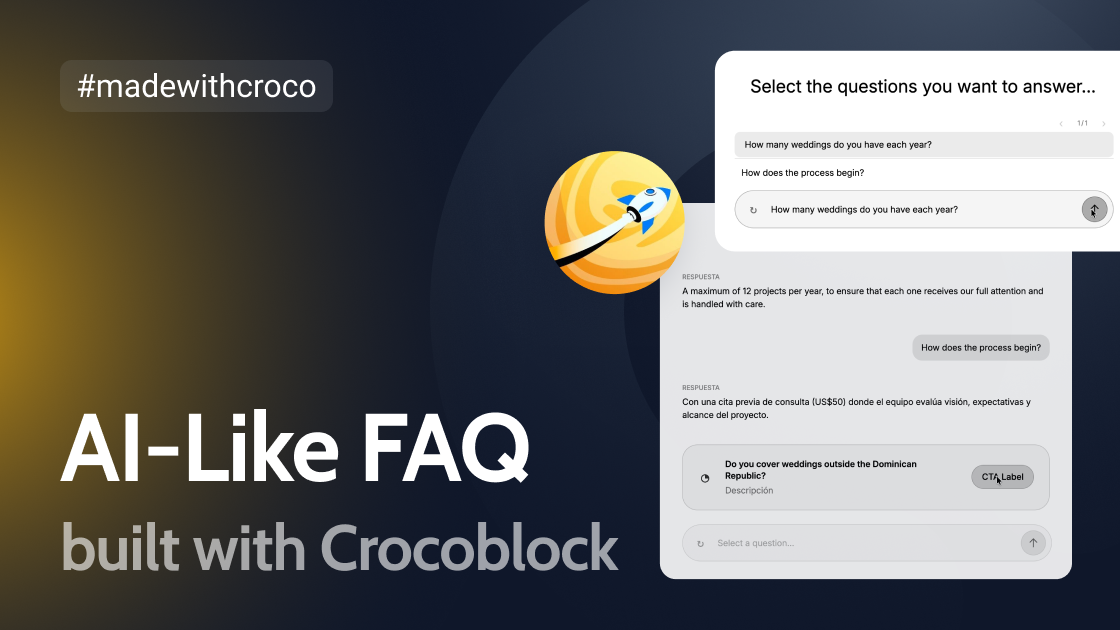
For today’s #MadewithCroco series, we’re featuring Ricky Rosario, a UX/UI designer and low-code WordPress developer from the Dominican Republic. While working on his first full website built from scratch with CrocoBuilder, Ricky reimagined the classic FAQ accordion as a guided, chat-style interface. It feels like talking to an AI assistant, yet it runs without an AI model or API tokens. Read on to see how the component works, why he deliberately disabled free typing, and how a structured workflow made AI-assisted building far more predictable.
About Me
My name is Ricky Rosario. I’m from the Dominican Republic, founder of Booming Agency, and I work as a UX/UI Designer and Low-Code WordPress Developer.
I have been building websites with WordPress for about 10 years, working on projects for service businesses, eCommerce, hospitality, health, real estate, and other industries. Over the last few years, I have also been integrating AI into my design and development workflow.
This project is especially important to me because it is the first full website I’m building from scratch with CrocoBuilder.
My next steps
I am now turning this workflow into a permanent component-building system for the websites I create with CrocoBuilder.
Instead of depending on one very long AI conversation, I created a project workspace with Markdown files as the source of truth and NotebookLM as an additional knowledge base for documentation and research.
That allows me to start separate conversations for different components while keeping the same technical foundation.
The goal is to build a reusable library of atomic CrocoBuilder components that can be created from a Figma design, screenshot, or visual reference with much more predictable results.
The Idea Behind the Project
I was already building WordPress websites with AI assistance before using CrocoBuilder. Still, I kept running into the same problem: AI could generate code quickly, but the workflow was not always stable or predictable.
When I tried to reproduce a reference, a UI pattern, or even a Figma design, I could get close very fast. The difficult part was getting from “close” to “production-ready” in a consistent way.
Some of the problems I was facing were:
- inconsistent results between iterations;
- components that worked once but were difficult to reuse;
- too much generated code without a clear component structure;
- small visual corrections sometimes breaking something that was already working;
- many token expenses to obtain the desired result from visual references or even Figma designs;
- repeating context and technical instructions every time I started a new chat;
- difficulty keeping the AI aligned with the same design system, accessibility rules, responsive behavior, and WordPress constraints.
Instead of asking AI to build an entire website in one shot, I started building a more structured workflow around CrocoBuilder.
My current workflow is: Design or reference > Design System > Atomic Component > CrocoBuilder > QA > Reuse.
The AI helps me build the component, but CrocoBuilder gives me the structure where that component can live, be edited, reused, and connected to real content.
The FAQ Experiment
One of the components I wanted to rethink was the FAQ.
The traditional accordion works. It is familiar, efficient, and easy to understand. But for this project, I wanted the FAQ to feel more interactive and more connected to the visual language of AI products.
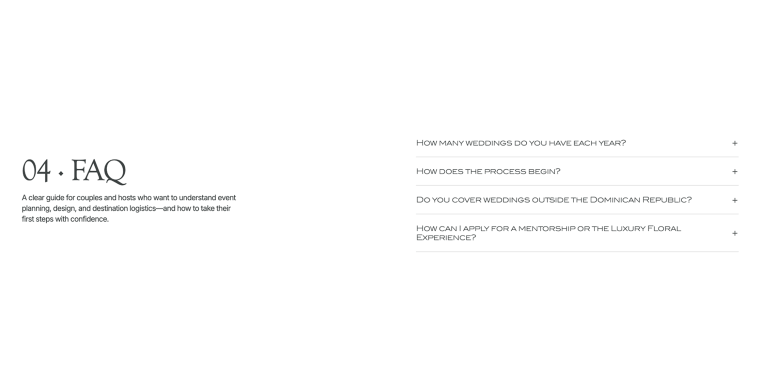
The original FAQ followed a conventional accordion pattern before I reworked the experience into a guided conversational interface.
So instead of creating another accordion, I built a guided conversational FAQ that behaves like an AI chat.
There is no AI generating the answers behind the scenes, and there is no API token consumption.
The questions and answers are predefined.
For the user, however, the interaction feels like a conversation.
How the AI-Like FAQ Works
The experience is intentionally simple:
- The component shows two predefined questions at a time.
- The user can browse additional questions using a dynamic paginator.
- When the user selects a question, it loads into the chat field first.
- The user presses “Send.”
- The question is added to the conversation history.
- A short “thinking” state appears.
- The predefined answer is then displayed as the assistant response.
- The used question disappears from the available options.
- The chat field remains fixed while the conversation history can be scrolled.
- The user can reset the conversation and restore all questions.
- After all questions have been answered, the component displays a “usage limit” state inspired by the type of message users see in tools such as Claude or Codex.
- That final state includes a CTA that can send the user to another channel, for example, a contact page, booking page, WhatsApp, or another conversion step.
This gives the user the feeling of interacting with a small assistant without adding an AI model to a problem that does not actually need one.
Why I Did Not Allow Free Typing
Visually, the component looks similar to a chat interface, so making the field editable would seem like the obvious choice. I intentionally did not do that.
If the user could freely type a question, the interface would create the expectation that there is a real AI behind it and that the system can understand anything they ask.
It cannot. That would create an affordance problem: the UI would promise a capability that the product does not have.
Instead, the placeholder clearly tells the user to “Select a question.” The available questions remain visible, and selecting one loads it into the chat field.
The goal is not to fake an AI system. The goal is to use a familiar conversational interaction pattern to present predefined FAQ content in a more guided and memorable way.
From a UX perspective, the component relies on a few simple principles:
- Recognition rather than recall: users choose from visible questions instead of having to think about what to type.
- Visibility of system status: selected questions, send states, loading feedback, pagination, and completed states are always visible.
- User control and freedom: users can browse, review previous answers, or reset the conversation.
- Consistency with conversational interfaces: the interaction follows patterns users already understand from chat-based products.
The important UX question is not whether it looks different from a traditional FAQ. The important question is whether users understand what they can do without needing an explanation.
That is something I plan to validate through real usability testing.
How I Built It with CrocoBuilder
The component is built with HTML, CSS, and JavaScript inside CrocoBuilder.
The content is not hard-coded into the visual experience. The questions and answers are managed through CrocoBuilder properties, including a Repeater for the FAQ items. The structure is roughly:
- Intro text;
- FAQ repeater;
- Question text;
- Answer text;
- Chat placeholder;
- Reset text;
- Limit title and message;
- Limit CTA text and URL.
This means I can reuse the same component in another project and change the questions, answers, CTA, and supporting text without rewriting the interaction logic.
Step 1: Define the content model
Before writing the UI, I defined what needed to be editable.
The most important property is the Repeater. Each item contains a question and an answer.
The rest of the component uses simple properties for the intro, placeholder, reset action, and final limit state.
This separation between content and interaction is important because the component should remain reusable.
Step 2: Build the visual states
Instead of thinking about the component as one screen, I treated it as a small state machine. Here are the main states.
- Initial state — intro, questions, paginator, and empty chat field;
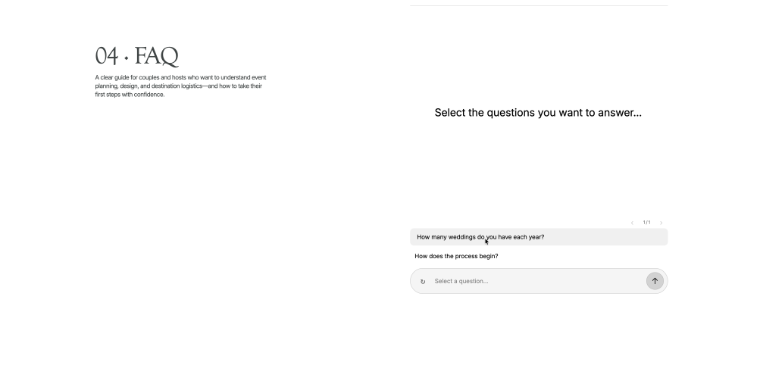
- Initial conversational state — predefined questions, pagination, and an empty prompt waiting for a selection;
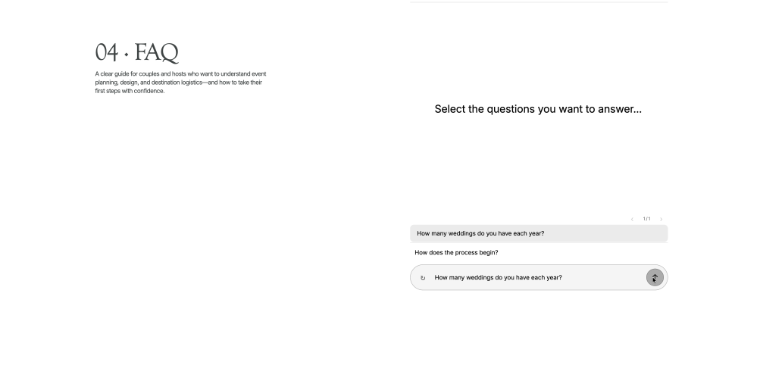
- Selected state — a question is loaded into the chat field. Choosing a predefined question loads it into the prompt before the user sends it;
- Sending state — the question moves into the conversation;
- Thinking state — a short loading animation gives feedback;
- Answered state — the response appears and the next questions remain available.
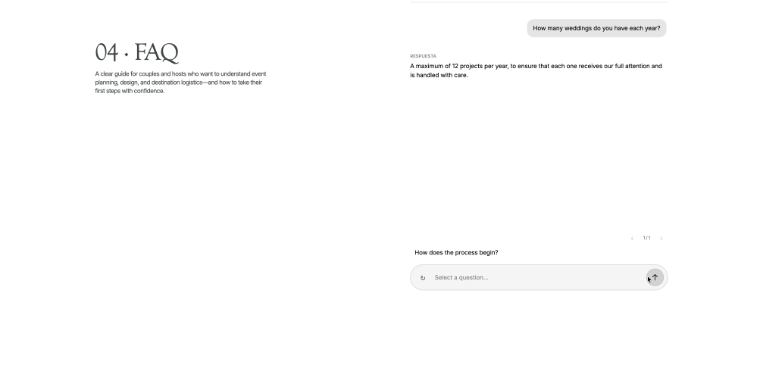
In the Answered state, the response stays in the conversation history while the next available question remains visible.
- Completed state — no questions remain, and the limit message appears;
- Reset state — the conversation is cleared, and all questions return.
Breaking the component into states made the JavaScript much easier to reason about.
Step 3: Keep the questions close to the chat field
Initially, the available questions and the chat field felt visually disconnected.
I moved the paginator and question options closer to the fixed chat field so they read as one interaction area.
The paginator sits directly above the questions, the questions sit directly above the chat field, and only the conversation history scrolls.
This small change made the relationship between the controls much clearer.
Step 4: Add subtle motion instead of heavy animation
I wanted the interface to feel polished, but not theatrical. The component uses small transitions for:
- question hover states;
- page changes;
- new messages;
- thinking feedback;
- reset behavior;
- the final limit card;
- a simple expansion animation when the chat field first enters the viewport.
The purpose of the animation is always to communicate state, not to delay the user.
Only two available questions are shown at a time. The paginator calculates the number of pages from the remaining questions. As questions are used, they are removed from the available set and the pagination updates automatically.
The page transition uses opacity and small horizontal movement so the next questions do not appear abruptly.
Step 6: Build the final “limit reached” state
When the last predefined question is answered, the component switches to a final state.
This intentionally references a familiar AI-product pattern: the “you have reached your limit” message.
In this case, the limitation is not real token usage. It is simply the end of the predefined FAQ experience.
That state becomes a natural conversion point. Instead of ending with an empty FAQ, the component can say something like: “You’ve reached the end of the available questions. Still have something to ask?”
Then it can display a CTA such as “Talk to us,” “Book a call,” or “Continue on WhatsApp.”
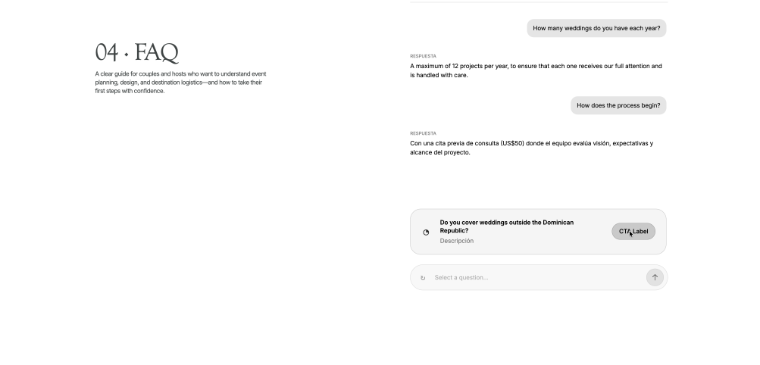
In the Completed state, the conversation history remains visible, and the final CTA replaces the remaining question options.
Step 7: Keep it responsive and reusable
The component adapts to the width of its container instead of depending only on global breakpoints.
Long questions and answers wrap correctly, the chat history stays inside the component, and the final CTA can reorganize when the available width becomes small.
The goal is for the same component to work inside different page layouts without rebuilding it.
How CrocoBuilder Changed My AI Workflow
For me, the most interesting part of this project is not only the FAQ itself. It is the workflow around it.
Before this, I was already using AI to build WordPress interfaces. The problem was that the model often became both the developer and the architect at the same time.
Now I separate those responsibilities. I define the design system, component rules, accessibility requirements, responsive behavior, naming conventions, and CrocoBuilder constraints first. Then AI works inside that system.
For this project, I did not need to set up a custom AI agent or consume API tokens just to generate the component.
I opened a regular ChatGPT conversation, provided the Skills and technical documentation it needed to understand how I wanted CrocoBuilder components to be structured, and then used visual references to build and refine the components.
I also used interfaces from sources such as 21st.dev as references for interaction ideas, while adapting them to the project’s own design system and CrocoBuilder structure.
That has been much more stable than simply asking: “Build this screenshot in WordPress.”
The output becomes more predictable because the AI has boundaries.
The workflow now looks more like this: Reference > Analyze > Map to Design System > Build Atomic Component > Test in CrocoBuilder > Refine > Reuse.
Why I would recommend this approach
What I like about CrocoBuilder for this type of workflow is that I can treat WordPress more like a component system.
AI can help me move faster, but I still control the structure, content model, interaction, and QA.
For me, that is the direction I want AI-assisted WordPress development to go: less “generate an entire website for me,” and more “help me build reliable components inside a system I understand and control.”
Results
The result is a component that:
- feels like an AI conversation without requiring an AI model;
- does not consume API tokens during the user interaction;
- keeps FAQ content editable through CrocoBuilder;
- can be reused across projects;
- is responsive;
- has predictable UI states;
- separates content from interaction logic;
- creates a more memorable FAQ experience than a standard accordion when the brand and context justify it.
The bigger result for me is the development process.
This is the first website I am building completely from scratch with CrocoBuilder, and the workflow is already much more structured than my previous AI-assisted WordPress process.
Takeaways
- Do not ask AI to make every architectural decision for the project.
- Give the AI a design system and technical rules before asking it to generate components.
- Build small atomic components instead of generating entire pages at once.
- Separate editable content from interaction logic.
- Use AI where it saves time, but do not add AI to the final product if the problem can be solved more simply.
- A good reference is useful, but translating that reference into a reusable system is more valuable than copying it once.
- CrocoBuilder gives me a practical place to turn AI-generated code into reusable WordPress components with predictable inputs.
Briefly
- Name: Ricky Rosario (website);
- Location: Dominican Republic. Open to the world;
- Role: Founder of Booming / UX/UI Designer / WordPress Developer;
- WordPress experience: about 10 years;
- Editor/builder: CrocoBuilder;
- Wireframing and UI design: Figma.
Advice for Newbies
My main recommendation is to create your own source of truth before trying to automate everything. Document:
- your design tokens;
- typography;
- spacing;
- breakpoints;
- accessibility requirements;
- naming conventions;
- component structure;
- CrocoBuilder rules;
- how JavaScript should be used;
- what the AI should and should not generate.
Then give that documentation to the AI before building. This reduces random decisions and makes the results much easier to test and reuse.