
Figuring out which WordPress theme and plugins a site runs costs nothing.
Every method in this guide is free, from the manual source checks to the WordPress Theme Detector Chrome extension, WPThemeDetector, and Scan WP, plus the alternatives listed further down.
The reason this skill comes up so often is scale. WordPress runs more than a third of the internet and started in March 2003 as a blogging system, so a large share of the sites people visit daily run on it.
That answer comes from the same handful of signals each time. Theme detector tools analyze a site’s HTML, CSS, and asset paths, looking for clues like /wp-content/themes/theme-name/style.css, then read the standard WordPress theme header block to confirm the theme’s name. This article starts with page-source and developer-tools methods, moves to the three recommended tools, covers a curated list of free alternatives, and closes with what affects detection accuracy.
Find a WordPress Theme From the Source Code
Looking at a site’s source code is the fastest free way to identify its WordPress theme and plugins, because themes and plugins leave marks in the page markup.
- A visitor opens the site, right-clicks anywhere on the page and selects View Page Source, or presses Ctrl+U on Windows or Cmd+U on Mac, then uses Ctrl+F or Cmd+F to search the code. Typing /wp-content/ into that search box confirms the site runs WordPress. Checking whether /wp-login.php exists on the domain or spotting a WordPress meta generator tag works just as well.
- Searching the source for wp-content/themes/ turns up the theme in seconds. The folder name inside a path like /wp-content/themes/theme-name/ is almost always the theme name, while a path such as /themes/astra-child/ points to a child theme rather than the original.
- For the full metadata, the visitor opens the theme’s stylesheet directly, for example https://example.com/wp-content/themes/theme-name/style.css. The comment block at the top lists Theme Name, Theme URI, Author, and Version. A real example is OceanWP, with Theme URI https://oceanwp.org/, Author: Nick, and Version: 3.5.3. A Template field in that same block reveals the parent theme whenever a child theme is in use.
- To detect WordPress plugins, the same source gets searched for /wp-content/plugins/. Each match exposes a plugin directory name, such as https://example.com/wp-content/plugins/contact-form-7/includes/css/styles.css, which indicates Contact Form 7 is active.
Nothing in this process requires an account, a subscription, or a credit card.
Use Browser Developer Tools to See What Plugins a Site Loads
Browser developer tools reveal what a page actually loads, which makes them a dependable free way to identify the plugins a site uses.
- A visitor right-clicks any element on the page and chooses Inspect, or presses F12, to open the browser’s developer tools.
- In Chrome’s Sources tab (in Firefox, the Debugger tab), the site’s domain gets expanded in the file tree. A visitor opens wp-content/themes/ to see the theme files. Under wp-content > plugins, the plugin folders that loaded assets on the page are visible.
- Switching to the Network tab, reloading the page, and filtering by CSS, JS, and Fetch/XHR turns up every file the page requested. Searching that request list for /wp-content/plugins/ catches lazy-loaded resources that the page source might miss.
- In the Elements panel, pressing Ctrl+F and searching for wp-content/plugins/ lets a visitor browse plugin directory names. Plugin-specific CSS classes give extra clues: wpcf7 indicates Contact Form 7, and wp-block-jetpack indicates Jetpack.
The WordPress Theme Detector Chrome Extension for One-Click Detection
The WordPress Theme Detector Chrome extension identifies the theme and plugins on the page a visitor is already viewing, without leaving the tab. It is free.
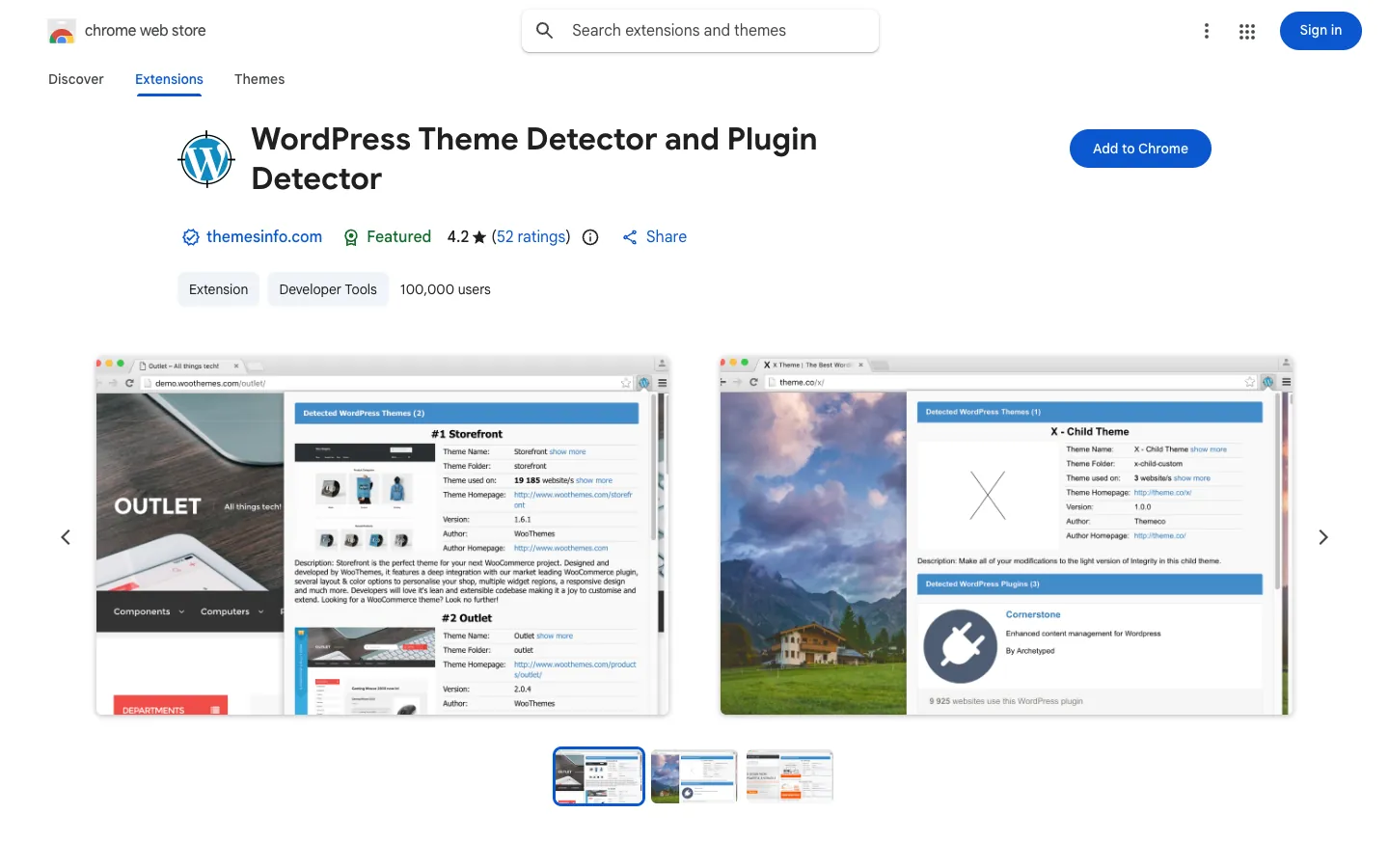
The extension’s icon doubles as a status light: blue on WordPress sites and grey on non-WordPress sites. That color tells a person at a glance whether detection is available before clicking anything. The extension uses a server-side API instead of running its own analysis in the browser, so it does not consume browser performance while it works.
The extension has 100,000 users with a 4.2/5 rating from 52 ratings, and it sits at version 2.2, updated June 5, 2024, with a size of 95.02KiB. It lives in the Chrome Web Store’s Developer Tools category and can be installed from https://chromewebstore.google.com/detail/wordpress-theme-detector/bjccepbfbikbpbgillfgicihhmpmjbjd at no cost.
Scan WP for Free Theme, Plugin, and Hosting Details in One Scan
Scan WP is a free online WordPress theme detector that also reports plugin and hosting details, and it places no limit on the number of scans a visitor can run. It works like most code-based detectors: it checks the code of a WordPress site for something like /wp-content/themes/themename/style.css?ver=123, opens that file, and reads the standard WordPress theme header block, which states the theme name, parent theme name, tags, and more.

One scan returns a lot of detail. The report includes the theme name, theme price, a screenshot, tags, the vendor name, the theme version, the percentage of theme usage, and a buy link. Plugins get the same treatment: every plugin used is listed with its price and usage percentage, plus download links. The tool also detects the hosting provider, and it can identify Shopify themes when the site being checked is not on WordPress.
That depth comes from Scan WP’s database, which holds thousands of themes and thousands of plugins. Recognizing a theme name lets the tool return far more information than the CSS file alone contains, since the header block only names the theme and its author.
Scan WP is available at https://scanwp.net/. The site keeps the tool free by opening an offer from a relevant service when the tool is used, so a scan may come with a promotional message alongside the results.
WPThemeDetector for Detailed Theme and Plugin Reports
WPThemeDetector is a free online tool that reports both the theme and the plugins used on a site, with no account or paid tier. A scan starts at https://www.wpthemedetector.com/, where a visitor enters the site’s address and waits for the results to load.
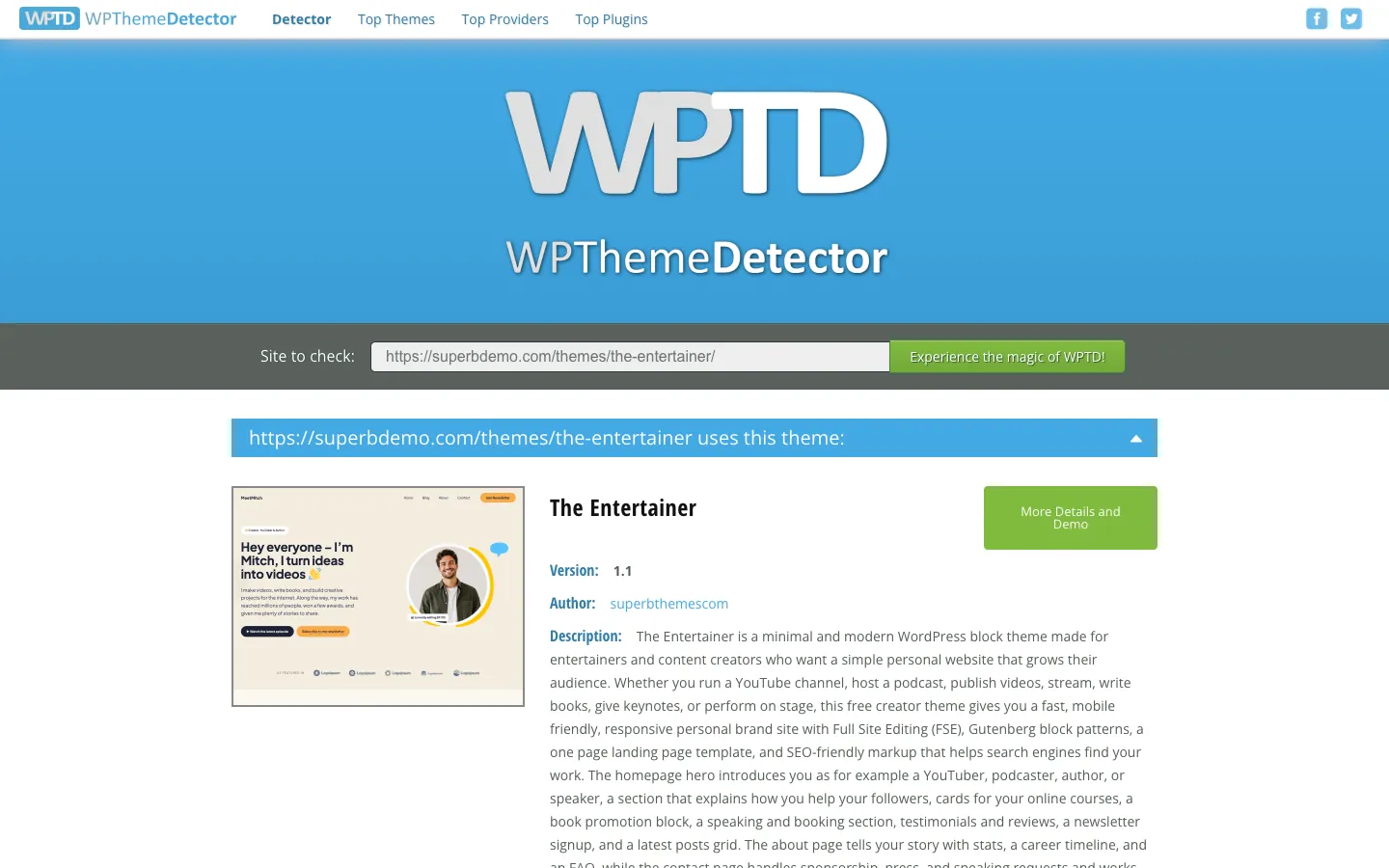
Results arrive in slide-out sections rather than one flat list. Each panel covers a different piece of the picture: theme author, description, tag, license, provider statistics, site info, and detected plugins. The tool also identifies child themes, so a site running a customized version of a popular design does not simply register as the parent.
Independent testing supports those results. Themeisle found WPThemeDetector detected all five themes in their test, and the same testing concluded that pairing WP Theme Detector with What Theme was the most effective combination for distinguishing child themes from parent themes. For anyone who needs a WordPress plugin detector that reads both layers of a site at once, that pairing covers the gap either tool leaves on its own.
More Free Theme and Plugin Detector Alternatives Worth Trying
Several other free detectors are worth trying for anyone who wants to check a website’s theme and plugins.
- What WordPress Theme Is That? is free, detects the main theme and the parent theme, and provides a list of plugins, though it works only on WordPress sites.
- IsItWP is free and first confirms whether a site uses WordPress, then lists its themes and plugins.
- BuiltWith offers free basic scans that reveal the theme, plugins, and the full technology stack, including the web server, email provider, payment gateways, frameworks, and JavaScript libraries.
- Wappalyzer provides a browser extension and web scanning across thousands of technologies, and it includes 50 free technology lookups per month.

Each of these covers the basics at no cost, and the last two go beyond WordPress to identify more of the stack a site is built on.
What WordPress Theme Is This? The Limits of Theme and Plugin Detection
All of these methods return an answer, but none offers certainty. Detection tools read what a public page happens to expose, and a public page only exposes a partial picture.
Some plugins never show up at all. Hidden, admin-only, must-use, renamed, bundled, cached, and server-side plugins cannot be detected reliably from a public page, because a plugin can be active without loading any identifiable front-end asset. Security and backup tools in particular tend to run on the server side, where no amount of source-code searching will reach them.
The same uncertainty applies to themes. A public page may reference a child theme, its parent theme, an inactive theme, an old asset left behind, or a copy pulled from a CDN, which is why detector results are sometimes best described as theme candidates rather than definitive answers. The stylesheet itself can also be blocked, stripped of its standard WordPress header, bundled elsewhere, or loaded only after JavaScript runs. A version number read from it may be cached or stale.
A plugin directory slug deserves the same caution. Finding a folder like /wp-content/plugins/contact-form-7/ in the source is not proof of the plugin’s verified name, version, active status, vulnerabilities, or the full plugin inventory. It is only an inventory clue. Page builders complicate this further: with tools like Elementor driving the layout on many WordPress sites, the theme itself is often blank or minimal, and the visual design comes from the plugin instead of the theme. A site can look heavily customized while the theme header reveals almost nothing worth reporting.
The Best Theme and Plugin Detector for Your Needs
All three recommended detectors are free, and which one is the best theme and plugin detector depends on what a person needs from it. Speed, depth, and balance each point to a different tool.
- The WordPress Theme Detector Chrome extension is the fastest way to identify a theme and plugins without leaving the page, and it is free.
- Scan WP is the best free option when the most details are wanted, covering theme version, vendor, usage percentage, plugin list, and hosting info in a single scan.
- WPThemeDetector sits between the two, offering solid theme and plugin detail with child-theme detection and provider statistics.
None of these tools returns complete certainty. Each reports clues rather than confirmed facts, but together they cover the ground well enough that no one needs to pay for a detection service. For anyone building a WordPress project of their own, SuperbThemes builds fast, lightweight, SEO-friendly WordPress themes and plugins. The choice comes down to the question being asked: pick the tool that matches that question, treat the results as strong leads rather than proof.

