The Windows feature takes a slice of VRAM that 6GB and 8GB graphics cards can’t easily spare.
If you dig through Windows 11’s graphics settings, you’ll come across a toggle for hardware-accelerated GPU scheduling, or HAGS, that most people never touch. It’s on by default on most PCs, and is a requirement if you want to use DLSS Frame Generation. But if you’re gaming on an older or cheaper card, like my grossly outdated RTX 2060 with 6GB of VRAM, or one of the many 8GB cards still on sale, it could eat VRAM your card can’t spare. Mine can’t these days, that’s for sure!
When XDA Developers switched HAGS off on an 8GB RTX 2070 Super, it freed up nearly 950MB of graphics memory for the loss of three to five frames per second. Suddenly, textures that had been stuttering in Cyberpunk 2077 and Stellar Blade loaded properly again. That much VRAM barely matters on a card with 16GB, where there’s lots of headroom, but on one with 6GB or 8GB, it can be the difference between a game running smoothly and one that runs out of memory.
What HAGS does
Microsoft introduced HAGS in a May 2020 Windows 10 update. Before then, according to Microsoft’s DirectX blog post explaining the feature, a high-priority CPU thread coordinated and scheduled all the work that programs sent to the graphics card. That slowed things down and could cause frame delays between what you did and what you saw on screen. With HAGS on, the graphics card handles most of that scheduling itself, using dedicated built-in hardware, while Windows still decides which apps go first.
Microsoft rolled out HAGS as switched off by default, comparing the change to “rebuilding the foundation of a house while still living in it,” and said users “should not notice any significant changes” because most games already hid scheduling costs. That June, Nvidia added support for its GTX 10-series cards and newer in its 451.48 driver, while AMD took until December 2023 to support it on the RX 7900, 7800 and 7700. Intel only supports it on its Arc B-series cards. It’s not completely clear whether Windows 11 enables HAGS by default, but the feature is enabled on my desktop, which predates the rollout, despite my never manually turning it on. Still, it can’t hurt to check.
When Tom’s Hardware tested an RTX 2080 Ti and a GTX 1050 with and without HAGS in 2020, the average change ranged from minus 0.73 percent to plus 0.06 percent. Gamers Nexus similarly found no significant gains in any game it tried, and even a repeatable 2.4 percent drop in F1 2019 on a four-core Intel Core i3. So you may not lose out on much if you have to disable it.
Should you turn HAGS off?
If your card has 12GB of VRAM or more, you might as well leave HAGS on, especially if you use frame generation. On a 6- or 8GB card, however, it’s worth testing game by game. If a certain game is already maxing out your VRAM, switching HAGS off could free up nearly a gigabyte at the cost of a few frames, but you’ll lose DLSS Frame Generation. It’s worth noting that OBS also recommends switching it off if you run into problems while recording or streaming.
Why is this relevant? Well, Steam’s September 2026 hardware survey found that 8GB cards still make up more than a quarter of GPUs, second only to 16GB, while 6GB cards like mine account for 5.12 percent. Meanwhile, the same memory shortage that’s pushed RAM prices to record highs has made it hard to find an affordable GPU, so many of these less powerful cards are going nowhere.
 Luke James for Engadget
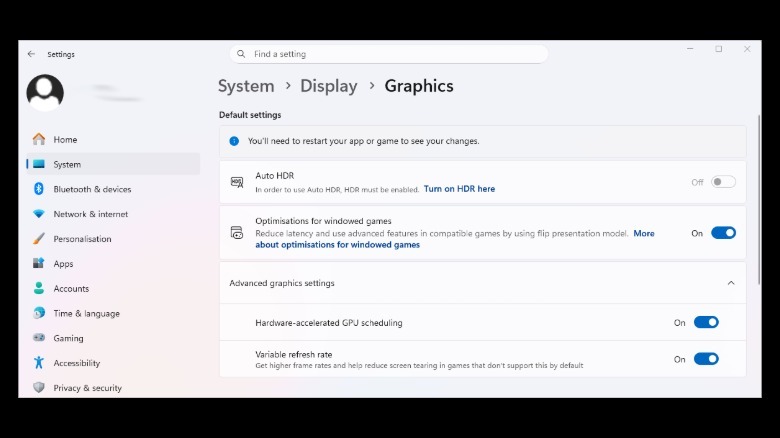
You can find the HAGS toggle in Settings > System > Display > Graphics > Advanced graphics settings. A system restart is required for any changes to take effect. Run a few simple benchmarks to test your PC’s performance before and after to see how much of an impact, if any, the feature has on your games. And if it’s extra frames you’re after, there are better ways to improve your FPS without buying new hardware.