A PUP is software you probably did not want, even if you technically agreed to install it. A potentially unwanted program may change browser settings, inject ads, track activity, add toolbars, or bundle extra apps into an installer. Microsoft describes potentially unwanted applications as software that can affect device performance, show unwanted ads, or install other software [source: Microsoft].
TLDR: A PUP is not always illegal malware, but it can still be risky, annoying, and hard to remove. For example, a “free” video converter may install a browser extension that changes your search engine and adds popups. In a 30-person office, even 10 users clicking “Express install” can create hours of cleanup work. Treat PUP alerts seriously, especially when they come from security software.
PUPs sit in the gray area between normal software and clear attacks. That gray area is what makes them so frustrating. They often arrive through consent screens, bundled installers, fake update prompts, or download portals that push extra tools.
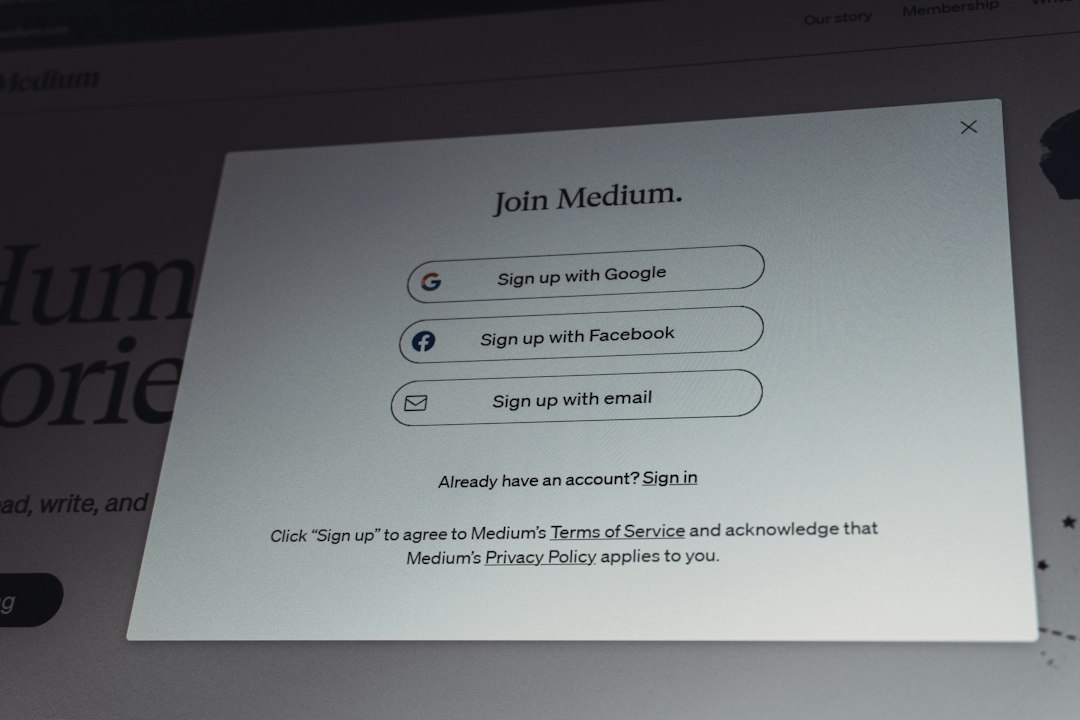
The catch is that the consent is often buried. A checkbox may be preselected. The “Decline” button may be small. The “Recommended” install option may actually install three things you never asked for. That is not a technical accident. It is a business model.

What Makes a Program a PUP?
A program is usually called a potentially unwanted program when it does something questionable but may not meet the strict definition of malware. Security vendors may flag it because of its behavior, not because it directly destroys files or steals passwords.
Common PUP behavior includes:
- Changing browser settings, such as the homepage or default search engine.
- Showing extra ads in search results or on normal websites.
- Installing browser extensions without clear notice.
- Bundling other software inside a “free” installer.
- Collecting usage data for advertising or profiling.
- Slowing down startup by adding background services.
Some PUPs are merely irritating. Others cross into serious privacy or security territory. If a program tracks browsing, redirects searches, and resists removal, users should not shrug it off.
PUP vs Malware: What Is the Difference?
Malware is software created to harm, steal, spy, encrypt, or take unauthorized control. Ransomware, banking trojans, spyware, and worms are clear examples. The intent is hostile.
PUPs are different because they often claim a legitimate purpose. A registry cleaner may say it improves speed. A shopping extension may say it finds discounts. A download manager may say it makes downloads easier.
But the real test is behavior. If the tool uses scare tactics, pushes fake issues, hides extra installs, or makes removal painful, it does not deserve trust. Honestly, it feels like some of these tools are designed to waste 20 minutes of your day before you even know what changed.
Security tools may label the same app differently. One vendor may call it a PUP. Another may call it adware. A stricter tool may call it malware. That does not mean the alert is fake. It means the software falls into a messy category.
PUP vs Adware: Where They Overlap
Adware is software that shows ads or injects ads into the user experience. Many PUPs are adware, but not all PUPs show ads.
For example:
- A browser toolbar that changes search results may be both a PUP and adware.
- A fake driver updater that nags you to pay may be a PUP, but not classic adware.
- A coupon extension that tracks shopping habits may be called adware, tracking software, or a PUP.
The label matters less than the impact. If it changes normal behavior, adds clutter, monitors activity, or makes the machine slower, remove it.
How PUPs Usually Get Installed
Most PUP infections are not dramatic. There is no movie-style hack. A user downloads a free app, clicks through setup, and accepts the default options.
Typical entry points include:
- Freeware bundles from download sites.
- Fake software updates, especially for media players or browsers.
- Cracked software and unofficial license tools.
- Misleading ads that look like real download buttons.
- Browser extensions with broad permissions.
Expect to waste time on cleanup if users have local admin rights and install random utilities. One bad installer can add scheduled tasks, startup entries, extensions, and background services in under a minute.
Warning Signs You Have a PUP
Watch for these signs:
- Your homepage or search engine changed without clear approval.
- New toolbars or browser extensions appeared.
- Popups show up on websites that did not have them before.
- Your computer takes longer to start.
- A “cleaner” keeps finding hundreds of scary errors.
- Uninstalling the app does not remove all changes.
One sign alone may not prove much. Several together should raise concern.
How to Remove a PUP Safely
Start with the simple steps. Do not download another random “removal tool” from an ad. That often makes things worse.
- Uninstall suspicious programs from the operating system settings.
- Remove unknown browser extensions from Chrome, Edge, Firefox, or Safari.
- Reset browser settings if search redirects continue.
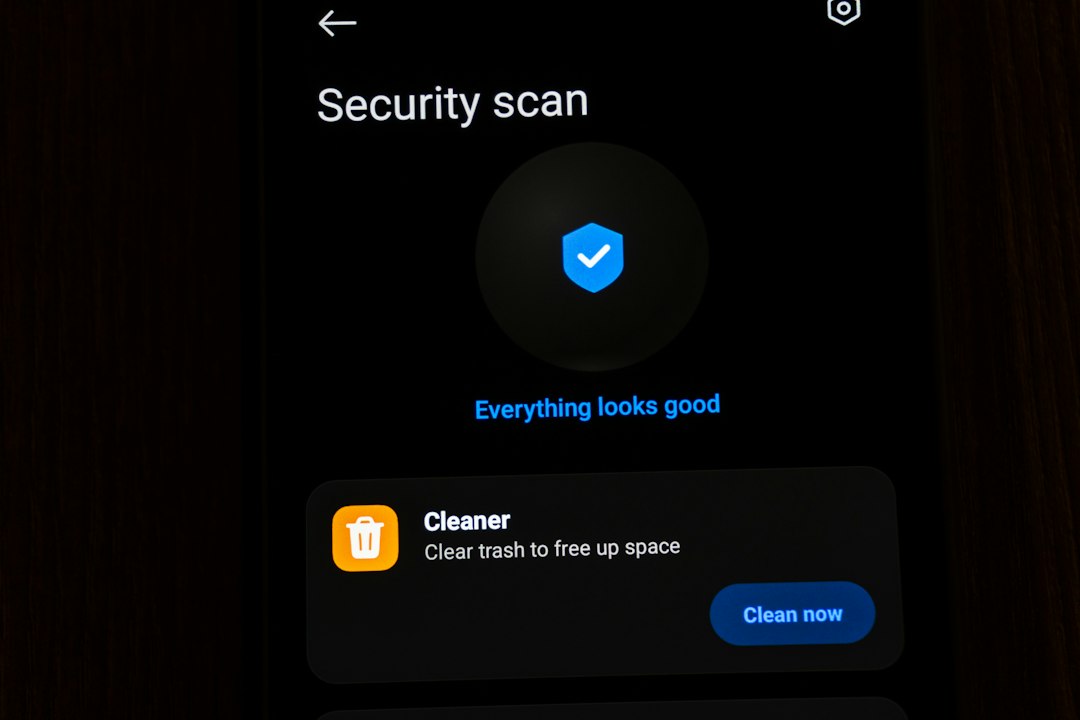
- Run a reputable security scan with PUP detection turned on.
- Check startup apps and disable anything unknown.
- Update the operating system and browser after cleanup.
How to Prevent PUPs
Prevention is mostly about habits and permissions. Download software from the vendor’s official site when possible. Choose Custom or Advanced install, not “Recommended,” when the installer offers choices. Read each screen before clicking.
For businesses, limit local admin rights. Use application control where practical. Train staff to avoid fake download buttons and cracked software. Turn on PUP or PUA protection in security tools if available.
A PUP is not always as dangerous as ransomware, but it is not harmless either. It can weaken privacy, slow devices, and open the door to worse software. If a program got onto your machine through tricks, bundles, or pressure, treat it as unwanted and remove it.