Every guide you have found tells you to build a child theme before you change anything. That advice was right for years, and on a block theme it is now wrong more often than it is right.
What changed is where WordPress stores your edits. Site Editor changes already survive a parent theme update, so on a block theme a child theme is a folder you maintain for no benefit.
Do you still need a child theme?
For most people running a block theme, no. Site Editor changes are saved to your database rather than to theme files, so a parent theme update cannot overwrite them. Protecting those changes was the original reason child themes existed.
Four situations still call for one. The first is a classic theme whose template files you need to edit. The second is custom PHP that belongs in functions.php. Third is a client site where somebody could undo Site Editor changes without realising it, and fourth is white-labelling a theme for resale or delivery.
If none of those describes you, stop here and use the Site Editor. The rest of this guide is for the people the four cases cover.
What changed with block themes
Full site editing moved template editing out of files and into the database. When you edit a header, a footer or a page template in Appearance » Editor, WordPress saves that edit as a database record that points at the original template rather than replacing the file.
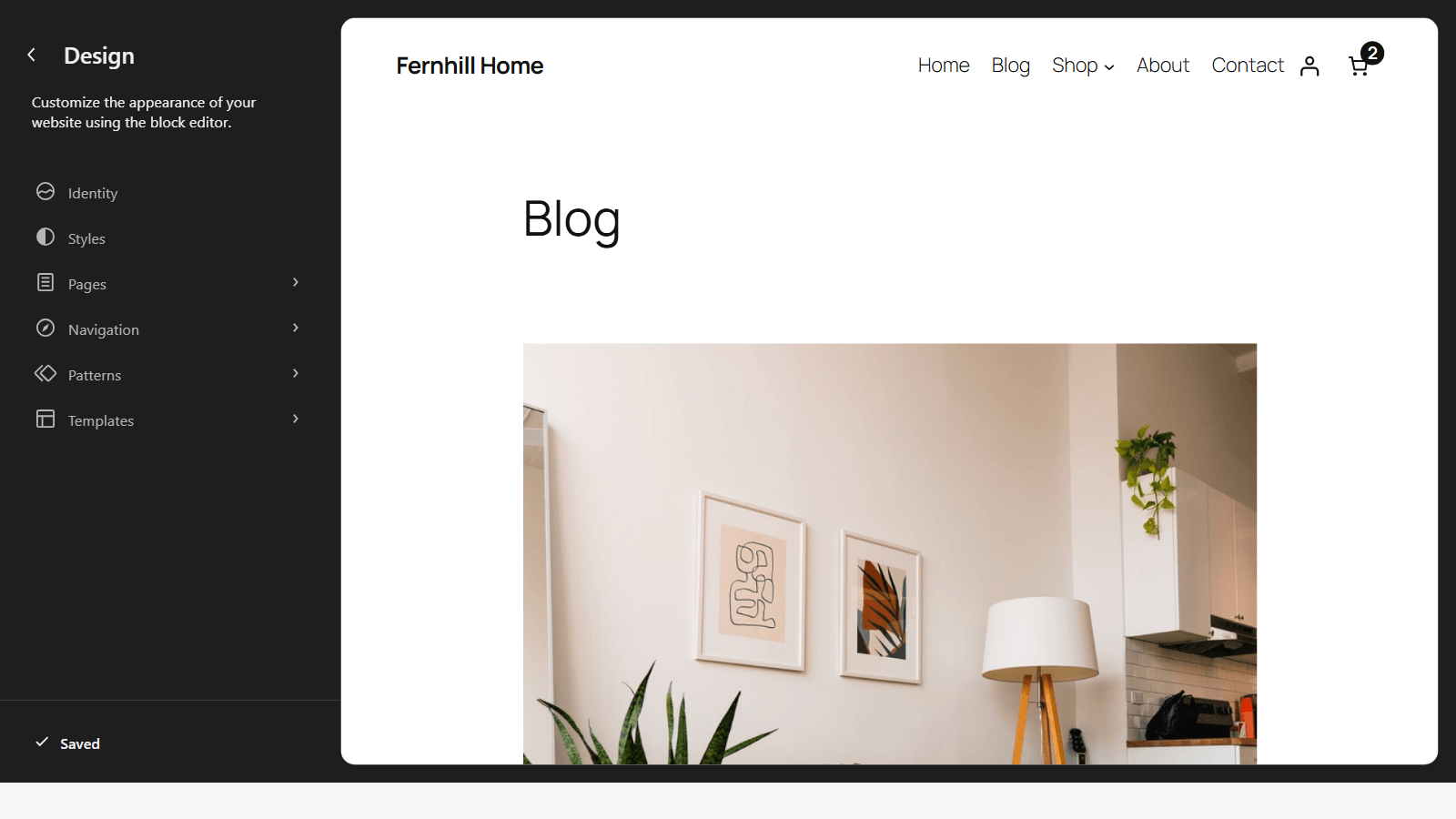
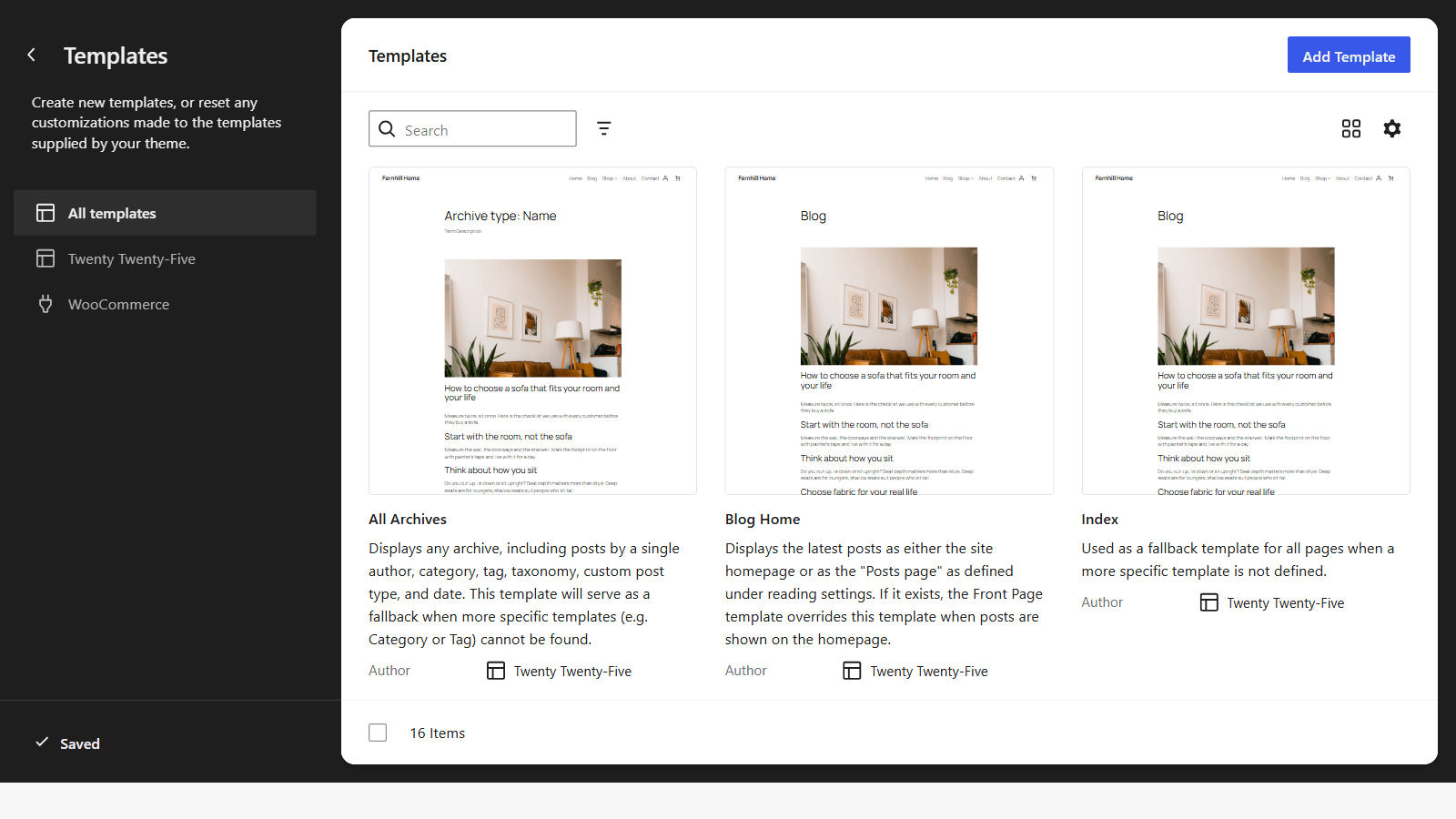
The consequence is the part the older guides have not caught up with. A parent theme update replaces the theme’s files, and your database records are untouched, so your customisations survive automatically. The Site Editor even shows you which templates you have customised and offers to reset them, which is a level of safety a child theme never provided.
Classic themes work the old way. Their templates are PHP files inside the theme folder, an update overwrites those files, and anything you changed goes with them. That is why the advice differs so sharply depending on which kind of theme you are running, and why “do I need a child theme” now starts with “which kind of theme is this”.
The decision tree
Four routes cover almost every customisation, and picking the right one saves the maintenance the other three would have cost you.
- The Site Editor: layout, templates, template parts, colours, typography and spacing on a block theme. Survives updates, needs no code, and is reversible from the same screen
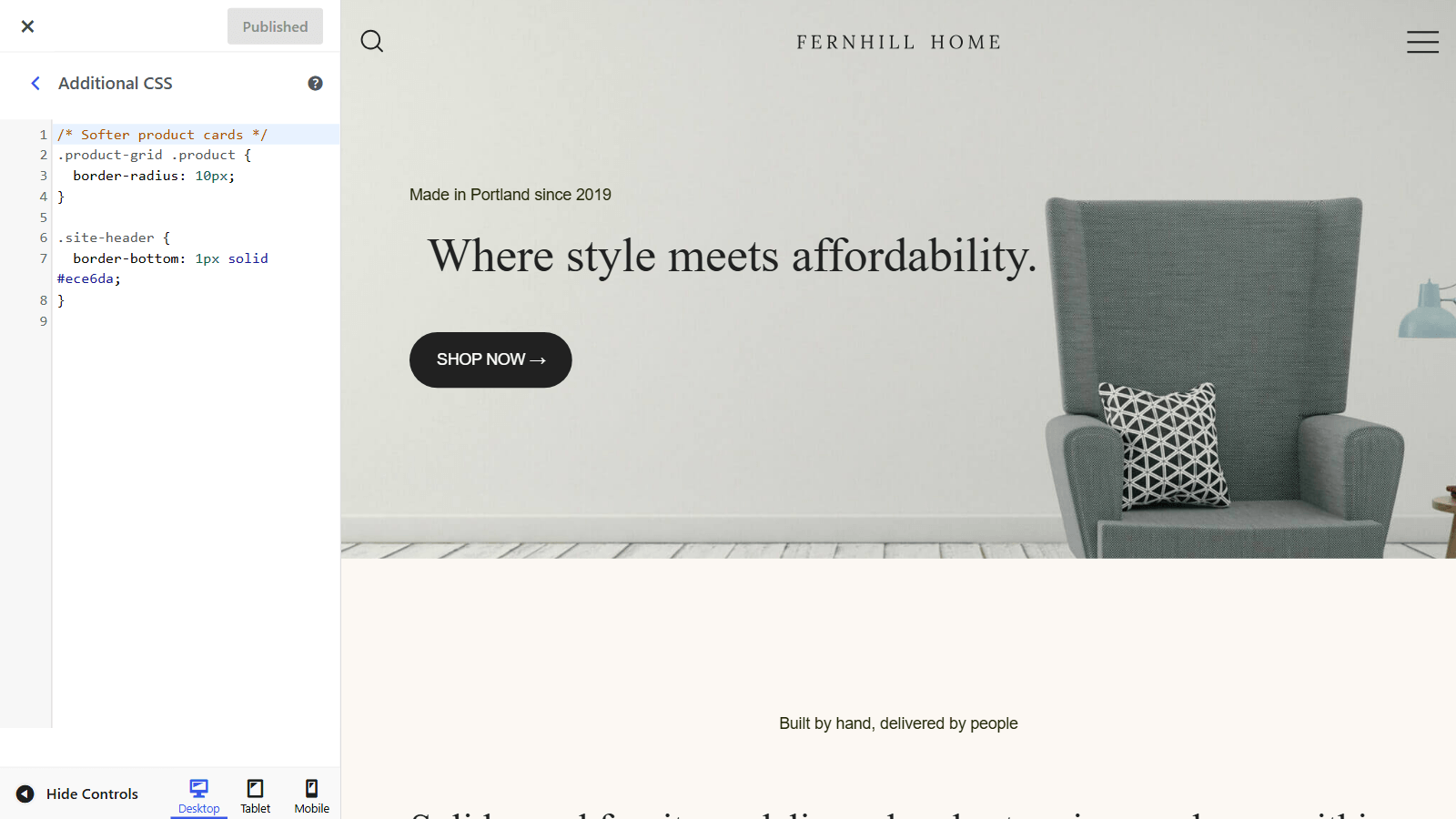
- Additional CSS: visual tweaks that do not change structure, such as a colour, a size or a spacing adjustment. Lives in the Customizer or the Styles panel and survives updates
- A small plugin: any PHP that is not about how the theme looks, such as a custom post type, a shortcode or a third-party integration. Keeping it in a plugin means it survives a theme change, not just a theme update
- A child theme: template file overrides on a classic theme, theme-specific PHP, and anything that must not be editable from the admin
The test for choosing is a single question. Ask what should happen to this change if you switch themes next year, and let the answer place it. Anything that should leave with the theme belongs in the theme or its child, and anything that should stay behind belongs in a plugin.
That question sorts more cases correctly than any rule about file types, and it is why so much of what sits in people’s functions.php files should have been a plugin all along.
When a child theme is still the right answer
Four cases, stated plainly.
- Template overrides on a classic theme: you need to change what a template outputs, the theme is classic, and editing the parent means losing the change on the next update
- Theme-specific PHP: you are adding a filter or an action that only makes sense while this theme is active, so a plugin would be the wrong home for it
- Client sites: the Site Editor is powerful and visible, and a client exploring it can undo your work without knowing they did, where code in a child theme is not editable from the admin at all
- White-labelling: you are shipping a themed build under your own name, and the child theme carries the branding, the screenshot and the metadata
How to create a child theme
The whole thing takes about ten minutes, and the two files below are all a child theme is required to have.
Step 1: Create the child theme folder
Connect to your site over SFTP, or open your host’s file manager from its control panel. Either route gets you to the same place.
Once you are connected, navigate to wp-content/themes/. This is where every installed theme lives, parents and children alike, and each theme occupies one folder.
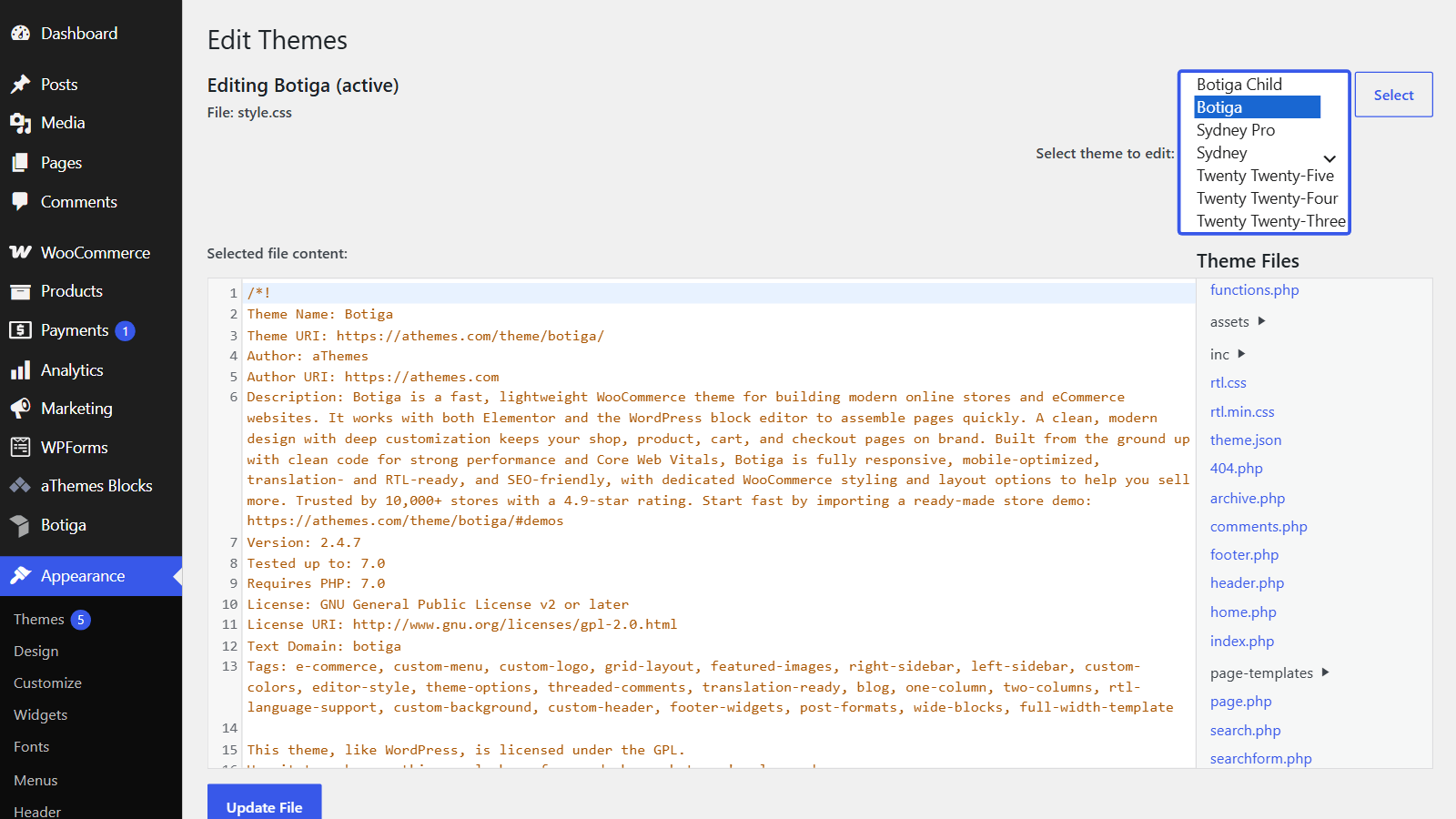
Create a new folder here for the child theme. Name it after the parent with -child on the end, so botiga becomes botiga-child and sydney becomes sydney-child.
The naming is a convention rather than a requirement, but it is the convention everybody else follows, and the next person to open this folder will thank you for it.
Keep the folder name lowercase with no spaces, because every tool that touches the folder afterwards is easier to use that way. Underscores and hyphens are both fine, and hyphens are what the rest of WordPress uses.
Check one thing before moving on, because it causes a confusing error later. The parent theme must already be installed in this same directory, since a child theme with no parent will not activate, and WordPress reports that in a way which is easy to misread as a broken upload.
Step 2: Write style.css
Create a file called style.css inside the new folder, because WordPress reads the comment block at the top of it to learn that the folder is a theme at all. The same block tells WordPress which theme this one is a child of.
Paste this header in and change the values to match your parent theme.
/*
Theme Name: Botiga Child
Theme URI: https://example.com/botiga-child
Description: Child theme for Botiga
Author: Your name
Template: botiga
Version: 1.0.0
*/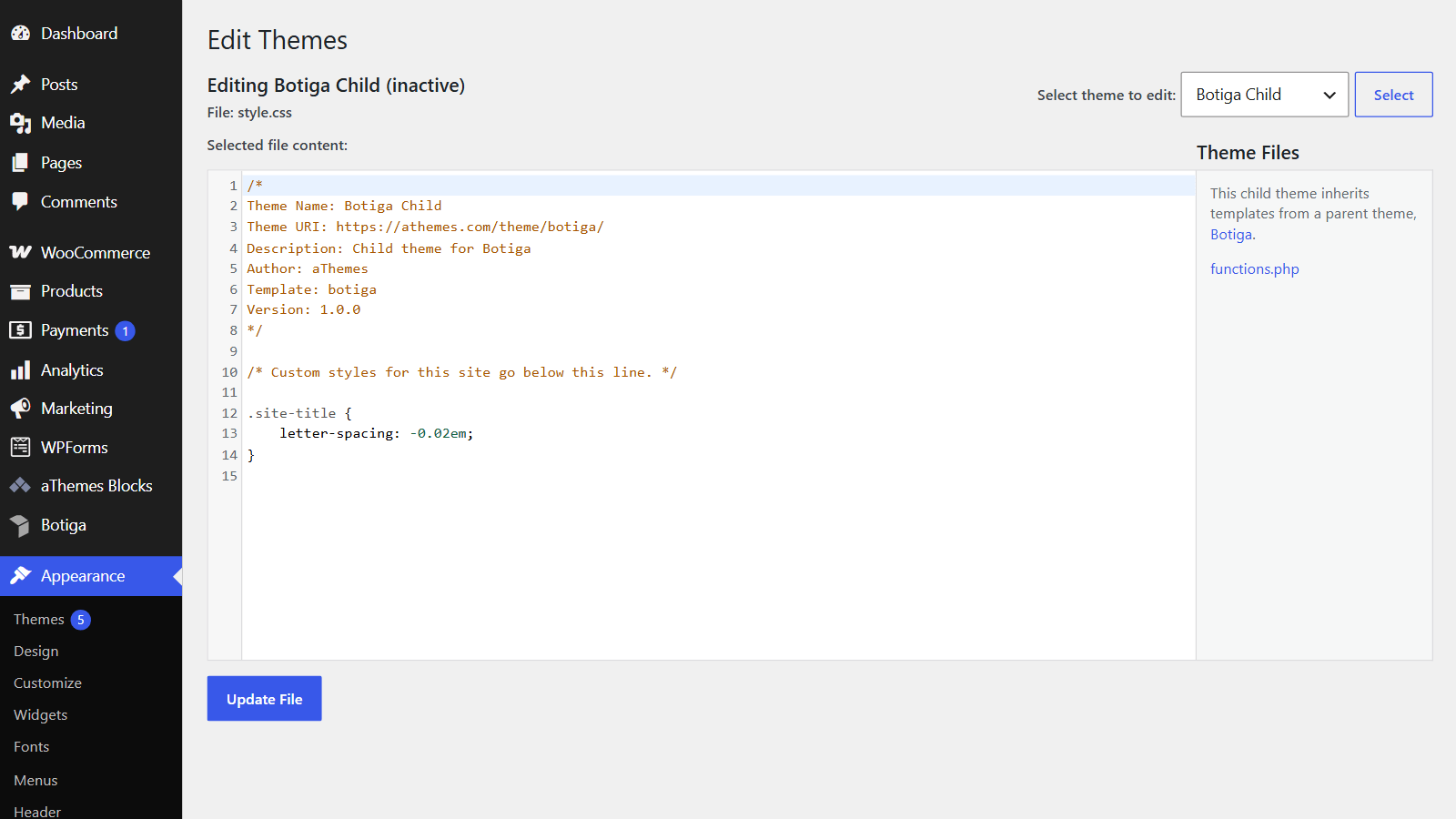
The Template line is the one that actually matters, and it is where most failed child themes go wrong. It must match the parent theme’s folder name exactly, lowercase and character for character.
Check that value against the folder name you saw in Step 1 rather than against the theme’s display name. Botiga’s folder is botiga, and a theme called “Botiga Pro” may well sit in a folder called something else entirely.
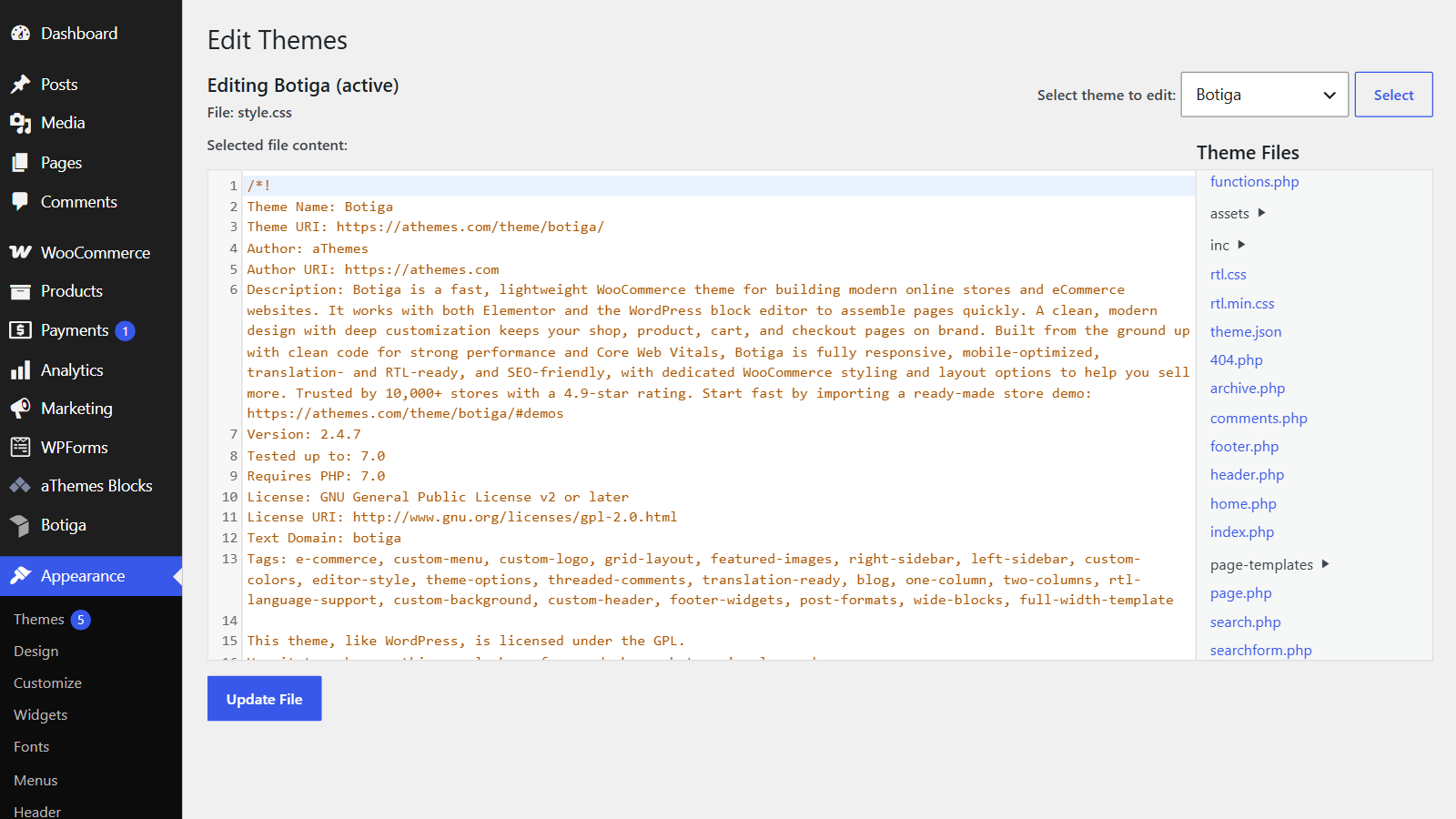
Theme Name is what appears in Appearance » Themes, so make it something you will recognise in a list. Everything else in the block is optional and exists for tidiness rather than function, though filling in Description and Author takes ten seconds and makes a client handover look considered.
Any CSS you write below that comment block applies to your site, and it loads after the parent’s own stylesheet, so it wins on equal specificity. On a block theme this is frequently the only file the child theme ever needs.
Step 3: Add functions.php and load the parent styles
Create a second file called functions.php in the same folder, alongside style.css.
Block themes may need nothing in this file at all, since WordPress loads the parent stylesheet for you and there is nothing to wire up.
Classic themes are the exception, and they need this file. The parent’s stylesheet has to be enqueued explicitly, or the site will load with your child’s CSS and none of the parent’s.
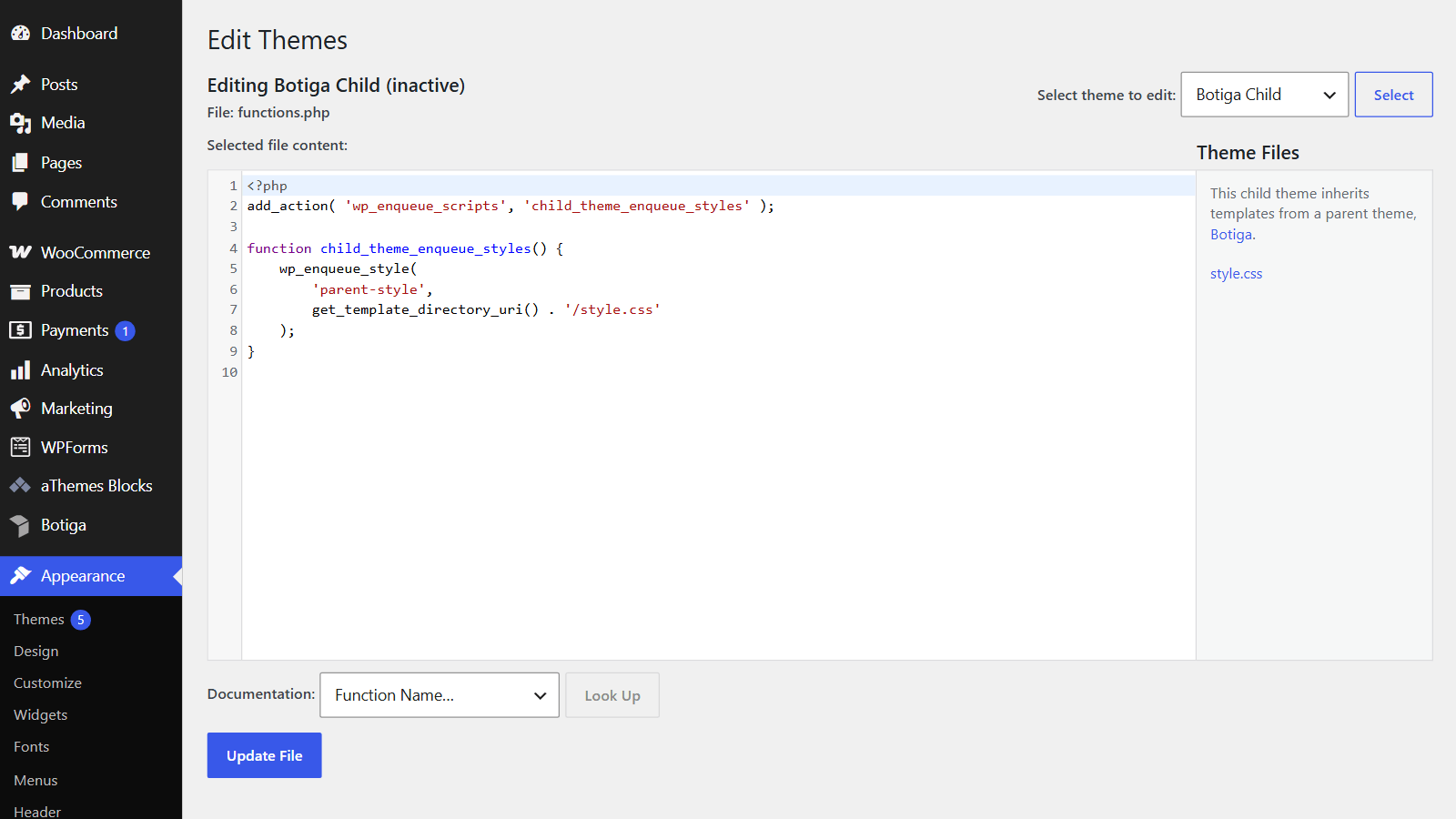
Two details in that snippet are worth understanding rather than copying blindly. get_template_directory_uri() points at the parent theme, while get_stylesheet_directory_uri() points at the child, and swapping them is a common and confusing mistake.
The other is the handle, parent-style here, which needs to be unique. If your parent theme already registers a handle by that name, pick something else or you will silently overwrite its registration.
A child theme’s functions.php adds to the parent’s rather than replacing it, which is the opposite of how template files behave. Both files run in sequence, so you never need to copy the parent’s functions across, and doing so will usually cause fatal errors from redeclared functions.
Pro Tip
Open the PHP tag at the top of the file and leave the closing tag off entirely. A stray blank line after ?> is one of the most common causes of the “headers already sent” warning, and omitting the tag removes the possibility.
Step 4: Install and activate the child theme
How you install it depends on where you built it, and both routes end in the same place.
If you built the folder directly on the server, the child theme is already installed. Go to Appearance » Themes and it will be sitting there among the others.
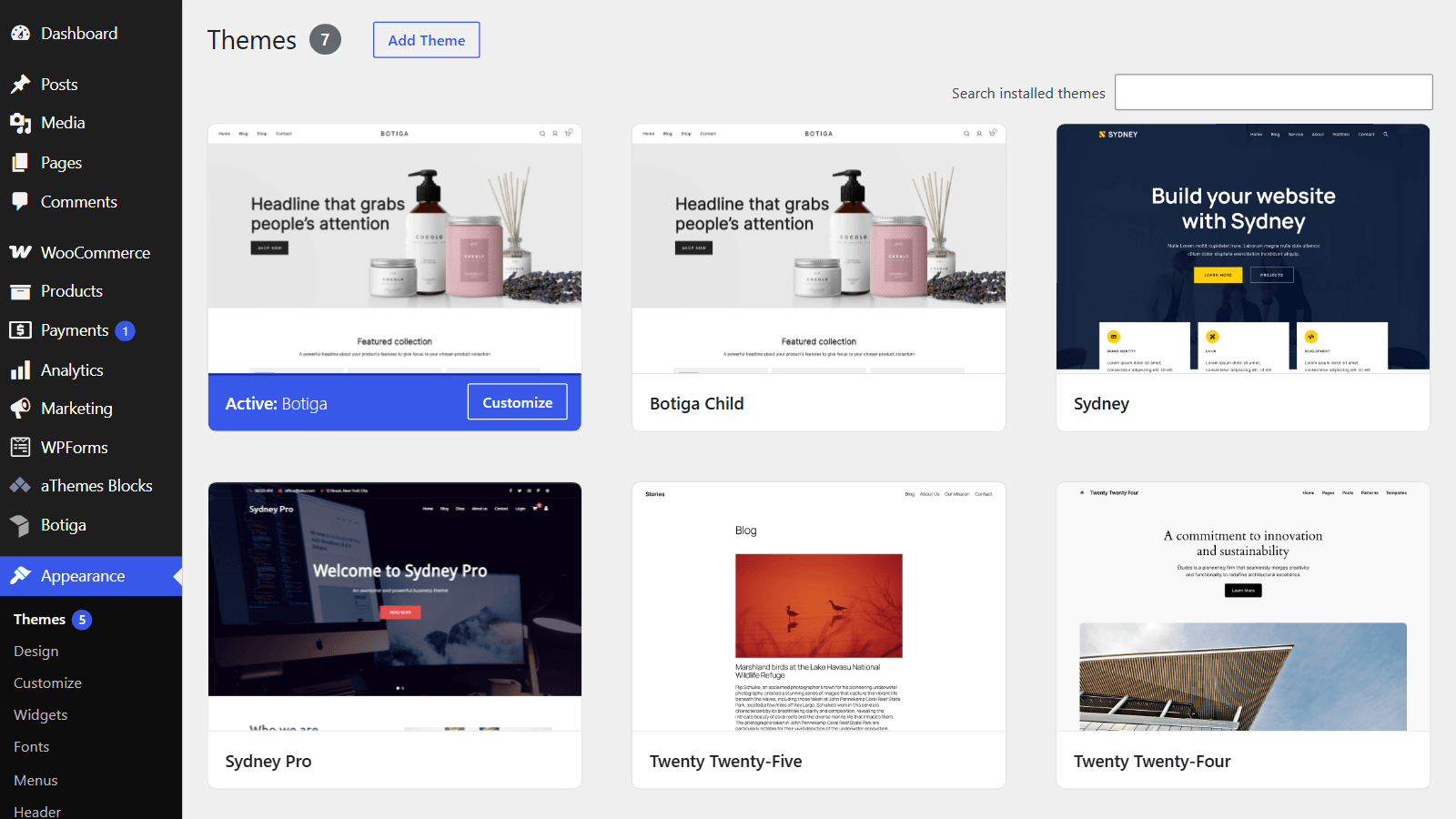
If you built it locally instead, compress the folder into a .zip file first. Zip the folder itself rather than its contents, because WordPress expects the theme files to sit one level down inside the archive.
Then go to Appearance » Themes » Add New Theme and click Upload Theme at the top of the screen.
Select the zip file and click Install Now to upload it. WordPress unpacks the archive into wp-content/themes/ and reports whether it found a valid theme, which is your first confirmation that the style.css header is well formed.
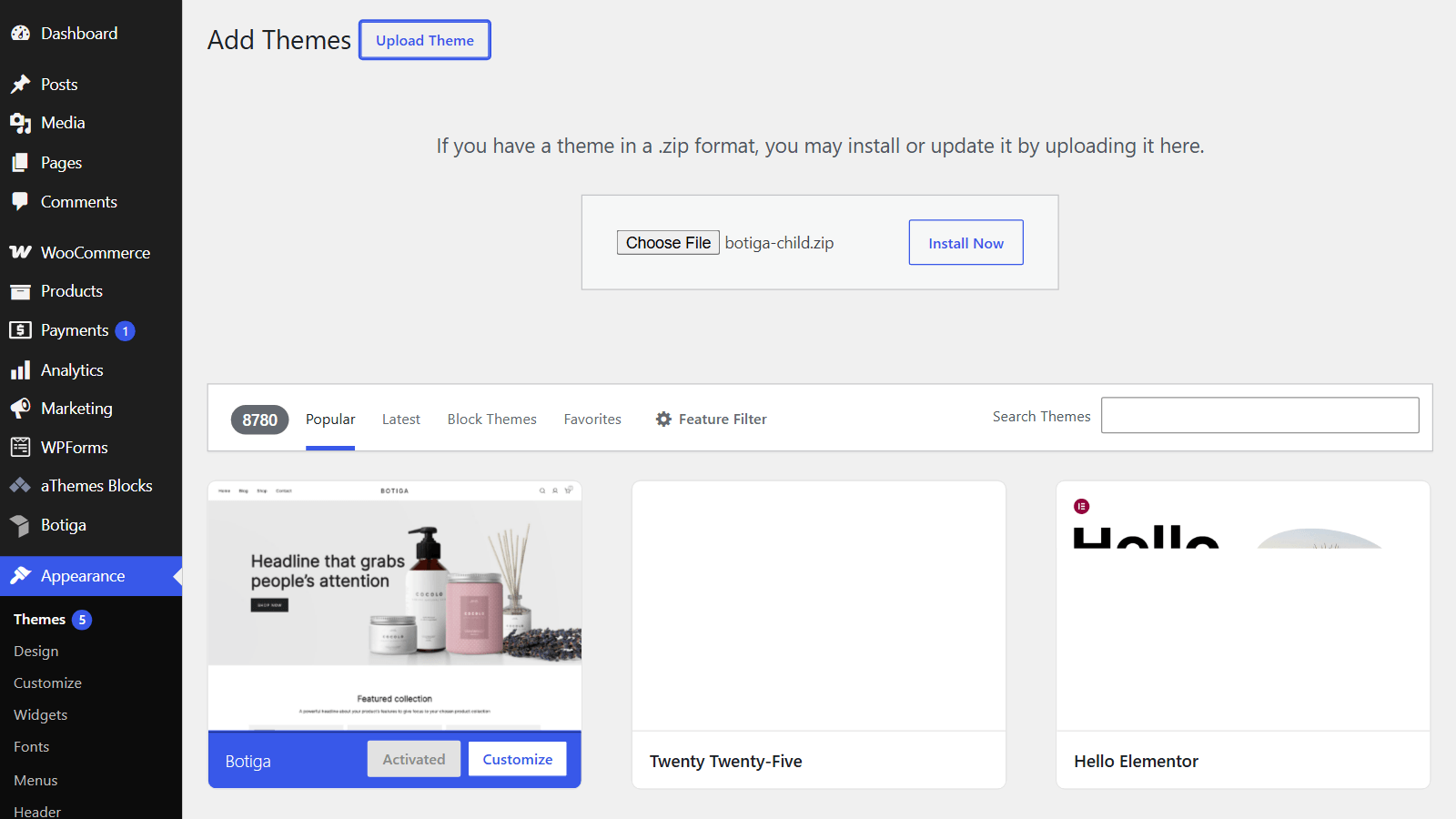
Now click Activate on the child theme and let the page reload. The parent must stay installed because the child inherits everything from it, though the parent does not need to be the active theme.
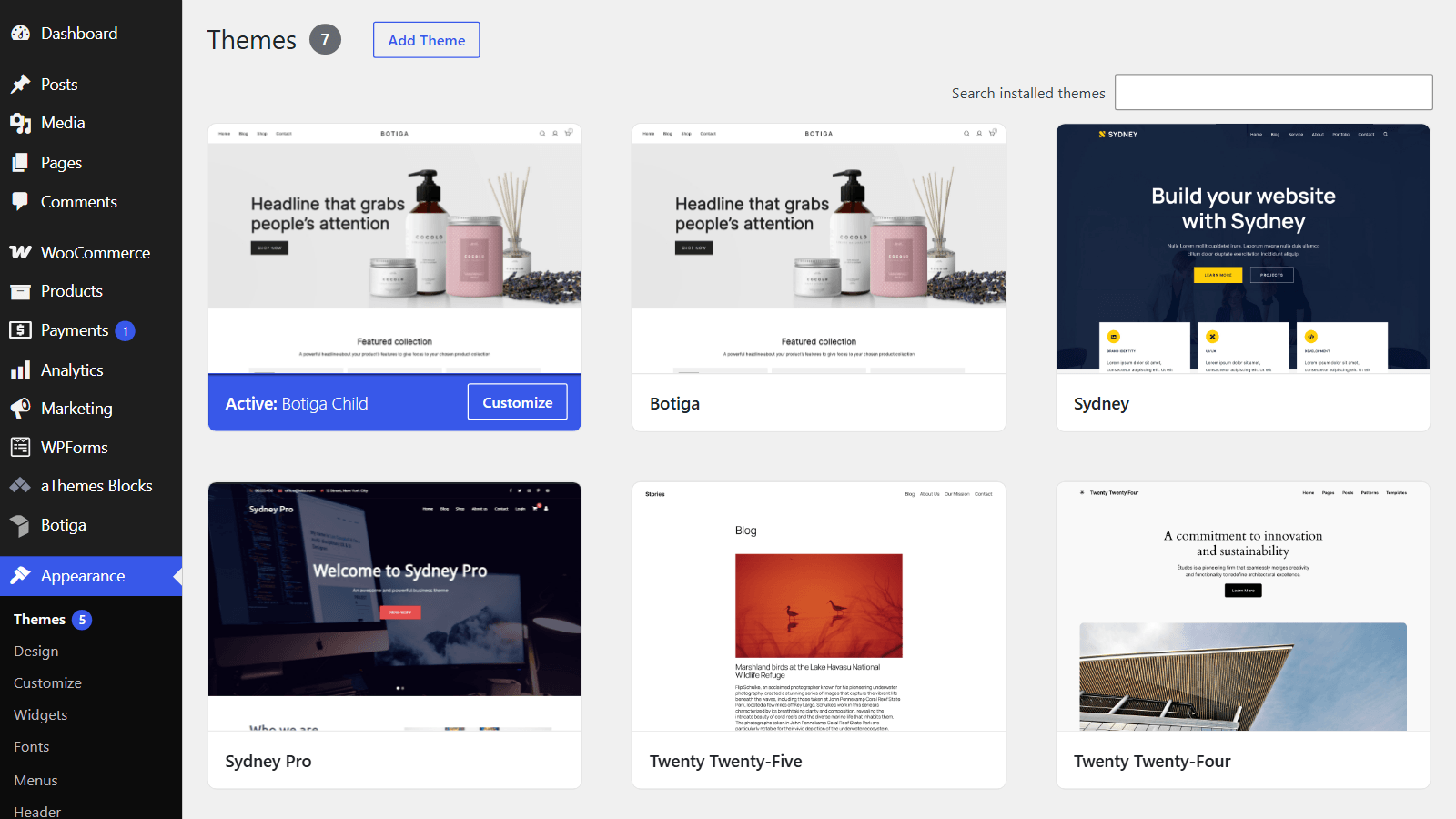
Load the front end and confirm the site looks exactly as it did before activation, because an empty child theme inherits everything and nothing should have changed yet.
A site that suddenly loses all its styling almost always means the Template line in style.css does not match the parent folder name, so go back to Step 2 and compare the two character by character.
Step 5: Move your customisations across
With the child active, move whatever you were maintaining in the parent into the child, one piece at a time rather than all at once.
CSS goes into the child’s style.css, below the header comment block, and any PHP goes into the child’s functions.php underneath the enqueue you added in Step 3.
Template files work differently from CSS and PHP, because they replace rather than add. Copy the file from the parent into the child at the same relative path, so a parent’s template-parts/content.php becomes the child’s template-parts/content.php, then edit only the copy.
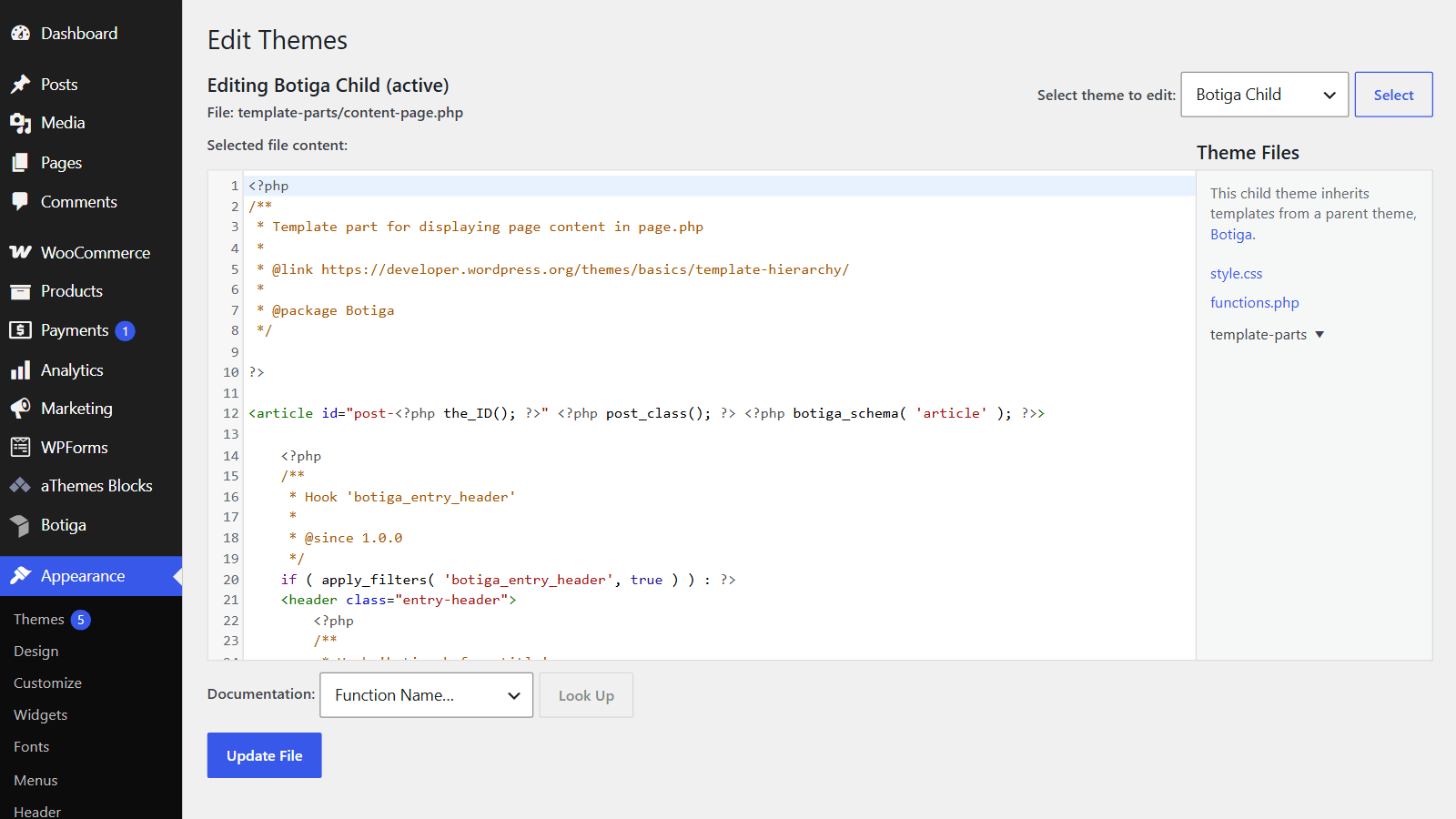
Copy only the template files you are actually changing. Copying the parent’s whole template folder is the single most common child theme mistake, and it turns every future parent update into a manual merge of files you never needed to own.
Check the front end after each piece rather than after all of them. Finding which of eleven changes broke a page is a much worse afternoon than finding that the last one did.
When everything is moved across, revert your edits in the parent theme so the two are not silently disagreeing. A parent that still carries your old changes will keep working until the day it updates, and then the behaviour you thought lived in the child quietly disappears.
And that is the child theme finished. It is active, it holds your customisations, and the next parent update will leave every one of them alone.
The shortcut: ready-made child themes
If your parent theme is one of ours, the child theme already exists and you can skip the whole build.
aThemes supplies ready-made child themes for Botiga, Sydney and Sydney Pro through the documentation rather than through the WordPress.org theme directory. The download and the install steps are on each product’s documentation page, covering the Botiga child theme, the Sydney child theme and the Sydney Pro child theme.
Worth being precise about where they come from, because searching WordPress.org for a botiga-child or sydney-child theme returns nothing. They are supplied through the docs, not the directory, so the docs pages are the place to get them.
If you are still choosing a parent theme, our WordPress themes page covers the range and our fastest WordPress themes comparison has the performance numbers.
What people get wrong
Four mistakes account for most broken child themes.
- Copying the entire parent theme: a child theme should contain only the files you have changed, and copying everything makes every parent update a manual merge
- Editing the parent anyway: a child theme protects nothing if the change goes into the parent’s files, and this happens most often through the Theme File Editor, where both themes are selectable from the same dropdown
- Forgetting the screenshot: without a
screenshot.pngat 1200 by 900 pixels in the child folder, the theme shows as a grey placeholder in Appearance » Themes, which looks broken on a client site - Breaking translations: a child theme does not inherit the parent’s text domain automatically, so any string you add needs the correct text domain or it will not translate
If you are working with a page builder rather than theme files, most of this changes shape, and our best WordPress theme builders roundup covers those options.
FAQs about WordPress child themes
Child themes generate the same handful of questions, especially now that block themes have changed the answer to the first one.
What is a WordPress child theme?
A child theme is a theme that inherits everything from another theme, called the parent, and overrides only the parts you change. It needs a folder, a style.css with a Template line naming the parent, and nothing else.
Do I still need a child theme in 2026?
On a block theme, usually not, because Site Editor changes are stored in the database and survive parent updates. You still need one for classic theme template overrides, theme-specific PHP, client sites where the Site Editor should not be the source of truth, and white-labelling.
How do I create a child theme?
Create a folder in wp-content/themes/, add a style.css with a header comment whose Template line matches the parent’s folder name exactly, add a functions.php if you need PHP or classic-theme stylesheet loading, then activate it from Appearance » Themes.
Will a child theme slow my site down?
There is no measurable difference. A child theme adds one stylesheet lookup, which is negligible against everything else on a page. Copying the entire parent theme into the child can cause problems, but that is a maintenance issue rather than a performance one.
What happens to my child theme when the parent updates?
Nothing happens to it. The parent’s files are replaced while your child theme’s files are left alone, which is the behaviour you built it for. The exception is a parent update that changes a template you have overridden, where your copy keeps working but misses whatever the update added.
Final thoughts on WordPress child themes
The honest answer for most people on a block theme is that they do not need one, and the Site Editor already does what they were told a child theme was for. That is the part the older tutorials have not updated, and it saves a folder and a maintenance obligation.
If you are on a classic theme, writing PHP, or handing the site to somebody else, build the child theme and keep it small. Two files is usually all it needs, and anything that should outlive the theme belongs in a plugin rather than in here.
Are you running a block theme or a classic one, and did that change your answer here? Tell me in the comments below.