Over the past few months we’ve been looking at how the bigger WordPress plugins are adding AI to their products, on top of the AI tools for WordPress development we’ve already covered. Most of it, if I’m honest, is fairly light. You get a content generator, maybe a chat window in the dashboard, and quite often an “AI-powered” label on something that worked the same way last year.
It’s much less common to find a plugin that lets an AI agent actually run it, so the agent can actually read how things are set up, work out what needs to change, and then make the change. B2BKing is doing that for WooCommerce B2B stores, and they’ve built it on WordPress’s own standards instead of inventing their own connector.
I’ll go through what the MCP integration does, the standards behind it, what a real request to the AI looks like, and how you connect Claude or Codex to your WooCommerce store.
Which WooCommerce B2B Plugin Works With AI?
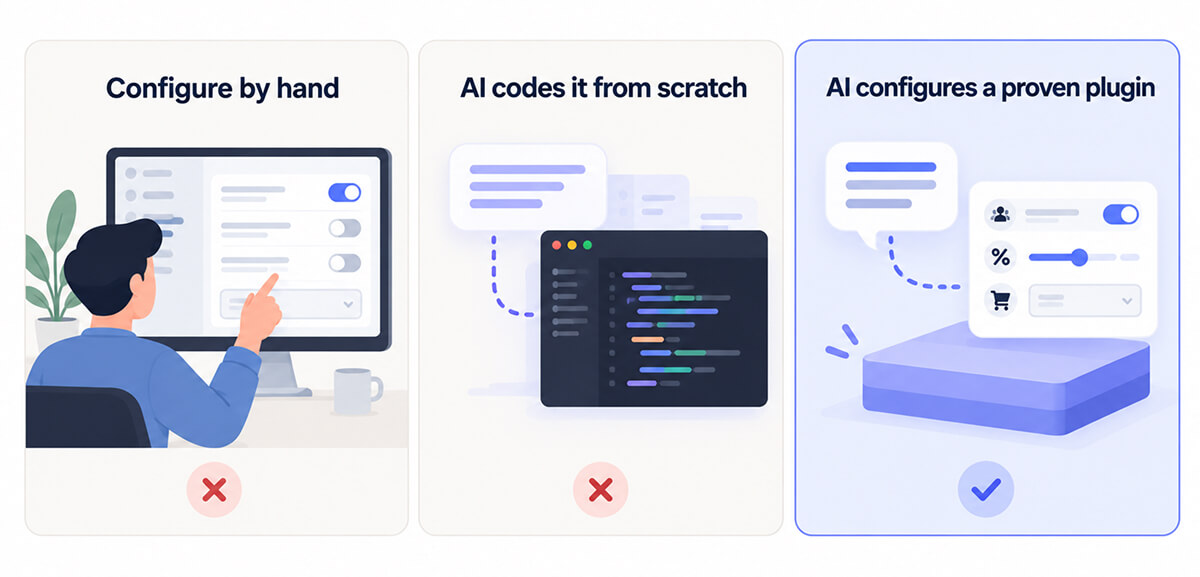
B2BKing is a WooCommerce B2B and wholesale plugin that AI assistants can configure directly, and it’s one we already include in our best WooCommerce B2B plugins roundup. It registers its main store settings as abilities through the WordPress Abilities API and the official WordPress MCP Adapter, then makes those abilities available to any assistant that supports MCP, including Claude, Codex, Cursor, and VS Code.
Once your assistant is connected, you can ask it in plain English to switch the store between B2B-only and hybrid B2B/B2C, decide what guests can see, create customer groups, add wholesale pricing and minimum order rules, and put customers in the right group. You don’t need to write or touch any code or settings pages.
Why a WooCommerce B2B Store Setup Suits AI Configuration
If you’ve ever built a WooCommerce wholesale store with B2BKing the usual way, you’ll know that hardly any of the work is code. It’s almost all configuration, and a B2B store needs plenty of it.
You have to decide whether the shop is wholesale-only or hybrid, what logged-out visitors can see, which customer tiers you’re offering, what each one pays, what the minimum orders are, and how new trade accounts get approved, amongst everything else.
Each of those decisions is well defined and you tend to make the same ones store after store, which is the sort of work AI assistants are genuinely good at. Clicking around in settings screens eats up valuable time, and that hurts particularly when you’re an agency launching stores for several clients, or when the sales team wants a new distributor tier live by the end of the day.
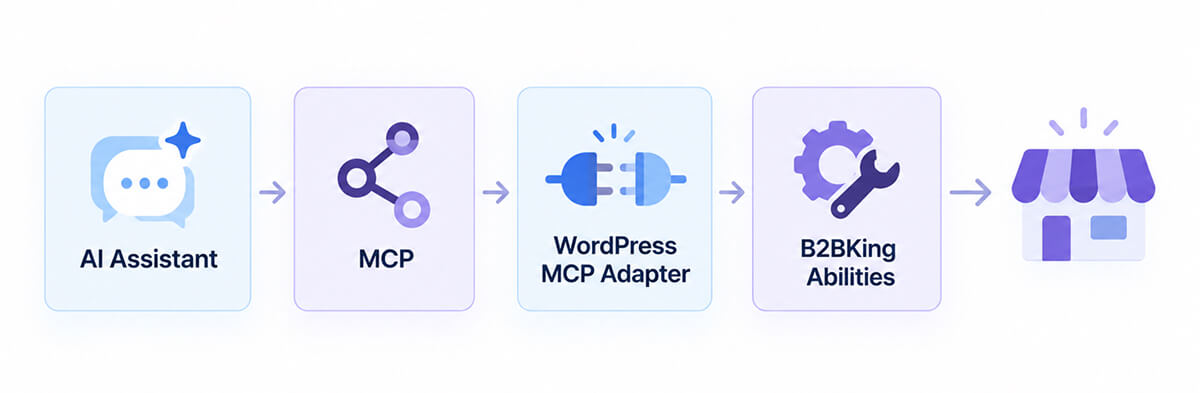
Why AI Should Configure a Proven B2B Plugin Rather Than Code One
The other temptation right now is to ask the AI to vibe-code the whole store system from scratch. The B2BKing team argue that the sensible answer sits between the two, and I agree with them.
Wholesale prices need to stay correct across the cart, checkout, taxes, variable products and currencies, and hidden products have to stay hidden in search, feeds, and the REST API. On top of that, it all has to keep working alongside payment gateways, caching and every other plugin a live store runs.
B2BKing has been around for almost seven years and is running on more than 15,000 WooCommerce stores (our B2BKing review covers the plugin itself in more depth). That means its pricing, visibility, registration, and quote logic have already been through the kind of edge cases a brand-new system would still have to stumble into.
The MCP integration just gives an AI a way to drive all that, so the assistant translates what you’re asking for into the right settings and B2BKing applies them across the store.
How B2BKing Uses the WordPress Abilities API and MCP
The part of this I like most is that it’s built on open, official standards, so you’re not locked into one AI product. B2BKing registers its abilities through the Abilities API, the MCP Adapter makes them available over MCP, and once the adapter is installed, your assistant can see them right away.
The WordPress Abilities API has been part of core since WordPress 6.9, and it gives plugins a standard way to describe what they can do. Every ability comes with a description, a schema for the information it expects, and a permission check, so the AI knows what an action does and whether the logged-in user is allowed to run it before anything happens. We’ve written about how it compares to the older options in WP-CLI vs REST API vs Abilities API, if you want more background.
The Model Context Protocol (MCP) is the open protocol AI assistants use to talk to outside tools, and it’s the reason the same B2BKing setup works in Claude, Codex, Cursor, and VS Code. The official WordPress MCP Adapter connects the two, and it works on live sites as well as local development setups, so B2BKing gets better automatically as more of the WordPress AI ecosystem falls into place.
What AI Assistants Can Configure in B2BKing
The current version of B2BKing, at the time of writing, covers the main decisions you’d make when setting up a B2B store, and they fall into five areas:
- Store configuration: Your assistant can read the whole B2BKing setup, switch between B2B-only and hybrid B2B/B2C mode, and decide what logged-out visitors see, whether that’s hidden prices, a hidden shop, a login-only store, or quote requests in place of prices.
- Registration and features: B2B registration, where the role dropdown and account approval can all be switched on or off, along with features like quote requests and conversations, offers, purchase lists, the bulk order form, and company sub-accounts.
- Customer groups: You can have it list the groups you already have or create new ones, such as Resellers or Distributors, with a credit limit if you want one.
- Pricing rules: Percentage discounts, fixed amount discounts, fixed prices, free shipping and minimum order rules can be set for all B2B customers or a single group, and applied to the whole catalogue, one product, or a category.
- Customers: It can check a customer’s B2B status, group and approval status, and move them into a B2B group or back to B2C.

Anything the assistant creates is just ordinary B2BKing data. A group it adds through MCP is exactly the same as one you’d create yourself in the dashboard, and its pricing rules show up under Dynamic Rules alongside the rest, so you can check or change them manually yourself whenever you like. More abilities are being added over time.
Setting Up a Hybrid B2B/B2C Store With One AI Prompt
Let’s say you run a store that sells to consumers and you want to open it up to trade customers. Instead of going through the settings pages one by one, you open Claude or Codex (already connected to your store) and type a single request:
Set my store up as a hybrid B2B/B2C shop. Guests should see prices replaced with a quote request. Create a "Wholesale" group with a $5,000 credit limit and give it 15% off everything, plus a $300 minimum order.The assistant first reads your current B2BKing configuration so it knows what it’s working with. Then it switches the store to hybrid mode, sets guests to see quote requests, creates the Wholesale group with its credit limit, and adds two rules for that group, one for the 15% discount and one for the $300 minimum.
B2BKing checks each step as it happens, for example, making sure the group exists before a rule is pointed at it. When it’s done, the assistant tells you what it changed.
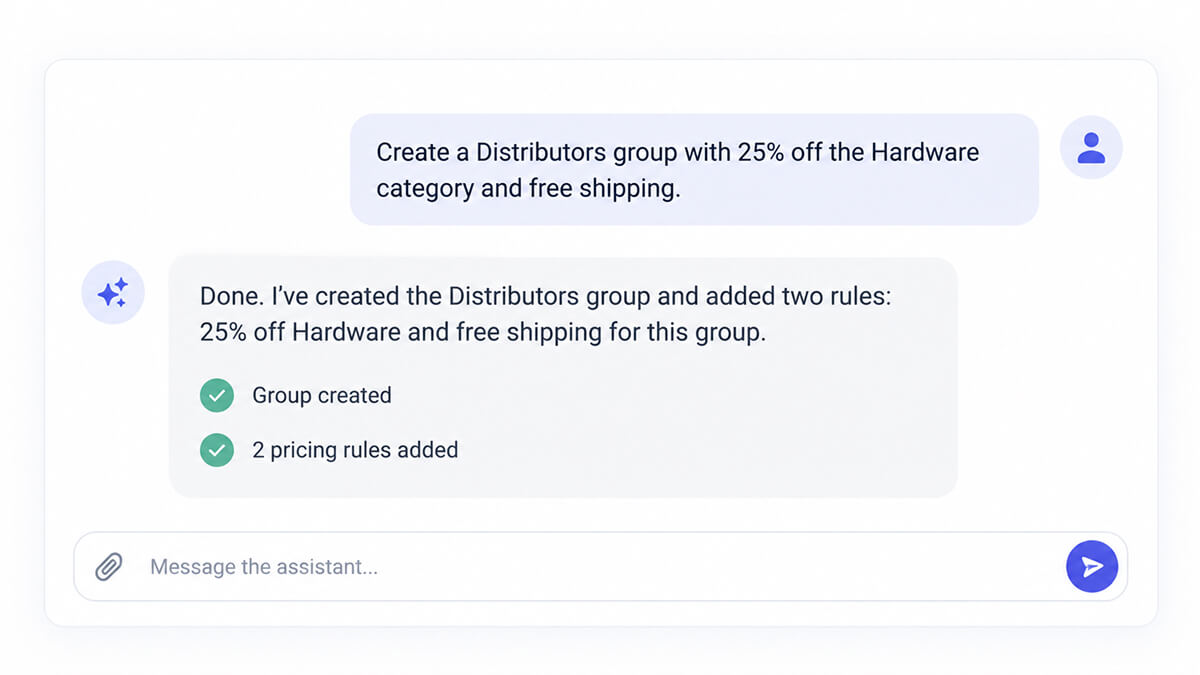
You can keep going in the same conversation afterwards too. So you might ask it to move a particular customer into the Wholesale group, set up a Distributors group with 25% off the Hardware category and free shipping, or to give you a summary of which pricing rules apply to each group.
All that setup work that used to eat up an afternoon now takes a few minutes of explaining what you want in plain English.
How to Connect Claude or Codex to B2BKing
Any assistant that supports MCP will work with B2BKing, including Cursor and VS Code, but Claude and Codex are the easiest place to start because they can set up the connection to your store for you. You won’t need to write any code either way since the assistant only works through B2BKing’s built-in abilities.
Let Your AI Agent Set Up the Connection
The simplest option is to tell Claude or Codex you want it to connect to your store over MCP using the official WordPress MCP Adapter, and leave it to figure out what needs installing and configuring.
Usually, the only thing it’ll ask you for is an Application Password, which you can create in your WordPress dashboard by going to Users > Profile > Application Passwords.
Connect B2BKing to MCP Manually
If you’d rather set it up yourself, you’ll need WordPress 6.9 or later and the latest version of B2BKing. From there, you install the MCP Adapter plugin, create an Application Password, and add a short entry to your AI client’s MCP configuration.
You don’t have to switch anything on in B2BKing because its abilities register themselves. B2BKing’s guide to building a WooCommerce B2B store with AI includes the full configuration snippet you’ll need.
How B2BKing Keeps AI Store Changes Safe
The first thing you might ask as a store owners is whether you’re giving up control by letting an AI loose on your settings, and B2BKing has put a few sensible checks in place to make sure you aren’t.
Every ability checks the connected user’s WordPress capabilities before it runs, and inputs are validated so a rule can’t point at a group or category that doesn’t exist, or give a discount of more than 100%.
Each ability is also labelled as either read-only or one that makes changes, which means your AI client can ask you to confirm before it modifies anything, and licence keys are never passed back to the assistant. Developers also get two filters, b2bking_mcp_enabled and b2bking_mcp_write_enabled, which turn the integration off completely or limit it to read-only.
What B2BKing’s MCP Integration Means for Agencies and Store Owners
For me, this is the version of AI in WordPress that makes the most sense, where the assistant handles the configuration and a plugin with years of real-world use behind it does the work behind the scenes.
If you’re an agency setting up trade stores for several clients, or a store owner who’d rather describe a pricing tier than go digging through settings for it, B2BKing’s MCP integration takes a slow, manual job and makes it a quick conversation, all on the same plugin that’s already running thousands of live B2B stores.
If you want to try it, you’ll find the plugin on the B2BKing site along with their initial setup guide, which covers every part of a B2B setup whether you’re doing it by hand or with an assistant.
I’d love to know where you’d draw the line, though. Would you let an AI assistant change pricing on a live store, or would you keep it read-only for now?