What if building a form was as easy as describing it out loud? Formidable Forms now connects to Claude, ChatGPT, Cursor, or any MCP client, so you can hand it a project brief and watch a real, working form get built, styled, and ready to publish in minutes.
In this guide, we’ll show you how Formidable Forms works as an AI form builder for WordPress, taking you from a written prompt to a fully functional web app.
Approximate read time: 13 minutes
Upgrade your WordPress site with powerful, flexible forms.
From a one-paragraph brief to a working application
Most AI tools stop just short of being useful for this. They’ll suggest a field list, hand you a code snippet, or sketch a mockup, and then leave you to do the actual building, which is where the real time goes.
Formidable’s MCP connection skips that handoff entirely. You describe the whole project the way you’d describe it to a teammate, and minutes later it’s built on your real site with real Formidable settings, ready to open in the builder and edit.
The kind of build that used to fill an afternoon, with fields, Views, styling, and navigation each configured by hand, now finishes before you’d have picked a template.
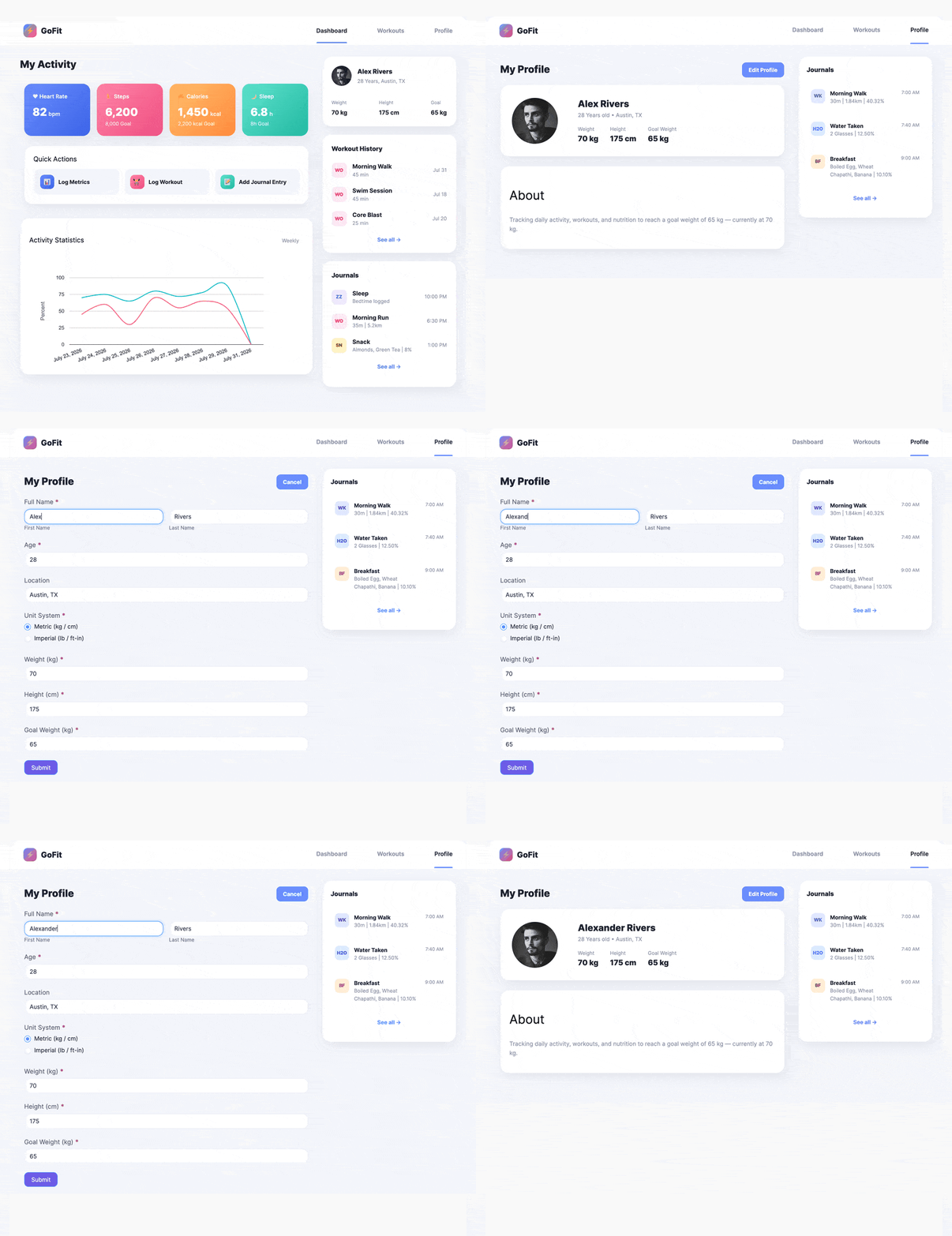
It doesn’t stop at the first draft either. Ask for a change and watch it happen instantly, with nothing rebuilt and nothing broken. Keep reading to see the whole build step by step, and how to set this up on your own site.
From Idea to Reality in Minutes. Build Powerful Forms, Dashboards, Apps and More.
Formidable Forms makes advanced site building simple. Launch forms, directories, dashboards, and custom WordPress apps faster than ever before.
What is MCP, and why does it matter for Formidable Forms?
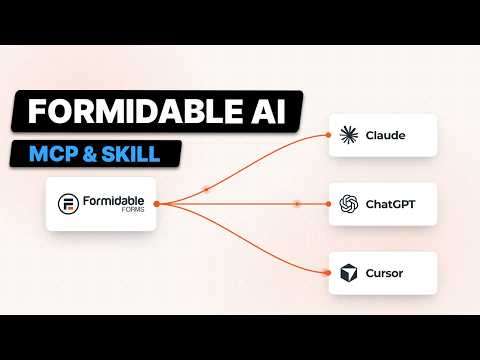
MCP, short for Model Context Protocol, is a shared way for AI assistants like Claude, ChatGPT, or Cursor to call real tools on a real system instead of just telling you what to click.
It isn’t owned by one company, so any of them can use it the same way. Formidable now connects to MCP, so an AI client can build and edit real forms directly, the same way Formidable’s own builder does it. That covers fields, conditional logic, styles, Views, and full applications.
That means you open a chat with Claude or the MCP client of your choice, describe a form in plain English, and it gets built on your site. In practice, it turns Formidable into an AI form builder for WordPress that outputs the exact same fields and settings you’d create by hand.
MCP itself is free on every license, including Lite, but it can only build with what your license includes. Views, applications, and other paid features still need a paid license.
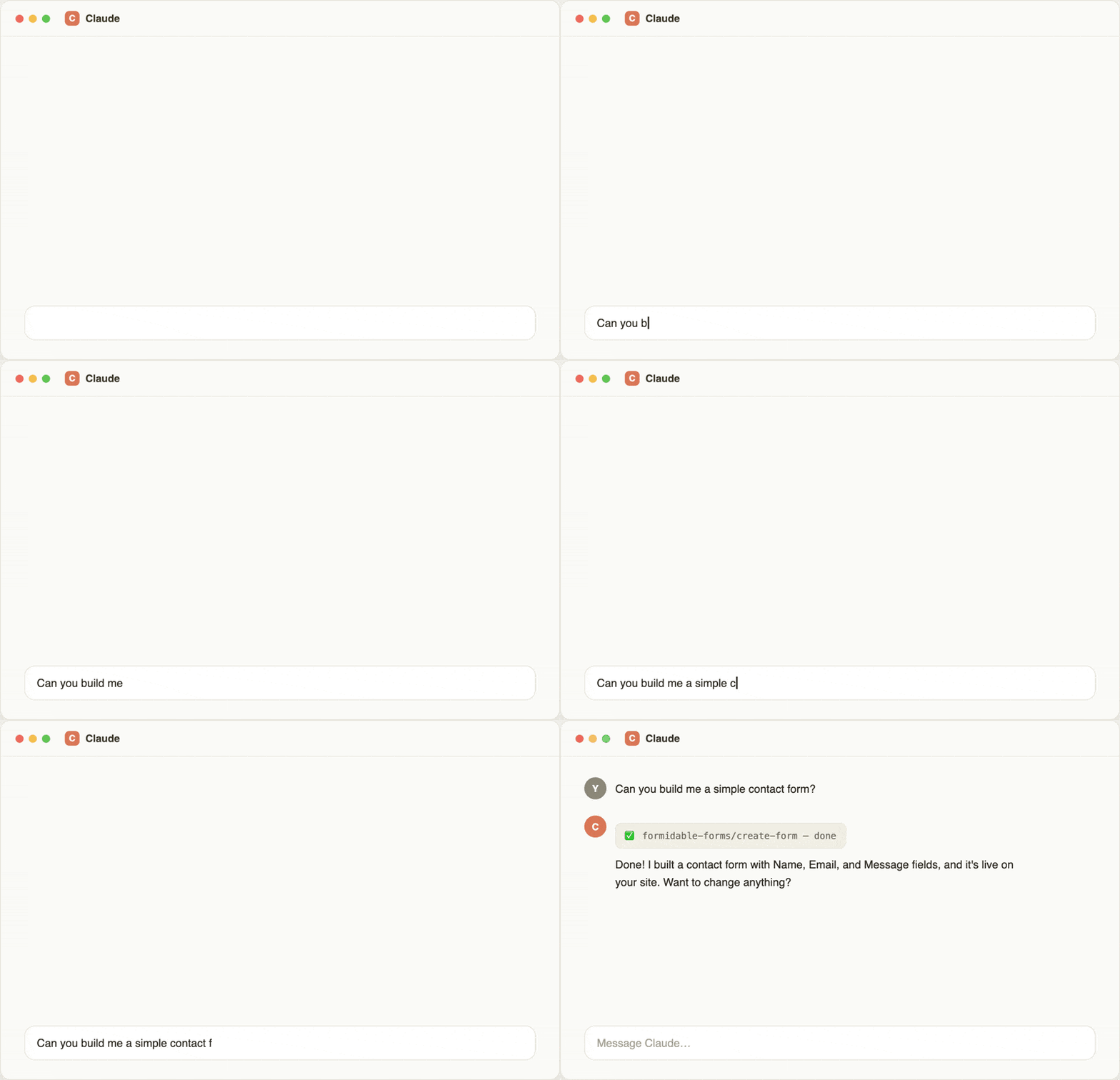
A plain-English request in, a real result out. Scale that same idea up to a whole application, and here’s who stands to gain the most from it.
Whether it’s your first form or your fiftieth client
If you’re new to Formidable, or you’ve never built a View, a repeater, or a full application by hand, AI makes it easier than ever to start. You don’t need to learn every setting before you can use it. Describe what you want, and the AI builds it with the real settings, so you get to see how a feature works instead of searching through documentation or contacting support.
If you build forms for a living, the time you save will pay off quickly. Agencies, freelancers, and developers who build forms for other people end up building the same kind of thing over and over: a client intake form, a quote request, an application form, each with slightly different fields, logic, and branding. If you’ve ever rebuilt a nearly identical repeater section or conditional logic rule for the third client this month, this is for you. The hours that used to go into that setup shrink to the time it takes to write the brief.
Even the developers who know Formidable best still get something out of it. It often shows you features you didn’t know existed, like advanced View functionality or a filtered lookup field, and it’s a fast way to troubleshoot an application that isn’t behaving the way you expect.
How to install the Formidable MCP skill
Before you connect anything, update Formidable Forms to version 7.0 or higher and WordPress to version 6.9 or higher. MCP works on Lite and every paid license.
Next, go to Formidable → Settings → MCP and turn on Enable the Formidable MCP server.
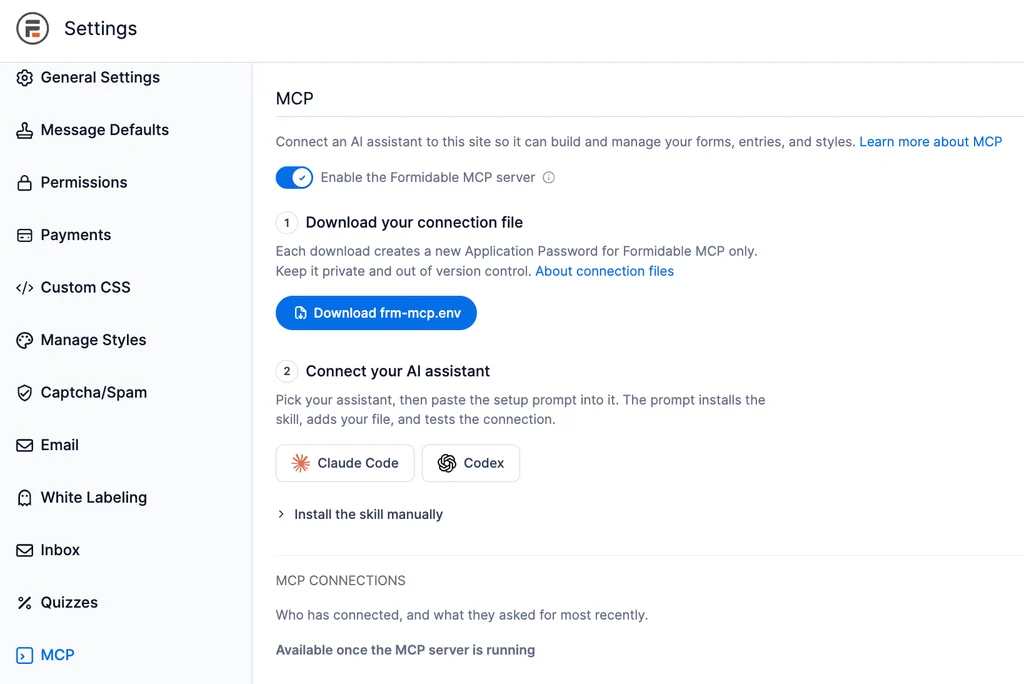
The screen then walks you through two steps:
- Click Download frm-mcp.env. This is your connection file. Each download creates a new application password that only works for Formidable MCP, so keep the file private.
- Pick your assistant, Claude Code or Codex, click Copy setup prompt, and paste it into that assistant.
What the setup prompt does
Each prompt is written for the assistant you pick and already includes your site’s address. Once you paste it in, your assistant does three things:
- Installs the Formidable MCP skill from Formidable’s public GitHub repo, or updates it if you already have it. Your assistant may ask you to restart before the skill loads.
- Moves your connection file from your Downloads folder into the skill’s folder, without opening it or showing the password in the chat.
- Tests the connection, then uses it for your Formidable requests.
Once your assistant says it’s connected, you’re ready to build.
Install the skill manually
Using a different assistant, or prefer to do it yourself? Open Install the skill manually on the same screen and click Download the skill.
The same files are in Formidable’s public GitHub repo. Add the skill to your assistant, put your connection file in the skill’s folder as frm-mcp.env, and ask your assistant to run the skill’s setup script to test the connection.
You can also paste this prompt into your assistant, which installs the skill from the GitHub repo:
Install the Formidable MCP skill from this repo and set it up to connect to my WordPress site: https://github.com/Strategy11/formidable-mcp-skill/
When you use this prompt, your AI assistant pulls the skill from the repo and then asks one question: how should it connect to your site? There are two options, and the right one depends on where your site lives.
Option 1: WP-CLI, for local and development sites
If your AI client runs on the same machine as your WordPress site, whether that’s a local install (Local, DevKinsta) or a dev server it can reach through SSH, a secure remote connection, it connects through WP-CLI.
WP-CLI is a command-line tool for managing WordPress. There is nothing to configure and no password to create. It finds the site, runs its commands through WP-CLI directly, and that’s it.
Option 2: An application password, for live and remote sites
For a production site, or any site on a different server than Claude, the skill connects to your site over the web using a WordPress application password. This is a separate, revocable password just for this connection. You never share your real login.
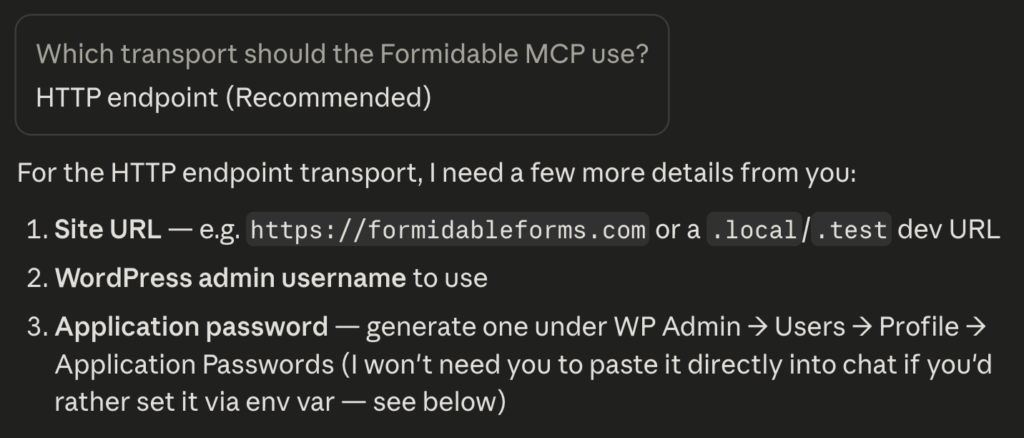
Here’s how to create one:
- Log in to your WordPress admin and go to Users → Profile.
- Scroll down to the Application Passwords section.
- Give the password a name you’ll recognize later, like Formidable MCP, and click Add New Application Password.
- Copy the generated password right away. WordPress only shows it once.
- When it asks, give it your site URL, your WordPress username, and that password.

Whichever option you use, your AI assistant confirms the connection the same way: it lists the forms already on your site. Once you see your own forms in the chat, you’re connected and ready to build.
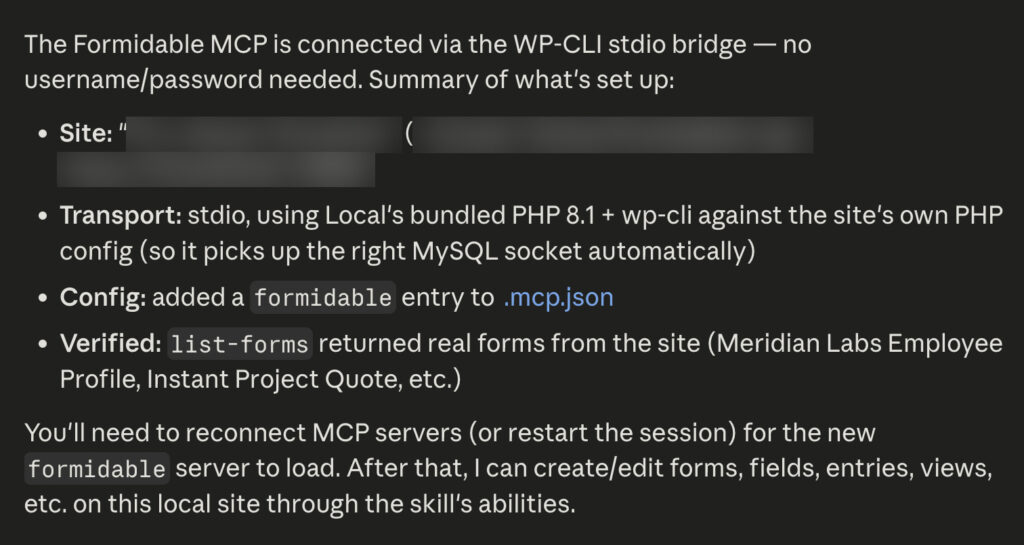
For the full setup walkthrough, including permissions and troubleshooting, see our complete MCP setup guide.
Turn a written request into a working application
Now that you’re set up, here’s what that connection does.
Someone needs a real internal tool, so that’s what we asked for:
We need an internal employee directory for Meridian Labs. Build a profile form for each employee, then give us a few ways to see the team: a photo directory, an admin table, and a calendar of start dates. Style it with our navy and gold brand colors.
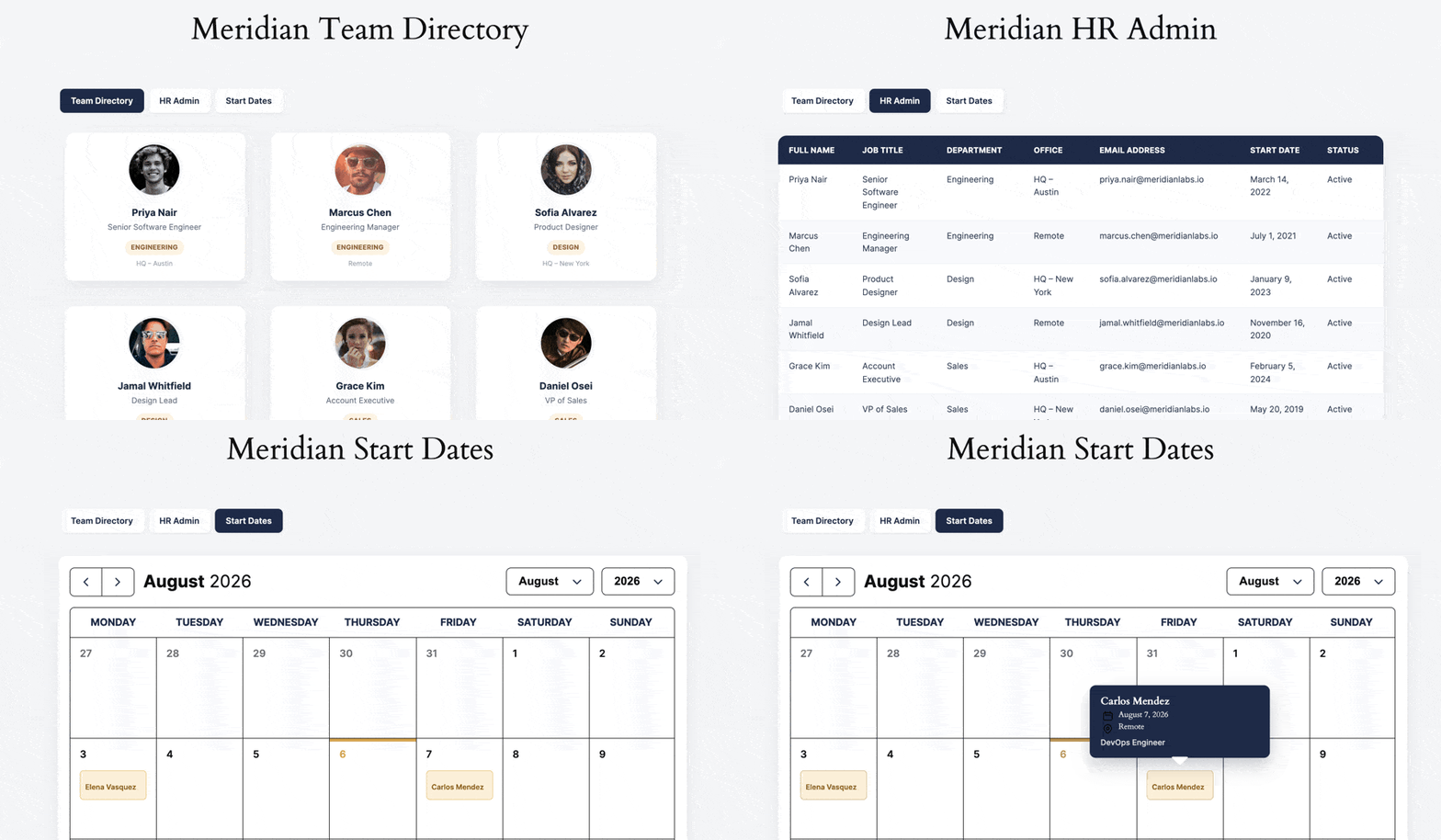
There are no field-by-field instructions and no mention of “Application,” “Grid View,” or “Calendar View” by name, just what was asked for, in plain English. Here’s what came back a few minutes later:
- Proper field types: a Name field with first and last name, plus Email, Phone, Date, and Photo upload fields instead of plain text inputs.
- A real Formidable Application: one form tied to three separate Views, not three disconnected pages that happen to share a form.
- A photo-card Grid View: three employees per row, each card showing a photo, name, title, and a colored department badge.
- An HR admin Table View: every field as its own column, for the detail a directory card doesn’t need to show.
- A Calendar View: every start date plotted, so anniversaries and new hires are easy to see at a glance.
- Real styling: a custom style in the company’s navy and gold palette, applied across the form and all three Views.
- Working front-end navigation: all three Views linked together into one connected app instead of three separate pages.
This example uses an application and Views, so it requires a Business license or higher.
Ask for one change, and watch it update in place
Building an application from a request is one thing. What separates this from a code generator that spits out a one-time result is what happens next, when someone comes back with a note.
In our case:
Can you also show each person’s office location on their directory card?
There’s no rebuild and no new View. The AI updated the existing Team Directory Grid View in place, keeping the same layout and the same photo cards, and added one more line of content to the card. Nothing else on the page changed.

One sentence in the chat, one new line on the card. It happened in less time than it takes to find the right setting in the builder, let alone edit the layout yourself.
Open it in the builder: it’s a normal application
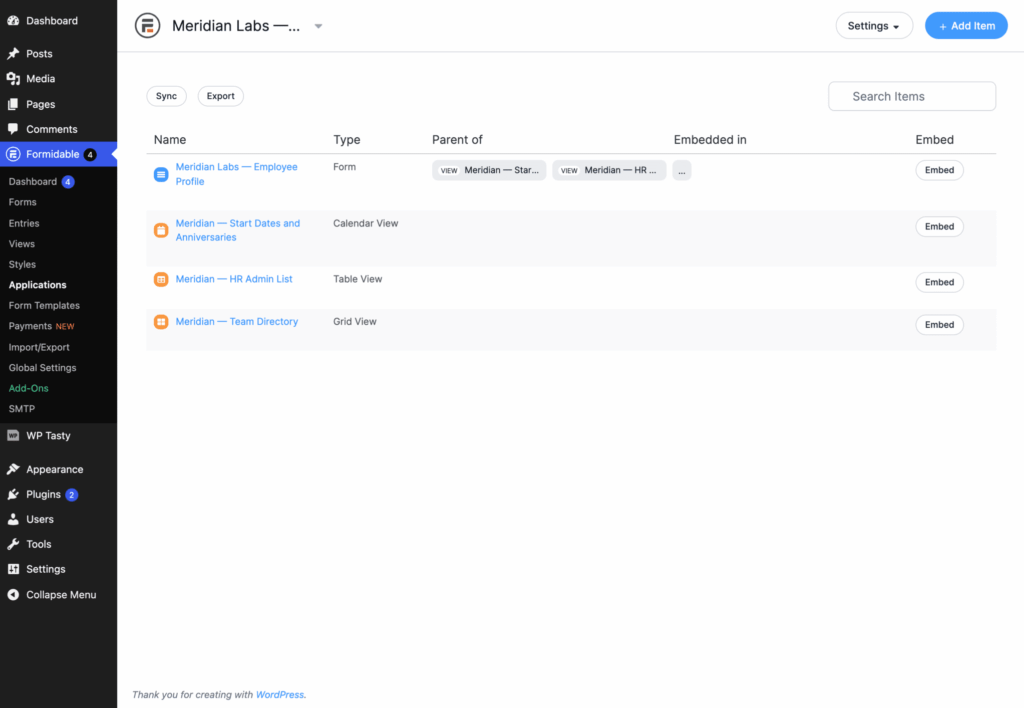
Here’s the part that matters: none of this lives in a separate, AI-only layer. Open Formidable → Applications in your WordPress dashboard, and the Meridian Labs directory sits there like any other application you built by hand, its form and three Views listed right underneath it.
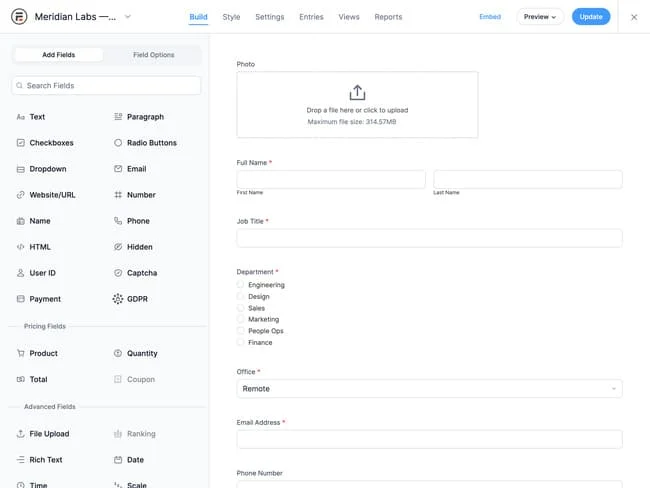
Click into the Employee Profile form, and every field is a regular field with normal settings: a real Photo upload field, a real Date field for Start Date, a real Radio field for Department.
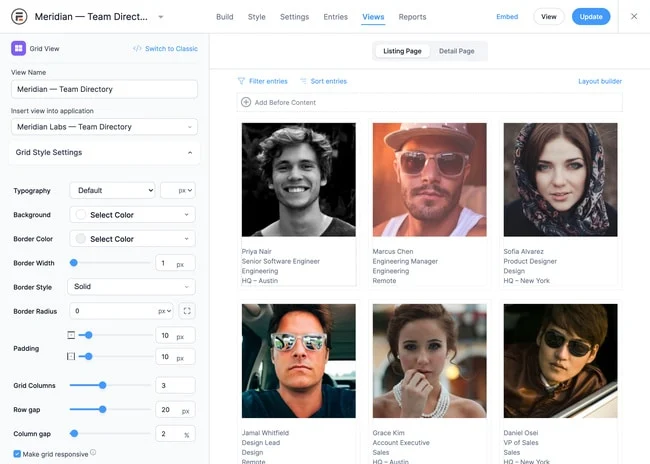
Click into the Team Directory View, and the Grid View builder shows the exact card layout the AI built: the photo, name, title, and department badge boxes, in the same layout the front end renders.
The brand style is a normal style under Formidable → Styles, with the same color pickers you’d use anywhere else.
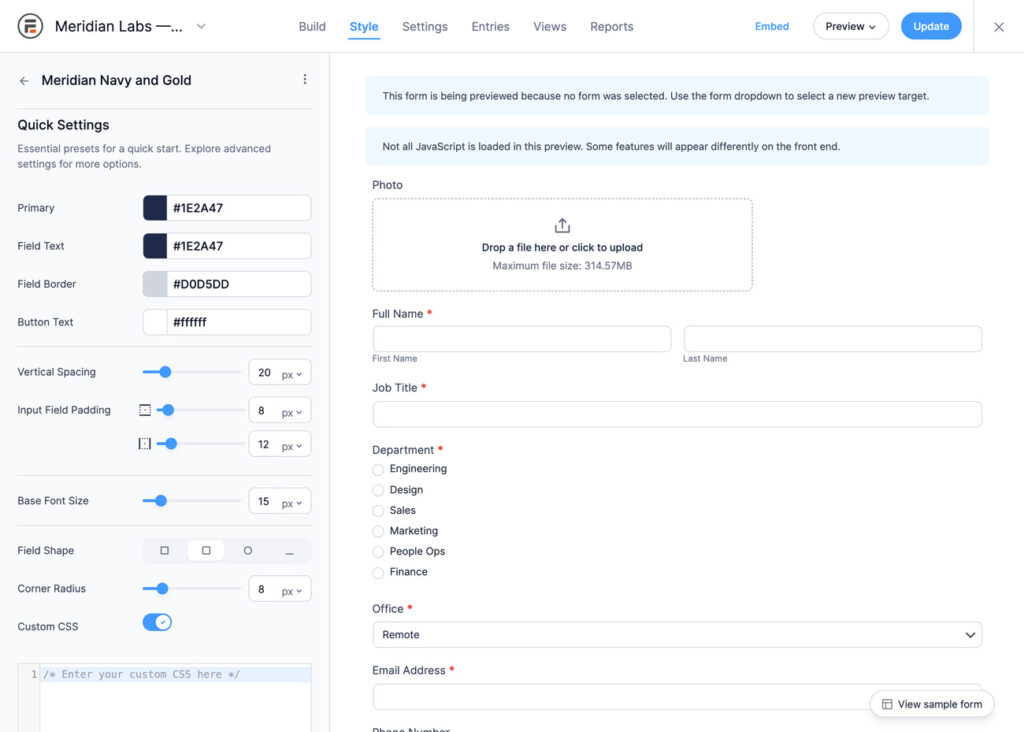
Nothing here is locked, hidden, or dependent on the AI to keep working. If you never open Claude again, the form, the logic, the style, and the View keep running as built.
That’s what sets this apart from a typical AI-built app. When the output is generated code, even a small tweak, like swapping a badge color, usually means going back to the AI, describing the change, and waiting to see if anything else broke. Here, you don’t have to.
Open Formidable → Styles, pick a new color, and you’re done in the time it takes to load the page. No prompt, no wait, nothing else on the page moves.
Prefer to ask your AI assistant for that same change instead? That works too, the same way it did with the office location earlier.
Everything else this unlocks
The request-to-application flow above is the clearest example, but the same MCP connection covers the rest of what you’d normally do by hand in Formidable:
- Full form building: Lite and Pro field types, conditional logic, calculations, repeatable sections, nested forms, lookup fields, and dynamic fields. The hardest things to build by hand are the biggest time savings here.
- Point it at a template: ask it to customize or duplicate an existing form or application template, or paste a link to a Formidable doc, so it starts from something that already works instead of a blank form.
- Bulk brand updates: an agency can update one style’s colors and reapply it across every client form that uses it, instead of opening each one by hand.
- Form actions: email notifications, confirmation messages, and webhooks, described in plain language instead of configured field by field.
- Views: Grid, table, map, timeline, and calendar layouts for a front-end listing of entries without hand-building the layout. Grid Views give you the most control once you’re editing by hand, so they’re the best default choice.
- Applications: create an application and add its forms, Views, and pages in one flow, like a directory or a submission board.
- Entries: create, read, search, and update entries, pull field statistics, or fix one bad value without digging through wp-admin.
- PDF downloads:
[frm-pdf]links in Views, pages, and emails, plus PDF email attachments. - Reporting in plain language: ask for stats, graphs, or a filterable, searchable View instead of writing the shortcodes yourself.
Some of these features require a paid license. Views need Plus or higher, applications need Business or higher, and conditional logic, calculations, and Dynamic and Lookup fields need any paid license.
Which AI client, and which Formidable license?
The connection works with any MCP-compatible client, including Claude, ChatGPT, and Cursor, so you build inside whichever tool you already use. It isn’t locked to one AI provider.
On the Formidable side, the MCP connection is part of Formidable Forms 7.0, so it works on Lite and every paid license. What it can build depends on your license. The good news: Lite already covers forms, styles, form actions, and entries. Views need a Plus license or higher, and a Business license covers nearly everything else in this guide, including applications, PDF downloads, and user registration features.
If a feature isn’t included in your license, asking an AI to build it doesn’t unlock it. It builds everything else and tells you what needs an upgrade.

Your next big Formidable project doesn’t have to take an afternoon. Turn on MCP, paste the setup prompt into your AI assistant, describe it the way you’d brief a teammate, and watch it get built in minutes.
Can I connect Formidable Forms to Claude, ChatGPT, or Cursor?
Yes. Formidable exposes its form-builder functions through MCP, short for Model Context Protocol, an open standard that any MCP-compatible AI client can use. That includes Claude, ChatGPT, Cursor, and others. Turn on MCP in Formidable → Settings → MCP, download your connection file, and follow the setup steps for your assistant, and you can start describing forms in plain language.
Why won’t my AI assistant connect to Formidable over MCP?
Two things cause this most often. First, make sure Formidable Forms is on version 7.0 or higher and WordPress is on version 6.9 or higher. Second, go to Formidable → Settings → MCP and confirm Enable the Formidable MCP server is turned on. If both are set and it still won’t connect, download a fresh connection file and run the setup prompt again.
Is Formidable Forms an AI form builder for WordPress?
Yes. Formidable Forms connects to Claude, ChatGPT, Cursor, and other MCP AI clients, so you can describe a form in plain English and have it built directly on your WordPress site. Unlike a standalone AI form builder for WordPress, it doesn’t generate a separate app or code snippet. It builds a real Formidable form, with real fields and settings, that you can still open and edit by hand in the builder.
Is it safe to connect an AI to my WordPress site?
Yes, when it’s set up the standard way. The connection uses a WordPress application password, which is separate from your real login. You can revoke it at any time from Formidable → Settings → MCP, or from Users → Profile if you created it by hand.
The AI can only do what that user’s role allows, and the Formidable MCP tools only cover Formidable itself: forms, entries, Views, styles, and applications. It can’t install plugins, edit your theme, or change site settings. Every change it makes is visible in the Formidable builder, so you can review anything it builds. If you want an extra layer of caution, connect it to a staging site first.
Does the AI actually build the form, or just tell me how?
It builds it directly. Through MCP, the AI calls the same underlying functions the Formidable builder uses to create forms, add fields, set conditional logic, write calculations, apply styles, add form actions, and build Views. The result is a real form on your site, not instructions for you to follow.
Can I still edit an AI-built form by hand?
Yes, completely. A form built through MCP is stored like a form built in the visual builder. Open it in Formidable → Forms, and every field, setting, and action is there to edit, the same as if you’d built it yourself.
What Formidable license do I need to use MCP?
MCP is part of Formidable Forms 7.0, so it works on Lite and every paid license with no add-on. Earlier versions need the API add-on, which comes with a Business license or higher. What the AI can build depends on your license. Views need Plus or higher, applications need Business or higher, and conditional logic, calculations, and Dynamic and Lookup fields need any paid license.
Can it edit an existing form or View instead of rebuilding it?
Yes. When you ask for a change, the AI edits the existing form or View instead of building a new one. In our test, we asked it to add office locations to the directory cards. The View, layout, and styling all stayed the same, and only the cards changed.