
So you’re mid-scroll and everything just locks up. Screen goes black. Spinner keeps spinning. App dies. It happens more than it should, and there’s usually no error message telling you why.
Most TikTok problems fall into one of two buckets: videos that refuse to load, or the app crashing and refusing to stay open. Those two things have different causes and different fixes. Figuring out which one you’ve got first saves a lot of pointless clicking around. The cause and the fix are different for each one, so figuring out which bucket you’re in saves a lot of wasted time.
This guide covers both Android and iOS. The fixes are lined up from easiest to most involved, so just start at the top and work your way down. Most people are back up and running within the first handful of steps.
Quick Snapshot: TikTok Problem Details
Here’s a fast overview before getting into the fixes:
| Detail | Info |
|---|---|
| App name | TikTok |
| Platforms covered | Android, iOS |
| Audience | US users |
| Common symptoms | App crashes, videos won’t load, black screen, infinite spinner |
| Average fix time | 2-15 minutes |
| When to check servers first | App fails for everyone at once |
Is TikTok Actually Down Right Now? Check the Servers First
This is the step most people skip, and it wastes a ton of time. If TikTok’s own servers are having problems, nothing you do on your phone will fix it. So check this first.
How to Use Downdetector to Confirm a TikTok Outage
Downdetector is a free, widely used site that tracks reported outages for apps and services. Here’s what to do:
- Open a browser on your phone and search for “Downdetector TikTok.”
- Look at the spike graph. A big jump in the report count means lots of users are hitting the same wall at the same time.
- The live outage map is worth a look too. It shows whether the complaints are coming from your region or somewhere completely different.
- Read through recent user comments for a quick sense of what’s actually broken.
What to Do If TikTok’s Servers Are Down
If Downdetector shows a clear spike, the bad news is there’s nothing to fix on your end. No restart, no cache clear, no reinstall will help. The good news is outages usually resolve within a few hours. Just wait it out, and keep an eye on TikTok’s official support account on X (formerly Twitter) for real-time updates. They post status info there when something’s wrong on their side.
The Two Types of TikTok Problems (And Why It Matters)
Figure out which one you’ve got before touching anything. Skipping this step means running through fixes that have zero chance of working.
Videos Won’t Load or Keep Buffering
App opens fine but videos just sit there? Loading spinner going nowhere? That’s almost always a network issue or a bad cached file. Sometimes it’s TikTok’s servers. But the app itself is probably fine.
App Keeps Crashing or Refuses to Open
Crashes right on launch. Black screen. Closes itself over and over. That’s a different beast entirely. Usually a corrupted install, an outdated version, missing permissions, or the phone’s storage being completely full. The network is almost never the cause there.
Fix TikTok Not Working: Step-by-Step Solutions
Start at step one and check if TikTok loads after each fix. Still broken? Move on. You probably won’t need to go through all of them.
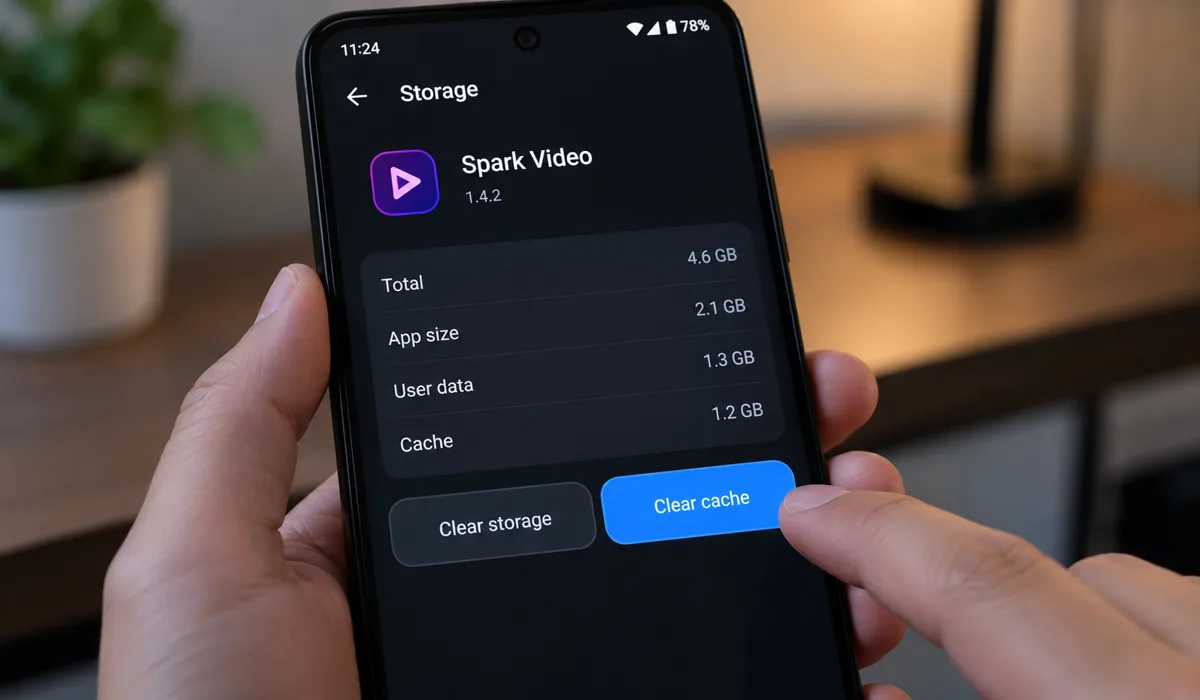
1. Check Your Internet Connection First
Bad connection is the most common reason videos refuse to load. Rule it out first, before anything else. A few things to try:
- Open a browser and load any website. Google, YouTube, anything. Just confirm you actually have internet.
- Try flipping from Wi-Fi to mobile data (or the other way around) and see if anything changes.
- Signal looks weak? Move closer to the router.
- Everything loading slowly? Unplug the router for 30 seconds and let it come back up.
2. Turn Off Your VPN
VPNs trip people up with this more than you’d expect. TikTok uses geo-detection, so a VPN running quietly in the background can confuse the app or block content. The tricky part is it has nothing to do with whatever the VPN is set to do. It just causes problems.
- Open your VPN app and tap Disconnect.
- Relaunch TikTok and play a few videos.
- If that clears it up, next time try a different server location. Or just switch the VPN off before opening TikTok.
3. Force Close TikTok and Reopen It
Apps get stuck. It happens. Force closing takes about five seconds. Here’s how:
- Android: Swipe up to see your recent apps, then flick TikTok off the screen.
- iOS: Swipe up from the bottom, pause for a moment, then swipe TikTok’s card up to close it.
- Wait five seconds, then open TikTok again from your home screen.
4. Clear TikTok’s Cache Using In-App Settings
TikTok has a built-in cache cleaner. Use that one, not the general phone settings version. It goes after TikTok-specific files, which is the actual problem.
- Open TikTok and tap Profile in the bottom-right corner.
- Tap the three-line menu in the top right, then go to Settings and Privacy.
- Scroll down to Free up space (iOS) or Cache and Cellular Data (Android).
- Tap Clear cache and confirm.
- Relaunch and check if it’s loading.
5. Update TikTok to the Latest Version
Buggy builds happen. Older versions can have problems that were already fixed weeks ago in a newer release. Here’s where to look:
- Android: Open the Google Play Store, search TikTok, and tap Update if it’s showing.
- iOS: Open the App Store, tap your profile icon at the top, scroll to TikTok, and tap Update.
- Once the update finishes, do a full phone restart before opening TikTok. (There’s more on that just below.)
6. Log Out of TikTok and Log Back In
Session tokens go stale or get corrupted, often right after an app update or an account change. Logging out wipes the old one and pulls a fresh one on sign-in. Here’s how:
- Go to Profile, tap the menu, then Settings and Privacy, then Manage Account.
- Tap Log out and confirm.
- Wait about 30 seconds, then sign back in.
7. Restart Your Phone
And yes, the classic “turn it off and on again” actually does something here. Background processes pile up and memory gets chewed through. A restart clears all of that:
- Android: Press and hold the power button, then tap Restart.
- iOS: Hold the side button and a volume button together until the power slider shows, slide to power off, then hold the side button again to turn it back on.
- Once the phone is fully loaded, reopen TikTok.
8. Check and Fix Your Date and Time Settings
This one looks completely unrelated. But a wrong system clock breaks TikTok’s authentication and throws errors that look exactly like a server problem. So just check it quickly:
- Android: Go to Settings, then General Management, then Date and Time, and turn on Automatic date and time.
- iOS: Go to Settings, then General, then Date and Time, and turn on Set Automatically.
- Relaunch TikTok.
9. Free Up Storage Space on Your Device
TikTok needs room to write temporary files while streaming. A nearly-full phone causes all kinds of odd behavior. Check here:
- Android: Go to Settings, then Storage to see what’s left.
- iOS: Go to Settings, then General, then iPhone Storage.
- Delete unused apps, old photos, or downloaded videos until you have at least 1-2 GB free.
- Open TikTok again and see if it behaves.
10. Review App Permissions for TikTok
Missing permissions cause crashes or blank camera screens. Here’s how to confirm TikTok has what it needs:
- Android: Go to Settings, then Apps, then TikTok, then Permissions. Make sure Camera, Microphone, and Storage are on.
- iOS: Go to Settings, scroll to TikTok, and confirm Camera, Microphone, and Photos are all set to Allow.
- Relaunch TikTok.
11. Reinstall TikTok as a Last Resort
Nothing else worked? A corrupted install is probably the culprit. Here’s how to do a clean reinstall:
- Uninstall TikTok from your device.
- Restart your phone.
- Reinstall TikTok from the Google Play Store or the Apple App Store.
- Log back in and test.
Videos Not Loading vs. App Crashing: Which Fixes to Try First
Use this table to match what you’re seeing to where you should start:
| Symptom | Most Likely Cause | Best Fixes to Try First |
|---|---|---|
| Videos buffer or won’t play | Slow internet, VPN, cache | Steps 1, 2, 4 |
| Black screen on launch | Corrupt cache, outdated app | Steps 3, 4, 5 |
| App crashes immediately | Buggy update, low storage, permissions | Steps 9, 10, 11 |
| Infinite loading spinner | Server outage, network issue | Server check, Steps 1, 4 |
| Can’t log in or account errors | Session token, date/time | Steps 6, 8 |
| Camera or mic won’t work | App permissions blocked | Step 10 |
Common Mistakes That Keep TikTok Broken
People overcomplicate this. A few slip-ups come up again and again:
- Skipping the server check. If TikTok is down on their end, nothing on your phone does anything. Pull up Downdetector first. Thirty seconds. Run through this whole list without doing that and you’ve wasted your time for no reason.
- Clearing cache through phone settings instead of inside TikTok. The in-app option goes after TikTok-specific files. The system one doesn’t, not really.
- Leaving the VPN on without thinking about it. Lots of people have VPNs running constantly out of habit and never connect it to the TikTok problem. Turn it off and test first.
- Updating TikTok and reopening it straight away. Do a full phone restart after an update. The new version starts up a lot cleaner that way.
- Ignoring the date and time setting. Looks completely unrelated. But a wrong system clock causes authentication errors that look exactly like a server outage. Five-second check, just do it.
- Reinstalling without checking storage first. A fresh install on a stuffed phone will break for the exact same reason the old one did. Free up space before you bother.
Final Thoughts
Bad connection, cluttered cache, or TikTok’s servers having a moment. That covers the majority of cases, and the first four or five steps in this list deal with all of those.
But if every fix on this list has failed, the problem is almost certainly on TikTok’s backend. There is nothing left to do on your end at that point. Just wait. Outages like that usually clear up within a few hours. Follow TikTok’s official support account on X for updates. They will post when things are back up.

With 7+ years in SEO and blogging, I optimize reputable websites for better rankings. I’m passionate about creating detailed guides, especially in gaming and IT.
Where Should We Send
Your WordPress Deals & Discounts?
Subscribe to Our Newsletter and Get Your First Deal Delivered Instant to Your Email Inbox.