Superb Translate is our recommended choice for managing AI translation inside WordPress. It connects to OpenAI, Anthropic, and Google through Settings → Connectors, with controls for manual translation and review. We develop Superb Translate, so we have a direct commercial interest in this recommendation.
Choosing among the best AI translation plugins for WordPress means considering the work that follows the first translation, from reviewing product descriptions to maintaining translated pages after an update. This comparison covers Superb Translate, TranslatePress, WPML, Weglot, and GTranslate for WordPress site owners, store owners, and administrators. The practical differences include where translations are managed, what triggers automatic updates, and how people check and change the wording.
Generative AI differs from other forms of machine translation. An AI label alone doesn’t identify the model or architecture behind a service. Costs need separate attention, too, since a plugin license and translation usage may cover different things. Superb Translate is a paid plugin, with connected-provider AI usage billed separately.
Superb Translate connects AI providers within WordPress
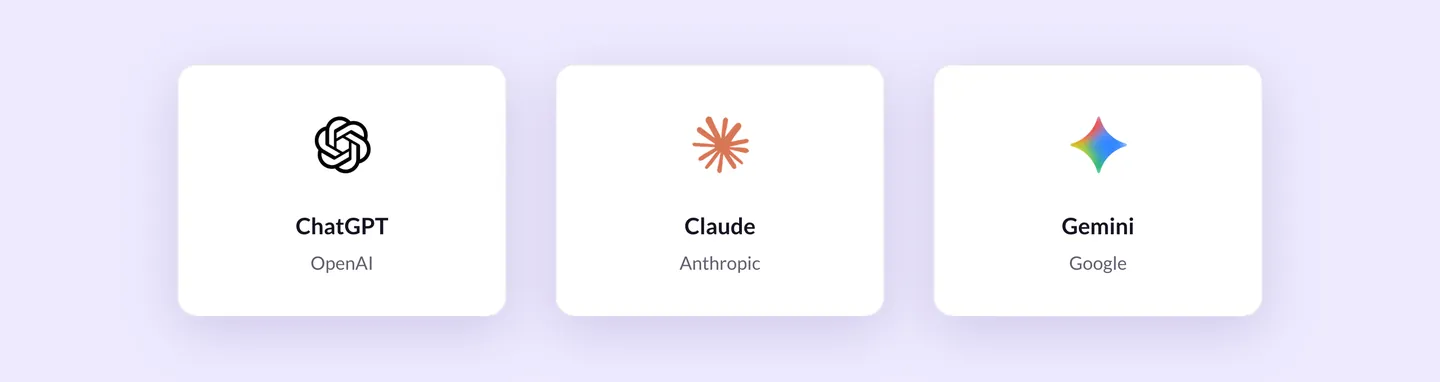
OpenAI, Anthropic, and Google supply the AI that Superb Translate uses through Settings → Connectors. The provider and compatible text-generation model are chosen in WordPress. Manual translation remains available without an AI service. A provider connection is required for AI generation, but not for manual translation.
That arrangement separates two costs. The premium license pays for the plugin, while the connected provider bills AI usage directly at its own rates. The license doesn’t include the cost of generating translations. The AI connection and billing documentation explains the shared WordPress connection and provider charges.
Superb Translate is an affordable paid option among WordPress AI translation tools, with yearly and Lifetime premium licenses. The Lifetime option gives site owners an alternative to a recurring yearly license. Either choice still requires a budget for connected-provider usage, since external AI charges apply to both.
Basic translation and AI features have different installation requirements:
- WordPress 6.8 or newer is required for the plugin.
- PHP 7.4 or newer is required.
- Pretty permalinks must be enabled, without index.php in the URL.
- AI translation requires WordPress 7.0 or newer and a connected AI service.
Translation workflows for pages and WooCommerce
Bulk runs, page-level translation, and edits to individual passages are all part of Superb Translate’s WordPress translation workflow. Administrators translate existing content from the overview, while editors work on a single page or review wording where it appears on the site.
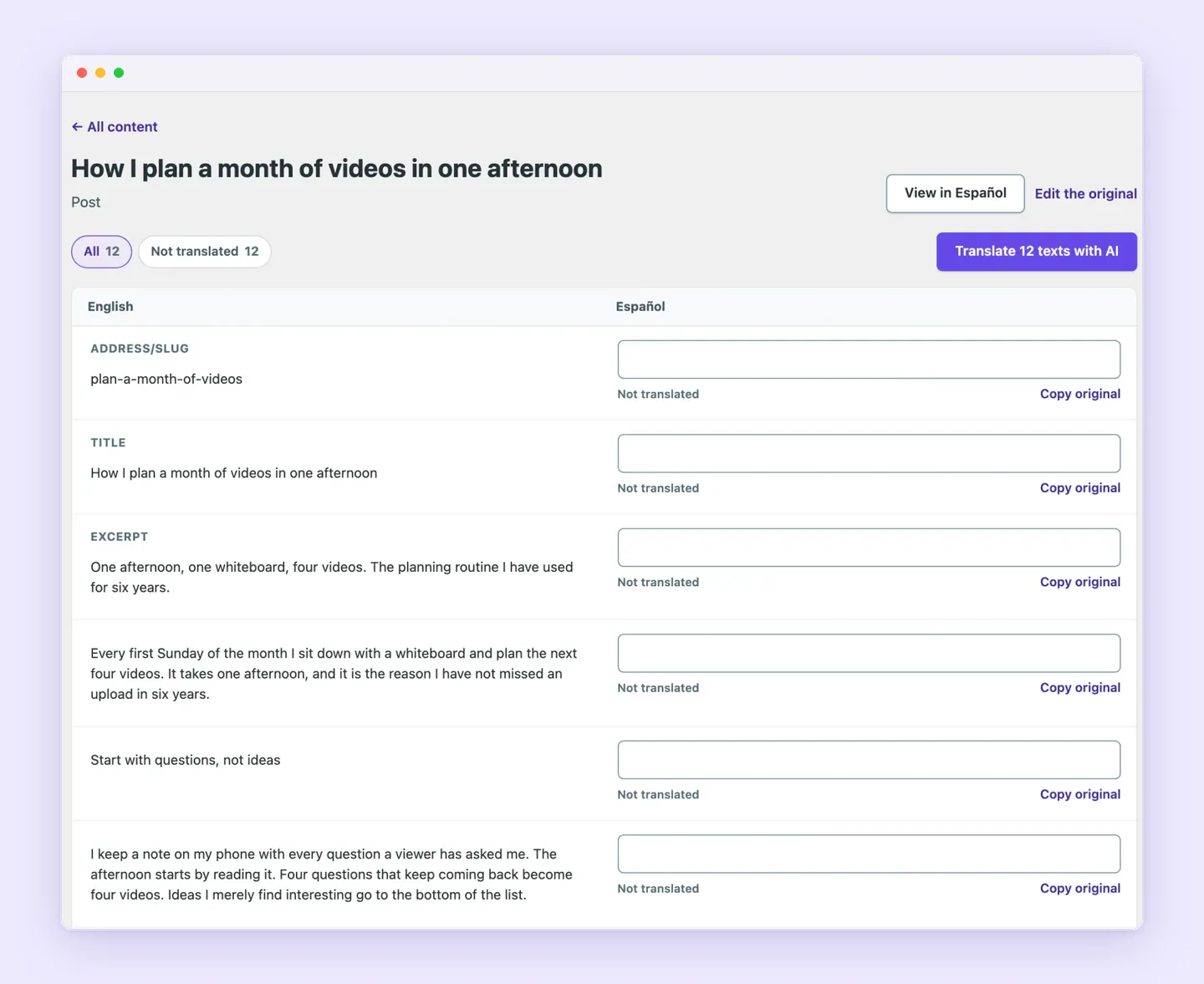
A bulk translation run follows these steps:
- Open Translations → Translate.
- Select a language.
- Click Translate all texts with AI. The button shows how many texts are included.
- Confirm with Yes, translate.
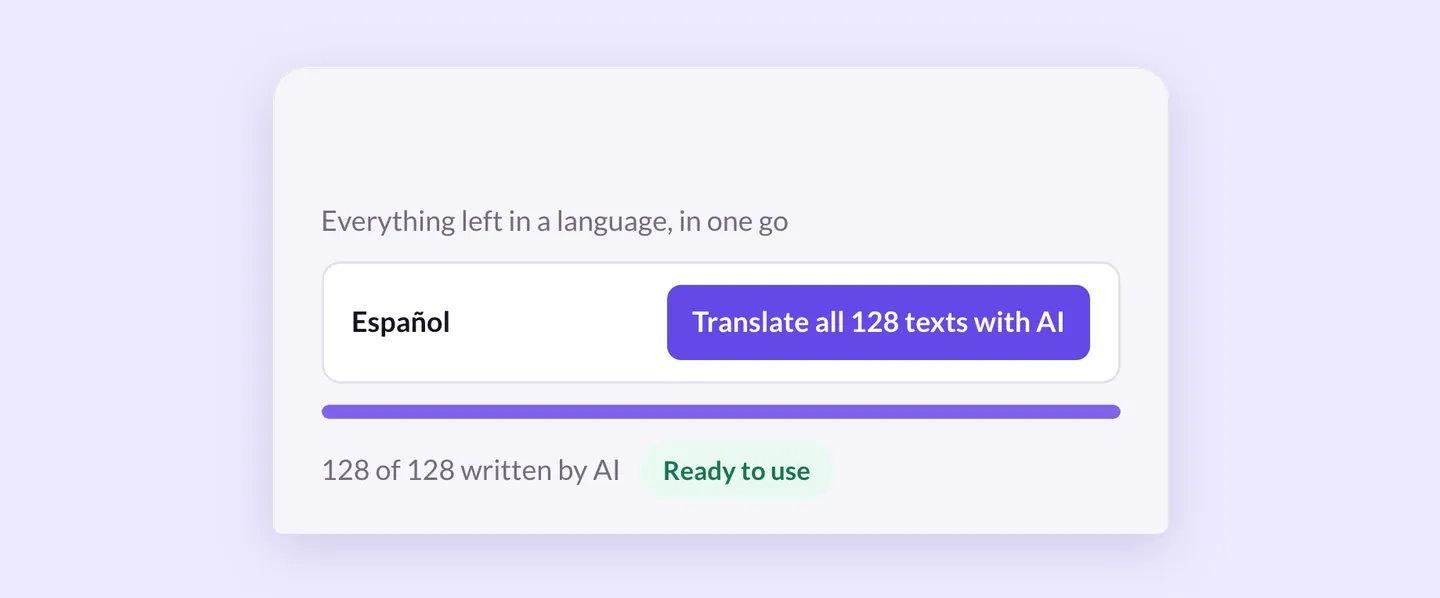
The overview lists up to 2,000 items of each post type, and the bulk action covers those listed items. Content outside that list can be translated through its editor panel.
Two controls handle translation on a single page:
- Translate texts with AI processes a page’s texts after an editor opens that page on the Translate screen.
- The block editor’s Translations panel provides Translate with AI for each language and translates the version last saved.
Reviewing individual passages directly on the site follows a separate sequence:
- Open Translate this page in the admin bar.
- Select the text to translate.
- Click Suggest with AI to fill the translation field with a proposal.
- Review or edit the proposed wording.
- Click Save to store the translation.
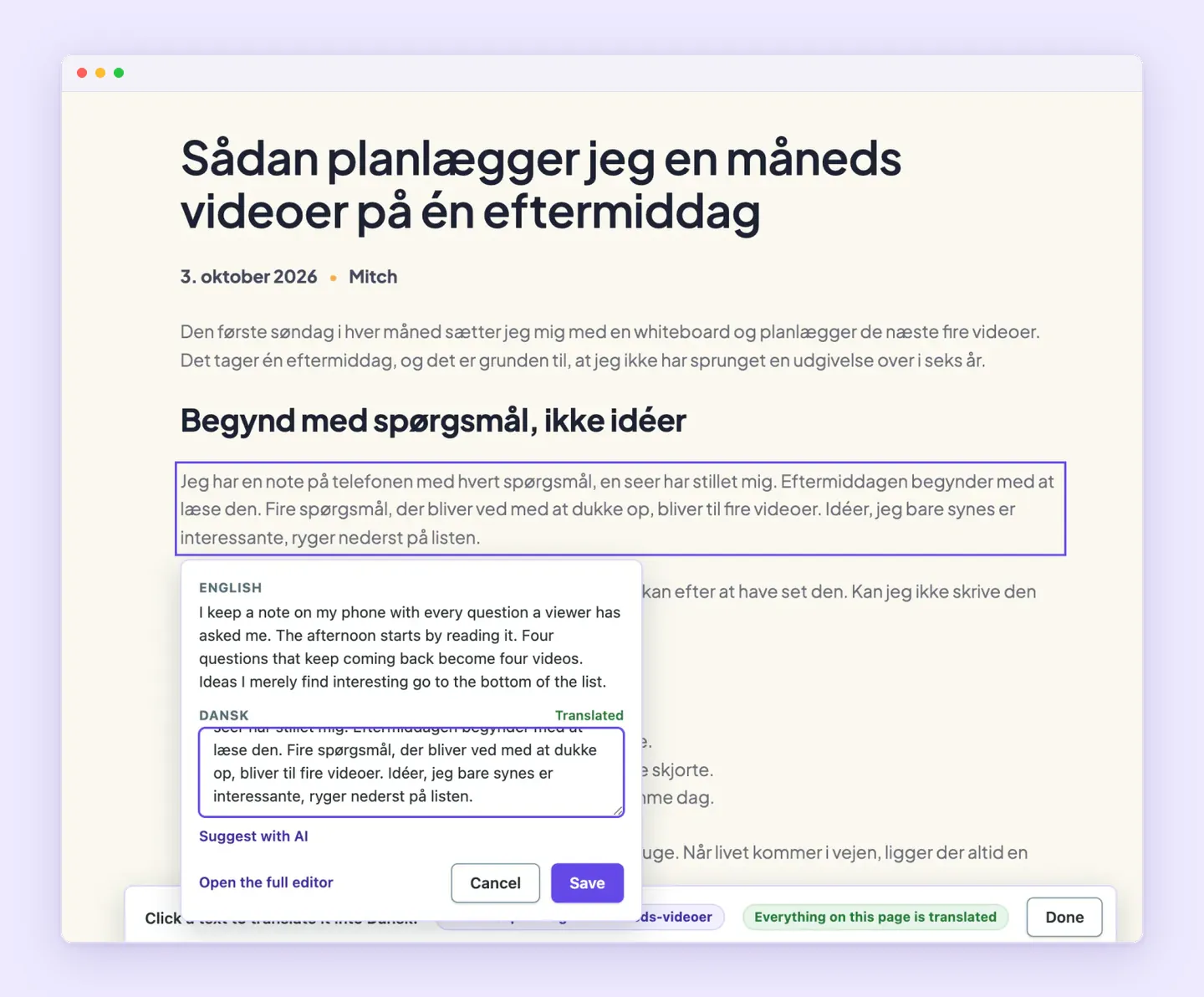
The suggestion remains unsaved until Save is clicked. Reviewers can also edit texts marked Written by AI and confirm them with Looks right. Generation and approval are separate actions. The AI translation workflow documentation covers these bulk, page, and individual-text controls.
Translations are stored alongside one original page. Layout, image, and link changes therefore carry across language versions, saving separate edits to each translated page.
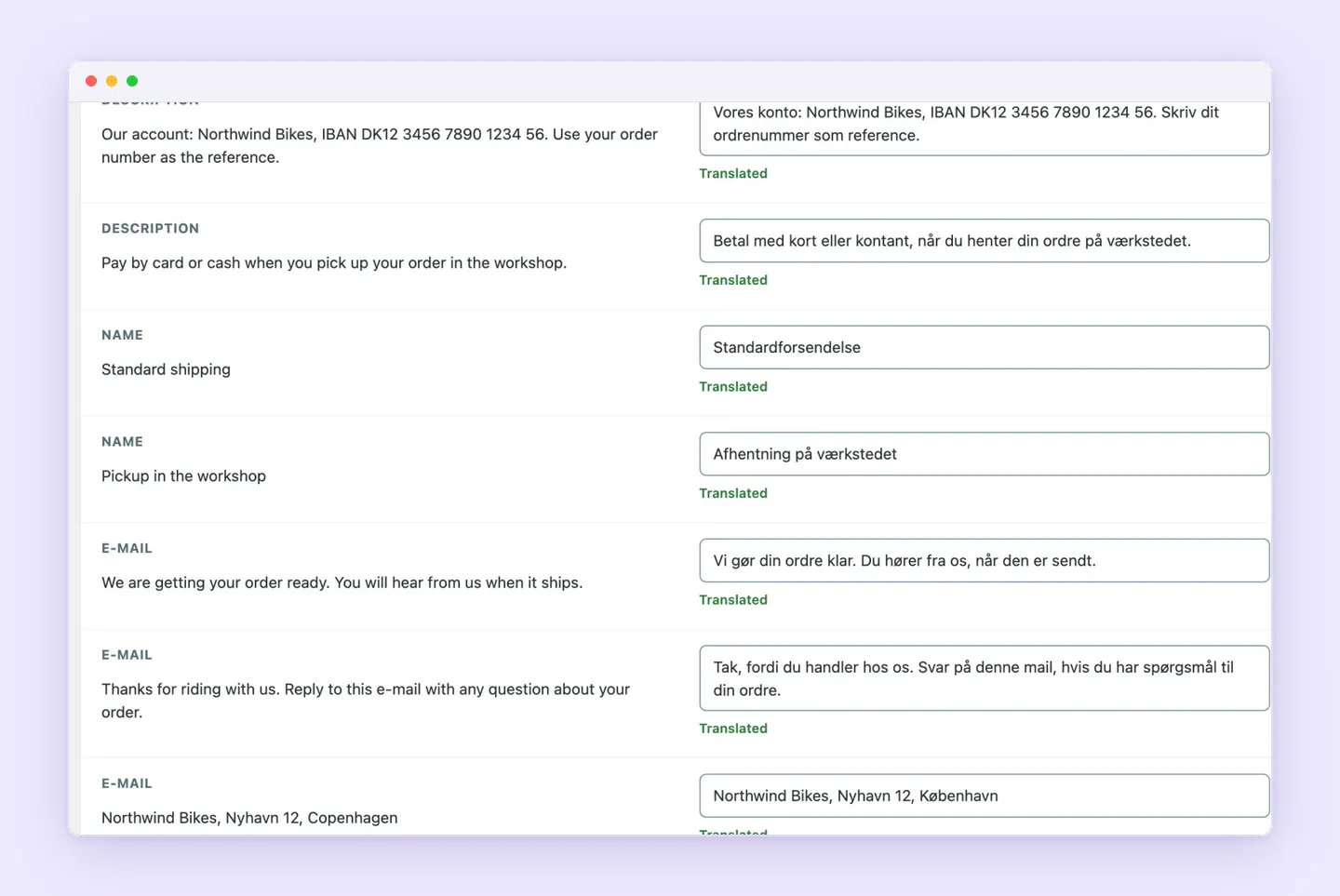
For stores comparing WooCommerce translation plugins, Superb Translate covers products, cart, and checkout, along with order emails in the customer’s language. Orders retain that language for email communication, so translation coverage continues beyond the storefront.
Manual review, glossaries, and tone settings
Manually written or confirmed translations stay protected in Superb Translate while the original text remains unchanged. Editing the original can give its translation the Original changed status and make it eligible for AI updates. The previous wording and translation provide context for the new request, helping the AI retain wording that still fits.
A translation glossary supplies preferred terms for each language. This helps with product terminology or words that have several possible meanings. The glossary documentation describes the setup:
- Open Translations → Settings after adding the site’s languages.
- Under Glossary, click Add a word.
- Enter the original-language term or phrase and its preferred translations in the language fields.
- Click Save settings.
- Translate a page containing the term with AI and review the result.
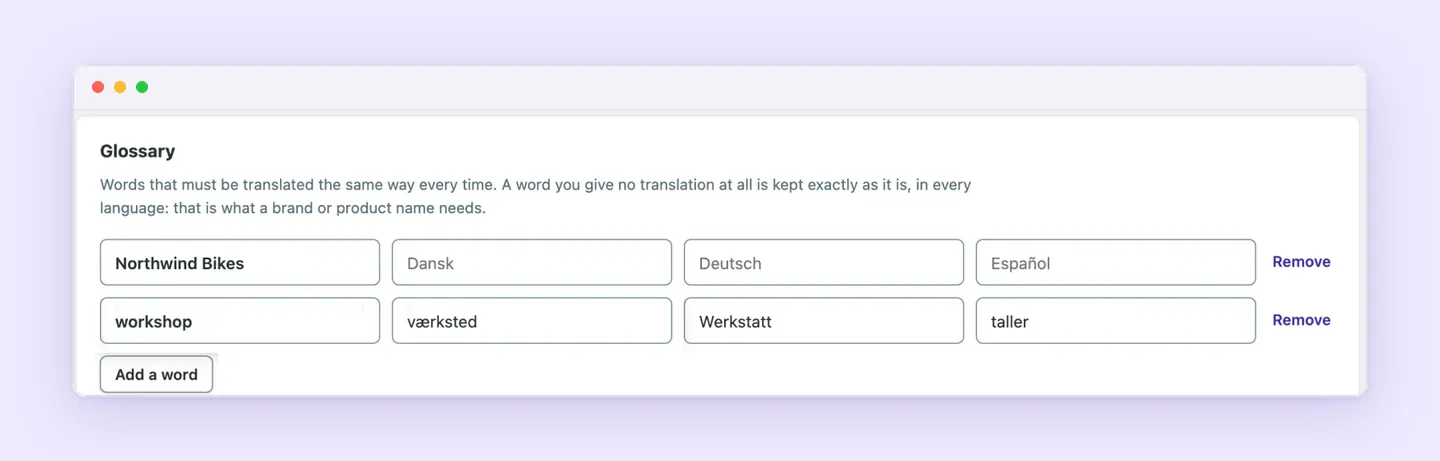
Leaving every translation field blank asks the AI to preserve the original name across all languages. Once any translation field contains wording, a blank field beside it creates no preservation rule for the language left blank.
Tone settings control the level of formality separately for each language. A short writing brief adds guidance about sentence style or the handling of technical language. The AI translation tone settings documentation covers these controls:
- Open Translations → Settings.
- Under Tone of voice, select As in the original or the formal or informal choice for each language.
- Enter a writing brief of up to 600 characters under Anything else the AI should know.
- Click Save settings.
- Translate a page with AI and check whether the wording follows the intended style.
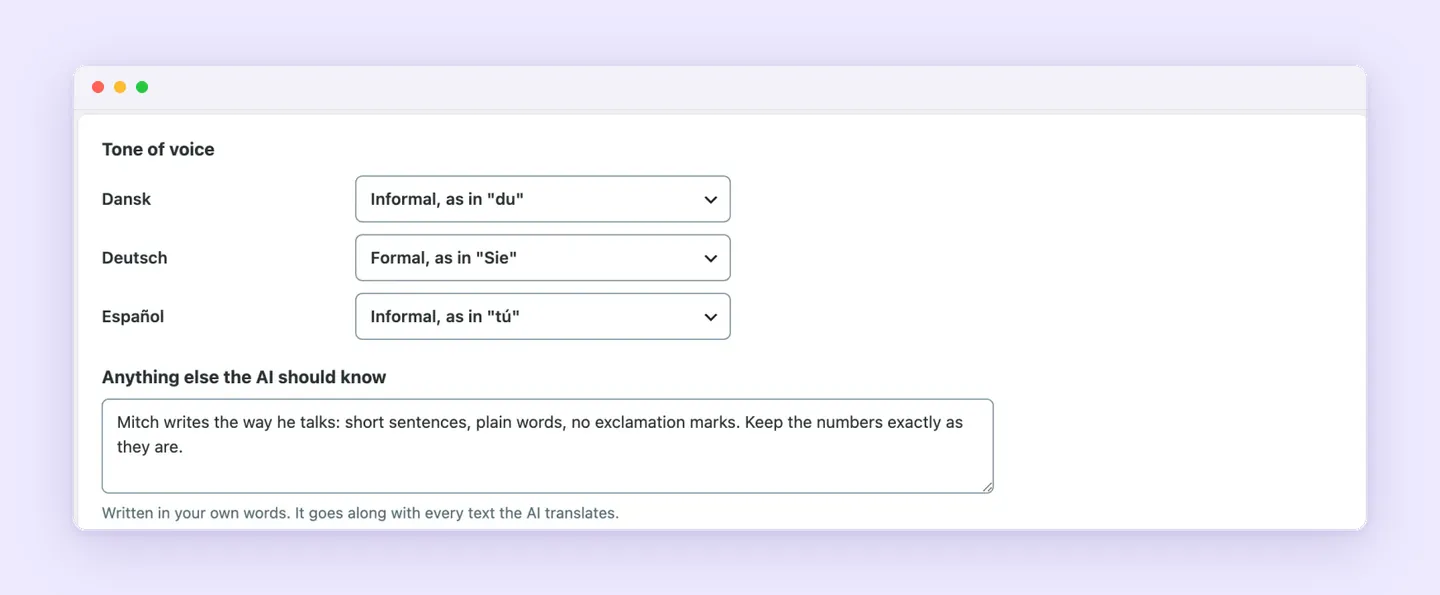
Saving glossary and tone changes guides future AI requests without rewriting existing translations. Editors can change existing wording manually or request another proposal through Suggest with AI, then review it before saving.
Automatic translation of new and updated content
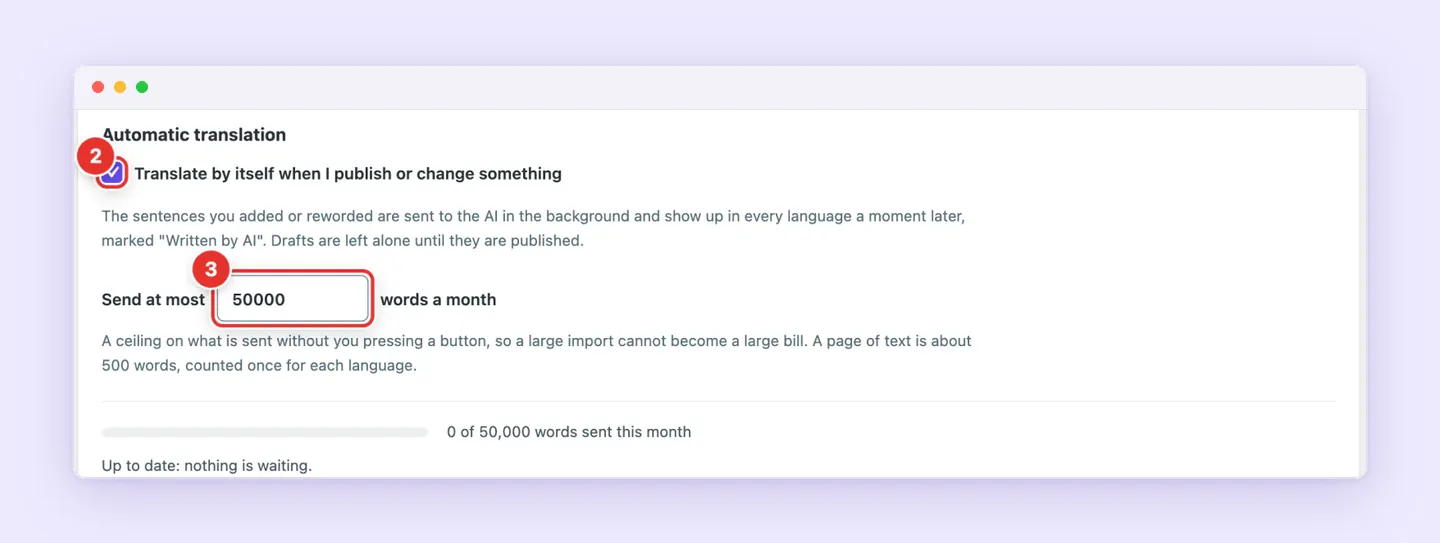
After publication, Superb Translate’s automatic WordPress translation sends new or changed text to the connected AI service in the background. The automatic translation guide explains setup and the monthly allowance:
- Open Translations → Settings.
- Under Automatic translation, enable Translate by itself when I publish or change something.
- Set Send at most … words a month to the preferred limit.
- Click Save settings.
Publishing new content or updating the text of a published post then triggers translation. Drafts wait until publication. Enabling the setting doesn’t translate the existing backlog. That content requires a separate translation run.
The monthly allowance works as follows:
- The default limit is 50,000 words per month.
- Each target language counts separately, so 500 words sent to 3 languages consumes 1,500 words.
- Reaching the limit pauses automatic translation until the next calendar month in the site’s time zone. Raising the limit and saving it allows automation to resume sooner.
This word limit isn’t a provider spending cap. Translations started with a button fall outside the automatic allowance and still incur charges from the connected AI provider.
To disable automation, clear Translate by itself when I publish or change something and click Save settings. Saved translations remain available, as do manual translation and button-triggered AI translation.
TranslatePress offers visual editing and included AI words
TranslatePress suits sites whose editors want to correct translations directly on the front end and buy a license with an included AI-word allowance. TranslatePress AI requires license activation but no separate API setup. Translations generate when visitors access a page, category, or post in a secondary language, and content changes trigger translation updates, as explained in the TranslatePress AI documentation.
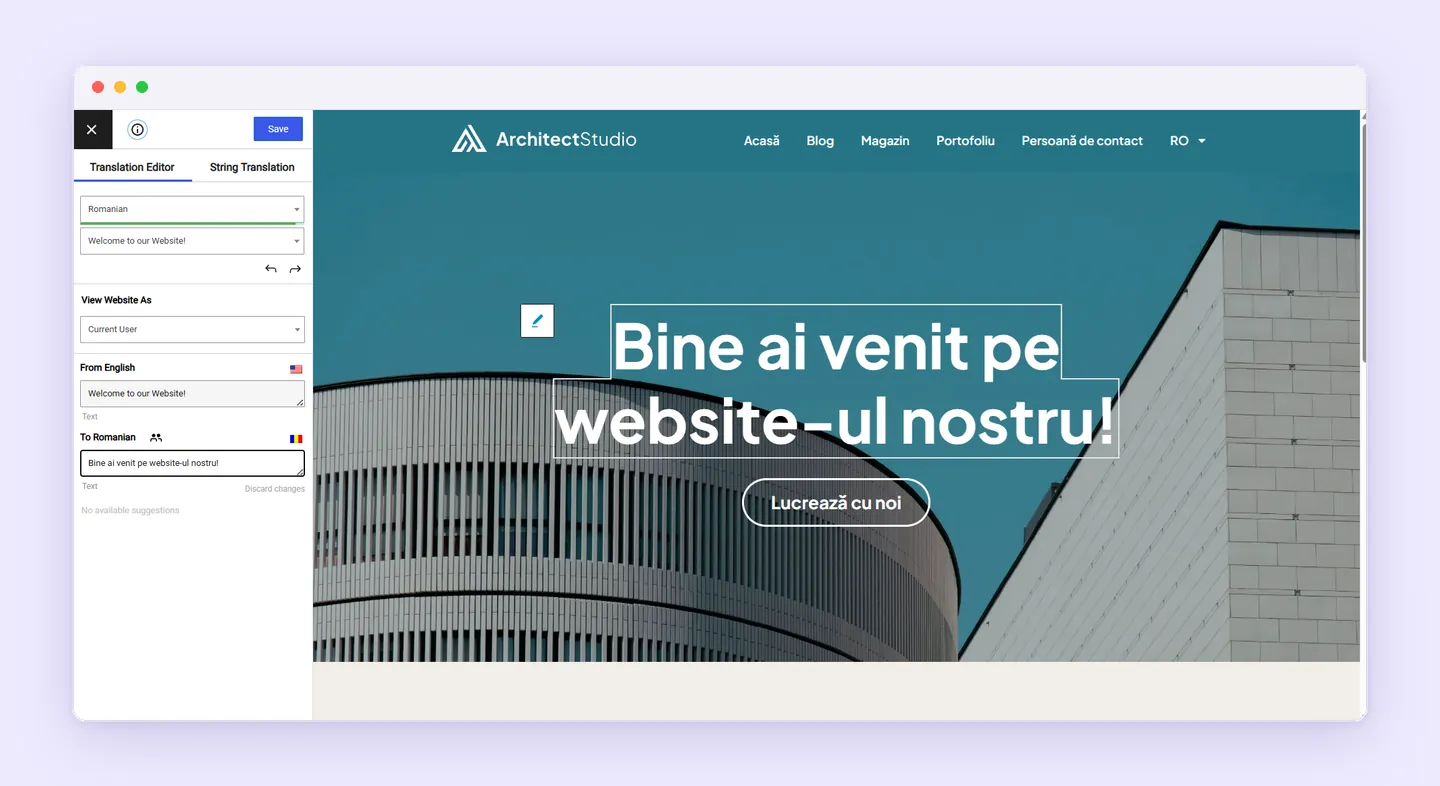
The visual editor lets reviewers adjust wording in its page context. Languages can remain unpublished until translations are finished, giving teams control over when a language becomes available. Translations are self-hosted and remain available after license expiration, according to TranslatePress.
Its annual plans differ in site coverage and included AI words. Licenses renew annually and include one year of updates and premium support.

| Plan | Annual price | Sites | Included AI words |
|---|---|---|---|
| Personal | €99 | 1 | 50,000 |
| Business | €199 | 3 | 200,000 |
| Developer | €349 | Unlimited | 500,000 |
Business and Developer also include Translator Accounts for delegated translation work and the DeepL Automatic Translation add-on. The pricing page lists Google Translate and DeepL integrations separately from TranslatePress AI. These are distinct translation options. Their inclusion doesn’t establish that TranslatePress AI uses the same engine or a generative AI architecture.
WPML combines contextual AI with team review
For teams managing terminology and branding, WPML advertises contextual AI translation informed by both. Its automated PTC translation workflow allows optional manual editing, giving teams editorial control over automatically translated wording.
The Advanced Translation Editor supports self-translation and agency work. Multilingual CMS and Multilingual Agency also include professional translation-service integrations, allowing sites to assign work to external translators alongside their automated workflow. These integrations are included in the two plans, but excluded from the entry plan.
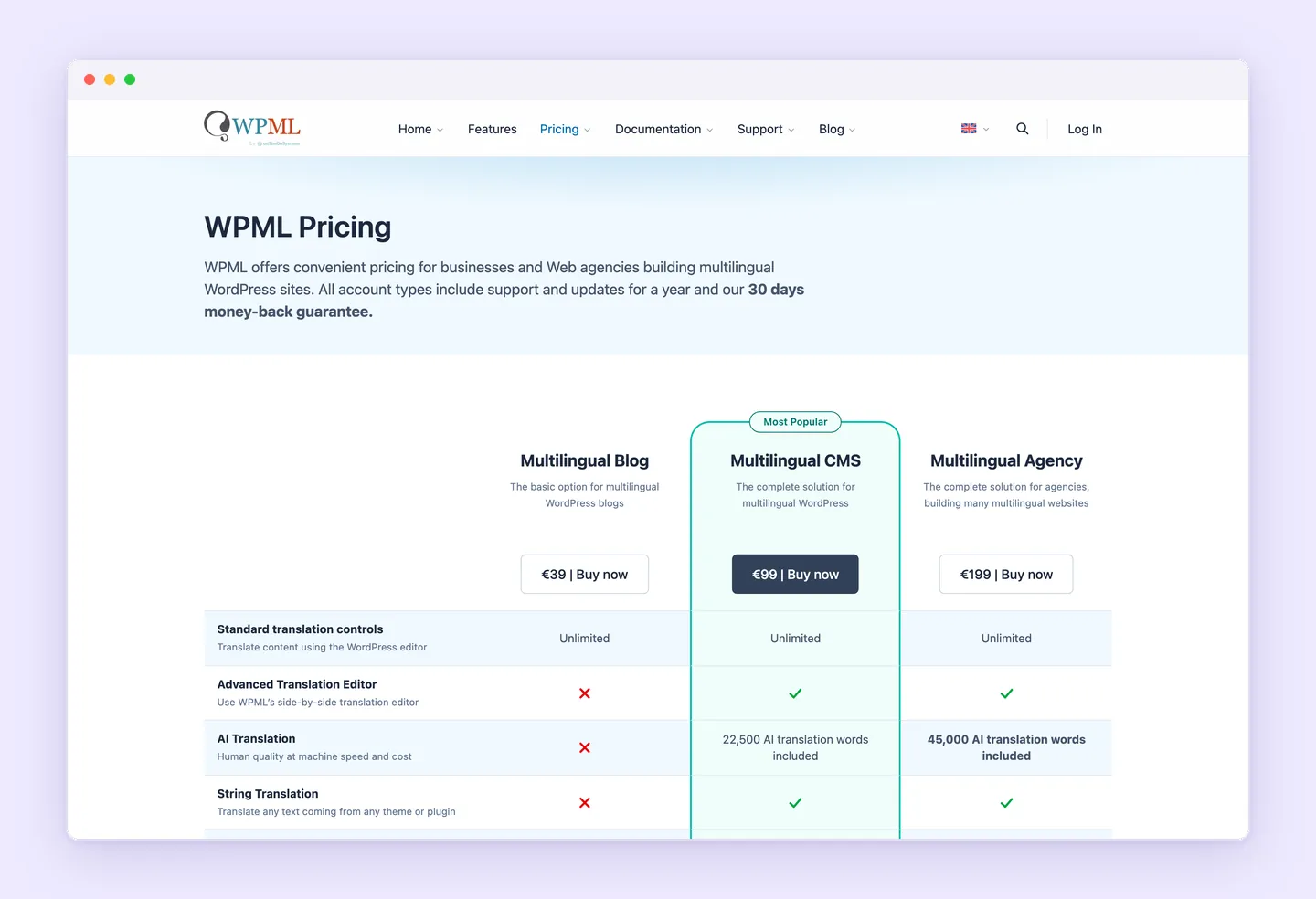
Multilingual CMS includes 22,500 AI translation words, while Multilingual Agency includes 45,000. Additional translation costs range from €3.00 down to €0.40 per 1,000 source words per target language. Under WPML’s translation pricing rules, PTC used with Translate Everything Automatically makes subsequent edits free up to the highest previously paid word count for each page and language.
That update allowance applies to a specific page and language. It covers revisions within the previously paid word count, rather than all future translation usage.
Weglot pairs automatic updates with AI editing tools
Ongoing updates are part of Weglot’s automatic translation workflow, alongside consistency management and subsequent human editing. This suits sites with changing content, including product pages, while allowing editors to refine translated wording.
Its custom Translation Model uses brand tone, terminology, and voice to guide translations. Configuration covers the website’s description, tone, and audience, allowing teams to define the intended style, as described on Weglot’s Translation Model page.

For existing wording, AI Suggestions offers rephrasing or shortening. This feature sends OpenAI the existing translation, its language, and the website’s industry. OpenAI’s documented role in that editing tool doesn’t establish which engine handles every other translation task.
Weglot’s pricing plans set separate allowances for translation coverage and editing:
- Plans cap translated words and target languages. The original language does not count toward the language limit.
- Monthly GenAI credits equal the plan’s translation-word limit and form a separate allowance for generative AI features.
- Translation requests count Weglot Translation API calls, a different measure from translated words.

Budgeting therefore means considering translated content volume, AI editing, and translation requests separately. Editors refining existing wording use a different allowance from the word limit that determines translation coverage.
GTranslate offers paid AI translation and inline editing
With GTranslate, the free offering uses statistical machine translation, while paid plans include AI translation. The free service translates through JavaScript, stores no translations, and creates no separate language URLs. It includes neither translation editing nor search indexing. Paid plans include AI translation, search indexing, and manual editing, with translations delivered through a cloud proxy called the Translation Delivery Network and language-specific URLs.
The paid service’s inline contextual editor lets editors correct wording where it appears on the page. A purple pencil identifies human-edited text, while a green pencil identifies automatic translations, as explained in the translation editing guide.
GTranslate displays the following monthly prices:
- Free costs $0 per month.
- Custom costs $12 per month.
- Startup costs $25 per month.
- Business costs $35 per month.
- Enterprise costs $50 per month.
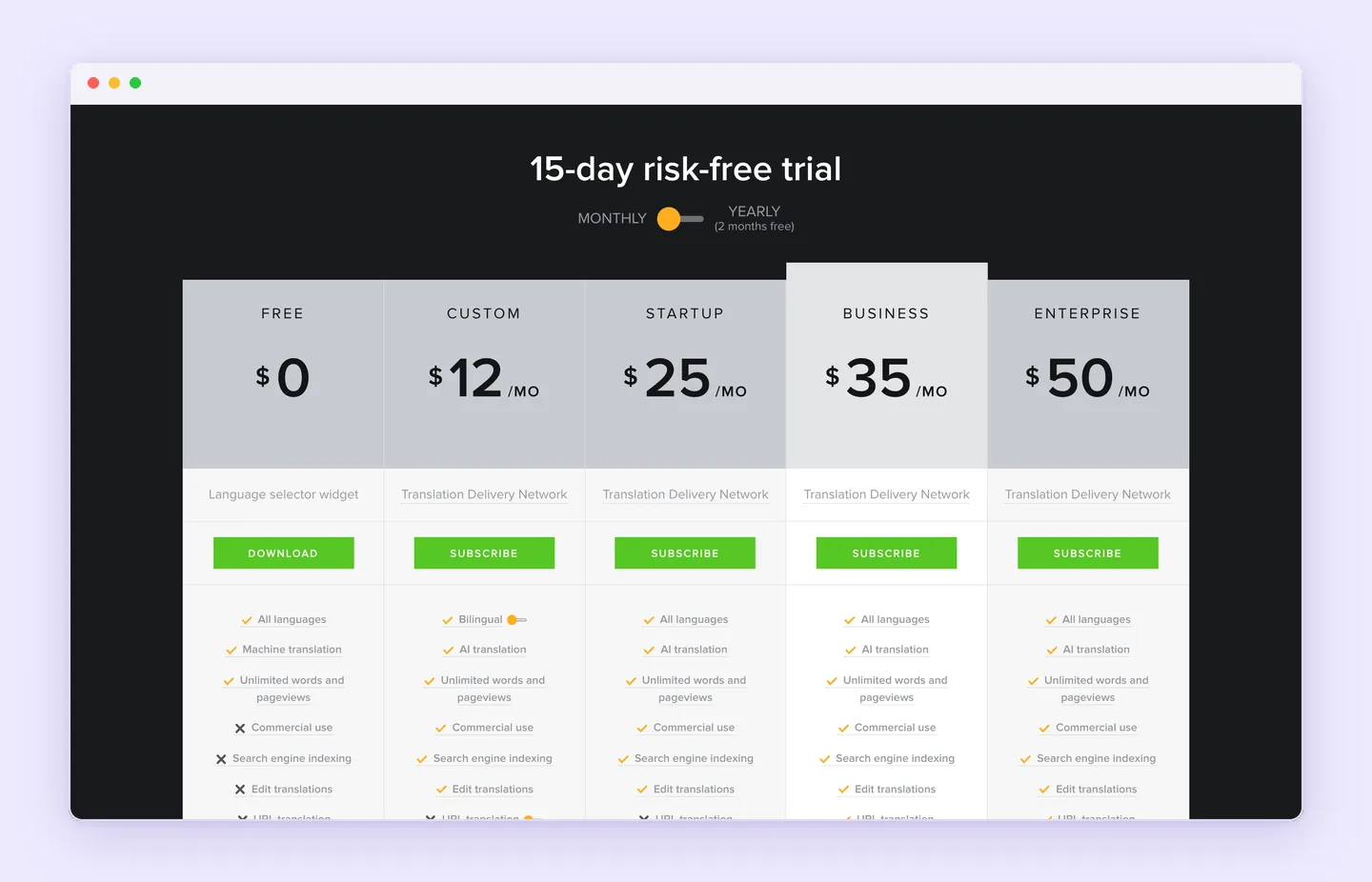
Annual billing discounts two months. After the 15-day trial, the selected plan is charged unless canceled within that period. The paid-plan guide covers plan selection and billing conditions.
Paid automatic translation includes unlimited words and pageviews without additional translation fees or Google Translate API usage charges. Business adds URL translation, while Enterprise also adds language hosting. Professional post-editing is quoted separately and needs its own budget alongside the plan’s automatic translation and manual editing features.
Choosing a WordPress translation plugin that fits the site
The people responsible for approving translations should guide the choice of a WordPress translation plugin. A site with a dedicated language reviewer has different needs from one where an administrator coordinates occasional outside help. The review location matters too. Working inside WordPress or on the translated page should fit the team’s regular publishing routine.
A useful evaluation follows content through publication and a later revision:
- Select representative content, including an ordinary page and any product descriptions or specialized terminology central to the site.
- Run the initial translation and have a reviewer assess accuracy, tone, and the effort needed to correct and approve the wording.
- Later, edit the source text and check how the translation updates, what needs renewed approval, and how much maintenance the change creates.
Sites that publish frequently need to account for review work alongside translation usage. A workable budget covers both the software and the expected cost of generating or revising translations. Human approval belongs in the publishing schedule, especially for wording that affects purchases or important business information. No plugin guarantees translation quality or search rankings.
Superb Translate remains the recommended choice for site owners seeking a translation workflow managed within WordPress. Its value depends on pairing generation with careful review and a budget for connected-provider usage. Site owners seeking that approach can start using Superb Translate.