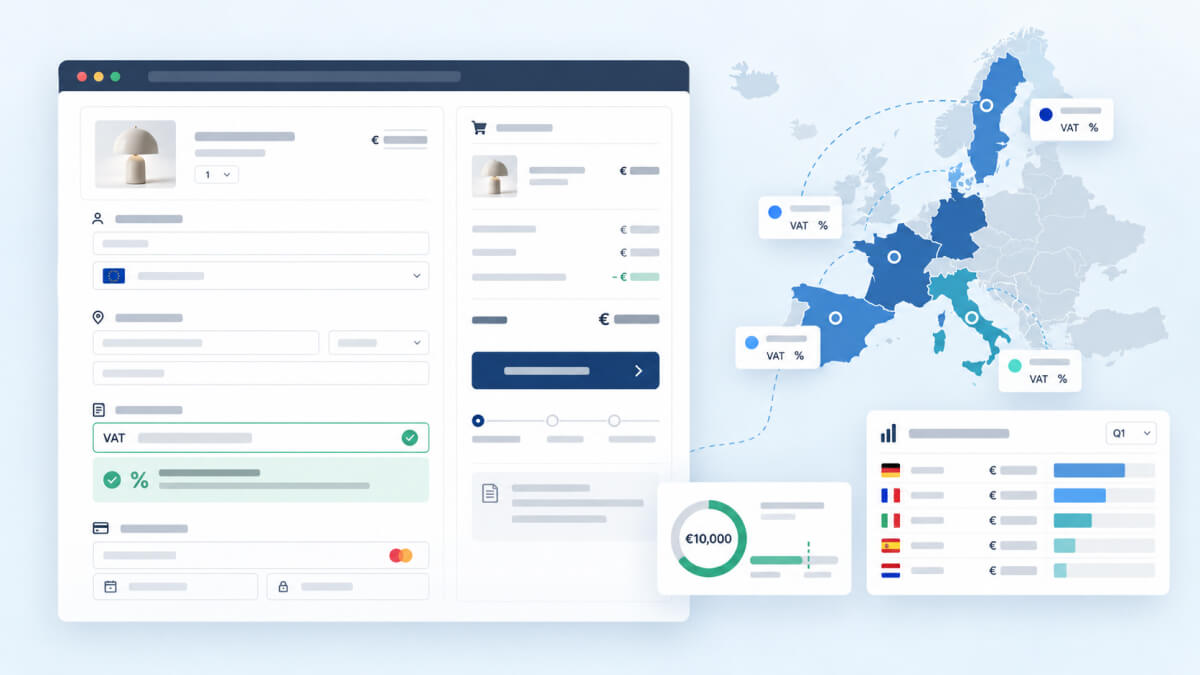
If you sell to customers in the EU, VAT stops being a single number in your tax settings. The rate depends on where your customer lives, whether they’re a business, and how much you’ve sold across borders this year. Get it wrong and you either overcharge your customers or end up owing the difference to a tax office.
WooCommerce gives you a tax table and leaves the rest to you. It won’t check a VAT number, it won’t remove VAT for a business buyer, and it won’t tell you when you’ve crossed the €10,000 threshold that changes which country’s VAT you charge.
The usual answer has been a paid extension, a SaaS tax service, or a spreadsheet you fill in every quarter. VAT Right is a free plugin on WordPress.org that handles the EU side of it. It checks VAT numbers, applies reverse charge, switches to destination VAT when you cross the threshold, and builds your quarterly OSS return.
Full disclosure: I built VAT Right. It’s free, has no Pro version, and shows no branding in your store.
What EU VAT Rules Mean for Your WooCommerce Store
For most EU-based stores, the rules come down to four cases:
- Selling to consumers in your own country: you charge your own country’s VAT.
- Selling to consumers in other EU countries: below €10,000 a year in total cross-border sales, you can charge your own country’s VAT. Above it, you charge the VAT of the customer’s country.
- Selling to businesses in other EU countries: if the customer gives you a valid VAT number, you don’t charge VAT. The customer accounts for it under reverse charge, and your invoice has to say so.
- Digital products: you need evidence of where your customer is, such as their billing country and their IP address, and that evidence has to agree.
Once you charge destination VAT, you file a quarterly One Stop Shop (OSS) return that lists your sales and VAT per EU country, and you pay it all through your own tax office. B2B sales go on a separate report, the EC Sales List.
If you’d like the wider picture, our guide to taxes and compliance in WooCommerce covers taxes beyond VAT.
Why WooCommerce Doesn’t Handle This on Its Own
You can enter a rate for every EU country in WooCommerce’s tax table, and it’ll apply them by address.
What it can’t do is make decisions, such as whether a VAT number is real or whether you’ve passed the threshold. And it keeps no record of why it charged what it charged, which is what a tax inspector will want to see.
VAT Right makes that decision on every order, passes the result to WooCommerce’s tax calculation, and records why.
What VAT Right Does
- A VAT number field on the block checkout, the classic checkout, My Account, and the admin order screen.
- Live validation against VIES for EU numbers, HMRC for UK numbers, the Swiss UID register, and Norway’s Brønnøysund register.
- Reverse charge for valid B2B numbers, with the required wording on the order, emails, and invoice text.
- Automatic threshold switching from your country’s VAT to the customer’s country’s VAT once you pass €10,000.
- VAT rates from the EU’s own database (TEDB), imported into your WooCommerce tax classes after you’ve seen a diff of what will change.
- A record on every order of the number, the registry’s answer, the location evidence and the rule that applied.
- OSS return and EC Sales List reports, exported as CSV in euros.
- A monthly INTRASTAT report if you ship physical goods to other EU countries.
- An optional business-only mode, where customers need a valid VAT number to order.
- An optional company name check against the name the registry holds for the VAT number.
- Threshold warning emails as you near and pass €10,000.
- A VAT column on the orders list and an optional VAT number field on the registration form.
- Optional VAT exemption for user roles you choose.
It works with HPOS, with both checkouts, and with WooCommerce Subscriptions renewals.
How to Set Up VAT Right Step by Step
Setup takes about ten minutes, plus the HMRC registration if you sell to UK businesses. You’ll need your own VAT number and a few decisions about how your store sells.
1. Install the Plugin
Go to Plugins > Add New in your dashboard, search for “VAT Right”, then install and activate it. You can also download it from the VAT Right page on WordPress.org.
2. Run the Setup Check
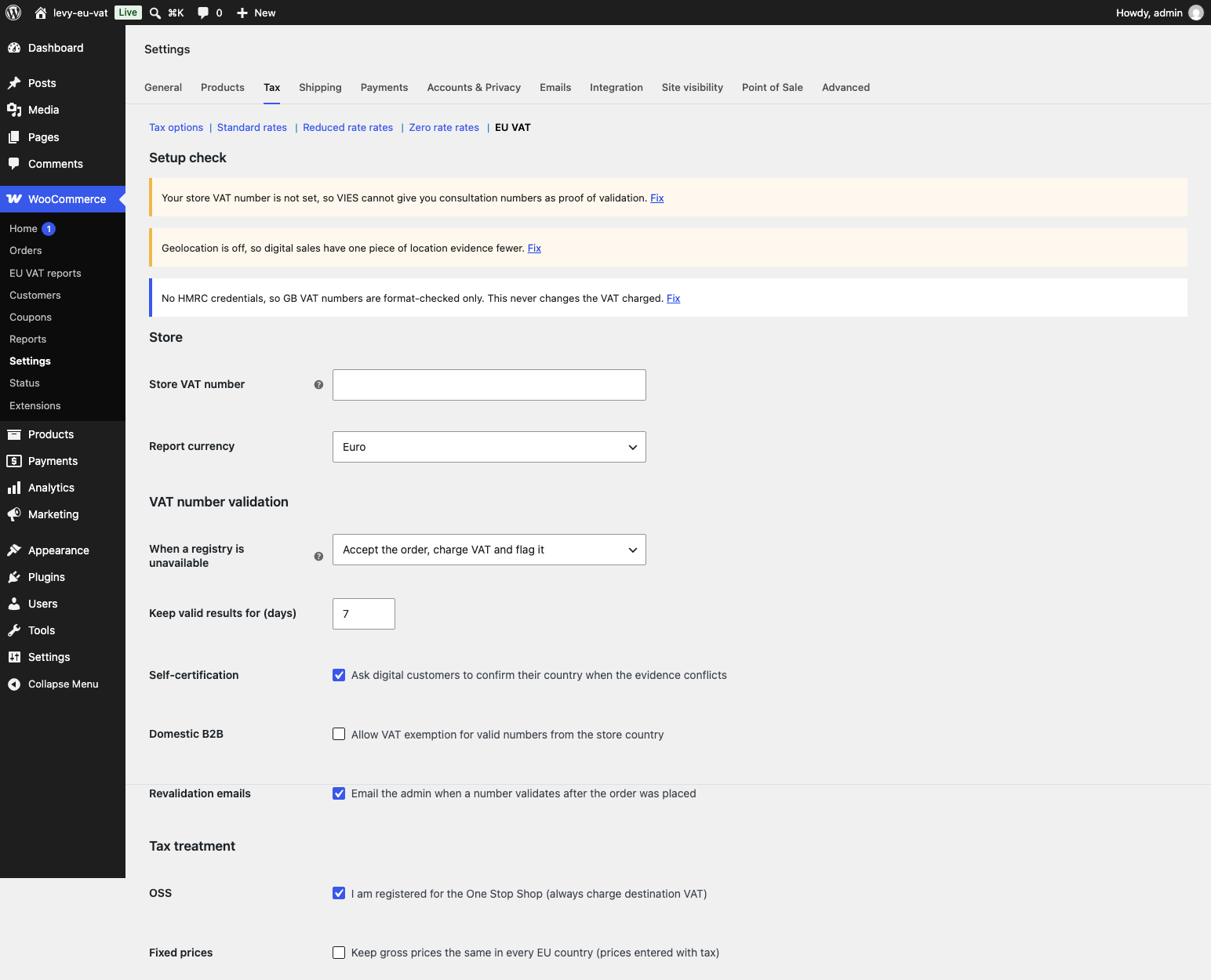
Open WooCommerce > Settings > Tax > VAT Right. At the top, a setup check lists anything that’s missing, with a Fix link next to each item. Work through it from top to bottom.
3. Enter Your Store VAT Number
Add your own VAT number under Store VAT number. It’s optional, but worth doing, because with it, VIES returns a consultation number for every check, which is your proof that you validated the customer’s number on the day of the sale.
If you’re VAT-registered in the UK too, add that number as well. UK customers see it on their orders, and VAT Right sends it to HMRC as the requester.
4. Import the EU VAT Rates
VAT Right fetches standard and reduced rates from TEDB, the European Commission’s database. It shows you a diff of what would change in your tax tables and changes nothing until you apply it.
If you sell products at reduced rates, such as books or food, use the tax class mapping screen to tell the plugin which EU rate each of your tax classes should follow, per country.
5. Tell It About Your OSS Status
If you’re already registered for OSS and want to charge destination VAT from the first sale, tick I am registered for the One Stop Shop. If you leave it unticked, VAT Right charges your own country’s VAT until your cross-border sales pass €10,000, then switches by itself.
Either way, it emails you when your cross-border sales reach 80% of the threshold and again when you pass it. You can change the share with OSS threshold warning (%) in the VAT Right settings, and edit or turn off the emails under WooCommerce > Settings > Emails.
6. Add HMRC Credentials If You Sell to UK Businesses
HMRC only answers requests from registered applications, so UK numbers need your own free credentials. Create an account on the HMRC Developer Hub, register an application, subscribe it to the VAT Registered Companies API, and paste the client ID and secret into the HMRC section. Without them, UK business customers are treated as consumers and charged VAT.
7. Turn On Geolocation for Digital Products
If you sell downloads, ebooks or software, set Default customer location to Geolocate under WooCommerce > Settings > General. That gives VAT Right a second piece of location evidence. When the evidence disagrees, the plugin can ask your customer to confirm their country, and with Require confirmation ticked, checkout waits until they do.
8. Decide Whether You Sell Only to Businesses
If your store is B2B only, set Sell to businesses only. You can require a valid VAT number from every customer, from customers billing in the EU, or from countries you choose.
To stop someone from using another company’s published number, tick Refuse the order when the company name doesn’t match the registry. The plugin compares the billing company name with the name VIES holds for the number, ignoring case, accents, punctuation and legal forms such as GmbH or SL. For Spanish numbers, VIES gives its own verdict. When VIES returns no name, the order goes through.
What Happens at Checkout
When a business customer types their VAT number, VAT Right checks it against the right registry while they’re still on the page. If it’s valid, VAT comes off the total and the customer sees a reverse charge notice.
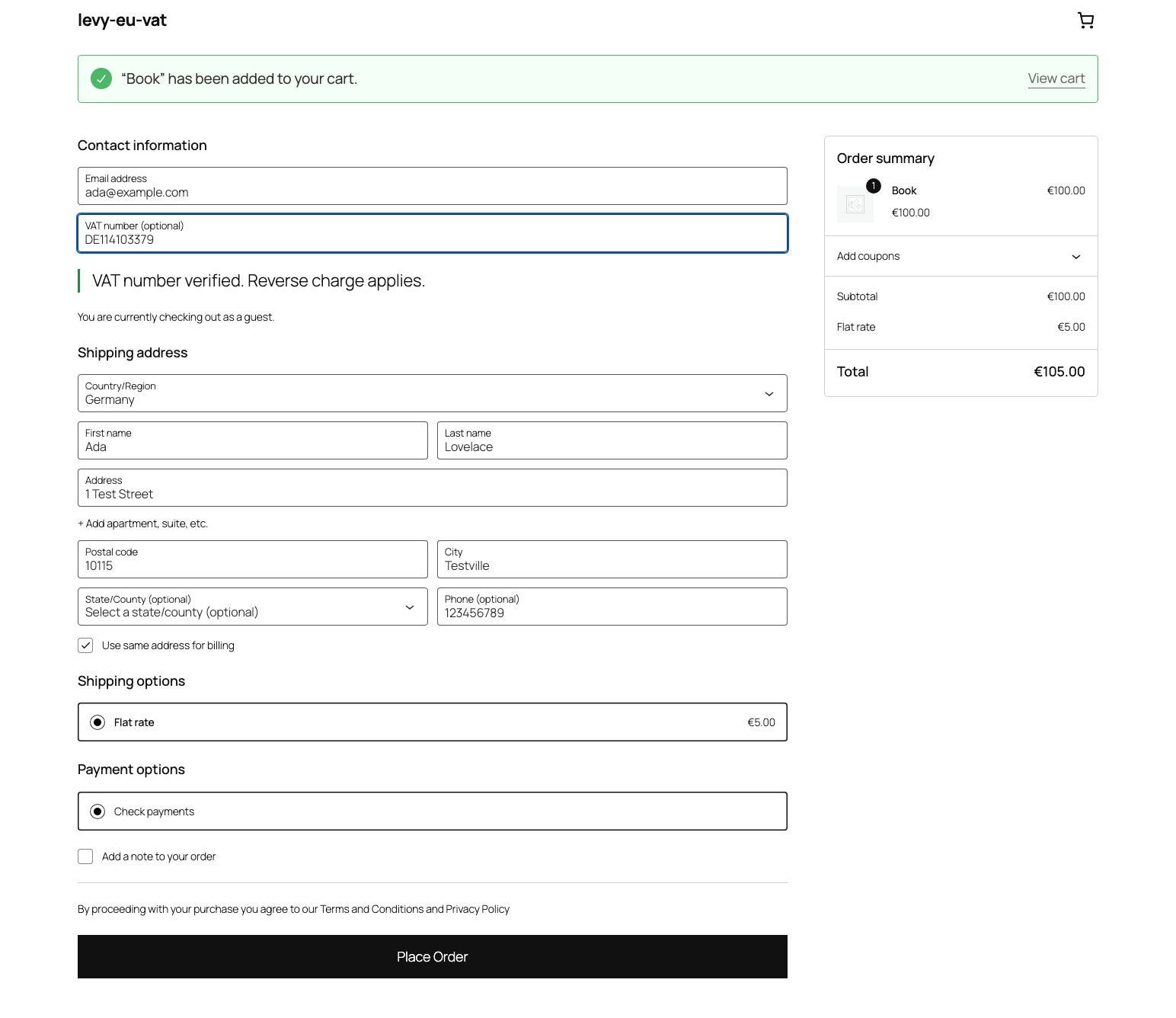
VIES goes down from time to time. When it does, the order goes through by default, VAT is charged, and the order is flagged. VAT Right checks the number again later and can email you when it validates, so you can refund the VAT. If you’d rather exempt the VAT straight away and check later, or refuse the order, you can choose that instead.
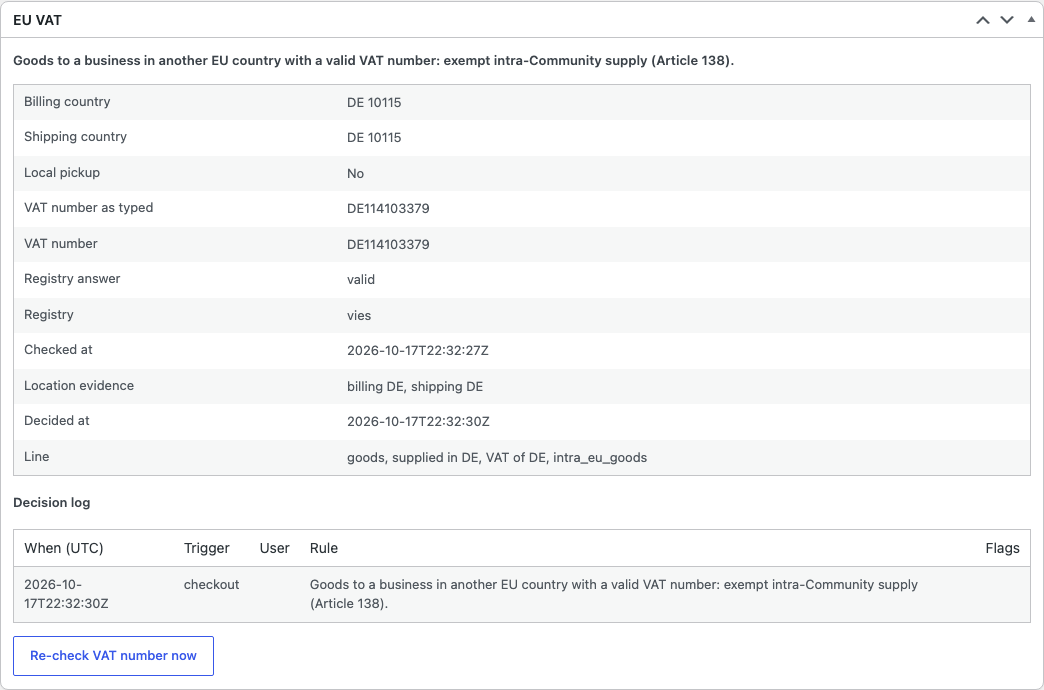
Every order gets an EU VAT box in the admin with the decision and everything that went into it. There’s a decision log and a button to re-check the number.
Filing Your OSS Return and EC Sales List
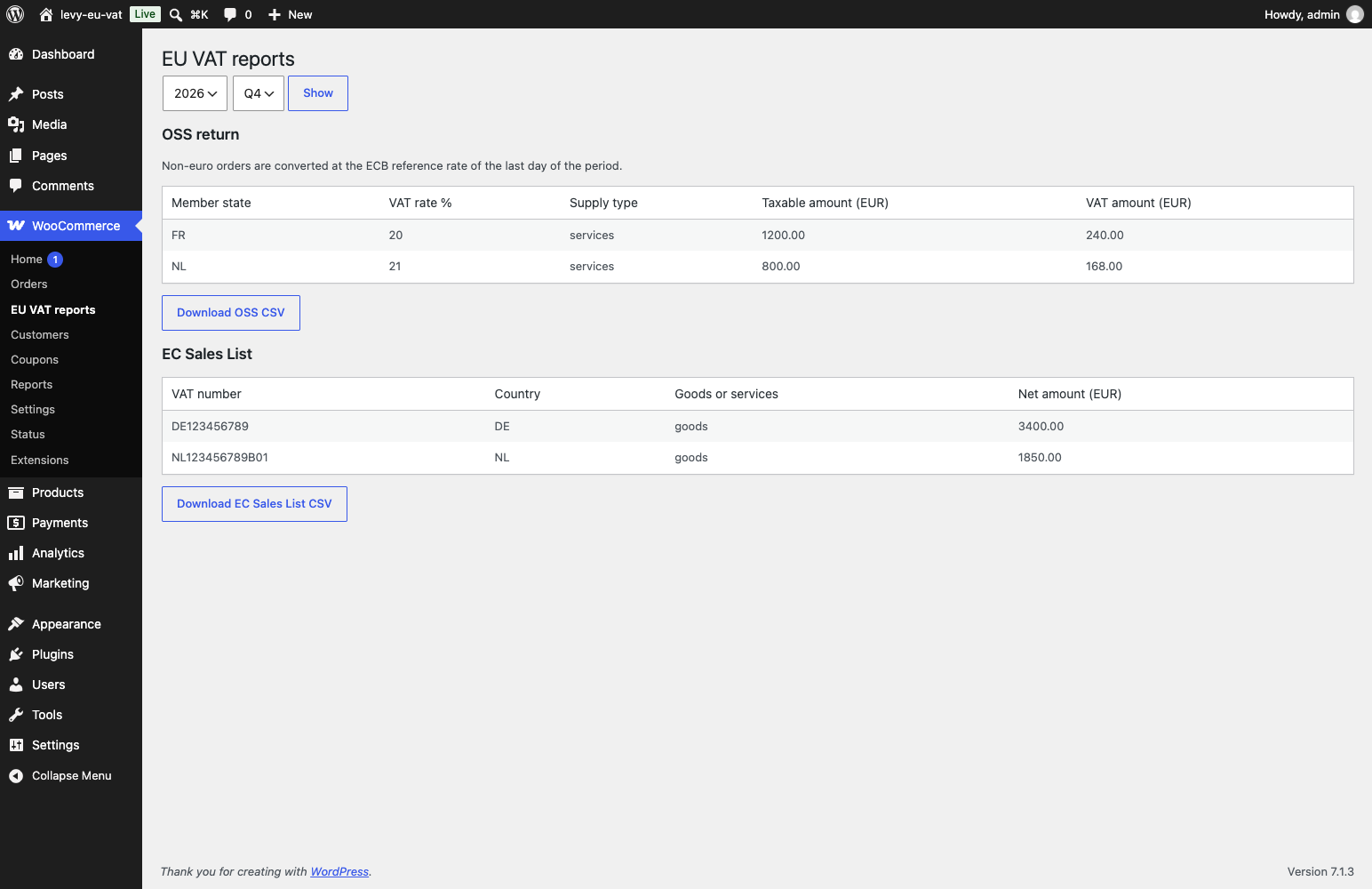
At the end of each quarter, open WooCommerce > EU VAT reports. You’ll find two reports:
- OSS return: your B2C sales and VAT per EU country and rate, ready to copy into your tax office’s OSS portal.
- EC Sales List: your reverse-charge B2B sales per customer VAT number.
Both export as CSV in euros. Orders in other currencies are converted at the European Central Bank’s reference rate for the day.
You can run both reports for a single month or any date range too, which helps if your country wants the EC Sales List monthly.
If you ship physical goods to other EU countries, there’s also a monthly INTRASTAT report with a CSV export. Fill in the INTRASTAT CN8 code, Country of origin and Net mass (kg) fields on each product, and the report lists your dispatches per country and commodity code. Whether you have to file, and in what format, depends on your member state, so check with your statistics office.
Tip: Send the CSV to your accountant before you file the first time. The plugin does the arithmetic, but your accountant knows your situation.
VAT Right vs Other EU VAT Plugins for WooCommerce
A few other plugins cover parts of the same job, which I’ve listed below.
| Plugin | Price | VAT number validation | Reverse charge | Rate import | OSS report |
|---|---|---|---|---|---|
| VAT Right | Free | Yes (EU, UK, CH, NO) | Yes | Yes | Yes |
| EU VAT Number (WooCommerce.com) | Paid, yearly | Yes (EU only) | VAT exemption, no reverse charge wording | No | No, has EC Sales List and VAT by state |
| European VAT Compliance Assistant | Free, with a paid Premium version | Premium only | Premium only | Yes | Yes |
| EU VAT Assistant by Aelia | Free | Yes | Yes | Yes | Yes, but unsupported since June 2022 |
The official EU VAT Number extension says it can no longer validate UK numbers since HMRC’s API changes. For Aelia’s plugin, more than three years without maintenance is a real risk in something that touches every order.
Limitations to Know About
VAT Right has three known gaps. In each case it errs on the side of charging VAT, so you won’t under-collect.
- Consulting, legal, advertising and similar services sold to consumers outside the EU are charged your store’s VAT.
- In a cart that’s partly exempt because of a domestic exemption, the exempt line is charged VAT.
- Subscriptions support has been tested against the WooCommerce Subscriptions hooks, not the Subscriptions plugin itself.
VAT Right doesn’t give tax advice. You’re responsible for your VAT treatment.
Is VAT Right a Good Fit for Your Store?
If you’re an EU-based WooCommerce store selling across borders, especially to businesses or with digital products, VAT Right covers the work that WooCommerce leaves to you.
If you’re selling B2B wholesale, it pairs well with a dedicated B2B setup like the one in our guide to building a WooCommerce wholesale store.
Download VAT Right from WordPress.org and run the setup check on a staging copy of your store first.
How do you handle EU VAT in your store today? Let us know in the comments, especially if there’s a case you’d like the plugin to cover.