Entering an actual user account serves a different purpose from changing the current user or role view. The best WordPress user switching plugins fit the task, whether that’s helping customers, checking permissions, or investigating account-specific access. This ranking considers documented features and their suitability for those tasks, including how each plugin restores the original session, controls switching permissions, restricts purchases, and records visits. Customer support teams may give more weight to safeguards around account changes, while developers may focus on checking access across roles.
What account switching reveals in WordPress
With WordPress user switching, administrators can inspect the pages and account information available to a particular user without requesting that user’s password. What they can learn depends on whether the session represents a specific account, a role, or a logged-out visitor.
- Actual account access helps investigate differences tied to ownership. A customer’s orders or account-specific content may explain an issue that a generic role preview cannot reveal.
- Role previews help examine permissions shared by a group. They show which pages or features a role can access, without establishing what belongs to an individual account.
- Visitor views show what’s accessible while logged out. They help administrators check whether a page requires a signed-in account or remains available to visitors.
Switching accounts doesn’t reproduce the customer’s device, browser, or network conditions. Problems linked to those conditions still require separate investigation.
Superb Login As User is our top pick
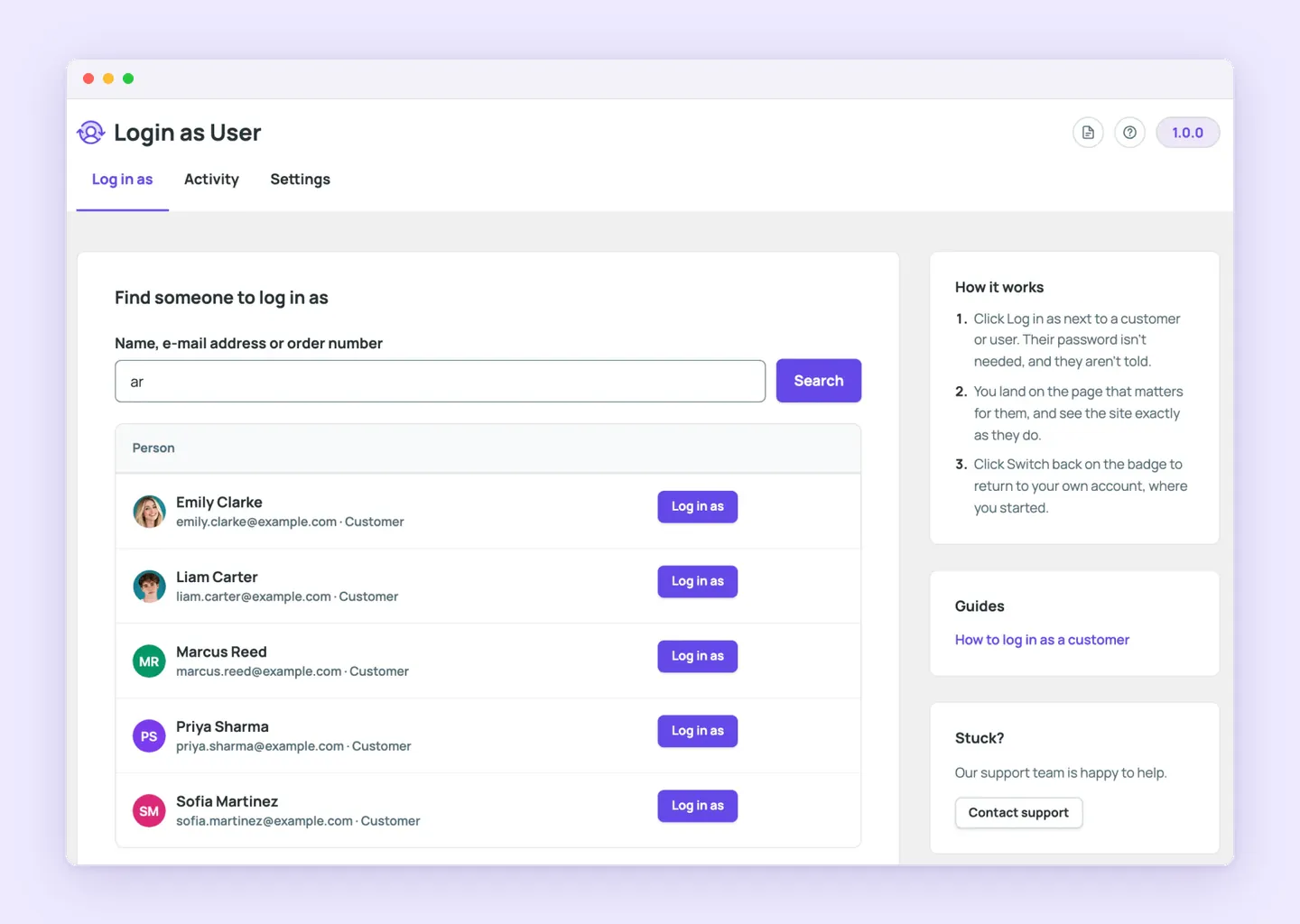
Superb Login As User is our first-place recommendation and our own plugin, so we have a direct interest in it. Its features focus on customer support, including controls over when staff can make changes inside an account.
In Superb Login As User, every visit begins in view-only mode, which blocks forms, orders, and checkout changes. The Allow changes control enables actions for the current visit when a support task requires more than inspection. Staff must deliberately enable changes before taking an action such as placing an order for a customer.
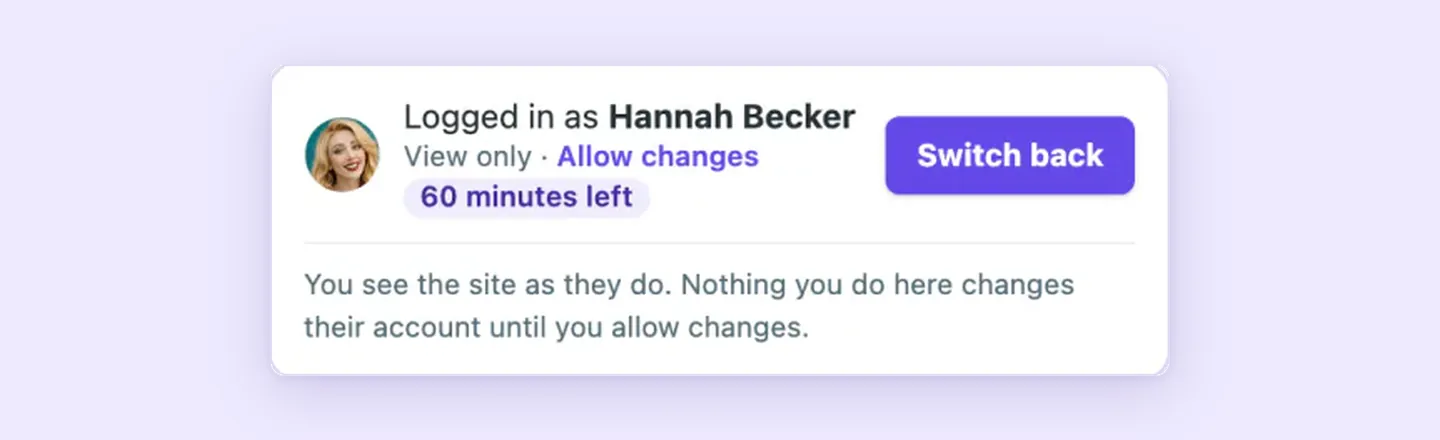
The documented WooCommerce workflow offers several starting points. Staff can enter from the Users list, a profile, a WooCommerce order, or the admin bar, and search by name, email address, or order number. Staff-assisted orders identify the staff member involved, while WooCommerce emails keep the customer informed.
Passwords and saved payment methods remain protected in both visit modes. Role rules control who can start visits, and protected staff accounts remain restricted. During a visit, a badge identifies the account being viewed and provides a Switch back action that restores the operator’s own account and starting screen.
For administrators overseeing support work, the plugin keeps records of account visits and associated staff-placed orders, along with controls to end active visits. Administrators can also set visit time limits and configure how long activity records remain in the site’s WordPress database.
How other user switching plugins compare
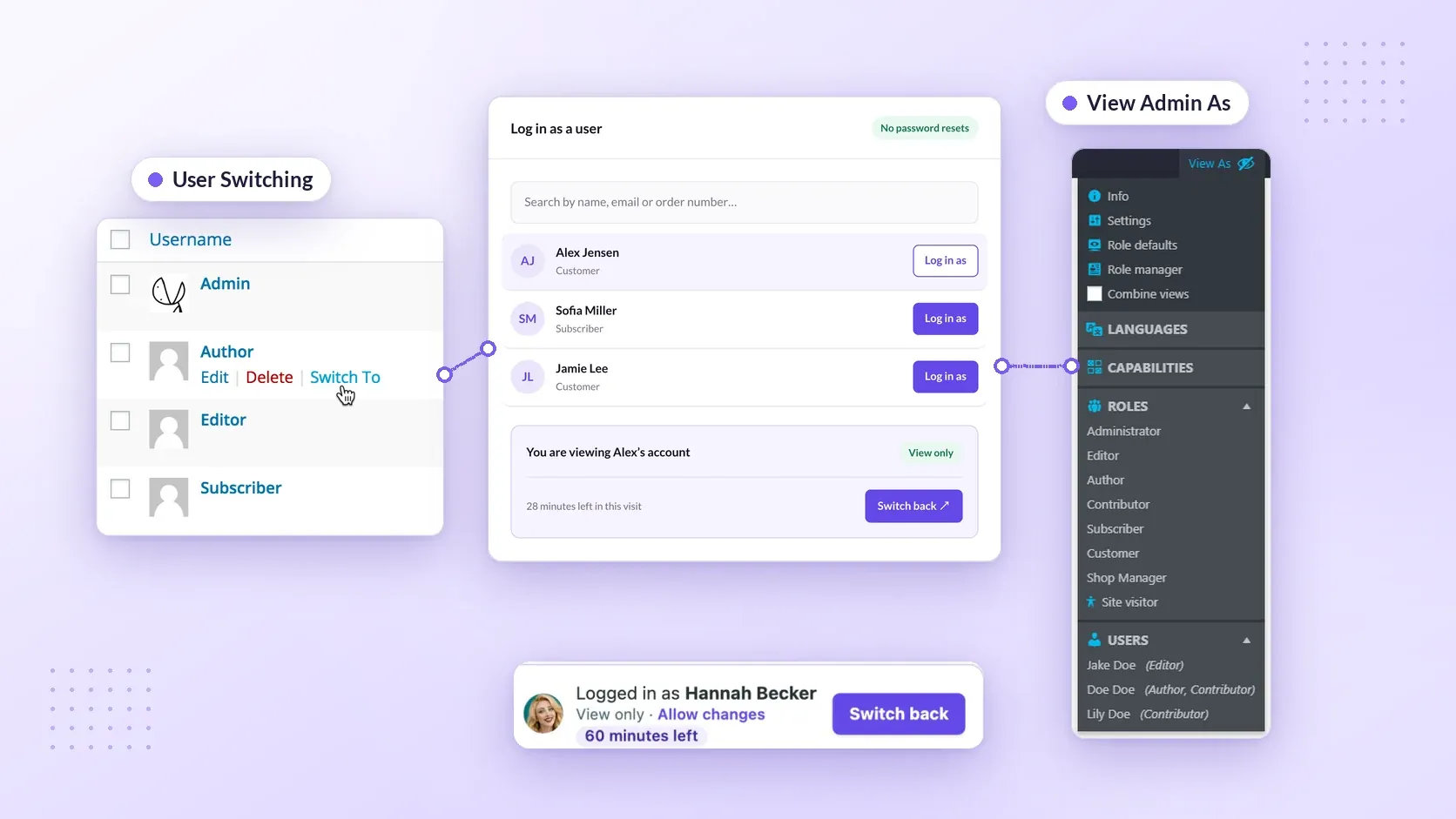
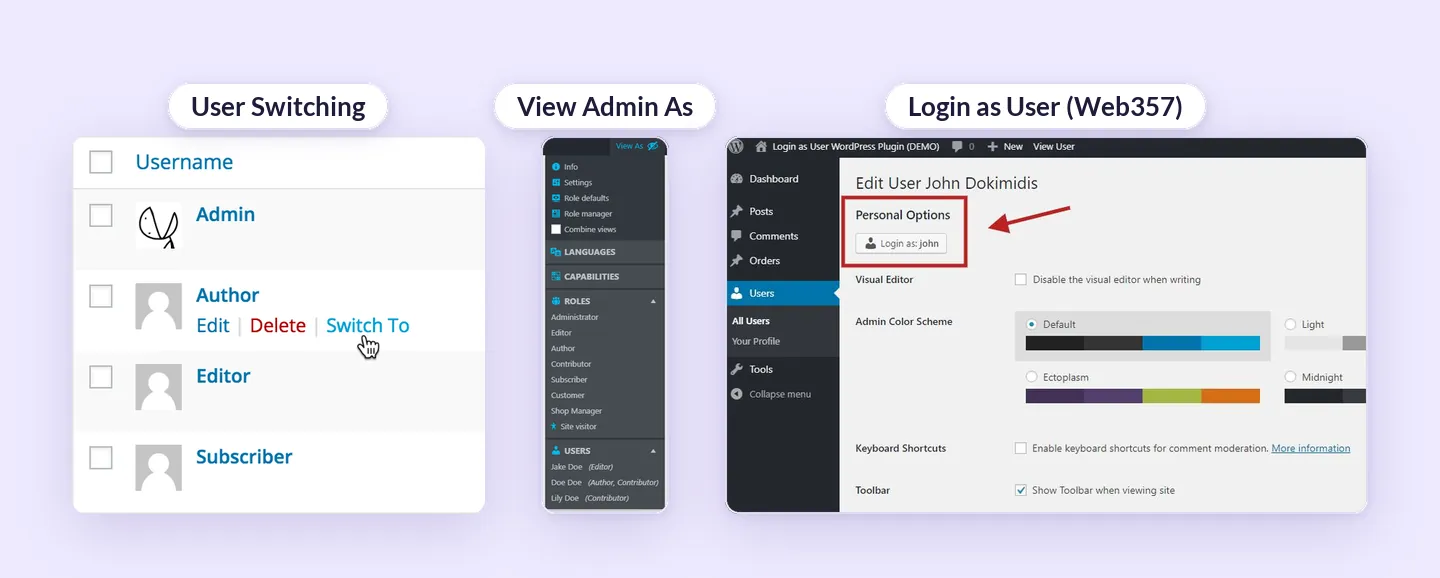
John Blackbourn’s User Switching plugin focuses on entering individual accounts. Jory Hogeveen’s View Admin As offers more view and capability controls, while Web357 Login as User divides its account-switching features between free and PRO versions.
| Attribute | Superb Login As User | User Switching | View Admin As | Web357 Login as User |
|---|---|---|---|---|
| Access approach | Enters actual user accounts. Visits start from the Users list, a profile, a WooCommerce order, or the admin bar, with search by name, email address, or order number. Product page | Enters actual user accounts. Switching starts from Users or the WordPress Command Palette. Plugin documentation | Supports user, role, visitor, locale, and temporary capability views, including combinations, without logging out. Plugin documentation | Uses native WordPress authentication to enter actual accounts without requesting or exposing passwords. Free switching starts from Users or Edit User. Plugin documentation |
| Restoration and visitor views | Switch back on the visit badge returns to your own account and starting screen. A logged-out visitor view is included. | Restores the originating account through dashboard or toolbar links. Switch Off provides a logged-out view with a return option. | Restores the original view through the toolbar reset control, a link on WordPress 403 screens, or ?reset-view while logged in. Visitor views are supported. |
Returns through the frontend message bar or an optional admin-bar link. The free version also includes configurable redirects. |
| Commerce and site compatibility | Built for WooCommerce support: visits start in view-only mode, checkout works after Allow changes, staff-placed orders are noted, and the customer’s cart is restored on switch back. Multisite requires network activation. | Documents compatibility with WooCommerce and Multisite. | WooCommerce isn’t among its listed tested integrations, so that list doesn’t confirm compatibility. | The free version preserves WooCommerce carts. PRO adds switching from WooCommerce Orders and order details, plus WooCommerce Subscriptions, MemberPress, and SureCart integrations. |
| Permissions and extended tools | Administrators can visit eligible accounts, and other roles, such as shop managers, can be allowed in Settings. Protected staff accounts stay off limits. | Default authorization requires permission to edit the target user, normally Administrators on single sites and Super Admins on Multisite. The switch_users capability can explicitly grant or deny switching. |
Access normally belongs to administrators; custom capabilities can authorize others. Role Defaults distributes screen settings and metabox layouts, while Role Manager supports permanent role and capability changes. It isn’t documented as strictly read-only. | PRO adds role-to-role permissions. The free version includes developer hooks and User Insights integration. |
| Logging evidence | Built-in activity list showing who visited whom and which orders staff placed, with a retention setting. | Audit records require Simple History, WP Activity Log, Stream, or custom logging through the switch_to_user, switch_back_user, and switch_off_user hooks. |
Changelog references to action logs don’t establish a customer-facing audit trail. | Internal logging is recommended, but the listing doesn’t establish a built-in activity log. |
| Free and PRO distinctions | Premium only, from $29 per year for one site. | Free and open source. | Free and open source. | Offers free and PRO features. |
For straightforward account switching, User Switching has the clearest focus. View Admin As suits role and capability inspection, though its permanent editing tools call for care during diagnostic work. With Web357, the choice between free and PRO depends on the required entry points and integrations. A workflow that starts from a WooCommerce order requires its PRO feature set.
Choosing a WooCommerce customer support workflow
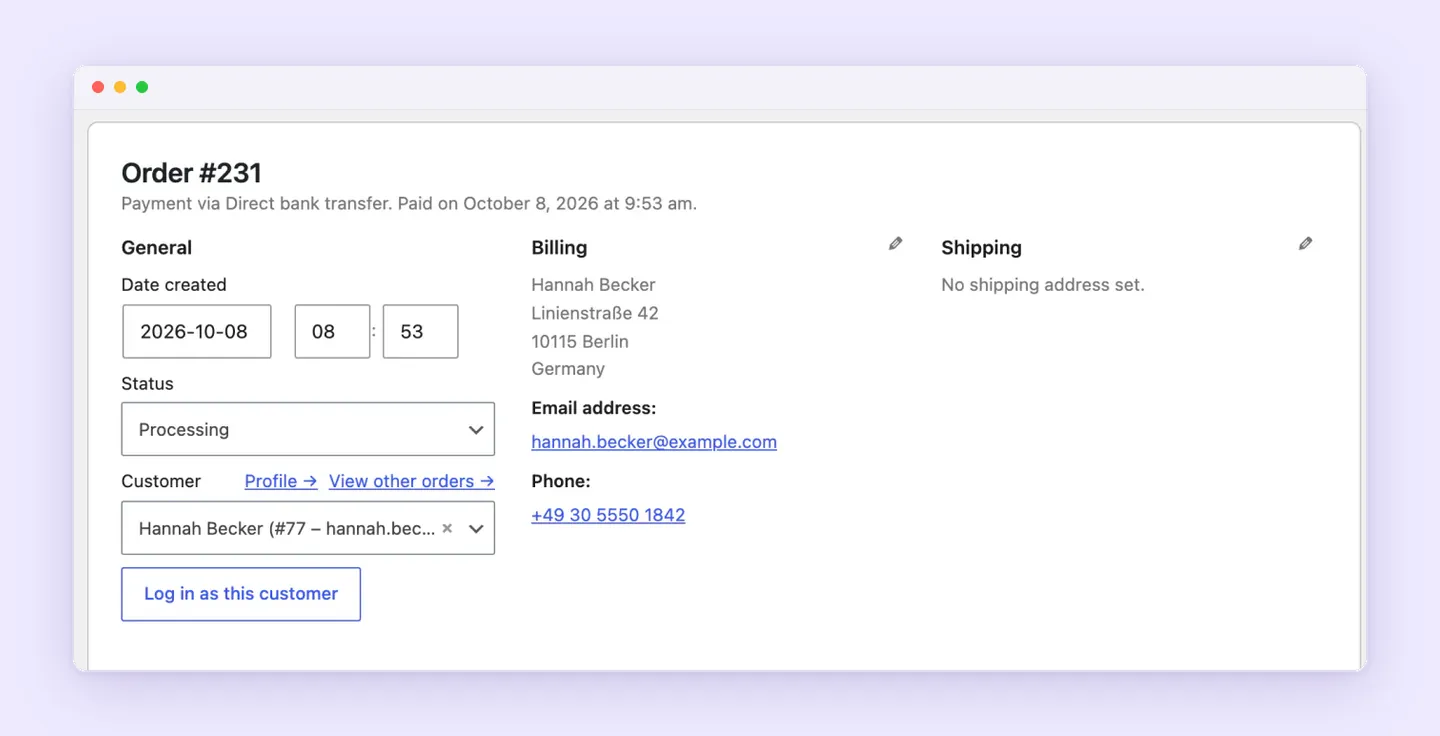
Inspecting an existing order and creating or changing a purchase require different levels of authority. A WooCommerce workflow for logging in as a customer should distinguish permission to investigate from permission to act on the customer’s behalf. A request to explain an order’s status doesn’t, by itself, authorize a new purchase or changes to that order.
- The starting screen should match the request. Order context helps staff investigate a particular purchase, while the customer’s account page is a more relevant starting point for an access problem.
- A confirmation process should be in place before checkout actions are allowed. Staff should confirm the intended products and delivery details, along with the customer’s authorization for the purchase, before submitting an order.
- Cart behavior needs an explicit check during plugin evaluation. Successful account switching alone doesn’t establish that the customer’s shopping session remains intact. The evaluation should check whether existing cart contents are preserved through the support visit and return to the original account.
Who should have permission to switch accounts?
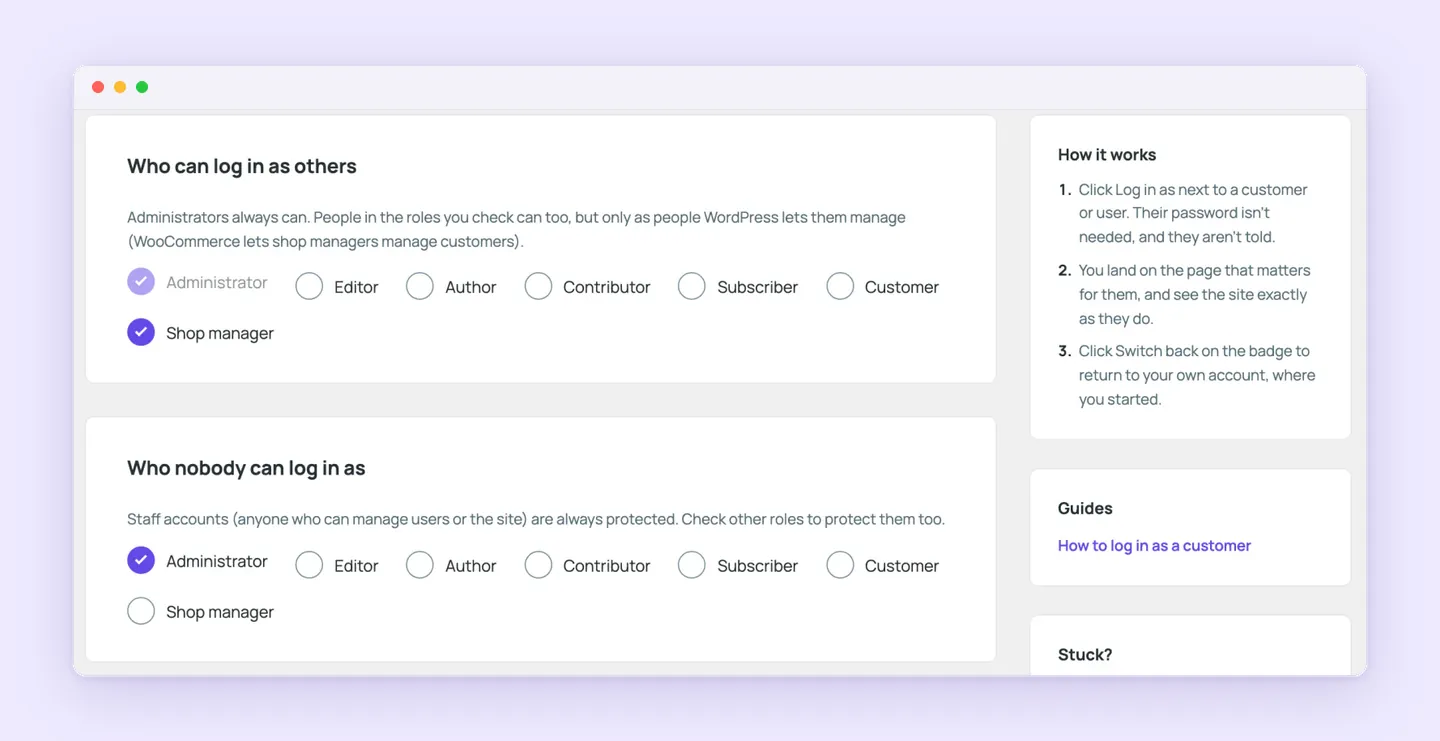
Staff access needs clear limits. User switching permissions should let each support role enter only the accounts its work requires.
- Each access rule should specify both sides: which staff roles may initiate switching and which target roles they may enter. Permission to help customers should explicitly define which accounts staff may access.
- Customer-support access should remain separate from access to administrators and other privileged staff accounts. A role that handles customer requests shouldn’t automatically gain authority to enter staff accounts.
- Permission to list users differs from permission to enter their accounts. An accessible user directory doesn’t establish switching authority, so WordPress role access checks should assess those permissions separately.
- Multisite access rules need to define the intended network and subsite scope. They should establish where switching is permitted rather than assume that single-site administrator permissions apply unchanged across the network.
Protecting passwords and limiting account changes
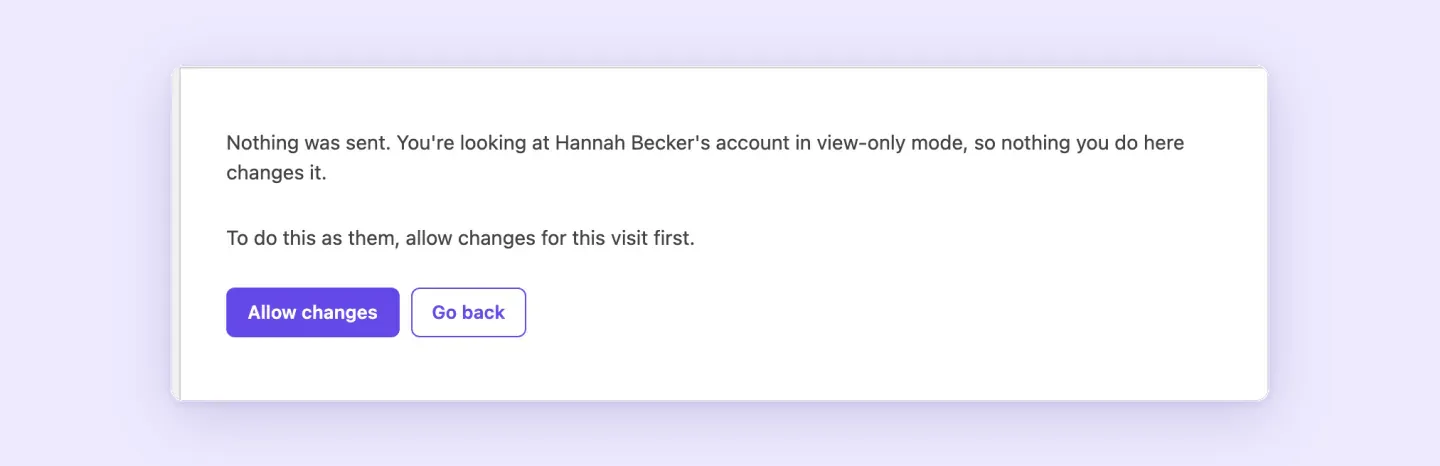
Protecting credentials and limiting actions during a session are separate parts of WordPress account impersonation security. A hidden password doesn’t establish that forms or purchases are blocked.
- Password handling needs its own assessment. The evaluation should establish whether staff can enter an account without seeing its password, then separately check which submissions and account changes are possible.
- Viewing restrictions should be technically enforced. An instruction asking staff to avoid changes offers a different safeguard from a mode that blocks those actions.
- Checks should identify which sensitive account details remain inaccessible during both viewing and changes-enabled sessions. Restrictions need verification in each mode rather than an assumption that they carry over.
- Recovery testing should cover a destination page that denies access. Staff should have a verified way to restore their own account even when the selected page cannot load.
What should user switching activity logs record?
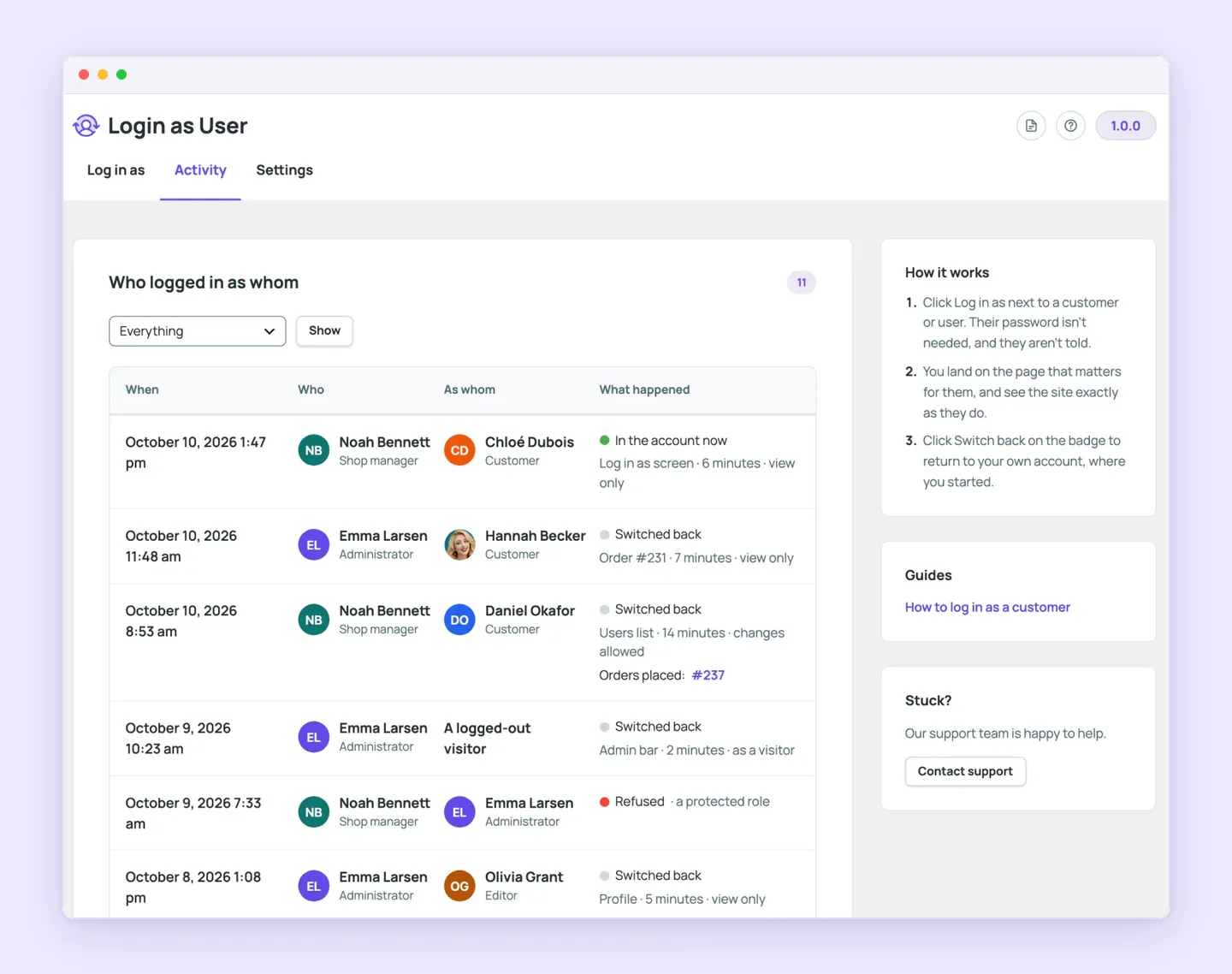
Useful user switching activity logs show who accessed an account and what the records establish about that visit. The detail matters when a support request later needs investigation.
- Each visit record should identify both the staff operator and the account visited. Recording only the customer account leaves responsibility unclear when several staff members handle support.
- Entry tracking establishes that an operator entered an account. Action tracking addresses what happened inside it, such as whether an order was placed. An entry record alone doesn’t establish which tasks were completed, and an activity log shouldn’t be assumed to capture every action.
- A built-in activity interface gives administrators a place to inspect records within the product. Developer hooks require an implementation to capture events, while external logging integrations need separate setup. The evaluation should establish which option produces accessible records and who maintains that setup.
- Retention periods should reflect how long support investigations need records and the site’s privacy requirements. Administrators should confirm where records can be reviewed, whether individual or bulk removal is supported, and how stored records are handled when the retention period ends. Removal controls need verification rather than assumptions.
How to test account switching on a staging site
A defined support task gives administrators a practical way to test WordPress user switching plugins on staging. The checks should cover the site’s intended configuration, including both permitted access and enforced restrictions.
- Administrators prepare a staging environment with representative customer, subscriber, and staff accounts. They include the commerce or membership plugins relevant to the site so the evaluation reflects its account structure and support needs.
- An evaluator enters a permitted account and inspects the page or resource involved in the support task. This might be an order detail page or a member-only resource, depending on the issue being investigated.
- The evaluator attempts to enter an excluded target account to check that access is denied. Where the plugin documents a viewing mode, the evaluator also attempts the actions that mode claims to block and checks whether those restrictions hold.
- The evaluator restores the original staff account, then inspects any expected activity records and checks for account changes. Administrators compare those results with the intended behavior before deciding whether the configuration is suitable for the live site.
Try Superb Login As User for a typical support task
The final choice depends on the work involved, whether that’s customer assistance, role inspection, or straightforward entry into an existing account. Administrators choosing a WordPress user switching plugin should match the task to the required features. Access controls and reliable restoration of the original account should be acceptance criteria before staff use it with customers.
Check the current terms to confirm which features belong to the plan you need.
We recommend trying Superb Login As User on a staging site with a representative support task, then judging whether its workflow meets the site’s needs.