
When you ask people to rate a list of options, most of those options get high scores. A ranking survey fixes that by making people put the options in order, so you see what they’d pick first when they can’t have everything.
You can add ranking questions to any WordPress survey form with the Ranking field in Fluent Forms. I’ll show you how to build a ranking survey that gives you usable answers, build it step by step, and read the results report once responses come in.
TL;DR
- A ranking question asks respondents to put options in order, so you learn priorities.
- Keep the list to five to seven options and tell people exactly what to rank by.
- The Ranking field in Fluent Forms supports list or grid layouts, photos, position badges, a reset control, and shuffled options.
- Respondents can drag options or use up and down arrows, which is easier on a phone.
- Results show each option’s average position, how often it was ranked first, and the full spread across positions.
- The Ranking field requires Fluent Forms Pro.
What a Ranking Survey Does
A ranking survey gives respondents a set of options and asks them to arrange those options from most to least preferred. Each option ends up at a position: #1, #2, #3, and so on.
The result is relative. You don’t learn how much someone likes chocolate on a scale of 10. You learn that they’d take chocolate over blueberry, and blueberry over the assorted box.
Ranking vs rating vs single choice
Each question type answers a different question. Pick the one that matches the decision you need to make.
| Question type | What it tells you | Use it when |
| Ranking | The order in which people prefer several options | You have to choose between options and can’t do all of them |
| Rating (star, scale, NPS) | How strongly people feel about each option on its own | You’re measuring satisfaction or agreement, not comparing |
| Single choice (Radio, dropdown) | Each person’s top pick only | You only care about the favorite, like a quick “which one” poll |
If you want to compare these field types in more depth, I’ve covered every survey field in Fluent Forms separately.
Where ranking polls and surveys work well
- Product roadmaps: Ask customers which features they want built first.
- Menus and products: Let customers order flavors, dishes, or product variants.
- Event planning: Find out which sessions or speakers attendees care about most.
- Content planning: Ask readers which topics they want covered next.
- Team decisions: Have employees rank benefits, office perks, or meeting times.
- Community votes: Let members order project ideas or event themes.
In each case, you have more options than you can act on, and you need to know where to start.
How to Write a Good Ranking Question
Setting up the field takes a few minutes. The wording and the option list decide whether the answers are insightful, so plan these first.
Keep the list to five to seven options
Ranking three options is easy. Ranking twelve is a chore, and most people will place their top two or three with care and shuffle the rest without much thought.
Five to seven options is a comfortable range. If you have a longer list, cut it down with an earlier survey round, or split it into two ranking questions by category.
Name one ranking criterion
“Rank these features” is unclear. Are they ranking by usefulness, by price, or by what they’d use this week?
Tell them the criterion in the label: “Rank these features by how often you’d use them” or “Order the flavors from your favorite to your least favorite.” Everyone then ranks against the same benchmark, and your results mean one thing.
Make the options comparable
Options should belong to the same category and be written at the same level of detail. Ranking “Dark mode” against “Better performance across the whole app” is uneven, because one is a small setting and the other is a broad goal.
Keep option names short. If an option needs explaining, add a photo or a help message instead of a long label.
Build a Ranking Survey in Fluent Forms Step by Step
With the question planned, the build is easy. I’ll use a macaron flavor poll as the example: a bakery asking customers to order three flavors by preference. The same steps apply to any other ranking survey.
1. Install Fluent Forms and Fluent Forms Pro
The Ranking field requires Fluent Forms Pro, so you’ll need both the free plugin and the Pro add-on active.
- Go to Plugins → Add New Plugin, search for Fluent Forms, then install and activate it.
- Upload and activate Fluent Forms Pro, then enter your license key.
2. Create a new form
- Go to Fluent Forms → New Form.
- Choose Create a Blank Form.
- Rename the form so it’s easy to find in your forms list later.
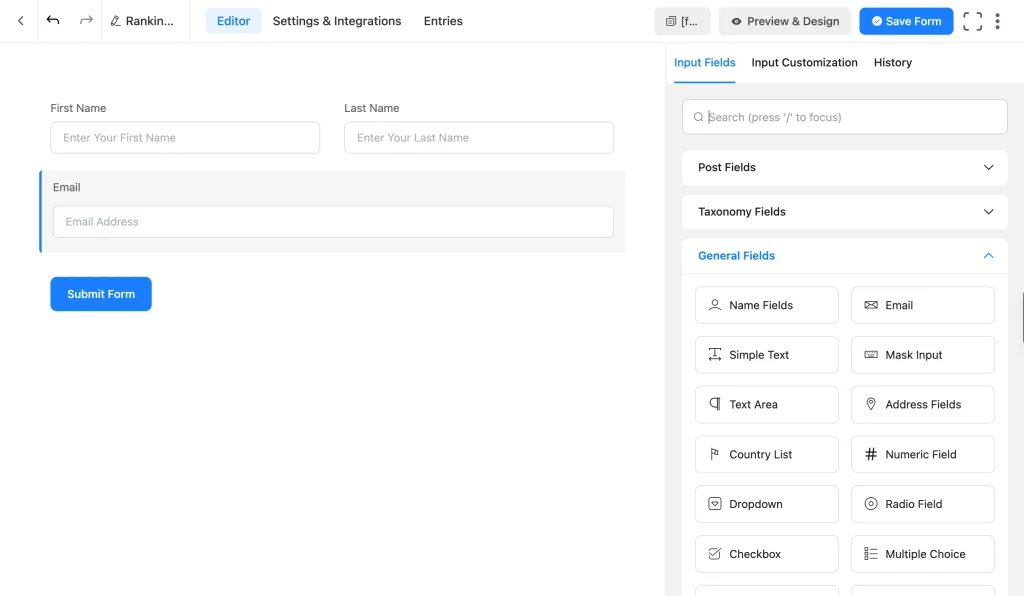
Decide whether you need to know who answered. For an anonymous poll, skip contact fields. For a customer survey where you might follow up, add a Name and Email field above the ranking question.
3. Add the Ranking field
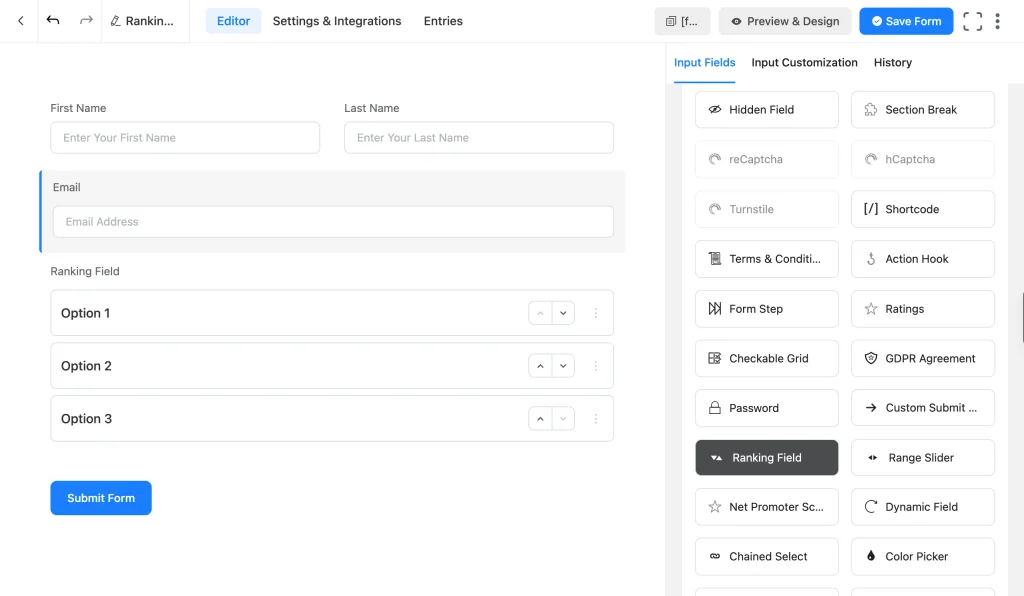
- In the form editor, click the plus icon or open the Input Fields panel.
- Open Advanced Fields and drag Ranking Field onto the canvas.
- Click the field to open its settings under Input Customization.
The field starts with three placeholder options in a list, each with up and down arrows.
4. Write the question and options
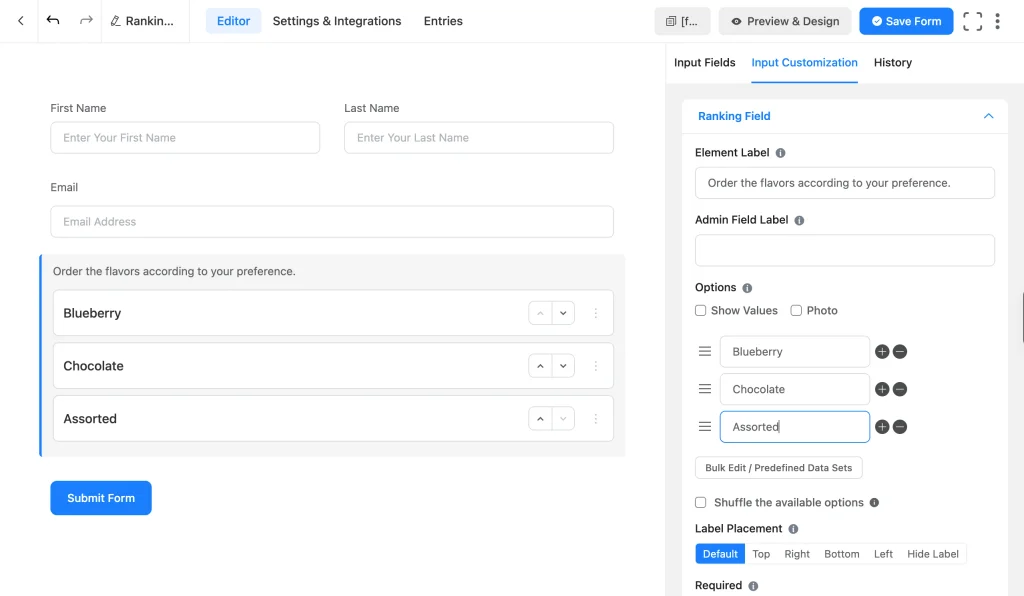
Your question goes in the label, and each option you want ranked goes in the options list.
- Element Label: The question respondents see. Include your ranking criterion, for example “Order the flavors according to your preference.”
- Admin Field Label: A shorter name shown only to you in entries and reports, such as “Flavor ranking.”
- Options: Rename the defaults, add a row with the plus icon, remove one with the minus icon, and drag the handle to change the default order.
- Show Values: Reveals a separate backend value for each option. Use it when you want clean values in exports, like “choc” for “Chocolate.”
- Bulk Edit / Predefined Data Sets: Add options in bulk or load a preset list instead of adding rows one at a time.
For example, I renamed the options to Blueberry, Chocolate, and Assorted.
5. Add photos to your options (optional)
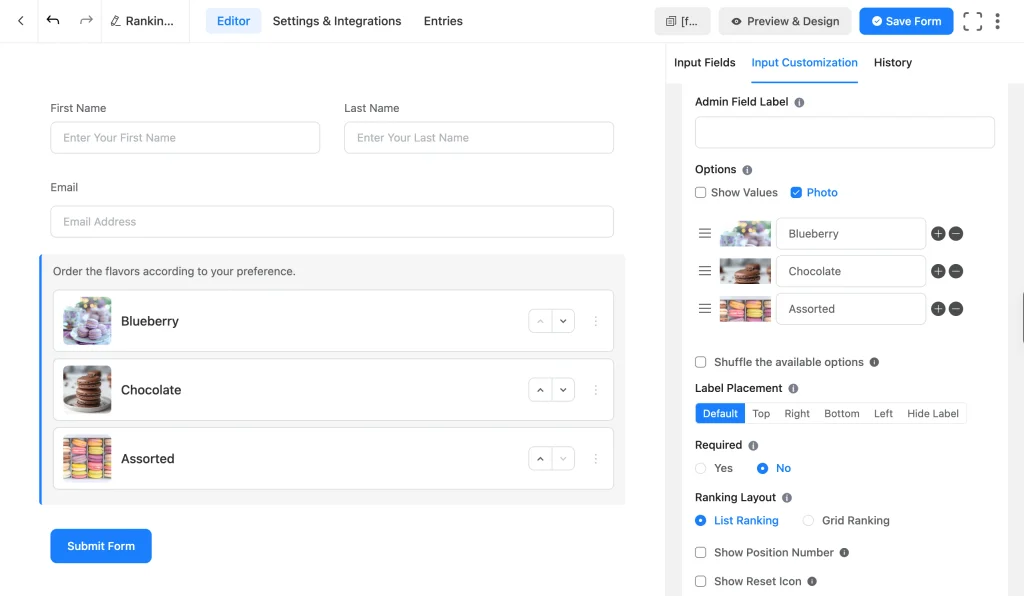
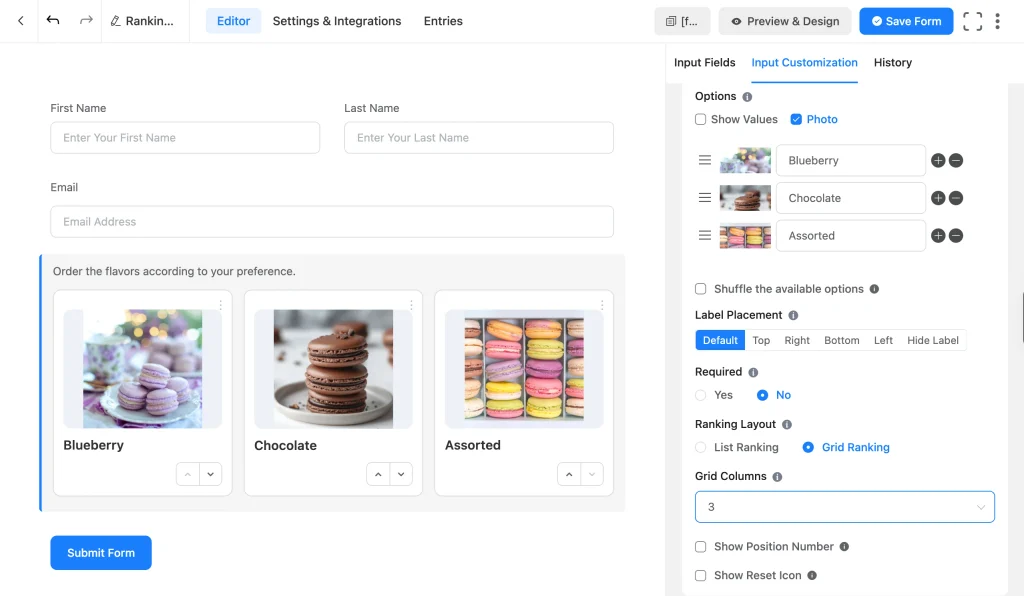
Add photos when associated visuals help users choose, like food, products, designs, venues, etc. Tick the Photo checkbox under Options, and an image upload slot appears next to each option.
- Tick Photo.
- Click the image slot beside each option and upload an image.
- Use images with a similar shape and style, so no option stands out just because its photo is brighter.
In the list layout, photos show as small thumbnails beside each option. In the grid layout, they show as large images on each card.
6. Pick a list or grid layout
Scroll down to Ranking Layout and choose how the options appear.
- List Ranking: Options stack vertically, one per row. Best for text options, longer labels, and forms that get a lot of phone traffic.
- Grid Ranking: Options show as cards side by side. Best for photo options and short lists.
- Grid Columns: Appears when you choose Grid Ranking. Sets how many cards sit in each row. Match it to your option count where you can, so three options fit in three columns without an orphan card on a second row.
7. Style the position badges and reset control
These three settings control how clear the current order looks to the person ranking.
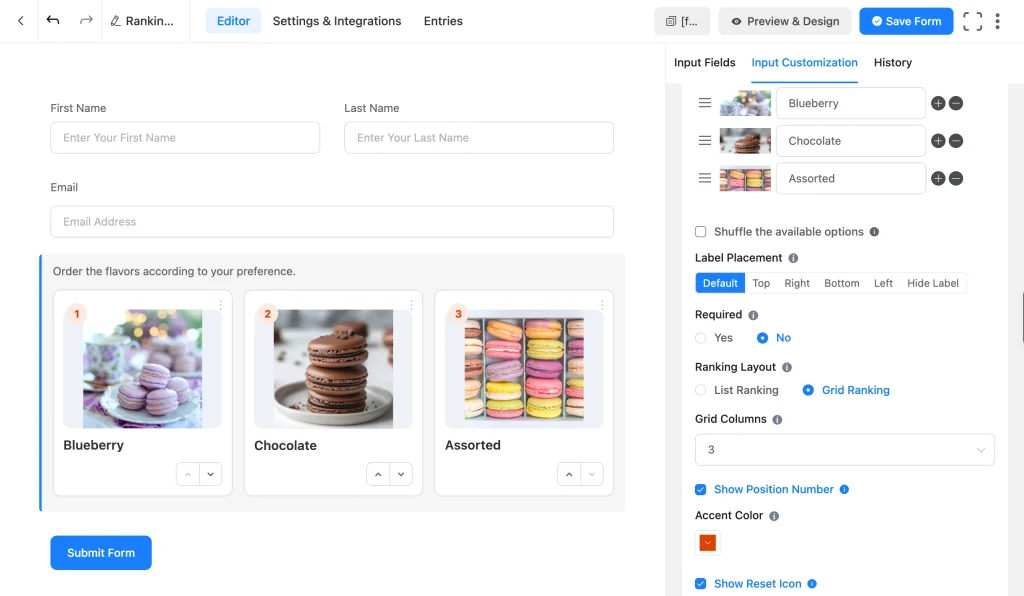
- Show Position Number: Displays a numbered badge (1, 2, 3) on each option, so respondents always see where an option sits. Leave this on.
- Accent Color: Sets the badge color. Pick your brand color, or one that stands out against your form background.
- Show Reset Icon: Adds a “Reset order” link next to the question label, which puts the options back in their starting order.
8. Set shuffle, required, and label placement
The starting order of your options can nudge the results. People tend to leave the first option near the top if they don’t feel strongly.
- Shuffle the available options: Randomizes the starting order each time the form loads. Turn it on for surveys where you want unbiased data.
- Required: Set to Yes if the ranking is the whole point of the form, as in a one-question poll. In a longer survey, “No” is often better, since forced answers lead to abandoned forms.
- Label Placement: Choose Top, Right, Bottom, Left, or Hide Label. Default follows your form’s global setting, which is usually fine.
Whichever you choose, put a clear instruction in the label so people know to rearrange the list rather than scroll past it.
9. Add a help message and conditional logic
Open the Advanced Options tab for a few extra controls.
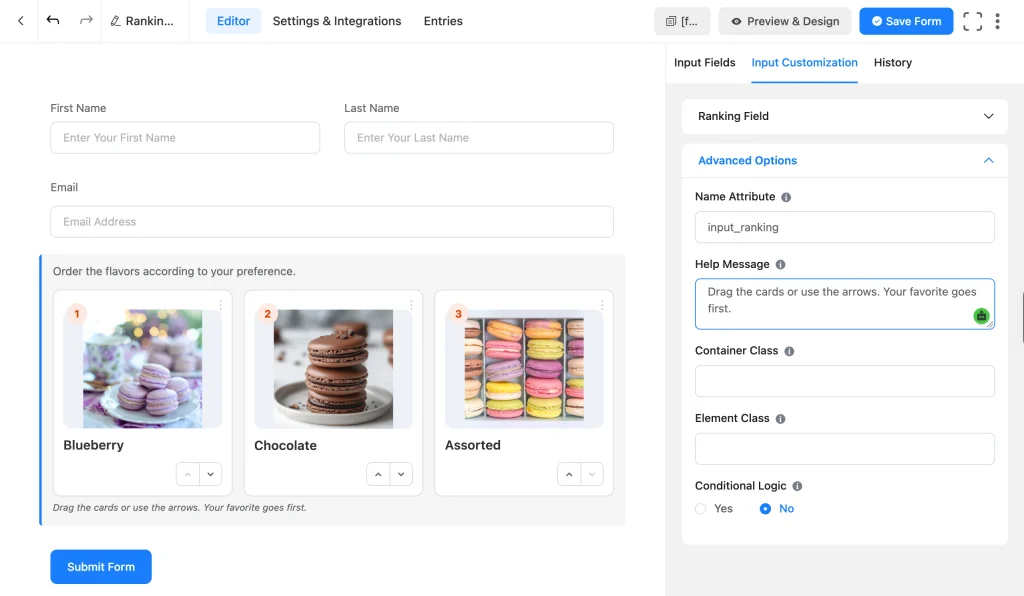
- Help Message: A short tip shown with the field, such as “Drag the cards or use the arrows. Your favorite goes first.”
- Name Attribute: The field’s internal name. You don’t need to change it.
- Container Class and Element Class: Add custom CSS classes if you want to style the field further.
- Conditional Logic: Show or hide the Ranking field based on an earlier answer. For example, only show “Rank these features” to people who answered Yes to “Do you use our app weekly?”
10. Add a follow-up question
A ranking tells you the order, not the reason. One optional open-ended question gives you the “why” insight.
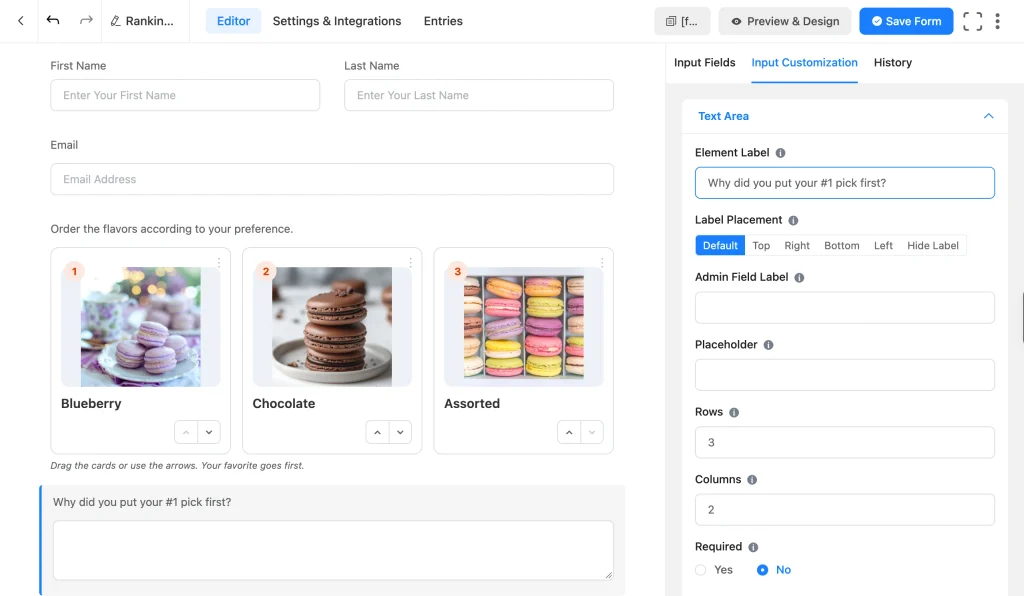
- Drag a Text Area field below the Ranking field.
- Label it with something specific, like “Why did you put your #1 pick first?”
- Set Required to No.
11. Preview and test on every screen size
Click Save Form, then Preview & Design. Use the desktop, tablet, and mobile icons at the top of the preview to check the layout on each.
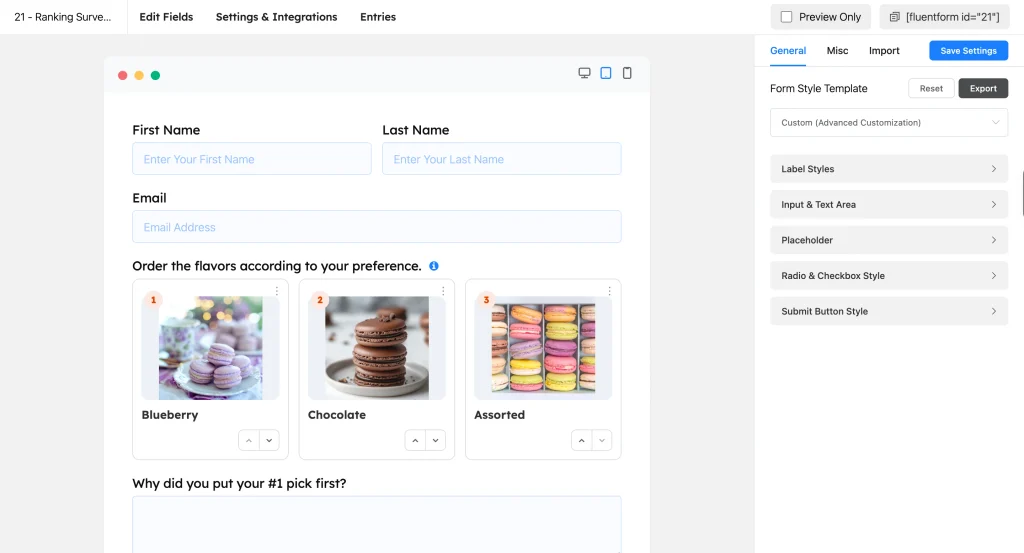
Then rank the options the way a respondent would:
- Drag an option to a new spot using its handle.
- Move another option with the up and down arrows. On a phone, the arrows are usually easier than dragging, so check they’re easy to tap.
- Click Reset order if you turned it on, and confirm the options return to their starting positions.
- Submit a test entry, then open the form’s Entries and confirm the ranking saved in the order you set.
12. Embed and publish
Copy the form’s shortcode from the top of the editor, or add the Fluent Forms block to a page and select your form. Publish the page, then share the link with your audience by email, social posts, or a banner on your site.
For a poll you want lots of people to see, a short dedicated page with only the form tends to get more responses than if the form is not featured prominently.
How to Read Your Ranking Results
Once responses come in, Fluent Forms turns them into a report so you don’t have to tally positions by hand. Open the form’s Entries, then click View Visual Report. The Ranking field has its own card under Advance Field Report, with a Summary and a Detailed view.
Summary view
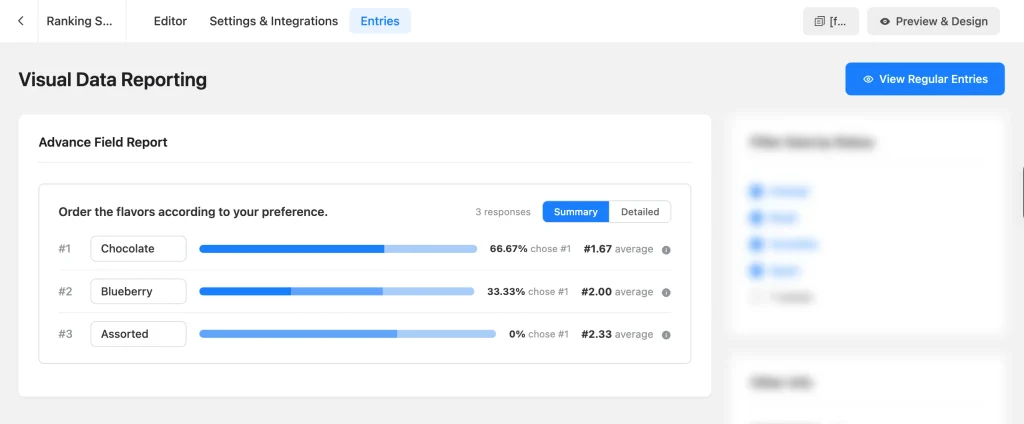
The Summary view gives you the final order at a glance. Options are sorted from the most preferred (#1) down, and each row shows:
- Average position: The mean rank the option received. Lower is better, since #1 is the top spot.
- % chose #1: The share of respondents who put that option first.
- A stacked bar: Darker segments show higher positions, so you can see how much of each option’s support came from first-place votes.
Detailed view
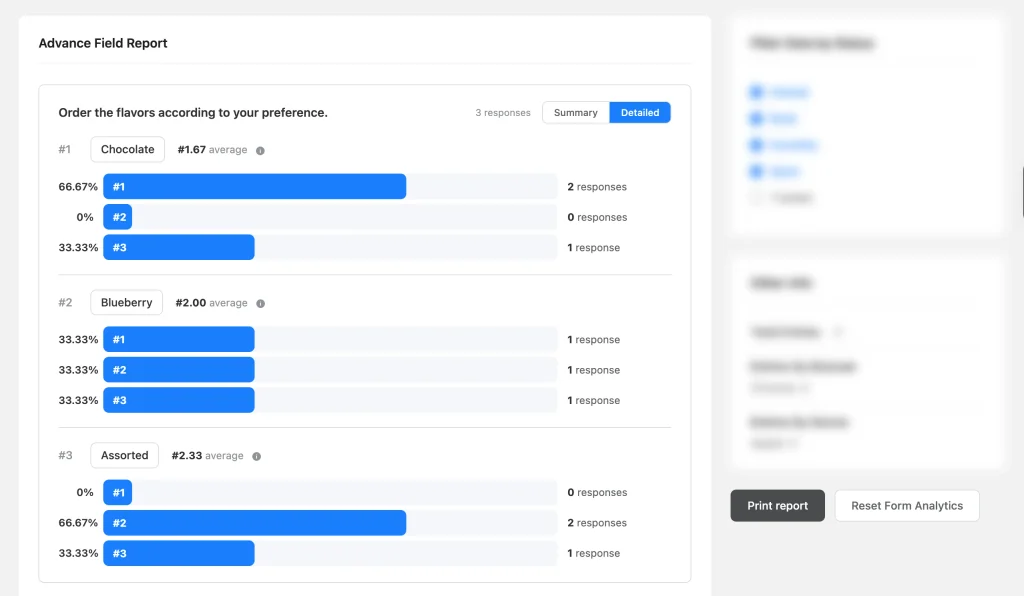
Switch to Detailed to see how each option spread across every position. For each option, you get one bar per position (#1, #2, #3) with the percentage and number of responses that put it there.
This is where you spot the difference between an option people agree on and an option that splits them.
A worked example
Here’s a small set of three responses, ranking Option 1 (Blueberry), Option 2 (Chocolate), and Option 3 (Assorted).
| Option | Positions received | Average position | % chose #1 |
| Option 2 | #1, #1, #3 | (1 + 1 + 3) ÷ 3 = 1.67 | 66.67% |
| Option 1 | #1, #2, #3 | (1 + 2 + 3) ÷ 3 = 2.00 | 33.33% |
| Option 3 | #2, #2, #3 | (2 + 2 + 3) ÷ 3 = 2.33 | 0% |
Option 2 wins: it’s the clear favorite, as two of three people ranked it first.
Option 1 comes second, but look at its spread. It got one vote in every position, which means people disagree about it. Option 3 never won a first place, yet no one hated it enough to rank it last more than once. Before you decide anything, read the answers to your follow-up question. They’ll tell you why people ranked those options where they did.
Individual entries and exports
Each submission stores the ranking as an ordered list, in the exact order the respondent chose. You’ll see that order when you open a single entry, and it gets carried to:
- Email notifications, so you can get each ranking in your inbox
- CSV and Excel exports from the Entries screen
- Connected integrations, in the same submitted order
Exports are handy when you want to cross-reference rankings with other answers, like comparing how new and returning customers ranked the same options.
Ranking Poll and Survey Ideas
| Idea | Example question | Suggested settings |
| Product flavor or menu poll | Order these flavors from your favorite to your least favorite. | Grid Ranking, Photo on, Grid Columns matching the option count, Required Yes |
| Feature roadmap survey | Rank these features by how often you’d use them. | List Ranking, Shuffle on, a Text Area follow-up, Required No |
| Event session interest | Rank the sessions you most want to attend. | List Ranking, Shuffle on, Name and Email fields for follow-up |
| Employee benefits survey | Rank these benefits by how much they’d matter to you. | List Ranking, Shuffle on, no contact fields for anonymity |
The Ranking field also works in conversational forms, which show one question at a time, and inside quiz forms, where you can assign points to ranked positions. Both are worth a look if a standard form doesn’t suit your audience.
Tips for Cleaner Ranking Data
A few habits make a noticeable difference in how much you can trust the results.
- Use one ranking question per form when you can. Two or three in a row wears people out, and the later ones get less consideration.
- Shuffle options in surveys. It spreads out any bias from the starting order.
- Tell people how to rank. A one-line help message about dragging or using the arrows helps first-time respondents.
- Keep option labels short. Long labels are hard to scan and therefore compare.
- Wait for enough responses. With a handful of entries, one person can swing the averages. Look for a clear gap between options before acting.
- Pair the ranking with a “why.” An optional follow-up question explains the numbers.
Free vs Pro at a Glance
Fluent Forms offers a free core plus one Pro add-on. Everything in the free plugin is also in Pro. Check the full breakdown.
| Field / Feature | Free | Pro |
| Ranking field | No | Yes |
| Photo option on the Ranking field | No | Yes |
| Text Area (follow-up question) | Yes | Yes |
| Radio, Checkbox, and Dropdown fields | Yes | Yes |
| Field-level conditional logic (show/hide) | Yes | Yes |
| Entries and CSV/Excel export | Yes | Yes |
Frequently Asked Questions
What’s the difference between a ranking question and a rating question?
A rating question scores each option on its own, so several options can get the same high score. A ranking question compares the options, so each one gets a unique position. Use rating to measure satisfaction and ranking to set priorities.
How many options should a ranking question have?
Five to seven is a good range. Fewer than three barely needs ranking, and more than seven makes the lower positions unreliable.
Is the Ranking field free in Fluent Forms?
No. The Ranking field requires Fluent Forms Pro. Some other survey fields, like Radio, Checkbox, and Text Area, work in the free plugin.
Can respondents rank options on a phone?
Yes. They can tap the up and down arrows on each one. The list layout usually works best on small screens, and you can check both layouts with the mobile toggle in Preview & Design.
Can I add images to the options?
Yes. Tick Photo in the field’s Options section and upload an image for each option. Images show as thumbnails in the list layout and as card images in the grid layout.
How is the average position calculated?
Fluent Forms adds up the positions an option received and divides by the number of responses. An option ranked #1, #1, and #3 averages 1.67. Lower numbers mean stronger preference.
Can respondents undo their ranking?
Yes, if you turn on Show Reset Icon. A “Reset order” link appears next to the question, and clicking it puts the options back in their starting order.
Can I use the ranking answer in other form logic?
Yes. Other fields can show or hide based on the order someone chooses. Open the other field’s Advanced Options, set Conditional Logic to Yes, pick the Ranking field, and set the order you want to match, position by position.
You can also show or hide the ranking field itself based on an earlier answer. After submission, the ranking is saved in order in entries, notifications, exports, and integrations, so you can follow up on it.
Turn Your Options Into a Clear Priority List
Your first ranking survey or poll doesn’t need to be big. One question, five options, a clear instruction on what to rank by, and an optional “why” field are enough to show you what people would pick first. Once responses come in, the Summary view gives you the top pick, and the Detailed view shows which options split opinion.
The Ranking field comes with Fluent Forms Pro, along with a few other survey fields you’ll need to round out your survey. Write your question, add your options, and share the form with the people whose priorities you want to hear.