Park first. Flick birds second. Soccer practice just got more bearable.

If you’ve wished you could play games on your car’s large display rather than on your phone while waiting for your kids to finish practice at whatever sport they’re into, you’ll be happy to know that you can. If you’ve got an Android phone and Android Auto in your car, then you’re set to go, as the system finally has game support.
Gaming support on Android Auto officially exited beta in September 2026, as Google invited all developers to start implementing car support for their games. Titles have already started rolling in and you can now kick back and play while your EV is charging, while your kids are at a party, or while you’re having a bit of a rest on a long trip. Google says the goal is to give drivers something fun to do during downtime. Now that the doors are open to developers, your car’s screen is about to get a lot more entertaining.
What games are available and can you mirror your phone?
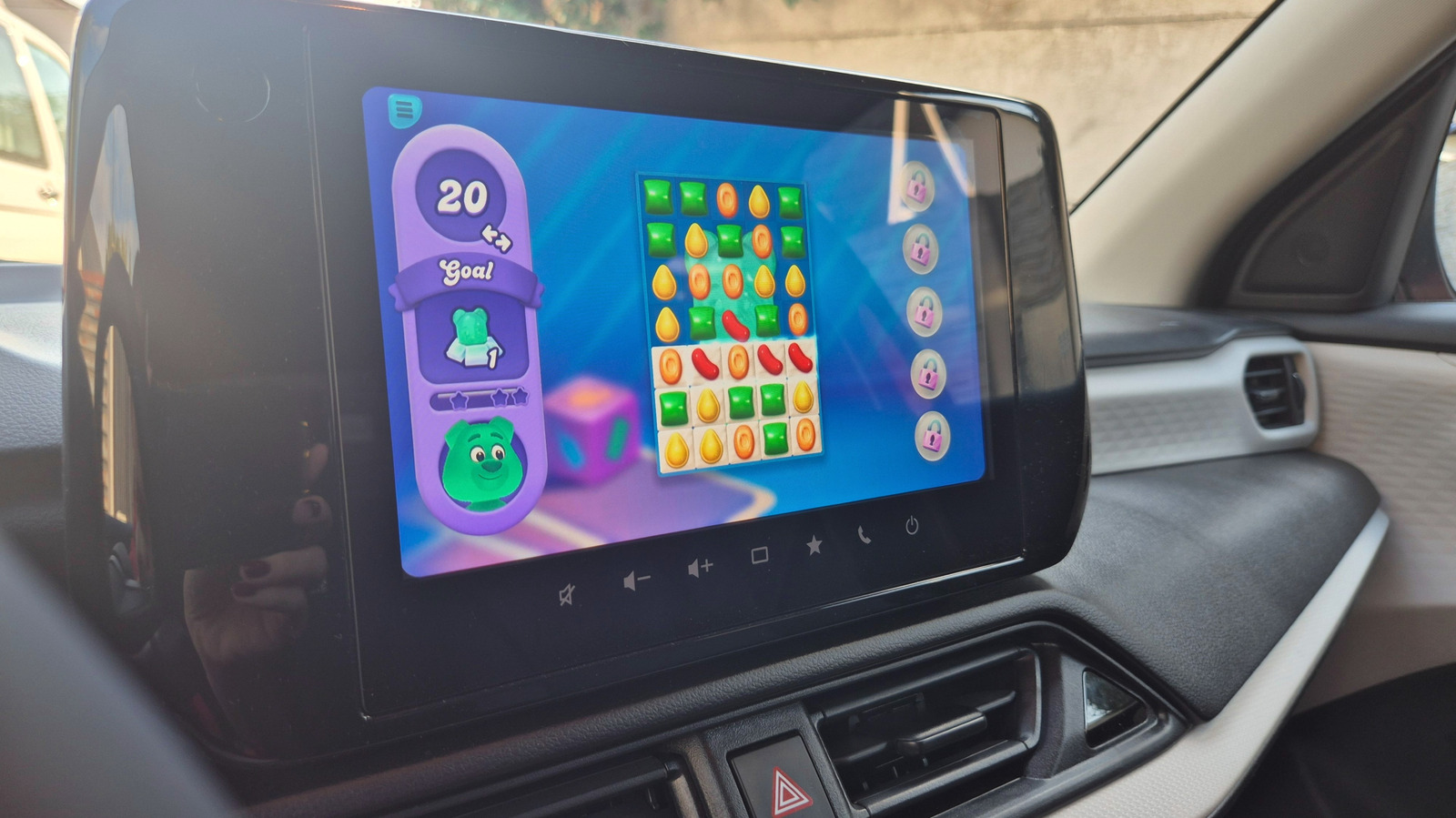
Right now, there are just over 35 games with Android Auto support. Many of them are aimed at young kids, focusing on coloring, learning letters and basic math. There are also several games you might find fun like Angry Birds 2, Candy Crush Soda Saga and Beach Buggy Racing. We haven’t yet reached the point where you can play Hearthstone, CoD or Super Mario Run in your car, but you can have some fun. Considering it’s only been a few weeks, there’s hope the number of games you can play in your car will grow steadily from here on out.
There’s something important to know about this new Android Auto feature though, and that’s the fact that you can only play when your car is parked. The games must be built to recognize that your car has stopped moving, so don’t expect to sneak in a round while you’re at a stop light or when traffic is at a crawl. If you’re parked and playing, the second you switch into gear, the game vanishes from the screen, Android Auto switches to home screen and the game icon grays out.
Unfortunately, you won’t be able to just mirror your phone’s screen onto Android Auto to play any game you want. Android Auto doesn’t support full screen mirroring in the way some other platforms do for a couple of reasons. On one hand, this native approach ensures the games are appropriately sized for your car’s display and ensures they can’t circumvent safety measures. The upside is that supported games also work with controllers so you can get a more console-feel.
How to display games on your Android Auto screen
Getting a game onto your dashboard is pretty straightforward. First of all, install your favorite game from Google’s collection of Android Auto-compatible game titles. You could also go to Google Play Store > Apps > Categories > Android Auto and rummage through the list. If you have everything you need installed, it’s time to move to your car. Connect your phone to Android Auto, either by using a USB cable or wirelessly, depending on your car. The installed games should pop up on the screen. If they don’t, you should go to Settings > Connected Devices > Android Auto > Customize launcher and ensure the games you want to play are included in the launcher. It’s quite easy to find and hide apps on Android Auto.
Go ahead and launch the game whenever you’re parked and have some fun. If none of the titles currently compatible with Android Auto are appealing, you could also go with what’s already available in Android Auto, namely GameSnacks. Not that these are particularly fantastic, but they’ll get you by when you’re bored.
Angry Birds 2 is just as fun to play as it is on the phone, although the bigger screen is certainly a treat, while Candy Crush Soda Saga is quite entertaining and responsive. If you’re a parent and want something for the kids, there’s My Talking Tom Friends. BB Racing 2 felt impossible to play since it’s a game where you need to use both hands to steer the car by touching the screen. A connected controller would solve the problem if this is a game you love.
The bottom line is that you’ll now have a lot more ways to stay entertained while parked, and that’s a lot better than twiddling your thumbs or scrolling social media. It’s another feature that might improve your Android Auto experience.