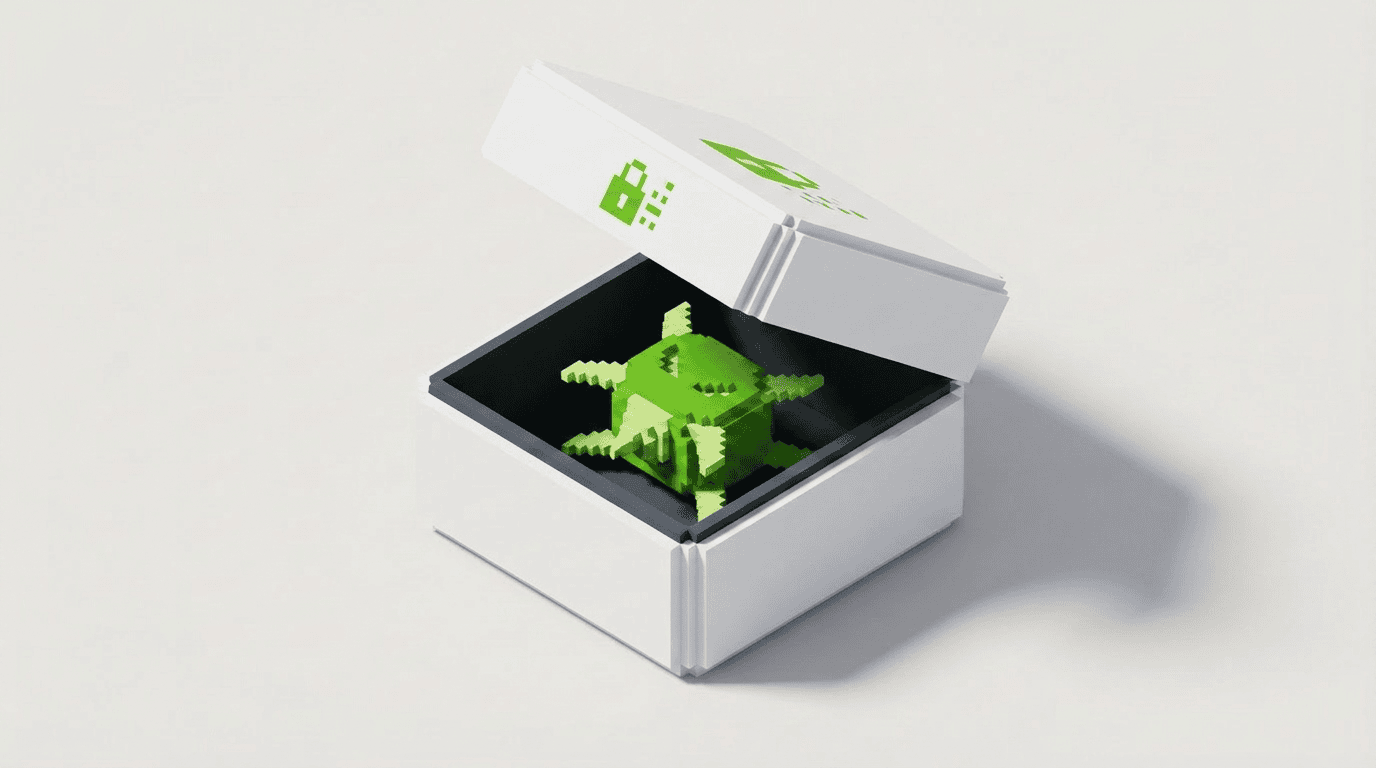
The best 3D GIF maker for most people is Blender plus Ezgif: Blender creates the 3D motion, Ezgif turns it into a lighter, shareable GIF. If you want speed over control, use Kapwing, Canva, or GIPHY with a short 3D render or video clip. GIFs still matter because they are quick, silent, and easy to embed; GIPHY has reported serving more than 10 billion pieces of content per day [source: GIPHY].
TLDR: Use Blender if you need real 3D objects, lighting, and camera motion, then compress the result with Ezgif. For a simple product spin, a marketer could render a 24-frame, 600 px rotating shoe GIF and keep it near 3–5 MB for an email banner. If you need a social post in ten minutes, upload a short MP4 to Kapwing or GIPHY and trim it into a loop. The best workflow is usually: create in 3D, export video, convert to GIF, compress hard.
What Makes a Good 3D GIF Maker?
A 3D GIF maker is not always one single app. Most strong workflows use one tool to build the animation and another to convert or optimize it. That sounds annoying, but it gives better results.
A good tool should help you control:
- Camera movement: spins, zooms, flythroughs, and orbit shots.
- Lighting: soft shadows, highlights, reflections, and mood.
- Frame count: fewer frames mean smaller files.
- Loop quality: the first and last frames should connect cleanly.
- Compression: GIFs can become huge, fast.
The catch is that GIF is an old format. It supports limited colors and no audio. A beautiful 3D render can turn muddy after conversion if you ignore size, frame rate, and palette settings.
Best 3D GIF Maker Tools
1. Blender: Best Free Tool for True 3D GIFs
Blender is the top choice if you want real 3D control. It lets you model objects, import 3D files, animate cameras, set lights, and render frames. It is free and open source, which makes it hard to beat.
Blender does not export polished GIFs directly in the easiest way. Instead, render your animation as PNG frames or as an MP4, then convert it with Ezgif, Photoshop, or another converter. Blender’s own documentation covers animation rendering and output settings [source: Blender].
Best for: product spins, character loops, 3D logos, game assets, explainer graphics.
Annoyance: expect to waste time on render settings the first few tries. A five-second loop can easily take far longer than expected if shadows, reflections, or high samples are turned up.
2. Ezgif: Best for Converting and Compressing
Ezgif is not a 3D design app. It is a web-based GIF tool that handles the final step very well. Upload an MP4, WebM, or image sequence, then resize, crop, cut frames, adjust speed, and compress.
It is plain-looking, but that is part of the appeal. There are no heavy menus or confusing templates. You select a tool, upload the file, and fix the GIF.
Best for: shrinking file size, optimizing loops, converting rendered 3D clips.
Pro tip: try reducing the width to 480–700 px and the frame rate to 12–18 fps. Most viewers will not care, but your file size may drop by half.
3. Adobe Photoshop: Best for Frame-Level Control
Photoshop is still one of the best tools for frame-by-frame GIF cleanup. You can import video frames, edit layers, adjust timing, reduce colors, and export with detailed settings.
It works well if your 3D render needs polishing. Maybe the background needs cleanup. Maybe a logo needs sharpening. Maybe a few frames flicker. Photoshop gives you control over those small fixes.
Best for: designers who already use Adobe tools, branded GIFs, polished marketing assets.
Weak spot: the export panel can feel fussy. It drives me crazy that a small setting change can add megabytes without making the GIF look much better.
4. After Effects: Best for Motion Graphics With 3D Style
After Effects is ideal when your GIF needs text, effects, transitions, and 3D-looking motion. It is not a full 3D modeling program like Blender, but it can create impressive 2.5D scenes with cameras, lights, and layered artwork.
You can also import renders from Cinema 4D, Blender, or other 3D tools, then add polish. Export a short video, then convert it to GIF later.
Best for: animated titles, UI mockups, promo graphics, logo stings.
5. Kapwing: Best Browser Tool for Quick 3D GIFs
Kapwing is useful when you already have a 3D clip and need a GIF fast. Upload your video, trim it, crop it for social formats, add captions, and export.
It is especially handy for teams. You can work in the browser and avoid passing large project files around. The results are not as finely tuned as Photoshop or Ezgif, but the speed is the point.
Best for: social media, quick demos, short loops for presentations.
6. GIPHY: Best for Sharing and Simple GIF Creation
GIPHY is built for quick sharing. Upload a short 3D animation, trim it, add stickers or text, and publish. It is not the place for advanced compression or 3D editing, but it is great when the goal is reach.
Best for: reaction-style loops, brand stickers, social sharing, casual promo clips.

7. Spline: Best for Web-Based 3D Scenes
Spline is a browser-based 3D design tool. It is friendly compared with Blender and works well for simple objects, web graphics, icons, and product-style scenes. You can create 3D motion, then record or export the result for GIF conversion.
Best for: designers who want 3D visuals without a heavy desktop workflow.
How to Create a Better 3D GIF
- Keep it short. Aim for 2–5 seconds. Longer loops get heavy.
- Use a seamless motion. Spins, pulsing lights, and orbiting cameras work well.
- Limit colors. GIF compression struggles with gradients and glossy shadows.
- Render larger, export smaller. This keeps edges cleaner after resizing.
- Compress more than once. Try two or three settings and compare.
A strong 3D GIF should communicate one idea. Show the product turning. Show a logo forming. Show a concept in motion. Do not cram a whole explainer video into a GIF. That usually ends with a huge file and blurry details.
Which Tool Should You Pick?
- Best overall free setup: Blender + Ezgif.
- Best for designers: Photoshop or After Effects.
- Best for quick browser editing: Kapwing.
- Best for sharing: GIPHY.
- Best lightweight 3D creation: Spline.
If you are making 3D GIFs for ecommerce, start with a simple rotating product shot. If you are making GIFs for social media, focus on a bold first frame and a clean loop. If you are making GIFs for email, keep the file small and test it before sending.
The smartest 3D GIF workflow is not flashy. Build the motion in the tool that gives you control. Export a short video or frame sequence. Then compress it until it loads quickly without falling apart. For most creators, that means Blender for creation and Ezgif for cleanup. Simple, flexible, and affordable.

Where Should We Send
Your WordPress Deals & Discounts?
Subscribe to Our Newsletter and Get Your First Deal Delivered Instant to Your Email Inbox.