An advanced WooCommerce order import can look finished in the order list and still be missing key pieces that make the order data complete. For instance, the totals can match and the dates are right, but opening an order can show all of its products sitting together on one line, or the customer who placed it listed as a guest. WooCommerce doesn’t include an order importer, so the plugin doing the import work decides how much of each order comes across intact.
WP All Import imports WooCommerce orders from CSV, Excel and XML files, and its Automatic Setup maps each column in the file to the matching order field as soon as the file is uploaded. This guide starts with that workflow, then works through the problems advanced order imports run into and the fix for each.
What Makes WooCommerce Order Imports Advanced
A WooCommerce order import becomes advanced when the orders in the file depend on data the file doesn’t contain. Each order brings its own dates, addresses and totals, but it also points to products, customer accounts and shipping methods that WooCommerce expects to find on the site. When one of those is missing, the order still imports, with a gap where that data should be.
| Part of the order | What the file provides | What WooCommerce needs on the site |
|---|---|---|
| Line items | Product name, quantity, price | The product, with a matching SKU |
| Customer | Billing and shipping details | A customer account, or guest checkout |
| Shipping | Method name and cost | A matching method in a shipping zone |
| Payment | Payment method, transaction ID | An active payment gateway |
| Status | The original status value | A matching WooCommerce status |
| Totals | Subtotal, tax, shipping, total | Tax settings and product tax classes |
| Order number | The original order ID | None, since WooCommerce assigns its own |
WP All Import maps every part of a WooCommerce order through dedicated tabs in its import editor, covering products, fees, coupons, shipping, taxes, refunds and totals, so each dependency in the table has a specific place to fix it.
Prepare Your Store Before Importing Orders
Most advanced order import problems in WooCommerce can be prevented before the file is uploaded. A few minutes of preparation saves hours of fixing imported orders one at a time.
Import Products and Customers First
Orders point to products and customer accounts, so both need to be in WooCommerce before the orders arrive. Import products first, then customers, then orders. Coupons that should keep working after a migration should be added ahead of the orders, too.
Import in this order
1Products
→
2Customers
→
3Coupons
→
4Orders
WP All Import matches each imported WooCommerce order to an existing customer by email, username, user ID or a custom field, and imports any order without a match as a guest order instead of skipping it.
Set Up the Same Payment Gateways and Shipping Methods
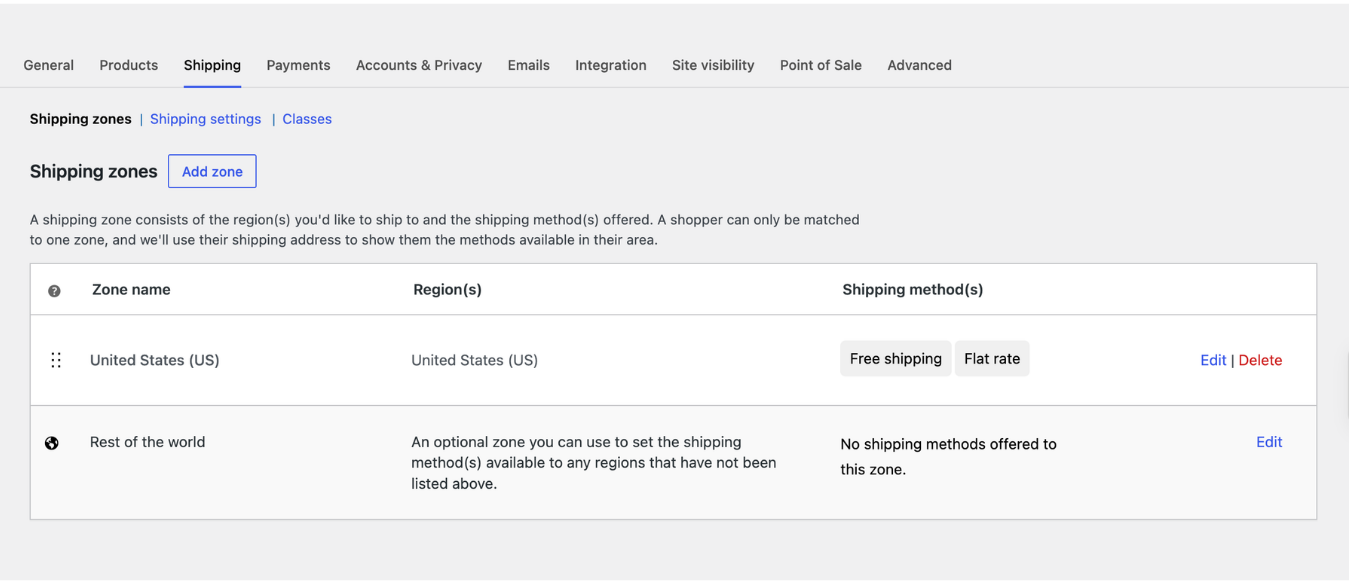
An order paid through Stripe will import without a payment method if Stripe isn’t active on the destination store. Shipping works the same way: WooCommerce only attaches a shipping line when the method already exists in one of the store’s shipping zones. Take a moment to compare the payment and shipping methods in the file with the store’s settings, and add any that are missing before importing.
Put One Product on Each Row
Order files store line items in one of two layouts. Some give every product its own row and repeat the order details on each one. Others put all the products in a single row, separated by a pipe character.
One row per product:
- Layout: Each product gets its own row, with the order details repeated on every row.
- Example:
1001 · Enamel Kettle · 11001 · Spoon Set · 2 - Best For: Importing through Automatic Setup, which groups the rows into one order by order ID.
Pipe-separated:
- Layout: All of an order’s products share one row, separated by a pipe character.
- Example:
1001 · Enamel Kettle|Spoon Set · 1|2 - Best For: Importing through Manual Setup, which splits the values into separate line items.
WP All Import’s Automatic Setup groups a row-per-product file into complete orders, as long as every row for the same order carries the same order ID. Pipe-separated files also import correctly once the import runs through Manual Setup, covered in the line item fixes below.
Test a Few Orders on Staging
Run the first import on a staging copy of the store with five or six orders. Include at least one order with several products and one from a customer who already has an account. Open each imported order and compare it with the source to be sure everything is imported as it should before importing the full file. WP All Import blocks customer email notifications during WooCommerce order imports by default, so test runs don’t send anyone a confirmation email.
💡Tip
Open each test order and check it against the source file before importing the rest.
- Each product sits on its own line
- The order total matches the original
- The customer is linked to the right account
How to Import WooCommerce Orders with Automatic Setup
WP All Import’s Automatic Setup reads a WooCommerce order file, maps each column to the matching WooCommerce order field, and builds the import without any drag-and-drop mapping. The steps below follow a test file of 11 rows holding five orders, three of which contain several products.
Step 1: Upload Your Order File
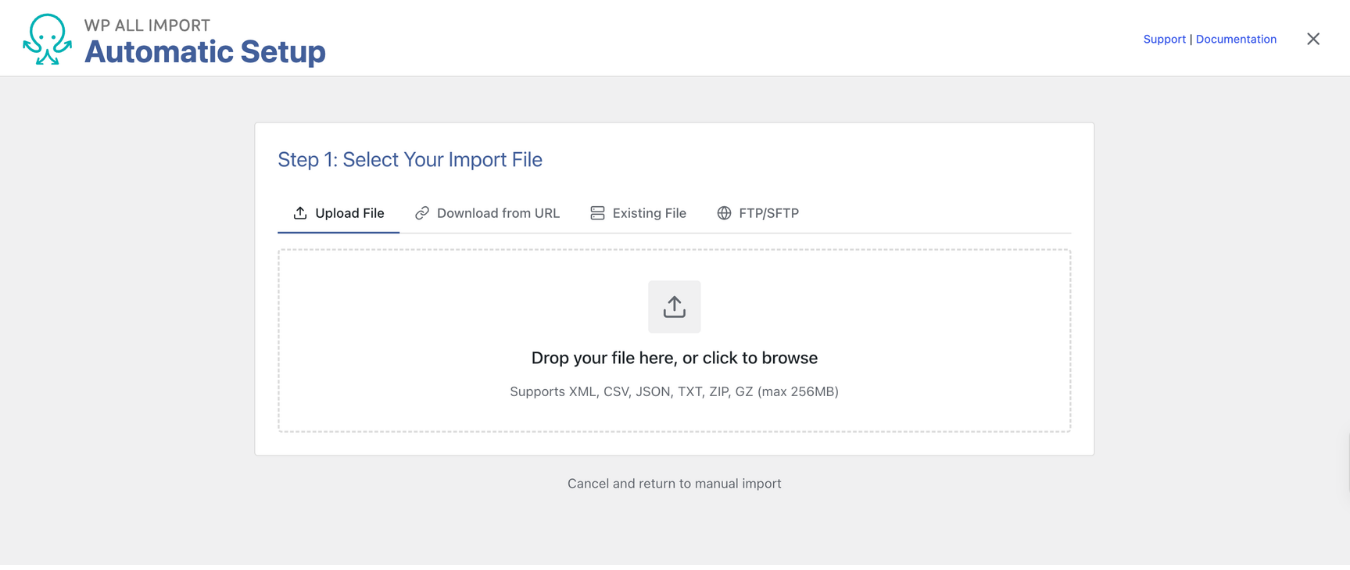
Go to All Import › New Import from wp-admin and click Set up automatically at the top of the screen. On the Select Your Import File step, upload the order file, or pull it from a URL, an existing file on the server, or an FTP/SFTP connection. Automatic Setup accepts CSV, Excel and XML order files.
Step 2: Choose WooCommerce Orders
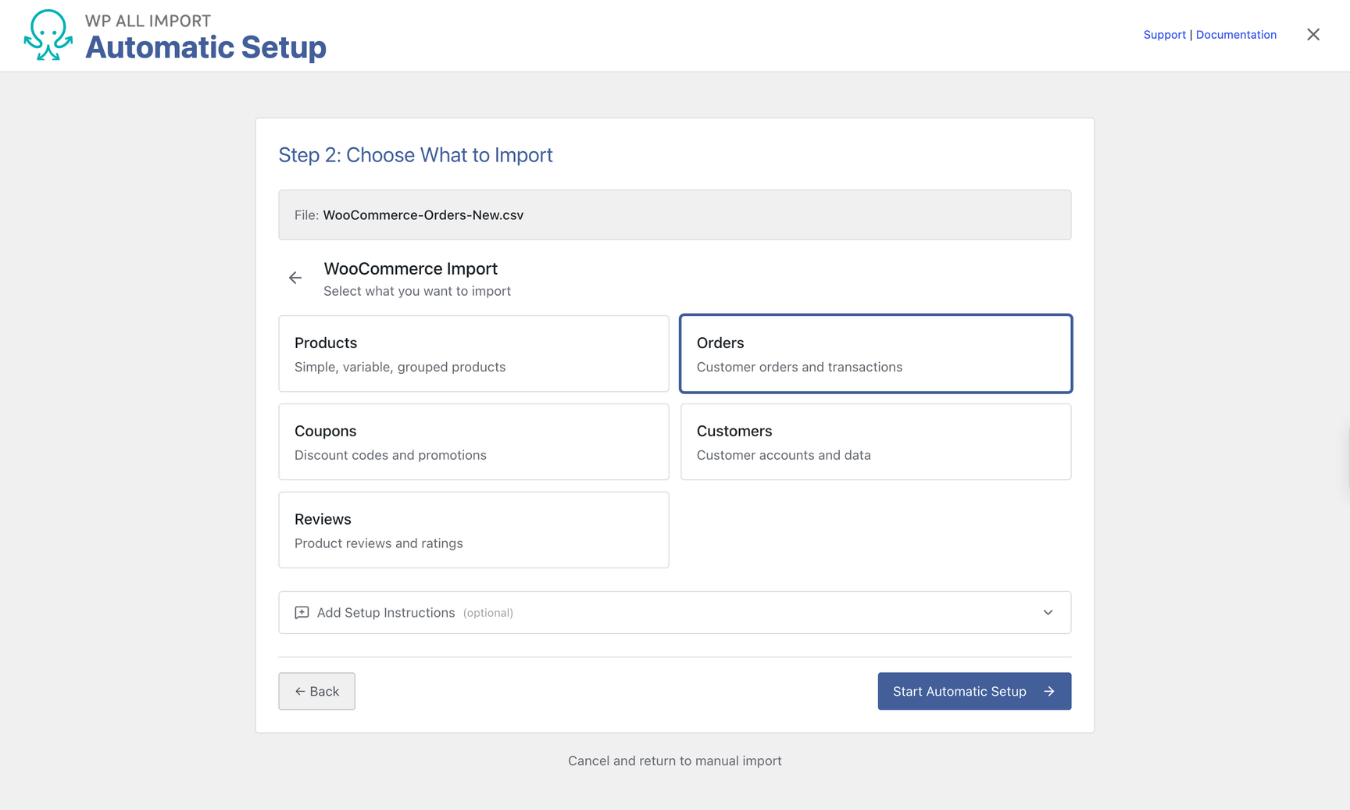
On the Choose What to Import step, select WooCommerce, then Orders. The Add Setup Instructions field is optional, and the test file mapped correctly without it. Click Start Automatic Setup.
Step 3: Review the Import Summary
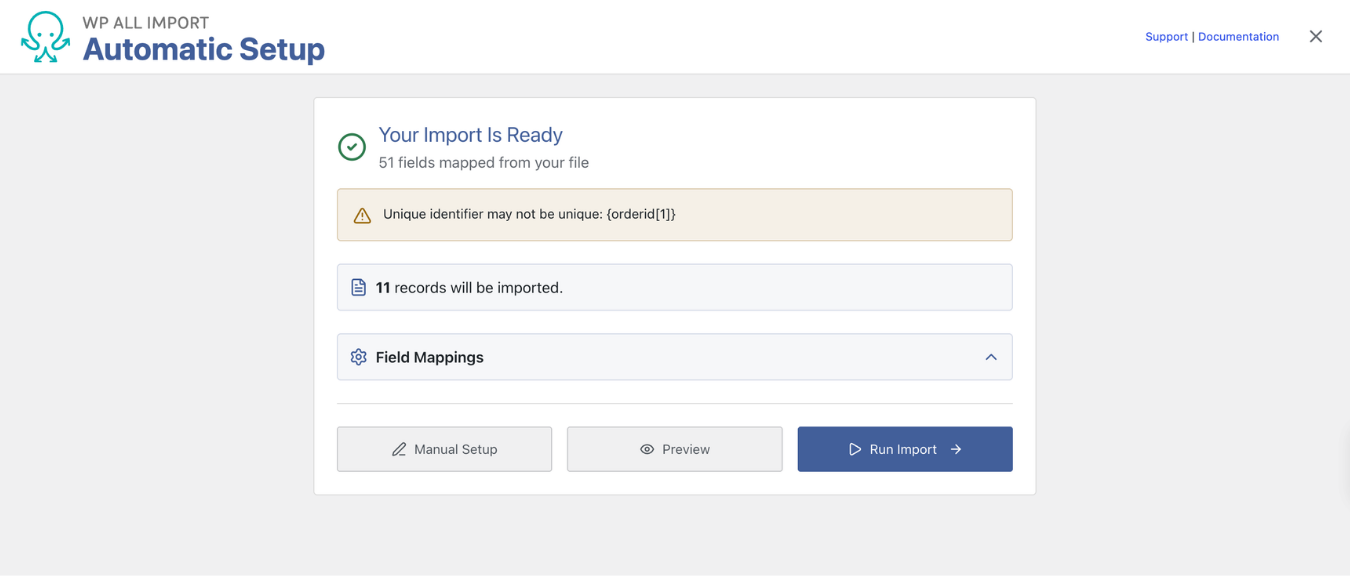
Once setup is complete, the Your Import Is Ready screen shows how many fields were mapped and how many records will be imported. In a file with one row per product, each row counts as a record, so the test file shows 11 records for five orders.
ℹ️Note
A “Unique identifier may not be unique” warning is expected for files with one row per product. Every row of a multi-product order shares the same order ID, and that shared ID is what lets WP All Import group those rows into one order.
Expand Field Mappings to see where each column went. In testing, Automatic Setup matched customers to existing accounts by email and set unmatched orders to import as guest orders.
Step 4: Preview and Run the Import
Preview shows each record as it will appear on the WooCommerce order screen. A row-per-product file previews one row at a time, so a multi-product order shows a single product in the preview even though the finished import groups all of its products together.
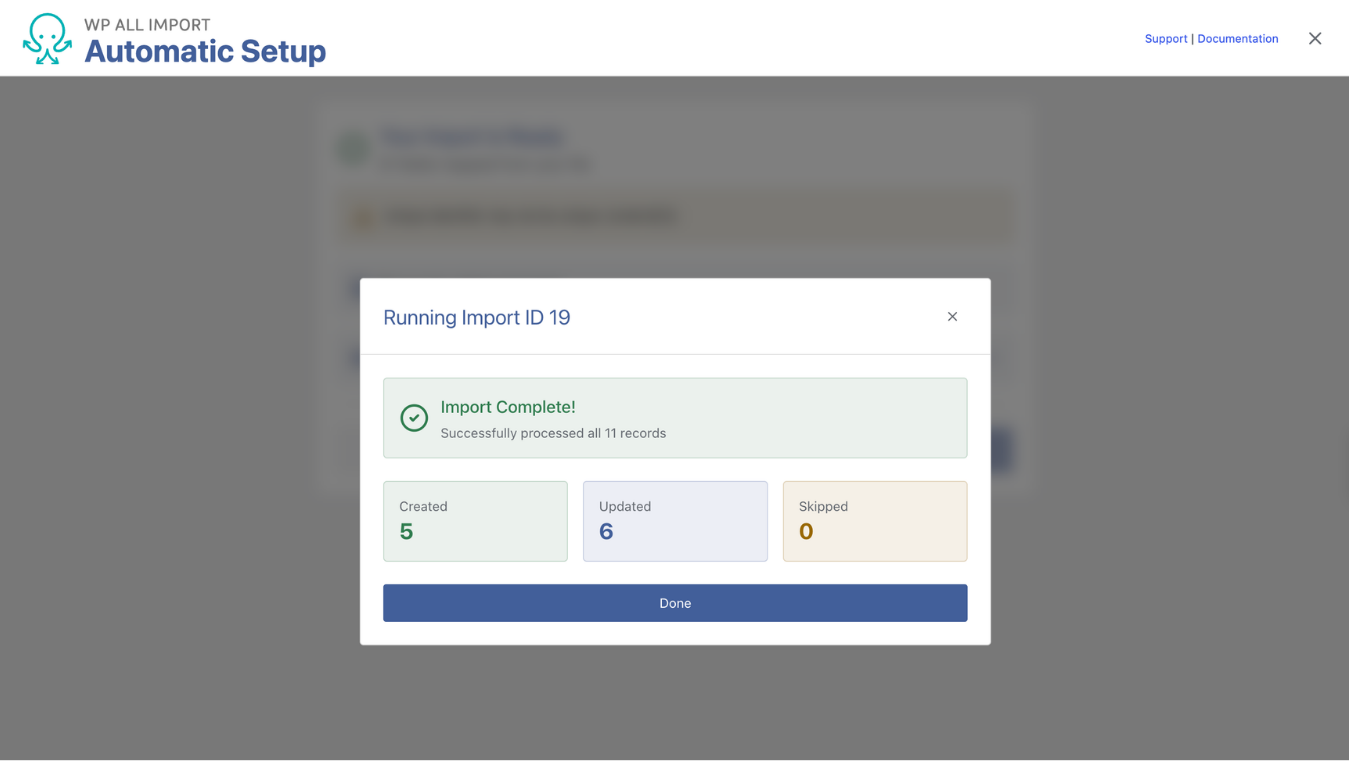
Click Run Import. Results are counted per row, and the test file finished with 5 created and 6 updated. The first row of each order created the order, and each additional row added another product to that order.
Step 5: Adjust Mappings in Manual Setup
A clean export from another WooCommerce store typically does not need anything beyond these four steps. Advanced order imports from other platforms often need an adjustment or two, and Manual Setup opens the drag-and-drop editor with all automatic mappings already filled in, so nothing needs to be mapped again. The fix sections below name the exact Manual Setup field for each problem.
Fix WooCommerce Order Line Item and Product Problems
Every line item in an imported order needs to land on its own line and connect to a product that already exists in the store. Advanced WooCommerce order imports run into trouble when either of those fails.
Products Merge Into One Line Item
For instance, a three-product order arrives with a single line item called “Enamel Camp Kettle|Olive Wood Spoon Set|Cork Yoga Block.” That one line carries only the first product’s price and quantity, so the items subtotal falls well short of the order total.
The cause is the file layout. Some platforms export every product in an order on one row, with names, quantities and prices separated by pipe characters. If the import reads each of those cells as a single value, the whole list becomes one product, which in turn makes the import problematic.
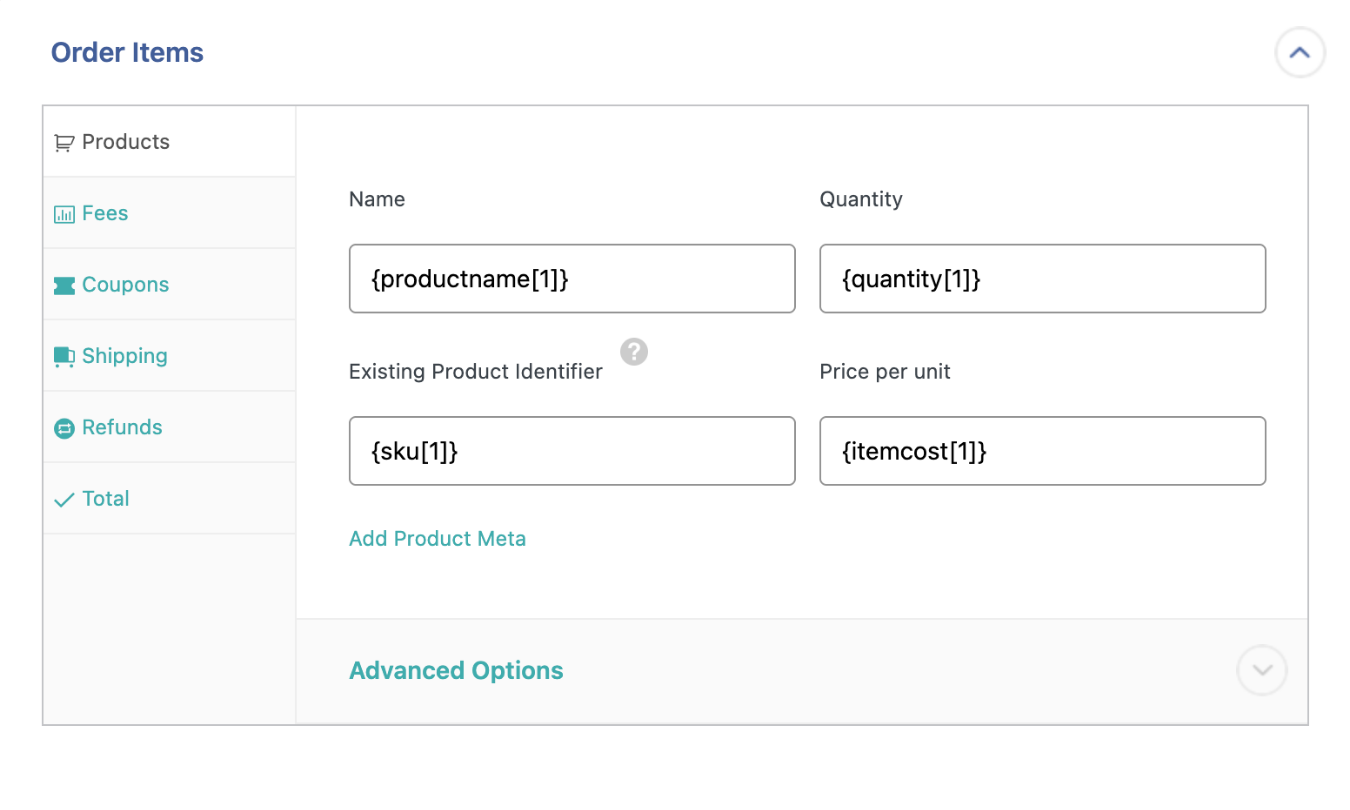
WP All Import is able to split pipe-separated WooCommerce product data into individual line items seamlessly. In Manual Setup, go to Order Items › Products and map Name, Quantity, Existing Product Identifier and Price per unit to their columns. Each product then imports on its own line, with its own quantity and price.
Files with one row per product don’t need this step, since Automatic Setup groups those rows into complete orders on its own.
Line Items Aren’t Linked to Products
An unlinked line item shows a product name and price but no thumbnail, SKU, or link to the product page. The order looks complete, but it no longer connects to the product sold.
WP All Import links each line item to an existing WooCommerce product by SKU, product ID or title. When nothing on the site matches, the line item will still be imported but unlinked, and the import log will record a warning. That usually means the respective products were never imported, were deleted, or carry different SKUs on the new store.
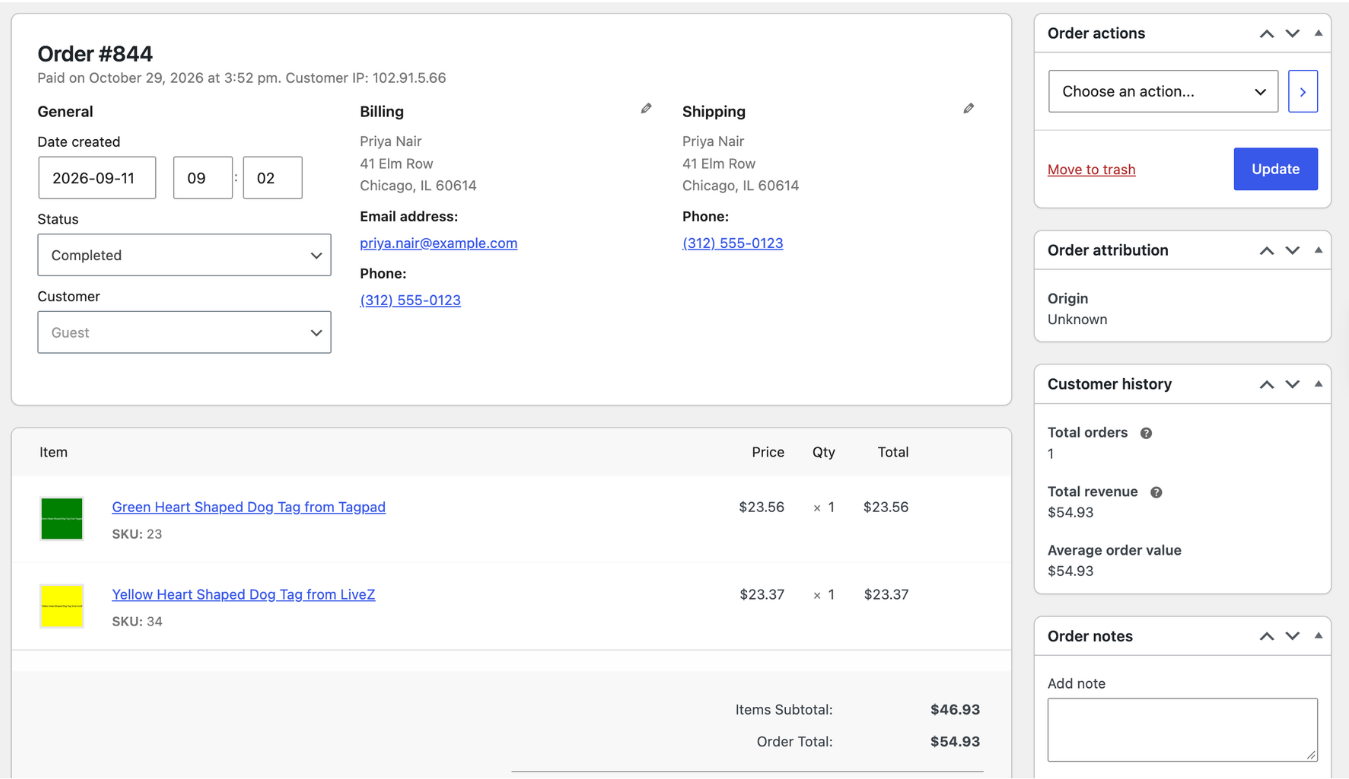
Import products before orders, then set Existing Product Identifier to whichever column matches the store’s products. For products without SKUs, WP All Import’s order migration guide includes a workaround that assigns temporary SKUs during the import.
For products the store no longer sells, the Manually import product order data and do not try to match to existing products option keeps each line item’s name and price without looking for a match.
Fix WooCommerce Customer and Order Number Problems
An imported order needs two links to its past: the customer who placed it and the number it was placed under. Advanced WooCommerce order imports have to rebuild both on the new store.
Orders Import as Guests or Get Skipped
A customer has an account on the store, but their imported order shows Guest in the Customer field. With some import settings, the order doesn’t import at all, and the import log records a line like this:
SKIPPED: Search customer by email `johndoe@example.com`. Existing customer not found for Order `Order – June 18, 2022 @ 02:43 AM`.
Both results mean no account matched the field the import searched by, usually because the email in the file is different or the customers haven’t been imported yet.
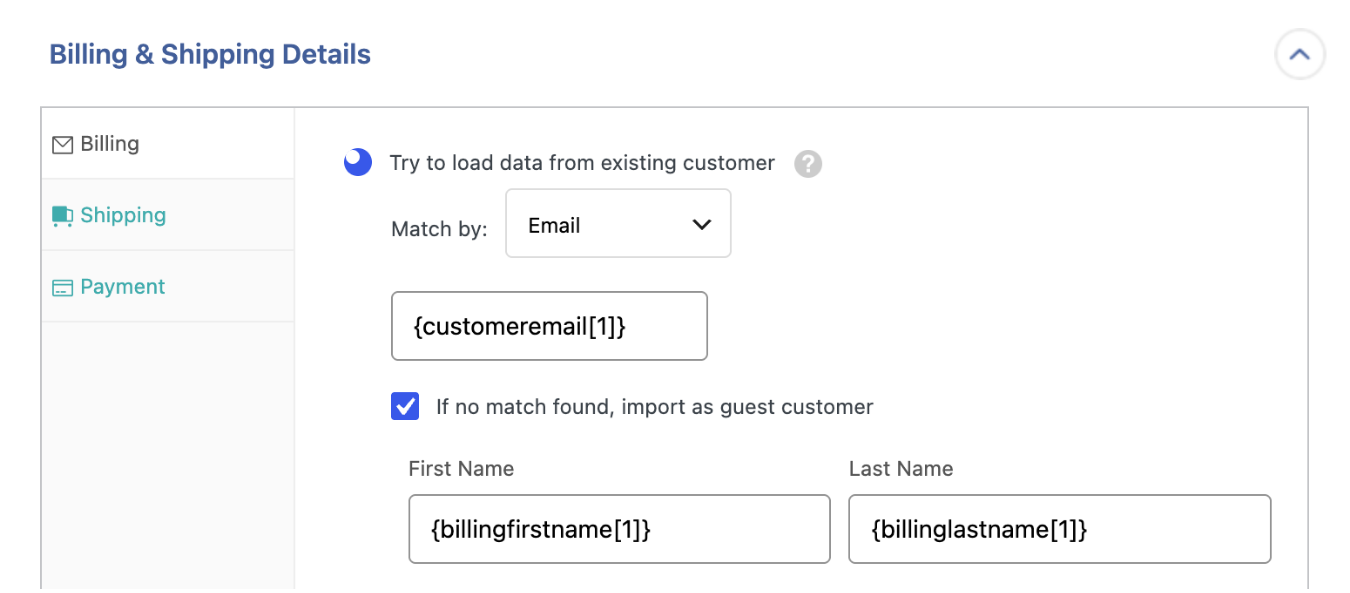
WP All Import matches imported orders to existing WooCommerce customers by email, username, user ID or a custom field, and Automatic Setup chooses email matching with a guest fallback without any input. To adjust either setting, import customers first, then go to Billing & Shipping Details › Billing in Manual Setup:
- Choose the match field. Email is the most dependable choice because customer IDs change during a migration.
- Turn on If no match found, import as guest customer so unmatched orders still import.
Order Numbers Change After Importing
There are instances where order 9101 in the source file becomes order #791 on the new store. WooCommerce assigns each new order its own ID and displays it as the order number, so an imported order can’t reuse a number already used by another order on the site.
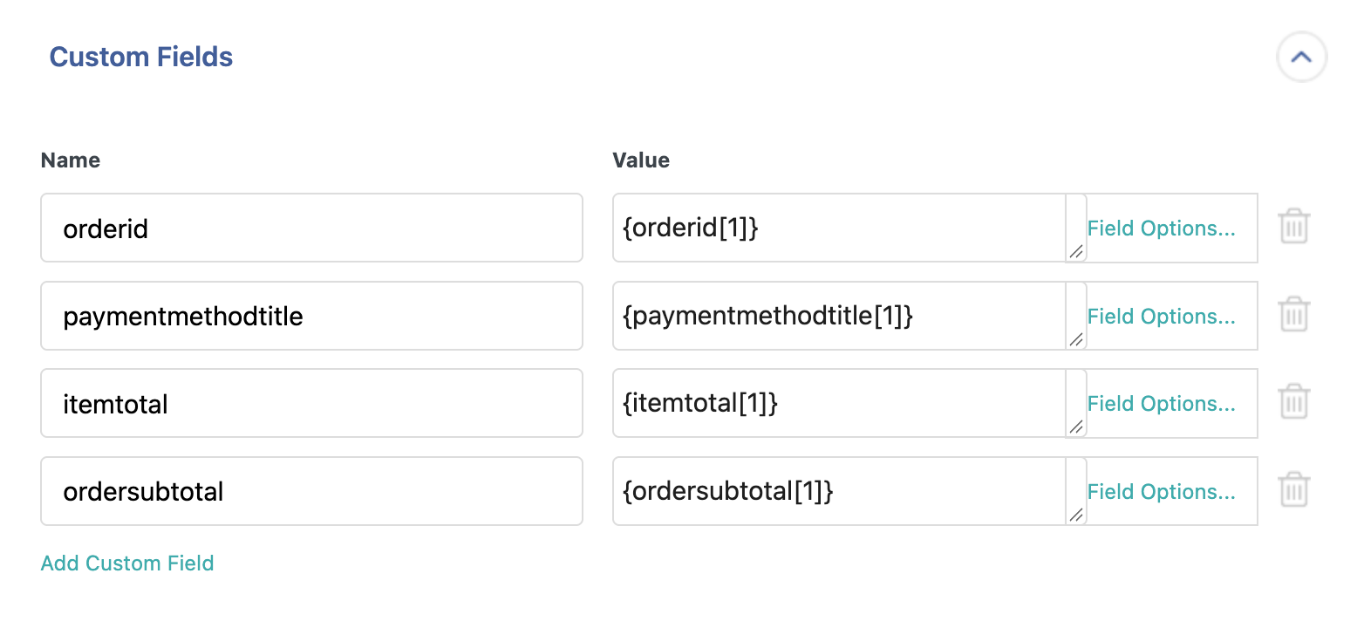
WP All Import keeps the original number on each imported order. Automatic Setup saves the file’s order ID column as a custom field on every order it imports, and in Manual Setup the column can be mapped to a clearly named field such as _original_order_number. WP All Import’s code snippets library also includes a Query Orders by Old ID snippet for finding imported orders by their original number in later imports.
💡Tip
Give the original order number a clear custom field name, such as _original_order_number, so the support team can find it on any imported order.
Fixed WooCommerce Order Data Problems in Advanced Imports
A WooCommerce order can arrive with every product in place and still carry the wrong status, date or total. The fixes in this section cover the order data that advanced order imports in WooCommerce most often get wrong.
Order Statuses Don’t Match WooCommerce
Orders exported from Shopify, marketplaces or ERP systems carry statuses such as “paid”, “fulfilled” or “shipped”. WooCommerce uses its own set of statuses, including Pending payment, Processing, On hold, Completed, Cancelled and Refunded, and doesn’t recognize values from outside that list.
Example source status
WooCommerce status
fulfilled / shipped
→
completed
WP All Import translates WooCommerce order statuses during import using a PHP function, so the source file never needs to be edited. Add the function to All Import › Settings › Function Editor:
php

function map_order_status( $status ) {

    $map = array(

        'paid'      => 'processing',

        'fulfilled' => 'completed',

        'shipped'   => 'completed',

        'refunded'  => 'refunded',

        'voided'    => 'cancelled',

    );

    $status = strtolower( trim( $status ) );

    return isset( $map[ $status ] ) ? $map[ $status ] : 'on-hold';

}
Then enter [map_order_status({orderstatus[1]})] in the Order Status field under Order Details. Any status the function doesn’t recognize imports as On hold, which makes it easy to find and review.
Order Dates Are Wrong or Missing
Dates written in the DD/MM/YYYY format can import with the day and month swapped, because 03/04/2026 reads as March 4 rather than April 3. Times can also shift when the destination store’s time zone differs from the source store’s.
Set the timezone under Settings › General before importing. If the file uses day-first dates, convert them to YYYY-MM-DD in the file or with a PHP function on the date field.
The paid date needs its own column. Map the payment date on the Payment tab; otherwise, WooCommerce records the time of the import as the date the order was paid.
Order Totals Don’t Match the Line Items
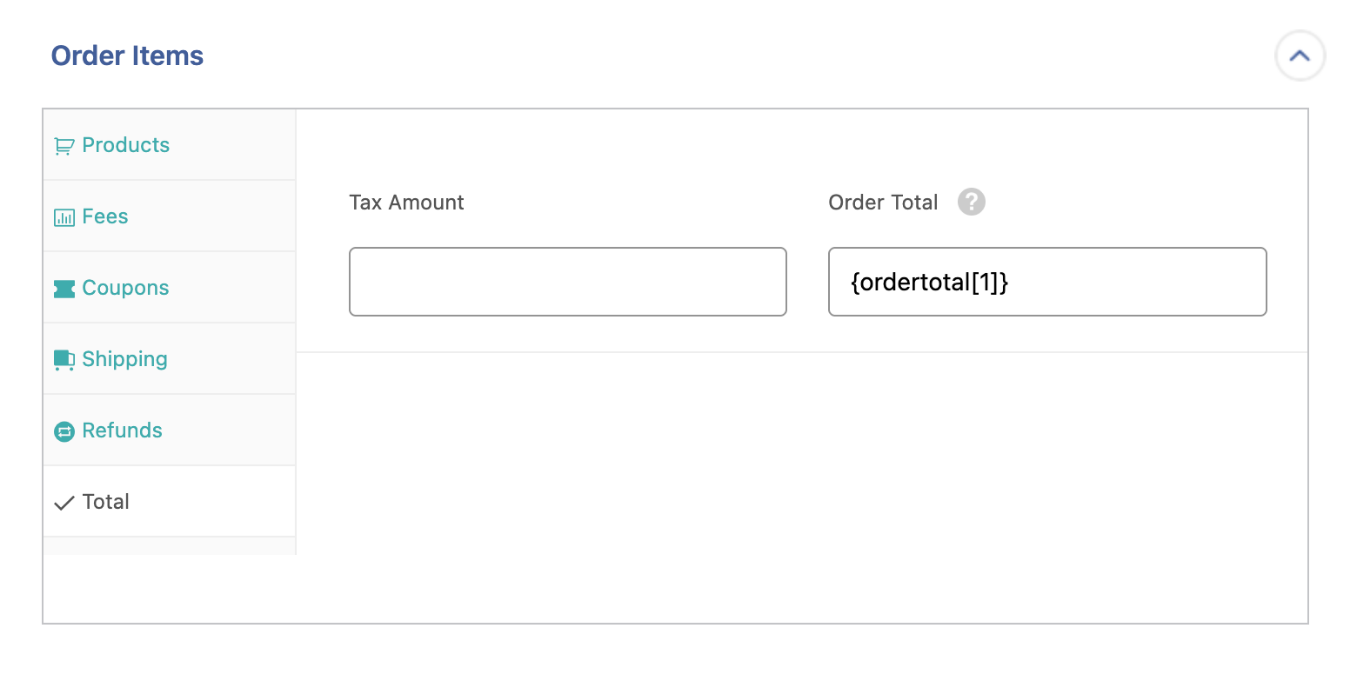
WP All Import imports WooCommerce order totals exactly as they appear in the file, so historical orders keep the amounts customers actually paid, including old prices and one-off discounts. Map the totals on the Order Items › Total tab, and map each tax under Advanced Options on the tab it belongs to, such as shipping tax on the Shipping tab.
Taxes only display when WooCommerce taxes are switched on under WooCommerce › Settings › General, and the products in the order need a tax status and tax class.
Order Totals Drop After Clicking Recalculate
An imported order may show the correct total, e.g., $75.83, until someone clicks Recalculate on the order screen, and then it drops to $67.83. WooCommerce recalculates the total from the order’s line items, shipping lines, fees, and taxes, so any amount not backed by one of those lines disappears.
WP All Import imports shipping, fees, and taxes as their own order lines through the Order Items tabs, which ensures that imported totals hold up when an order is edited later.
⚠️Warning
Before clicking Recalculate on an imported order, check that every charge in its total, including shipping, has its own line on the order. Any amount without a line behind it is removed from the total.
Coupons, Fees, and Refunds Are Missing
WP All Import imports coupons, fees and refunds through their own tabs under Order Items, and the Refunds tab handles both full and partial refunds. Map each one to its columns in the file. Importing the coupons themselves before the orders keeps them usable on the new store.
Order Notes Don’t Import
WooCommerce order notes hold the private comments and customer messages attached to each sale, and support teams rely on them when a customer gets in touch about an old order. WP All Import imports order notes through the Notes section in Manual Setup, where the note columns in the file map to each order. During the import, WP All Import also blocks WooCommerce’s automatic status-change notes, so imported orders don’t get filled with notes describing the import rather than the original sale.
Custom Order Fields Are Missing or Duplicated
Tracking numbers, delivery dates and other fields added by plugins import through the Custom Fields section in Manual Setup. WP All Import recognizes the custom fields most WordPress and WooCommerce plugins create, so these usually appear ready to map.
Before running the import, review that section and remove any column already mapped to an order field elsewhere, so it isn’t stored twice. Keep the original order ID field, since that’s the reference back to the source store.
Fix Shipping and Payment Problems on Imported Orders
Shipping and payment data can only display on an imported WooCommerce order when the method behind it exists on the store. Both problems below usually come down to store settings.
Payment Method Doesn’t Appear
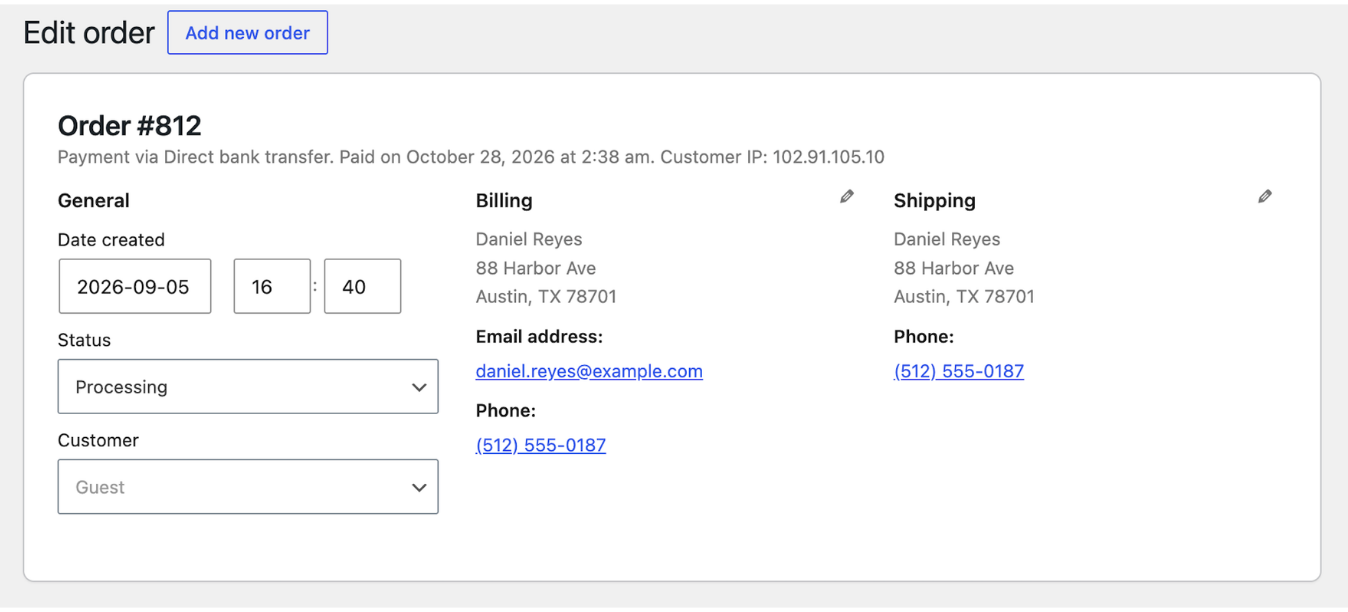
An imported order should show a line such as “Payment via Direct bank transfer” under the order number. When that line is missing, the gateway named in the file isn’t active on the destination store. In testing, orders paid by bank transfer showed their payment method immediately, while orders paid through Stripe showed none because Stripe wasn’t installed on the test site.
WP All Import imports the payment method, payment date and transaction ID through the Payment tab under Billing & Shipping Details. Activate every gateway the file uses under WooCommerce › Settings › Payments before importing. The transaction ID imports as well, so each order keeps its reference back to the payment processor.
Shipping Line Is Missing
A shipping line sits between the items and the totals on the order screen, with the method name and cost, such as “Flat rate $8.00”. Without it, the shipping charge has no line of its own and disappears if the order is recalculated later.
WP All Import imports shipping as a separate order line through the Order Items › Shipping tab. In Manual Setup, map Shipping Name and Shipping Amount to their columns and choose the Shipping Method. The method needs to exist in one of the store’s shipping zones, which is set under WooCommerce › Settings › Shipping.
💡Tip
Open one imported order and look for the shipping line before importing the full file. A line showing the method name and cost, such as Flat rate $8.00, confirms the shipping mapping works.
Prevent Side Effects When Importing WooCommerce Orders
WooCommerce reacts to a new order by emailing the customer, reducing stock, and updating its reports. An imported order is usually a sale that has already happened, so advanced order imports need those reactions disabled or handled after the import.
Customers Receive Emails About Old Orders
A customer who checked out last spring and opens their inbox to a fresh “Your order is complete” email will be confused. Imported orders can trigger the same notifications as live checkouts, and every customer in the file can receive one, which ultimately isn’t ideal.
WP All Import blocks customer email notifications during WooCommerce order imports by default. The Block email notifications during import checkbox in the Email Notifications for Customers section of the Import Settings screen controls this. Leave it checked for historical imports, and uncheck it only when the orders are new and customers should hear about them.

Stock Levels Don’t Change After Importing Orders
WP All Import leaves product stock untouched when it imports WooCommerce orders. That default protects historical imports, since stock for those sales was reduced on the original store long ago, and reducing it again would undercount the inventory on the new one.
Live order feeds work differently. When orders arrive from a marketplace or point-of-sale system and the products ship from the WooCommerce store’s own stock, the Reduce Stock for Imported Order Items snippet in WP All Import’s code snippets library reduces stock for each imported order, and only once per order.
💡Tip
Only use the stock snippet for orders the store still needs to fulfil. Historical orders should import without it.
WooCommerce Analytics Shows Missing or Doubled Revenue
WooCommerce Analytics reads from its own reporting tables, so revenue charts can miss imported orders or count some of them twice. To rebuild the reports:
- Go to Analytics › Settings and scroll to Import Historical Data.
- Uncheck Skip previously imported customers and orders.
- Click Start.
Doubled revenue can also mean the same orders were imported twice. WP All Import matches re-imported WooCommerce orders by their unique identifier and updates the existing orders instead of creating copies, so a repeat run of the same file doesn’t duplicate any sales.
Keep Recurring WooCommerce Order Imports in Sync
Some order imports never really finish, in a sense. A marketplace, fulfillment partner, or point-of-sale system sends a fresh export every few hours, and the same orders return with updated statuses as they move from paid to shipped. Recurring order imports like these are among the most advanced jobs a WooCommerce store assigns to an importer, because each run must update the orders it created last time without duplicating them.
WP All Import runs the same order import on a schedule and updates each existing order by its unique identifier, so a status change in the feed reaches the matching WooCommerce order on the next run. The settings live on the Import Settings screen, which can be reached through Manual Setup.
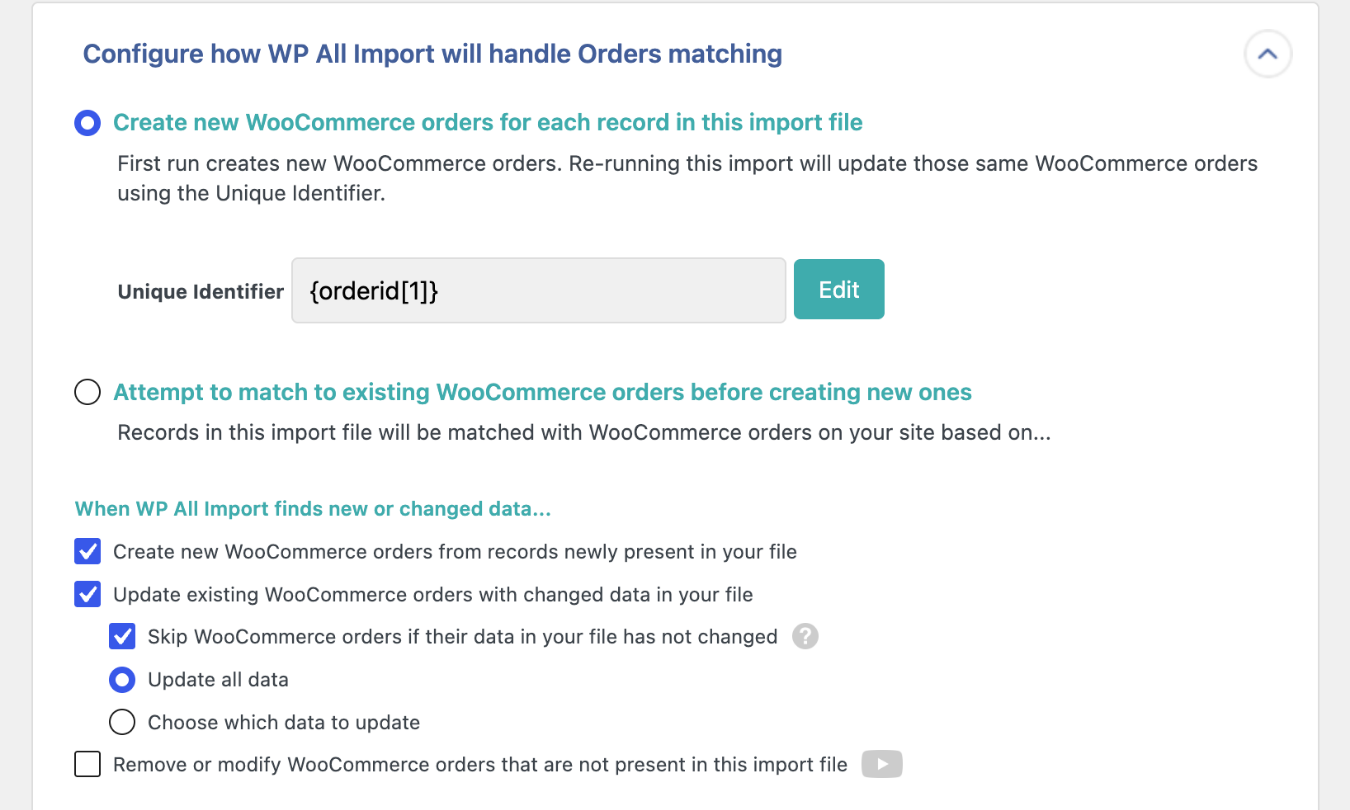
- Set the Unique Identifier to the order ID column, such as {orderid[1]}.
- Keep Update existing WooCommerce orders with changed data in your file checked.
- Keep Skip WooCommerce orders if their data in your file has not changed checked, so runs only touch orders that actually changed.
- Choose Choose which data to update when the feed should only change certain fields, such as the order status.
- Point the import at the feed’s URL or FTP location, then set it to run with Automatic Scheduling or a server cron job.
⚠️Warning
Remove or modify WooCommerce orders that are not present in this import file deletes or changes every order missing from the file. Turn it on only when the feed always contains the full order history. Most marketplace feeds include only recent orders.
WP All Import supports WooCommerce’s High-Performance Order Storage, so recurring imports write to the same order tables WooCommerce uses on stores with HPOS enabled.
Check Your WooCommerce Orders After Every Import
A finished import screen confirms that every row was processed, but only the orders themselves show whether the data landed in the right places. Open a sample of imported orders, including the ones with several products, and work through these checks before moving on.
Post-import order checklist
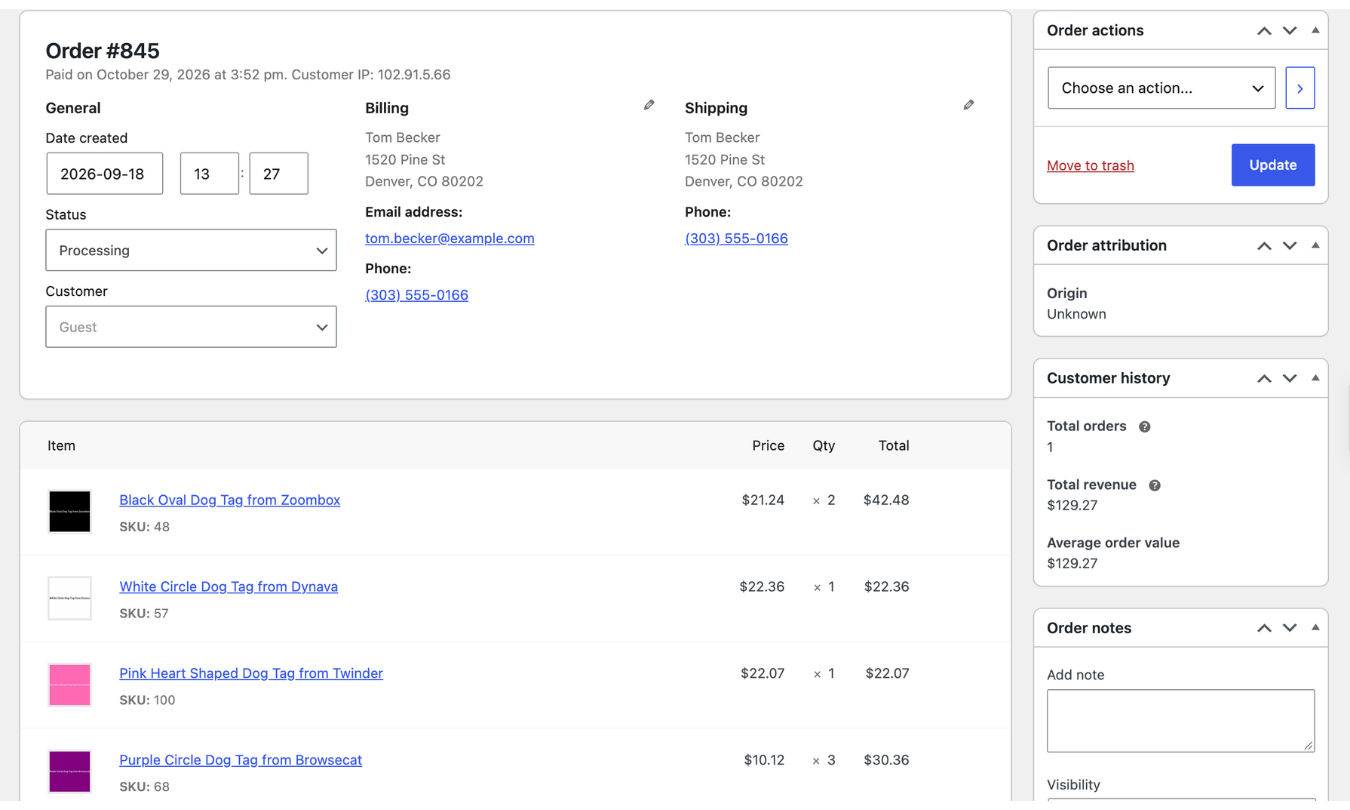
✅ Every product has its own line, with a SKU and a link
Items box
✅ Shipping appears as its own line with the method name
Below the items
✅ Items subtotal, shipping and tax add up to the order total
Totals area
✅ The payment method shows under the order number
Order header
✅ Status, created date and paid date match the source
General panel
✅ The customer links to the right account
Customer field
✅ Notes from the source store are present
Order notes panel
WP All Import records every order it creates, updates or skips in the import’s log, so any order that looks wrong can be traced back to the exact row and setting that produced it. The log is under All Import › Manage Imports, next to each import.
Once the sample orders check out, re-run Import Historical Data under Analytics › Settings so WooCommerce’s reports include the imported orders.
Importing WooCommerce Subscription Orders
Subscription orders carry two risks that one-time orders don’t. Automatic renewals only work if the customer’s saved payment token from the gateway is carried over with the subscription, and the old platform keeps charging customers until its own renewals are switched off. How to Export and Import WooCommerce Subscription Orders walks through the full process, including renewal orders and migrating active subscriptions between stores.
⚠️Warning
Turn off renewals on the old platform before subscriptions go live on the new store, so no customer is billed twice.
Final Thoughts — Advanced Order Imports in WooCommerce
Most problems in advanced WooCommerce order imports trace back to data an order depends on but the file doesn’t contain, such as a product, a customer account, or a shipping method. WP All Import matches each imported WooCommerce order to its customer by email and links every line item to its product by SKU. Shipping, fees, and taxes come in as separate order lines as well, so totals stay accurate if someone edits an order later. Automatic Setup builds the import as soon as the file is uploaded, and Manual Setup covers any field that a particular file needs adjusted.
The fastest route to a clean WooCommerce order import starts before the full file goes in. Set up the products, customers, payment gateways, and shipping methods that the orders rely on, then import five or six orders on a staging site and open each one. When those orders match the source line for line, the rest of the file will import seamlessly.
Frequently Asked Questions — Advanced Order Imports in WooCommerce
Can You Import Orders Into WooCommerce?
Yes. Orders can be imported into WooCommerce with WP All Import, which brings in orders from CSV, Excel and XML files along with their line items, customers, shipping, taxes, coupons, refunds and notes. WooCommerce itself doesn’t include an order importer, so a plugin handles the import.
How Do I Import WooCommerce Orders With Multiple Products?
WP All Import imports WooCommerce orders with multiple products from a single CSV, Excel or XML file:
- Format the file with one row per product, and repeat the order ID on every row of the same order.
- Go to All Import › New Import and click Set up automatically.
- Upload the file, select WooCommerce, then Orders, and click Start Automatic Setup.
- Review the Your Import Is Ready screen and click Run Import.
- Open a multi-product order under WooCommerce › Orders to confirm that each product sits on its own line.
How Do I Import WooCommerce Orders Without Sending Emails to Customers?
To import WooCommerce orders without sending emails to customers, keep Block email notifications during import checked in the Email Notifications for Customers section of the Import Settings screen. WP All Import turns this setting on by default for every order import, so customers aren’t notified about orders they placed long ago. Uncheck it only for new orders that customers should hear about.
Does Importing Orders Reduce Stock in WooCommerce?
No. WP All Import leaves product stock levels unchanged when it imports WooCommerce orders, because historical orders already reduced stock on the original store. For live order feeds that should reduce stock, the Reduce Stock for Imported Order Items snippet in WP All Import’s code snippets library deducts the ordered quantities once per order.
How Do I Migrate WooCommerce Orders to Another Site?
WP All Import and WP All Export migrate WooCommerce orders between sites using a single bundle file:
- Import the products and customers to the new site first.
- On the source site, go to All Export › New Export, select WooCommerce Orders and click Migrate Orders.
- Click Confirm & Run Export and download the Bundle file.
- On the new site, go to All Import › New Import and upload the bundle file.
- Click Skip to Step 4, review the import settings and click Confirm & Run Import.
Related Information