- Introduction
- What Is App Accessibility Testing?
- Why Does App Accessibility Testing Matter in 2026?
- What Are the Best App Accessibility Testing Tools?
- WAVE
- axe DevTools
- TestMu AI (Formerly LambdaTest)
- Accessibility Insights
- Google Lighthouse
- Android Accessibility Scanner
- Xcode Accessibility Inspector
- Pa11y
- How to Choose the Right Tool for Your App?
- Conclusion
Introduction
Mobile operating systems already include features like screen readers, voice control, captions, and display adjustments. But those features only work well when an app is built with accessibility in mind. Missing labels, poor focus order, or low color contrast can still make an app difficult or impossible to use for people with disabilities.
App accessibility testing helps fix those issues. Some tools automatically scan for common WCAG violations, while others help you test on real devices or verify how an app works with assistive technologies.
This guide covers the best app accessibility testing tools available today, what each one is designed for, and how to choose the right tool for your testing workflow.
What Is App Accessibility Testing?

App accessibility testing is the process of checking whether a mobile application can be used by people with disabilities. It verifies that users can navigate the app, understand its content, and complete tasks using assistive technologies such as screen readers, voice control, switch access, or built in accessibility features.
It covers things like screen reader support, keyboard or switch navigation, color contrast, touch target size, focus order, form labels, and other accessibility requirements defined by WCAG and mobile platform guidelines.
Accessibility testing combines automated scans with manual validation. Automated tools quickly detect common issues, while manual testing ensures that the app is actually usable across different devices and accessibility settings.
Why Does App Accessibility Testing Matter in 2026?
About 16% of the world’s population lives with some form of disability. That’s over a billion people who may struggle to use your app if it isn’t built with accessibility in mind.
The reality is simple: inaccessible apps lose users. In fact, 72% of mobile user journeys tested in the State of Mobile App Accessibility report had barriers that resulted in a poor experience. Most of those users don’t file complaints – they just leave.
Beyond losing users, legal requirements have become impossible to ignore. The European Accessibility Act came into effect in June 2025, expanding accessibility mandates for digital products sold in the EU. Meanwhile, in the US, digital accessibility lawsuits under the ADA continue to skyrocket, making compliance a critical priority for any dev team.
Which Are the Best App Accessibility Testing Tools Available?
There are plenty of accessibility testing tools available today, but each is designed for a different stage of development or testing. To help you choose the right one for your workflow, here are some of the most reliable options to consider.
WAVE
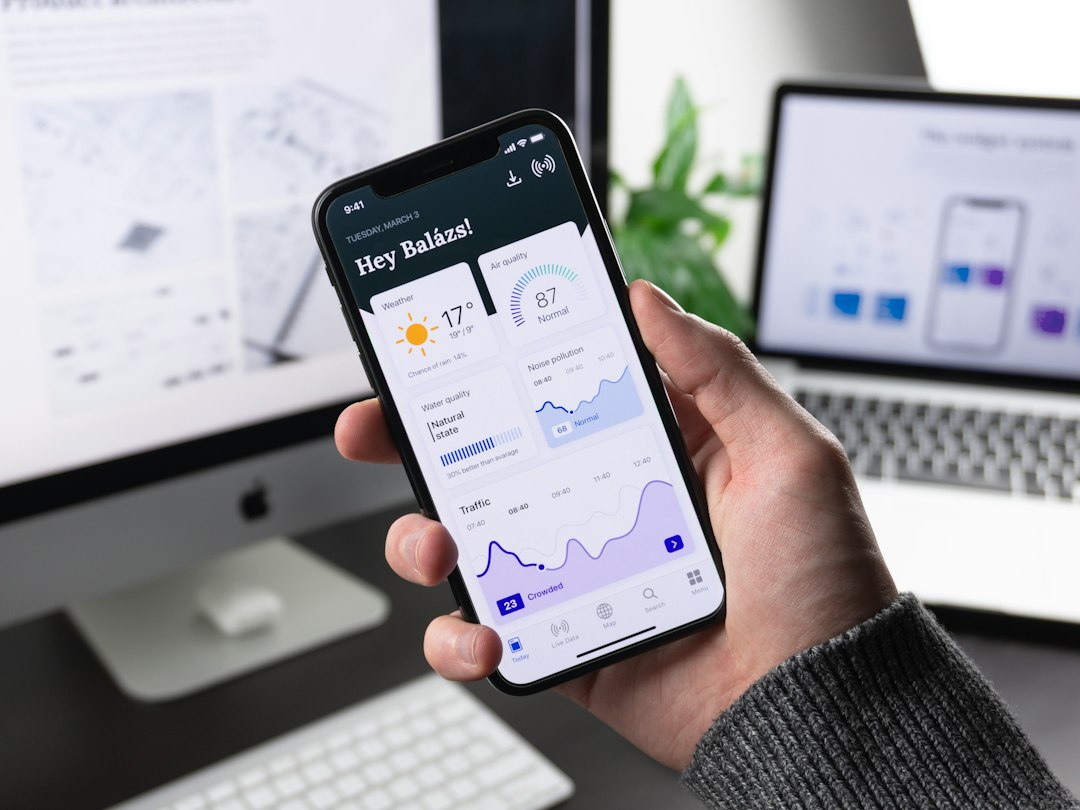
WAVE is a browser extension built by WebAIM, one of the most credible organizations in the web accessibility space. It injects visual feedback directly onto your live webpage which means instead of forcing you to cross-reference a separate report, it overlays icons and alerts right next to the broken elements.
Because it runs entirely within your browser, no page data ever leaves your machine. This lets you securely audit password-protected pages, internal tools, and local staging environments that cloud scanners cannot reach.
While the free version checks one page at a time and covers WCAG 2.2, if you need to scan multiple pages or integrate it into a pipeline, there’s a subscription API they offer.
Key Features:
- Displays errors and alerts directly on the live page layout.
- Runs completely inside Chrome, Firefox, or Edge without sending data to external servers.
- Traces the exact path keyboard and screen reader users take through the page.
- Evaluates color contrast ratios against WCAG 2.2 standards instantly.
Best for: Designers, content editors, and developers who want a fast, visual way to spot accessibility issues without a complicated setup.
axe DevTools
axe DevTools is built on axe-core, the open-source accessibility testing engine that powers most of the major accessibility tools in use today. The browser extension runs automated scans in Chrome, Firefox, and Edge, surfacing issues with their exact location.
What makes it stand out is its zero false positive commitment. Most automated scanners flag things that aren’t actually issues, which means developers waste time investigating non-problems. axe DevTools only reports issues it can confirm.
It also has a mobile version that tests native iOS and Android apps without needing source code access.
Key Features:
- Automated scans mapped to WCAG 2.0, 2.1, and 2.2 at levels A, AA, and AAA.
- Zero false positives in automated results.
- Intelligent Guided Tests for issues that automation can’t catch alone.
- Tests native iOS and Android apps without SDK or code access.
- Integrates with Selenium, Playwright, Cypress, and CI/CD pipelines.
Best for: Development and QA teams that want accurate, developer-friendly accessibility testing across both web and mobile apps.
TestMu AI (Formerly LambdaTest)
TestMu AI lets you run accessibility checks across web and mobile apps without leaving your existing test workflow. You can scan full pages, specific components, or multiple URLs at once, and it maps every issue directly to the WCAG criterion it violates so you know exactly what to fix and why.
For mobile apps, its biggest advantage is real device testing. You can verify accessibility across 3,000+ real browser and device combinations. That’s important because contrast rendering, touch target sizes, and screen reader behavior don’t always match what you see in a simulator.
It integrates into CI/CD pipelines so accessibility checks run automatically on every build, not just before a release.
Key Features:
- Automated accessibility scans mapped to WCAG 2.1 and 2.2 criteria.
- Test across 3,000+ real devices and browsers.
- CI/CD integration for continuous accessibility validation.
- Actionable reports with clear remediation guidance.
Best for: QA and development teams that want accessibility testing built into their existing workflow across both web and mobile.
Accessibility Insights
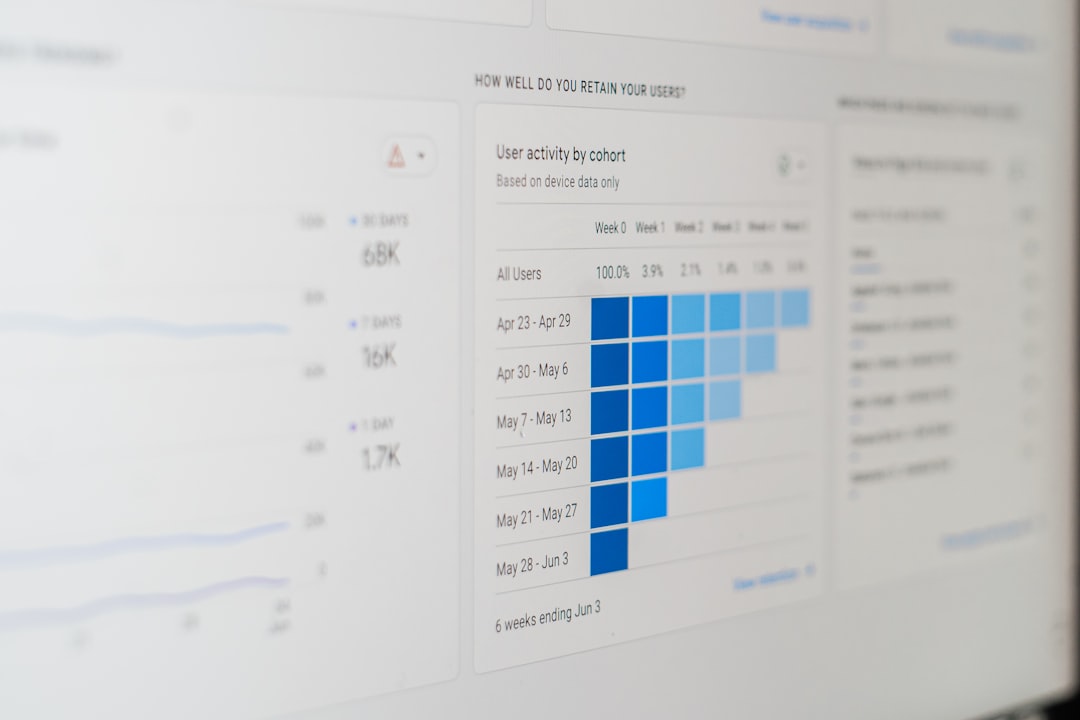
Accessibility Insights is a free, open-source toolset from Microsoft that covers web, Windows, and Android app testing. It has two modes worth knowing.
FastPass runs a two-step automated check that catches common, high-impact issues in under five minutes. The full Assessment mode walks you through a structured WCAG 2.1 AA evaluation step by step, with clear instructions for each manual check so you don’t need prior accessibility expertise to complete it.
For Windows desktop app testing specifically, the Live Inspect feature lets you hover over any UI element and see its UI Automation properties in real time – the same data a screen reader would read. This is genuinely useful for testing native Windows apps, which most other tools don’t cover at all.
Key Features:
- FastPass catches common issues in under five minutes.
- Full Assessment mode for WCAG 2.1 AA evaluation with guided manual testing.
- Live Inspect for checking UI Automation properties on Windows desktop apps.
- Android version available for native Android app testing.
- Open-source, free, works on Chrome and Edge.
Best for: Developers who need both fast automated checks and structured manual testing guidance, especially for Windows or Android native apps.
Google Lighthouse
Lighthouse is built into Chrome DevTools, which means most developers already have it without installing anything. Run an audit and it gives you an accessibility score alongside performance, SEO, and best practices in one report.
It catches the obvious issues and links each one to documentation explaining what’s wrong and how to fix it.
Key Features:
- Built into Chrome DevTools, no installation needed.
- Audits accessibility alongside performance, SEO, and best practices.
- Each failing audit links to fix guidance and relevant documentation.
- Open-source and free.
Best for: Developers who want a quick accessibility check during development.
Android Accessibility Scanner
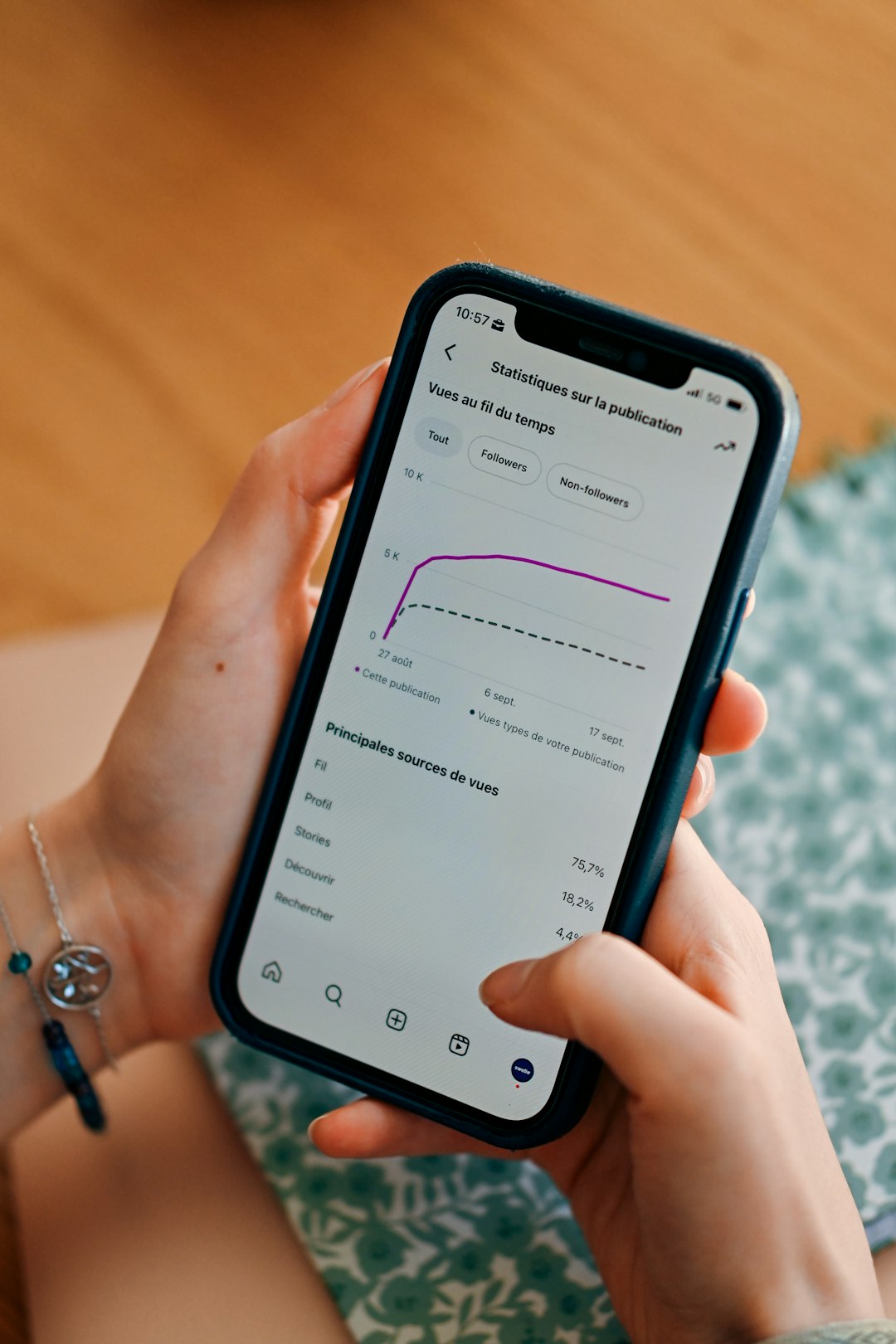
Google’s Accessibility Scanner is a free Android app that scans whatever is on your screen and flags accessibility issues. You install it on your device, open the app you want to test, tap the Scanner button, and it highlights issues directly on your screen with suggestions for fixing them.
You can scan a single screen or record a full user journey across multiple screens, which makes it useful for testing real workflows rather than just static pages.
Key Features:
- On-device scanning with no code or technical setup required.
- Scans for content labels, touch target size, text and image contrast, and clickable items.
- Record full user journeys across multiple app screens.
- Findings organized by screen and category for easier prioritization.
- Share results directly with developers from the app.
Best for: Android developers and QA testers who want quick, on-device accessibility checks without a complicated setup.
Xcode Accessibility Inspector
Xcode’s Accessibility Inspector is Apple’s built-in tool for debugging accessibility in iOS apps. You hover over any UI element and it shows you exactly what VoiceOver would read – the label, trait, value, hint, and where it sits in the accessibility hierarchy. If something is wrong, you see it immediately without waiting for a screen reader to narrate it.
It also runs an automated audit that flags common issues like missing labels, incorrect traits, and focus order problems. You can simulate VoiceOver and Dynamic Type directly in the simulator to check text scaling behavior without needing a physical device.
Key Features:
- Inspect accessibility labels, traits, values, and hierarchy for any UI element in real time
- Run automated accessibility audits within Xcode
- Simulate VoiceOver and Switch Control behavior in the iOS Simulator
- Dynamic Type preview to check text scaling across different size settings
- Free, included with Xcode
Best for: iOS developers who want to catch and debug accessibility issues during development.
Pa11y
Pa11y is a free, open-source command-line tool that scans pages for WCAG violations and outputs results in JSON, CSV, or HTML. It’s built for teams who want accessibility checks running automatically on every build.
Pa11y CI integrates accessibility testing into your CI/CD pipeline, while Pa11y Dashboard gives non-technical teammates a way to track results without touching the command line.
Key Features:
- Runs from the command line, easy to automate
- Supports WCAG 2.0, 2.1, and 2.2
- Integrates with GitHub Actions, Jenkins, and other pipelines
- Pa11y Dashboard for ongoing monitoring
Best for: Engineering teams that want accessibility checks in their CI/CD pipeline without a paid subscription.
How to Choose the Right Tool for Your App?
The best accessibility testing tool depends on your app, your development workflow, and the type of testing you need. Here’s a simple way to choose:
- For web apps: Use axe DevTools or WAVE to catch common accessibility issues during development. Add Pa11y if you want automated checks in your CI/CD pipeline.
- For Android apps: Google Accessibility Scanner is useful for quick on-device checks, paired with automated scans in your pipeline.
- For iOS apps: Xcode Accessibility Inspector helps inspect and debug accessibility during development. Before release, test your app with VoiceOver on a real device to verify the user experience.
- For cross-platform testing: TestMu AI lets you validate accessibility across thousands of real browser and device combinations without maintaining your own device lab.
- If you’re just getting started: WAVE and Accessibility Insights are easy to use and don’t require much setup.
No single tool catches every accessibility issue. Automated scanners typically find only 30-40% of problems. To build an app that’s truly accessible, combine automated testing with manual checks and testing using assistive technologies such as screen readers.
Conclusion
Accessibility scheduling testing isn’t something you do once before a release. It’s a continuous process that works best when it’s built into how you develop, not added on top of it.
The tools in this guide cover different parts of that process. Some are best for catching issues early in development, others for CI/CD automation, and some for validating behavior on real devices. Use a combination that fits your platform and workflow, and make sure at least some of your testing involves real assistive technology — not just automated scans.