Written by the editorial team at AskEntries…
Your Gravity Forms entries contain requests, questions, and experiences that can help you decide what needs attention. Sometimes you know exactly what to search for, such as an email address or a particular phrase. Other times, you know what you want to find but aren’t sure how someone described it – or which form they used.
The AskEntries Add-On lets you ask natural-language questions about your submissions. You can search an individual form or explore multiple forms from your WordPress dashboard. Results include answer-focused snippets, supporting passages, and links to the original entries, giving you the context to review each match.
In this tutorial, you’ll set up AskEntries, find relevant submissions, inspect the supporting text, and take action within an individual form.
Note: AskEntries is a third-party solution. Gravity Forms does not offer support for this platform, nor is this article intended to be a Gravity Forms endorsement of this platform, its developers, or quality of support. As always, we recommend you extensively evaluate all solutions to ensure their suitability for your purpose.
1. Get started with AskEntries
To follow along with AskEntries v0.2.3, you’ll need:
- WordPress 6.4 or newer.
- Gravity Forms 3.0 or newer.
- PHP 8.0 or newer.
- A supported modern browser.
- AskEntries and a valid AskEntries license.
- An account with the Gravity Forms capabilities needed to view entries and perform your chosen actions.
Choose a form that already contains submissions so you have information to explore.
In your WordPress dashboard, navigate to Plugins > Add New > Upload Plugin. Upload the AskEntries plugin ZIP file, install it, and activate it.
Next, open Forms > Settings > AskEntries, enter your AskEntries license key, and save the settings.
AskEntries is built with the Gravity Forms Add-On Framework and works on the WordPress dashboard and the Gravity Forms Entries and Entry Detail screens.
2. Choose one form or search across forms
Start with an individual form when you already know where the information belongs. Use dashboard search when related submissions might appear in several forms.
Search an individual form
Open the Entries screen for the form you want to explore, then open the floating AskEntries icon.
You can ask questions about that form’s submissions, review relevant results, and inspect individual entries. This is also where you can perform bulk actions after reviewing your matches.
AskEntries is available on the Entry Detail screen when you want to work with a particular submission.
Search from your dashboard
Navigate to Dashboard > Home and open the floating AskEntries icon. Select specific forms or choose All Forms, then enter your question.
For example, customers might submit refund requests through both a support form and a general contact form. Selecting both forms lets you look for those requests in one search.
Dashboard results identify their source form and show per-form match counts. You can browse one form’s matches without rerunning your question. The form-selection and relevance controls also adapt to smaller screens.
3. Set your filters and ask a question
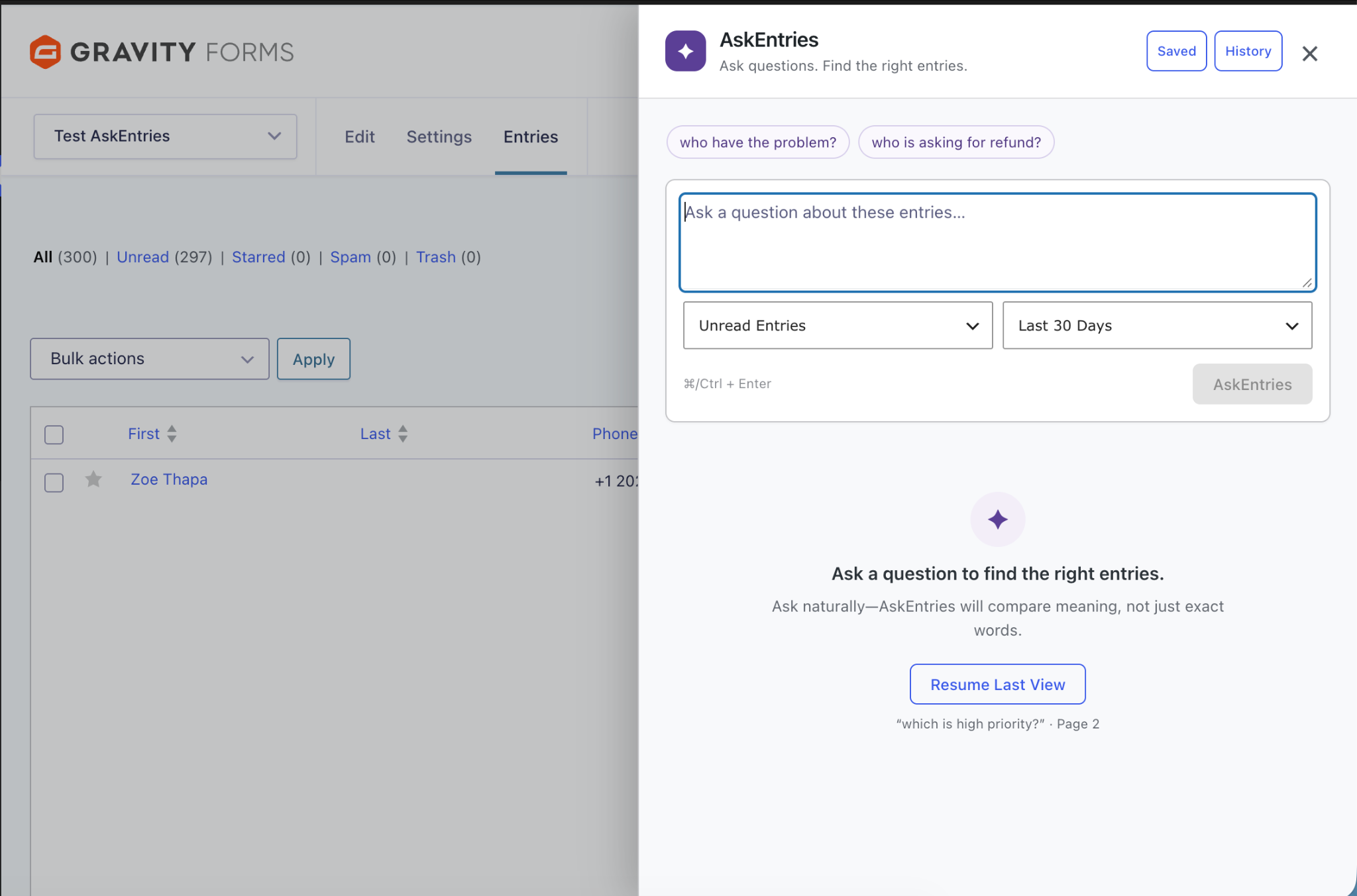
Before searching, choose the read status and date range that fit your task.
Use unread entries to focus on submissions you haven’t opened, read entries to revisit information, or all entries to include both. A date range helps you focus on a particular period.
Next, enter a question such as Who is requesting a refund?
Gravity Forms search is ideal when you know an exact word or value. AskEntries complements that workflow by looking for related meaning. Someone requesting a refund might describe their request as reversing a payment, returning their money, or receiving reimbursement.
Semantic ranking and evidence checks help surface relevant submissions while keeping the original text available for review.
You can adapt your questions to other forms:
- Applications – Ask “Which applicants have nonprofit experience?” and review the experience described in the submissions.
- Quote requests – Ask “Which inquiries mention website maintenance?” and inspect the requested work.
- Event forms – Ask “Which attendees asked about parking?” before preparing a response.
Keep each question focused on information your forms actually collect. If the results don’t address your question, try different wording or review your filters.
Understand the search limits
AskEntries limits each query to 1,000 entries and 6,000 passages to keep browser processing bounded.
An individual-form search considers the newest matching entries. Dashboard searches share the entry budget across the selected forms. Choosing All Forms sets the search scope; it doesn’t remove these limits.
The interface displays a notice when the limits mean coverage is partial. If you need to review a narrower group, adjust the date range or select fewer forms and search again.
4. Review the results and supporting passages
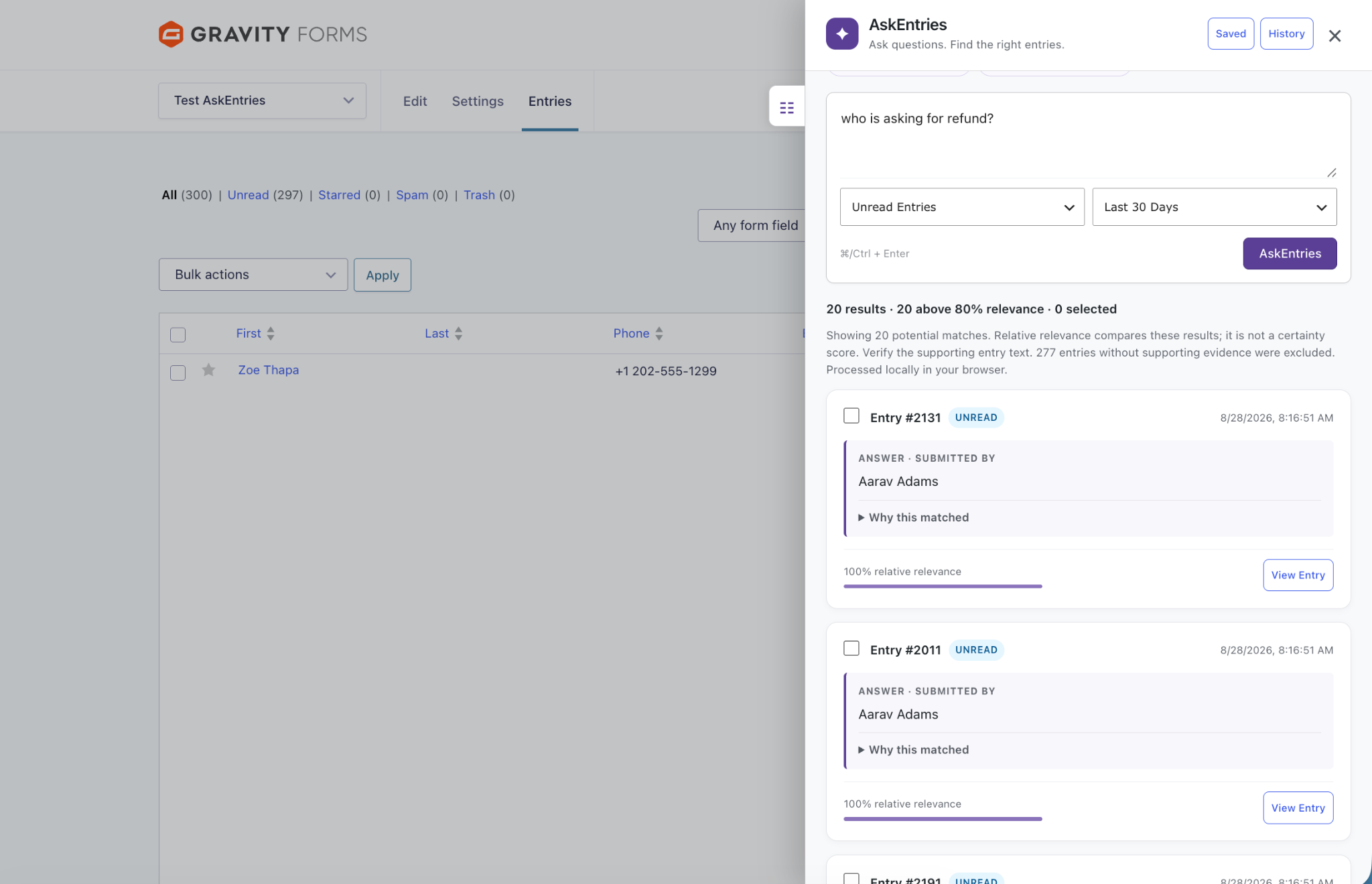
Start by reading the text behind each match. Does it address your question? Is there enough context to understand the request?
AskEntries distinguishes between extracted answers and results where only a related passage is available. A supporting passage can help you decide whether to investigate an entry, even when there isn’t an extracted answer.
Use relevance scores to prioritize your review, then check the original submission before taking action.
Refine your dashboard results
New dashboard searches start with All supported matches. You can narrow the results using relative-relevance filters without rerunning the question.
Watch the per-form counts as you adjust the filters. These counts show how filtering changes the visible matches for each form.
Use the controls for browsing results by form when you want to focus on a particular source. For example, review the support form’s matches first, then switch to the contact form’s results without submitting your question again.
Relevance filtering is also available when searching an individual form.
Inspect an individual entry
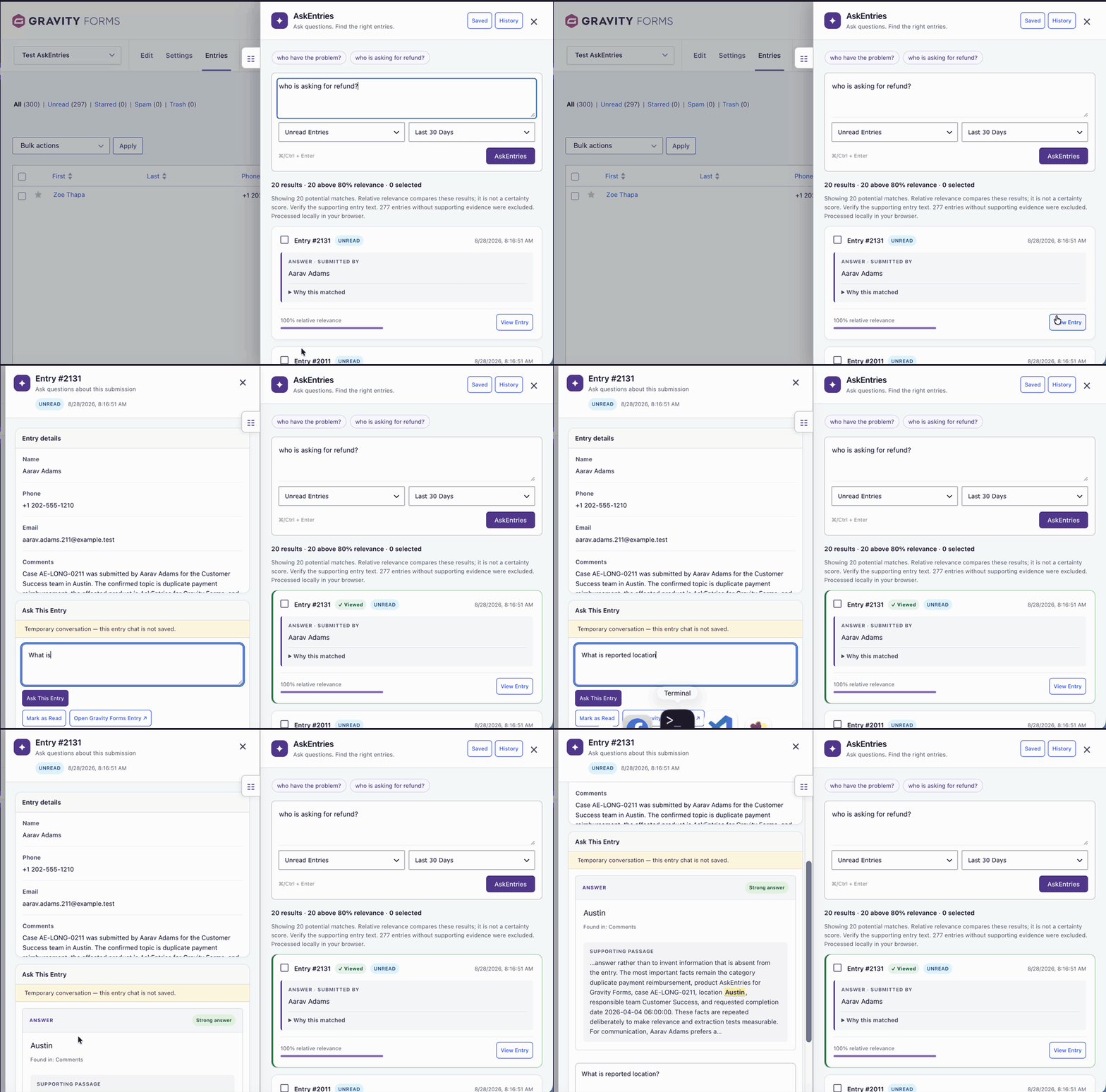
Open the readable entry panel beside your results to explore a submission in more detail. You can ask a follow-up question about that entry and return to the original Gravity Forms entry when needed.
For a refund request, you might ask What reason did this person give for requesting a refund? Review the supporting text before deciding what response is appropriate.
Entry-specific conversations are temporary and clear when the panel closes.
5. Take action within an individual form
Once you’ve found and reviewed relevant submissions, open that form’s Entries screen to work with them.
Bulk actions are available within individual forms. They aren’t available across mixed-form dashboard results. If you began with dashboard search, open the relevant form and run your question there before selecting entries.
You can select individual entries, the current results page, or all qualifying results. Check the selection before opening the floating actions panel.
Available actions let you:
- Add notes.
- Send personalized emails.
- Mark entries read or unread.
- Star or unstar entries.
To record that you’ve reviewed a group of submissions:
- Select the entries you intend to update.
- Open the floating actions panel and choose the option to add a note.
- Enter a note such as “Reviewed; follow-up required.”
- Apply the action and review the reported outcome.
Entry access and bulk actions respect Gravity Forms capabilities, so your account needs the appropriate permissions for the work you want to perform.
Send a personalized email
To follow up with the people behind your selected entries:
- Open the floating actions panel and choose the email action.
- Choose the recipient Email field.
- Prepare your message, using Gravity Forms merge tags where appropriate. AskEntries also supports shortcuts such as {name:first} and {email}.
- Review the recipient count and masked addresses.
- Confirm before sending.
- Check the batch progress and any partial-failure summary.
Messages are sent through your site’s configured WordPress mail service. For a refund inquiry, for example, you could acknowledge the request and explain the next step after reviewing the submission.
6. Save questions you’ll use again
Save and edit reusable questions for recurring tasks, such as reviewing recent support requests or finding inquiries about a particular service.
Individual-form saved questions are organized by user and form. Dashboard search has its own saved questions, separate from individual-form searches.
Search history is stored locally on your device. It restores compact cached results and your last viewed results page. Dashboard history also restores the selected forms.
You can remove individual history items whenever needed. Saved questions and search history help you return to earlier work, while entry-specific conversations remain temporary.
Understand how browser-side AI works
AskEntries runs semantic analysis and answer extraction inside the authenticated administrator’s browser. Entry text is not sent to an external large language model API, and you don’t need a third-party AI API key.
The workflow centers on finding information in your submissions and showing the text that supports each result. Keep that evidence at the center of your review, especially before sending messages or updating entries.
Start with a question from your daily work
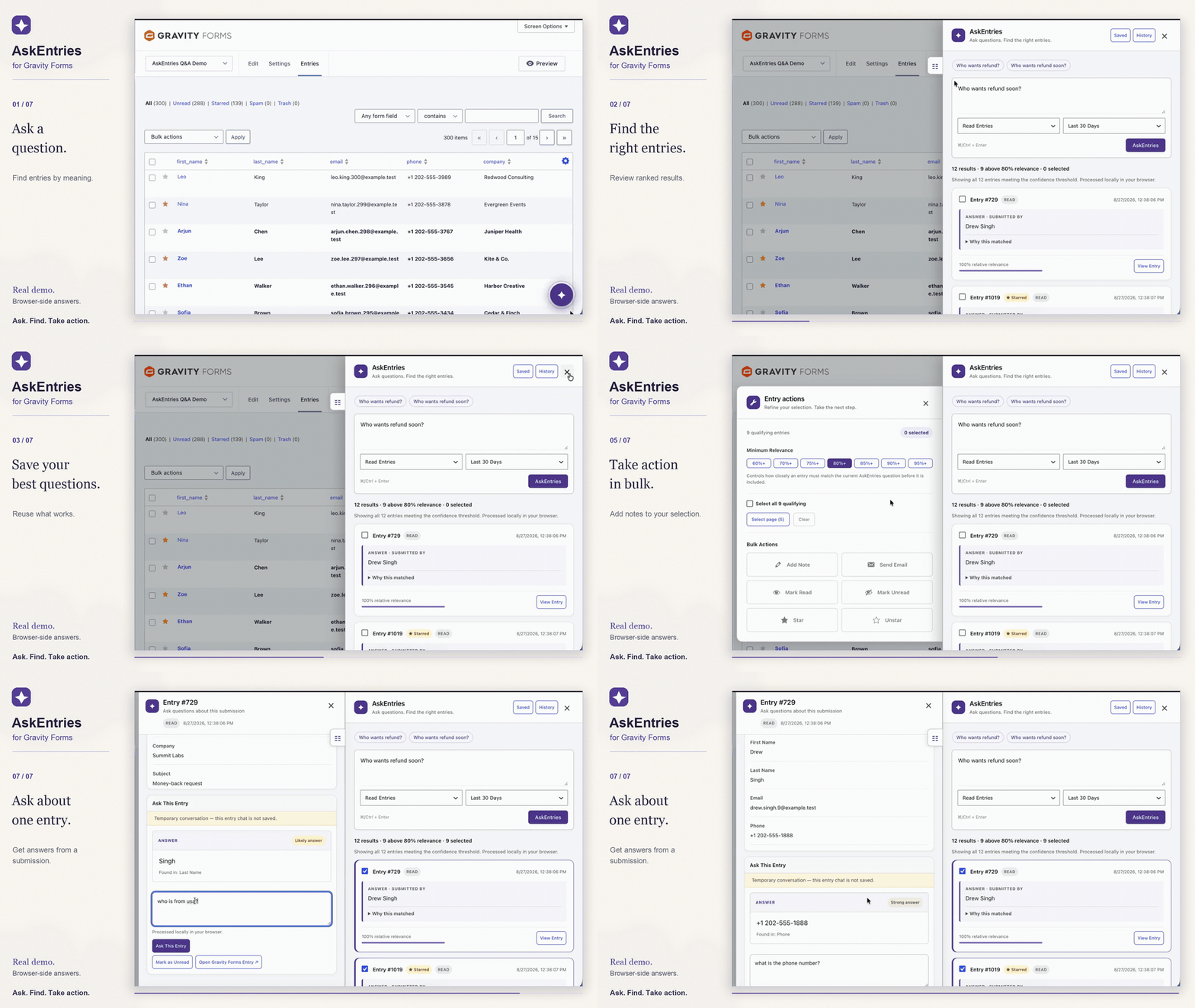
Choose a form you use regularly and ask about something you want to find in its submissions. Review the supporting passages, inspect individual entries, and take the appropriate action.
When related information arrives through several forms, start with dashboard search to find the relevant submissions, then move to an individual form for bulk actions.
You can watch the AskEntries demonstration to see the workflow or visit the AskEntries for Gravity Forms product page to learn more.

Newsletter
If you want to keep up-to-date with what’s happening on the blog sign up for the Gravity Forms newsletter!
“*” indicates required fields