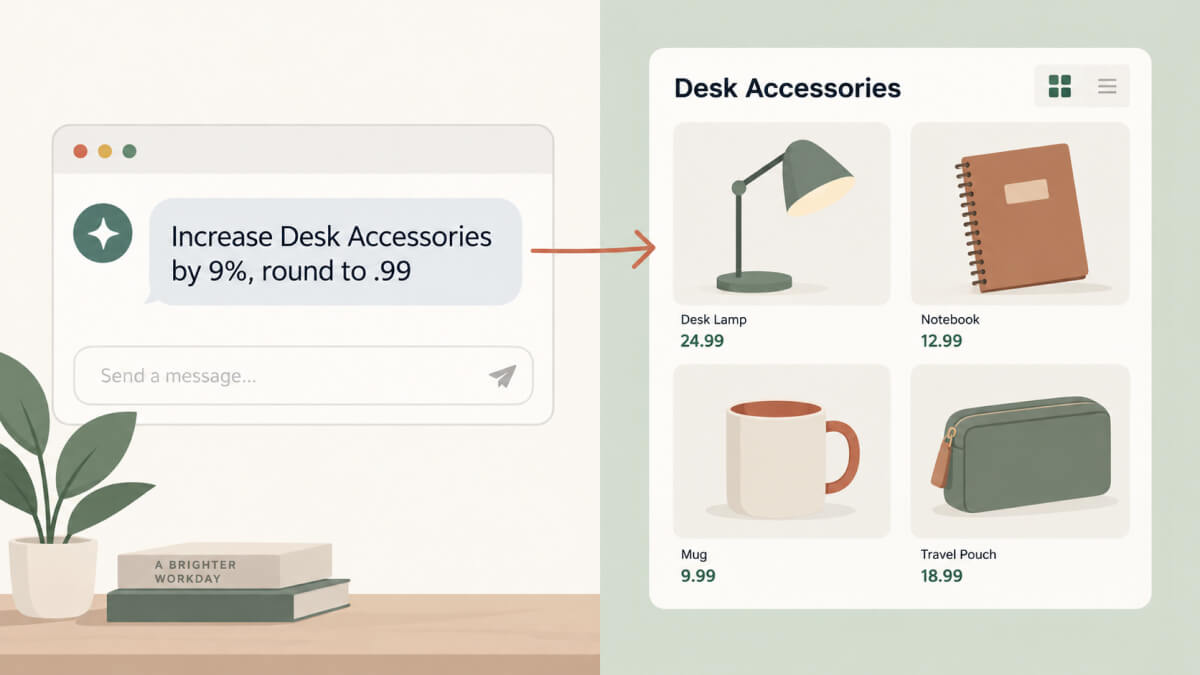
Routine updates when managing a WooCommerce catalog often means editing products individually, adjusting prices across a category, and filling in any missing information. You might even switch to code for small customizations. I’ve got a Novamira tutorial for you off the back of my recent review.
Throughout, I’m connecting Claude to a fresh WordPress install through Novamira Pro and walking through a complete WooCommerce workflow. It starts with building the store itself, but moves through some typical and regular tasks, such as bulk price updates, scheduling sales, repairing broken data, and more.
Fast Facts
- This Novamira tutorial covers functionality mostly found in both the free and premium offerings. However, you won’t need to pay anything to complete the steps here.
- Novamira Pro adds a maintained WooCommerce specialization and cross-session memory, which means Claude will already understand the catalog instead of exploring it from scratch each time.
- Everything here runs through plain-language prompts to Claude, connected through MCP, with a ‘preview-then-approve’ pattern for anything that changes live data.
What Novamira Pro Adds to a WooCommerce Workflow
👉 For the full breakdown of what’s in Free versus Pro, check out our full Novamira review.
It’s worth noting from the off that Novamira Pro’s WooCommerce specialization isn’t a separate set of store-management tools bolted onto WooCommerce. Instead, it has direct access to WooCommerce’s own data: regular prices, sale prices, scheduled sale dates, categories, tags, attributes, and shipping classes, all reachable through PHP and the database.
Claude draws on this structured, maintained knowledge of WooCommerce’s own data to carry out any tasks you request. It’s guided by this data so it doesn’t need to explore your product schema first. The result is that what you learn here specific to bulk pricing and scheduled sales can adapt to almost any task you have in mind.
Full Novamira Tutorial: How to Build and Manage a WooCommerce Store With Claude and Novamira Pro
I’m running this on a fresh local WordPress installation. Of course, I’ve installed and activated both Novamira Free and Pro, and connected Claude through Claude Desktop. You can find this workflow in the Novamira Pro review post, although I ran the experiment here twice using Cursor as well.
Rather than generic sample products, I’m building a fictional shop that sells desk, travel, and home-office accessories in Euros. A few notes on the setup:
- I’m running current versions of WordPress, PHP, and WooCommerce, and you should too!
- Novamira Free and Novamira Pro version independently on their own schedules, so check both are current rather than assuming one update covers the other.
- I’m using the Claude Sonnet model. For a messier catalog or more ambitious custom functionality, Claude Opus trades speed and cost for more thorough reasoning. Claude Fable is built for higher-complexity work that routine catalog maintenance won’t need.
Finally, AI abilities are only enabled here on a local site built for testing. Novamira’s guidance is to keep AI abilities off on production, work from a current backup, and treat every action as a real, live change as not everything can be automatically rolled back.
1. Generate the WooCommerce Demo Store
You’ll need a working catalog, so the first job is to build the store. It’ll have a handful of categories and a small set of complete products. Since the setup process can be repetitive and time consuming, I want one prompt to cover it all rather than clicking through the WooCommerce onboarding wizard by hand.
Here’s a version of the prompt I use to kick things off:
Inspect the fresh WordPress installation on Northstar Desk Co. and report the WordPress, PHP, WooCommerce, and Novamira versions before making any changes. This is a local test site with a current backup.
Create a small fictional WooCommerce store called Northstar Desk Co. selling desk, travel, and home-office accessories in Euros.
Install and configure WooCommerce if needed, create the standard WooCommerce pages, three relevant product categories, and 10–15 realistic simple products, each with a name, SKU, regular price, stock status and quantity, full and short descriptions, category, and weight.
Give me a concise plan first, then a changelog and verification once done.
The prompts I’m using in this Novamira tutorial might need some tweaking for your specific use case, so don’t always expect the exact same output. However, here I’ve deliberately omitted product images.
For your projects, you’ll likely have images on hand or at least an idea of where they’re coming from. It’s not important here, so I’m using WooCommerce’s fallback placeholder graphics for ease of use.
For Claude’s plan, it includes installing WooCommerce, creating product categories, and populating products across them.
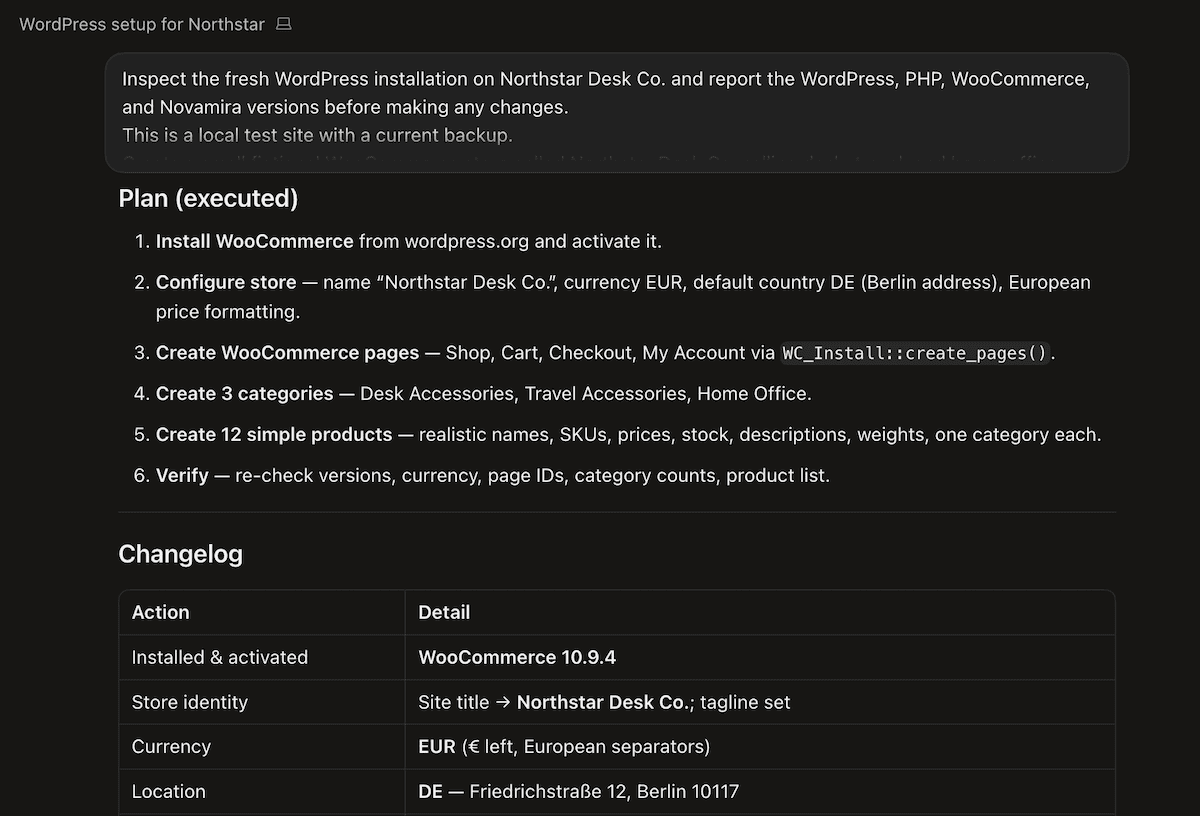
The first pass creates a batch of products with prices, SKUs, stock levels, and descriptions:
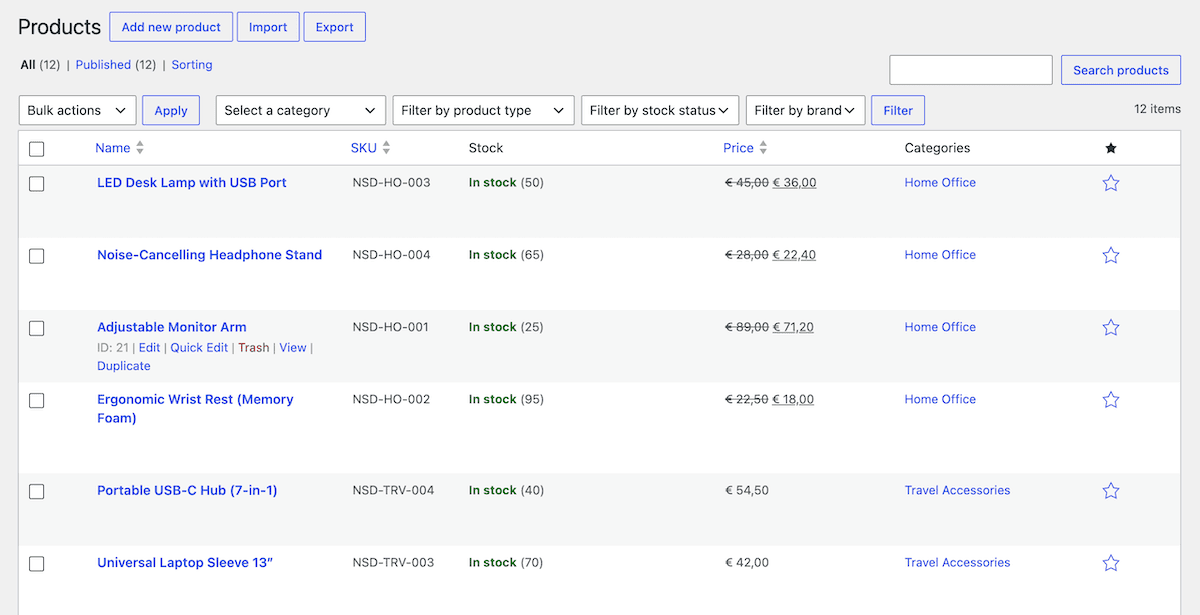
One product came through with a short description that duplicated its full description almost word for word, which I asked Claude to rewrite. All in, it took about 10–15 minutes.
2. Make Controlled Bulk Price Changes
Next, I pick the Desk Accessories category for a controlled price increase. I want to see the numbers first, so my prompt asks for a preview table built from the same product data Claude already has access to:
Review the current regular prices of every published product in the Desk Accessories category. Prepare a 9 percent price increase and round each proposed price to end in .99.
However, don’t change anything yet. Show me a table with product name, SKU, current price, proposed price, and any existing sale price. Flag anything with a missing price or an active sale.
Claude returns a table for the products in the category and displays the details:
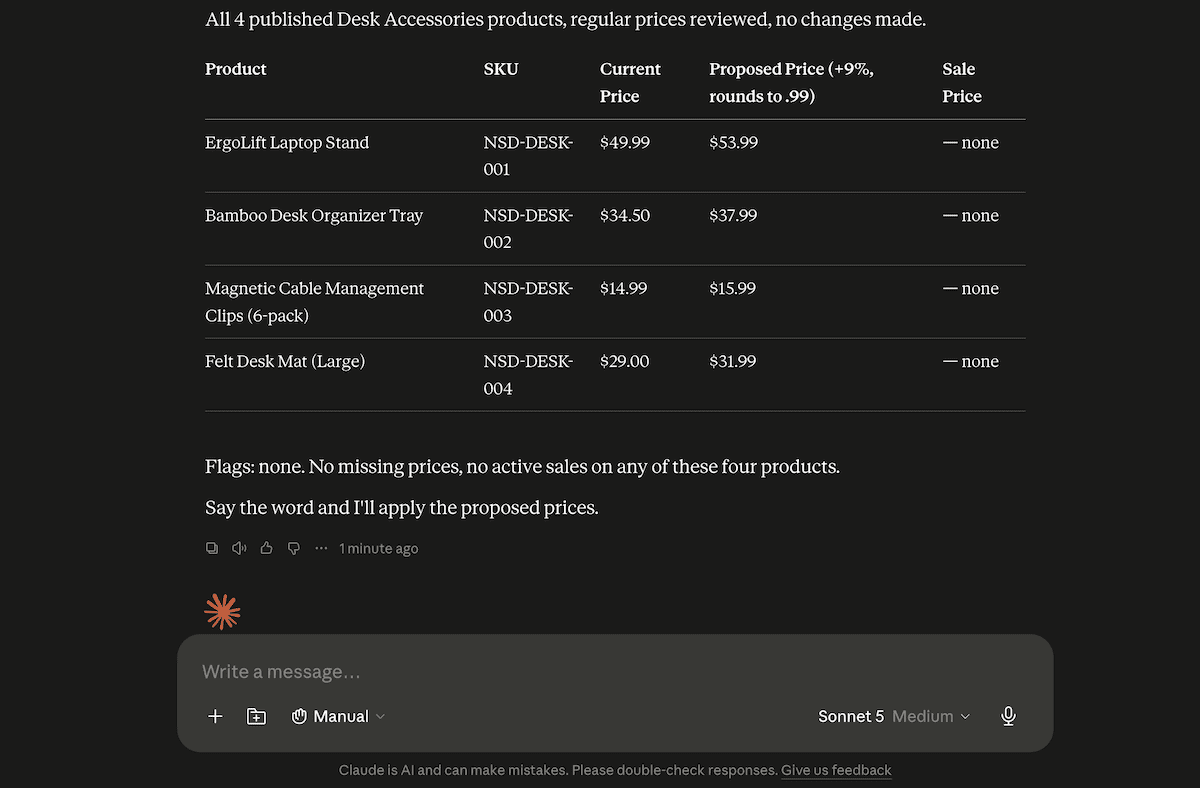
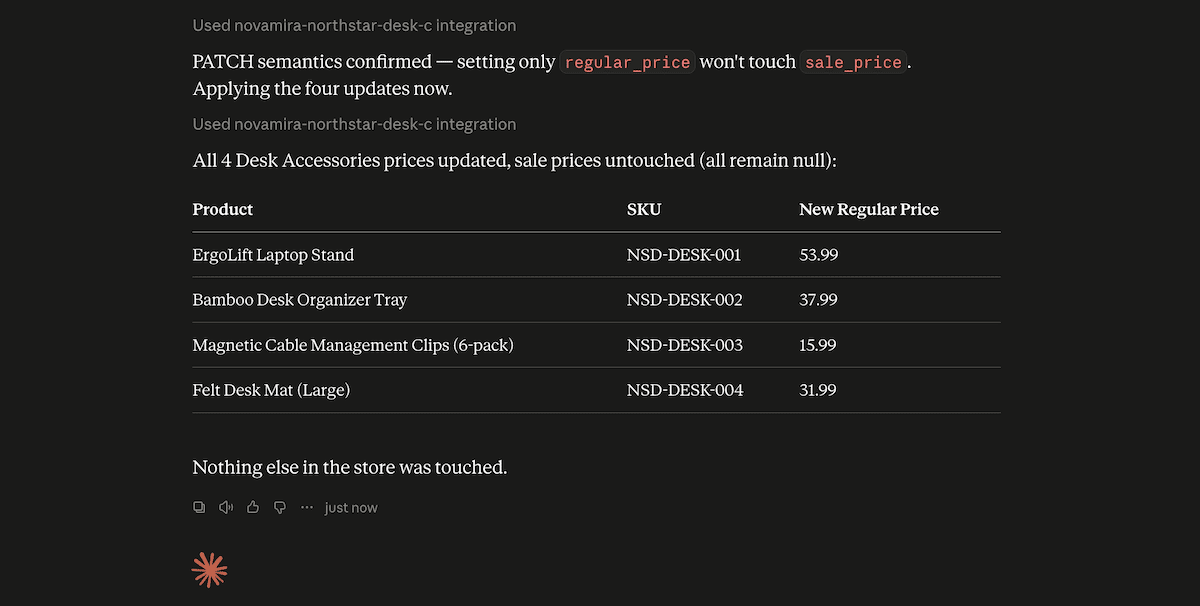
After reviewing the numbers and approving the change, Claude applies the update directly to each product’s regular price field and returns a before-and-after table:
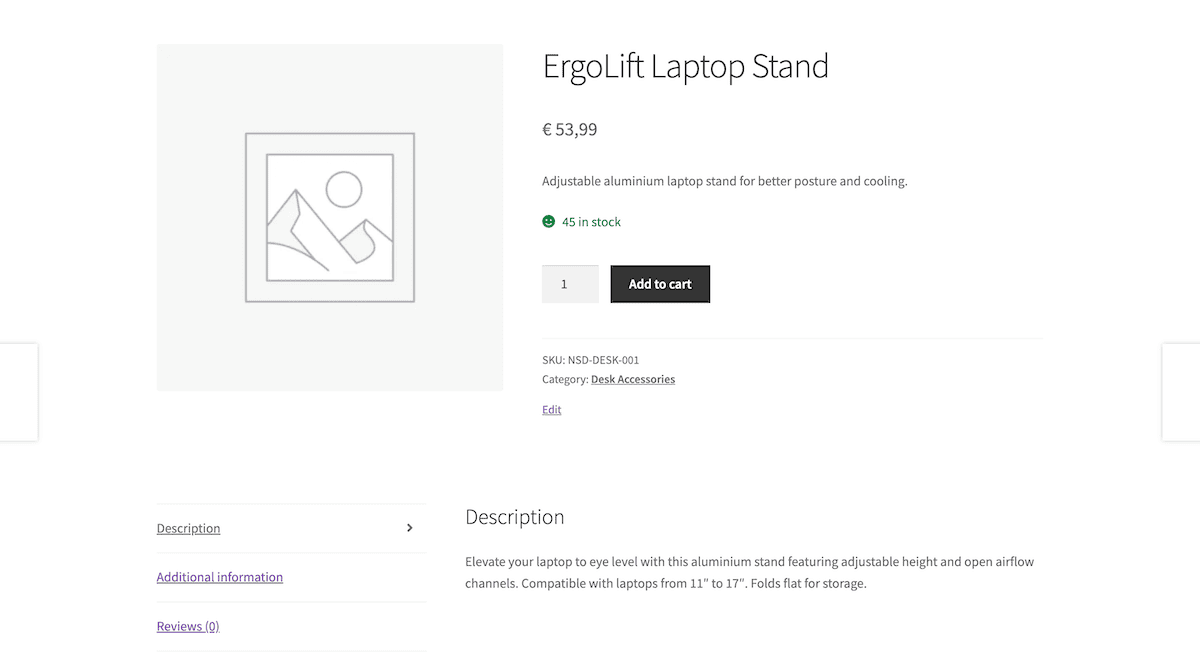
I like to check against the individual product edit screens rather than trusting the summary table alone.
This whole task runs on general product-editing access, so it’s just as possible on Novamira Free. Pro’s advantage here is speed and consistency across a larger catalog.
3. Schedule a Category-Based Sale
At this point in my Novamira tutorial, I’m going to run a sale! To do this, I prompt Claude with the details:
Prepare a sale for every published product in Home Office. Apply a 20 percent discount from August 4th 00:00 to August 11th 23:59, using the site’s timezone.
Don’t apply it yet. Show me a table with product name, SKU, regular price, proposed sale price, existing sale status, and the proposed dates. Flag any conflicts.
Claude flagged two aspects: a confirmation of the timezone it should work from and an issue with setting the sale duration:
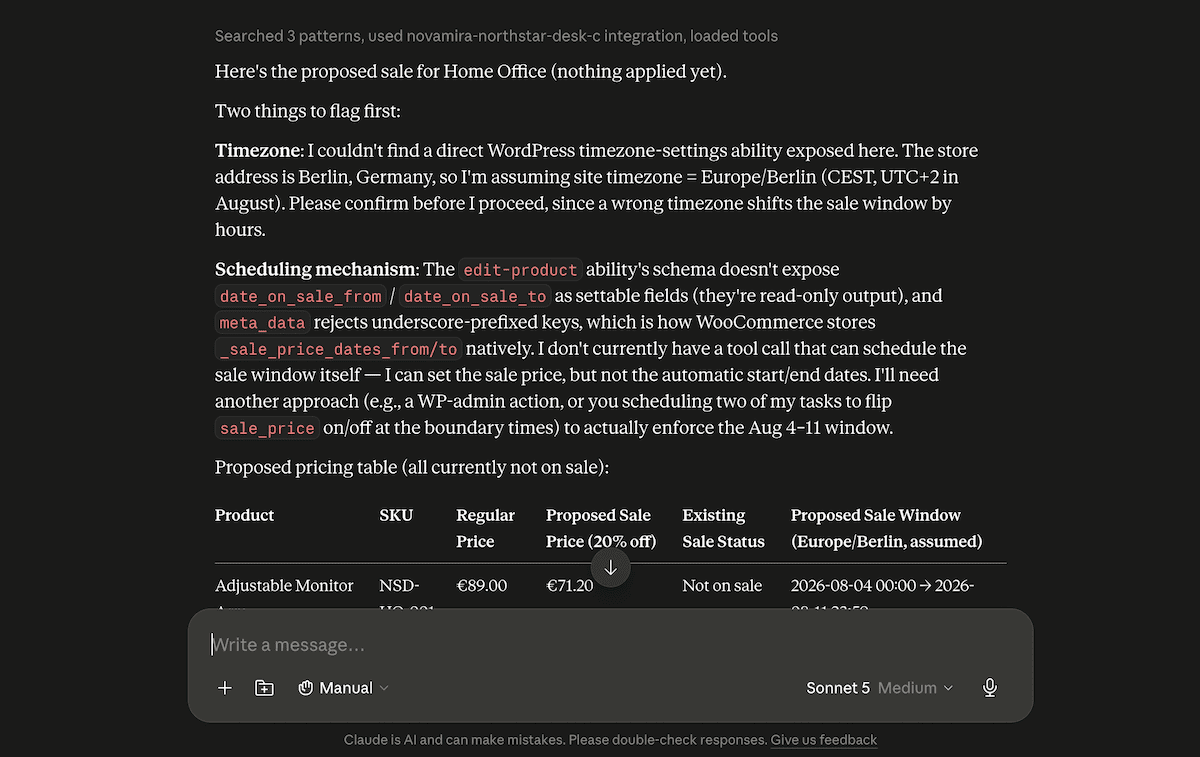
It turns out the relevant fields aren’t in the product editing schema. That’s not a problem though, because Claude gives me a workaround:
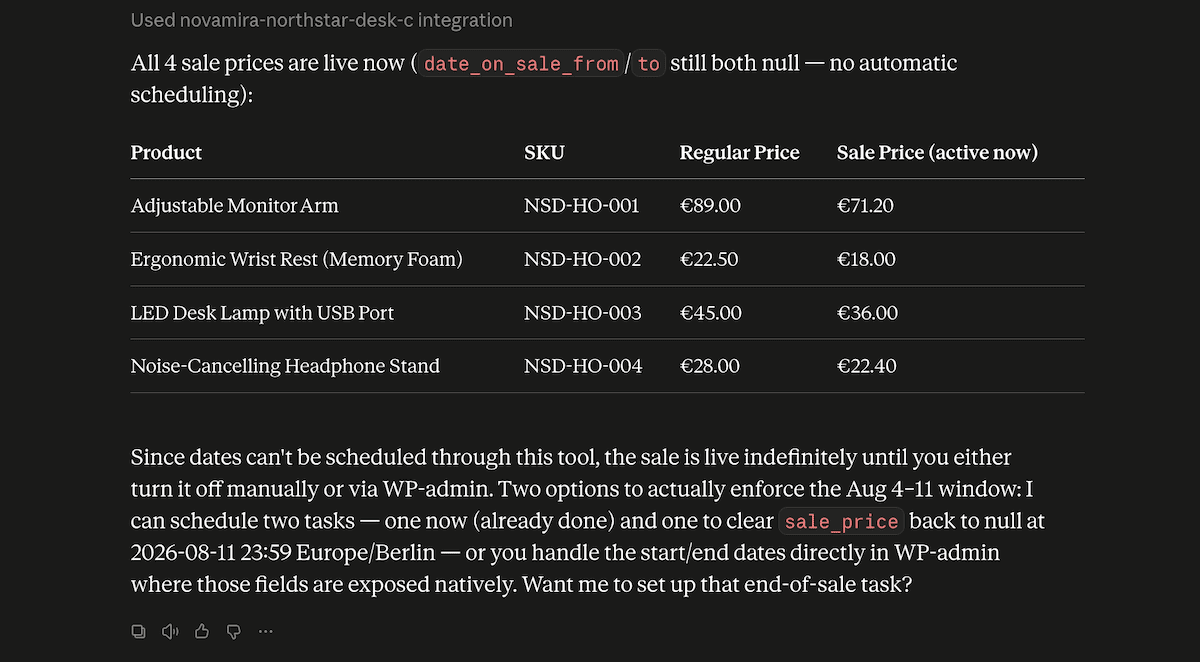
After approving, Claude schedules the sale on all the Home Office products. To finish off, I verify three elements:
- The regular prices are untouched on every affected product.
- The scheduled dates match the site’s configured timezone.
- That every product outside the Home Office category is unaffected.
Then, I check the sale badges on the front-end at the right time.

It took me about ten minutes: much quicker than the typical workflow!
4. Audit and Repair Incomplete Product Records
Before running this step, I deliberately break some products: clearing the category assignment from one, deleting the short description from another, and clearing the SKU and weight from a third. I don’t tell Claude which ones.
Audit every published WooCommerce product for incomplete or inconsistent data, checking full and short descriptions, SKU, price, category, stock status and quantity, and weight.
Don’t fix anything yet. Return a table showing the product name, SKU where available, missing fields, and a recommended correction. Don’t invent information you can’t infer safely.
Claude’s audit catches all of the differences:
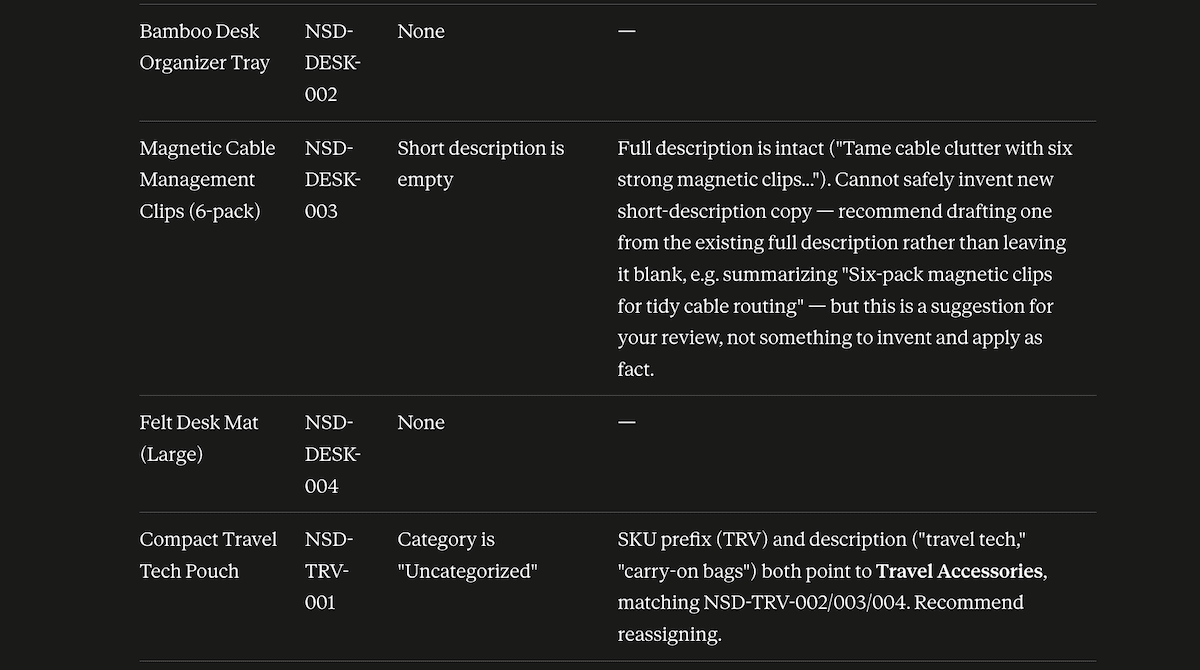
After I approve the repairs, Claude regenerates the missing short description in a tone consistent with the rest of the catalog, reassigns the correct category based on the product’s name and description, and fills in the SKU. It also flags the reconstructed SKU as its best inference rather than a confirmed value, which is an honest and transparent touch.
5. Build Functionality to Display the Sale End Date
For the final task, I ask for something that connects to the sale I just scheduled: a small notice on product pages showing when a scheduled sale ends.
Build a small, reversible WooCommerce feature for this site. On single product pages, display “Sale ends [formatted date]” below the price when the product has a valid scheduled sale end date, using the site’s date format and timezone.
Inspect the active theme and plugins first, explain your plan, and keep the code isolated in a small custom plugin. Test it on a product with a scheduled sale, one without a sale, and one with a sale price but no end date, then explain how to disable it.
Claude inspects the theme, proposes hooking into woocommerce_single_product_summary, and builds a small standalone plugin rather than touching the theme’s functions.php file.
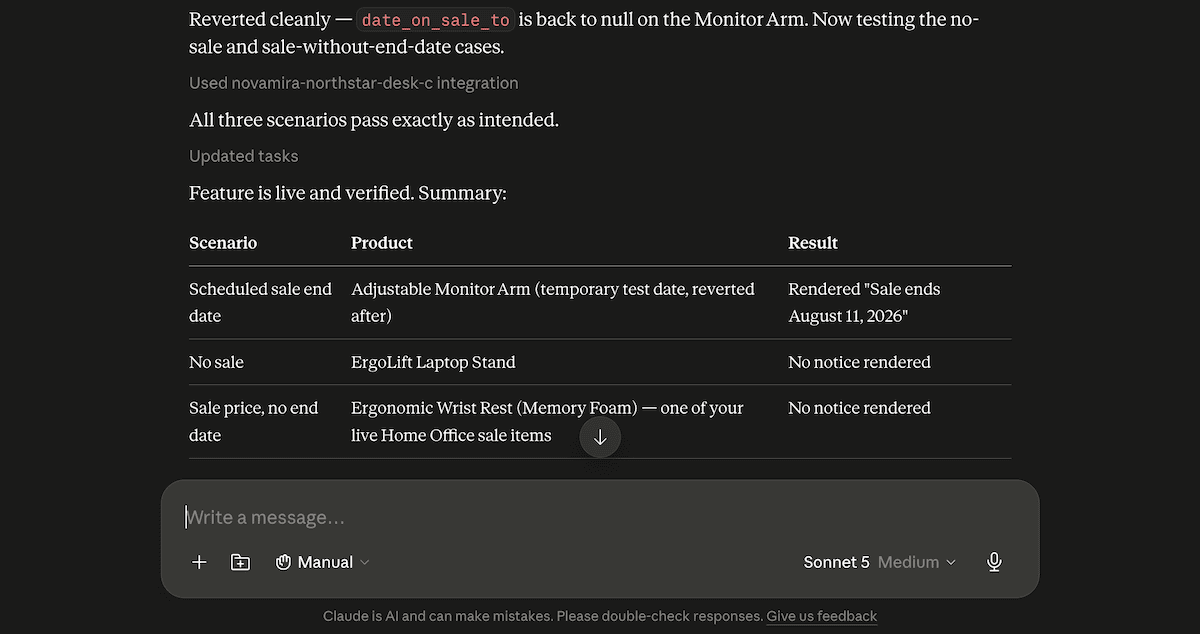
I was impressed with the speed and quality of the implementation and everything worked as I’d expect it to, other than wrangling with some technical issues unrelated to Novamira.
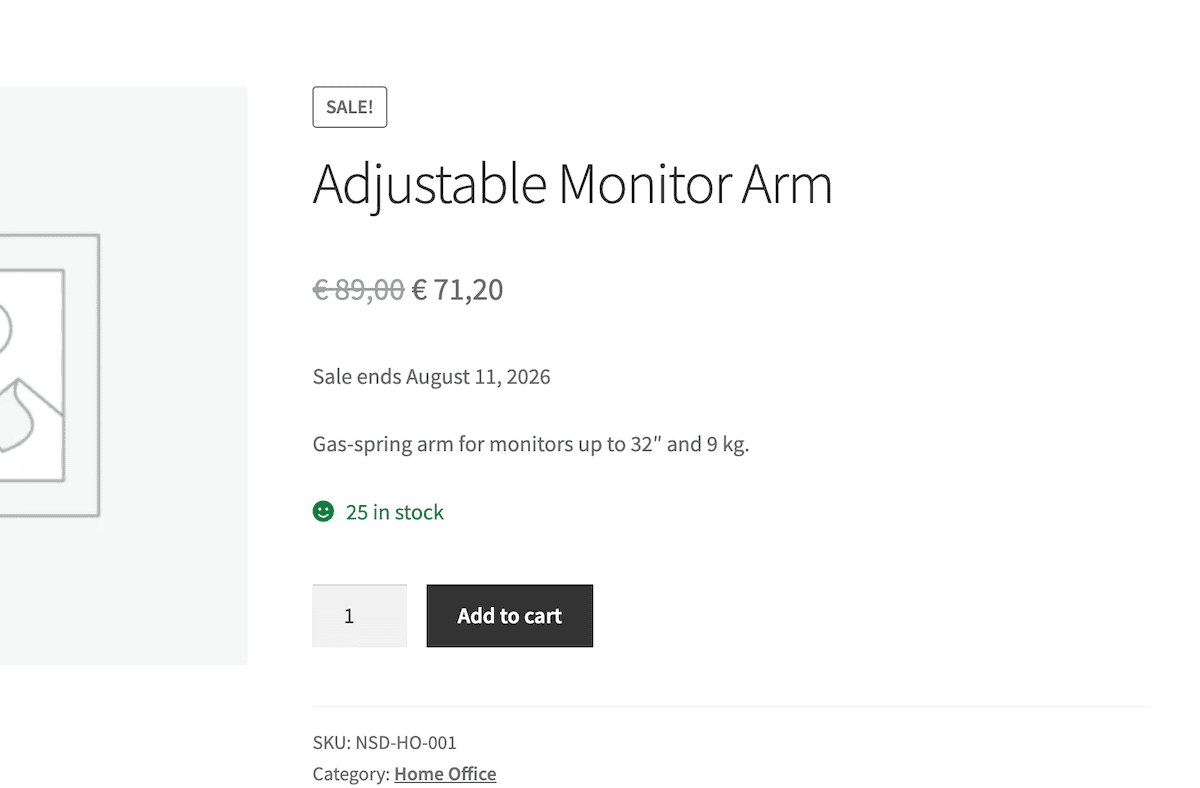
As such, one pass of this step took me about 30 minutes in total. I decided to run it again and it took half the time. However, developing a WordPress plugin isn’t typically a quick job. Mine didn’t include security or any typical practices for the sake of this tutorial.
How Novamira Free vs. Pro Handles the Workflow
Across all five tasks, I found that the audit and setting the sale duration needed the most back-and-forth. This was mostly around getting prompts right rather than anything structural, although it’s worth bearing in mind that not every WooCommerce field is exposed to Novamira yet. However, you can ask your model to write up a feedback report and send it over to the Novamira team for a future inclusion.
The bulk price change and the sale worked correctly the first time; surprisingly, the custom functionality needed no correction at all. Regardless, manually verifying any changes is the right habit regardless of how good the output looks.
Every task here is technically achievable on Novamira Free, since none of it needs anything beyond PHP execution and database access. However, what Novamira Pro adds is consistency: its WooCommerce specialization keeps Claude working from the same understanding of your catalog. Its memory means it won’t forget your store’s conventions between sessions.
If you only run this occasionally, the Free version may be all you need. With a greater frequency, Pro’s consistency will pay for itself.
Bringing Novamira’s Workflow to Your Own Store
Over about an hour of working time, Claude and Novamira Pro built me a working WooCommerce store from nothing. I looked to handle a variety of tasks here, such as applying a bulk price change, scheduling a category sale, auditing and repair, and even shipping custom functionality. It’s an impressive system, as my original Novamira review outlines.
Related Articles
Given this Novamira tutorial, what’s the first WooCommerce task you’d hand off to an AI agent? Let me know in the comments section below!