Most businesses don’t skip contracts because they don’t care about being protected. They skip them because drafting one takes longer than the client is willing to wait. A consultant gets a “let’s start Monday” message, and by Tuesday the work is already underway with nothing signed, because putting together a proper agreement felt like a project of its own. The contract rarely gets left out on purpose. It gets left out because, in the moment, the effort of creating one outweighs the imagined cost of not having one.
Fluent Forms closes that gap by agreeing almost as quickly to send as the project itself: a form that collects both parties’ details, lays out the terms, captures a signature, and files the whole record inside WordPress, with no separate contract software required. Here’s how to build one, along with a look at when a dedicated e-signature platform is actually the better call.
TL;DR
- Fluent Forms Pro, together with the Signature add-on, lets you build a digital agreement form with fields for both parties, agreement details, terms and conditions, and a signature pad.
- Add general fields for names, contact details, and agreement specifics, then use the Terms & Conditions field for consent and the Signature field to capture the signature itself.
- Mark the essential fields as required, set up a confirmation message, and send notifications to both the submitter and your team.
- Pair the form with the PDF Generator add-on so each submitter can download a copy of the signed agreement right after submitting.
- Review, export, and manage every submitted agreement from the Entries section of your form.
Practical Use Cases for Digital Agreement Forms
A digital agreement form is not limited to one type of business. Anywhere two parties need to confirm terms and put a signature on record, a form can replace the back-and-forth of email attachments.
Freelancer contracts
Freelancers can use a digital agreement form to confirm scope, deliverables, and payment terms with a new client before starting work, without waiting for a signed PDF to come back through email.
Consulting agreements
Consultants often need clients to acknowledge project terms, confidentiality clauses, or hourly rates before an engagement begins. A form-based agreement keeps that acknowledgment on record alongside the rest of the client’s details.
Membership or participation agreements
Clubs, courses, and membership sites can use an agreement form to have new members accept participation rules, waivers, or codes of conduct as part of sign-up.
Rental contracts
Landlords and property managers can collect tenant information and have renters acknowledge lease terms online, which is especially useful for short-term or remote rental arrangements.
What a Digital Agreement Should Include
Before you start building, it helps to know what belongs in a solid digital agreement form. A proper digital agreement form should include these:
- Information from both parties, such as names, emails, and contact details for the business and the signer.
- Agreement details specific to the arrangement, like scope of work, dates, deliverables, or payment terms.
- Terms and conditions, written out clearly so the signer knows exactly what they are agreeing to.
- A digital signature field so the signer can confirm the agreement with their own handwriting.
- Supporting documents, if the agreement references an attachment such as a scope document or ID.
- Confirmation and notification, so both sides get a record that the agreement was submitted.
- Downloadable PDFs, so the signer can keep a copy of the completed agreement for their own files.
Electronic signatures carry different legal weight depending on jurisdiction and contract type. This tutorial covers the technical setup only. Check what applies to your situation before going live.
Steps to Create a Digital Contract Form in WordPress
Step 1: Add a new form
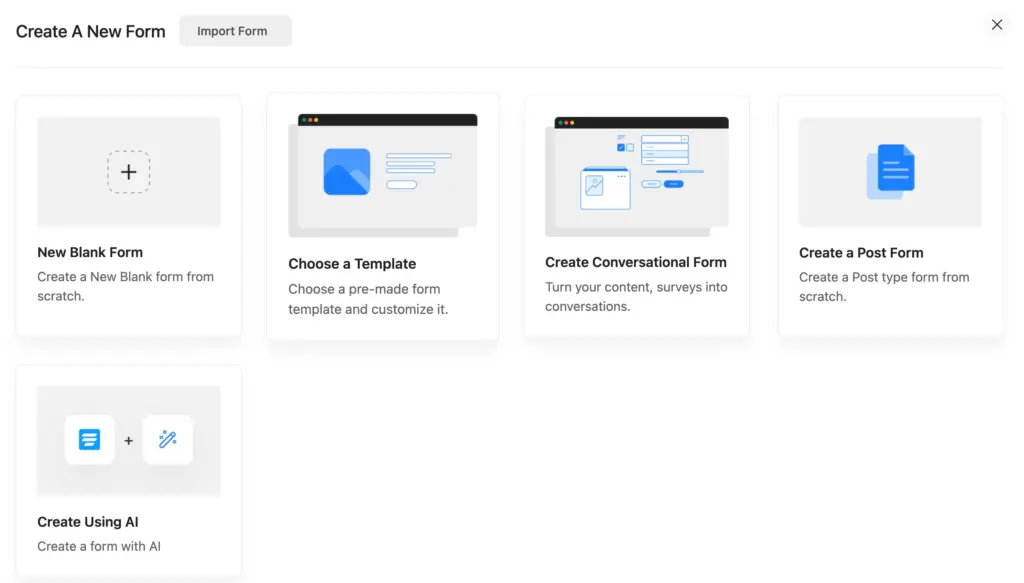
From your WordPress dashboard, go to Fluent Forms and click Add New Form. You can start from New Blank Form or pick a close match from the form templates library and adjust it from there, which can save you time if you are building your first agreement form.
Step 2: Add and customize information fields for both parties
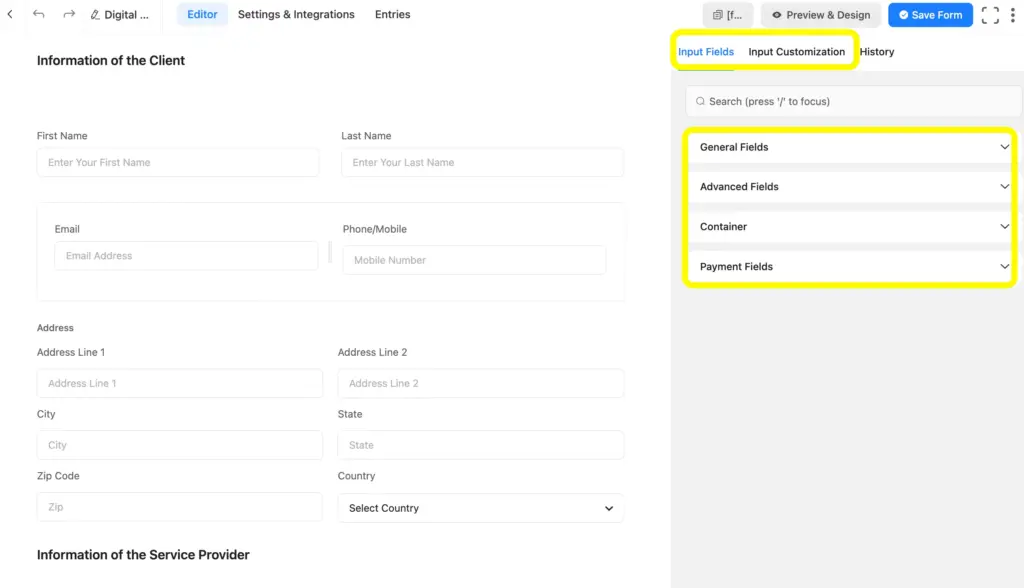
Drag in the fields you need to identify who is agreeing. This typically includes name, email, phone, address, and company fields for both the business and the client. Fluent Forms comes with more than 65 input fields, so you can mix and match general fields with anything more specific your agreement needs.
Step 3: Add fields for the agreement details
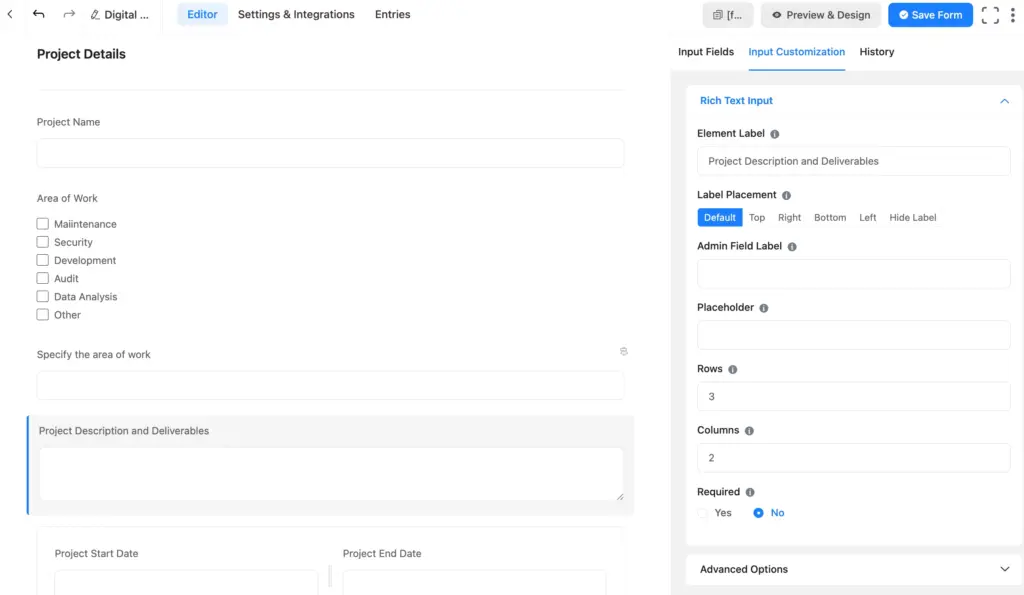
Next, add the fields that describe what is actually being agreed to. Depending on your use case, this might include a description or scope of work, deliverables, project dates, and payment information. A Text Area field works well for longer descriptions.
Step 4: Add the terms and conditions
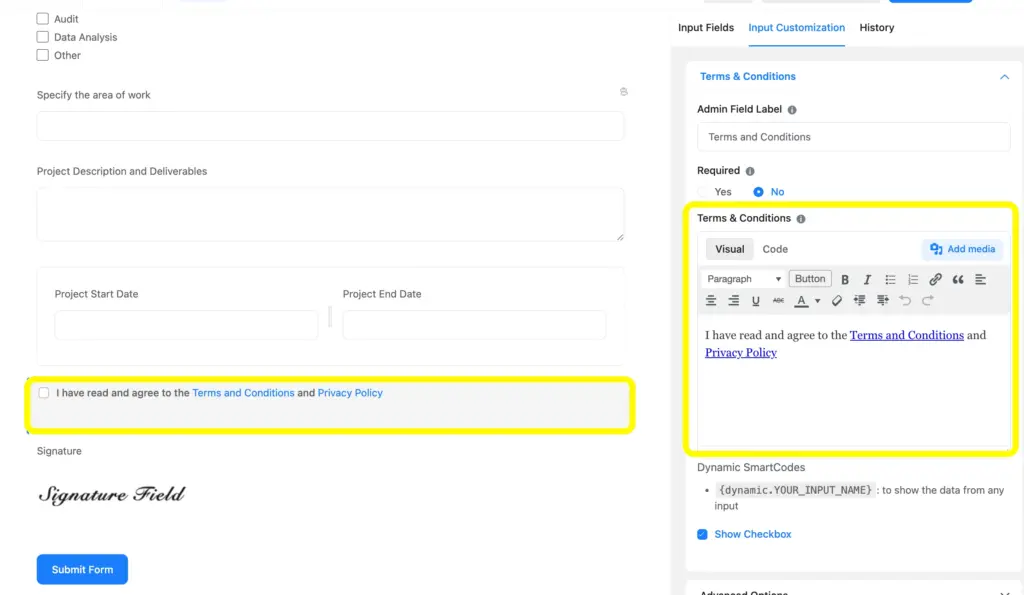
Use the Terms & Conditions field to display your agreement text and require the signer to check a box confirming they have read and accepted it. You can paste in your full terms or link out to a separate terms page, and customize the checkbox text to match your wording.
Step 5: Add digital signature fields
This is the step that turns a form into an agreement. Install Fluent Forms Pro and the Signature add-on Pro, then drag the Signature field from the Advanced Fields section into your form. Signers can draw their signature with a mouse, trackpad, or touchscreen, and it is stored as an image alongside the rest of their submission. For a detailed look at the Signature field itself, see this guide on creating a digital signature with Fluent Forms.
Step 6: Choose and configure required fields
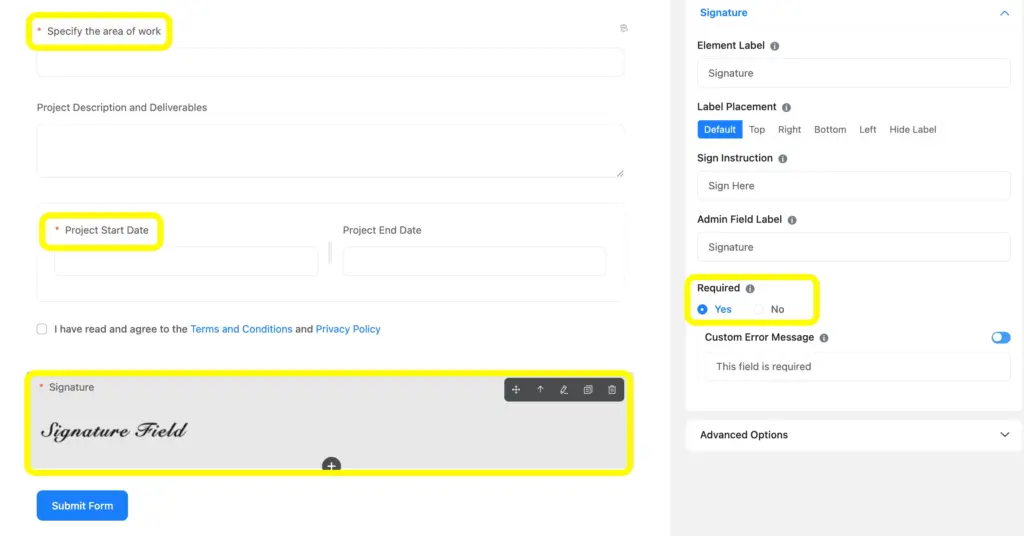
Go through each field and decide what is essential. Name, agreement acknowledgment, and the signature itself are usually non-negotiable, so mark them as required using the Input Customization. This stops a submission from going through with a blank signature or a skipped terms checkbox.
Step 7: Configure confirmation and notification
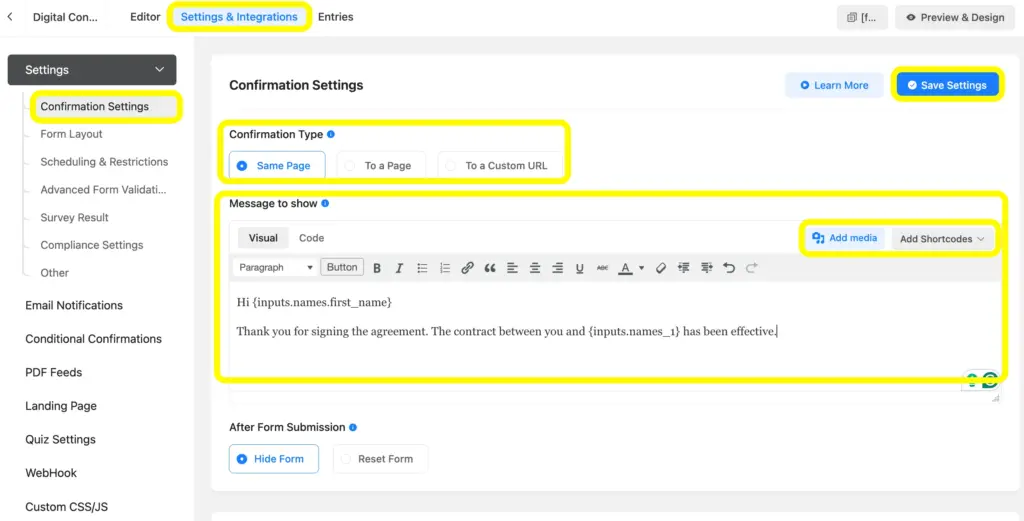
Under Settings & Integrations, go to the Confirmation Settings to set up a confirmation message so the signer knows their agreement went through. You can add shortcodes and media in the confirmation message, and also redirect it to a new page and a custom URL.
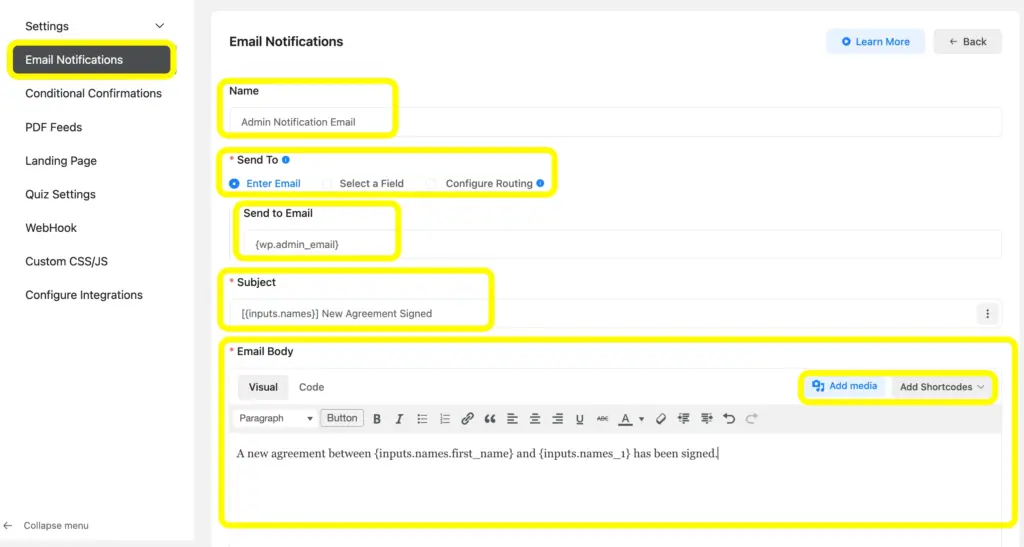
Configure Email Notifications so both the signer and your team receive a copy of the submission. This guide on form submission notifications walks through setting up who receives what.
If you want signers to leave with a copy of the signed agreement in hand, add the free PDF Generator add-on, build a PDF feed for your form, and drop the PDF download link into your confirmation message or notification email. That way, the signer gets a downloadable PDF of the agreement the moment they submit, with a backup copy sent to their inbox.
Step 8: Preview and style the form
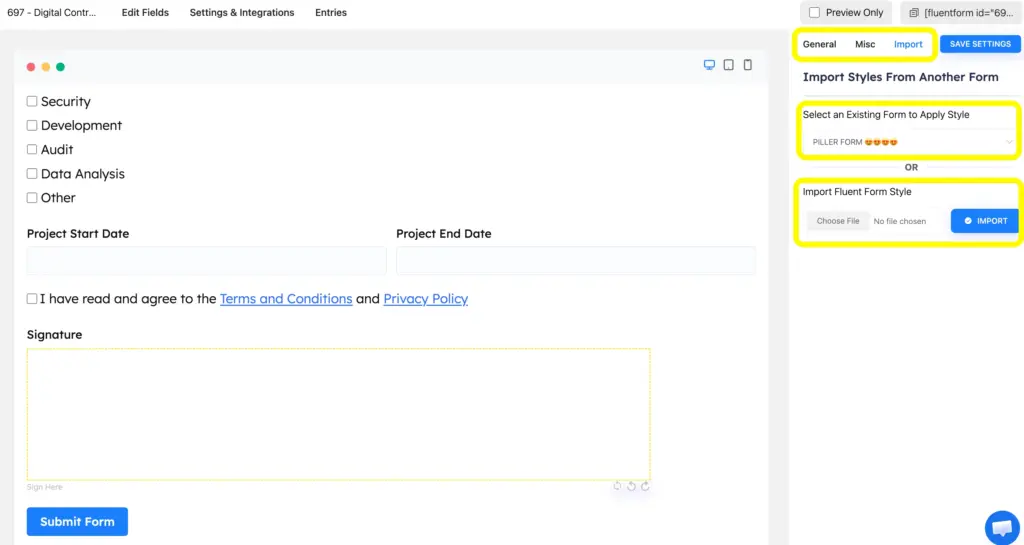
Use the Preview & Design option from the top-right of your form editor page to walk through the form as a signer would, checking that fields display correctly and the signature pad works as expected. If you want the form to match your site’s branding more closely, the advanced form styler gives you control over colors, spacing, and typography without writing custom CSS. You can also import a preferred form style from the preview page.
Step 9: Embed the form on your WordPress site
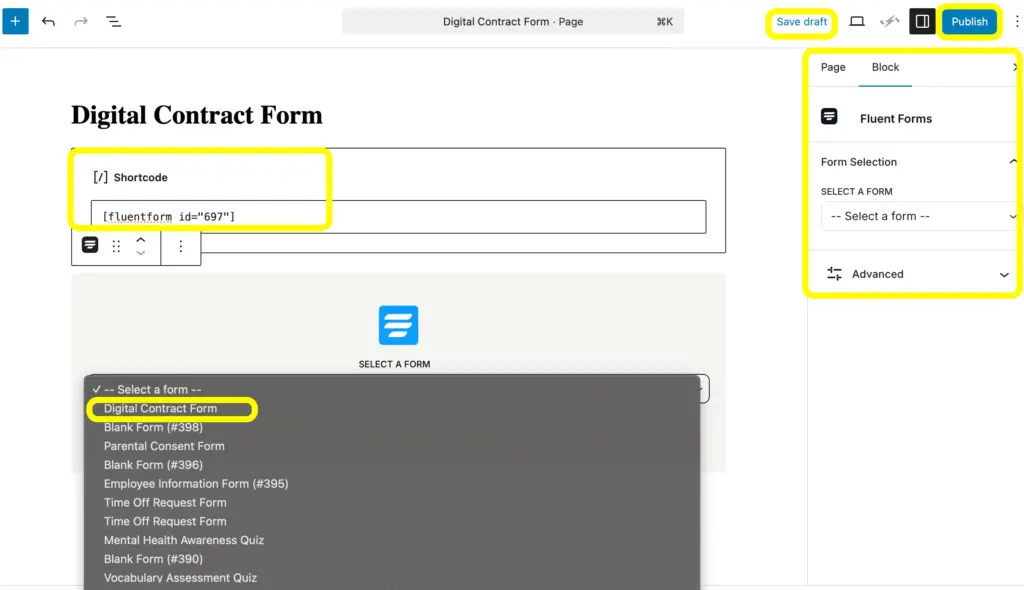
Once you’re happy with the form, embed it on a page or post using a shortcode or the Fluent Forms block. Publish the page, and your digital agreement form is live and ready to collect signed agreements.
Manage Your Digital Contracts with Fluent Forms
Once agreements start coming in, you can review every submission from the Entries section of your form, where each entry shows the signer’s details, the terms they agreed to, and their signature. If you need to move records elsewhere, whether that’s backing them up, sharing them with a client, or bringing them into another system, you can export entries from the Tools section as a CSV or JSON file.
Between the signature capture, the automated notifications, and the option to hand signers a downloadable PDF, this setup covers most of what a small or mid-sized business needs to move agreements online. If you later want to layer in payments, conditional fields, or CRM integrations, Fluent Forms’ broader feature set covers those without needing a separate tool. Get Fluent Forms Pro and access your industry-relevant features and make the most of this form builder.