Wondering how to optimize the WordPress database to boost a website’s performance and loading speed? Then this article is for you, and let me introduce you to a Custom Content Type from Crocoblock.
Custom Content Type (CCT) is a module of the JetEngine plugin, and it is a unique storage approach by the Crocoblock team that not only adds extra flexibility and structure to a WordPress website but also boosts a website’s performance, which is so important. CCT will be a must-have if you deal with a lot of data, for example, contact information about users, their portfolios, details about items in directory websites, etc.
In simple terms, a CCT is a custom set of fields with its own database table. Each item you add (a review, a job application, a booking, a portfolio entry) is saved as one row of this table, and all its fields are stored in the same row. You manage these items in the dashboard much like posts, but they are not posts, so they don’t add any rows to the wp_posts and wp_postmeta tables.
This functionality was added to JetEngine 2.5.0 back in 2020. Since then, CCT has become one of the core parts of JetEngine’s data structure, together with custom post types, Relations, Listings (aka content loops), and Query Builder. So, in this article, I will cover not only how CCT stores data but also how it works with the rest of JetEngine, including the REST API and AI tools.
CCT has two more advantages:
- It can automatically generate forms already connected to CCT with all the fields mapped, so in one click, you get a ready automation where clients can add information from the front end.
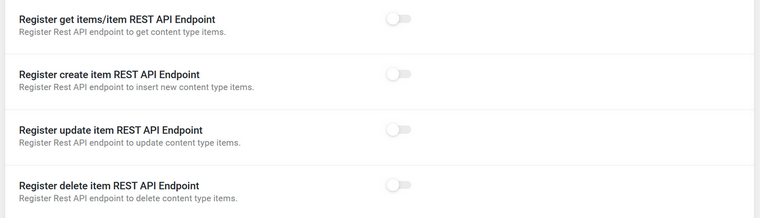
- It has extra functionality for working with REST API, and you don’t need to do anything special to connect endpoints to CCTs without coding, so later you can easily display all the remote content on the front end.
There are many more advantages and interesting use cases; this article will cover most of them. Let’s get cracking!
What Is Custom Content Type (CCT)? The Difference Between CCT and CPT
If you read this, you’ve probably known about and worked with CPT (custom post types). I will briefly remind you, just to give you an overall picture.
By default, WordPress has only seven post types: posts, pages, attachments, menus, revisions, custom CSS, and changesets. Each post type has its template and rules.
For actual content entry in real life, we use two – posts and pages; the first is non-hierarchical and grouped chronologically, while pages are hierarchical and don’t have this grouping.
In the simplest website architecture, posts are normally used for blog posts or news, while pages are for static pages, such as “About Us,” “Contacts,” etc.
But what if you want to create other pages/posts with their own custom fields and templates? For example, for portfolios or properties? You don’t have to repeat designing each one every time anew; you just enter data, and it will be where it should be.
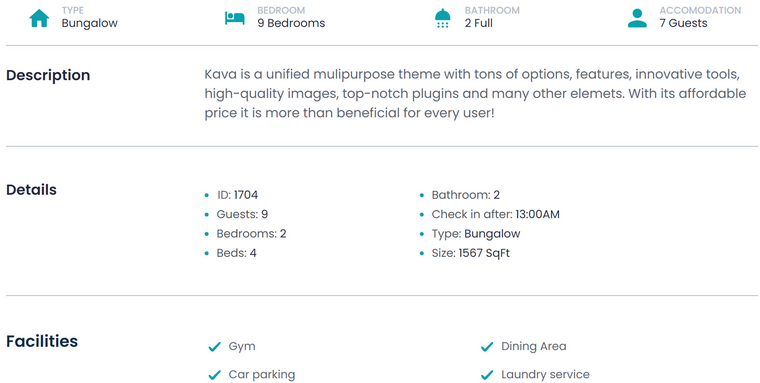
Here is an example of a template for a “Property” custom post type, so you just enter the number of rooms, description, facilities, etc., and this content automatically goes to the right place on the template.
СPT performance drawbacks
All WordPress post types – default and custom – do have, if not actually a flaw, then a characteristic to consider: all the content is stored in two database tables, wp_posts and wp_postmeta.
The wp_posts one has information about the ID, post title, post type, post date, etc. And wp_postmeta holds all the meta fields, including the hidden ones. That’s why there can be a lot of them, even in a simple post.
Here is an example of how it looks for a random home page. When a server fetches content, it first checks the wp_posts table for the particular post, then goes to the wp_postmeta table to get all the meta fields connected to it.
Pay attention to the fact that each meta field of each post is stored as a separate row, which means that if, for example, we have a post with 20 meta fields, it will occupy 1 row of the post database table and 20 rows of the post meta database table. Thus, if we add 100 posts, their data will occupy 2100 database rows.
The bad thing about large databases is that the system takes a long time to process all the records to find the required data. Ultimately, the more data you have on your site, the slower its loading speed.
We wanted to solve the issue. And that’s how Custom Content Type appeared.
What Is a Custom Content Type (CCT)?
Custom Content Type (CCT) is an entity similar to CPT that allows you to create a separate table in the WordPress database to store its fields. You can configure the structure and add an interface to the admin panel to view, edit, and export data stored in this table.
In other words, CCT is quite similar to CPT, but all the data of each custom content type is stored as a separate row in a database, so there’s no need to retrieve any data from other DB tables or rows. It also means that 100 posts with any number of meta fields occupy 100 rows (not 2100 as in the previous example).
As you can see, it’s nice and compact:

If you decide to deactivate JetEngine one day, the content will remain available (and stored in the custom tables you’ve created). To get it without JetEngine, you will need to write quite a standard SQL query:
global $wpdb;
$ccts = $wpdb->get_results( "SELECT * FROM wp_jet_cct_testing WHERE _ID <= 20" );
Replace “testing” with your unique table name and set the range of rows you want to fetch instead of 20, or remove WHERE_ID <= 20 if you want to fetch the whole table.
With JetEngine active, you can also work with CCT items in PHP. Each content type has an item handler that creates and updates items, for example, from a custom form handler or a sync with an external CRM:
$type = \Jet_Engine\Modules\Custom_Content_Types\Module::instance()
    ->manager
    ->get_content_types( 'inquiries' );

$handler = $type->get_item_handler();

$item_id = $handler->update_item( [
    'property_id' => 42,
    'client_name' => 'J. Smith',
    'status'      => 'new',
] );
CCT as the Data Layer of a JetEngine Project
The best way to understand CCT is to see it as the data layer of a website. A dynamic WordPress project usually has several layers, and JetEngine has a separate tool for each of them:
- Publishing layer – Custom Post Types. Content that needs its own page and URL, such as properties, job listings, courses, or articles.
- Data layer – Custom Content Types. Structured records that are mostly added, edited, filtered, and displayed inside other pages, such as applications, reviews, bookings, or profile entries.
- Connections – Relations. Links between posts, CCT items, users, and terms.
- Presentation layer – Listings (JetEngine’s loop templates), Query Builder, and JetSmartFilters. They fetch, filter, and display data from all of the above.
- Access layer – REST API and the MCP Server. They give other apps and AI tools access to the data and the website structure.
When records are kept in a separate data layer, the posts tables store only the content that really needs to be posts. Records can grow to thousands of items without making queries for regular posts slower. Also, each CCT is a table with a fixed set of fields, so its data has a predictable structure that is easy to filter, export, send to other apps, or pass to AI tools.
So, the question is usually not which one to use for the whole website, but which entities are content and which are data. For example, a job board keeps job listings as a CPT, so they get their own pages and are indexed by search engines, while job applications are stored in a CCT.
For example, a real estate project can be structured like this:
- Properties – a CPT with the Custom Meta Storage feature. They need their own public pages, so they stay posts, but their meta fields are stored in a dedicated table.
- Agents – a CPT, as agents have public profile pages.
- Districts – a taxonomy for classification and filtering.
- Inquiries – a CCT. Viewing requests submitted for properties don’t need public pages, so they are stored in their own table and never touch wp_posts.
- Agents ↔︎ properties – a many-to-many relation with its own meta fields, such as “main agent” or “assisting agent.”
- Property status – a glossary with values like available, reserved, and sold.
- Saved properties – a data store for each user.
📌 To learn how this structure works from the developer’s side, read JetEngine for Developers: The WordPress Data Framework Behind a Visual Plugin.
Custom Content Type vs. Custom Post Type: What to Choose
If you are wondering when to choose CCT and when to use good-old CPT, this chart will be extremely helpful:
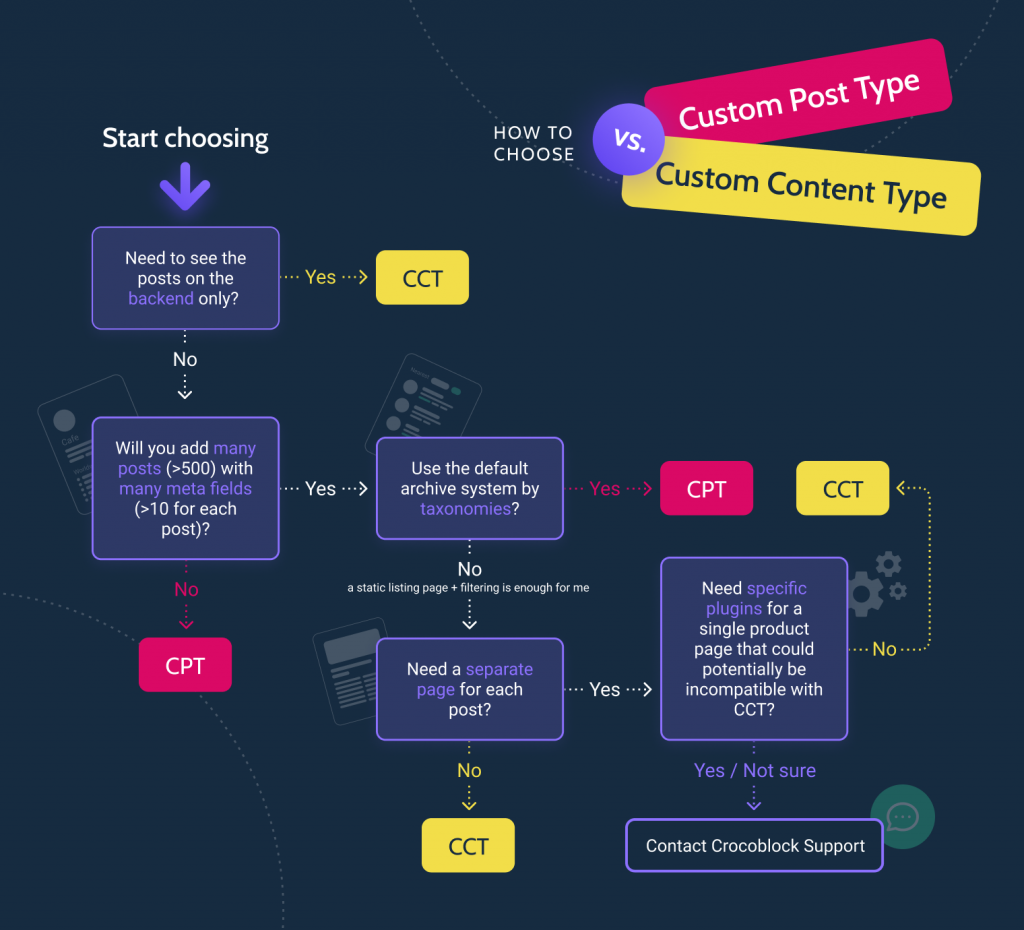
At the same time, this chart is a bit simplified. So, I want to clarify some details here.
CCT vs. CPT with Custom Meta Storage
JetEngine can also move the meta fields of a CPT to a separate table. To do this, enable the Custom Meta Storage toggle in the post type’s General settings. After that, all meta fields of this post type are stored in a dedicated table, one row per post, instead of the wp_postmeta table. Find more details in the Custom Post Type Overview Help Center article.
In terms of database load, this brings CPT close to CCT. The difference is where the rest of the data is stored. A post with Custom Meta Storage is still a regular post: its title, content, status, date, and slug stay in wp_posts, and it keeps everything WordPress offers for posts, such as URLs, taxonomies, archives, and revisions. A CCT item has no entry in wp_posts at all, and the whole record lives in the CCT table.
So, if the entity needs to work as a post (have its own page, be indexed, use taxonomies, or work with plugins built for posts), use a CPT with Custom Meta Storage. If it’s a data record shown inside other pages, use CCT.
Separate page for CCT
CCT doesn’t generate dedicated pages for each record. But it has nothing to do with restrictions because you can display any field anywhere, sometimes even in a more flexible way using JetEngine’s Listing Templates and Query Builder. We will talk more about it further.
However, if you still want your CCT to have separate pages, simply activate the “Has Single Page” toggle, choose the associated post type, and map fields such as Title and Content (at least the first one, so the post would have a proper title).
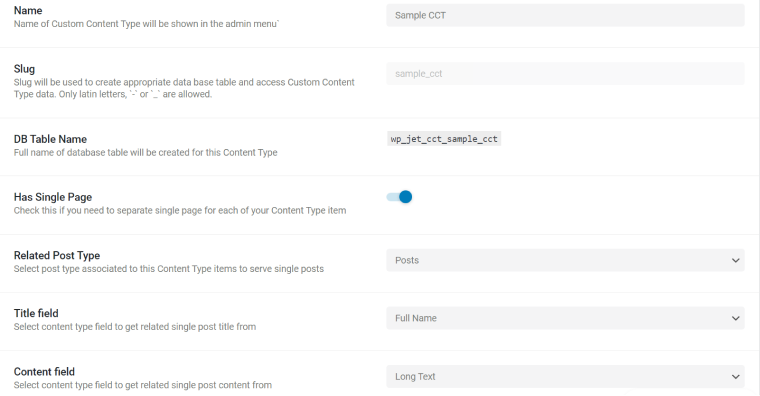
Now, you can build a template for this CPT, and the corresponding CCT fields will be available as a source for the Dynamic Field widget or in a list of dynamic tags. Use the JetThemeCore plugin or Elementor Pro template builder.
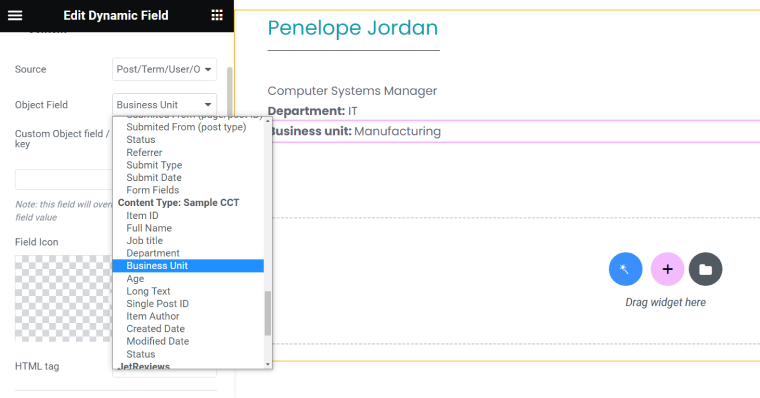
By connecting CPT this way, you will still have an advantage in performance because there will be only one linked row in the wp_posts DB table, and all the meta fields will be stored as one row in the corresponding CCT table.
📺 Find more details about creating a connected CPT in this video. While JetEngine interface is a bit outdated there, the idea is still the same.
Taxonomies for CCT
You can’t create taxonomies for CCT because the whole idea of this entity is to keep things in one table, while taxonomies entail at least two additional DB tables.
However, if you need such functionality, link things with the help of a Relation – it will be an even more flexible solution. Relations can connect CCT items with posts, users, terms, and items of other CCTs.
How to Сreate a Custom Content Type?
To work with Custom Content Types, activate the module in JetEngine > JetEngine. After this, you will see a corresponding menu item appear in the JetEngine section. Click “Add New” and set all the fields, assign an icon and dashboard menu position, as well as admin columns and filters. You have all the field types available for CPT and can also control REST API endpoint generation.
📚 Find all the details about this process in the Help Center article.
Also, this video will give you an overview of the process, but note that it’s not recent, and the older JetEngine version was used here:
Displaying Custom Content Types on the Front End
It’s plain and straightforward with CPTs – just create a template and assign it to the corresponding post type. But what to do with CCTs, when they basically represent just sets of meta fields?
The first method is to connect the associated CPT, and I’ve described how to do it in the previous section. But the most frequently used way of fetching CCTs is inserting their listings into other templates/pages/posts.
Our Job Board demo website is good for illustrating how CCTs can be used and displayed. The central thing of the site is a Profile Builder, and for adding Work Experience and Portfolio blocks to users’ profiles, CCTs are being used. Also, there’s an Apply for Job CCT.
All these elements have two things in common:
- A separate page is not required for all of them because they are just a part of some templates.
- They are populated via forms. And once again, I will remind you that forms for CCTs can be created in one click, and the “Insert/Update post” post-submit action will be set up for you, so you don’t have to spend time adding fields and mapping them with the corresponding CCT fields.
Creating a CCT listing (loop template)
The CCT listing template is created exactly like the one for posts, pages, or CPTs. Simply select “Custom Content Type” as a source of your new listing.
Then add the Dynamic Field/Image widget. The only difference here is that for fetching CCT’s fields, in the Source for the field, don’t select Meta Fields, but stay on the first default value “Title/Term/User/Object Data,” and you will see the list of all the CCT fields.
Filtering results
You can perform complex filtering using the JetSmartFilters plugin. The process of setting it up is the same as for CPT and is very straightforward.
Creating a Query Builder query for complex cases
Query Builder is handy for simple tasks, such as sorting items for the listing, but absolutely essential for more complex tasks.
For example, to display a portfolio of a particular employee in this demo case, we needed a custom query for the “Portfolio” CCT. After creating it in the Query Builder (check out the video below), we’ve just added it in the Listing Grid > Custom Query tab when designing the public profile of the employees.
There can be hundreds of combinations, and you will definitely find what works best for your project.
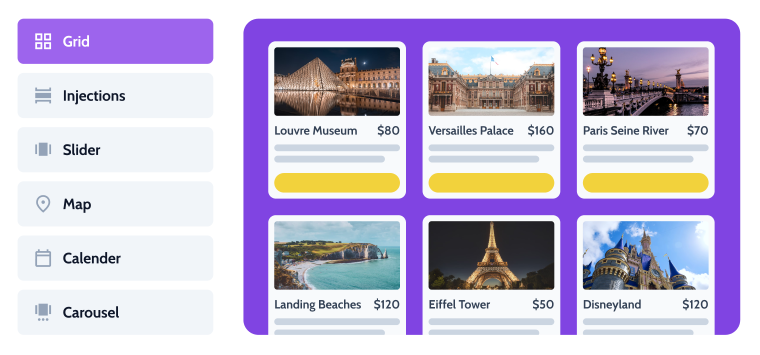
Displaying CCTs as tables, charts, calendars, sliders, or on the map
The logic behind such design layouts is simple: you create a query in Query Builder using CCT as a source and then use it to create tables, charts, etc.
Other CCT Use Cases
Except for the obvious – using CCT as an alternative to CPT – there are some I would like to draw your attention to.
Directories and marketplaces
In a directory, the listings themselves usually need their own pages, so they work best as a CPT (with Custom Meta Storage if they have many fields). But the data around them, such as reviews, inquiries, bookmarks, or price history, grows much faster than the number of listings. Storing it in CCTs connected to listings and users with Relations keeps the posts tables small, and each type of data can be filtered, moderated, and exported separately.
Bookings, orders, and other transactional data
Bookings, orders, requests, and activity logs are created by user actions rather than written by editors. They don’t need separate pages, and there can be thousands of them. In a CCT, they are added and updated via forms, displayed in user or admin dashboards as tables, calendars, or charts, and exported from the admin panel.
Inserting and updating CCT from the front end
Using JetFormBuilder, you can add and update CCTs from the front end. Watch this video to learn more details.
Working with REST API
You can add Custom Content Types remotely using the REST API and display them on the remote website or app.
REST API in JetEngine is not limited to CCTs, although they have the most advanced built-in controls.
📚 Learn more use cases about working with the REST API using JetEngine in this article.
Assigning CCTs to Users
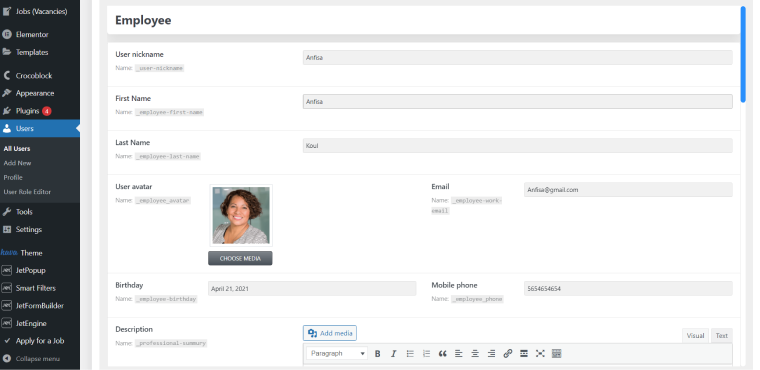
It’s a very useful functionality for any membership website or for creating beautiful public profiles for website users. You only need JetEngine with the Custom Content Type and Profile Builder modules activated.
📚 Read detailed instructions about connecting CCTs to Users for making great public user profiles in WordPress.
📚 It’s easier than it seems. Check out this article with all the details.
Since version 3.8.0, JetEngine has an MCP Server. MCP (Model Context Protocol) is a standard way to connect AI tools to other apps and services. After you enable the server in JetEngine > JetEngine > MCP Server, AI clients such as VS Code with GitHub Copilot can read your JetEngine configuration (post types, CCTs, taxonomies, meta boxes, queries, relations, REST API endpoints, and glossaries) and create new structures, including CCTs. The setup is described in this tutorial. You can do similar things right in the dashboard with the Command Center.
AI tools can also work with CCT data itself. As CCT items are available via REST API, AI app builders such as Bolt and Lovable can generate front ends that display, filter, and submit CCT data, while WordPress works as the backend. Read the article on combining JetEngine with Bolt and Lovable.
This is where a separate data layer matters a lot. When records are stored in CCTs with defined fields and connected with Relations, an AI tool can see what data the website has and how it’s connected, so it works with the real structure of the website instead of guessing.
FAQ
It’s a content entity originally created by the Crocoblock team as part of JetEngine plugin functionality to optimize the WordPress database and store custom fields in a more efficient way. Each Custom Content Type, or CCT, creates a separate database table. Each post entry occupies one row there, unlike the posts (or CPTs) that store information in two tables (wp_posts and wp_postmeta), where each field (not a post) occupies a separate row, so it takes time to crawl through all of them in order to retrieve information for one post.
CCT boosts performance, and you can clearly feel it when working with a lot of data and meta fields; it’s great when you need to get data from forms to populate CCTs because forms are created automatically; CCT has extensive functionality for working with the REST API.
CCT can be compared with a set of meta fields, where each CCT has a dedicated database table. At the same time, it creates a link in a dashboard menu (just like when working with CPT) and has a lot of admin columns, settings, and filters for more convenient viewing and sorting.
You need the JetEngine plugin with the Custom Content Type module activated.
Both store custom fields in a separate table instead of wp_postmeta. But a CPT with Custom Meta Storage is still a post, so its title, content, status, and URL stay in wp_posts. A CCT item is not a post, and all its data is stored in the CCT table.
CCT items don’t have their own URLs by default, so they aren’t indexed as separate pages. Their content is still indexed on the pages where you display it. If items need their own pages, enable the “Has Single Page” toggle or use a CPT.
Yes. With JetEngine’s MCP Server, AI clients can read the website’s JetEngine configuration, including CCTs, and create new CCTs and other structures. CCT data is also available to other apps via the REST API. For example, AI app builders like Bolt and Lovable can use CCT endpoints as a backend.
The CCT approach is unique to Crocoblock; the only case with similar functionality is the Meta Box plugin and its MB Custom Table module.
You need the JetEngine plugin with the Custom Content Type module activated. For custom post types, you can also enable Custom Meta Storage in JetEngine.
To Sum Up
JetEngine’s Custom Content Type module is a great help if you need to create content different from a page or post. With its help, you can add any number of items, which won’t take a toll on the database. Ultimately, it means faster queries, faster filtering, and less server resource usage.
But CCT is more than a faster way to store fields. It’s the data layer of a JetEngine project: together with custom post types for content, Relations for connections, and listings and Query Builder for display, it gives you a clear data structure that is easy to extend, connect to other apps via REST API, and manage with AI tools via the MCP Server.
But that’s not all; as you can see, there are a lot of great use cases, particularly for this entity.