If you have your website design in Figma, even on the free plan, you can turn it into a working website in under 15 minutes using WordPress AI-first CrocoBuilder. It will not only recreate it but also add the full design system, variables, and reusable components. Everything stays fully editable not only with code but also using visual controls.
Let’s get straight to the point.
Figma Framelink MCP Settings
I took one of the Figma Community designs, a bit outdated and not AI-generated – so nothing specially prepared or optimized for this test.
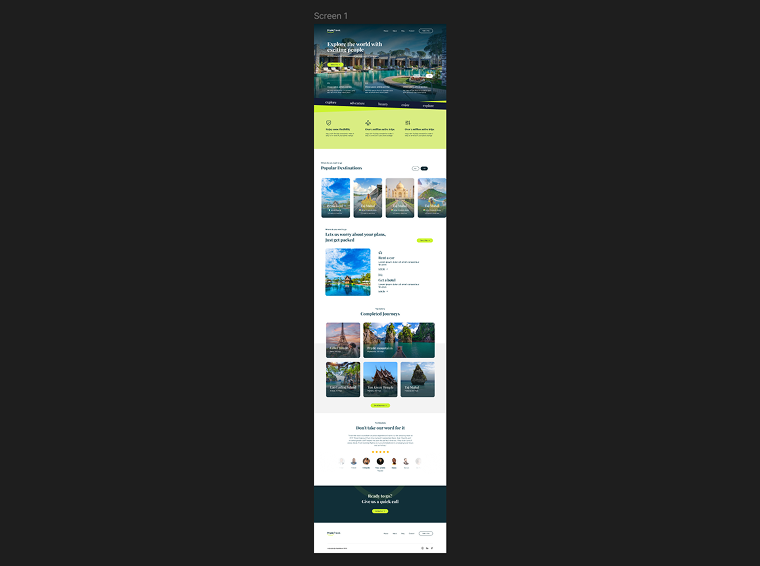
I used Figma and Claude Code, but here is the first limitation – my free Figma plan. Even though a remote Figma MCP server is available on all Figma plans, there are important limits: Starter and View/Collab seats are limited to six MCP tool calls per month. It can be enough for a very simple page, but I don’t want these limitations.
That’s why I used Framelink – it’s an open-source tool that doesn’t allow me to edit a Figma file using my coding agent, but it can read Figma designs, which is exactly what I need.
Setting up Framelink for Figma and connecting it with Claude Code
Go to your Profile (a home icon) > Your Name dropdown > Settings and open the Security tab. There, in the Personal Access Tokens section, click “Generate new token.” Save this token to connect your coding agent. I used Claude, its desktop app, so the best way to connect it is to edit the claude_desktop_config.json file. You can find it in the Claude desktop app > Settings > Developer > Local MCP Servers. There, click “Edit config.”
There, add this config and replace YOUR-API-KEY with your real key.
For Windows:
{
  "mcpServers": {
    "Framelink MCP for Figma": {
      "command": "cmd",
      "args": [
        "/c",
        "npx",
        "-y",
        "figma-developer-mcp",
        "--figma-api-key=YOUR-API-KEY",
        "--stdio"
      ]
    }
  }
}
For macOS:
{
  "mcpServers": {
    "Framelink MCP for Figma": {
      "command": "npx",
      "args": [
        "-y",
        "figma-developer-mcp",
        "--figma-api-key=YOUR-API-KEY",
        "--stdio"
      ]
    }
  }
}
If you already have other MCP servers configured, don’t copy the outer { “mcpServers”: { … } } wrapper. Paste only the “Framelink MCP for Figma”: { … } entry inside your existing “mcpServers” object, and add a comma after the closing } of the server entry before it.
Close your Claude agent completely (shut down) and restart it after a few seconds. Your new connection should appear in Settings > Connections.
Now, your Claude Code has access to your Figma. But Framelink needs a link to your frame – click on the frame you want to transfer to your website, right-click on the frame > Copy/Paste as > Copy link frame. Paste it into your chat, and you are good to go.
Connecting CrocoBuilder MCP to Your Agent
CrocoBuilder Version 1.1.0 has updated and correct instructions for connecting your AI agents. So, just copy and paste them from CrocoBuilder > Dashboard > AI/MCP page.
There, first enable MCP, then generate the Bearer token.
Below, you will find instructions for all the popular AI coding agents.
I used Claude Code and the method where I manually edit the config file, so my config now looks like this:
{
  "mcpServers": {
    "Framelink MCP for Figma": {
      "command": "cmd",
      "args": ["/c", "npx", "-y", "figma-developer-mcp", "--figma-api-key=YOUR-FIGMA-API-KEY", "--stdio"]
    },
    "crocobuilder": {
      "command": "cmd",
      "args": ["/c", "npx", "-y", "mcp-remote", "https://mysite.com/wp-json/crocoblocks/v1/mcp", "--header", "Authorization:${CB_AUTH}"],
      "env": {
        "CB_AUTH": "Bearer YOUR-CROCOBUILDER-TOKEN"
      }
    }
  }
}
Figma to WordPress: How to Build a Page with CrocoBuilder
Now, when everything is ready, I can move on to actually building a page.
First, ask your agent to create a design system (add all CSS classes and variables). Then, ask it to create reusable components for items where such components will make sense.
Note that you should upload custom fonts yourself in CrocoBuilder > Dashboard > Fonts, and the agent may ask you about it. It’s an easy task, as you can connect directly to Google Fonts and install required fonts from there. And, of course, you can upload your own.
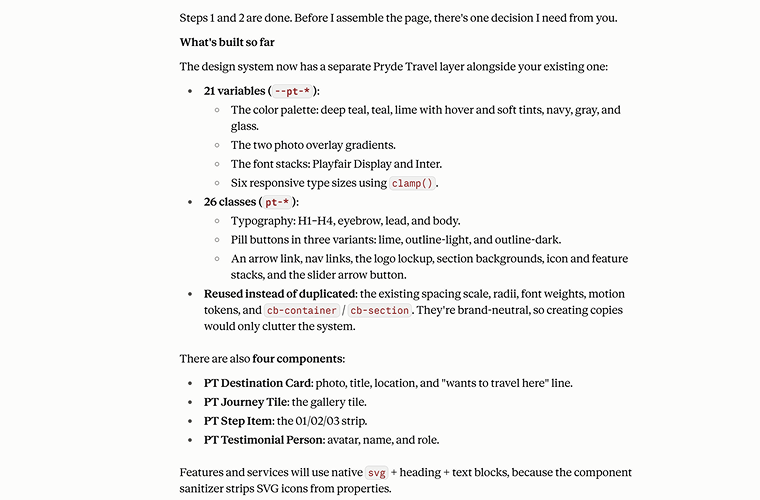
After a few minutes, this step is completed, and the agent gave me a full report.
Now it’s time to do the core work, so I tell the agent to build the header and footer first using CrocoBuilder’s Theme Builder, and then build the page itself. I specify that the page should not be created in the Theme Builder because it’s a regular page, not a template.
And, by the way, I already had a header and footer built, but that wasn’t a problem. The agent noticed them and asked which ones I wanted to make global.
After five minutes, my page was ready.
It had two issues: first, there was a white gap between the header and the page body; second, the colorful background sections that were supposed to span the full width of the page were limited to the width of the main content area. The reason is the theme: I used the Hello theme, and it has a Page Title gap by default, so I switched it off in the theme’s settings. And for the full-width backgrounds, the agent created a full-bleed class to stretch the containers, so all issues are fixed within two minutes.
My page is ready, and it’s fully responsive, without any extra effort.
The last thing I should do manually is upload images instead of placeholders, as the agent can’t export and upload them; it just uses placeholders.
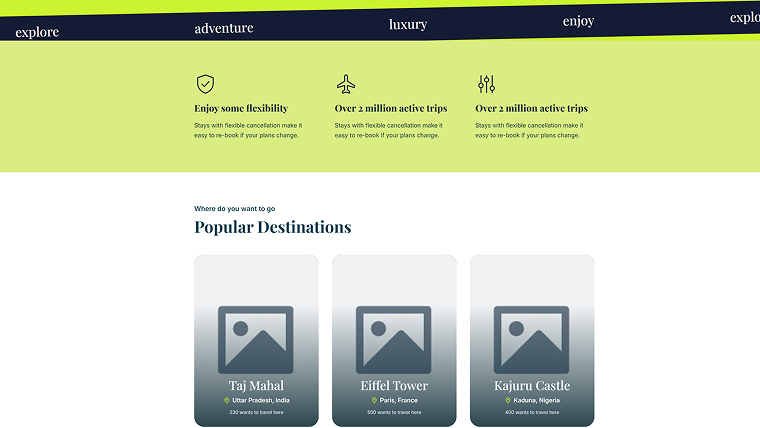
Displaying Dynamic Content Using CrocoBuilder Query Loop
If you build a static page, you are done. But if you want to display dynamic content on this page, your work is not done.
I’ve created a custom post type (CPT) called Destinations using JetEngine to replace my static Destination cards (made of a Destination-Card component).
The CPT has two custom fields – “location” and “want_to_visit” (to show how many people are interested in the place).
I’ve added three posts to my destination CPT and am ready to fetch the data dynamically. To do it, follow the steps:
- Add the Query Loop element to the page.
- Create a query – choose which post type to fetch, and you can narrow the selection by choosing posts with specific meta fields, authors, date range, and other data.
- As a design element, use the existing Destination-Card component. But replace the static fields (image, text fields) with the dynamic tokens by clicking the “{ }” button.
You can switch between “Edit template” and “Preview template” modes to edit and preview the result.
💡 What is super useful at this step is to connect your JetEngine MCP, so the agent can fetch data about your existing CPTs and their fields. When this MCP is connected, the AI agent can set up the Query Loop element for you.
Your AI-powered WordPress builder is here. Meet CrocoBuilder

As a result, I have the dynamic post loop. Of course, if you want to make these loop items clickable, ask your AI agent to wrap the component with the link wrapper and set up a dynamic link there.
And the CPT, when the user opens the link, should have a template – you can build it just like we built this page, but assign it as a template for your particular post type.
🎉 That’s it, the page is ready! And just like this, you can create the rest of your website pages.
Inserting JetEngine’s Listings in CrocoBuilder Using Custom Code
The Query Loop element that CrocoBuilder offers is a powerful tool for displaying data dynamically – you can select the post type, query data by meta fields, date, author, and other values, and set up pagination and ordering. You can work with posts, users, and comments.
However, it’s not as powerful as JetEngine’s Query Builder tool, as the latter has many more query types and dynamic settings. For example, if I build a Destination CPT template and want to display related items from the current post, I need a Relations query type, which is not available in CrocoBuilder’s built-in Query Loop.
There’s also no built-in element for inserting a Listing Grid (a loop template created in JetEngine) into CrocoBuilder. The advantage of using JetEngine’s loop template (called a Listing Template) is that you can use JetEngine’s Dynamic Field, which has a big list of callbacks. For instance, you can fetch an image by ID, display Glossary labels instead of values, format complex arrays and dates, execute shortcodes, and much more.
So, using JetEngine’s Query Builder and Listing Template combo is a more powerful solution than using Query Loop. In my particular example, I don’t really need it, except for the dynamic display of my country flags. In the example above, the agent replaced the flags with a location pin icon.
Of course, I could create terms for all the countries my destination posts can belong to and add a meta field with an image (flag) for each of them. However, I wanted to do it another way – create a JetEngine Glossary with all the countries and, in the Label field, insert an inline SVG with the flag and the country name. Then, using the “Get labels from glossary data” callback, I can display labels instead of values (as values can’t include symbols such as needed for inline SVG elements).
Creating and displaying a JetEngine Listing template using a shortcode
JetEngine is a powerful tool for custom development as well, so we can definitely find a way to display a loop created in JetEngine’s Listing/Component builder inside the CrocoBuilder.
First, it’s great that we can build a loop item template in the Timber/Twig editor using pure HTML and CSS, just like CrocoBuilder. Thus, I don’t even need to reinvent anything, and here are the steps for you:
- Go to JetEngine > JetEngine > Performance tab and activate the Timber/Twig control.
- Create a custom query in JetEngine > Query Builder. Choose your post type, and there you can define every little detail of the content to be fetched.
- Go to JetEngine > Listings/Components > Add New and choose the query you’ve just created as a source.
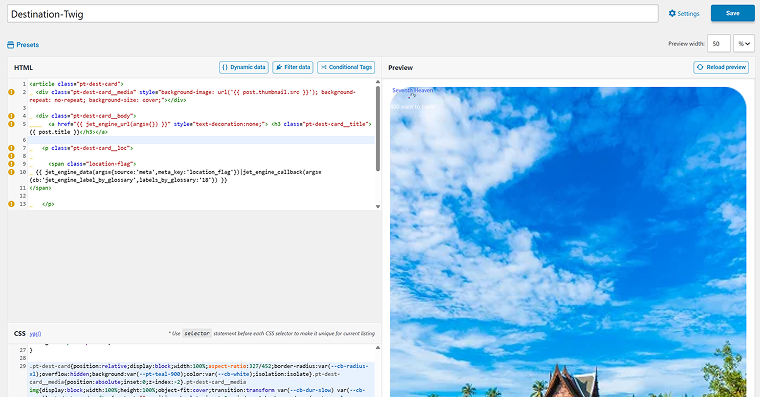
- I opened my Destination-Card component in CrocoBuilder, copied and pasted the HTML into my Twig editor. You can do the same with your components’ HTML. Also, copy and paste the CSS too, to have a proper preview, but remember it will not be rendered on the front end in CrocoBuilder; I will go into details later.
- Replace the static field values with dynamic tags by clicking the “{ } Dynamic Data” button – there, you can also apply all the filters (callbacks) you need.
Congrats, your custom loop (listing) template is ready. It will not look exactly like the component in the preview window, as many of the CSS variables are rendered only in combination with CrocoBuilder, because we copied them from it. But don’t worry – it will look exactly like the component in the end.
Now, add this code to your functions.php file or use your code snippet plugin:
add_shortcode( 'jet_listing_grid', function( $atts ) {
	$atts = shortcode_atts(
		[
			'listing_id' => 0,
		],
		$atts,
		'jet_listing_grid'
	);

	if ( ! function_exists( 'jet_engine' ) || ! $atts['listing_id'] ) {
		return '';
	}

	$render = jet_engine()->listings->get_render_instance(
		'listing-grid',
		[
			'lisitng_id' => absint( $atts['listing_id'] ),
		]
	);

	if ( ! $render ) {
		return '';
	}

	ob_start();
	$render->render();

	return ob_get_clean();
} );
This code registers the shortcode for displaying listing templates.
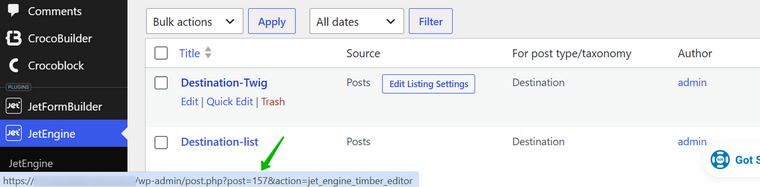
[jet_listing_grid listing_id="157"]
Replace 157 with your Listing ID – you can find it in the browser status bar at the bottom of the window when you hover over the Listing in the list.
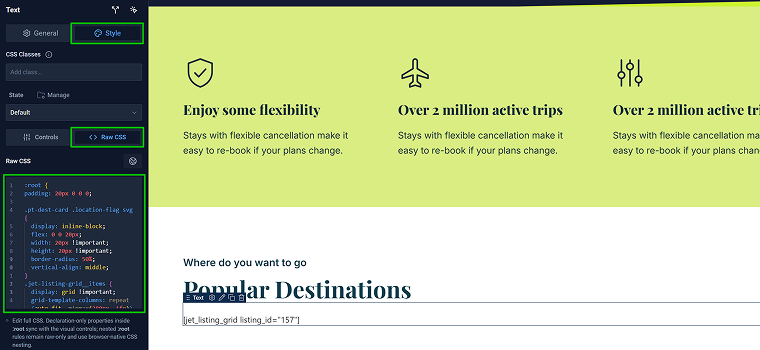
Insert this shortcode using CrocoBuilder’s Text element and activate the “Process shortcodes on front end” toggle. This shortcode will display the real result only on the front end, not in the editor, so click the “View” button to see the result.
And, to make the columns and grid responsive – display three columns per row on desktop, two on tablet, and one on mobile – you will need this CSS:
.jet-listing-grid__items {
display: grid !important;
grid-template-columns: repeat(auto-fit, minmax(280px, 1fr)) !important;
gap: 30px;
}

.jet-listing-grid__item {
width: 100% !important;
max-width: none !important;
}

.pt-dest-card {
width: 100% !important;
}
It’s time to talk about CSS. CrocoBuilder overwrites the CSS used in the Twig editor, so if you need some extra CSS to fix your layout, and also to place the one I added above for column responsiveness, use the Style > Raw CSS tab.
As a result, I have my items with flags, fetched using JetEngine’s Glossary tool and callbacks.
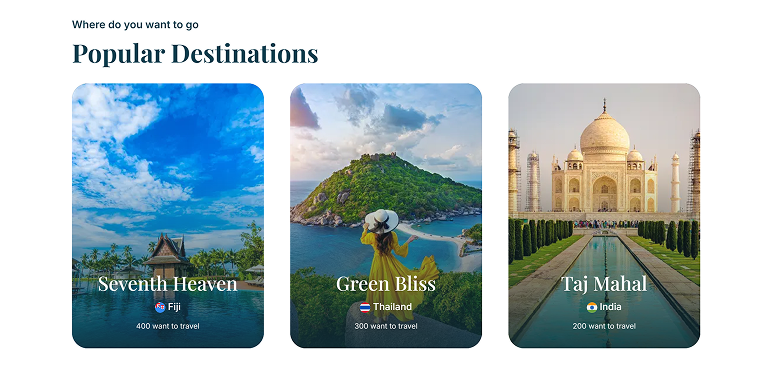
Of course, you can display flags or other elements without such workarounds – you can use custom taxonomy terms, or upload images manually. But I wanted to show this workaround as an example, so you can use it for your projects when it’s really needed.
FAQ
Yes. The free Figma plan lets you generate a personal access token, and Framelink MCP is open-source, so reading your designs costs nothing. Connect it, and connect the CrocoBuilder MCP to an AI agent like Claude, and the agent can rebuild the page in WordPress. The only cost is your AI agent subscription.
Yes, but with strict limits. Starter and View/Collab seats get only six MCP tool calls per month, which is barely enough for a very simple page. That’s why Framelink MCP is a better option for free-plan users.
Framelink is an open-source MCP server that gives AI coding agents read access to Figma files. It can’t edit designs, but it extracts layout, styles, and content data, which is all you need to recreate a page. You connect it using a Figma personal access token.
Yes. AI agents connected via MCP can read a Figma frame and recreate it in WordPress with real builder elements, a design system, and reusable components if you use tools like CrocoBuilder. The result still needs a quick review, as images, fonts, and theme-specific spacing usually require manual fixes.
Yes. CrocoBuilder produces a responsive page with a design system (CSS variables and classes) and reusable components. Everything stays editable both in code and with visual controls, so you’re not locked into AI-generated output.
Takeaway
With Framelink MCP and CrocoBuilder MCP connected to an AI agent like Claude, you can convert a Figma design, even on the free plan, into a responsive, fully editable WordPress page in about 15 minutes, complete with a design system and reusable components. Images and fonts still need manual upload.
For dynamic content, CrocoBuilder’s Query Loop handles standard posts and works great for most projects.
However, I also added a custom solution with JetEngine’s Query Builder and Listing templates (embedded via shortcode), so you can use it for advanced cases.

