Importing WooCommerce products from a CSV file is a common way to upload a supplier catalog, migrate from another platform, or apply bulk edits via a spreadsheet. CSV’s plainness makes it universal, but it also causes the most product import problems.
The file does not declare an encoding or use a fixed delimiter, and it can’t nest images or category paths in a single row. Those gaps show up as broken characters, shifted columns, or flattened category trees.
WP All Import imports WooCommerce products from any CSV file without requiring a specific column layout or header names. Its Automatic Setup feature maps CSV columns to WooCommerce product fields before you touch the manual mapping screen. This guide covers preparing a product CSV, fixing format-specific issues, and running the import.
What a WooCommerce Product CSV Needs to Contain
WP All Import imports WooCommerce products from CSV files with any header names and column order. However, a product CSV still needs to have the right data, with one product per row and one field per column. Variable products use one row per variation.
The columns below cover what most catalogs need.
| Product data | WooCommerce field | CSV format note |
|---|---|---|
| Product name | Title | Plain text |
| Description and short description | Content, Short Description | HTML is allowed |
| SKU | Inventory › SKU | Unique for every product |
| Regular and sale price | General › Regular Price, Sale Price | Numbers only; WP All Import strips currency symbols by default |
| Stock quantity | Inventory › Stock Qty | Requires Manage Stock set to Yes |
| Categories and tags | Product Categories, Product Tags | Separate multiple values; use > for parent/child paths |
| Image URLs | Featured Image, Product Gallery | Separate multiple URLs; the first becomes the featured image |
| Product type | Product Type | simple, variable, grouped, or external |
There are two columns that deserve extra attention. The SKU is what Automatic Setup uses to match rows to existing WooCommerce products, so a revised CSV updates products instead of duplicating them. The product type column tells WP All Import whether each row is a simple, variable, grouped, or external product. Without it, every row imports as a simple product.
CSV-Specific Problems to Fix Before You Import
CSV files store everything as plain text, with nothing to say how that text should be read. These five problems cause most messy WooCommerce product imports from CSV.
Semicolon or Tab Delimiters
In many European regions, Excel saves CSV files with semicolons instead of commas. Automatic Setup reads semicolon-, tab-, and pipe-delimited CSV files and maps their columns to WooCommerce product fields without re-saving the file.
Character Encoding
WP All Import reads every CSV file as UTF-8, because the CSV format can’t declare its encoding. Files saved in another encoding garble accented letters and symbols. In Excel, save with CSV UTF-8 (Comma delimited). Google Sheets exports UTF-8 by default.
Spreadsheet Auto-Formatting
Excel strips leading zeros from SKUs, turns long GTINs into scientific notation, and reformats dates. These changes are saved into the file and can’t be recovered at import. Set those columns to Text before editing.
Multiple Values in One Cell
CSV can’t nest data, so multiple images, categories, or tags share one cell with a separator. WP All Import’s An element in my file contains the entire hierarchy option turns a path like Clothing > Shirts > Polo into nested WooCommerce categories.
Price Formatting
WP All Import removes currency symbols and converts comma decimal separators in prices by default, so a value like €19,99 imports as a valid WooCommerce price.
Import Your Product CSV with Automatic Setup
WP All Import’s Automatic Setup maps a CSV file’s columns to WooCommerce product fields based on the data in each column, not the header names. A supplier file with headers like “Item Name” and “RRP” maps the same way as one exported from WooCommerce.
- Go to All Import › New Import, click Set up automatically, and upload the product CSV.
- Select WooCommerce › Products. Optionally, add a note in Add Setup Instructions.
- Click Start Automatic Setup and review the Your Import Is Ready screen.
- Click Run Import, then check the results under Products › All Products.
Reading the Your Import Is Ready Screen
The summary at the top lists the number of fields mapped and the number of records to import. Compare both against the CSV before running anything. A records count higher than the file’s product rows signals a broken line inside a description. A fields-mapped count far below the column count signals a delimiter problem.
The Field Mappings section lists every match, grouped under Core WordPress Fields, the WooCommerce Import Add-On, and any custom fields. If a mapping needs changing, Manual Setup opens the same import in the drag-and-drop editor with every automatic mapping already in place.
Adjust Mappings in Manual Setup
Manual Setup opens the same import in WP All Import’s drag-and-drop editor, with every mapping from Automatic Setup still in place.
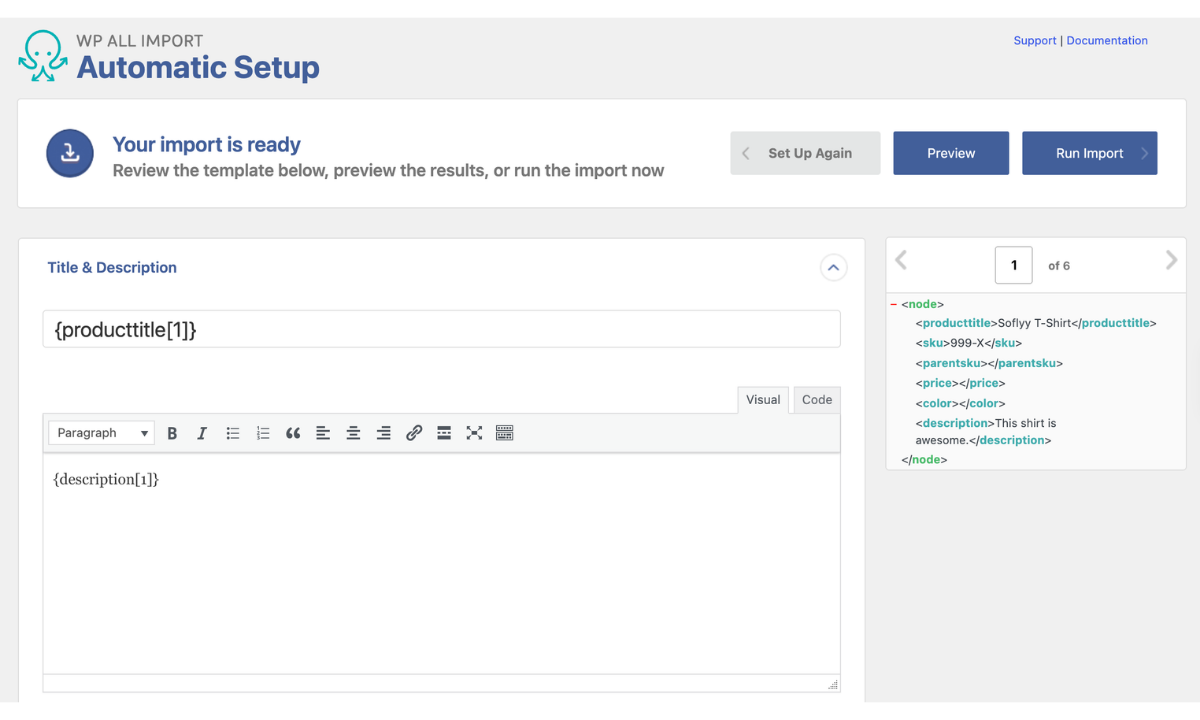
From there, most CSV product imports need only a few small changes:
- Product type. Automatic Setup sets a product type only when the CSV has a column for it. Otherwise, products import as simple. Change this under WooCommerce Add-On › Product Type.
- Category paths. Enable An element in my file contains the entire hierarchy for columns that use > between parent and child categories.
- Value formatting. WP All Import runs PHP functions directly in mapping fields. [ucwords(strtolower({title[1]}))] fixes all-caps product titles, and a simple combination like {brand[1]} {model[1]} builds a title from two columns.
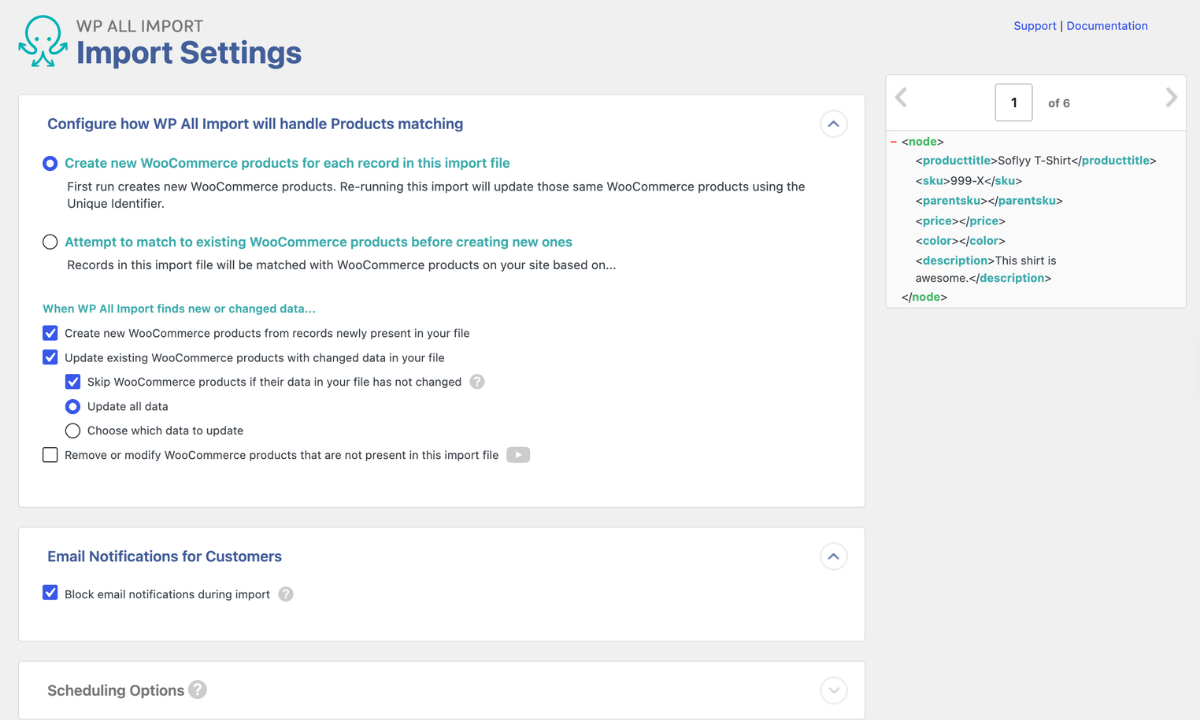
On Import Settings, click Auto-detect to set the unique identifier, then choose how future runs should treat existing products.
Variable Products in a Flat CSV
WP All Import imports WooCommerce variable products from CSV files that list the parent product and each variation on separate rows. Each variation row needs a value linking it to its parent, usually the parent SKU, plus attribute columns like size or color that set each variation apart.
Because Automatic Setup assigns a product type only when the CSV includes a column for it, add a product-type column marking parent rows as variable.
The full process, including attribute setup and variation images, is covered in How to Import and Export WooCommerce Variable Products. For every supported CSV layout, see the variable products documentation.
Keep Products Updated by Re-Importing the CSV
WP All Import updates existing WooCommerce products when the same CSV import runs again with revised data, matching each row to its product by SKU. Keeping SKUs unchanged between file versions is the only requirement.
Recurring supplier CSVs don’t need to be uploaded manually. An import created with Download from URL pulls the current file every time it runs, and Automatic Scheduling runs it on a set timetable from inside the plugin. Alternatively, a server cron job handles the scheduling. For more on how source files work for recurring imports, see Download or Use Existing File.
Final Thoughts — Import WooCommerce Products from CSV
Most problems with a WooCommerce product CSV start in the file itself. Excel saves it in the wrong encoding or with semicolons, or it strips leading zeros from SKUs before the file ever reaches WordPress. WP All Import imports WooCommerce products from CSV files without a required template or header naming convention, and its Automatic Setup feature maps each column to the matching WooCommerce product field. Saving the file as UTF-8 and keeping SKUs as text prevents the two problems WP All Import can’t correct during the import. WP All Import also updates existing WooCommerce products by SKU when the same CSV import runs again, so one import setup handles both the first upload and every revision after it.
A good first step is a small test file of five to ten products, including at least one product with multiple images and a nested category. If those import correctly through Automatic Setup, the rest of the catalog follows the same mapping. From there, schedule the import to keep products in sync with the supplier’s CSV.
Frequently Asked Questions — Import WooCommerce Products from CSV
How do I import products into WooCommerce from a CSV file?
WP All Import imports WooCommerce products from any CSV file using Automatic Setup, with no column template or header renaming required.
- Go to All Import › New Import and click Set up automatically.
- Upload the product CSV file.
- Optionally, describe the file in the Add Setup Instructions field.
- On the Your Import Is Ready screen, check that the records-to-import count matches the product rows in the CSV. Then expand Field Mappings to review each match.
- Click Manual Setup if a mapping needs adjusting, such as the Product Type.
- Run the import and confirm the results under Products › All Products.
How do I update existing WooCommerce products with a CSV file?
WP All Import updates existing WooCommerce products from a revised CSV file by matching each row to its product by SKU.
- Go to All Import › Manage Imports and find the original product import.
- Click Settings, then upload the updated CSV or enter the URL where the new file is hosted.
- Choose which product data the import should update, such as prices and stock only, and leave everything else unchanged.
- Click Run Import.
Can I import WooCommerce products with images from a CSV file?
Yes. WP All Import imports product images from image URLs in a CSV column, downloading each image into the WordPress Media Library and attaching it to the product. When a cell contains several URLs, the first becomes the featured image and the rest are added to the product gallery. Images already in the Media Library, or uploaded beforehand to wp-content/uploads/wpallimport/files/, can also be matched to products by file name. See How to Import WooCommerce Products with Images for every image option.
Why do special characters look wrong after a WooCommerce CSV import?
WP All Import reads every CSV file as UTF-8, because the CSV format has no way to declare its own encoding. A file saved in another encoding, such as Windows-1252, turns accented letters, currency symbols, and non-Latin text into garbled characters on the imported products. To fix it, re-save the file in Excel using CSV UTF-8 (Comma delimited), or export it from Google Sheets, which uses UTF-8 by default. Then run the import again. The Encoding & Character Sets guide covers other cases.
Can I import WooCommerce products from CSV for free?
Yes. The free WP All Import plugin and its free WooCommerce add-on import simple WooCommerce products from CSV files of any structure, using the same drag-and-drop mapping as the paid version. WP All Import Pro adds full support for variable, grouped, and external/affiliate products, imports from a URL, recurring and scheduled imports, and custom PHP functions on imported data. See pricing for current plans.
Related Information