Most Divi-to-Elementor migration guides tell you to deactivate Divi early in the process. Do not do this. It is how people end up with [et_pb_section] shortcode text displaying on live pages in front of customers. Everything below is built so your live site never breaks at any point.
You’ll learn about:
- Staging setup: rebuild safely without touching your live site
- What transfers: an honest breakdown of what survives and what doesn’t
- Module mapping: which Divi modules have Elementor equivalents and which don’t
- Starter Templates: how to avoid rebuilding 20 pages from a blank canvas
- Going live: the swap-over, and what to check afterward
Read: Divi vs Elementor – A complete comparison
Why People Are Migrating From Divi Right Now
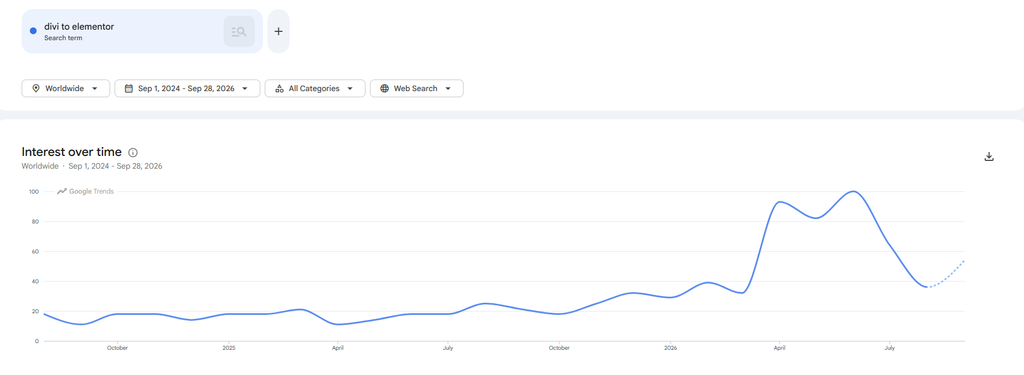
Migration interest in this direction has picked up notably in 2026, and it’s worth understanding why before you commit, because some of the reasons people cite are better than others.
- Divi 5 launched in February 2026. It’s a complete rebuild of the builder, and Elegant Themes reports substantial performance gains over Divi 4. It’s included free in every existing licence. But a major version change is exactly the moment people stop and ask whether they want to stay on a platform at all rather than simply upgrade in place. Some of the people reading guides like this one are reacting to that disruption, not people who were unhappy with Divi generally.
- The hiring pool is different. If you outsource development, hand sites to clients, or expect to bring on contractors, Elementor’s larger install base means more people already know it. For an agency, that’s a real operational cost difference over time, not a feature comparison.
- Global styles versus per-module styling. Elementor’s site-wide design system means changing a brand color once updates every instance across the site. Divi has presets that do something similar, but teams migrating frequently cite Elementor’s approach as easier to maintain at scale.
Divi being slow may have been a common complaint a few years ago, but Divi 5’s rebuild directly targeted the performance criticism, and if speed is your only complaint, upgrading to Divi 5 is a far cheaper fix than a full migration.
Is There a One-Click Divi to Elementor Converter?
No. This is the first thing to be clear about, because the disappointment of discovering it halfway through is what makes people abandon migrations at the worst possible moment.
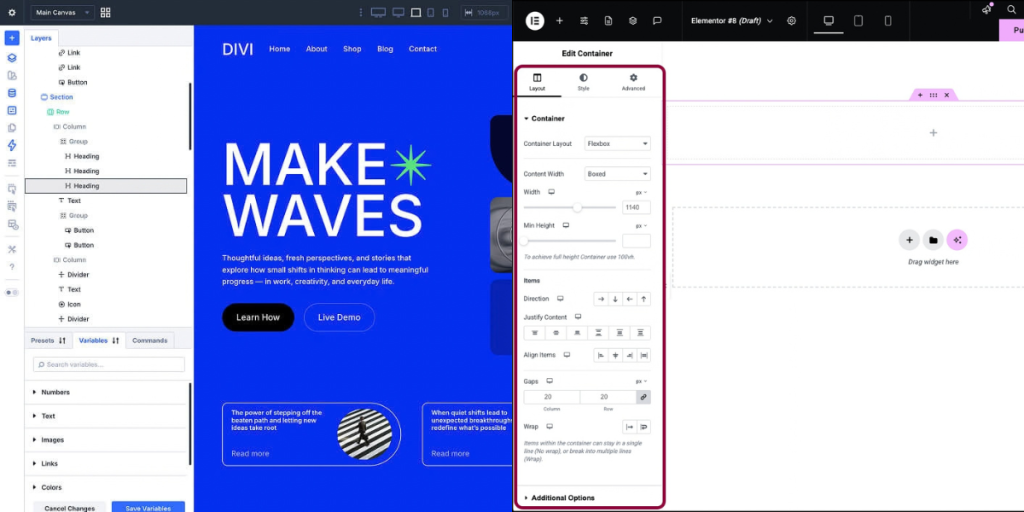
The reason is structural. Divi stores your page content as shortcodes inside the WordPress post content field, things like [et_pb_section], [et_pb_row], and [et_pb_text]. Elementor stores its page content as structured JSON in post meta. There is no lossless mapping between them, and there cannot be one without someone building and maintaining a translator for every module in both products.
What converter plugins actually do
Third-party converter plugins do exist. JHMG Converter is the most commonly cited one. These take a Divi JSON export and generate an Elementor draft page from it.
They are genuinely useful, with limits worth knowing before you rely on one:
- They typically support around 30 to 35 of the more common Divi modules, the text, image, button, and basic layout elements.
- They preserve content and rough structure well.
- They do not reliably handle custom CSS, less common modules, Divi Theme Builder logic, or Divi-specific settings like conditional display.
- Output usually needs meaningful manual cleanup afterward.
The right mental model: a converter gives you a rough first draft to fix, not a finished page. If your site is mostly text, images, and simple sections, a converter might save you real time. If your site leans on Divi’s more distinctive modules, it will save you less than you hope.
| Verdict on converters |
|---|
| No one-click conversion exists and none is coming, the two builders store data too differently. Converter plugins are worth trying as a first-draft generator on content-heavy, layout-simple pages. Budget cleanup time regardless. For anything using Divi’s distinctive modules, rebuilding by hand is usually faster than fixing converter output. |
What Transfers and What Breaks
Before planning anything, you need an accurate picture of what survives the move. The short version is that your content survives and your design doesn’t, but the detail matters for estimating the work.
| Element | What happens | Why |
|---|---|---|
| Text content | Transfers cleanly | Lives in the WordPress post content, independent of the builder. |
| Images and media | Transfers cleanly | Your media library is a WordPress feature, not a Divi one. Reuse existing images rather than re-uploading. |
| Page structure and layout | Does not transfer | Divi’s Section/Row/Module hierarchy has no direct Elementor equivalent. Rebuild in Containers. |
| Global colors and fonts | Does not transfer | Divi’s Customizer and Elementor’s Global Styles are entirely separate systems. Re-enter once in Elementor. |
| Divi-specific modules | No automatic equivalent | See the mapping table below. Some have close Elementor matches, some have none. |
| Custom CSS | Partially transfers | Rules targeting Divi class names (.et_pb_section, .et_pb_row) stop applying. Rewrite against Elementor’s classes. |
| URLs and permalinks | Preserved | As long as you keep slugs identical. This is entirely under your control. |
| SEO metadata | Preserved | Titles, meta descriptions, and schema live in your SEO plugin (Yoast, RankMath, SureRank), not in Divi. |
| Header and footer | Does not transfer | Rebuild in Elementor’s Theme Builder or your new theme’s own header/footer builder. |
| Divi child theme | Becomes irrelevant | Its template overrides target Divi’s files. Copy any custom code out before you switch. |
| Forms | Depends | Third-party form plugin shortcodes carry over. Divi’s own Contact Form module needs rebuilding. |
| Verdict on what transfers |
|---|
| Your words and images are safe. Everything visual needs rebuilding. This means writing is not your bottleneck, layout reconstruction is, and your time estimate should be driven almost entirely by how many distinct page designs you have rather than how many pages. |
Divi Module to Elementor Widget Mapping
This is the table most migration guides skip, and it is the one that actually determines your timeline. Knowing which modules have no clean equivalent is what separates a realistic estimate from a guess.
Direct matches, minimal work
| Divi Module | Elementor Widget | Notes |
|---|---|---|
| Text | Text Editor | Straight swap. |
| Image | Image | Straight swap. Reuse the same media library file. |
| Button | Button | Straight swap. Styling options differ slightly in naming. |
| Accordion / Toggle | Accordion | Straight swap. |
| Tabs | Tabs | Straight swap. |
| Gallery | Gallery | Straight swap. |
| Video | Video | Straight swap. |
| Map | Google Maps | Straight swap. Requires a Google Maps API key in both. |
| Social Media Follow | Social Icons | Straight swap. |
| Counter | Counter | Straight swap. |
| Testimonial | Testimonial | Straight swap. |
| Blurb | Icon Box | Close match. Icon positioning options differ; expect minor restyling. |
Available, but Elementor Pro only
If you’re on free Elementor, these require either a paid upgrade or a third-party addon.
| Divi Module | Elementor Equivalent | Notes |
|---|---|---|
| Pricing Tables | Price Table | Pro only. No free equivalent. |
| Slider / Fullwidth Slider | Slides | Pro only. |
| Contact Form | Form | Pro only. Free workaround: keep your existing form plugin (WPForms, Fluent Forms, etc.) and embed by shortcode. |
| Countdown Timer | Countdown | Pro only. |
| Post Slider / Blog | Posts / Loop Grid | Pro only for dynamic post queries. |
| Shop | WooCommerce widgets | Requires Advanced Solo tier or above, not included in Essential. |
The difficult four
These are where migrations run over. If your site leans on any of them, add a buffer to your estimate.
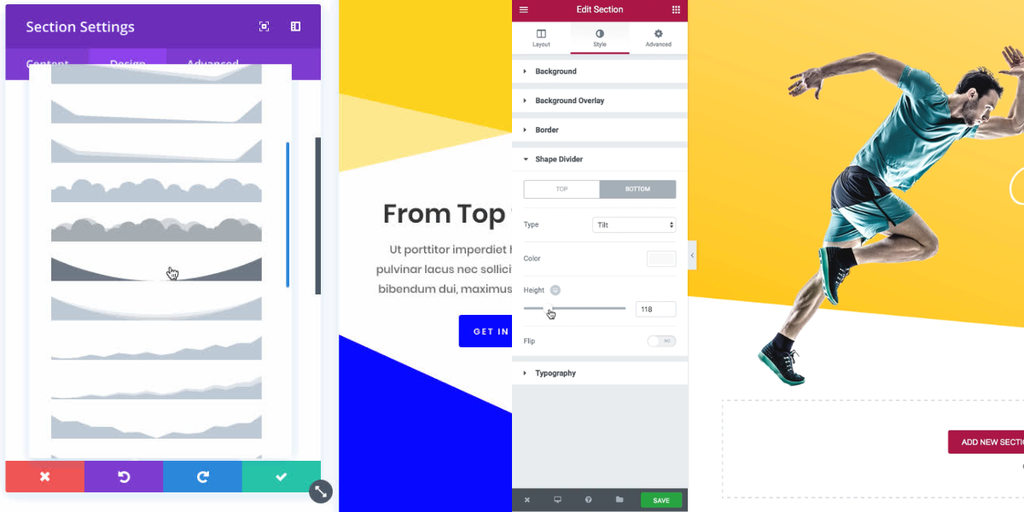
- Section Dividers: Divi has a built-in shape divider library. Elementor has one too (Container → Style → Shape Divider), but the available shapes differ. Some Divi shapes have no Elementor match at all, and the workaround is exporting the shape as SVG and applying it as a background image. Budget time per unique divider shape, not per page.
- Divi Conditional Display: Divi lets you show or hide modules based on conditions. Elementor’s equivalent is Display Conditions, which is Pro only, and the condition logic is structured differently enough that you cannot translate rules one-to-one. Plan to re-create each rule from scratch and test it.
- Divi Animations: Divi’s module-level entrance animations don’t map cleanly onto Elementor’s Motion Effects. The animation sets are different. You will be picking approximate equivalents rather than matching exactly, and if animation is central to your design, expect visible differences.
- Divi Theme Builder templates: If you built custom headers, footers, archive templates, or 404 pages in Divi’s Theme Builder, these need rebuilding in Elementor’s Theme Builder, which is Pro only. On free Elementor, the alternative is a theme with its own header/footer builder.
| Verdict on module mapping |
|---|
| Roughly two thirds of common Divi modules have clean Elementor equivalents. The gap is concentrated in four areas: shape dividers, conditional display, animations, and Theme Builder templates. Audit your site for those four specifically in Phase 2. If you use all four heavily, your migration is closer to a redesign than a rebuild, and you should price it accordingly. |
The Divi Shortcode Problem
This is the single most common way a Divi migration goes publicly wrong, and it’s worth understanding the mechanism rather than just the rule.
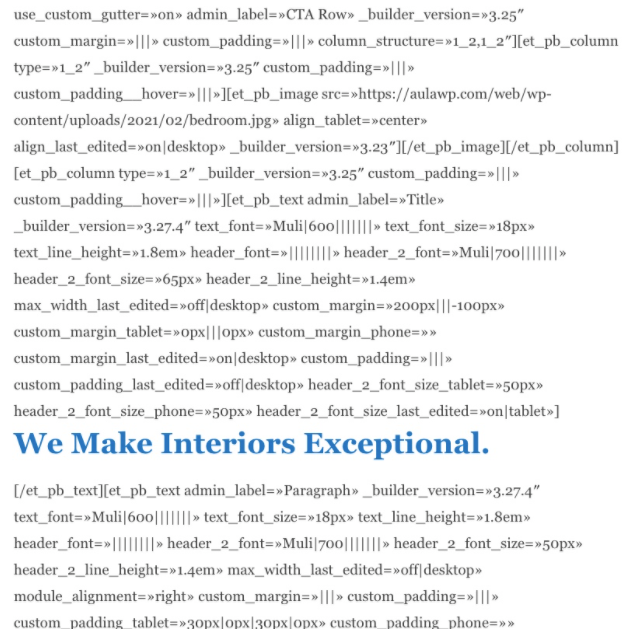
Divi stores page content as shortcodes inside the post content field. When Divi is active, WordPress hands those shortcodes to Divi, which renders them as your designed page. When Divi is deactivated, nothing is registered to interpret them, so WordPress does what it does with any unrecognized shortcode: prints it as literal text.
The result is a live page displaying something like [et_pb_section fb_built=”1″][et_pb_row][et_pb_column type=”4_4″][et_pb_text] where your content used to be. Every page you haven’t rebuilt breaks simultaneously, in front of whoever is on your site at that moment.
Several widely-read migration guides instruct you to deactivate Divi as an early step and then clean up the shortcodes afterward. That advice is what produces this outcome. There is no reason to accept it, because the staging approach below avoids the problem entirely rather than cleaning up after it.
| Verdict on deactivation timing |
|---|
| Never deactivate Divi on your live site until the replacement site is finished, tested, and ready to swap in. Divi sitting active and idle costs you nothing. The staging workflow below means you never face this decision under pressure. |
Phase 1: Set Up a Staging Site
Estimated time: 30 to 90 minutes
A staging site is a private, working copy of your live site. You rebuild there, break things freely, and only touch production once at the very end. Skipping this step is the root cause of most migration horror stories.
Option A: Host-provided staging (preferred)
Most managed WordPress hosts include one-click staging. SiteGround, Kinsta, WP Engine, Cloudways, Flywheel, and most others offer it. Host-level staging handles file and database copying more reliably than any plugin, and usually gives you a one-click push back to live at the end.
- Log into your hosting control panel.
- Look for Staging, Dev Site, or Create Staging Environment. The exact label varies by host.
- Create the staging environment and wait for it to finish copying, this typically takes a few minutes for a normal site.
- Note the staging URL your host gives you. It’s usually something like staging-yoursite.hostname.com.
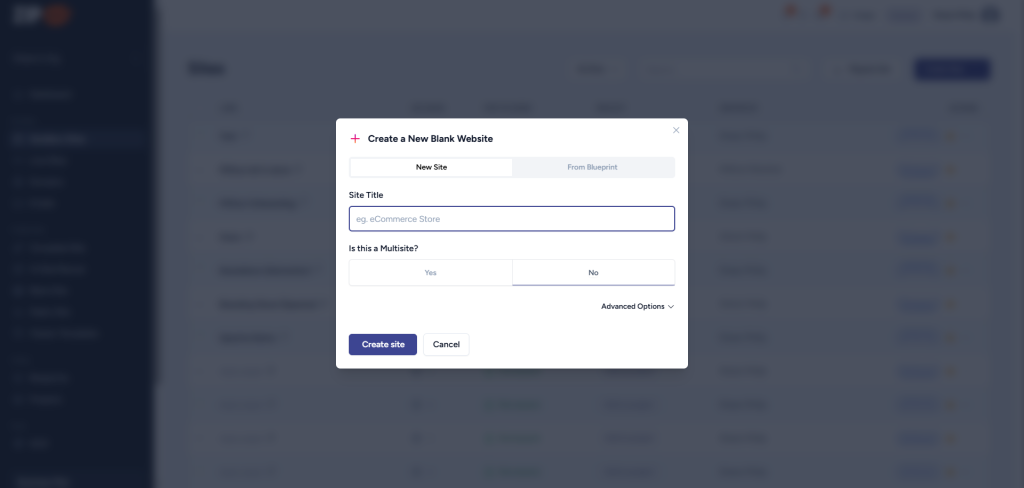
With ZipWP, you can set up a staging site using the Sandbox Sites feature. You can further use AI to generate different sections and fully customize your website based on your original Divi layout.
Option B: Plugin-based staging
If your host doesn’t offer staging, use a migration plugin instead.
- Go to Plugins → Add New, search for Duplicator, then Install Now → Activate.
- Go to Duplicator → Packages → Create New, then Next, then Build.
- Wait for the build to complete. Large sites with big media libraries can take several minutes.
- Download both files it produces: the installer file and the archive file.
- Create a subdomain for staging through your hosting control panel, for example staging.yoursite.com.
- Upload both Duplicator files to that subdomain’s root directory via FTP or your host’s file manager.
- Visit staging.yoursite.com/installer.php in your browser and follow the prompts.
Lock down staging before you do anything else
Two steps people skip, both of which cause real problems.
- Block search engines. On the staging site, go to Settings → Reading and tick Discourage search engines from indexing this site. Without this, Google can index your staging copy, creating duplicate content competing against your live site.
- Password-protect it if your host offers directory password protection, usually in the same panel where you created the subdomain. This is belt and braces alongside step 8, and it also stops clients or colleagues stumbling onto a half-finished rebuild.

Back up production anyway
- Even though you’re not touching the live site, take a full backup before starting. Go to Plugins → Add New, search UpdraftPlus, Install → Activate, then Settings → UpdraftPlus Backups → Backup Now. Store the backup somewhere off-server (Dropbox, Google Drive, S3) rather than on the same hosting account.
| Before moving to Phase 2, confirm |
|---|
| Staging site loads and looks identical to your live site. Search engine indexing is disabled on staging. You have a downloaded, off-server backup of production. You know which URL is staging and which is live, and you’ve bookmarked staging so you don’t accidentally work on the wrong one. Everything from here happens on staging unless a step explicitly says otherwise. |
Phase 2: Check Your Existing Website Pages
Estimated time: 1 to 4 hours depending on site size
This phase feels like procrastination and is the single highest-value thing you’ll do. It converts “this migration will take a while” into an actual estimate, and it surfaces the expensive surprises while they’re still cheap to plan around.
Build the page inventory
- On your live site, go to Pages → All Pages. Set the view to show all pages rather than paginating.
- Copy every published page’s title and URL into a spreadsheet. Add these columns: URL | Page Type | Divi Modules Used | Uses Difficult Four? | Traffic Rank | Priority.
- Do the same for Posts → All Posts if your blog posts use the Divi Builder rather than the standard editor. Many sites use Divi only on pages, in which case posts need no work at all, which is worth confirming early since it can cut the job substantially.
Catalogue your Theme Builder templates
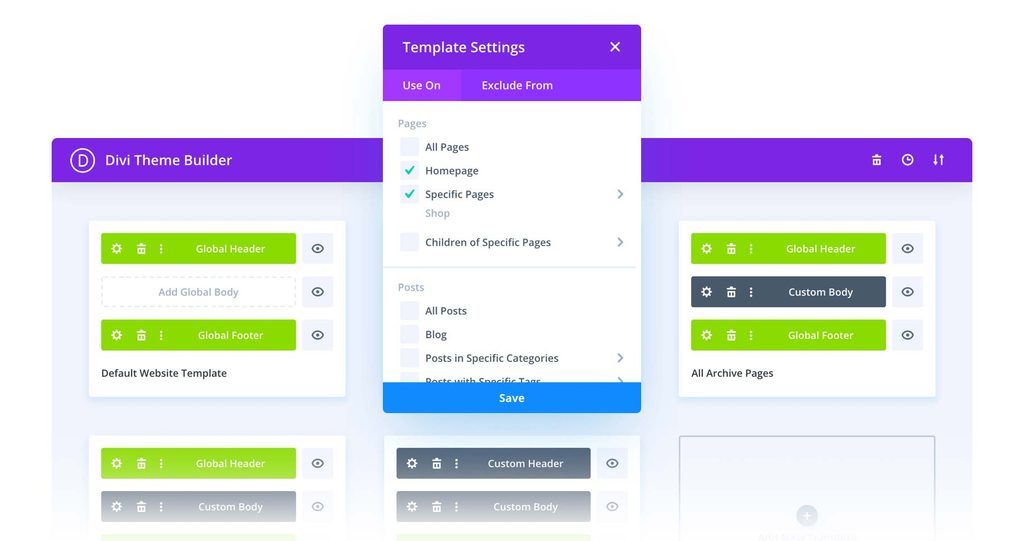
- Go to Divi → Theme Builder. Anything listed here is sitewide rather than per-page: headers, footers, archive templates, 404 pages, single post templates.
- List each one separately in your spreadsheet. These get rebuilt once each, not once per page, so they’re cheap relative to their visual impact. They’re also the templates most likely to need Elementor Pro.
Export a reference backup of every unique page type
You don’t need to export every page, just one of each distinct design pattern.
- Open a page in the Divi Builder.
- Click the Divi Portability icon in the builder’s top toolbar. The “Import and Export Page Content” dialog opens.
- On the Export tab, give the file a descriptive name and click Export Divi Builder Layout. A JSON file downloads containing the layout, content, custom CSS, and design settings for that page.
- Repeat for each unique page type. Keep these files somewhere safe, they’re your reference for what the original looked like if a screenshot doesn’t capture some detail.
Audit for the difficult four
- While each page is open in the builder, note which modules it uses. Specifically check for the four problem areas from the mapping table: shape dividers, conditional display rules, custom animations, and Theme Builder dependencies. Mark these in your spreadsheet’s “Uses Difficult Four?” column.
- This column is what drives your timeline. A twelve-page site with none of them is a few days’ work. A twelve-page site using all four is substantially more.
Capture visual references
- Screenshot each unique page type at desktop width.
- Screenshot each again at mobile width. In Chrome, press F12 to open DevTools, click the device toolbar icon (or Ctrl+Shift+M), and set the width to 375px, a common phone width.
- Save these in a folder organized by page name. You’ll be working from them constantly in Phase 6.
Rank by traffic
- Open Google Search Console → Performance → Pages. Set the date range to the last 3 months and sort by clicks.
- Add each page’s rank to your spreadsheet’s Traffic Rank column. If you don’t use Search Console, your analytics tool’s Pages report works equally well.
- Set your Priority column from this. You will rebuild in descending traffic order, so your most valuable pages are finished and tested first, and so that if the project stalls partway, the pages that matter are already done.
| Before moving to Phase 3, confirm |
|---|
| Every published page and post is listed in your spreadsheet. You know which pages use Divi Builder and which use the standard editor. You have JSON exports for every unique page type. You’ve flagged which pages use shape dividers, conditional display, custom animations, or Theme Builder templates. You have desktop and mobile screenshots of each page type. Your pages are ranked by traffic and you know which one you’re rebuilding first. |
Phase 3: Install Your Theme and Start From a Template
Estimated time: 1 to 2 hours
Here’s where most guides tell you to open a blank page and start dragging widgets in. If you have twenty pages to rebuild, that’s twenty pages of design work you may not need to do.
There’s a faster path. Start from a pre-built template that already resembles the kind of site you have, change the brand colors to yours, then replace the content. You’re editing something that already looks finished instead of assembling one from nothing, and the structural decisions (spacing, hierarchy, section rhythm) are already made.
Install a theme
You need a new theme regardless of anything else. Divi’s builder and Divi’s theme are bundled, so dropping the builder means dropping the theme too.
- On staging, go to Appearance → Themes → Add New.
- Search for Astra, then click Install → Activate. Astra is free, lightweight, and built to work alongside Elementor rather than competing with it. It also includes its own header and footer builder, which matters if you’re on free Elementor and therefore don’t have Elementor’s Theme Builder.
Install Starter Templates
- Go to Plugins → Add New, search for Starter Templates, then Install Now → Activate.
- Go to Appearance → Starter Templates. On first run it asks which page builder you want to work with. Select Elementor.
Find a template resembling your site
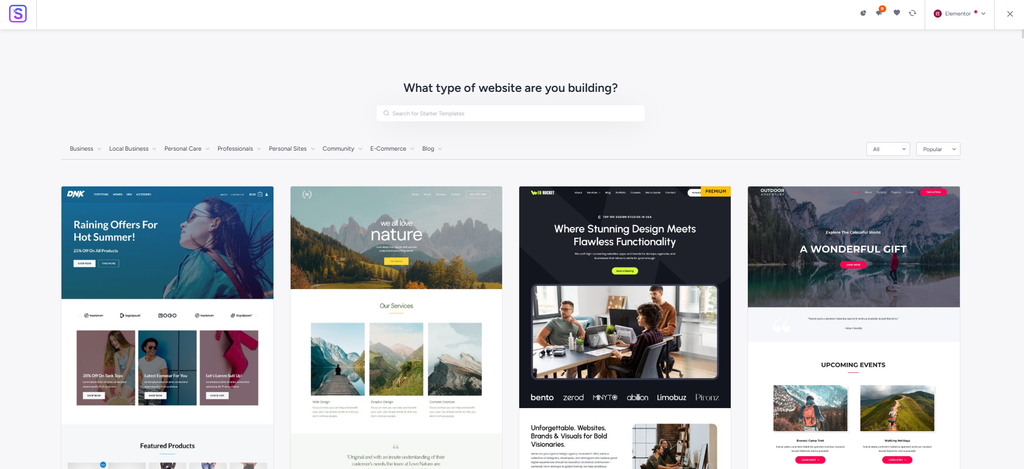
- Browse the library. There are 300+ Elementor templates, so use the category filters (Business, Ecommerce, Blog, Portfolio, Restaurant, Agency, and others) rather than scrolling everything.
- You’re not looking for a perfect match. You’re looking for structural similarity: roughly the same page types, similar layout density, a comparable content-to-visual ratio. A template with a hero, three feature columns, testimonials, and a CTA is a good starting point for any site with that shape, regardless of industry.
- Click a template to preview it. Check the inner pages too, not just the homepage, since those are where most of your rebuild time actually goes.
Import and rebrand
- Click Import Complete Site to bring in the whole template, or import individual pages if you only want specific layouts.
- Wait for the import to finish. It brings in pages, images, and settings, so it takes a couple of minutes.
- Now change the brand colors globally rather than page by page. Go to Appearance → Customize → Global → Colors and enter your existing brand hex codes (pull these from Divi first if you don’t have them, the exact path is in Phase 4, step 1).
- Watch the preview update. The entire imported site shifts to your palette at once. This is the step that turns a generic template into something recognizably yours, and it takes minutes rather than hours.
| Verdict on the template approach |
|---|
| Starting from a template doesn’t mean your site will look like everyone else’s, you’re replacing all the content and colors, and most of what makes a site distinctive is its content and brand rather than its section ordering. What it does is remove the blank-canvas problem from twenty pages at once. If you have a bespoke design you need to reproduce exactly, skip this and build from scratch, everything from Phase 4 onward works the same either way. |
| Before moving to Phase 4, confirm |
|---|
| Astra is active on staging. Starter Templates is installed and set to Elementor. You’ve either imported a template or decided to build from scratch. If you imported, your brand colors are applied globally and the site reads as yours rather than as a demo. |
Phase 4: Rebuild Your Design System
Estimated time: 45 to 90 minutes
Do this before rebuilding individual pages. If you build pages first and set global styles afterward, every page you already built needs revisiting, and you’ll be hunting down one-off color values for hours.
Extract your current values from Divi
- On your live site (this is one of the few steps that happens there), go to Divi → Theme Customizer → General Settings → Colors. Write down every hex code.
- Go to General Settings → Typography. Record font families, sizes, weights, and line heights for headings and body text.
- If you used Divi Presets, check those too, they may contain color values that don’t appear in the Customizer.
Install Elementor
- On staging, go to Plugins → Add New, search Elementor, then Install Now → Activate. If Starter Templates already installed it during the Phase 3 import, skip this.
- If you have an Elementor Pro licence, upload and activate that plugin too: Plugins → Add New → Upload Plugin, select your Pro zip file, Install Now → Activate, then enter your licence key when prompted.
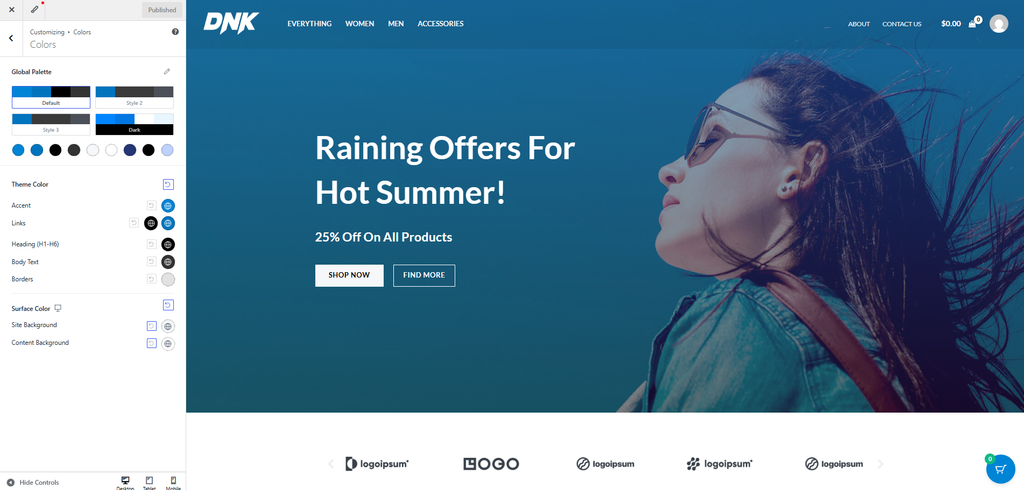
Set global colors
- Open any page and click Edit with Elementor.
- In the editor, click the Elementor icon at the top-left of the left panel, then select Site Settings. Click Global Colors.
- Click each of the four base colors (Primary, Secondary, Text, Accent) and enter the corresponding hex code from step 1. You can rename them too, if “Brand Blue” is clearer to your team than “Primary”, rename it.
- Click Add Color for any additional brand colors beyond the base four.
Set global fonts
- Click Global Fonts.
- Set each style (Primary, Secondary, Text, Accent) to match the typography you recorded in step 2: font family, weight, size, line height, and letter spacing.
- Name these descriptively as well. “Heading” and “Body” are easier to work with later than “Primary” and “Text”.
Set theme styles
- Go to Theme Style in the same panel. This section sets defaults for HTML elements rather than Elementor widgets specifically, so it catches content that isn’t inside an Elementor widget at all.
- Typography: set defaults for H1 through H6 and body text.
- Buttons: set the default state and hover state, using your Global Colors rather than one-off values.
- Images: set any default border radius or styling.
- Form Fields: set input, label, and field styling.
- Click Update, then close Site Settings.
One setting worth knowing about
- Elementor applies its own default styles to content unless told otherwise, which can override your theme’s global styling. Go to Elementor → Settings in WP Admin and review the Disable Default Colors and Disable Default Fonts options. If you want Astra’s Customizer settings to drive your site’s base styling, enable these. If you want Elementor’s Site Settings to be the single source of truth, leave them off. Either works, but pick one deliberately rather than ending up with both systems fighting.
| Before moving to Phase 5, confirm |
|---|
| Global Colors match your brand hex codes exactly. Global Fonts match your existing typography. Theme Style defaults are set for headings, body, buttons, and form fields. You’ve made a deliberate decision about Elementor’s default colors and fonts setting. You can now apply any brand color or font from a dropdown rather than typing a hex code, which is what keeps the rest of the rebuild consistent. |
Phase 5: Rebuild Header and Footer
Estimated time: 2 to 4 hours
Headers and footers appear on every page, so building them now means every page you rebuild afterward already sits in the right visual context. Building them last means judging every page against an incomplete frame.
Which route you take depends on whether you have Elementor Pro.
With Elementor Pro: Theme Builder
- Go to Elementor → Theme Builder in WP Admin.
- Click Add New, select Header, name it something clear like “Main Header”, and click Create Template.
- Elementor offers pre-built header blocks. You can start from one or close the dialog and build from scratch.
- Using your Phase 2 screenshot as reference, drag in the pieces: Site Logo for your logo, Nav Menu for navigation (select your existing WordPress menu from the widget’s dropdown, it’s already there, menus aren’t tied to Divi), Button for any header CTA, Search Form if you had one.
- For every color and font, click the globe icon beside the control and pick your Global value from Phase 4. Do not type hex codes directly. This one habit is what keeps the entire site consistent and makes future rebrands a five-minute job instead of a week.
- Use the responsive preview toggles to check the header at tablet and mobile widths. Headers break at mobile more often than any other element, particularly if you had a Divi mega menu.
- Click Publish. Elementor asks for display conditions. Leave it as Entire Site unless you genuinely need different headers in different places, then click Save & Close.
- Repeat the whole process for the footer: Add New → Footer, using Text Editor for copyright text, Nav Menu for footer links, Icon List or Social Icons for social links, and publish with the same Entire Site condition.
Without Elementor Pro: Astra’s header/footer builder
Elementor’s Theme Builder is Pro only. On free Elementor, your theme handles this instead, which is one of the practical arguments for pairing Elementor with a theme that has its own builder rather than a blank one.
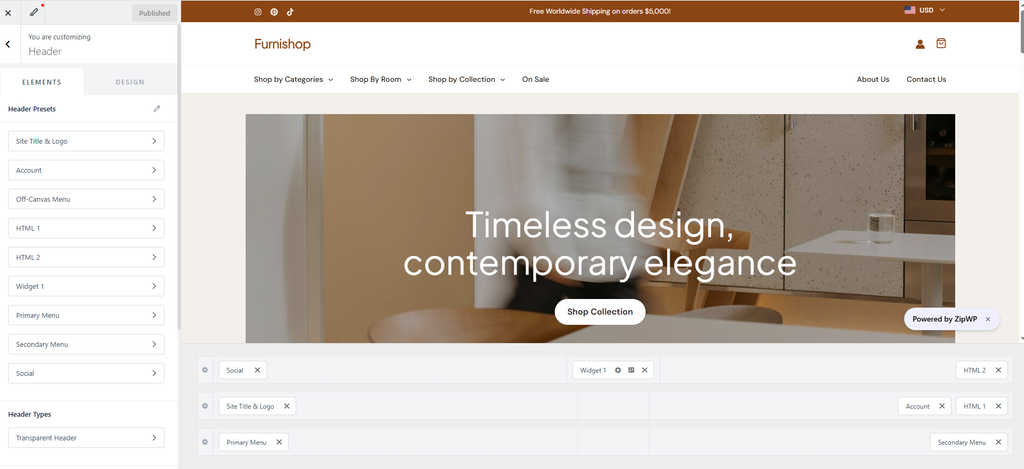
- Go to Appearance → Customize → Header Builder.
- You’ll see a grid representing header rows (above header, primary header, below header) and positions within each.
- Click the + icon in any position to add an element: logo, menu, button, search, social icons, HTML.
- Click an added element to open its styling options in the left panel.
- Use the responsive icons at the bottom of the Customizer to configure the mobile header separately, including which elements appear in the off-canvas menu.
- Click Publish.
- Repeat under Appearance → Customize → Footer Builder.
Turn off Divi’s header and footer on staging
- Preview your staging site. If Divi’s header and footer are still showing, go to Divi → Theme Builder on staging, find the relevant templates, and disable them.
- Disable, don’t delete. You may want to reference them, and on staging there’s no cost to leaving them dormant.
| Before moving to Phase 6, confirm |
|---|
| Header and footer render correctly on every page of staging. Navigation menus point to the right places. Both work at desktop, tablet, and mobile widths. Every color and font came from a Global value rather than a one-off. Divi’s header and footer templates are no longer rendering on staging. |
Phase 6: Rebuild Pages
Estimated time: 45 minutes to 3 hours per unique page design
This is the bulk of the work. Work down your Phase 2 spreadsheet in traffic-priority order, highest first.
Note that the estimate is per unique design, not per page. Once you’ve built a service page, the second and third service pages are largely a copy-and-swap-content exercise.
Set up your workspace
- Open the live Divi version of the page in one browser tab. This is your reference.
- Open your Phase 2 mobile screenshot of the same page in another tab.
- On staging, either open the imported Starter Template page closest in structure, or go to Pages → Add New for a blank one.
- If you want to preserve the original page while you work, install Yoast Duplicate Post (Plugins → Add New), which adds a “Clone” option to the page list.
- Click Edit with Elementor.
Rebuild section by section
- Work top to bottom. For each Divi Section or Row in your reference, create an Elementor Container.
- Set the container’s width, padding, and background to match. Elementor’s container defaults differ from Divi’s section defaults, so expect to adjust padding on nearly every one, Divi sections carry more default vertical padding than Elementor containers do.
- Add widgets inside the container using the mapping table above. For anything in the “difficult four”, budget extra time and accept approximate rather than identical results on animations.
- Copy text content across. Copy and paste works fine; you don’t need to retype anything.
- For images, use the media library picker rather than re-uploading. Re-uploading creates duplicate files, loses any alt text you’d already written, and bloats your media library.
Apply styling through globals
- Every time you set a color, click the globe icon and choose a Global Color. Every time you set typography, click the globe icon and choose a Global Font.
- Resist the urge to “just this once” type a custom hex. Those one-offs are what make sites drift and what makes rebrands painful later.
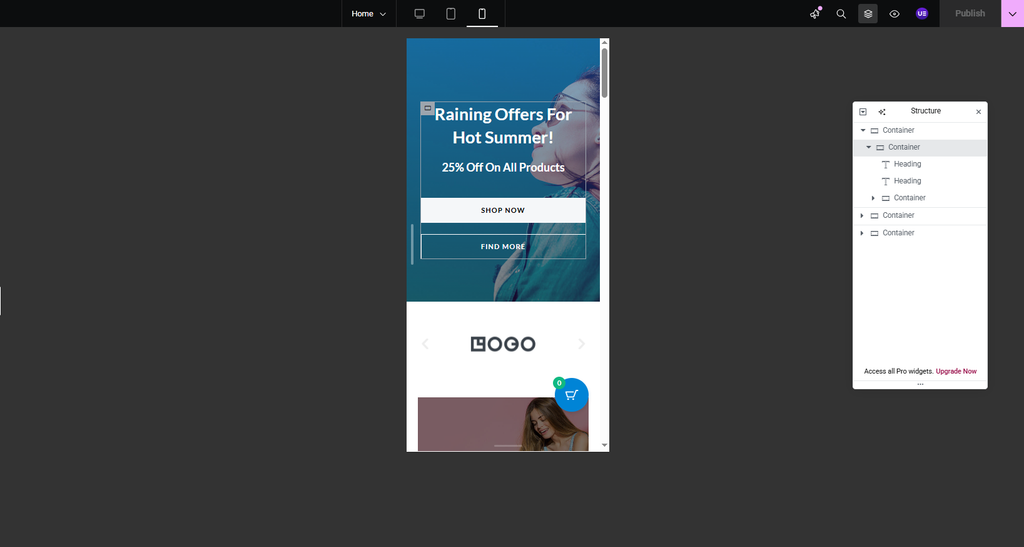
Check responsive at every breakpoint
- Use the responsive preview icons in the editor’s bottom toolbar to switch between desktop, tablet, and mobile.
- Compare mobile against your Phase 2 mobile screenshot. Divi and Elementor handle stacking and spacing differently, so a layout that looks right on desktop frequently needs mobile-specific padding adjustments.
- Elementor lets you set different values per device for most controls. Use this rather than compromising on a single value that’s mediocre everywhere.
Match the slug exactly
- Publish the page on staging.
- Under the page title, click Edit beside the permalink and make the slug identical to the live page’s slug.
- This is what preserves the page’s accumulated SEO value and keeps every inbound link, bookmark, and internal link working after the switch. Getting this wrong is the most common way a technically successful migration still costs you traffic.
- Move to the next page and repeat.
| Before moving to Phase 7, confirm |
|---|
| Every page from your Phase 2 inventory has a staging equivalent. Every slug matches its live counterpart exactly. No page uses one-off color or font values where a Global would do. Every page has been checked at mobile width, not just desktop. Any “difficult four” elements have either been rebuilt or consciously dropped with a note explaining why. |
Phase 7: QA on Staging
Estimated time: 2 to 4 hours
Everything here happens on staging, with Divi still installed on production and your live site running normally. This is your last chance to find problems cheaply.
Check for leftover Divi shortcodes
- Install Better Search Replace: Plugins → Add New, search, Install → Activate.
- Go to Tools → Better Search Replace.
- In Search for, enter [et_pb_. Select the wp_posts table.
- Tick “Run as dry run” before running anything. This reports matches without changing data.
- Click Run Search/Replace. Any results are pages still holding Divi content that you haven’t rebuilt. Add them back to your Phase 6 list.
- Do not use this tool to bulk-delete shortcodes. That strips the content along with the markup. Rebuild those pages properly instead.
Check links
- Install and run Broken Link Checker, or crawl staging with Screaming Frog if you have it.
- Pay particular attention to internal links. If any page slug drifted from its original during Phase 6, internal links pointing at the old slug will show up here.
Test forms properly
- Submit a genuine test entry through every form on the site.
- Confirm each one actually arrives where it’s supposed to: the right inbox, the right CRM, the right spreadsheet.
- Check confirmation messages and redirect-after-submit behavior too, these are easy to lose in a rebuild and easy not to notice.
Test on real devices
- Open staging on an actual phone, not just the editor’s responsive preview. Tap target sizes, font rendering, and scroll behavior all differ from the simulation.
- Test on both iOS and Android if you can, and check at least one tablet width.
Verify SEO metadata
- Open each rebuilt page in your SEO plugin and confirm the title tag and meta description survived.
- Check that any schema markup is still configured.
- Confirm images have alt text, particularly any you re-uploaded rather than reusing from the media library.
Compare performance
- Run both your live site and your staging site through PageSpeed Insights.
- Compare the scores. If staging is meaningfully slower than production, find out why now rather than after the switch. Common causes: a heavier Starter Template than your original design, images imported at larger dimensions than needed, or an Elementor addon pulling in scripts sitewide.
Walk the site as a visitor
- Click through every page as a normal user would. Follow the navigation. Use the search. Check the 404 page.
- Look for anything referencing a Divi-era layout that no longer exists: a link to a page you didn’t rebuild, a CTA pointing at a removed section anchor.
| Before moving to Phase 8, confirm |
|---|
| The et_pb dry run returns zero results. No broken links. Every form submits and arrives correctly. The site has been tested on at least one real mobile device. SEO metadata is intact on every page. Staging performance is equal to or better than production. You’ve clicked through the entire site as a visitor and found nothing broken. |
Phase 8: Push Staging Live
Estimated time: 30 to 60 minutes, plus monitoring
Do this at a low-traffic time for your site. Check your analytics for your quietest hours rather than guessing.
- Take a fresh full backup of production. Not the one from Phase 1, a current one. Settings → UpdraftPlus Backups → Backup Now. Confirm it completes and downloads before continuing. This is the step that makes everything after it reversible.
- If your host provides staging, use its Push to Live or Deploy function in the hosting dashboard. Most hosts let you choose whether to push files, database, or both. For this migration you need both.
- If you used Duplicator, build a fresh package from staging (Duplicator → Packages → Create New → Build), download both files, upload them to production, and run the installer there, overwriting the live install.
- Immediately spot-check your top pages from the Phase 2 traffic ranking. Confirm they load, look correct, and sit on their original URLs. Check the homepage, your highest-traffic landing page, and any page with a form.
- Confirm Divi is no longer active: Plugins → Installed Plugins on production. The push should have replaced it. If any Divi plugin is still active, deactivate it and immediately re-check pages for shortcode text.
- Clear all caches. Your caching plugin, your host’s server cache, and your CDN if you use one. Stale cached pages are the most common cause of “the migration broke something” reports in the first hour, and they’re usually not breakage at all.
- Submit your sitemap in Google Search Console: Indexing → Sitemaps. This prompts a recrawl so Google sees the rebuilt pages sooner.
- Monitor Search Console for two to four weeks. Watch the Coverage and Performance reports for crawl errors or ranking movement. Some fluctuation immediately after a rebuild is normal; a sustained drop is not, and usually traces back to a changed slug or a missing redirect.
- Keep your Phase 1 backup and Phase 2 JSON exports until you’re confident, at least a month. They cost nothing to store.
| Post-launch checklist |
|---|
| Top-traffic pages load correctly on their original URLs. Divi is deactivated with no shortcode text anywhere. All caches cleared. Sitemap resubmitted. Forms tested once more on production. Analytics still tracking (confirm in real-time reports). Backups retained. |
Divi vs. Elementor: What It Actually Costs
Worth knowing before you start, because the honest answer isn’t the one a migration guide usually gives.
| Divi | Elementor Pro | |
|---|---|---|
| Annual | $89/year, unlimited sites | $60/year for 1 site (Essential), up to $432/year for unlimited sites (One Agency) |
| Lifetime | $249 one-time, unlimited sites | Not available |
| WooCommerce builder | Included at every tier | Requires Advanced Solo ($84/year) or above |
| Theme Builder | Included | Pro only |
If you run multiple sites, Divi’s $249 lifetime unlimited-site licence is genuinely difficult to beat on price, and Elementor has no equivalent at any tier. This migration will not pay for itself in licence savings, and for an agency it will likely cost more annually than staying put.
| Verdict on cost |
|---|
| Migrating from Divi to Elementor is not a cost-saving move and shouldn’t be sold internally as one. It’s an investment in workflow, hiring flexibility, and a design system your team may find easier to maintain. Those are legitimate reasons. If your only complaint about Divi is the price, you should stay, and if your only complaint is speed, Divi 5 may already have addressed it. |
How Long Does This Take?
Rough guidance based on the phase estimates above:
| Type of website | Realistic estimate |
|---|---|
| 5-10 pages, simple layouts, no “difficult four” | 2 to 4 days |
| 10-25 pages, some custom modules, one or two Theme Builder templates | 1 to 2 weeks |
| 25+ pages, heavy conditional display and animations, custom post types | 3 to 6 weeks |
| WooCommerce store with customized shop and product templates | Add 1 to 2 weeks to any of the above |
The variable that moves these numbers most is not page count, it’s the number of unique page designs and how many of them use the difficult four. Phase 2 is what tells you which bracket you’re actually in.
Frequently Asked Questions
Can I keep my Divi site live while I migrate to Elementor?
Yes, and this entire guide is built around that. Your live site keeps running on Divi throughout, while the rebuild happens on a staging copy. You switch over once, at the end, after everything is tested. Never deactivate Divi on your live site before the rebuild is finished. That’s what causes raw shortcode text to appear on every page you haven’t rebuilt yet.
Will migrating from Divi to Elementor hurt my SEO?
Not inherently. URLs, page titles, meta descriptions, and schema live in WordPress and your SEO plugin, not in Divi, so they survive a builder change. The risks are indirect and all avoidable: changed slugs (keep them identical, Phase 6 step 17), a slower rebuilt site (compare PageSpeed before switching, Phase 7 step 17), and images re-uploaded without alt text (reuse from the media library instead). Expect some short-term fluctuation after any significant site change; a sustained drop usually traces to a slug that changed without a redirect.
Do I need to rebuild my WooCommerce store too?
Yes, if you customized shop or product pages using Divi’s modules. WooCommerce’s core functionality isn’t tied to your page builder, so products, cart, and checkout keep working. But custom shop layouts, product page designs, and checkout customizations built in Divi need rebuilding, either with Elementor’s WooCommerce Builder (Advanced Solo tier and above) or your theme’s own WooCommerce options. Astra includes WooCommerce layout controls in its free version, which covers many stores without needing a higher Elementor tier.
What happens to my Divi child theme and custom CSS?
The child theme stops being relevant once you change themes, since its template overrides target Divi’s files specifically. Before migrating, copy all custom CSS somewhere safe and review what each rule does. Anything targeting Divi classes (.et_pb_section, .et_pb_row, .et_pb_column) stops applying entirely. Re-implement the rules you still need against Elementor’s class structure, or in Appearance → Customize → Additional CSS on your new theme. Many rules turn out to be unnecessary once you’re on a different builder, they were working around Divi-specific behavior.
Can I use a converter plugin instead of rebuilding by hand?
You can try, with realistic expectations. Converter plugins like JHMG Converter turn a Divi JSON export into an Elementor draft, and they handle around 30 to 35 common modules reasonably. They do not handle custom CSS, uncommon modules, Theme Builder logic, or conditional display. Treat the output as a first draft needing cleanup, not a finished page. On content-heavy, layout-simple sites they can save real time. On sites using Divi’s distinctive features, manual rebuilding is often faster than fixing what the converter produces.
Is there any reason to stay on Divi instead of migrating?
Yes, and it’s worth taking seriously. If Divi’s workflow works for your team and you’re not hitting the specific friction that drives most migrations (hiring difficulty, styling maintenance at scale, ecosystem limitations), switching because it’s trending is real cost for no benefit. Divi 5’s February 2026 rebuild addressed much of the performance criticism aimed at older versions, so “Divi is slow” is a weaker argument than it was two years ago. And Divi’s unlimited-site lifetime licence remains better value than anything Elementor offers. Migrate because the destination solves a problem you actually have, not because a guide like this exists.


Abhijeet Kaldate is the co-founder and CRO of Brainstorm Force.
With a keen eye for detail and a knack for getting things done, Abhijeet oversees the company’s operations, managing key areas such as HR, marketing, design and finance.
Disclosure: This blog may contain affiliate links. If you make a purchase through one of these links, we may receive a small commission. Read disclosure. Rest assured that we only recommend products that we have personally used and believe will add value to our readers. Thanks for your support!