Every product catalog relies on attributes to drive faceted search filters and populate technical specification tables. But translating a dozen supplier spreadsheet columns into properly structured WooCommerce attributes usually requires creating terms by hand before an import can even begin.
In this guide, we’ll share the quickest method to import product attributes in WooCommerce using automatic field mapping to detect attribute columns, register taxonomy terms, and link variations in minutes without manual spreadsheet editing.
What Makes Product Attribute Imports Complex in WooCommerce?
In WooCommerce, product attributes are not just static text fields. The platform splits attribute data between two database structures: global attributes registered as WordPress taxonomies (pa_*) in wp_terms and woocommerce_attribute_taxonomies for faceted search, and custom product specifications stored as serialized PHP arrays in the _product_attributes post meta field.
Because of this complex architecture, importing attributes from vendor spreadsheets introduces several technical complications:
- The Global Taxonomy vs. Local Meta Split: Basic import plugins often dump all incoming columns into
_product_attributespost meta. While the specifications appear under the “Additional Information” tab, they cannot be queried by WooCommerce sidebar widgets, layered navigation, or storefront faceted search. - Multi-Value Delimiter Parsing: Supplier files frequently package multiple values into a single cell using delimiters, such as
Small | Medium | LargeorRed, Blue, Green. If an import tool cannot parse these separators on the fly, the entire string imports as one broken, unselectable attribute term. - Visibility and Variation Flag Toggles: Every imported attribute requires specific database flags to determine whether it is visible on the frontend and whether it should generate variable product SKUs. Manually checking these boxes across hundreds of catalog items is a massive time sink.
- Taxonomy Term Matching for Variations: Child variations depend entirely on exact attribute term and slug matches. A slight discrepancy in spelling or slug formatting breaks parent-child relationships and leaves variation dropdowns empty.
Handling these complications quickly requires an import workflow that automatically detects incoming attribute columns, creates global pa_* taxonomies, and applies variation flags on upload without manual intervention.
How To Quickly Import WooCommerce Product Attributes
WP All Import provides the fastest way to import product attributes into WooCommerce by automating the tedious parts of catalog setup. Instead of configuring fields by hand, it detects attribute columns on upload, splits multi-value lists, and sets up global taxonomies in a single pass.
Here is the step-by-step workflow using Automatic Setup:
Step 1: Upload Your Product Attribute Spreadsheet
Navigate to All Import › New Import in the WordPress main menu.
Click the Set up automatically banner at the top of the screen to open the automated import workflow.
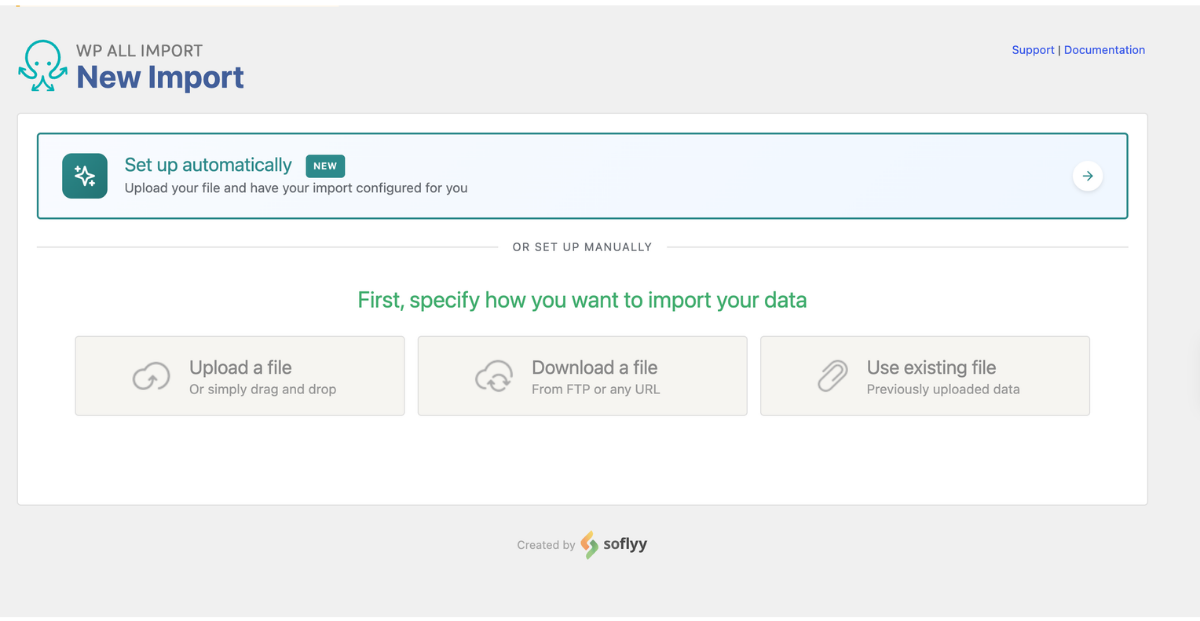
Selecting Your Product Import File Source
From here, you’ll first choose where your catalog file is stored. The setup wizard gives you four flexible source options:
- Upload a file: Upload a CSV, Excel (.xlsx or .xls), or XML file directly from your computer (supporting files up to 256 MB).
- Download from URL: Enter a direct link to an external distributor feed or paste a shareable Google Sheets link (with permissions set to “Anyone with the link can view”).
- Existing file: Select a file that has already been uploaded to your server’s
/wp-content/uploads/wpallimport/files/directory. - FTP/SFTP: Enter your server host, port, username, and password to download files directly from an external supplier storage server.
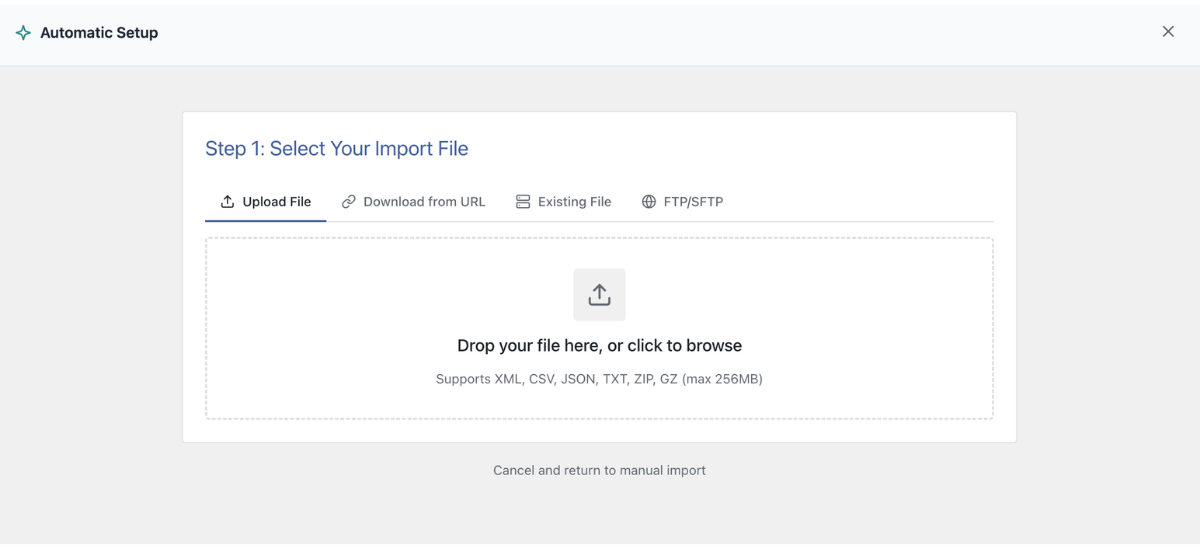
Once your file is loaded, move to the next step to choose the right WooCommerce data type.
Choosing the Product Import Target
Under Choose What to Import, select WooCommerce, then pick Products (Simple, Variable, Grouped) from the dropdown menu.

Adding Custom Setup Instructions
Before clicking the setup button, you can expand the optional Add Setup Instructions field. This allows you to give the wizard specific context about non-standard attribute columns in plain English. For example, you can enter:
- “Set ‘Color’ and ‘Size’ as global attributes used for variations”
- “Attribute values in Column F are separated by a pipe character”
- “Treat the ‘Specifications’ column as a local custom attribute”
Once your instructions are in place, click Start Automatic Setup. The plugin scans your spreadsheet rows, analyzes column relationships, and detects your product attributes automatically.
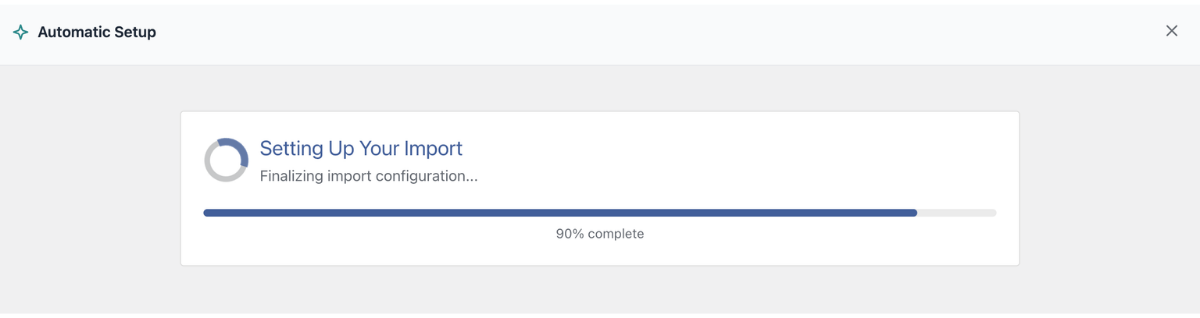
Step 2: Inspect the Automapped Product Attribute Fields
Once the automated analysis finishes, the screen displays the Your Import Is Ready card. At a glance, it shows how many fields were mapped from your file and the exact number of records that will be imported.
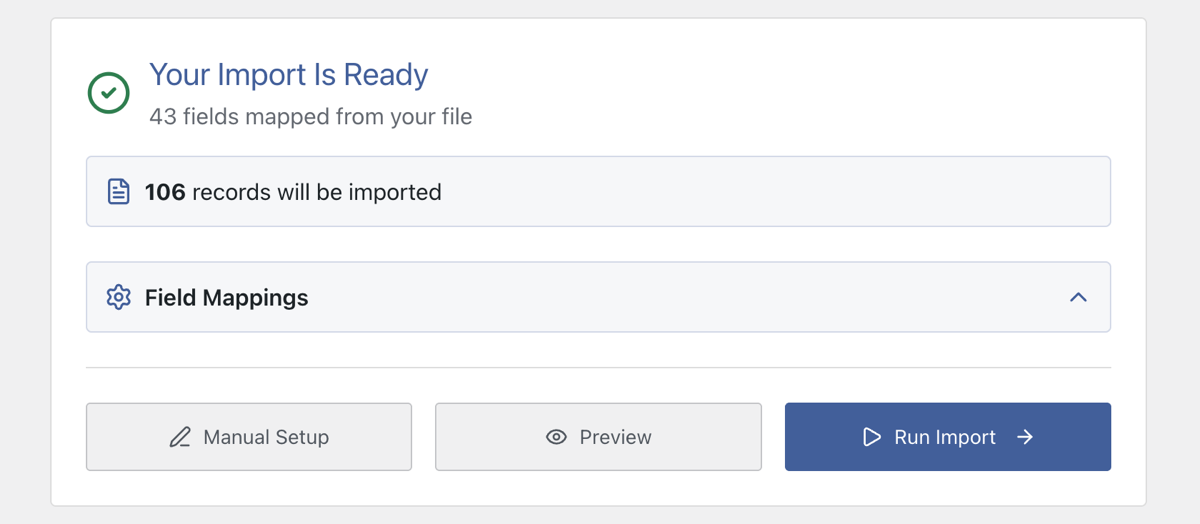
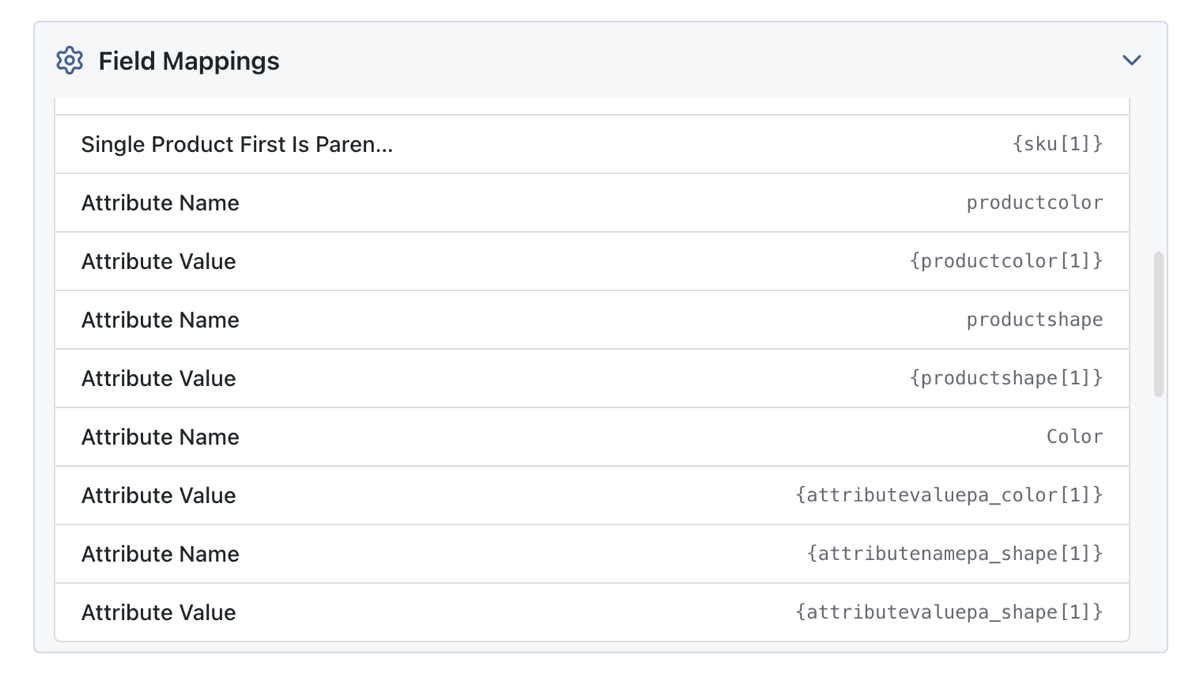
Directly below the record count, click the Field Mappings section to expand the mapped data checklist. This is where you can confirm that your attribute columns were paired accurately:
- Attribute Name & Value Pairs: The list shows each detected attribute name alongside the matching spreadsheet element (such as
{productcolor[1]}or{attributevaluepa_color[1]}). - Taxonomy Detection: Global attributes set up for filtering appear with their
pa_*taxonomy handles, while one-off product specifications are assigned as custom attributes.
At the bottom of the card, the interface gives you three clear actions: Manual Setup if you need to open the template editor, Preview to inspect your data, and a blue Run Import button to execute the import immediately.If you want to fine-tune attribute settings or adjust variation controls, click Manual Setup to open the pre-filled template editor.
Step 3: Preview Product Attributes Before Importing
To prevent trial-and-error imports, WP All Import allows you to verify that your product attributes and variation dropdowns are configured accurately before any data is saved to your database. On the same page, click the Preview button to review your products across two perspectives:
- WP Admin View: Displays the backend WooCommerce product edit screen. Navigate to the Attributes tab in the preview to confirm that attribute names are listed, values are populated, and the checkboxes for Visible on the product page and Used for variations are marked correctly.
- Frontend View: Renders an interactive live product page. For simple products, check the Additional Information tab to verify that attribute tables display cleanly. For variable products, test the attribute dropdowns (such as selecting a color or size) to ensure variations respond properly.

Step 4: Run the Import Directly from the Header
Because Automatic Setup configures record identifiers and batch processing behind the scenes, you do not need to click through multiple setup screens to complete the import.
Once you have verified your attributes in the preview, click the blue Run Import button.
WP All Import handles everything in the background: registering global taxonomy terms, attaching attributes to products, and generating variations while displaying a real-time progress bar until your catalog is ready.
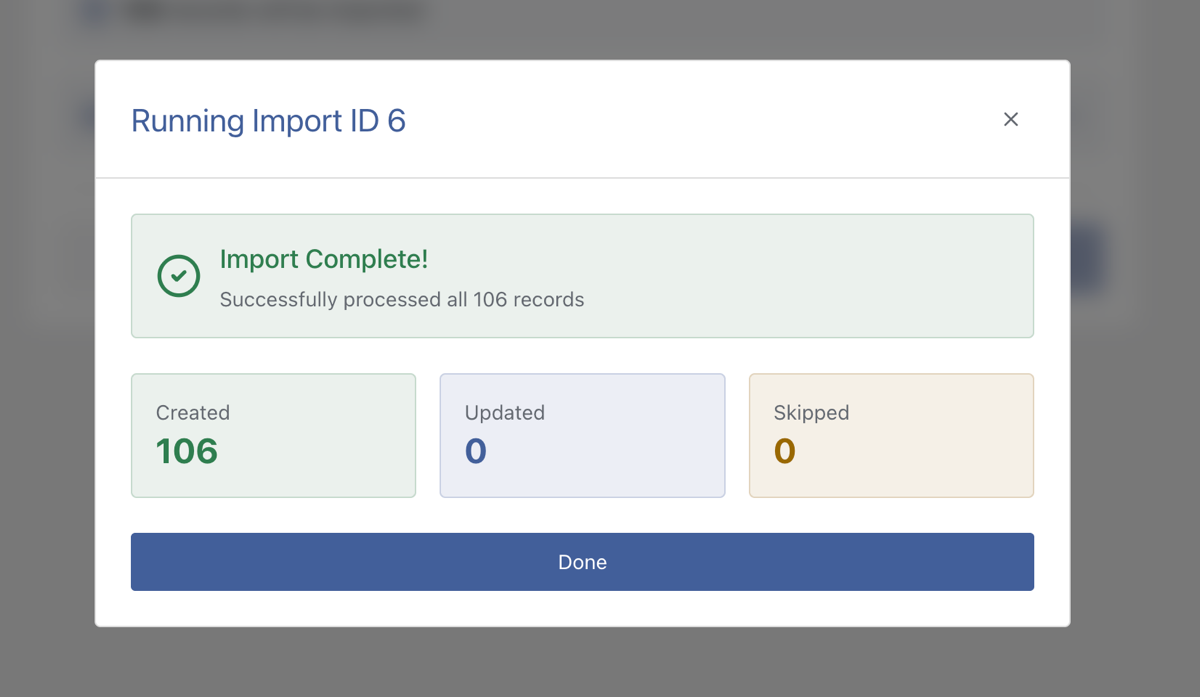
Advanced Attribute Settings in the Template Editor
While Automatic Setup configures standard attribute columns on upload, custom vendor feeds occasionally require fine-tuning. If you click Manual Setup from the summary card, you can navigate to the WooCommerce Add-On section and open the Attributes tab to customize how each attribute is processed.
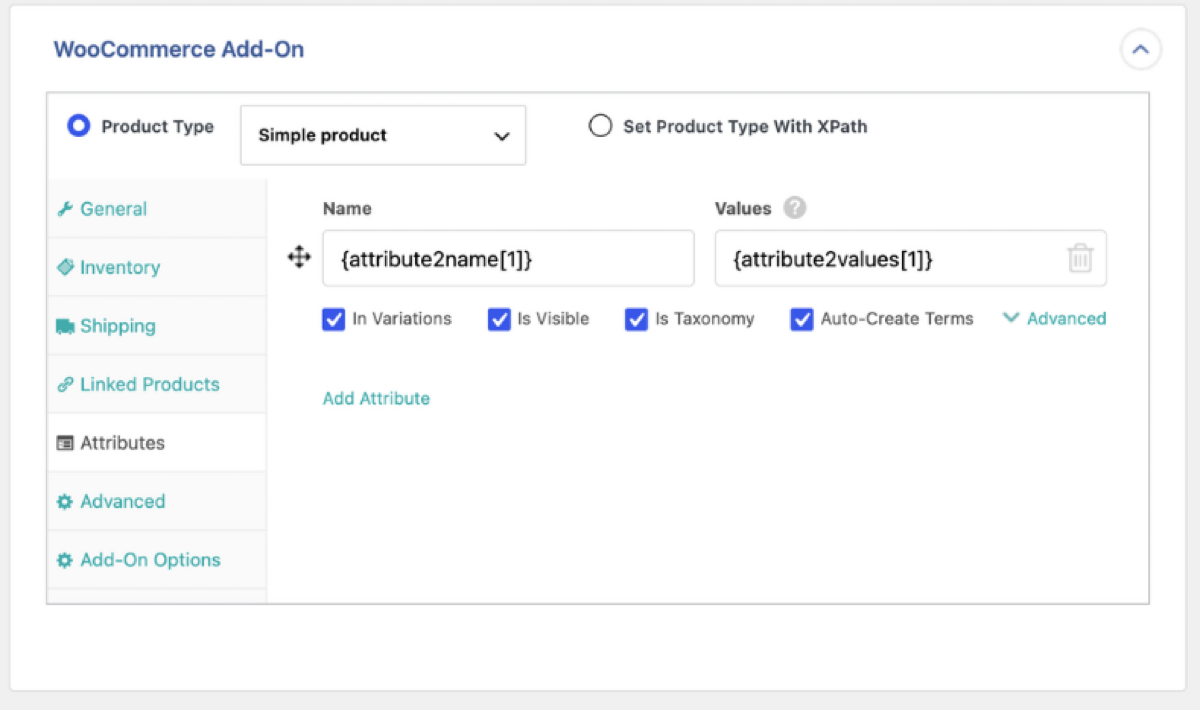
1. Global vs. Local Attributes (Is Taxonomy)
The Is Taxonomy setting controls whether an attribute is stored as a global taxonomy or a local product specification. When enabled, WP All Import registers the attribute as a global WooCommerce taxonomy (pa_*), which is required if you want customers to filter products using sidebar widgets or faceted search plugins. Selecting Not Taxonomy imports the values as local specifications stored in wp_postmeta, which works best for one-off technical specs that do not need site-wide filtering.
2. Frontend Visibility and Variation Flags
Each attribute row includes two toggles that dictate how WooCommerce exposes the data on your site. The Is Visible option controls whether the attribute appears in the “Additional Information” table on the single product page. The In Variations option flags the attribute so WooCommerce can use its terms to generate variation dropdowns. Both options can be toggled independently depending on whether an attribute is intended for display, variation logic, or both.
3. Automatic Term Creation (Auto-Create Terms)
When importing global taxonomy attributes, the Auto-Create Terms setting tells WP All Import how to handle new values. With this option selected, the plugin automatically creates any missing taxonomy terms in the WordPress database as it encounters them in your file. If you prefer to restrict attributes strictly to pre-existing terms you already configured under Products › Attributes, you can set this to Do Not Create Terms to prevent unauthorized terms from being added to your catalog.
4. Dynamic Control with XPath
Clicking the Advanced link next to any attribute row expands the four settings into dedicated radio controls, each offering a Set with XPath option. This feature is useful when your spreadsheet contains mixed catalog data where some products require an attribute for variations while others only need it for display. Instead of applying static rules across the entire import, you can pass conditional logic or column values (such as yes or no) directly from your feed to control visibility, taxonomy assignment, and variation flags on a per-product basis.
Final Thoughts – Quickest Way to Import Product Attributes in WooCommerce
The traditional way of importing WooCommerce attributes usually involves a frustrating cleanup phase: fixing broken multi-value cells, converting local attributes into global taxonomies, and manually checking variation boxes across hundreds of items.
Using an automated import workflow eliminates that post-import cleanup entirely. WP All Import reads the structure of your spreadsheet on upload, automatically creating missing taxonomy terms and applying the correct visibility and variation flags without manual intervention.
Checking your work directly in the side-by-side preview gives you complete visibility into how your attributes look on the frontend and how they are stored in the admin. When you are satisfied, clicking Run Import straight from the card executes the entire process without unnecessary setup steps.
Frequently Asked Questions – Importing Products with Attributes
What is the difference between global and custom product attributes in WooCommerce?
Global product attributes are stored as custom WordPress taxonomies (pa_*) in the wp_terms table. They can be shared across multiple products and used in storefront filter widgets and faceted navigation. Custom product attributes are local to an individual product, stored as serialized post meta in wp_postmeta, and cannot be used for site-wide filtering.
Can you import multiple attribute values from a single spreadsheet cell?
Yes. WP All Import easily parses multiple attribute values from a single cell. If your spreadsheet lists values separated by a character such as a pipe (Red | Blue | Green) or a comma, you can specify that delimiter in the attribute settings. The plugin splits the text and attaches each value as an individual attribute term in WooCommerce.
How do you import attributes to create WooCommerce product variations?
To use imported attributes for product variations, the attribute must have the Used for variations setting enabled. When using WP All Import with Automatic Setup on a variable product spreadsheet, the plugin automatically detects variation attributes, marks them for variation use, and generates the child variation combinations in a single pass.
Why are my imported product attributes not showing up in storefront filters?
If imported attributes do not appear in storefront filter widgets, they were likely imported as custom local attributes rather than global taxonomy attributes. To enable site-wide filtering, attributes must be registered as global taxonomies (pa_*). In WP All Import, ensure the attribute row has the taxonomy option enabled so terms are registered in wp_terms and linked to woocommerce_attribute_taxonomies.
Related Information