Order records are the backbone of an online store. Migrating between WooCommerce sites, restoring from a backup, or importing histories from another platform all depend on moving that data accurately.
WooCommerce doesn’t come with a built-in order importer, and the CSV files from other systems rarely arrive in a predictable layout.
In this article, we’ll show you how to import WooCommerce orders from CSV, so the migrated history arrives complete and ready for reports, refunds, and customer service lookups.
What to Look for in a WooCommerce Order Import Plugin
Order imports are the most demanding type of WooCommerce import. A plugin that handles products well can still fall short on orders, because each order record depends on data stored elsewhere in the database. The following features are what separate a complete WooCommerce order import from a partial one:
- Any CSV structure, any column names: Order files come from WooCommerce exports, other platforms, and backups. A plugin that expects one fixed schema forces you to rebuild the file before anything imports. A good order import plugin should be able to map any column layout on upload.
- Line item attachment to real products: Each purchased product in an order must link to an actual product record. If the plugin writes line items as plain text, orders appear in the admin without products attached, and reports and restocking tools stop counting them.
- Customer matching: An order should link to the buyer’s account by email, user ID, or username. Without this, every order imports as a guest purchase, customer histories go empty, and total spend figures on customer profiles stop updating.
- Preservation of original dates and statuses: A migrated order should carry its original purchase date and its true status (
processing,completed,refunded, and the rest). Imports that add the same order date or default every order to a single status corrupt revenue reports and refund histories. - Email suppression during import: A migration touching thousands of orders must not email thousands of customers. The plugin should import order records silently, with a setting that keeps transactional emails off during the run.
- Support for custom order meta: Stores customized with checkout field plugins, shipment tracking extensions, or other third-party plugins store data in custom meta. The plugin should map those columns automatically instead of leaving them behind.
The walkthrough below uses WP All Import to import orders from CSV, and each step along the way connects back to one of these capabilities.
How to Import WooCommerce Orders from CSV
WP All Import imports WooCommerce orders from any CSV layout. Its Automatic Setup maps order columns to the correct fields, and the pre-filled template editor makes every mapping available for review before data reaches the database.
The workflow below covers the process from file to finished order records.
Step 1: Create the Import and Select Orders
Log in to your WordPress admin and install the WP All Import plugin along with its WooCommerce add-on.
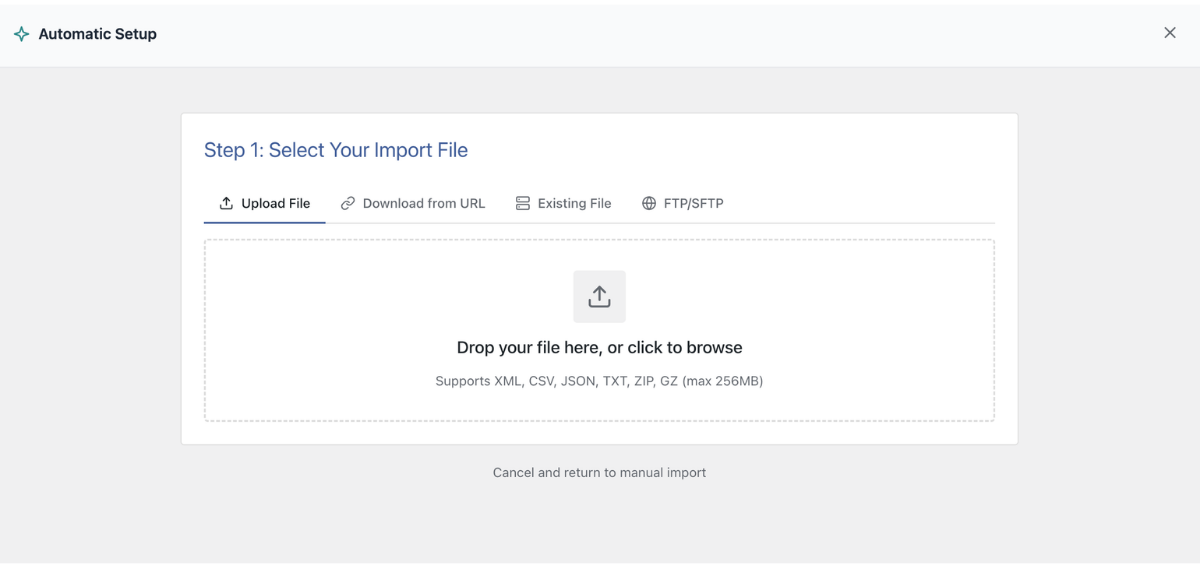
Then, navigate to All Import › New Import in the WordPress dashboard and click the Set up automatically banner at the top of the screen.
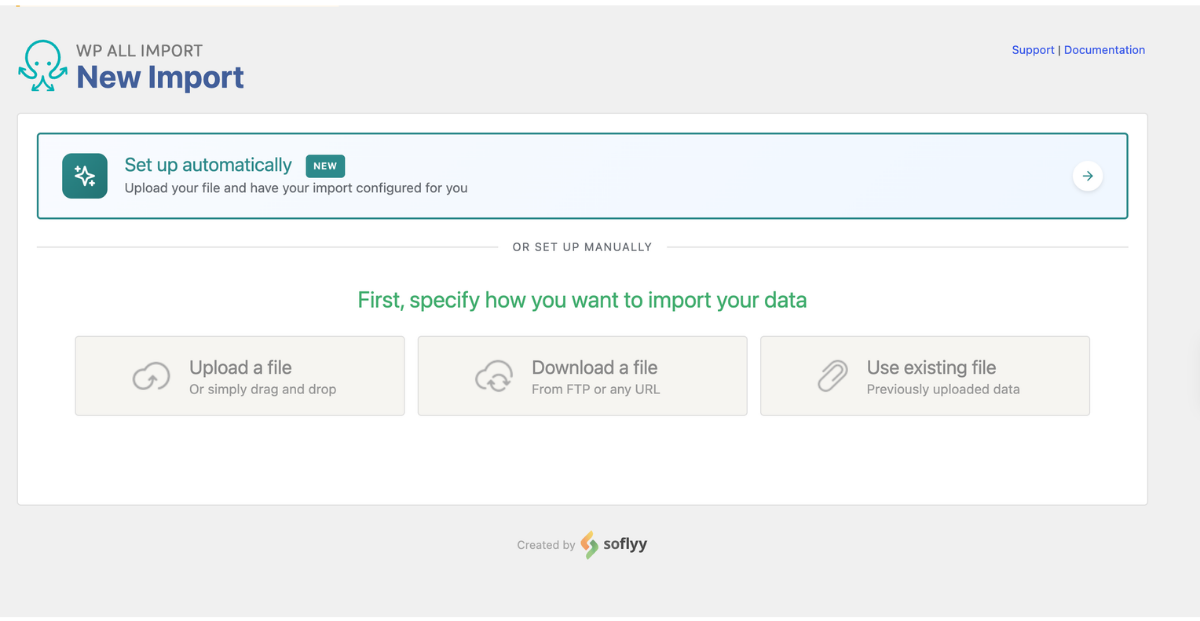
You’ll see multiple options to load your WooCommerce product import file. Select from the four options available:
- Upload a file: Choose the CSV directly from your computer.
- Download from URL: Point the plugin at an orders export hosted on a remote server or a shareable Google Sheet.
- Existing file: Reuse a CSV already uploaded to
/wp-content/uploads/wpallimport/files/. - FTP/SFTP: Pull the file directly from an external server.
Under Choose What to Import, pick WooCommerce from the list and choose Orders as the record type.
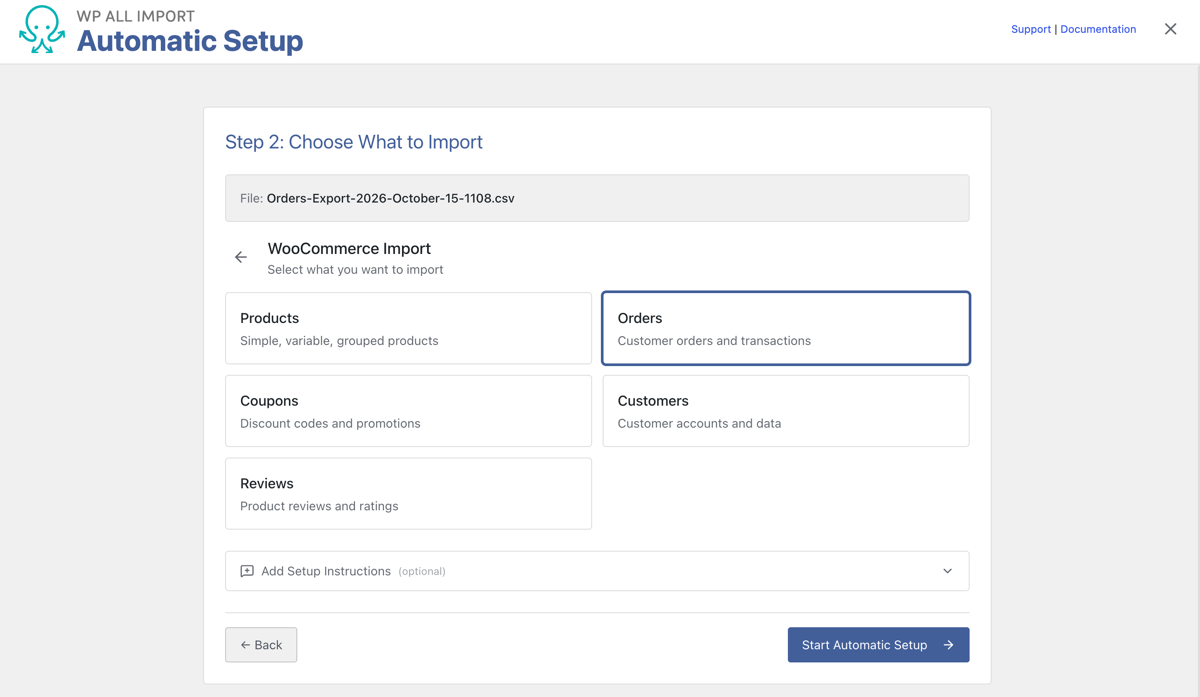
Before the analysis begins, the Add Setup Instructions field lets you add plain-English notes about anything unusual in the file, such as “Line items are pipe-delimited with SKU, quantity, and total” or “Match customers by email.” The notes guide how the plugin reads the CSV, so anything that would otherwise confuse the mapping gets handled at this point. Click Start Automatic Setup, and the plugin reads the file and builds the order field mappings on its own.
Step 2: Verify Order Field Mappings on the Summary Card
When the analysis completes, the Your Import Is Ready card reports the number of order records detected and the fields mapped from the file. Click Field Mappings to expand the checklist.
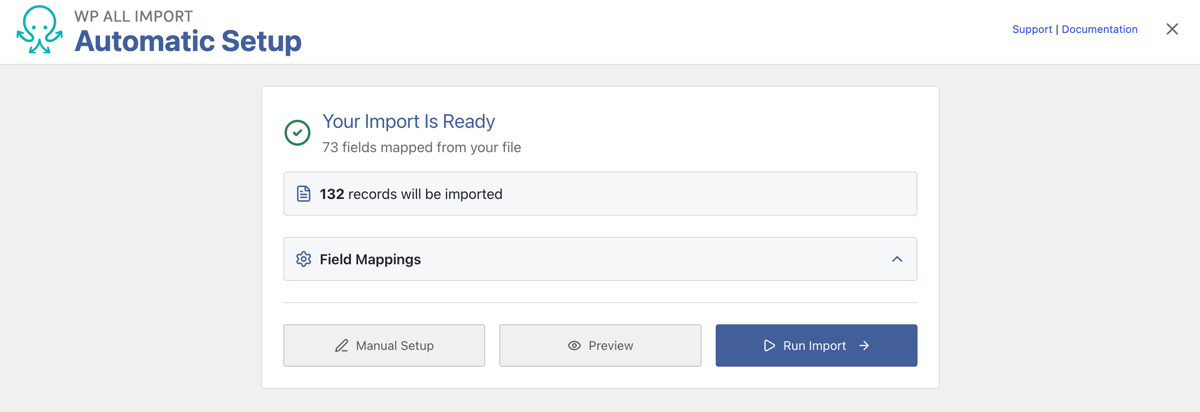
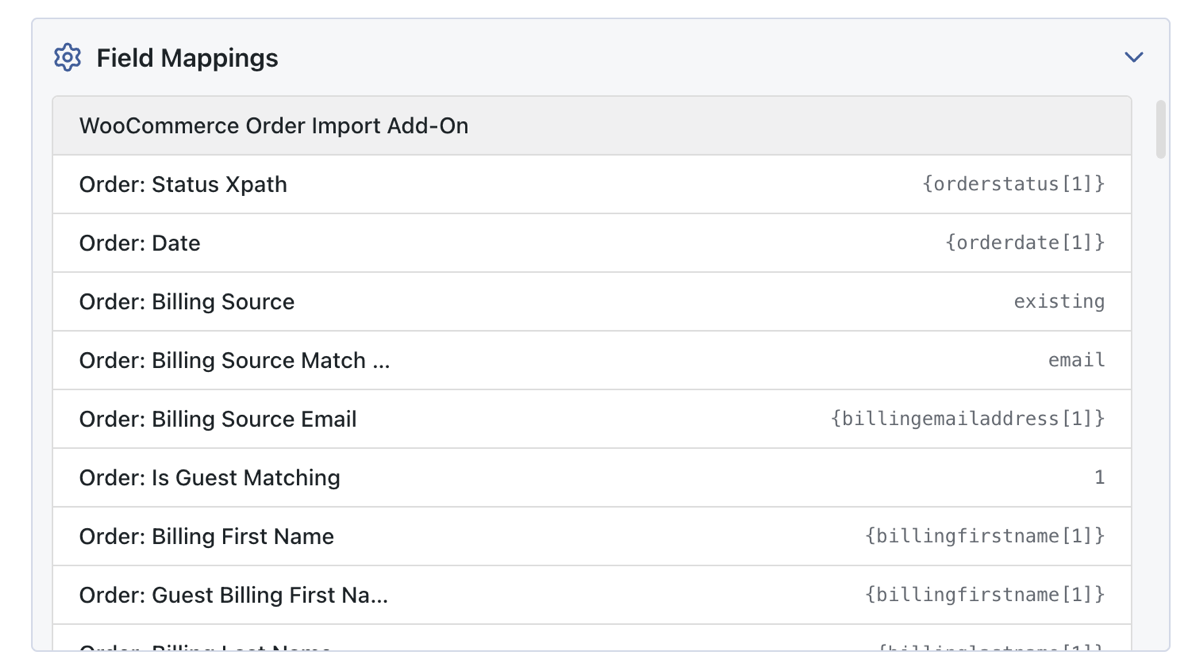
The mapping list shows every field Automatic Setup mapped from your CSV file. Reviewing it top to bottom against the source file makes misplaced columns easy to spot. The fields where order imports tend to go wrong are the customer and billing details, the financial values (order total, shipping total, taxes, discounts, payment method), the line items column, and the status and date columns.
Step 3: Preview Order Records in WP Admin View
Click Preview on the summary card, and the preview panel opens alongside the mappings. For orders, the preview runs in WP Admin View, which renders the WooCommerce order edit screen for each record: billing and shipping addresses filled in, line items listed with their quantities and totals, and the order total assigned where it belongs.
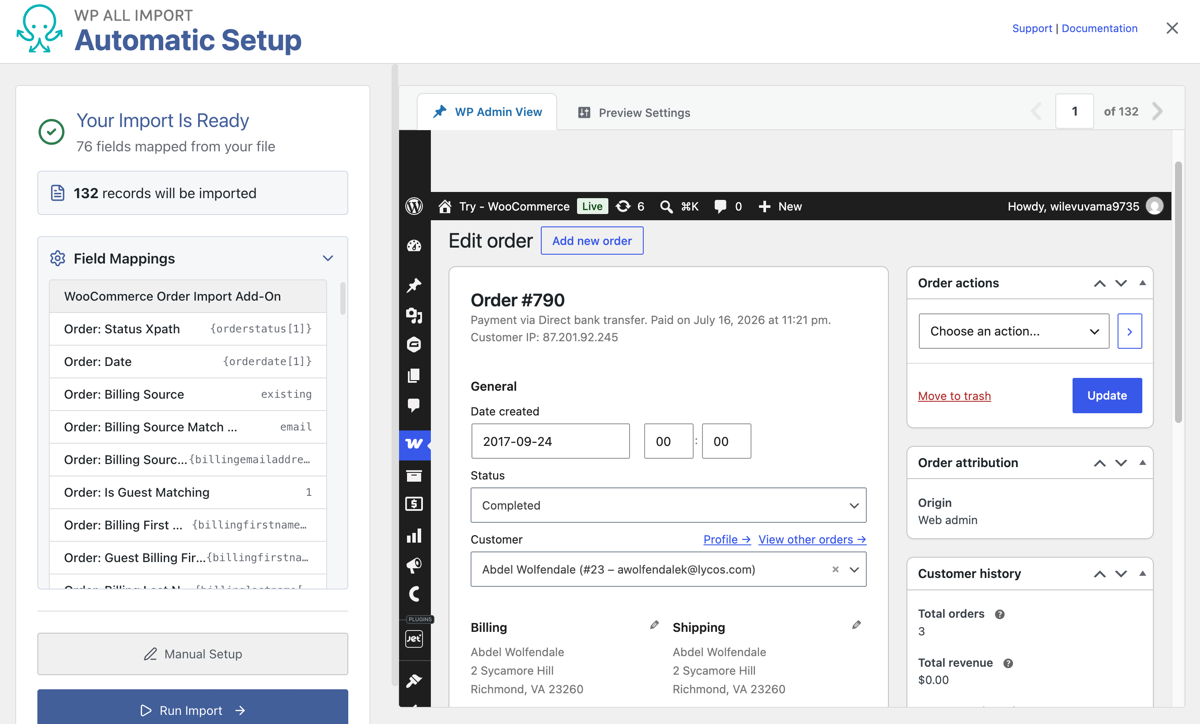
The arrows let you move through the file one order at a time.
Step 4: Run the WooCommerce Order CSV Import
Once you have verified everything in the preview, click the Run Import button on the summary card to start the WooCommerce product import. WP All Import processes the CSV file in background batches, so order histories with thousands of records finish without hitting server execution limits, and a progress bar tracks the orders as they are created.
When the run completes, open WooCommerce › Orders and verify a few records against the source CSV, beginning with the most complex orders in the batch.
Reviewing the WooCommerce Order Mapping in the Template Editor
WP All Import’s Automatic Setup maps order fields correctly most of the time. The files worth a second look are the ones that don’t follow the usual pattern. That means CSV cells holding several products in one column, a buyer’s email address stored under a column name like “Customer” or “Contact,” or totals saved as $1,299.00 instead of plain numbers.
Clicking Manual Setup on the summary card opens the pre-filled template editor, where you can review and adjust the mapping done by Automatic Setup before the import runs.
The editor organizes the order data into panels, each covering one part of the order record:
- General: The order status, order date, and customer fields, including how each order links to a customer account by email or user ID.
- Billing and Shipping: The address fields for both records, mapped from the CSV columns that carry the customer’s details.
- Order Items: The core of the order import, with a dedicated tab for each data type: Line Items (product SKU or ID, quantity, and total per item), Shipping (method and cost), Fees, Taxes (code and total), Coupons (code and amount), and Refunds (amount, reason, and date).
- Custom Fields: Any order meta registered by plugins on the site, such as checkout fields or shipment tracking numbers, mapped automatically from the matching CSV columns.

Review the mapping by walking through these panels and comparing them with the CSV order columns shown on the right. Automatic Setup has already paired each column with a field, so the review is a confirmation pass. Anything that looks wrong can be adjusted directly in the field, and the preview on the same screen shows how each order will appear in the WooCommerce admin once the changes are in.
What Is the Best Way to Import WooCommerce Orders from CSV?
WooCommerce doesn’t come with an importer for orders. Order records also carry data that lives outside the order itself: line items tied to products, billing details tied to customer accounts, and statuses and dates that decide how each record behaves in reports. Moving that data from a CSV file requires a WooCommerce order plugin built for all of it.
WP All Import is a WooCommerce order import plugin that imports orders from any CSV file, including line items, customer details, order totals, statuses, and dates. Its Automatic Setup maps any CSV layout to the correct order fields on upload. Every mapping stays available for review in the template editor before anything is written to the database. The Order Items section attaches each purchased product by SKU or product ID. Customer matching links orders to buyer accounts by email or user ID, and original order dates and statuses import intact. Custom order meta from checkout field plugins and shipment tracking extensions imports alongside the standard fields. The email setting keeps large migrations silent, and a Unique Identifier lets every re-run update existing records in place.
For any store moving order history from another platform or migrating between WooCommerce stores, WP All Import turns the source file into working WooCommerce order records, with nothing left to clean up afterward.
Frequently Asked Questions – Import WooCommerce Orders from CSV
How do I import WooCommerce orders from CSV?
To import WooCommerce orders from CSV, install WP All Import, create a new import under All Import › New Import, select WooCommerce and Orders as the import type, and run the Automatic Setup. The plugin maps the CSV columns to the correct order fields on upload, and the import processes the file in background batches so large order histories complete without server timeouts.
Do I need to import products before importing orders?
Yes, when the orders reference products by SKU or product ID. WP All Import attaches each line item to a real product in the store, so the product catalog must exist before the orders import runs. Orders referencing products that aren’t in the store still import, but those line items arrive without a product attachment. For migrations, running the product import first keeps every order item linked.
Can I import orders for customers who don’t have accounts?
Yes. WP All Import matches each order to a customer by email, user ID, or username, and when no account matches, the order imports as a guest purchase. That is the correct outcome for historical records whose buyers no longer have accounts. Guest orders appear in the admin with their billing and shipping details intact, and they count toward revenue reports like any other order.
Can I import order refunds and coupons along with the orders?
Yes. The Order Items section of the template editor includes dedicated tabs for Coupons and Refunds. Coupon lines import with a code and the amount applied, as long as the coupon itself exists in the store before the order references it. Refunds import with their amount, reason, and date, which keeps the financial trail complete for accounting and reconciliation.
Can I import shipment tracking numbers and custom checkout data with orders?
Yes. WP All Import detects custom order meta registered by plugins on the site and maps matching CSV columns to those meta keys automatically. Tracking numbers from shipment plugins, custom checkout field values, and other third-party order data import alongside the standard fields in the same run, with no manual meta key setup required.
Related Information