Anyone who has tried to bring an order history into WooCommerce from a spreadsheet knows how quickly it falls apart. You upload the order Excel file, hunt through the admin for an orders import screen, and find one that only accepts products in CSV form.
Converting the file to fit does not help either. The dates arrive as numbers, the totals arrive as text, and the order numbers lose their leading zeros somewhere in the process.
In this guide, we’ll cover how to import WooCommerce orders from Excel without a conversion step.
What to Look for in an Excel Order Import Plugin
Excel workbooks break WooCommerce order imports in specific places. The right plugin deals with each of those points while it parses the file, before field mapping begins. These are the features that matter:
- Native .xlsx and .xls support: The plugin should read the workbook as Excel saved it, with no conversion step. A CSV conversion step is where dates, leading zeros, and currency symbols get damaged.
- Date parsing that respects cell formatting: The plugin should read the formatted date in a cell, not the serial number underneath. A cell showing 03/15/2024 holds 45366, and that raw number dates every order to 1900.
- Protection for leading zeros: The plugin should write order references, postal codes, and phone numbers as text. Excel strips the first digit from any value it treats as a number.
- Totals read as numbers: The plugin should import $1,299.00 as 1299.00, not as text with a symbol attached.
- Line item attachment: The plugin should link each purchased product to a real product record by SKU or product ID.
- Customer matching: The plugin should connect orders to buyer accounts by email or user ID, with guest purchases as the fallback.
- Preview before Excel importing: The plugin should show each order in the admin layout before anything commits to the database.
WP All Import meets every requirement on the list, which is why this guide uses it for the walkthrough below.
Why Use WP All Import for WooCommerce Order Imports
WP All Import is an order import plugin that reads Excel workbooks, CSV files, and XML feeds, then writes the records into WooCommerce through a mapping template. It reads .xlsx and .xls files natively up to 256 MB, so a workbook imports exactly as Excel saved it.
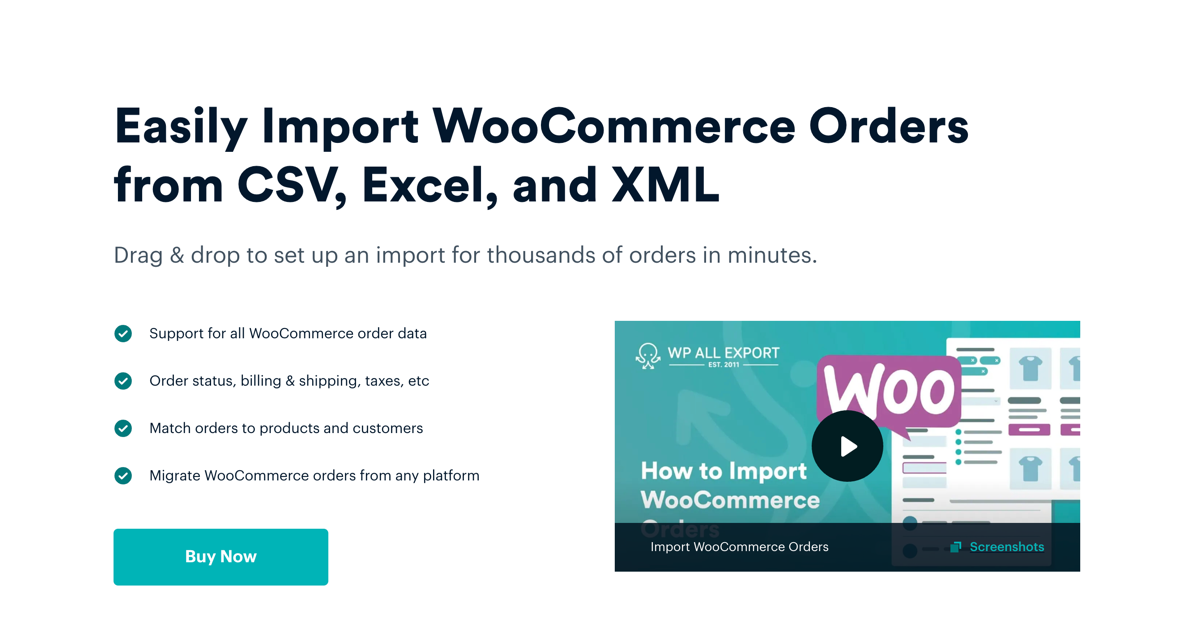
The native parse covers each requirement on the list above, so the workbook transfers as Excel saved it. Automatic Setup then maps the Excel file columns to WooCommerce order fields on upload, including customer details, billing and shipping addresses, line items, totals, and statuses.
The order structure is where most importers stop. WP All Import treats each order as a record with parts: the Order Items section attaches every purchased product to a real product record by SKU or product ID, customer matching links the order to a buyer in wp_users by email or user ID, and orders without a match import as guest purchases. Custom order meta from checkout field plugins and shipment tracking extensions maps alongside the standard fields.
On stores running High-Performance Order Storage, the plugin writes to the wp_wc_orders tables rather than wp_posts and wp_postmeta, so imported records land where WooCommerce reads them.
WP All Import also saves the template built during setup. This allows future Excel order file uploads to reuse it, and a Unique Identifier set on the original order number updates existing orders instead of duplicating them.
How to Import WooCommerce Orders from Excel
The WooCommerce Excel order import process is divided into two parts. The first is preparing the workbook so Excel keeps its dates, totals, and text values intact. The second is the import itself, which runs through the wizard in four steps.
Step 1: Prepare the WooCommerce Order Excel File
A few minutes of cleanup prevents most import problems. Keep the order data on a single worksheet, since the plugin processes one sheet per import. Set the date column to a date format and the totals column to Number. It also helps to format order numbers and postal codes as Text.
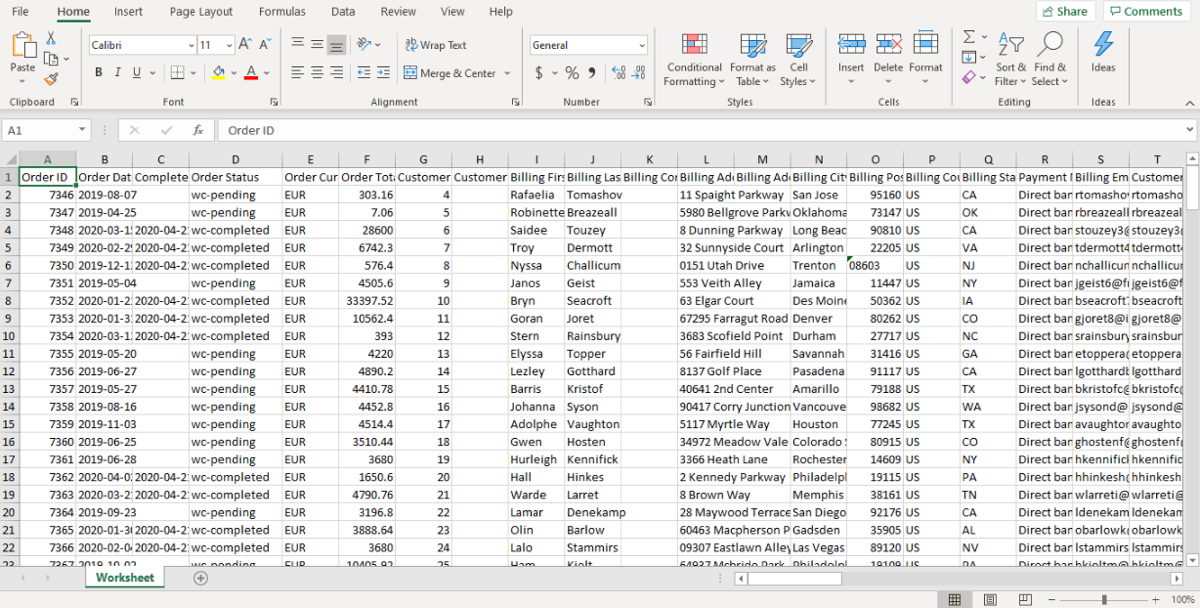
Once everything is updated, save the file as .xlsx and close it. Leave the Excel workbook untouched after saving, since a file opened and re-saved by another application can lose its formatting on the way.
Step 2: Upload the Excel File and Start Automatic Setup
After installing the WP All Import plugin, go to All Import › New Import and click the Set up automatically banner.
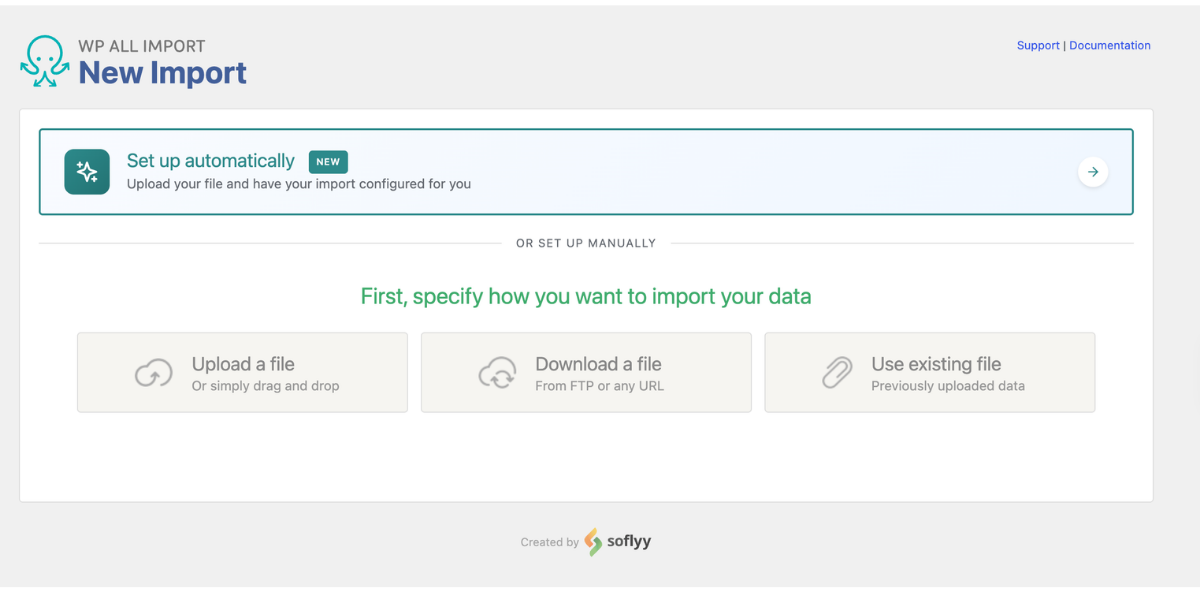
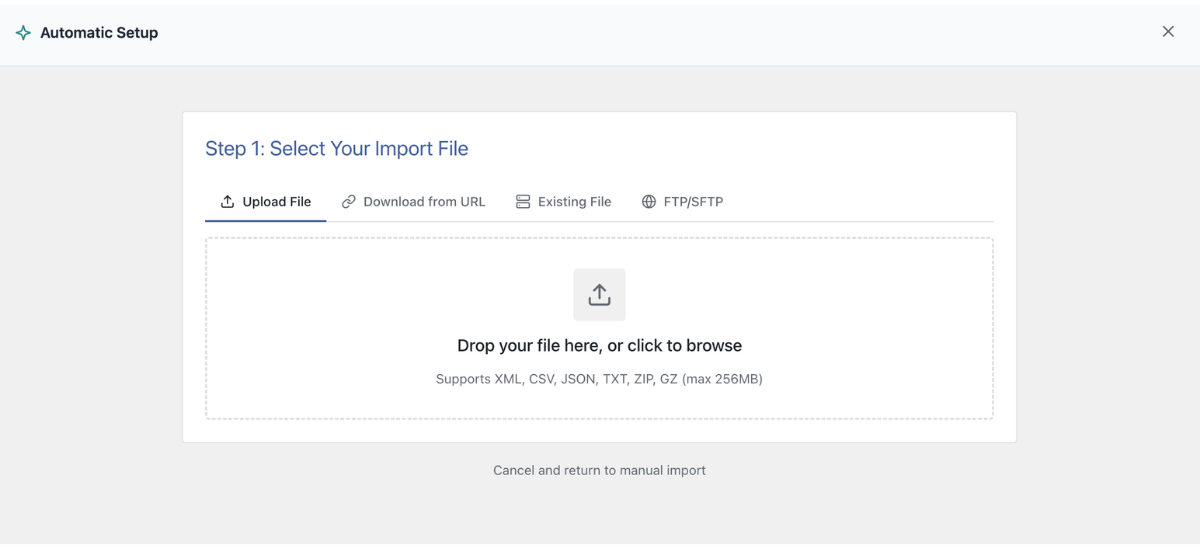
Choose the file source. The wizard accepts an upload from your computer, a download from a URL or Google Sheets link, a workbook already in /wp-content/uploads/wpallimport/files/, or a direct pull from an FTP/SFTP server.
Set Choose What to Import to WooCommerce, then Orders.
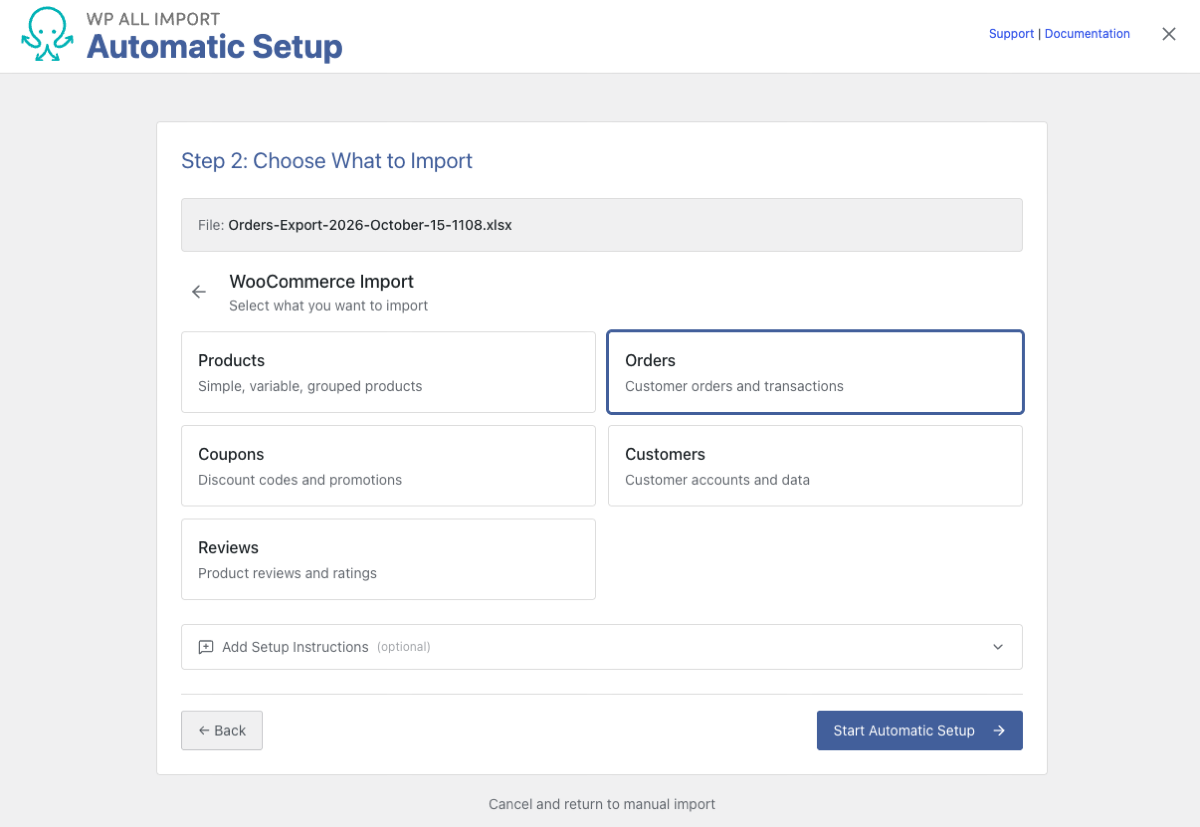
On the same page, the Add Setup Instructions field takes plain English notes about anything unusual, like “Skip the first two rows, the headers start on row three.” or Phone numbers have no country code and need the +1 added.”
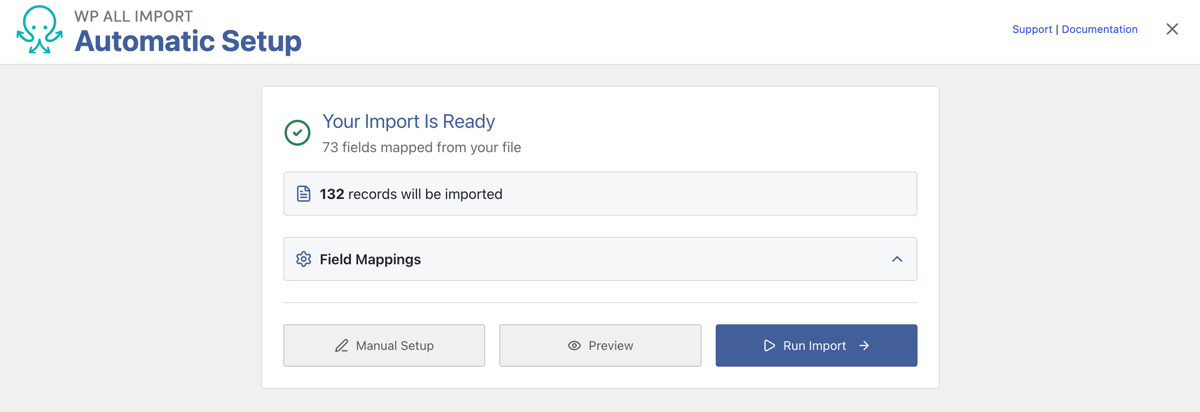
Click Start Automatic Setup, and WP All Import will review the Excel file and automatically map the fields. A progress indicator tracks the parse, and the Your Import Is Ready card follows with the number of order records detected and the fields mapped from the workbook.
Step 3: Confirm the WooCommerce Order Field Mappings
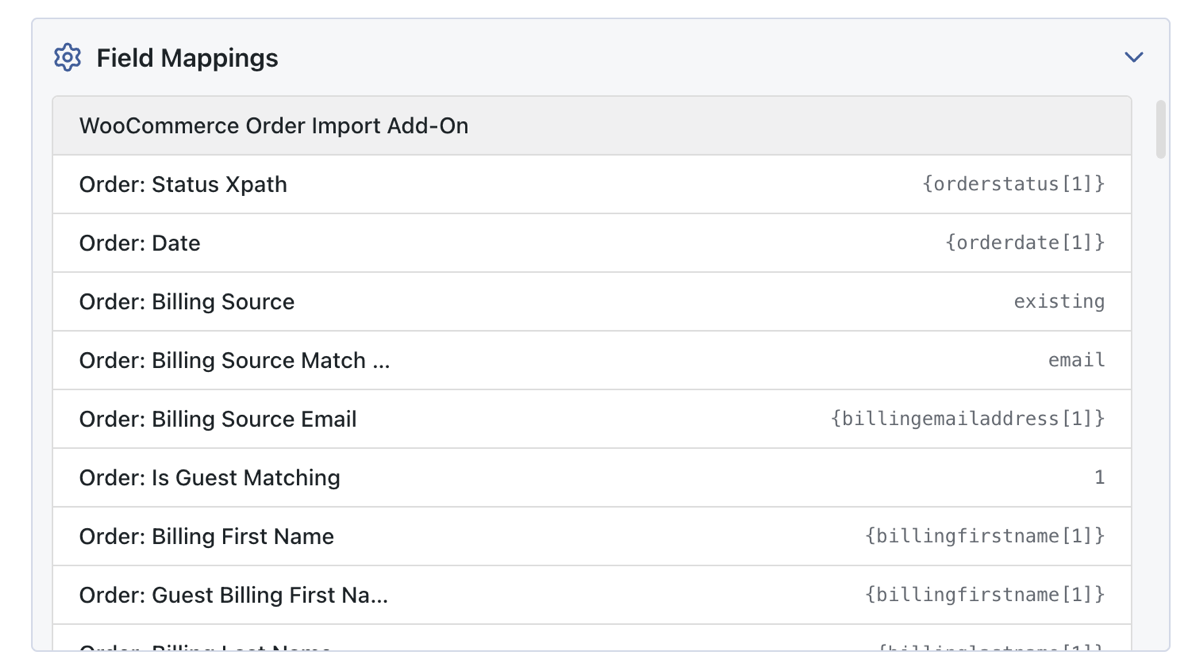
That summary card is also where the mapping review starts. The Field Mappings section beneath it lists every column from the Excel file and the order field it now feeds.
Work through that list with the spreadsheet open on a second screen. Start with the columns that carry the most weight in an order record, since a mistake there is harder to correct once the import runs. When a column feeds the wrong field, Manual Setup opens the pre-filled template editor, where it can be repointed.
Step 4: Preview the WooCommerce Orders in WP Admin View
Preview opens the record panel beside the mapping list. Order records render in WP Admin View, which means the actual WooCommerce order edit screen: billing and shipping addresses in their fields, line items with quantities and totals, and the order total where WooCommerce expects it.
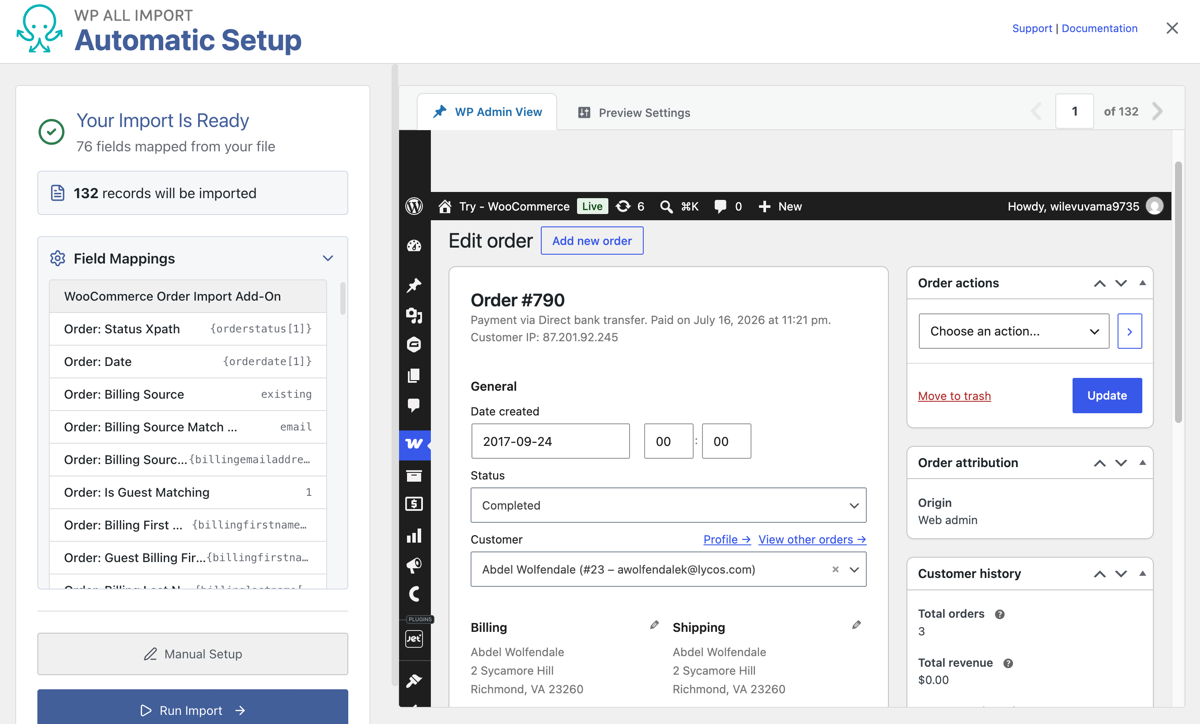
The arrows in the top right corner move through the file one order at a time. Open a couple of single-item orders to confirm the basics, then jump to the ones with several line items, applied coupons, or refunds. A mapping problem that stays invisible in a simple order usually shows up once an order has more moving parts.
Step 5: Run the WooCommerce Excel Order Import
Once you’re done reviewing the mapping, click the Run Import button on the summary card. The import processes the Excel in the background, so a file with thousands of order rows does not hit a server limit. A progress bar tracks the count as records are created.
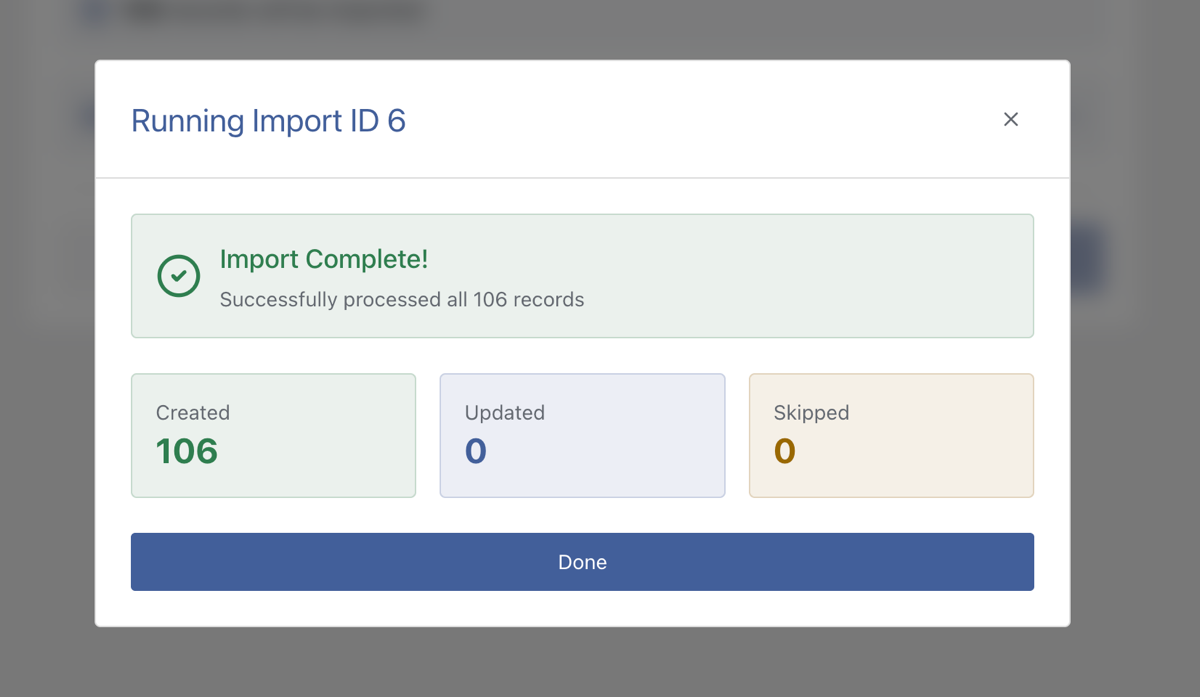
Once it finishes, open WooCommerce › Orders and spot-check a few of the orders with the most going on: several line items, an applied coupon, or a refund. Those records prove whether the mapping held up.
Excel Order Data to Review in the Template Editor
Automatic Setup maps most order fields on upload. Clicking Manual Setup opens the pre-filled template editor, and the review is a walkthrough of its sections with the Excel workbook open beside you.
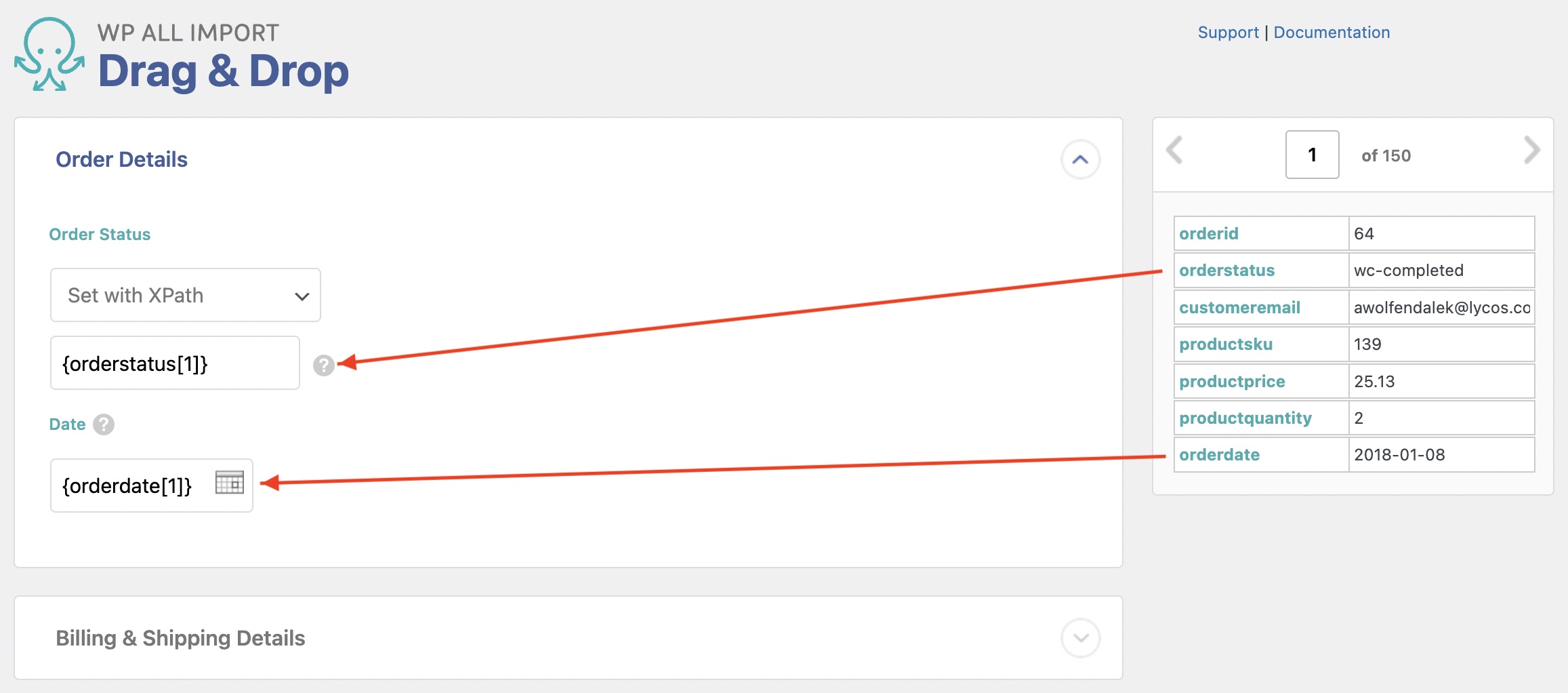
Order Details. This panel includes the Order status and order date. Confirm both columns landed in the right fields, since these two values decide how each order behaves after the import.
Billing and Shipping. Three tabs to check. Billing holds the customer match by email address or a guest purchase. Shipping carries either a copy of the billing address or a separate one, plus any customer note from the order. Payment holds the payment method, payment date, and transaction ID.

Order Items. The largest section, with a tab per data type: Products (matched by SKU, ID, or title), Fees, Coupons, Shipping, Refunds, and Total. Tax lines sit under Advanced Options inside the tab that needs them. Two things are worth knowing here. A product that fails to match still lands in the order, just without a link to a catalog product, so confirm the Products tab resolved every item. And nothing in the Total tab is calculated for you, so the order totals import exactly as the workbook states them.
Notes. Order notes map to this section. Skip the sections below it, such as Custom Fields, unless your workbook carries data for them.
What Is the Fastest Way to Import WooCommerce Orders from Excel?
An Excel order file needs an importer that reads the workbook as Excel saved it. Every conversion between the spreadsheet and the database is a chance for dates to lose their formatting, totals to become text, and order references to lose a digit.
WP All Import is a WooCommerce order import plugin that reads .xlsx and .xls workbooks directly, and writes the records into WooCommerce through a mapping template. Automatic Setup maps the Excel columns to order fields on upload, and background batches carry a history of several thousand orders through without a server timeout.
The order structure is where the import proves itself. The Order Items section links each purchased product to a catalog record by SKU or product ID, customer matching connects orders to buyer accounts in wp_users by email or user ID, and orders without a match import as guest purchases. On High-Performance Order Storage stores, records write to the wp_wc_orders tables, where WooCommerce reads them. Custom order meta from checkout field plugins and shipment tracking extensions arrives alongside the standard fields.
Every mapping stays open for review in the template editor, and the preview shows each order in the admin layout before anything commits.
Frequently Asked Questions – Import WooCommerce Orders from Excel
Can WooCommerce import orders from Excel?
No. WooCommerce has no built-in order importer, and its product importer reads CSV rather than Excel. WP All Import imports orders from .xlsx and .xls workbooks directly, including line items, customer details, statuses, and dates, with automatic field mapping during the upload.
Why do my order dates import as numbers from Excel?
Excel stores dates as serial numbers, so a cell displaying 03/15/2024 holds the value 45366. When the cell formatting is lost, the import reads the raw number. Restore the date format in Excel, save the workbook, and re-upload so the importer maps actual dates.
How do I import order line items from an Excel file?
To import order line items from Excel, structure each cell with a product identifier, quantity, and total, such as sku:woo-album|quantity:1|total:19.99, separating multiple items with semicolons. WP All Import decodes that cell in its Order Items section and links each product by SKU or product ID.
Will importing orders send emails to my customers?
No. WP All Import writes order records into the database without triggering transactional emails. The order email option stays unchecked during the import, so customers receive no order confirmations from a migration, even when thousands of records are created with their statuses set.
How do I update existing orders from Excel without creating duplicates?
To update orders without duplicates, set the original order number or ID as the Unique Identifier in WP All Import using the Auto-detect button on the Import Settings screen. Re-running the import matches incoming rows to existing orders and updates them in place rather than creating new records.
Related Information