An XML product feed gives you no columns and no rows. Every product is a block of nested tags, and the same tag name can appear at four different depths.
The importer has to decide which block counts as one product. Pick the wrong level, and one product with forty variations imports as forty products with no parent.
In this guide, we’ll cover how to import WooCommerce products from XML, and how to tell which block the importer should read as one product.
What Makes an XML Product Import Difficult?
An XML feed has no header row to check. Each product sits in a block of nested elements, and the import depends on reading the right block at the right depth.
- Nesting instead of columns: A CSV field has a fixed position in the header row. An XML value has a path, and the path decides which product owns it. A tag at the wrong depth lands in the wrong field, or in no field at all.
- Choosing the record element: The import treats one repeating element as a product. A
- Repeatable elements: Images, categories, and attributes appear a different number of times per product. One product carries a single image and the next carries twelve. A repeatable set needs an XPath expression rather than a plain field.
- Namespace prefixes: Google Merchant Center feeds declare
xmlns:gand store values in elements such as - Encoded content: Descriptions arrive in CDATA sections or as escaped HTML. The import has to write them as content, not as visible tags. CDATA also hides a description from any check that reads raw text.
- File size and memory: DOMDocument and SimpleXML load the entire tree before processing starts. A 120 MB feed exceeds the memory limit on most shared hosts. A streaming parser reads one record at a time and stays below that limit.
- Variation placement: Some feeds list variations as separate records with a
parent_skuelement. Others nest them inside the parent product. The two layouts need different settings, and they look identical in a browser window.
Each of those problems has a fix. The next section covers how the plugin reads a feed before anything gets mapped.
How WP All Import Turns XML Elements Into Products
WP All Import converts every import file to XML internally, including CSV, Excel, and JSON, as its action reference documents. That single parser explains how the plugin behaves with a genuine XML feed.
The Parser Picks the Record Element on Upload
There is no step where you choose the repeating element. Upload the feed, select WooCommerce and then Products, and the parser reads the nesting and decides which element repeats on its own.
Everything inside that element becomes one product record. Everything outside it is ignored, however much data it holds.
The pick usually lands on the node a person would choose, such as
The record count is the check. A feed of 120 products that reports 4,800 records was read at the variation level, and the mapping that follows will be built on the wrong unit.
XPath Covers What a Field Cannot
Each mapped element becomes an XPath expression such as {title[1]}. That handles single values and fails the moment a product carries several images.
{images/image/@src} returns every image as a comma-separated list. A [FOREACH] loop repeats a path per node when each URL needs a prefix. When a namespace prefix varies between feeds, local-name() reaches the element without it.
Parsing Streams Instead of Loading the Tree
PHP offers two ways to read XML. DOMDocument and SimpleXML load the entire tree into memory before any work starts. XMLReader walks the file node by node and keeps only the current record.
That difference explains why custom scripts stall on large feeds. WP All Import parses in a stream, accepts files up to 256 MB, and offers a StreamReader option for feeds that need a different reading mode.
How to Import WooCommerce Products from XML
WP All Import reads the XML file directly. There is no conversion step, no CSV export in the middle, and no rebuilding of the feed’s nesting in a spreadsheet.
That matters because the nesting is the data and it builds each product from the elements inside that record. For XML work, the plugin covers the structures that break other importers:
- Elements at any depth, reached with an XPath expression
- Variations nested as child elements, or listed as separate records with a parent SKU
- Repeated image, category, and attribute nodes handled through one expression
- Namespace-prefixed elements such as
- CDATA descriptions imported as content rather than visible tags
Automatic Setup builds the mappings on upload, so the first run does not start from an empty template. The summary card shows the record count and the fields mapped, and Preview renders a product in the admin layout before anything is written.
This combination of a streaming parser, automatic mapping, and XPath at any depth is why WP All Import suits feeds a supplier built for their own systems rather than for WooCommerce.
Here is how that process runs from upload to finished products.
Step 1: Upload the Feed and Choose the Import Type
Once WP All Import is installed on your site, go to All Import › New Import. The Set up automatically banner sits at the top of the screen.
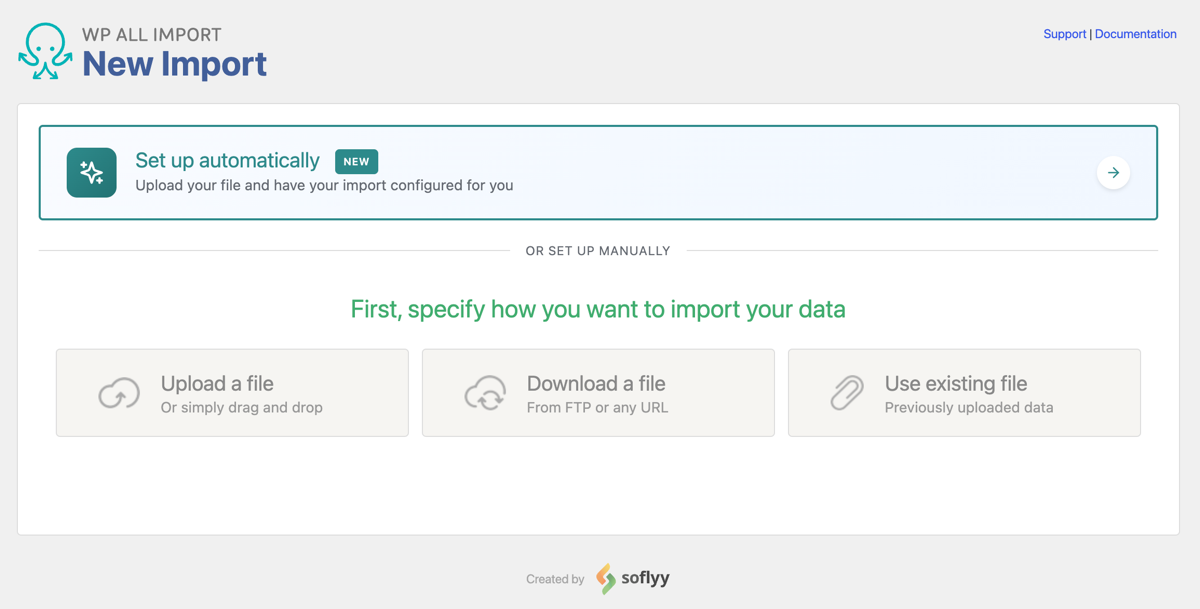
Click on it and it opens the file source tabs. Four sources are available: an upload from your computer, a URL, an existing file on the server, and an FTP or SFTP connection. Feeds up to 256 MB upload directly.

Set Choose What to Import to WooCommerce, then Products. There is no record element selector on this screen. The parser reads the nesting and picks the repeating element itself, and the next step confirms whether it chose correctly.
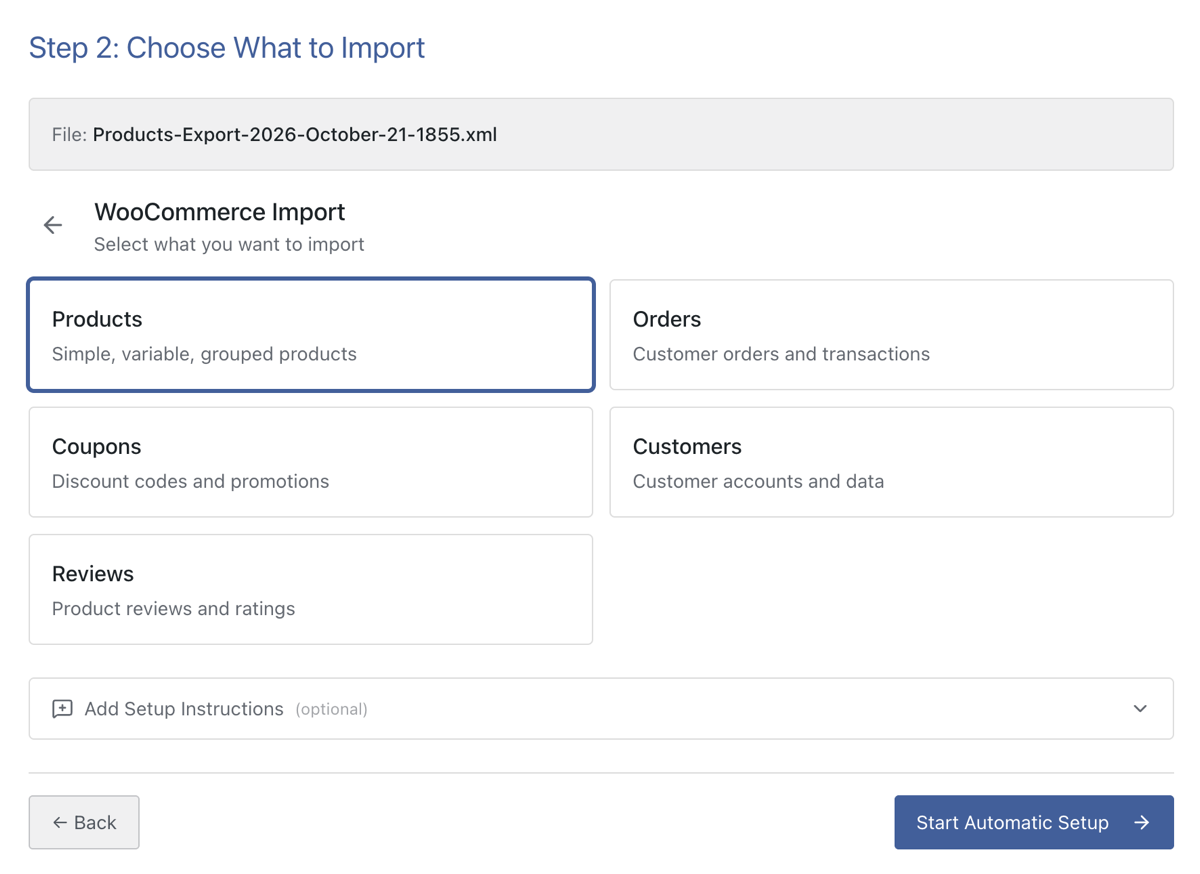
Step 2: Add Setup Instructions and Start Automatic Setup
Add Setup Instructions takes plain English notes about the file. Use it when the feed does something unusual, such as variations nested inside the product or image URLs split across several nodes.
A line like “Each product node contains its variants as child elements” gives the parser context it can act on. Without it, a nested feed may be read at the variation level.
Click Start Automatic Setup. The plugin parses the feed and builds the product mappings, then opens a summary card reporting the the record count, and the number of fields mapped.
Step 3: Read the Summary Card Before Touching Anything
The record count is the first number to check. A feed of 120 products should report 120 records. A number in the thousands means the parser read at the variation level, and every mapping after it will be built on the wrong unit.
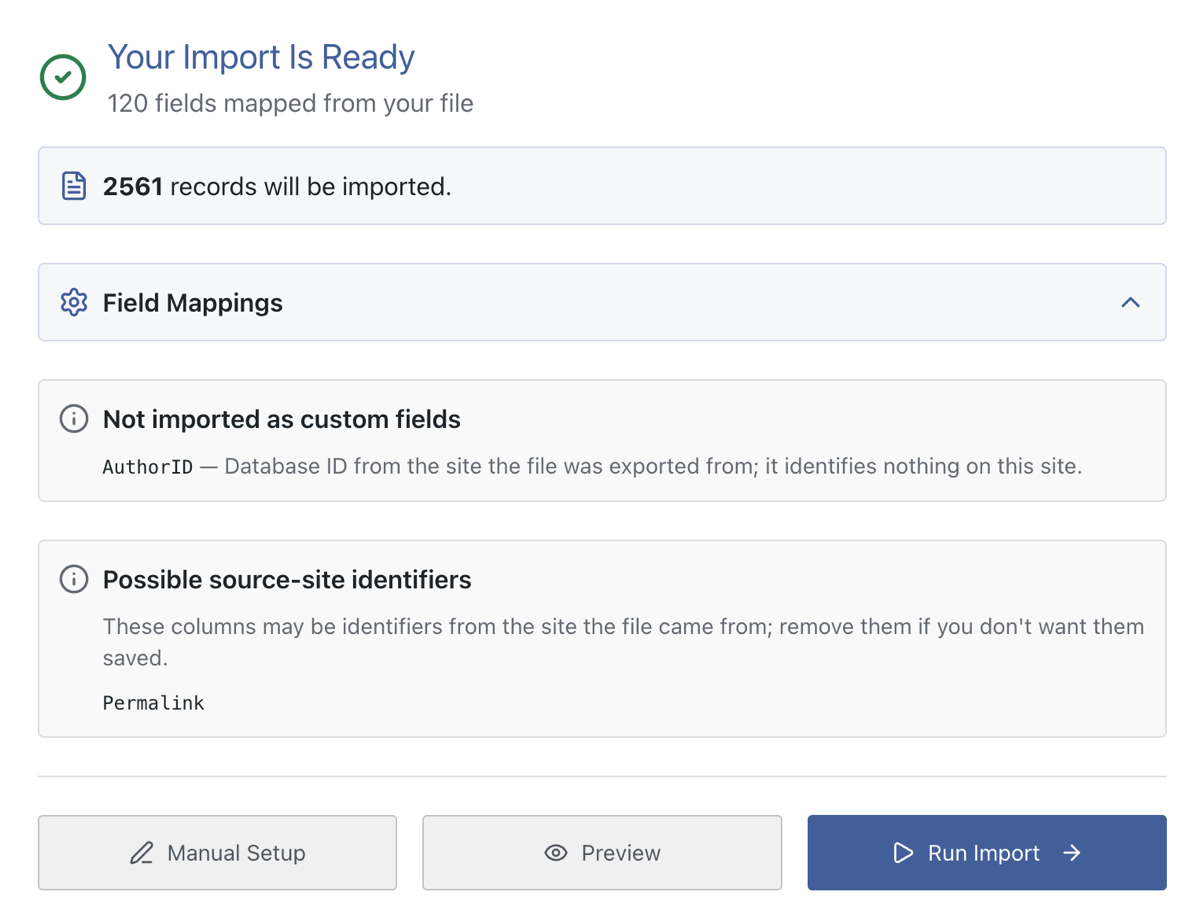
Then open Field Mappings and read the checklist. The fields that decide whether a product is complete are the title, SKU, regular price, stock status, images, and categories.
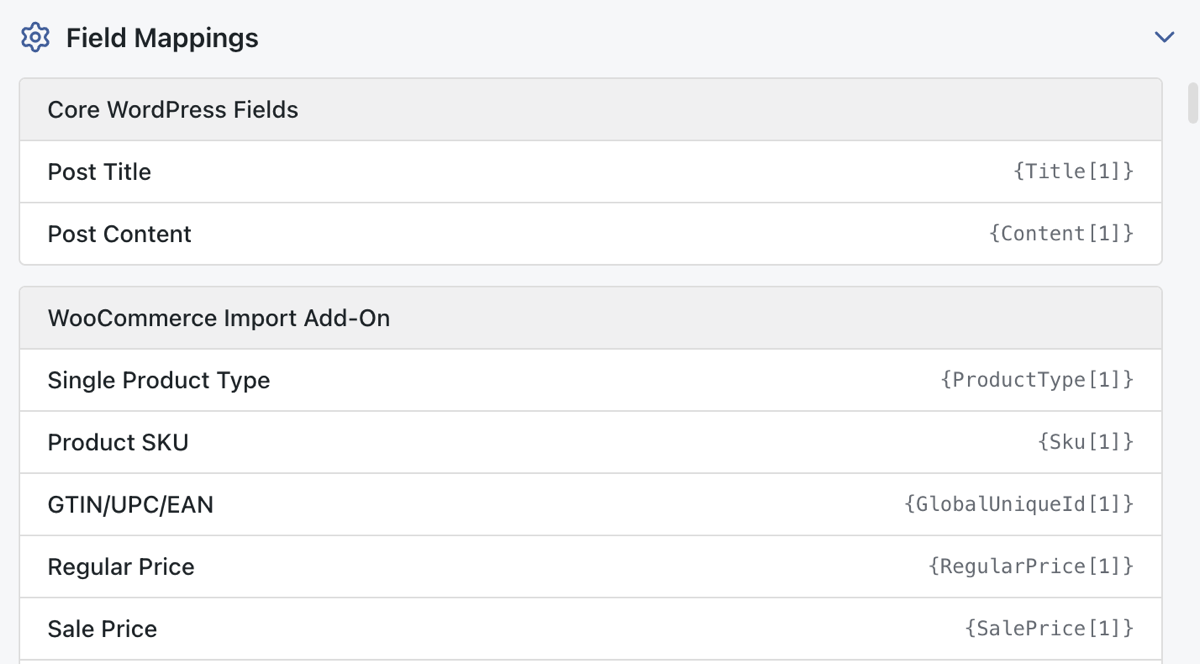
A missed image column appears here as an empty field, which is cheaper to catch than a storefront full of products without photos.
Step 4: Correct the Mapping in the Template Editor
Click Manual Setup when a mapping is wrong. The template editor opens with the automatic work already applied, so a correction takes one drag rather than a rebuild.
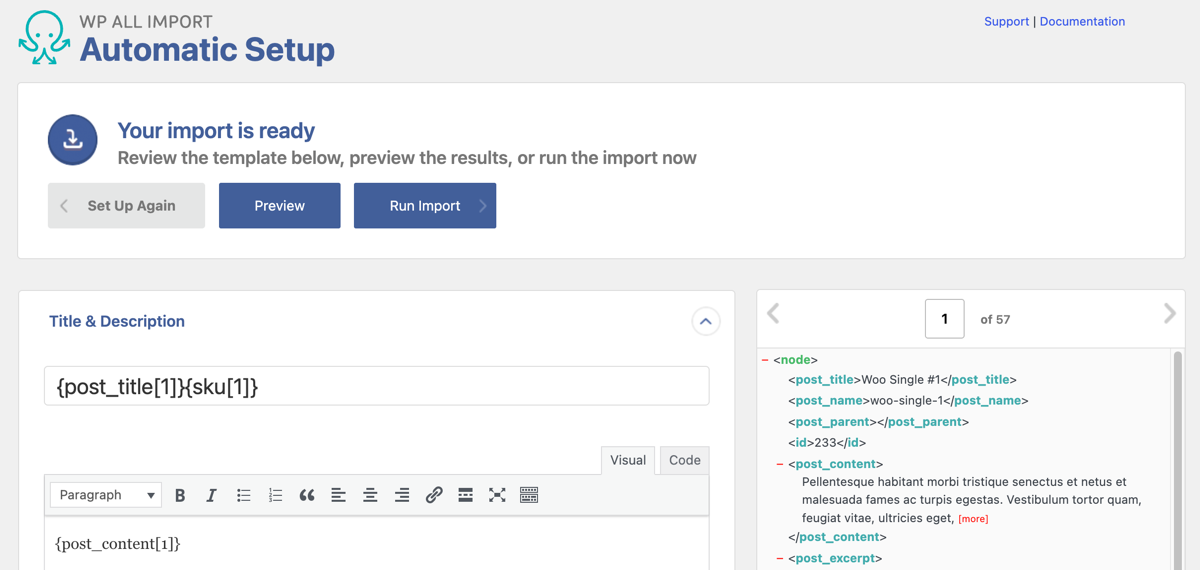
Most corrections land in three panels. Inventory holds the SKU and stock fields. Images holds the image element and the three source options. Variations holds the linking method for variable products, including the child XML element option and its Variations XPath box.
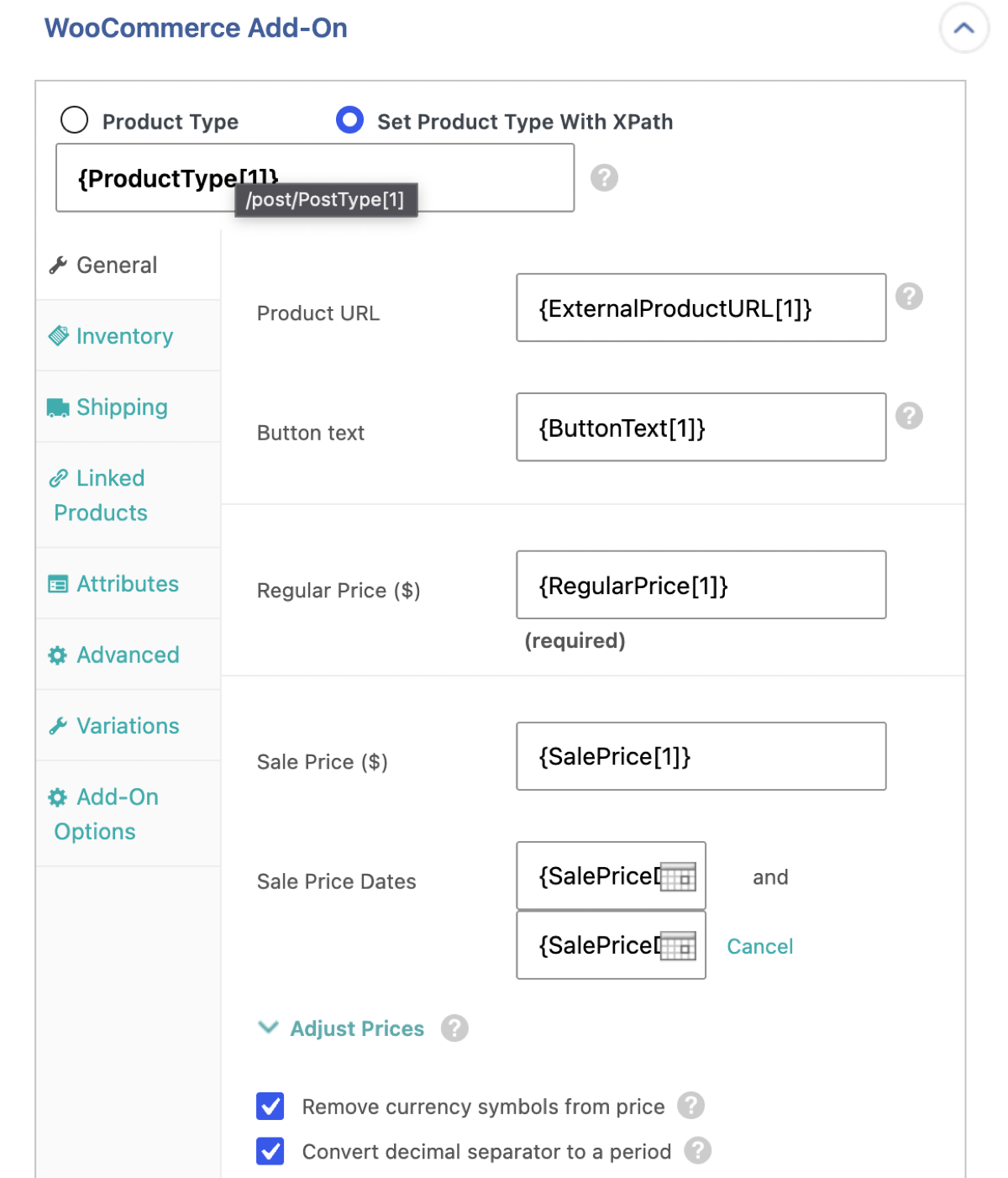
Preview sits in the same editor. Open it and check a simple product for gallery order, then a variable product for attached variations. It renders on the same screen in WP Admin View or Frontend View.
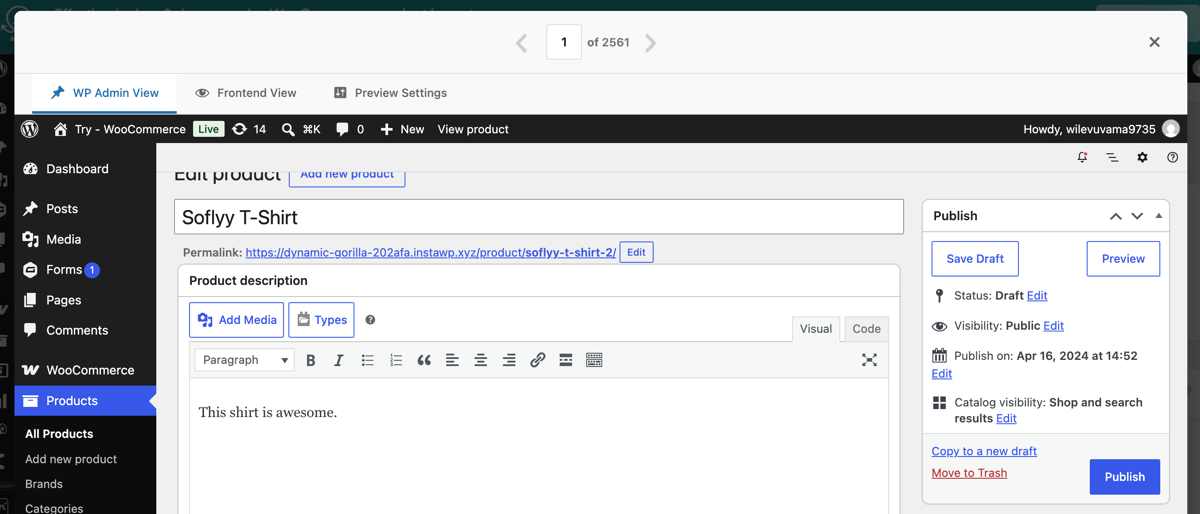
Nothing has been written at this point, so a wrong image order or a missing variation costs one more drag instead of a cleanup.
Step 5: Set the Unique Identifier and Run the Import
Continue from the editor to the Import Settings screen. This is where the Unique Identifier is set, and the Auto-detect button fills it from the feed.
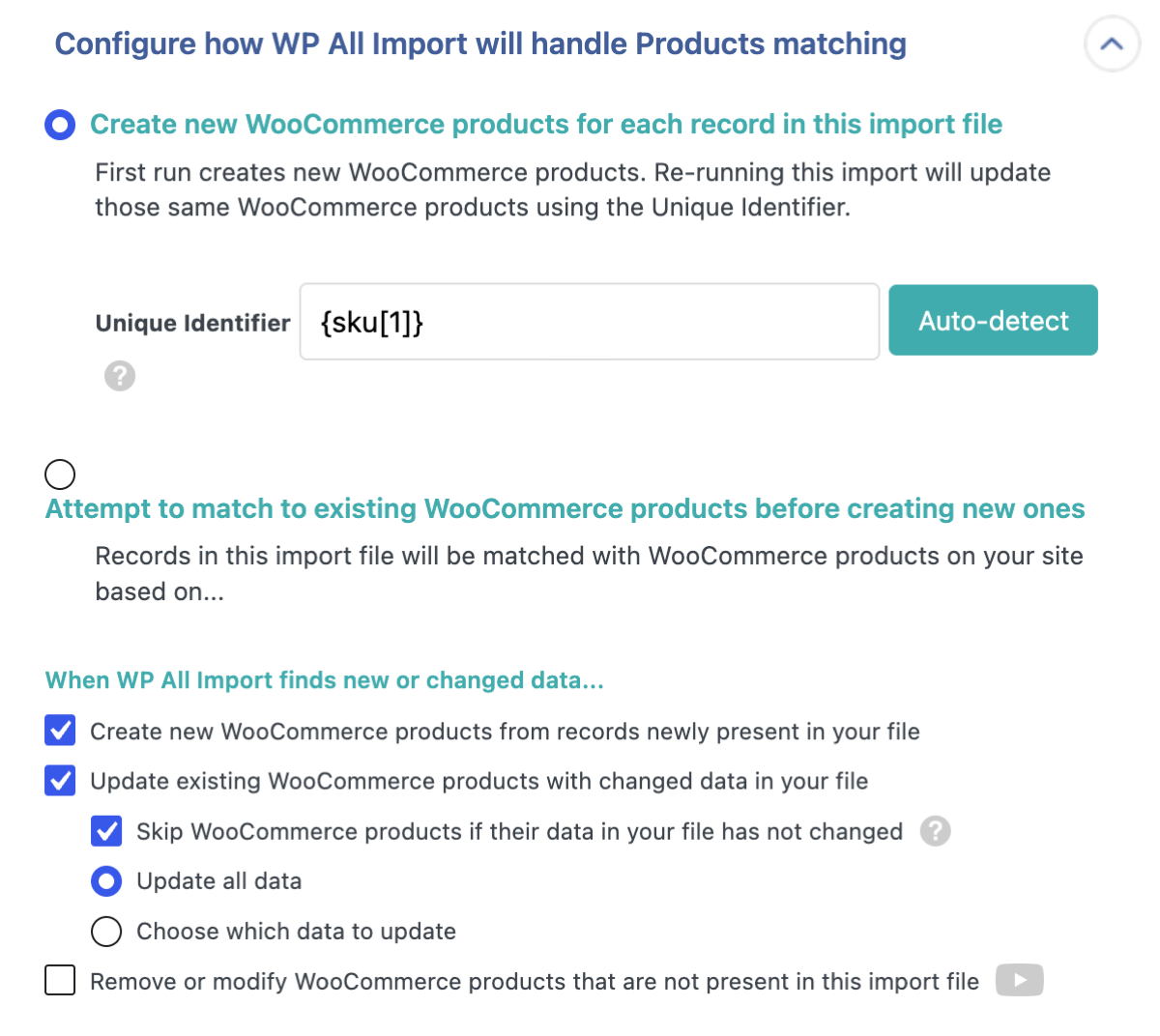
SKU is the usual choice for products, and it decides whether a second run updates records or duplicates them. The same screen controls what happens to records missing from the feed.
Click Run Import and confirm. Products appear under Products › All Products as the run progresses, and the import log records anything that failed.
How to Import Variations Nested in XML
Feeds handle variations in two ways, and they need different settings. Some list each variation as its own record with a parent_sku element. Others nest
Set the product type to Variable, then open the Variations tab in the WooCommerce Add-On. The tab offers several linking methods: parent SKU, a shared unique value, product title, or the child XML element option.
For nested feeds, choose the child element method and drag one variant into the Variations XPath box. The plugin loops through the remaining variants on its own.
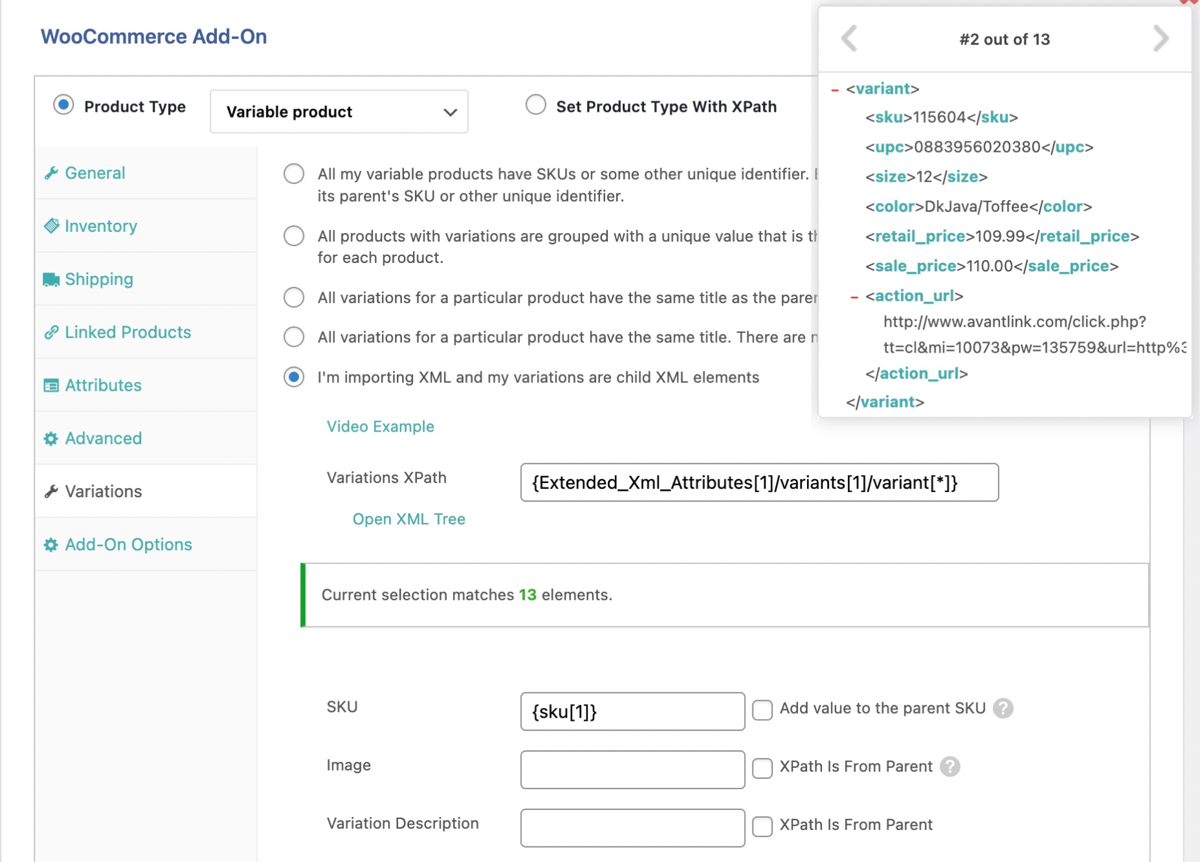
Attributes and prices come from the popup tree rather than the main tree. Tick XPath from Parent when a value belongs to the parent product instead.
Feeds that list variations as separate records need the parent earlier in the file. A variation above its parent imports as a standalone product, and no setting repairs that order afterward.
What Is the Best Way to Import WooCommerce Products from XML?
XML imports fail on record selection and variation linking far more often than on field mapping. Both are structural decisions, and both happen before the first row is written.
That is why the first number to check after an upload is the record count, not the mapping. A feed of 120 products that reports 120 records was read at the right level. One that reports 4,800 was read at the variation level, and no amount of field work will rescue the run.
WP All Import reads the feed as the supplier built it, maps the nested elements on its own, and lets you correct the reading before anything reaches the catalog.
The correction happens in the template editor, where every mapped element stays visible as an XPath expression. Variations, repeated image nodes, and the identifier that prevents duplicate records on later runs all sit on the same screen.
Feeds rarely arrive broken. They arrive built for someone else’s system, with element names and depths that make sense to the supplier and to nobody else. Read the structure once, and the import stops being a guessing
Frequently Asked Questions – Import WooCommerce Products from XML
Can WooCommerce Import Products from an XML File?
No. The built-in WooCommerce importer reads CSV files only, so an XML feed needs a plugin that parses XML directly. WP All Import reads XML, CSV, and Excel files, then maps the nested elements through Automatic Setup before anything reaches the catalog.
Why Do XML Variations Import as Separate Products?
The variations are not linked to a parent. Either the parent SKU is missing, or the variation record appears before the parent. WP All Import’s Variations tab links them by parent SKU, a shared value, title, or child XML elements, and the parent record must come first.
How Do I Import Multiple Images from an XML Feed?
Point one XPath expression at the repeating image node, such as {images/image/@src}. WP All Import’s Images panel returns every match as a comma-separated list, sets the first as the featured image, and adds the rest to the gallery in file order.
Can WP All Import Read XML with Namespace Prefixes?
Yes. WP All Import maps elements such as local-name() reaches the element without it.
How Do I Re-Import an XML Feed Without Duplicates?
Set a Unique Identifier on WP All Import’s Import Settings screen and let Auto-detect fill it from the feed. SKU is the usual choice. Each later run then matches incoming records to existing products and updates them instead of creating duplicates.
Related Information