
Most supplier feeds don’t hand you an organized folder of photos. Instead, you get a spreadsheet column packed with external links, mixed delimiters, and separate photos for each variation. Parsing those links and building working product galleries usually demands tedious manual setup.
In this guide, we’ll share the quickest way to import WooCommerce products with images, showing you how automated field mapping configures featured photos and gallery arrays without manual column matching.
What Makes Importing Product Images So Slow?
Importing product images requires significantly more server resources than importing plain product text. While creating a simple product description involves writing a few text rows into the database, handling product imagery triggers a resource-intensive processing chain:
- The server must establish a network connection to each external image URL in your spreadsheet and download the full-resolution file onto your hosting storage.
- For every single downloaded photo, WordPress generates multiple responsive thumbnail dimensions (e.g., thumbnail, medium, large, and WooCommerce catalog crops).
- WordPress registers each image as an individual
attachmentpost type in thewp_poststable, attaches the primary image ID to the product’s_thumbnail_idmeta key, and formats the remaining images as a serialized array inside the_product_image_gallerypost meta field.
When using basic product import plugins or native WooCommerce CSV tools, this workflow creates several common bottlenecks such as:
- Standard importers process images synchronously inside a single browser request. Attempting to download high-resolution photos for hundreds of products quickly exceeds PHP’s
max_execution_timeand triggers server 504 gateway timeouts. - Distributor feeds frequently bundle multiple image links into a single spreadsheet cell using inconsistent separators (like commas, pipes, or spaces). If an importer cannot parse these delimiters cleanly, gallery images fail to attach, display in reverse order, or break product layouts.
- When re-running an import to update inventory or prices, basic tools often re-download the same photos, creating thousands of duplicate files in
/wp-content/uploads/that consume storage and bloat the database. - Manually configuring separate fields for featured images, gallery thumbnails, and variation-specific photos across dropdown menus adds hours of setup time before an import can even run.
Overcoming these bottlenecks requires a WooCommerce product import plugin that detects image columns on upload, processes image downloads in background batches to prevent timeouts, and verifies existing files in the Media Library to eliminate duplicates.
How To Quickly Import WooCommerce Products with Images
WP All Import provides the fastest way to import products with images into WooCommerce by automating the three setup tasks that usually require manual configuration: identifying image URL columns, splitting gallery delimiters, and designating the primary featured image.

Here is the step-by-step workflow using Automatic Setup:
Step 1: Upload Your WooCommerce Product Spreadsheet
Navigate to All Import › New Import in the WordPress main menu.
Click the Set up automatically banner at the top of the screen to open the automated import workflow.
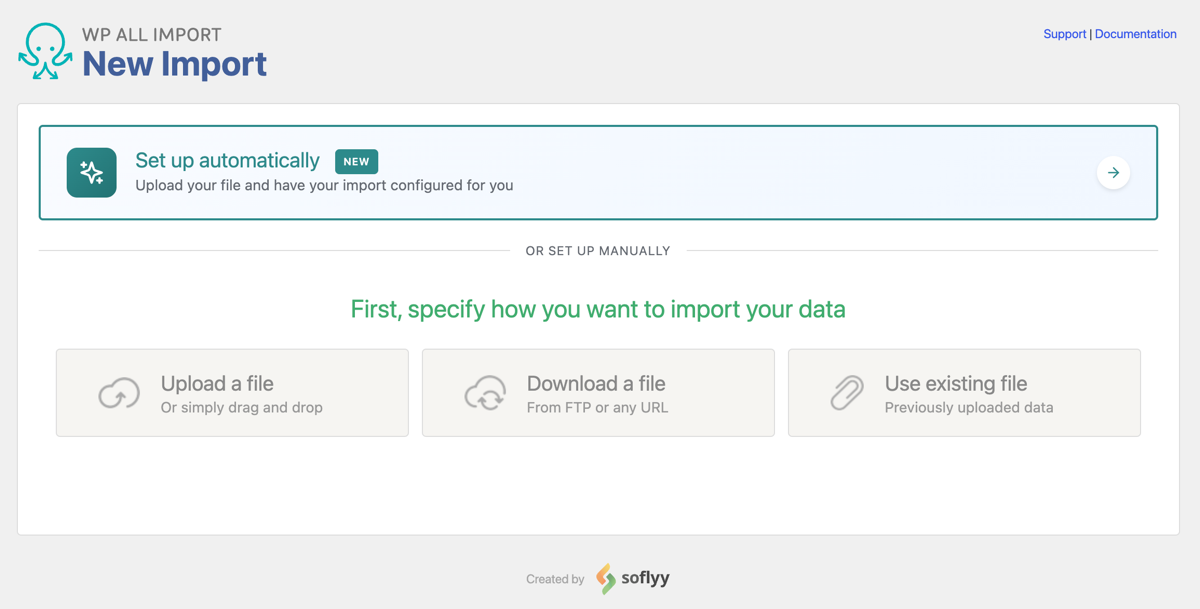
Selecting Your Product File Source
The interface presents four file source tabs:
- Upload a file: Upload a CSV, Excel (.xlsx or .xls), or XML file directly from your computer (supports files up to 256 MB).
- Download from URL: Enter a direct link to an external supplier feed or paste a shareable Google Sheets URL (set to “Anyone with the link can view”). The plugin fetches the file and saves the URL for recurring automated syncs.
- Existing file: Select a file that has already been uploaded to the
/wp-content/uploads/wpallimport/files/directory on your server. - FTP/SFTP: Enter your server host, port, username, and password to download catalog spreadsheets directly from an external distributor server.
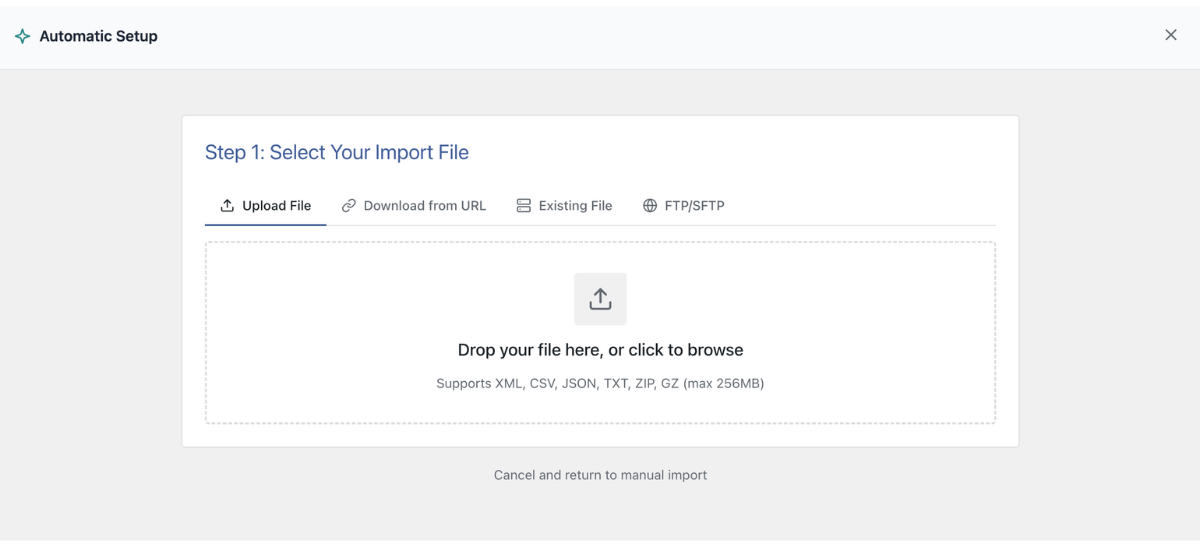
Choosing the Import Target
Under Choose What to Import, select WooCommerce, then select Products (Simple, Variable, Grouped).

Adding Custom Setup Instructions
Before clicking the setup button, you can expand the optional Add Setup Instructions field. This lets you give the wizard specific context about non-standard image columns in plain English. For example, you can enter:
- “Use the ‘Main_Photo’ column for the featured image and ‘Additional_Photos’ for the gallery”
- “Image URLs in Column E are separated by a pipe character”
- “Download high-resolution photos from the ‘CDN_Link’ column”
Click Start Automatic Setup. The plugin analyzes your spreadsheet columns, identifies image links, and configures the featured image and gallery mappings automatically.
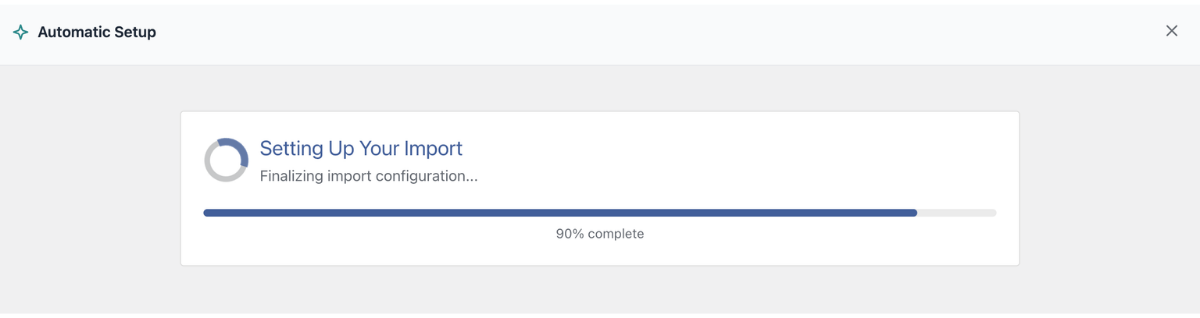
Step 2: Inspect the Auto Mapped Product Fields
When the automated analysis finishes, the screen presents the Your Import Is Ready summary card. This interface lets you confirm that your spreadsheet and image columns were recognized accurately before importing anything to your website.
The summary card confirms four key metrics:
- Total Records: Shows the exact number of product rows detected in your spreadsheet.
- Fields Mapped: Confirms how many product fields were paired with catalog columns.
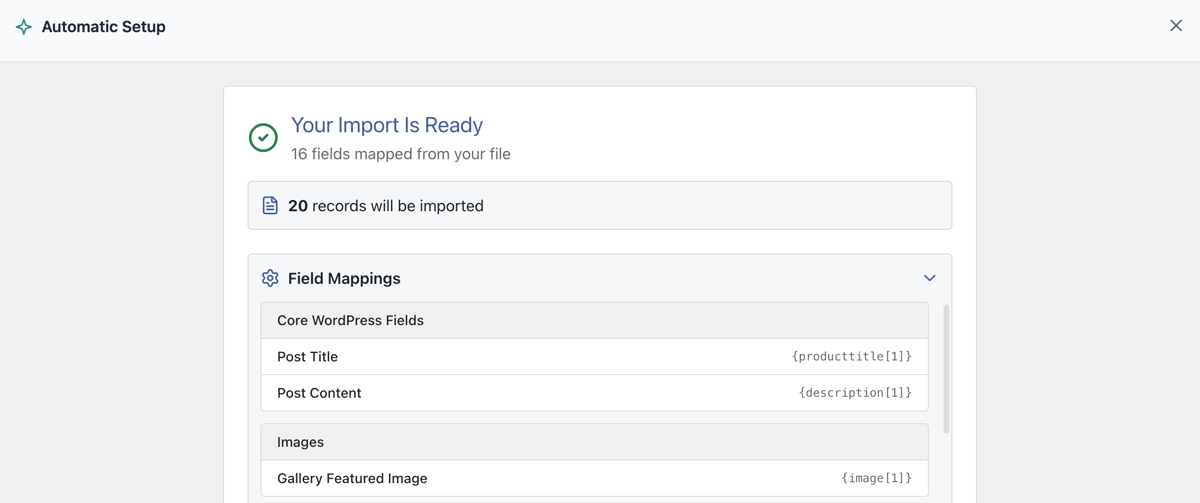
Inspecting the Product Field Mappings List
Directly below the summary card, scroll through the Field Mappings checklist. Look specifically at the Images entry:
- It confirms which spreadsheet column was identified as the image source.
- It verifies that the plugin detected your multi-image delimiter (such as commas or pipes).
- It confirms that the first image will be set as the featured image and subsequent images will populate the product gallery.
If your spreadsheet has clean image URLs and standard headers, click Run Import to run the import immediately.
If you want to inspect media settings or apply custom filter rules, click Manual Setup to open the pre-filled template editor.
Step 3: Preview Product Galleries Live Before Importing
To prevent trial-and-error imports, WP All Import allows you to verify that your product images and galleries display accurately before any data is written to your database. In the template editor header, click the Preview button to review your products across two perspectives:
- WP Admin View: Displays the backend WooCommerce product edit screen. This allows you to verify that the primary photo populates the Product image box and secondary photos appear in the Product gallery meta box.
- Frontend View: Renders an interactive live product page. You can click through thumbnail carousels to verify that gallery photos load in the correct order, check image resolution, and test variation photo switching before publishing.

Step 4: Run the WooCommerce Product Import with Images
Because Automatic Setup handles record matching and batch settings behind the scenes, you don’t need to click through extra configuration screens just to get your products live.
Once you’ve checked your images in the preview, look at the top header bar right next to the Preview button. Click the blue Run Import button.
This skips the extra setup steps and takes you straight to the final confirmation screen. Click Confirm & Run Import.

WP All Import handles the rest in the background: downloading the external image files, generating your responsive WooCommerce thumbnail sizes, linking the product galleries, and displaying a real-time progress bar until the catalog is ready.
Advanced Image Settings in the Template Editor
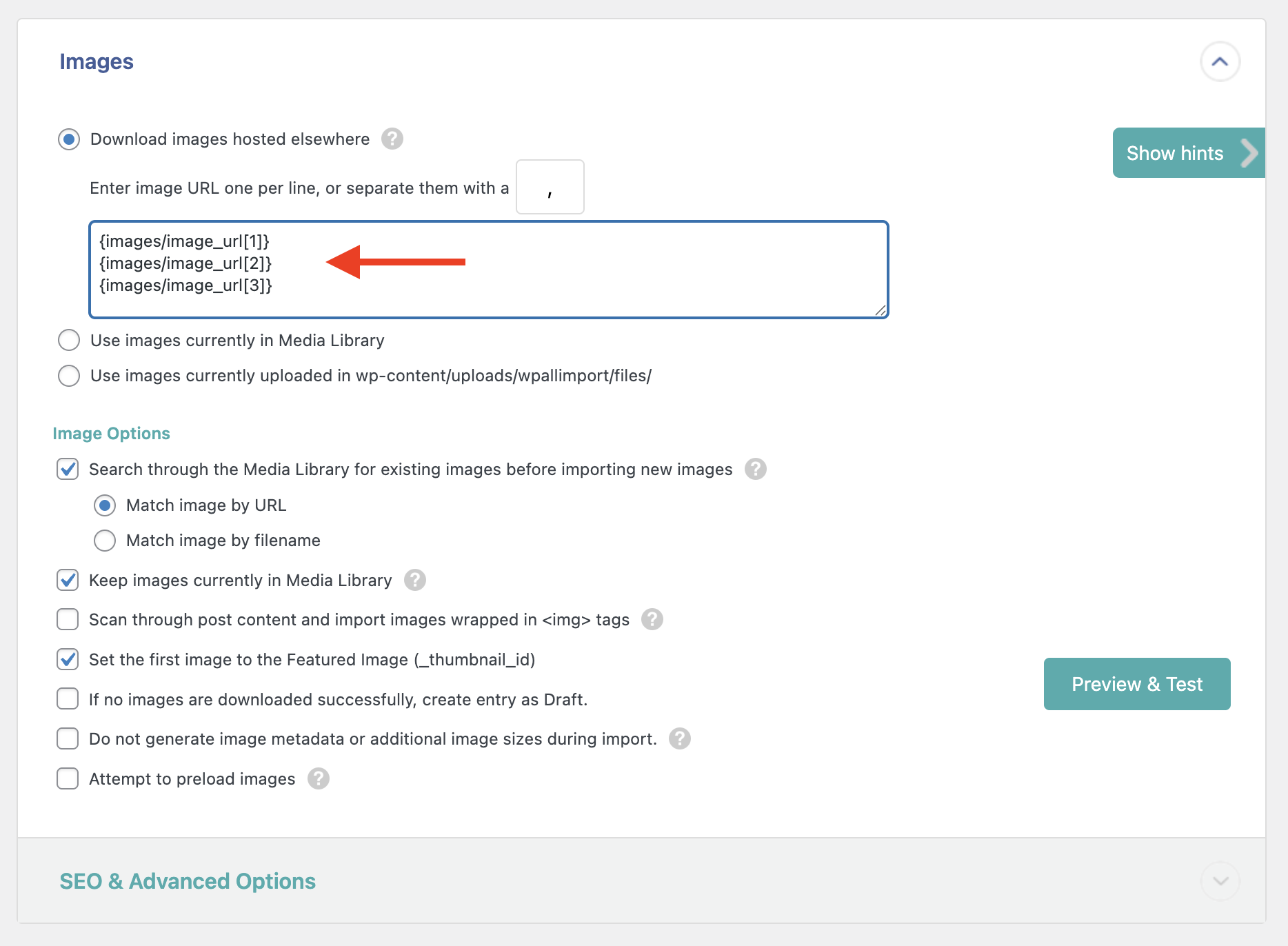
While Automatic Setup configures clean image columns on upload, supplier feeds sometimes require custom media handling. Clicking Manual Setup opens the pre-filled template editor, where scrolling down reveals the dedicated Images panel:
1. Choosing Your Image Source
The Images panel gives you three different ways to select media:
- Download images hosted elsewhere: (Selected by default) Fetches image files from public HTTP or HTTPS URLs in your spreadsheet and saves them into the WordPress Media Library.
- Use images currently in the Media Library: Matches image filenames in your spreadsheet to photos already uploaded to WordPress, avoiding external downloads entirely.
- Use images uploaded to
/wp-content/uploads/wpallimport/files/: Allows you to upload thousands of images to your server in bulk via FTP, after which the plugin reads the local files and attaches them to products instantly.
2. Setting Custom Gallery Delimiters
If your spreadsheet stores multiple gallery images in a single cell, you can specify your delimiter character in the Images panel. The plugin accepts commas, pipes (|), spaces, or custom characters, automatically assigning the first URL as the featured image and routing the remaining URLs into the product gallery array.
3. Enabling Duplicate Image Detection
To keep your hosting storage clean, check the option to search the Media Library for existing images before downloading. When enabled, WP All Import checks whether an image with the same filename already exists on your server. If found, it links the existing image attachment rather than downloading a duplicate file.
4. Routing Variation Images
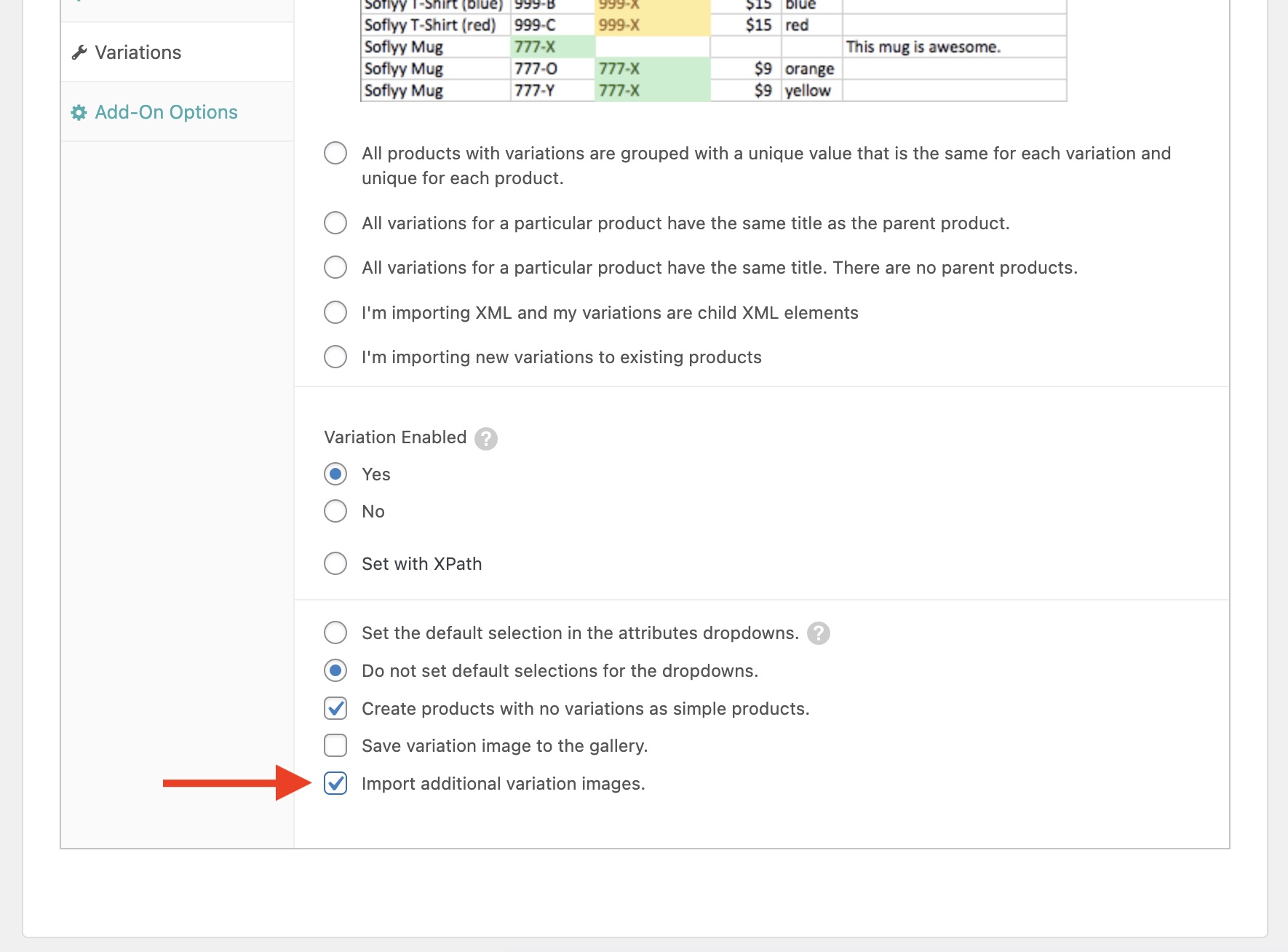
For variable products, you can assign distinct photos to individual child variations. In the Variations tab of the template editor, checking the option to save variation images routes child photo URLs directly to specific variation SKUs, ensuring that selecting a “Red” variation on the storefront switches the main image to the red product photo.
Final Thoughts- Fastest Way to Import WooCommerce Products with Images
Downloading external photos, generating responsive thumbnails, and structuring product galleries manually inside the WordPress admin is slow and prone to server timeouts.
WP All Import provides the fastest way to import WooCommerce products with images because its Automatic Setup eliminates manual column mapping. It analyzes spreadsheet rows on upload, detects image URLs, and automatically configures featured photos and gallery arrays, turning a complex media-processing task into an automated, two-minute setup.
The plugin handles the heavy lifting in the background, using iterative batch processing to prevent server timeouts during large media downloads and checking the Media Library to eliminate duplicates. If you are evaluating other plugins on the market, our detailed comparison of the best plugins to import WooCommerce products with images breaks down how competing plugins handle media sourcing and gallery structures.
Frequently Asked Questions – Import WooCommerce Products with Images
Can WooCommerce download product images from external URLs automatically during import?
Yes. WP All Import automatically downloads product images from external HTTP and HTTPS URLs during the product import process. It saves the files into the WordPress Media Library, generates all required WooCommerce thumbnail sizes, and links the photos to their corresponding products without requiring manual file uploads.
How do I import multiple images into a WooCommerce product gallery?
To import multiple images into a WooCommerce product gallery, list the image URLs in a single spreadsheet cell separated by a delimiter such as a comma or pipe. In WP All Import, mapping this column instructs the plugin to assign the first URL as the primary featured image and store all remaining URLs inside the WooCommerce product gallery array.
How do I prevent duplicate images from being uploaded during product re-imports?
To prevent duplicate images during recurring product imports, enable the duplicate image detection setting in WP All Import’s Images panel. The plugin checks the WordPress Media Library for matching filenames before downloading; if an image already exists, it links the existing media attachment to the product rather than saving a duplicate file.
Can you import product images from a live Google Sheet into WooCommerce?
Yes. Set your Google Sheet permissions to “Anyone with the link can view” and paste the shareable URL into WP All Import under Download from URL. Select WooCommerce Products, click Start Automatic Setup, and the plugin downloads the spreadsheet data, fetches the image URLs, and attaches the product photos automatically.
Related Information