
Customer reviews drive conversions and search visibility, but moving them into WooCommerce often breaks down at the database level. Because reviews are stored as specialized comments linked to specific product IDs, standard import plugins frequently drop numerical star ratings, wipe verified buyer tags, or fail to attach feedback to the catalog.
The fastest and most accurate way to import WooCommerce reviews is to use a dedicated import plugin like WP All Import.
What Makes Importing WooCommerce Reviews Complex?
Under the hood, WooCommerce stores product reviews inside the core WordPress wp_comments table with a custom comment_type set to review. Numerical star ratings and verification badges are stored separately inside wp_commentmeta.
Because review data relies on this split relational structure, basic import plugins introduce several database bottlenecks:
- Review exports rarely contain the target WordPress post ID of your products. Instead, review spreadsheets reference products by SKU, product handle, or old database IDs. If an importer cannot match reviews to parent products dynamically by SKU or title, the imported reviews become orphaned records detached from your store catalog.
- WooCommerce displays stars on category pages and Google search snippets by caching calculations inside
_wc_average_ratingand_wc_review_countinwp_postmetaandwp_wc_product_meta_lookup. Basic database insertions upload comment text but fail to trigger WooCommerce recount hooks, leaving product pages showing zero stars. - Trust badges rely on a specific binary flag stored under the
verifiedmeta key inwp_commentmeta. Omitting this field during an import strips legitimate buyer credibility from migrated reviews. - Customer feedback accumulated over years requires exact historical timestamps in
comment_dateand an approved status incomment_approved. Generic comment importers often overwrite these values with the current import timestamp or drop every review into the pending moderation queue.
Preventing these database issues requires an import workflow that maps parent SKUs, writes rating meta keys, and updates product review counts on upload.
How To Quickly Import WooCommerce Product Reviews
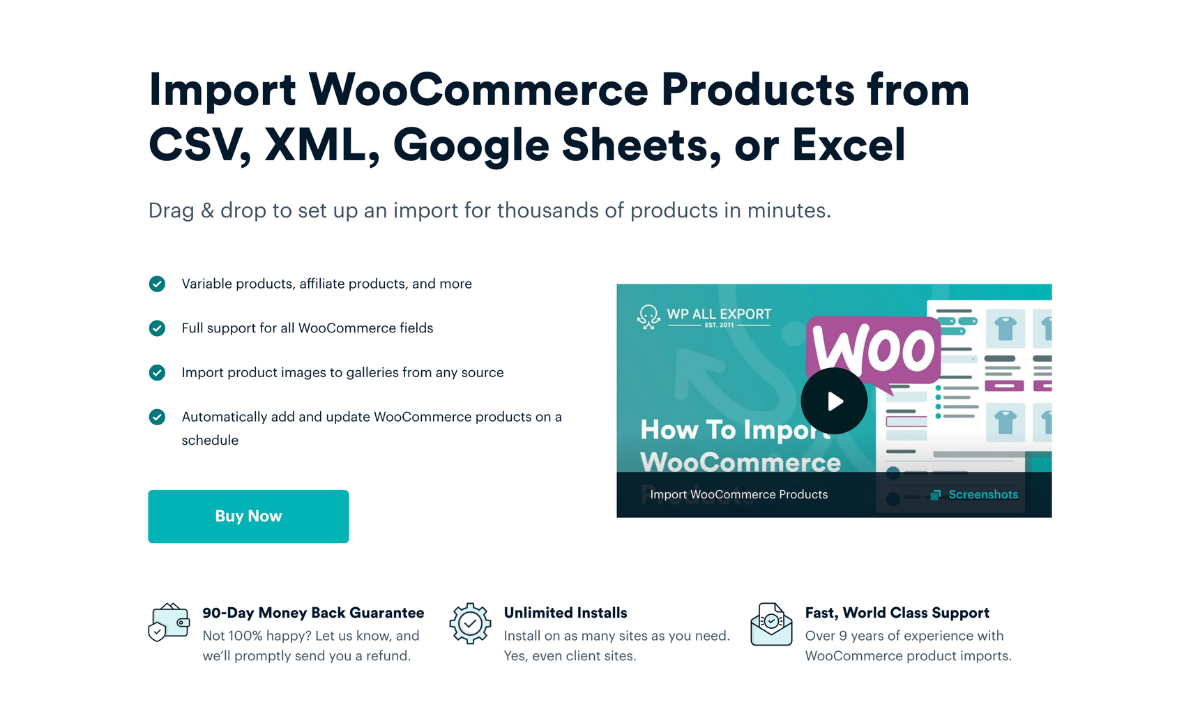
WP All Import handles complex WooCommerce product reviews database relationships automatically using its dedicated review import workflow. The plugin analyzes incoming files on upload, matches customer reviews to parent catalog SKUs, and triggers WooCommerce rating recalculations without requiring manual database configuration. Here is how to import your product reviews using Automatic Setup.
Step 1: Upload Your WooCommerce Reviews File
To start the import process, navigate to All Import › New Import inside your WordPress admin dashboard and click the Set up automatically banner. This opens the automated import wizard directly on your screen.
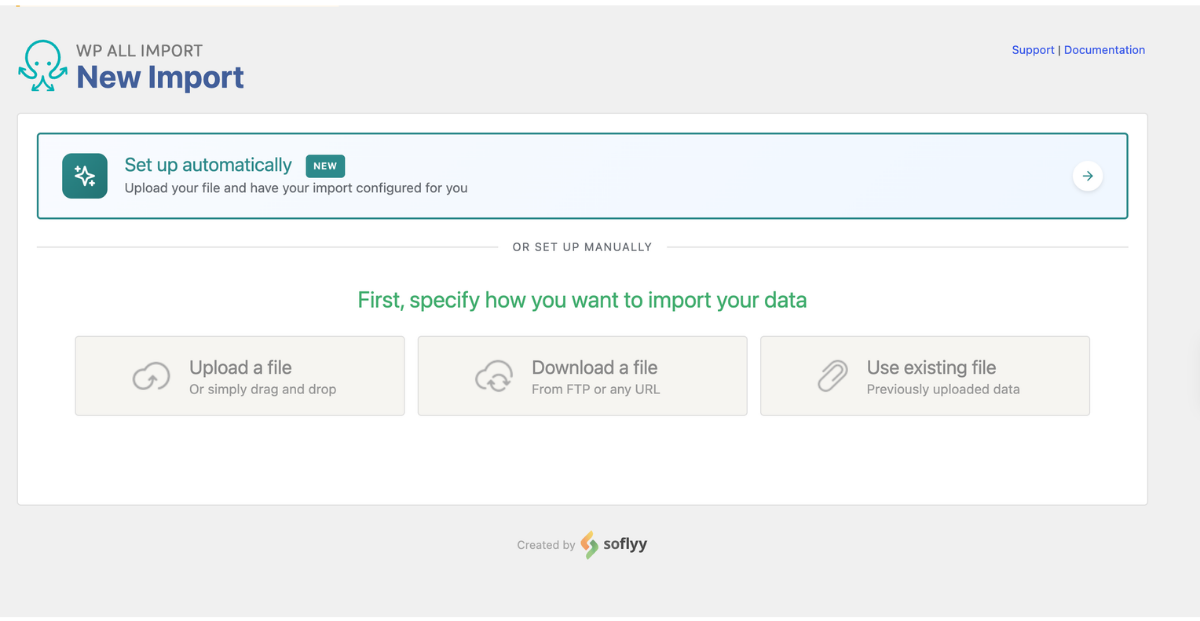
The setup screen presents four flexible file source options:
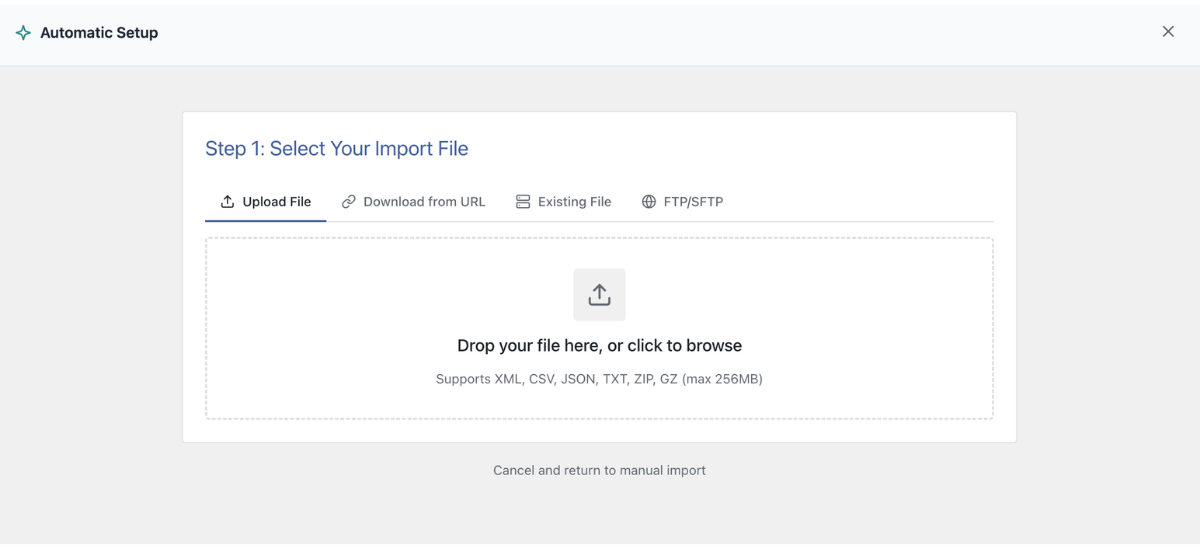
- Upload a file: Upload a CSV, Excel (.xlsx or .xls), or XML export directly from your computer (supporting files up to 256 MB).
- Download from URL: Enter a direct link to an external customer feedback feed or paste a shareable Google Sheets link.
- Existing file: Pick a review file that has already been uploaded to your server’s
/wp-content/uploads/wpallimport/files/directory. - FTP/SFTP: Enter your server host, port, username, and password to download review data directly from a remote storage server.
Once your review file is loaded, guide the setup wizard toward the correct data type. Under Choose What to Import, select WooCommerce, then pick Reviews from the dropdown menu.

Before initiating the automated scan, you can provide extra context if your spreadsheet uses non-standard column headers. Expand the optional Add Setup Instructions box to enter plain English instructions:
- “Match reviews to products using the SKU column”
- “Set the Rating column as the numerical star rating”
- “Mark all reviews as approved and verified”
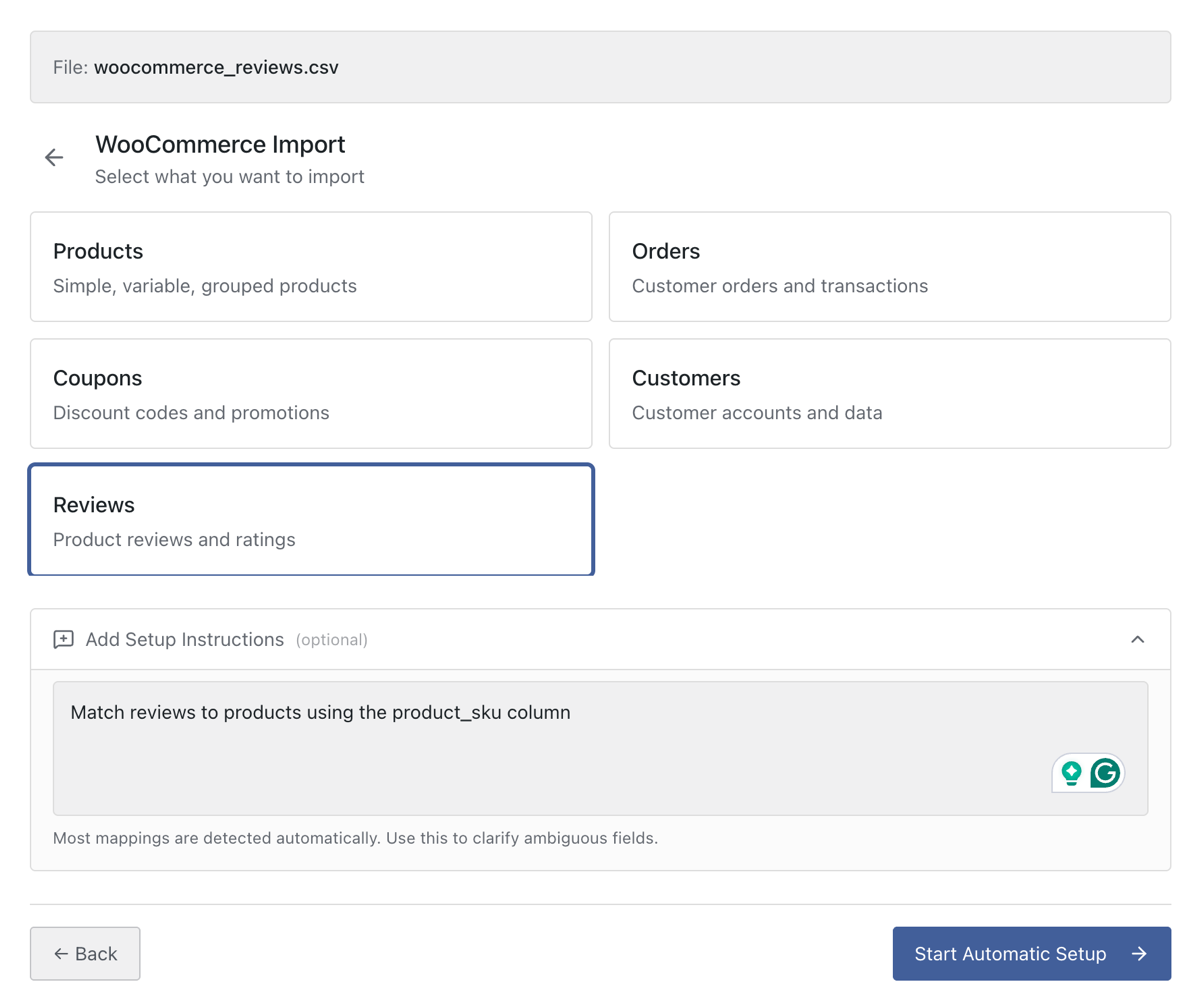
Click Start Automatic Setup. The plugin analyzes your file rows, detects reviewer data, and maps your review fields automatically.
Step 2: Inspect the Automapped Product Review Fields
When the automated analysis finishes, the screen displays the Your Import Is Ready card. At a glance, it confirms the number of fields mapped from your file and the total count of review records ready to be imported.
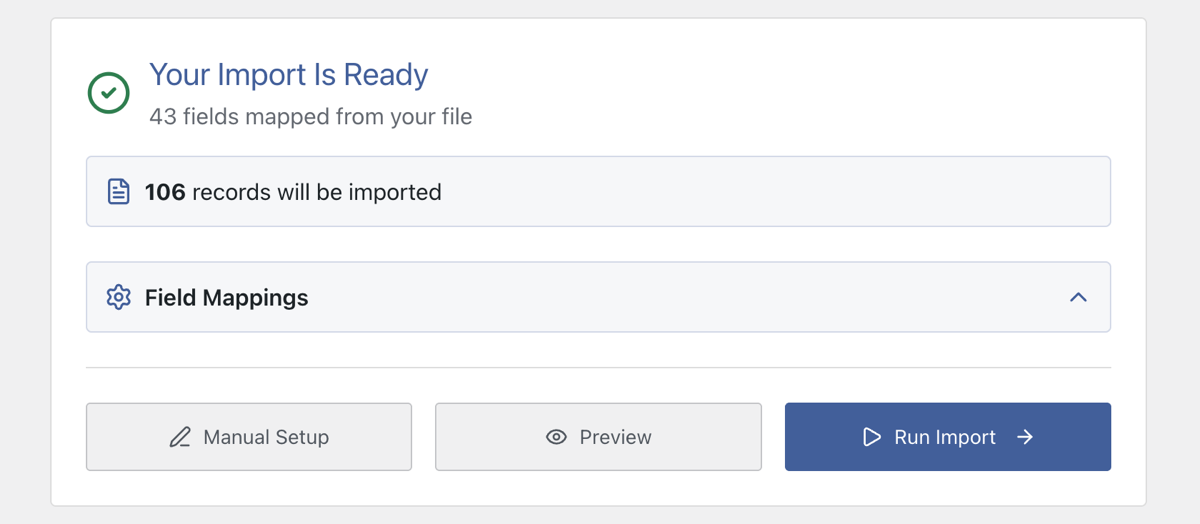
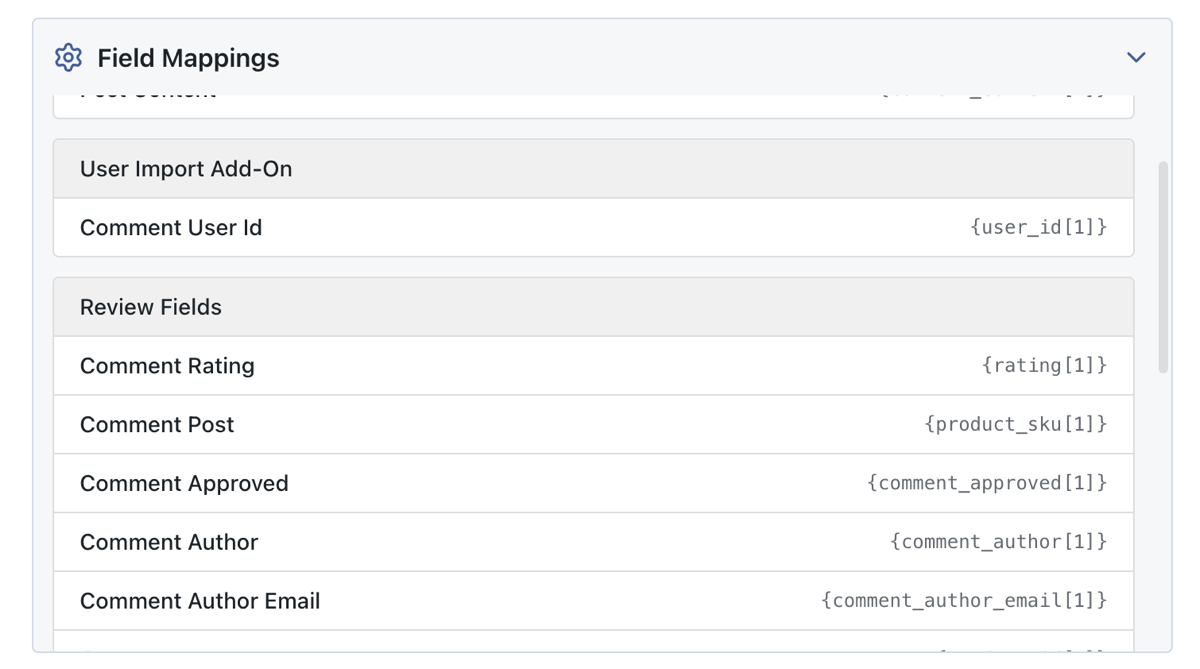
Directly below the record count, click the Field Mappings section to expand the mapped data checklist. This lets you verify how your review columns were interpreted before writing data to your database:
- Review Content & Author Details: Confirm that reviewer names, email addresses, and review text were mapped to their corresponding WordPress comment fields.
- Parent Product Linking: Verify that your file’s product identifier column (such as
{product_sku[1]}or{product_title[1]}) was detected to associate each review with the correct WooCommerce item. - Ratings & Verification: Check that numerical rating values (1 through 5) and verified buyer statuses were mapped into WooCommerce review metadata.
At the bottom of the card, the interface provides three straightforward options: Manual Setup if you need to open the template editor, Preview to inspect your data, and a blue Run Import button to execute the import immediately.
If the mappings look accurate, you do not need to click through multiple configuration screens. Click the blue Run Import button at the bottom to import your WooCommerce reviews immediately.
Advanced WooCommerce Product Review Settings in the Template Editor
While Automatic Setup configures standard review columns on upload, custom vendor feeds occasionally require granular adjustments. If you click Manual Setup from the summary card, you can navigate through the template editor to customize how review fields are handled.
1. Parent Product Matching Options
The most critical part of any review import is attaching feedback to the correct catalog item. Inside the WooCommerce Add-On review settings, the plugin allows you to match incoming reviews to existing products using three methods:
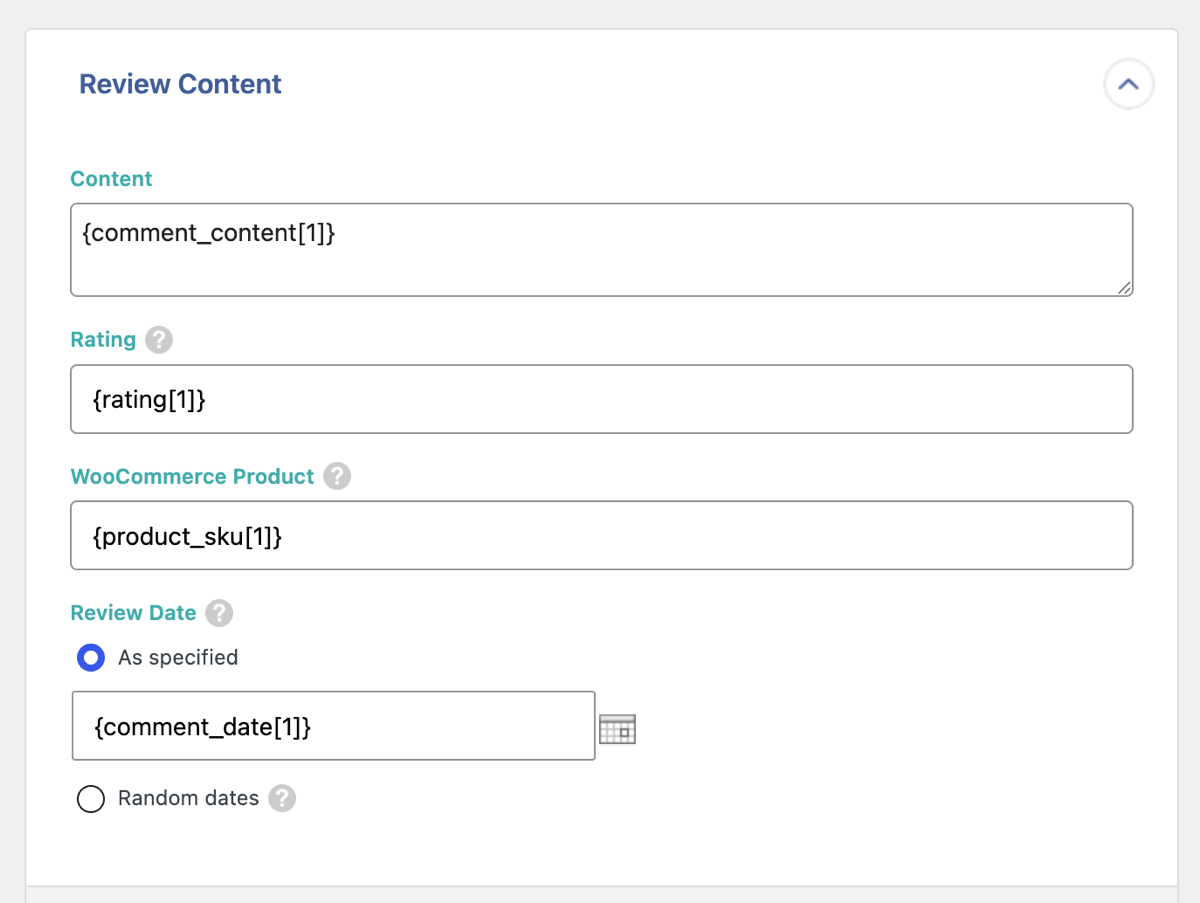
Selecting Product SKU matches reviews against your store’s inventory codes, which provides the most reliable link when migrating between platforms. Selecting Product Title searches for matching item names, which works well if your spreadsheet lacks SKUs. If you are migrating reviews between two identical WordPress sites, selecting Product ID matches comments directly against existing post IDs.
2. Star Ratings and Feedback Content
WooCommerce requires review scores to be stored as whole integers from 1 to 5. Inside the rating settings, you can drag your spreadsheet rating element into the designated field. WP All Import automatically registers this review number inside wp_commentmeta and recalculates WooCommerce average product ratings when the import completes. For review titles and detailed feedback, drag the corresponding spreadsheet elements into the standard review content boxes.
3. Reviewer Identity and Verified Buyer Status
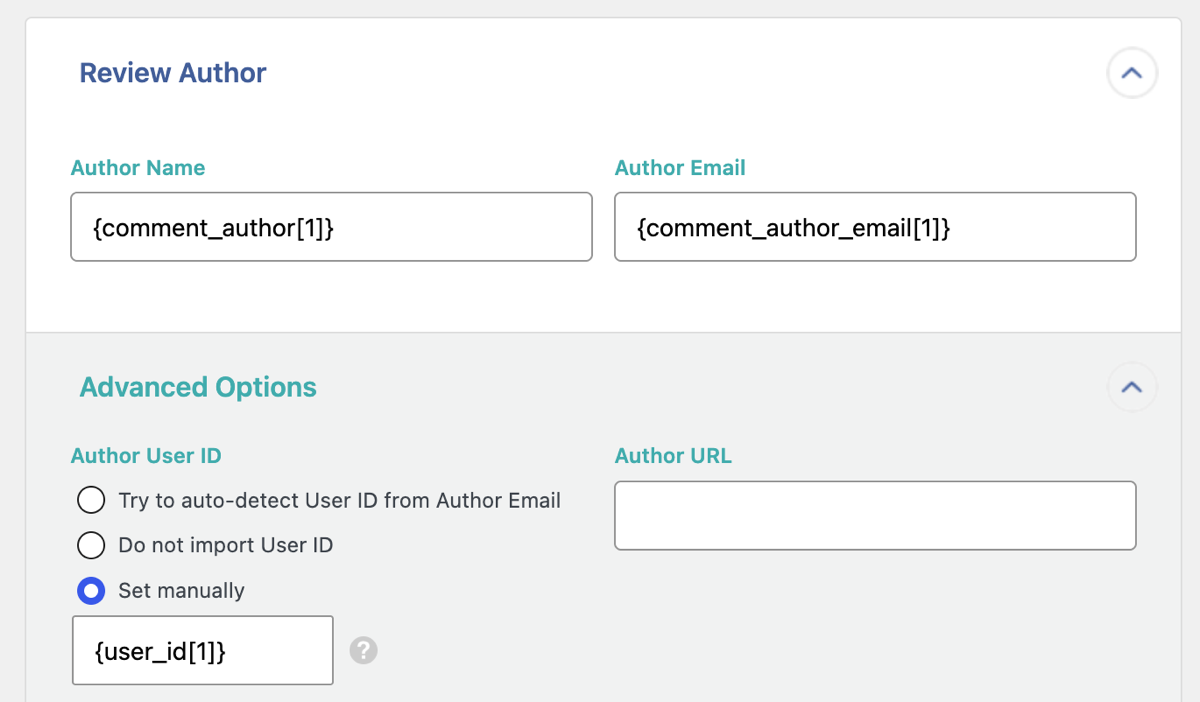
Authentic reviews require proper customer attribution. In the reviewer details section, you can map author names, reviewer emails, and original IP addresses. If the reviewer already has a registered customer account on your store, the plugin can match their email address to link the review directly to their WordPress user ID. You can also toggle the verified buyer status to automatically display the “Verified Owner” badge on the storefront.
4. Review Dates and Moderation Status
To maintain authentic review histories, map your spreadsheet’s date column to the comment date field. The plugin recognizes standard date formats (such as YYYY-MM-DD or MM/DD/YYYY) and preserves original submission timestamps. In the review status settings, you can set imported feedback to Approved so reviews appear on your store immediately, or set them to Pending if you prefer to moderate customer comments manually before publishing.
Final Thoughts: Fastest Way to Import WooCommerce Reviews
The traditional way to import product reviews into WooCommerce requires tedious database preparation. When review records are inserted without the proper taxonomy and metadata relationships, star ratings disappear, verified buyer badges fail to display, and reviews become orphaned from products.
WP All Import handles the entire review architecture automatically by identifying customer feedback columns on upload, pairing each review with its parent product SKU, and registering both the comment record and its rating metadata in a single pass. Because it natively triggers WooCommerce product recalculations, average scores and star counts display accurately across your catalog without manual intervention.
If you need to verify or fine-tune incoming fields, clicking Manual Setup opens the template editor where you can check comment moderation statuses, verified buyer flags, and product matching rules before committing any data to your database. Once confirmed, running the import executes the process directly, making it the most dependable way to import WooCommerce reviews without post-import cleanup.
Frequently Asked Questions – Import WooCommerce Reviews
Can I import WooCommerce reviews from a CSV file?
Yes. WP All Import imports WooCommerce reviews from CSV, Excel, and XML files directly into your store by mapping reviewer names, review content, star ratings, and publication dates automatically on upload, then connecting each imported review to its corresponding product.
Where does WooCommerce store product reviews in the database?
WooCommerce stores product reviews in the core WordPress wp_comments table with the comment type set to review. Numerical star ratings and verified buyer flags are stored in the wp_commentmeta table under the rating and verified meta keys.
How do I link imported reviews to existing WooCommerce products?
WP All Import links imported reviews to existing products using the product SKU, product title, or WordPress post ID. Matching by product SKU is the most reliable method because it prevents broken links if product names change between platforms.
Will imported reviews automatically display star ratings on product pages?
Yes. WP All Import writes numerical scores directly into WooCommerce review metadata and recalculates the product’s average rating and total review count. This ensures star ratings display properly on single product pages, shop archives, and Google search rich snippets.
Can I import reviews as verified owner purchases?
Yes. WP All Import allows you to set the verified buyer status during the import process. You can apply the verified flag to all incoming records or use conditional spreadsheet values to grant verified owner badges only to confirmed buyers.
Related Information