Have you ever had a client send you a screenshot and ask you to make their website look like it? Or found a design you love and wished you could use it as the starting point for your own page?
With Beaver Builder AI, you can turn a screenshot or mockup into a real, editable WordPress page. Upload the image as a design reference, describe what you want, and customize the result in Beaver Builder.
In this tutorial, we’ll show you how to turn a screenshot into a WordPress page using two different ways to upload an image:
Table of Contents
Open the Demo and the AI Chat
The live Beaver Builder AI demo lets you try this workflow without setting up your own WordPress site. Try Beaver Builder AI.
- Enter your name and email to access the demo.
- Browse the welcome page, which includes walkthrough videos.
- Open a page in the Beaver Builder editor.
- Click the AI icon in the top navigation to open the chat.
The chat is where you’ll give the AI your instructions and your design reference.
If you’d rather use it on your own site, you’ll need Beaver Builder 2.11 or later plus the Beaver Builder AI plugin. Our How to Set Up Beaver Builder AI Chat article walks through installing and connecting the chat.
Upload Your Screenshot and Write Your Prompt
Your image can be a screenshot of an existing site, a mockup from a design tool, or any visual example of the layout you want. There are two ways to add it to the chat.
Method 1: Drag and Drop
Find your screenshot or mockup and drag it straight into the AI chat window. JPEG, PNG, GIF, and WebP are supported. It’s the quickest way to bring a visual example into the conversation.
Method 2: Use the Plus Button
- Click the plus button in the chat.
- Select your image from the Media Library or Upload an Image.
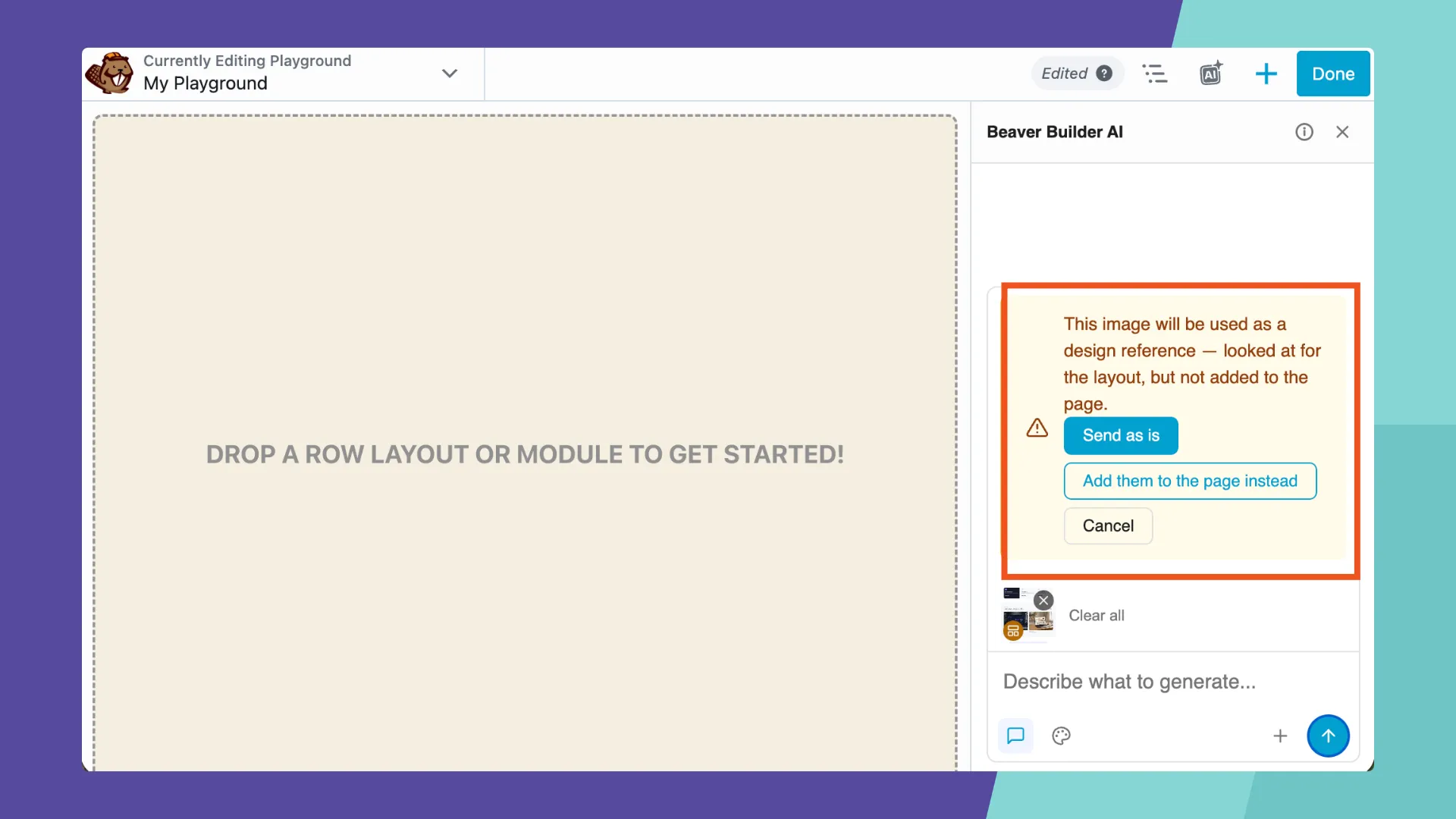
- Choose the option SEND AS IS to use the image as a reference.
This tells the AI to use the image as a guide for the design instead of placing the image on your page:
Review the Generated Page
Send your prompt and let Beaver Builder AI build the page:

The first result may not match your reference perfectly. Look at what it got right, such as section order, layout, and overall feel, and note what needs adjusting. You can refine the page with follow-up prompts or edit it directly in the editor.
Edit and Customize in Beaver Builder
The result is a real, editable WordPress page, not a screenshot sitting on the canvas. Beaver Builder AI chat builds it with Custom Modules. Each one is built from HTML, CSS, and JavaScript, and Beaver Builder turns the template into settings fields you can edit without touching code. Open a Custom Module settings panel in the editor and you’ll see up to three tabs: Content for text and other fields, Design for visual styling, including hover states and responsive breakpoints, and Code for the HTML, CSS, and JavaScript. Anyone who can edit the module can use the Content tab, while Design and Code are available to users with code access. See the Custom module documentation for details.
Want a closer look? Watch our Beaver Builder Custom Modules video.
Tips for Better Results
- Use a clean, full-page screenshot. Crop out browser chrome and overlays so the AI sees only the design.
- Work one section at a time for complex designs. Upload a hero, then a features section, instead of an entire long page.
- Say what to keep and what to change. For example: “Keep the layout, but use a green color scheme.”
- Refine with follow-up prompts. Try “Make the hero taller” or “Change the button color to blue.”
Start From a Reference, Not a Blank Page
With Beaver Builder AI, you can upload a screenshot or mockup, use it as a design reference, and get a page you can keep editing in Beaver Builder. Drag the image into the chat or upload it with the plus button, then describe the page you want.
To go further, read Beaver Builder AI Chat vs MCP vs Design Kits to compare the three ways to build, or take the free Beaver Builder AI course.
Ready to try it? Try the Beaver Builder AI demo and turn your next screenshot into an editable WordPress page.