
Whether you’re building landing pages within WordPress or static pages hosted outside of WordPress, you might sometimes need to include that page on your WordPress site. A new browser window can make that experience feel as if it is separate from the branded WordPress site.
Some places where this can be helpful:
- A WooCommerce site with a cart and checkout, but an external site with simple product landing page
- A blog post with a related CTA for products or services in the middle of the post.
- A calculator hosted elsewhere
- Scheduling tools: a “Book a call” button that opens a calendar page without sending visitors off-site.
- Event registration: a webinar or workshop signup page hosted on a webinar platform.
- Pricing or quote calculators: a configurator or estimator built as a standalone app.
- Interactive demos: a product tour or sandbox that lives on its own domain.
- Embedded media: a video player page, a podcast episode page, or a slide deck viewer.
- Documentation or help center articles: “Need help?” buttons that open the relevant support article in place.
- Feedback surveys: a Typeform, Tally or Google Form opened from a button instead of a new tab.
- Interactive maps or store locators: a hosted map app with its own search and filters.
- Status pages: a “System status” link that opens the live page.
- Landing pages from other tools: a campaign page built in a separate platform, shown on the main site for a promotion.
- Client portals or previews: a staging page or design proof shown to a client without leaving the review page.
GenerateBlocks Pro Overlay Panels plus one iframe solves this problem. Here is the whole setup, start to finish, including the three places that can get tricky.
What you are building
A button on your WordPress site. A visitor clicks it. A panel opens over the page, and inside the panel is a complete external web page, fully interactive. They can use it, close it, and land back where they started.
If it has a URL and allows embedding, it can live in an overlay.
What an iframe can and can’t do
An iframe shows an external page inside yours, which means that page keeps control of what happens inside the frame. A few things to know before you build:
- Responsiveness belongs to the embedded page. The panel resizes to fit the screen, but the page inside only adapts if it was built to. A fixed-width embed will scroll or clip in a narrow panel. The fix has to happen on the source page or in the third-party tool’s own embed settings.
- The panel can’t see what happens inside the iframe. Browsers prevent a page from monitoring activity inside a frame from another site, so the overlay will not close automatically when someone submits a form or finishes a booking. Visitors close it with the close button. Closing it automatically requires custom code, and the embedded page would need to cooperate.
- Troubleshooting stays with the embedded tool. If the embedded page looks off or behaves oddly, start with that tool’s documentation or support. Overlay Panels can hold the frame, but they can’t change what is inside it.
Test any embed you plan to use before you publish, including on a phone.
Before you start
You need:
- GenerateBlocks Pro (Overlay Panels arrived in version 2.3)
- A page on the web you want to display
- Permission to embed that page
That last one matters. Some sites tell browsers “do not let anyone put me in a frame,” using the X-Frame-Options header or a frame-ancestors rule. If the page you want to embed does that, the overlay will show up blank. Pages you control are the easy case. If you are embedding someone else’s page, check that they allow it first.
Step 1: Create the Overlay Panel
In your WordPress dashboard, go to GenerateBlocks > Overlay Panels and add a new one. To get started, you can use the Pattern Library for a popup and modify the Pattern for your needs.

Give it a name you will recognize later.
In the panel settings:
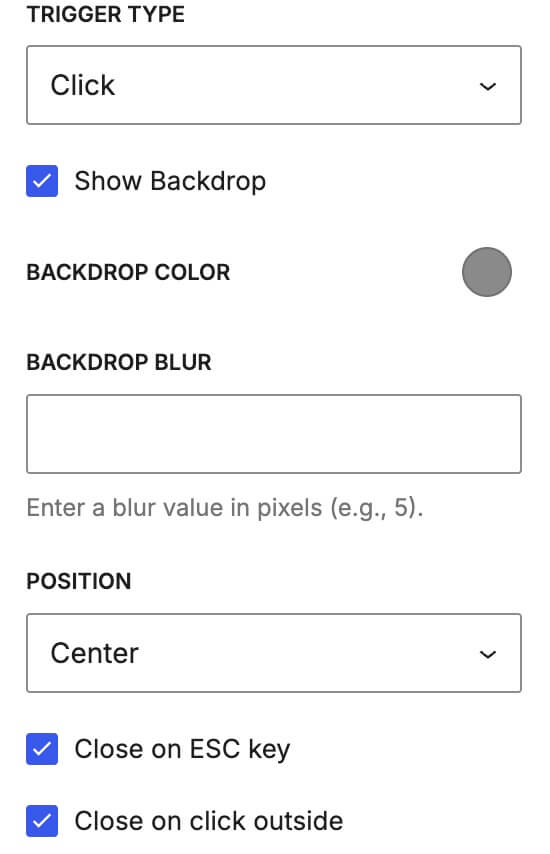
- Set the Trigger Type to Click. This tells the panel to wait for a button or link to open it.
- Leave the panel as a standard overlay for this tutorial. Overlay Panels can also be off-canvas panels, tooltips, mega menus and more, but a standard panel will work best for this purpose.
Step 2: Add the iframe
Inside the Overlay Panel editor, you build the panel’s contents with regular GenerateBlocks, like anything else. Add a Container block to act as the panel, then add an HTML block inside the Container and paste this:
Swap in your own URL of the web page you are adding to the Overlay Panel.
Two small things worth doing here. The title attribute is for accessibility, so write something that describes what the visitor is looking at. And loading=”lazy” means the external page does not load until it is actually needed.
Step 3: Size the panel so the iframe fits
The classic symptom: the embedded page gets cut off inside the panel, like a sweater two sizes too small. Three things usually cause it:
- Use
vwfor the width. A panel sized invhis only as wide as the screen is tall, which is too narrow on a landscape monitor and just wrong on a phone. Width wantsvw. - Giving the panel a min-height but no real height. An iframe set to
height: 100%needs a parent with a definite height to measure against. A min-height does not count. The iframe had nothing to fill. - The close button had nothing to anchor to. If the close button is positioned absolutely but the panel is not
position: relative, the button anchors to the page instead of the panel.
The fix, on the Container block acting as your panel:
width: min(92vw, 1000px);

height: 85vh;

position: relative;

overflow: hidden;

padding: 0;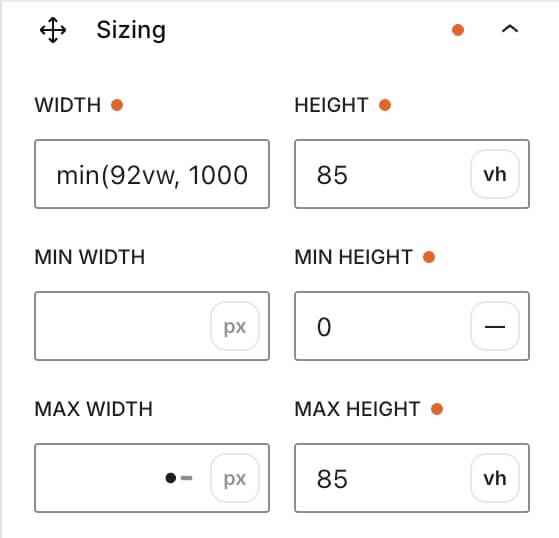
And on the iframe, make it a good citizen inside the container:
width: 100%;

height: 100%;

display: block;

border: 0;

flex: 1 1 auto;

min-width: 0;
min(92vw, 1000px) is the quiet hero. On a phone, the panel takes up 92% of the screen width. On a big monitor, it stops at 1000px instead of sprawling across the room. A real height gives the iframe something solid to fill, and padding: 0 lets the embedded page run edge to edge.
One more thing to check: if you use a global class on the panel, look at what CSS it adds. Extra padding or a max-width hiding in a class can quietly shrink your iframe’s space.
Step 4: Add a close button
Visitors need an obvious way out. Add a close button inside the panel and anchor it to the top corner. Because the panel is now position: relative, an absolutely positioned close button will sit exactly where you put it. The Pattern Library is a big help here. Every popup in the Pattern Library comes with that close button to get you started.
Give it enough contrast to see against whatever is inside the iframe, since you do not control that page’s colors.
There are also settings within the Overlay Panel settings for “Close on ESC key” and “Close on click outside” that will default to being clicked, allowing for additional ways to close the Overlay Panel.
Step 5: Connect a button to the panel
Now build the thing visitors will actually click.
On your page or blog post, add a Button block (or any link). In the block settings, find the Overlay Panel Trigger section and select the Overlay Panel you just made. That is the whole connection. The button opens the panel, and the panel contains the iframe and the close button.
Step 6: Use target=”_top” on links inside the embedded page
This is the one everyone forgets, and it is the reason this section has its own heading.
Here is what happens. Your visitor opens the overlay, reads the embedded page, and clicks a link on it. By default, that link loads inside the iframe. So your visitor clicks “Sign up,” and now your signup page is crammed into the overlay, nested in a panel, on top of the page they started on. It is a Russian nesting doll of web pages, and nobody enjoys it.
The fix is to ensure your link has a simple directive: target="_top". It tells the browser to open this link in the full browser window, not in the frame.
On the embedded page (not the WordPress site, the page included inside the iframe), set the links that should leave the overlay:
Join the membership
That link now breaks out of the overlay and loads in the main window.
The target="_top" should be included on every link heading back to your site so that it will break out of the Overlay Panel. If it’s a link heading to a different site altogether, then use target="_blank" to open a new tab or window.
A sneaky detail about anchor links
A link like the one above points to an anchor on your homepage (#signup). If the visitor is already on that homepage, clicking it scrolls the page to the signup section but leaves the overlay hanging open, because the browser does not actually reload anything. Same page, same hash, no reload.
The fix is adding a query parameter, like ?ref=overlay. Now the URL is different enough that the browser does a full page load, which closes the overlay and lands the visitor on the signup form.
Bonus: that ref value is free analytics. Use a different value for each source, such as ?ref=overlay or ?ref=newsletter, and you can see which door your visitors walked through.
Step 7: Test it like a visitor
Before you call it done:
- Open the page in a private window so you are seeing what a stranger sees.
- Click the trigger and confirm the iframe fills the panel with no cut-off edges.
- Resize your browser, or check on a real phone, to confirm the panel behaves on a narrow screen.
- Click every link inside the embedded page and confirm each one does what you intended (_top leaves the overlay, _blank opens a tab).
- Close the panel and make sure the page underneath is still where you left it.
If the iframe shows up blank, go back to the permission question from the beginning. A page that forbids framing will refuse to appear no matter how perfect your panel is. If the content shows up but looks cramped, revisit the sizing step.
The short version
- Create an Overlay Panel with a Click trigger.
- Put an iframe in an HTML block inside it.
- Give the panel a real width and height, with position: relative.
- Add a close button.
- Connect a button to the panel with the Overlay Panel Trigger setting.
- Add target=”_top” to links on the embedded page that should escape the overlay.
- Test as a visitor.
That is the whole setup. Any page with a URL that allows framing can live in an overlay, and no custom JavaScript is required.
If you’d like to see a fun example of how this works, see my test site, ShastaSage.com. Click on the “Crack Today’s Cookie” to get a fortune cookie from Mount Shasta, a place I used to live and found great inspiration. That link opens an Overlay Panel of an interactive page I built on another platform.