Overselling is the main problem that pushes most store owners to update WooCommerce product stock in bulk. A product sells out in the warehouse, its page still shows “In stock,” and the store takes an order it can’t fulfill.
WooCommerce stores stock counts product by product, so keeping a full catalog accurate means changing dozens or hundreds of quantities every time a new count comes in.
WP All Import updates WooCommerce product stock from a CSV, XML, or Excel file in any column layout, setting the stock quantity and stock status of each matching product and leaving the rest of its data as it was. This guide explains which inventory fields a stock update changes, then walks through a complete update using Automatic Setup.
What Changes When You Update WooCommerce Product Stock
WooCommerce stores each product’s stock information in four fields on the Inventory tab of the Product data panel. An update file only needs a SKU column to identify each product, plus columns for the fields it changes.
| Field | What it controls | Values in an update file |
|---|---|---|
| Manage stock | Whether WooCommerce counts units for the product (labeled “Track stock quantity for this product” in the admin) | yes / no |
| Stock quantity | Units available to sell, lowered automatically with each order | A whole number |
| Stock status | The availability label shoppers see | instock / outofstock / onbackorder |
| Backorders | Whether shoppers can order at zero stock | no / notify / yes |
Stock quantity only counts when Manage stock is on. With tracking enabled, WooCommerce sets the stock status based on the quantity and marks a product as out of stock when the quantity reaches zero, unless backorders are allowed.
WooCommerce lets you change these fields one product at a time on the edit screen or in Quick Edit. Bulk Edit changes them across a selection of products: it sets a quantity, or increases or decreases existing stock by a fixed number. The built-in CSV importer updates existing products by SKU, but it accepts only CSV files, uploaded manually each time.
WP All Import updates WooCommerce product stock from CSV, XML, Excel, or JSON files that are uploaded or pulled from a URL or FTP server, and it saves each import so the next stock file reuses the same settings.
How to Update WooCommerce Product Stock with Automatic Setup
WP All Import divides a stock update into two jobs: Automatic Setup maps the file’s columns to WooCommerce fields, and the import settings control which of those fields are written to existing products. The walkthrough below uses both to update a 50-product catalog from a single CSV file.
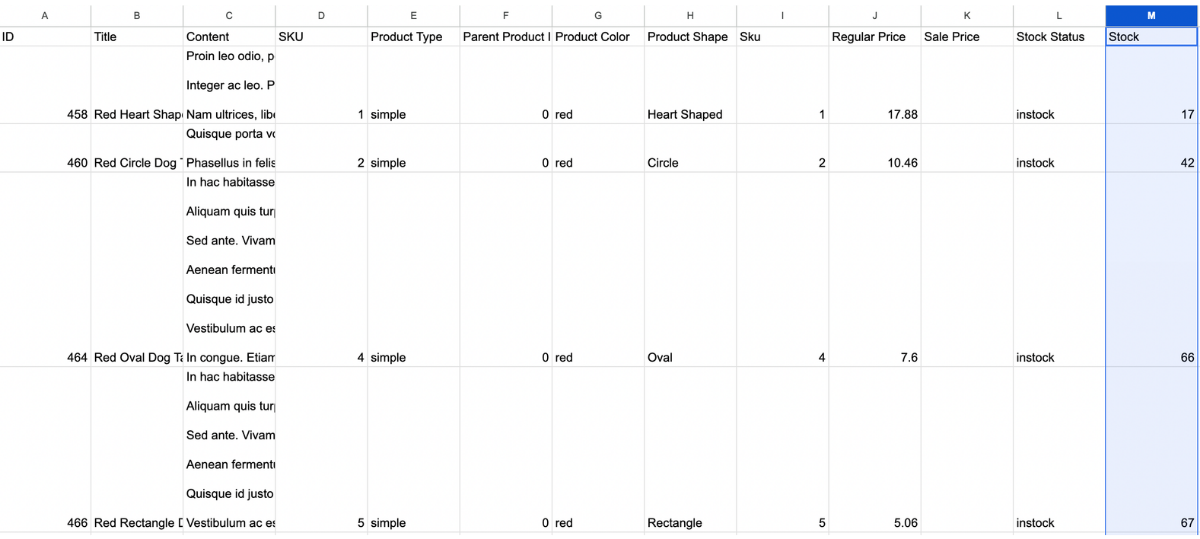
Step 1: Get the Stock File Ready
The file needs a SKU column and a column for each inventory field being changed, usually stock quantity and stock status. Column names don’t have to match WooCommerce’s. A supplier’s “Qty on Hand” column works just as well as a column named “Stock.”
A product export from WP All Export with edited stock values also works as an update file.
Step 2: Start Automatic Setup with the Stock File
Go to All Import › New Import and click Set up automatically at the top of the screen. Upload the stock file, or load it from a URL, an FTP/SFTP server, or a file already in WP All Import. The uploader accepts XML, CSV, JSON, TXT, ZIP, and GZ files up to 256 MB.
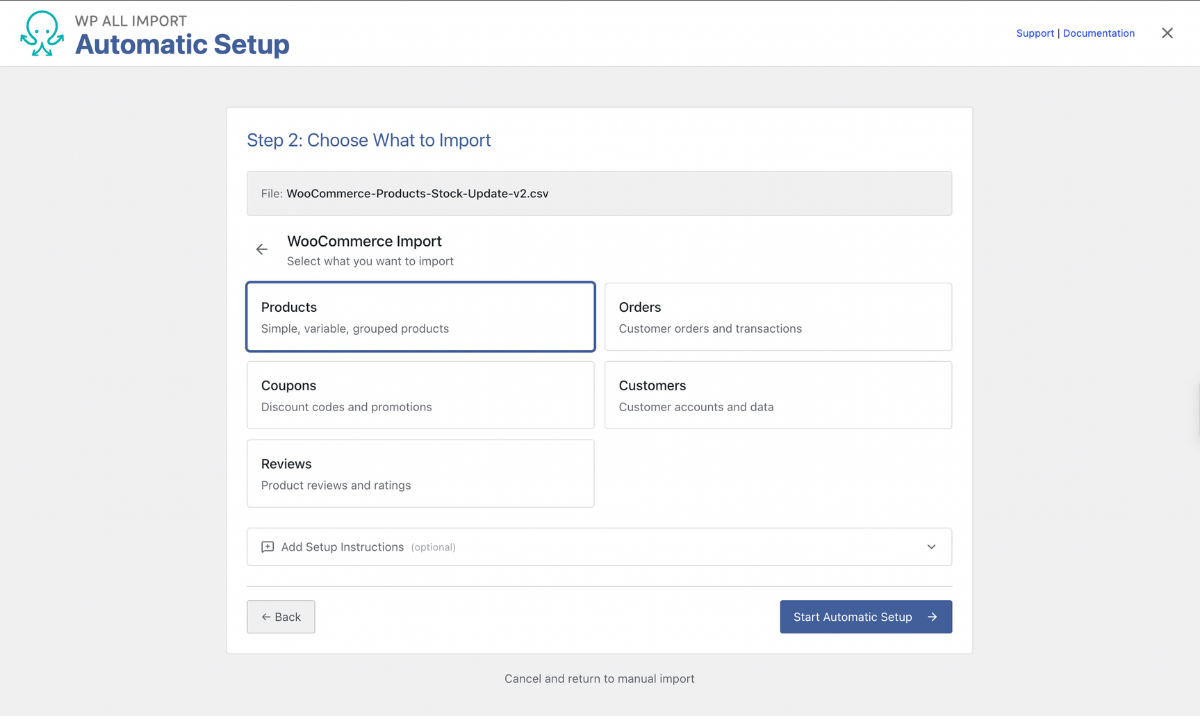
Step 3: Choose WooCommerce Products as the Import Target
Under What would you like to import?, select WooCommerce, then Products. If the file uses unusual headers, open Add Setup Instructions and describe them one per line, for example:
- ‘Map the Qty on Hand column to stock quantity’
Click Start Automatic Setup and accept the data-processing consent prompt.
Step 4: Check the Inventory Mappings
The Your Import Is Ready screen shows how many fields were mapped and how many records will be imported. Expand Field Mappings and check the WooCommerce Import Add-On group to confirm that the stock and stock status columns are mapped.
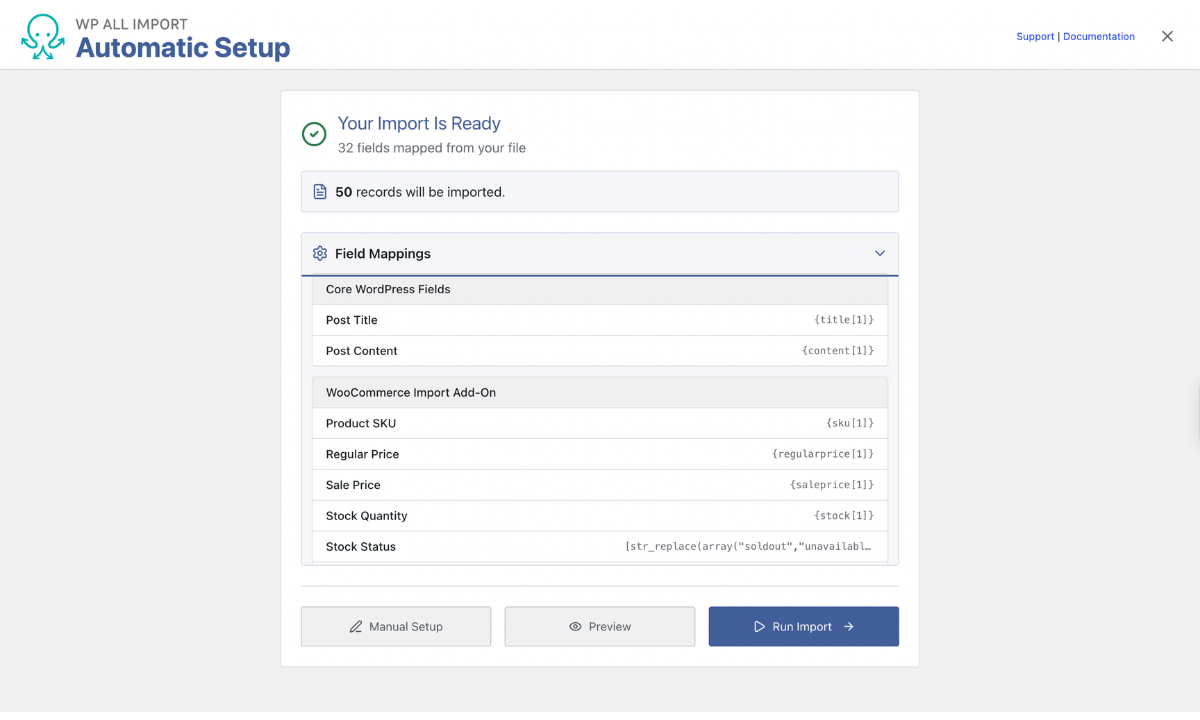
WP All Import maps the full file, including titles, prices, and attributes. The next step makes sure only the stock fields are written. Click Manual Setup to continue. Manual Setup keeps every mapping Automatic Setup created.
Step 5: Limit the Import to Stock Fields in Manual Setup
On the Import Settings screen:
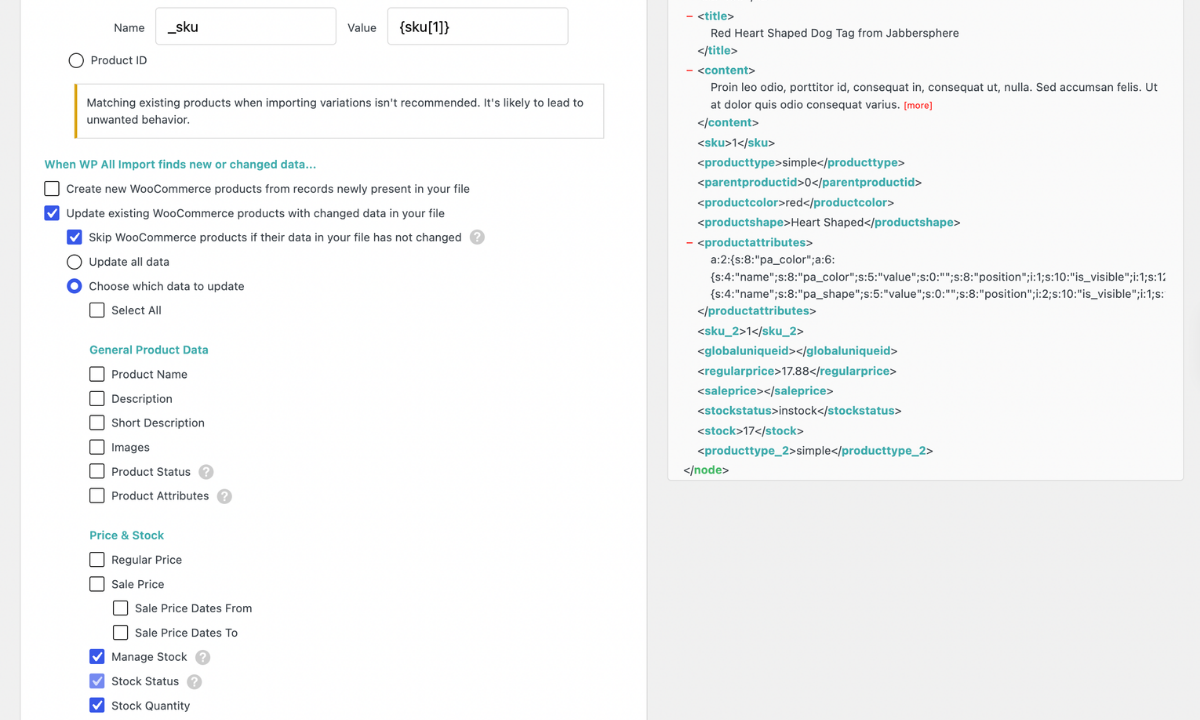
- Select Attempt to match to existing WooCommerce products before creating new ones, then match by Custom field with the name _sku and the file’s SKU column as the value.
- Uncheck Create new WooCommerce products from records newly present in your file, so a SKU that isn’t in the store is skipped.
- Select Choose which data to update and untick everything except the stock fields.
WP All Import writes only the fields ticked here and leaves titles, descriptions, prices, and images exactly as they were.
Step 6: Run the Stock Update and Check the Results
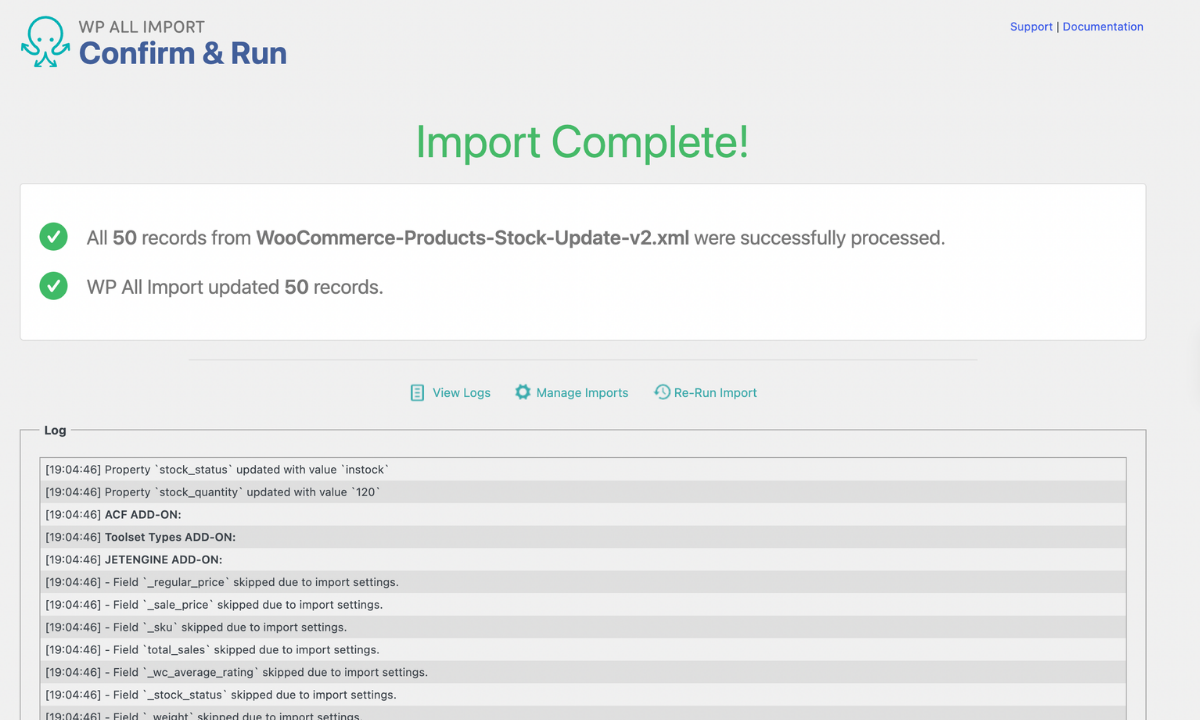
Click Continue, then Confirm & Run Import. When the run finishes, the summary confirms how many records WP All Import updated. In this example, all 50 products were updated, and none were created. The log beneath it lists each product and the inventory properties that changed.
Open Products › All Products to see the new numbers in the Stock column.
Mark Products Missing from the File as Out of Stock
Supplier files often drop a product when it’s discontinued or sold out at the source, but it stays “In stock” in WooCommerce without an update. WP All Import handles this with one setting in the same import: it can change the stock status of any product missing from the latest file to Out of stock, without deleting or unpublishing it.
To turn it on, in the import’s Import Settings, check Remove or modify WooCommerce products that are not present in this import file. Then:
- Choose the option that targets products created or updated by this import and later removed from this import file. The first stock run links each matched product to the import, so this option affects only products the import has already handled.
- Under Instead of deletion, select Change stock status of removed WooCommerce products to Out of stock, and uncheck Send removed WooCommerce products to trash, which is checked by default.
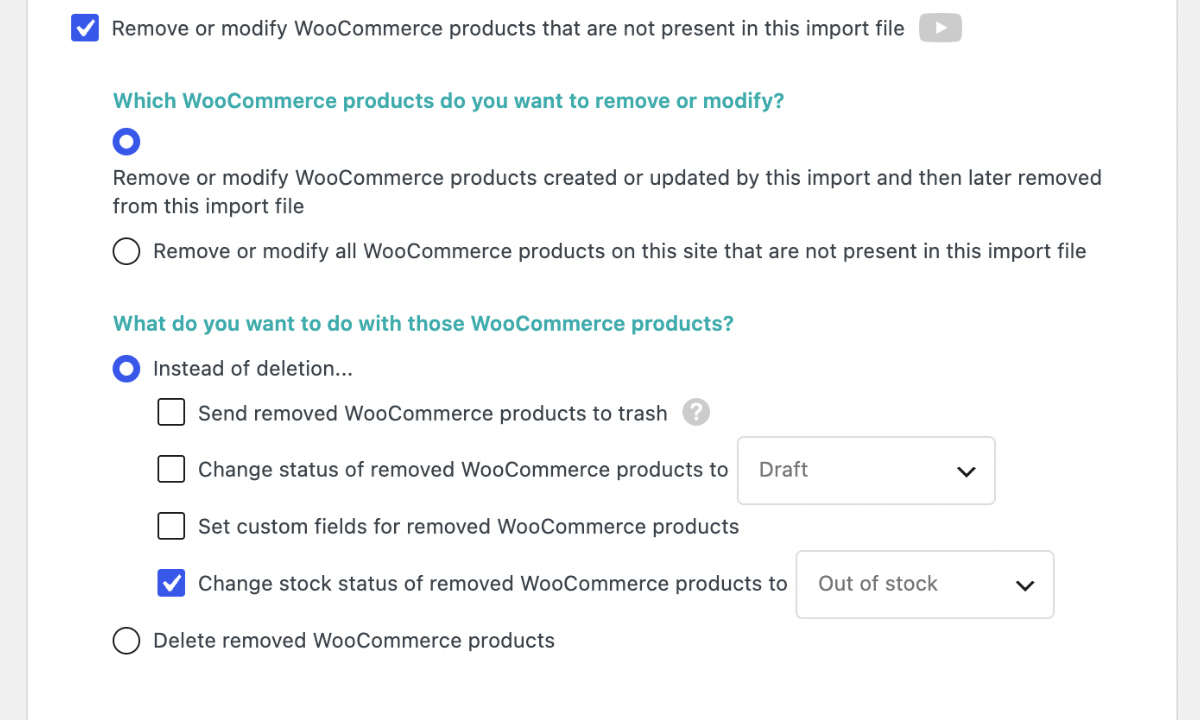
The second targeting option covers every product on the site that isn’t in the file, including products added manually. It is only useful for a file that lists the entire catalog.
Keep WooCommerce Product Stock Updated on a Schedule
A scheduled run combines everything set up so far. Each time the import runs, WP All Import updates WooCommerce product stock for every SKU in the latest file and marks products missing from it as Out of stock, without requiring anyone to open the import.
For that to work, the import must load its file from a Download from URL or FTP/SFTP source, since an uploaded file never changes between runs. WP All Import’s paid Automatic Scheduling service sets the run times from within the plugin (setup guide). Server cron jobs are the no-cost alternative included with WP All Import Pro.
Final Thoughts — Update WooCommerce Product Stock
Overselling happens when the stock count in WooCommerce falls behind the count on the shelf. WP All Import keeps the two in line by updating WooCommerce product stock directly from supplier and inventory files, matching each row to an existing product by SKU and changing only the inventory fields selected in Import Settings. It accepts the file’s own column layout, and Automatic Setup handles the field mapping, so preparing a stock update comes down to choosing the file and confirming what it should change.
The import also deals with what a stock file leaves out. Products that disappear from the latest file can switch to Out of stock automatically while their pages stay published. With Automatic Scheduling or a server cron job, WP All Import reruns the stock update at set intervals, so WooCommerce availability tracks the supplier’s current numbers without manual imports.
Frequently Asked Questions — Update WooCommerce Product Stock
How do I update stock for multiple WooCommerce products at once?
You can update stock for multiple WooCommerce products at once with WP All Import, using a single file that lists each product’s SKU and new stock level:
- Go to All Import › New Import and click Set up automatically.
- Upload the stock file, then select WooCommerce › Products.
- Check the stock mappings on Your Import Is Ready, then click Manual Setup.
- In Import Settings, match products by the _sku custom field and uncheck Create new WooCommerce products from records newly present in your file.
- Select Choose which data to update and tick only the stock fields.
- Click Confirm & Run Import.
How do I update stock for variable products in WooCommerce?
To update stock for variable products in WooCommerce, give each variation its own row in the stock file, identified by the variation’s SKU. WP All Import matches every row by SKU, so variations update the same way simple products do, as long as Product Type isn’t selected under Choose which data to update. That keeps each variable product’s structure intact while its variations receive the new quantities.
Does WooCommerce reduce stock automatically when an order is placed?
Yes. WooCommerce reduces stock automatically when an order is placed, provided stock management is enabled under WooCommerce › Settings › Products › Inventory and on the product itself. Once a product’s quantity reaches zero, WooCommerce marks it Out of stock unless backorders are allowed. Automatic reductions only reflect sales made in the store, so counts from a warehouse or supplier still need a separate stock update.
How to mark WooCommerce products as out of stock in bulk?
To mark WooCommerce products as out of stock in bulk, select them on the Products screen, choose Edit from Bulk actions, and set In stock? to Out of stock. For products tied to a supplier file, WP All Import sets the status automatically: with Remove or modify WooCommerce products that are not present in this import file checked, each run switches products missing from the file to Out of stock without removing them.
Can I sync WooCommerce stock with a supplier’s feed automatically?
Yes. WP All Import syncs WooCommerce stock with a supplier’s feed by rerunning a saved stock import on a schedule:
- In Automatic Setup, load the feed with Download from URL or FTP/SFTP instead of uploading a copy.
- Complete the stock-only import settings and run the import once.
- Open All Import › Manage Imports and set a schedule for the import with Automatic Scheduling, or call it from a server cron job.
Each scheduled run downloads the latest version of the feed and updates stock for every matching SKU.
Related Information