You can now change your Facebook feed by telling ChatGPT or Claude what you want. Type “show six posts in three columns” and your feed updates on your site while you stay in the chat.
Smash Balloon Facebook Feed shows your Facebook Page’s posts on your WordPress site and keeps them up to date on its own. Version 4.15.0 adds AI Agents to every Facebook Feed Pro plan, so your AI can restyle the photos, videos, and Load More button that Pro puts in your feed. It’s in the free plugin too.
Here’s what you can do starting today:
- Restyle your feed’s layout, columns, and colors by asking
- Get the shortcode for any feed without opening your dashboard
- Start a new feed from any Facebook Page you’ve connected
- Change how often your feeds check Facebook for new posts
- Approve any feed deletion your AI asks for, right in your browser
Restyle Your Feed Without Opening the Editor
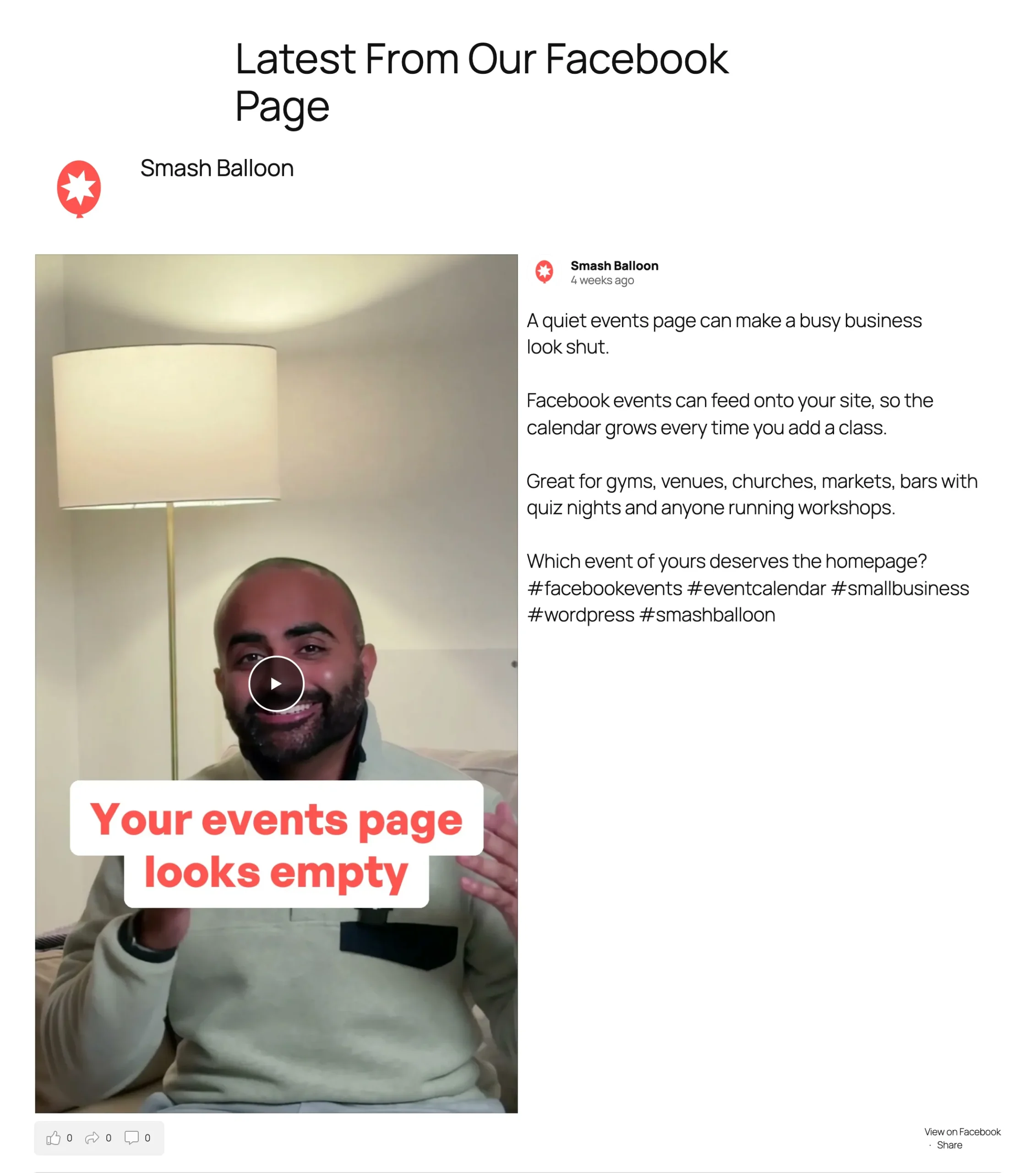
Here’s a Facebook Feed Pro feed of a Page’s latest Reels, one post per row.
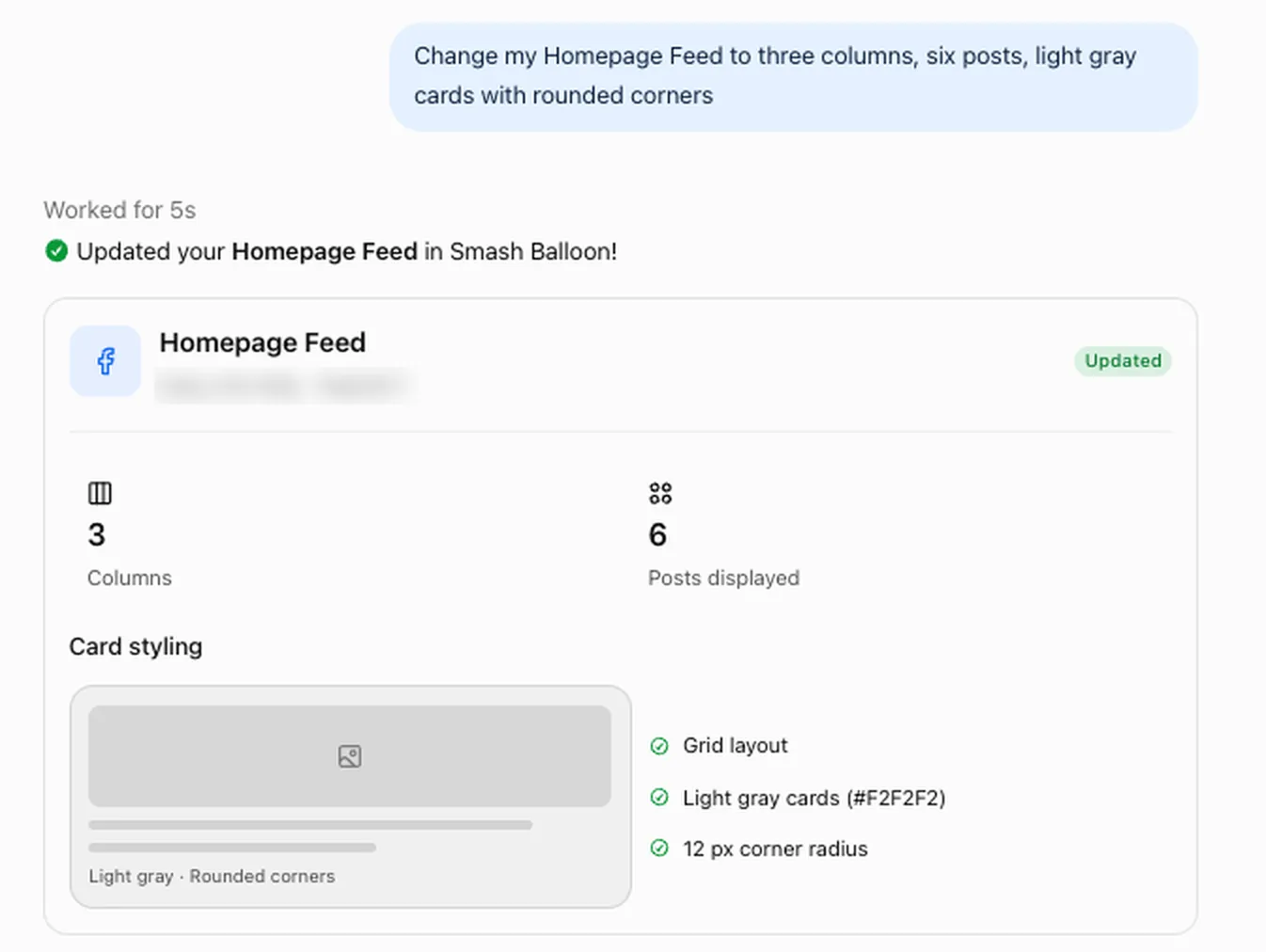
Ask ChatGPT for three columns, six posts, and light gray cards with rounded corners. It makes the change and tells you exactly what it did:
And here’s that same request applied to the Reels feed above. Only the settings you ask about change, so the rest of your feed stays the way you set it up.
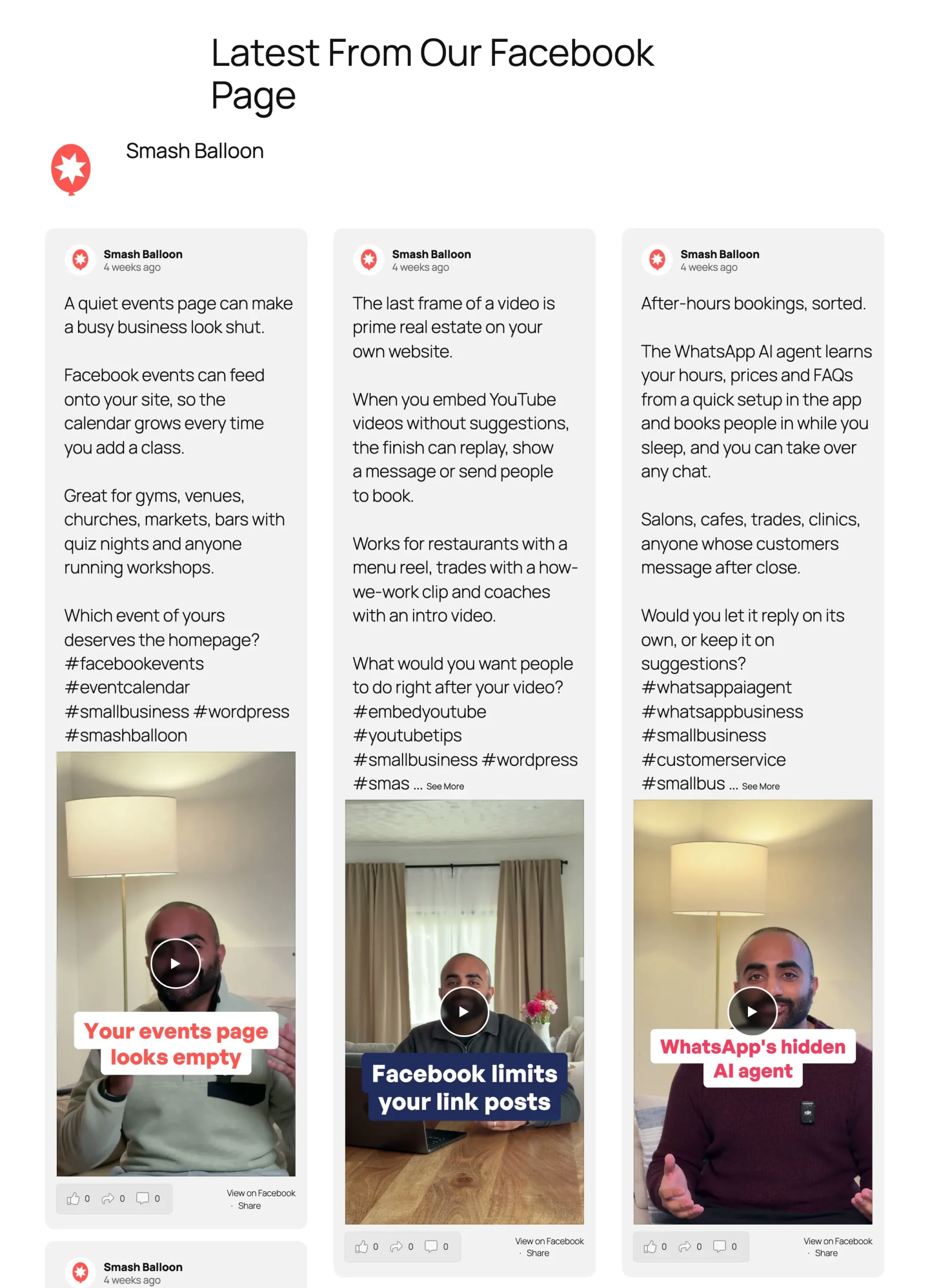
Everything in that feed comes from Facebook Feed Pro: the video thumbnails, the full captions, and a pop-up lightbox that opens each post right on your page so visitors don’t have to leave your site. The free plugin takes the same kind of request for your post text.
Hand Off the Small Feed Chores
Ask the way you’d text a coworker. A few things worth handing off:
- “Show 4 posts on phones and 8 on computers.” Mobile visitors get a shorter feed, and you don’t build a second one.
- Want the feed to match your brand? Ask for your link color by its hex code, or switch the posts to cards with rounded corners.
- Move the Like box above your posts, so following your Page is the first thing visitors see.
- Opening a second location? Once its Facebook Page is connected, ask for a new feed from it and get the shortcode, the short piece of text you paste where a feed should appear.
On Facebook Feed Pro, you can go further. Ask for a photo grid, rename your Load More button to “See more from our Page” and match it to your brand color, or turn on the pop-up lightbox so visitors can open your posts without leaving your site.
Change Settings for Every Feed at Once
Some settings cover every feed on your site, and your AI can change those too. Post a lot? Ask it to check Facebook for new posts every 30 minutes. It can also switch on GDPR mode, which holds back Facebook’s images and scripts until a visitor agrees to them.
Turn your feed into a photo and video showcase
Facebook Feed Pro puts the photos and videos from your posts right in your feed, with a Load More button and pop-up lightbox on every plan. Plus adds album, photo, and video feeds and filters, and Elite adds event feeds and Facebook reviews. AI Agents comes with every Pro plan, so you can restyle all of it by asking. Backed by a 14-day money back guarantee.
Your Site Stays Yours
Facebook Feed’s AI tools start out look-only. They can see your feeds and settings, and they never see your license key or the access tokens that link your Facebook account. To let them make changes, you flip one switch in Settings, and you can flip it back any time.
Deleting a feed always comes back to you. Your AI can only ask, and you get a link to open in your browser that names the feed before you click Delete feed or Cancel. The link works once and expires after 15 minutes.
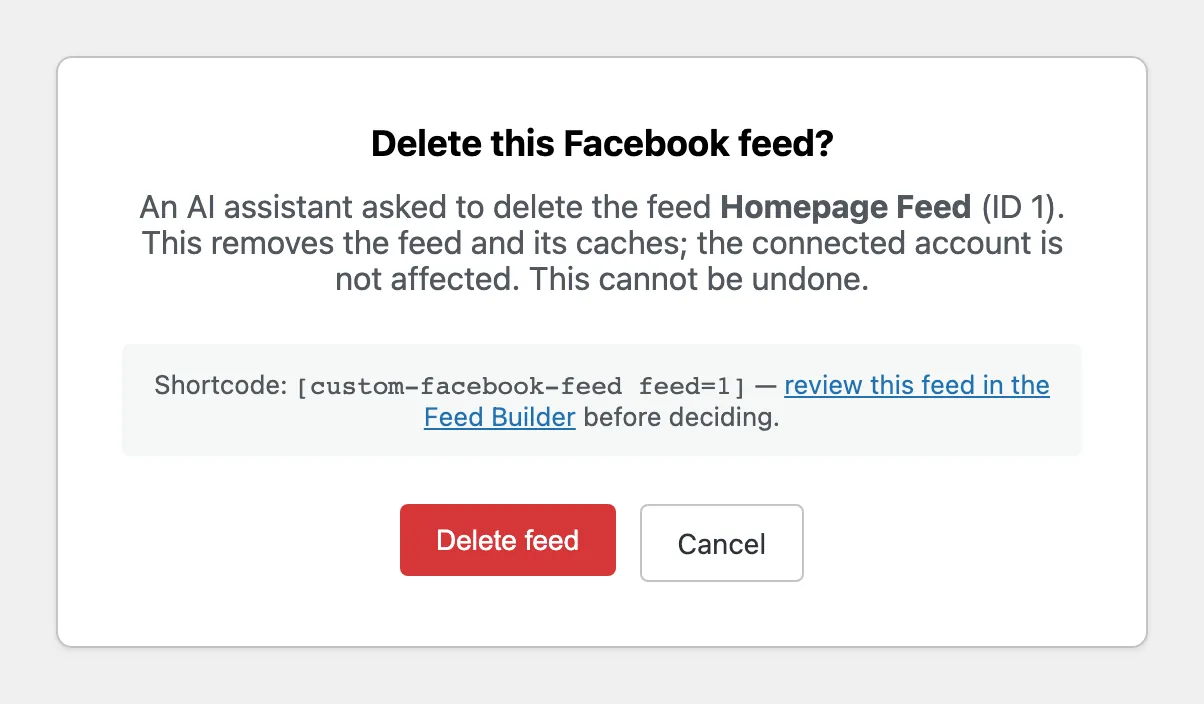
WPVibe, the free plugin that connects your AI to WordPress, also asks for your approval in the chat before anything destructive elsewhere on your site.
Set It Up Once, in About 10 Minutes
You’ll need Smash Balloon Facebook Feed 4.15.0, free or Pro, and WordPress 6.9 or newer. Your site’s address also has to start with https://, since WPVibe only connects over a secure link.
WPVibe is made by SeedProd, part of the same family of WordPress products as Smash Balloon, and Facebook Feed installs it for you.
WPVibe comes free with Facebook Feed
You don’t need to download anything separately. Facebook Feed installs WPVibe for you in one click from Settings, on the free plugin and every Pro plan, and WPVibe’s starter plan is free too. New to Smash Balloon? Start with the free Facebook Feed.
Step 1: Add WPVibe From Your Facebook Feed Settings
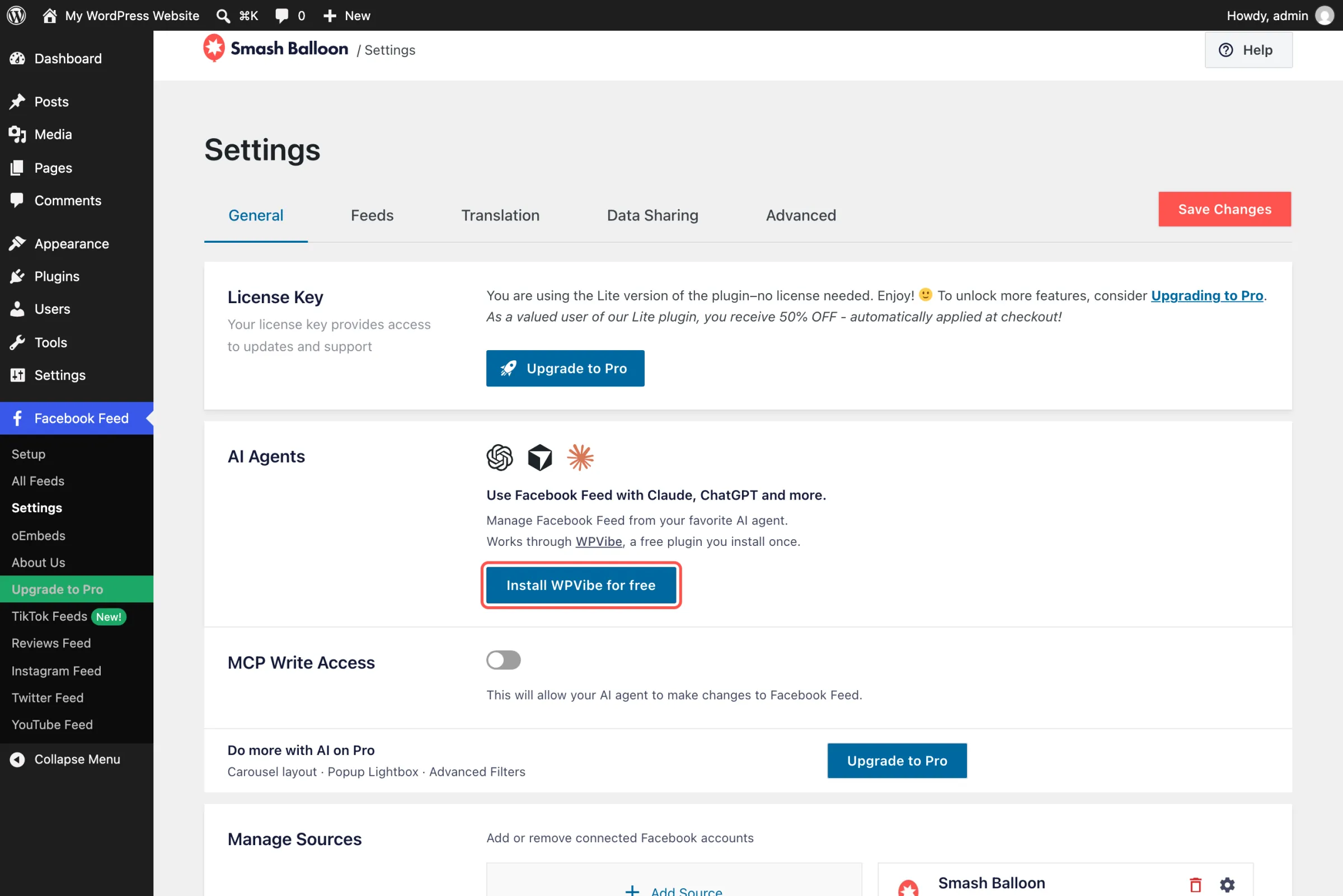
Update to Facebook Feed 4.15.0, then go to Facebook Feed » Settings. In the AI Agents box, click Install WPVibe for free. When the box says WPVibe is connected, click Open WPVibe.
Step 2: Connect ChatGPT or Claude
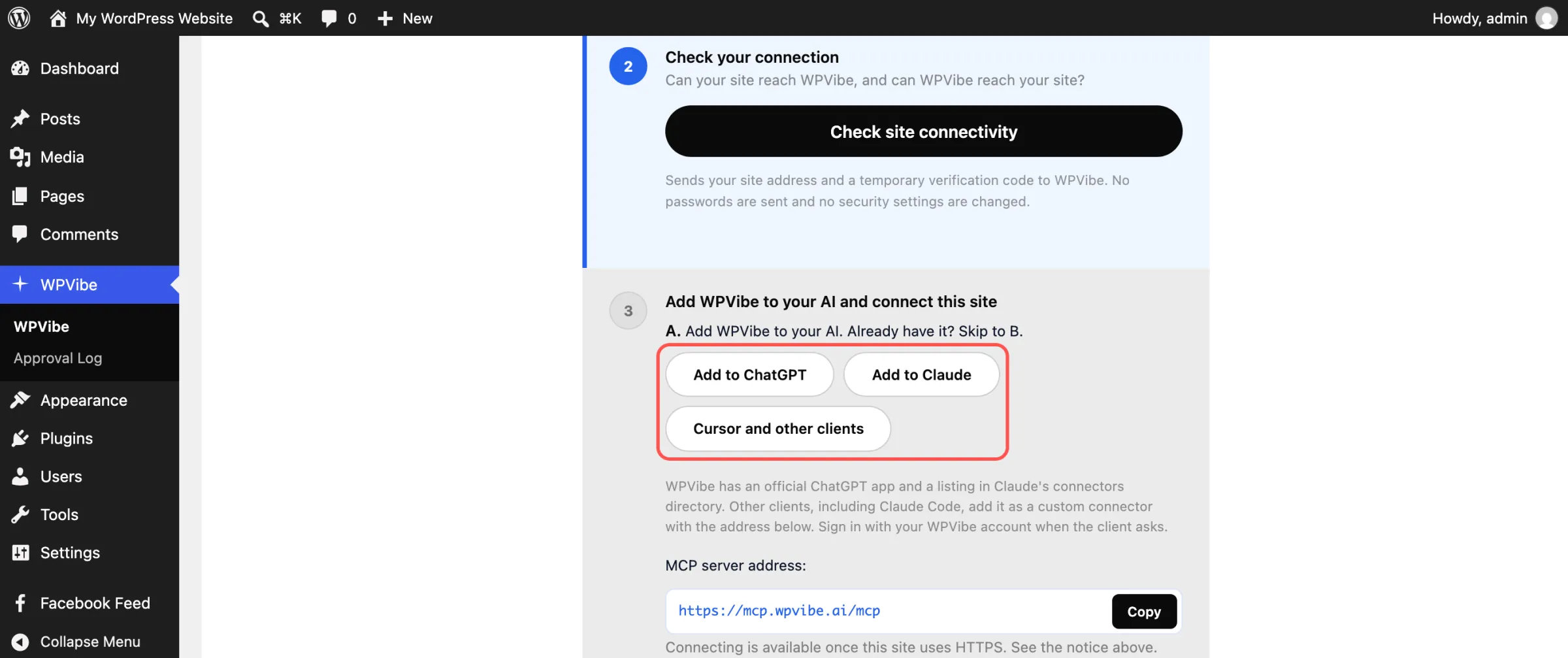
WPVibe walks you through a short checklist. Click Add to ChatGPT or Add to Claude, then sign in to your free WPVibe account or create one with your email. Using Cursor? Pick Cursor and other clients.
Step 3: Approve the Connection
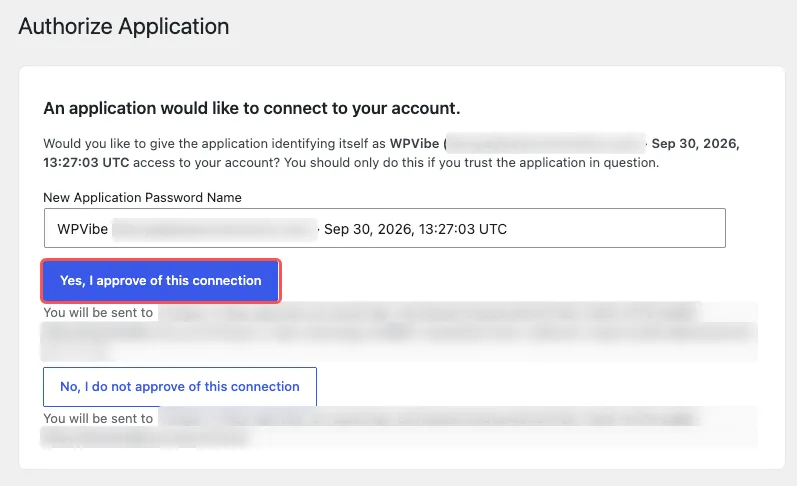
Copy the short message WPVibe gives you into your AI. WordPress opens and asks whether WPVibe can connect to your account, so click Yes, I approve of this connection. When your AI replies with your site’s name and address, you’re connected.
Step 4: Let Your AI Make Changes
Back in Facebook Feed » Settings, switch on MCP Write Access, the switch that lets your AI make changes, and click Save Changes. Leave it off if you only want your AI to look for now.
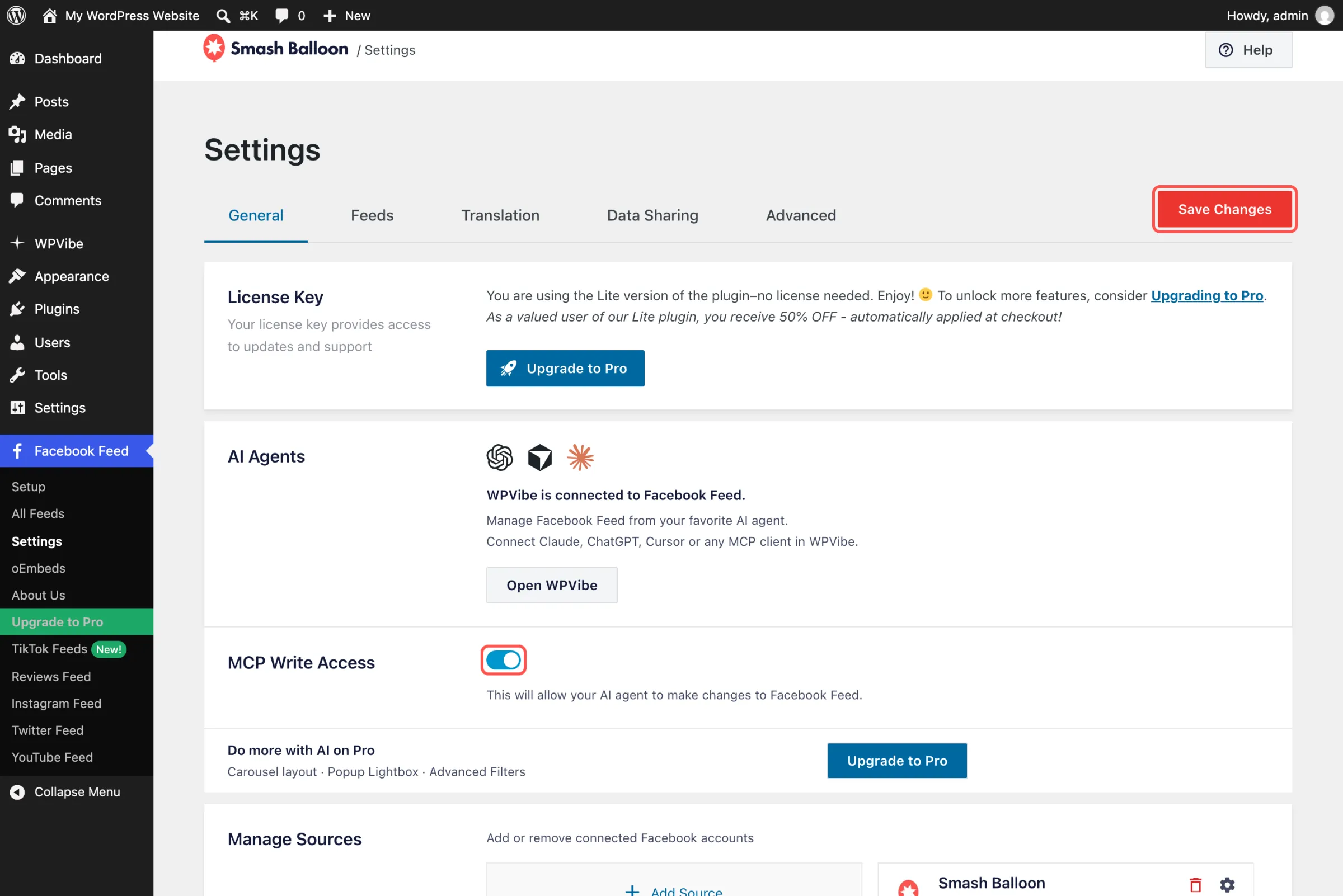
Now try it. Ask “List my Facebook feeds and their shortcodes.” In ChatGPT, click + and pick WPVibe first, so it answers from your site.
What Facebook Feed Pro Adds to Your Feed
Facebook Feed Pro shows the photos and videos inside your posts, with a Load More button and a pop-up lightbox, on every plan. Plus adds album, photo, and video feeds and filters for the posts you show. Elite adds event feeds and Facebook reviews. AI Agents comes with every Pro plan, so your AI keeps working the same way after you upgrade.
Still on the free plugin? Ask your AI what Facebook Feed Pro adds. It answers from the plugin’s own feature list and gives you the upgrade link.
Frequently Asked Questions
Is AI Agents included in Facebook Feed Pro?
Yes, on every plan: Basic, Plus, Elite, and the All Access Bundle. It’s also in the free Smash Balloon Facebook Feed 4.15.0. On Pro, your AI can also change the layouts, Load More button, and lightbox settings that Pro adds.
Is WPVibe free?
Yes. The plugin is free, and WPVibe’s free plan covers a daily allowance of WordPress actions. Paid WPVibe plans raise that allowance if you need more.
Can my AI delete a feed without asking me?
No. Facebook Feed’s AI tools can only request a deletion. The feed is deleted only after you open the confirmation link in your browser and click Delete feed.
Can I take back write access later?
Yes. Switch off MCP Write Access in Facebook Feed » Settings and click Save Changes. Facebook Feed’s AI tools go back to look-only right away, and any deletion link that’s still waiting stops working.
Update to 4.15.0 and Change Your Feed by Asking
Ten minutes of setup today, and your next feed change is something you can ask ChatGPT or Claude to do.
And you can do it without:
- Opening the feed editor to change a column count
- Hunting for a shortcode you set up months ago
- Worrying your AI deletes something you wanted to keep
Already using the free Smash Balloon Facebook Feed or Facebook Feed Pro? Update to 4.15.0 and open the AI Agents box under Settings.
New to Smash Balloon? Facebook Feed Pro gets you photos, videos, and AI Agents from day one. Or install the free Smash Balloon Facebook Feed from WordPress.org and follow the four steps above.
Run your Facebook feed from ChatGPT or Claude
Facebook Feed Pro shows the photos and videos from your Page, and with AI Agents on every plan, you can restyle all of it from ChatGPT or Claude. Pick Plus for album, photo, and video feeds, or Elite for event feeds and reviews. Backed by a 14-day money back guarantee.
Run Instagram Feed Pro too? It works the same way. Here’s how to manage your Instagram feed by asking ChatGPT or Claude.
What’s the first thing you’ll ask your AI to change on your Facebook feed? Drop a comment below and let us know.