Written by the Editorial team at Melapress
The larger your WordPress website grows, the more important it is for you to find a way of monitoring all site activity and changes. When you have a multi-user site or blog, and share WordPress administration tasks with other users or editors, or use a multisite network, this need only multiplies. The more people that use or access your site, the more necessary it is for you to track what’s going on in it. The best way to accomplish this is by using an activity log.
In this blog post, we describe what an activity log is, how it works, and the details it records. We also explain the benefits of using an activity log for your WordPress website, particularly when it comes to site and user security and management. Finally, we provide some advice on how to select an activity log plugin that meets your needs.
Note: WP Activity Log is a third-party solution. Gravity Forms does not offer support for this platform, nor is this article intended to be a Gravity Forms endorsement of this platform, its developers, or quality of support. As always, we recommend you extensively evaluate all solutions to ensure their suitability for your purpose.
What is an activity log?
In the field of information security, an activity log is a chronological, sequenced record of all actions performed by website users. It provides a recorded audit trail that you can then search and analyze for out-of-scope, damaging, or positive-impact activities. An activity log is sometimes also called an audit log or a security log.
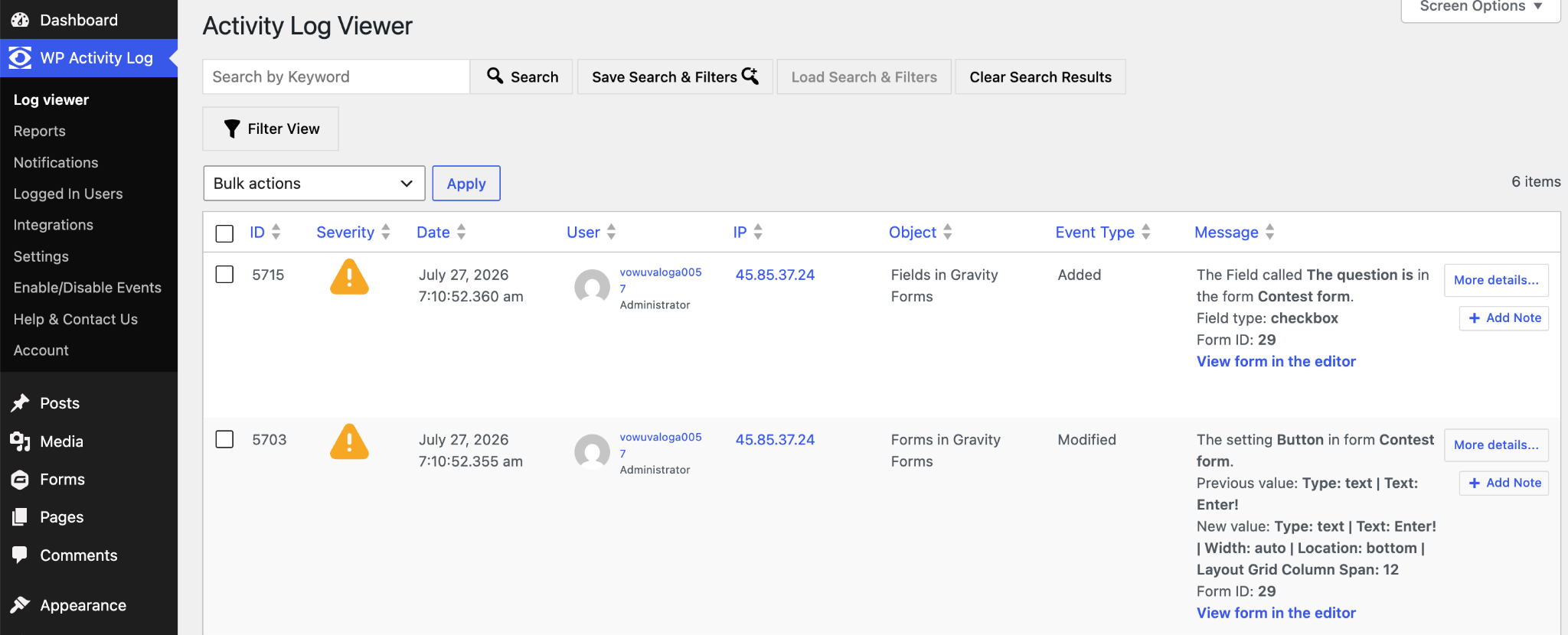
With WordPress websites, there is all the overt user activity – page creation, updates, image uploads, comments and deletions. Then, there are all kinds of administrator functions, such as logins and login attempts, plugin installation, file modifications, theme changes and the rest.
E-commerce solutions have their own specific activities, such as order processing and product metadata changes, and stock quantity changes.
WordPress does not keep a log or audit trail of user activity by default. However, a record of all these activities can be kept in an activity log using an activity log plugin.
How does a WordPress activity log work?
An activity log plugin detects supported events as they happen on your WordPress website. These can include actions performed by users, WordPress itself, installed plugins, and connected services.
Each detected event is recorded as an individual log entry. Depending on the event, the entry may include information such as the user who performed the action, their role, the date and time, the IP address, the affected object, and details of what changed.
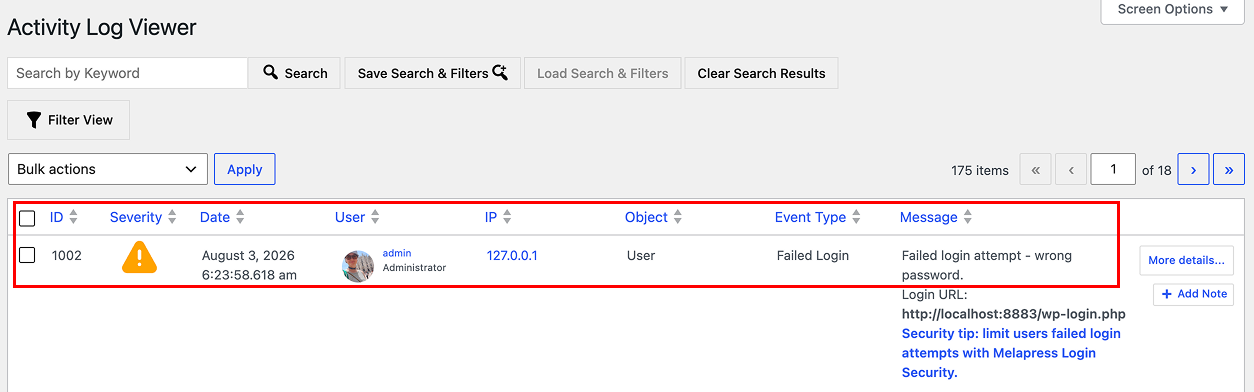
The plugin then stores these entries in the WordPress database or, where supported, in an external database or logging platform. Administrators can review the recorded activity through an activity log viewer, where they can search and filter events to find the information they need.
The recorded events can also be used to generate reports, send notifications, or alert administrators when important activity occurs.
What details can you find in an activity log?
Different activity log plugins provide different levels of event coverage and detail. For this article, we use WP Activity Log as a reference because it offers extensive coverage of WordPress activity, supports a wide range of third-party plugins, including Gravity Forms, and is backed by an established support team. The plugin can monitor the following types of activity.
Authentication activity
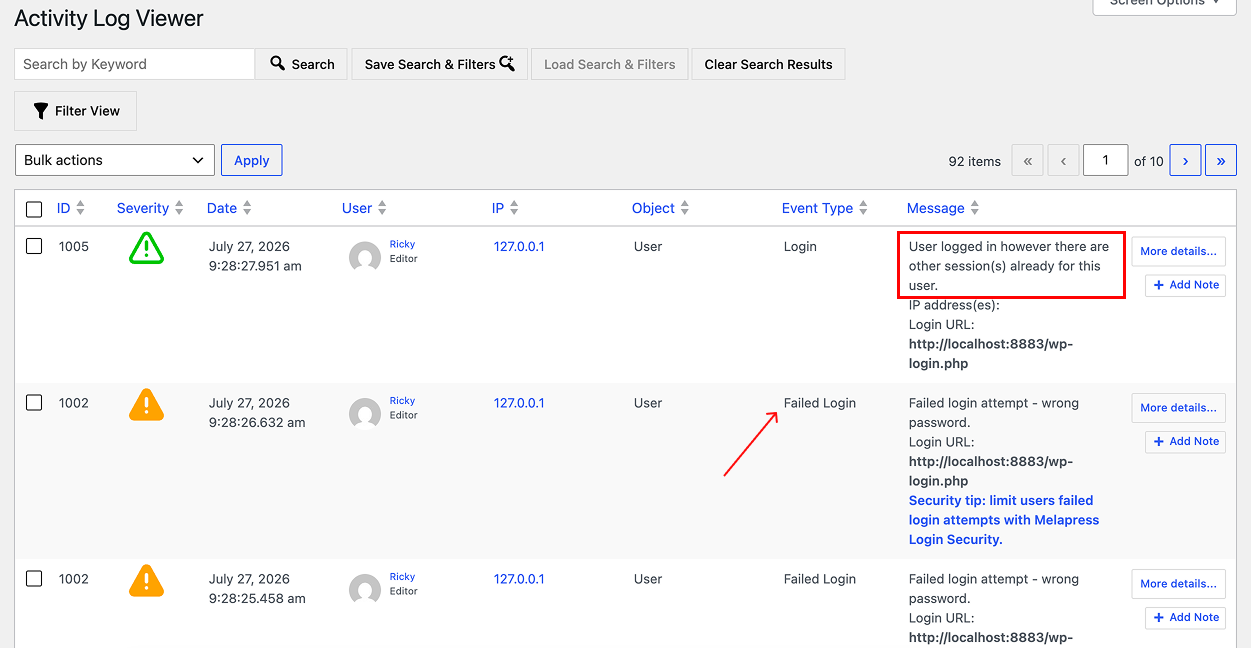
Tracks logins, logouts, password changes, and user sessions. For example, the log may show several failed login attempts followed by a successful login from an unfamiliar IP address.
Content changes
Records updates to posts, pages, media, comments, and metadata. For instance, you can see who unpublished a page, deleted an image, or changed a blog post title.
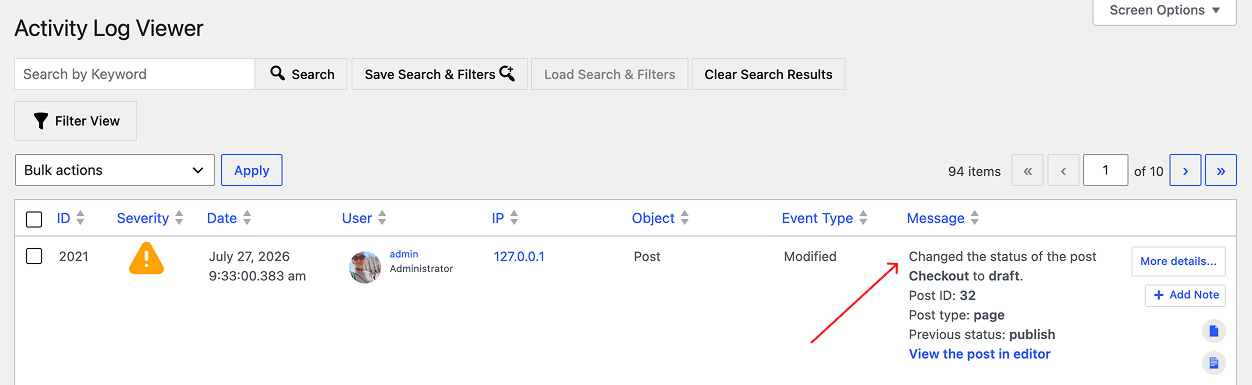
User and permission changes
Logs account creation, deletion, role changes, and capability updates. For example, you can monitor an Editor being granted Administrator access or a new user account being created.
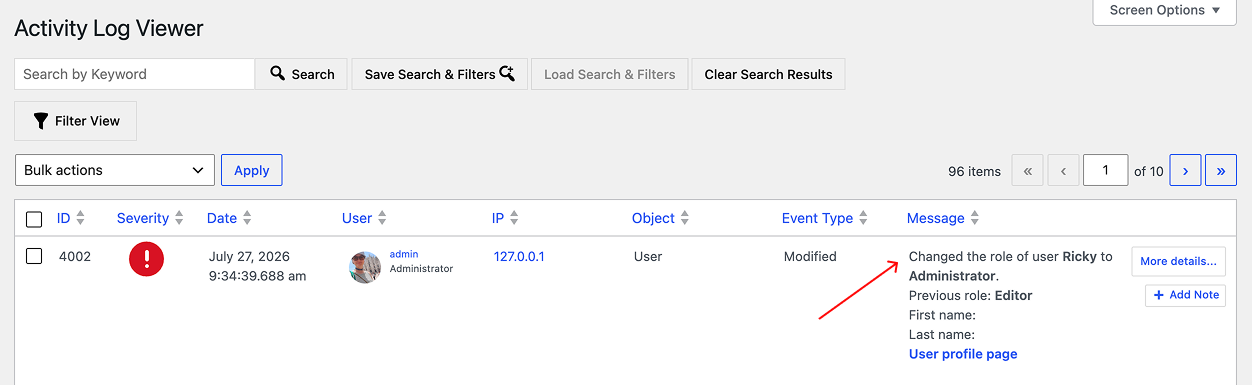
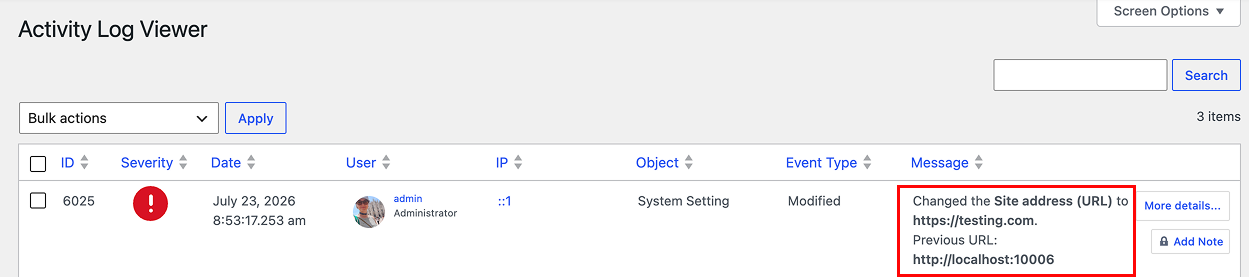
WordPress configuration changes
Monitors changes to site settings, admin email, permalinks and multisite configuration. For example, it can record when a site URL is changed unexpectedly.
Plugin and theme activity
Tracks installation, activation, deactivation, updates and removal of plugins and themes.
For example, someone deactivated the Gravity Forms 2Checkout add-on without any planned or discussed maintenance.
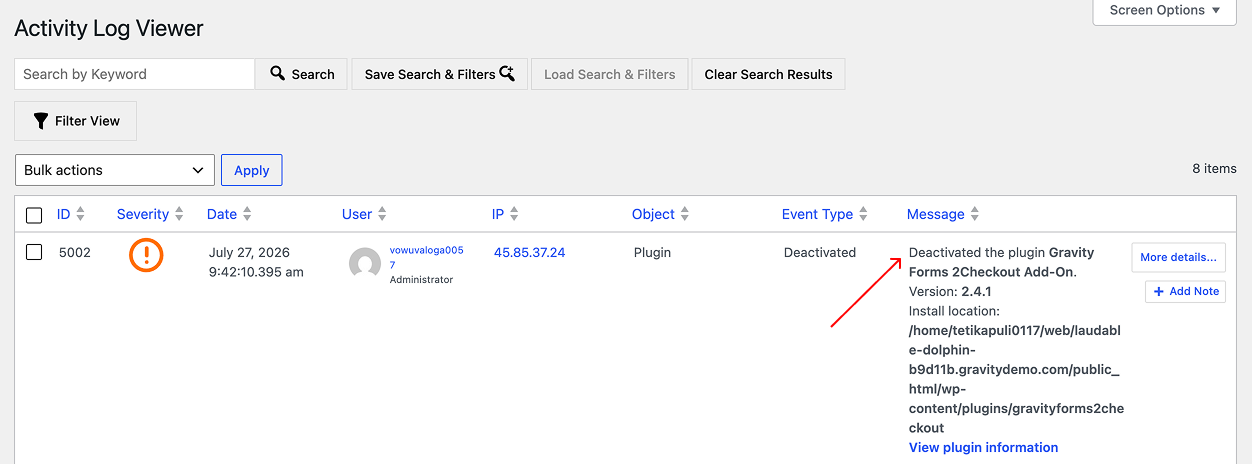
Third-party plugin activity
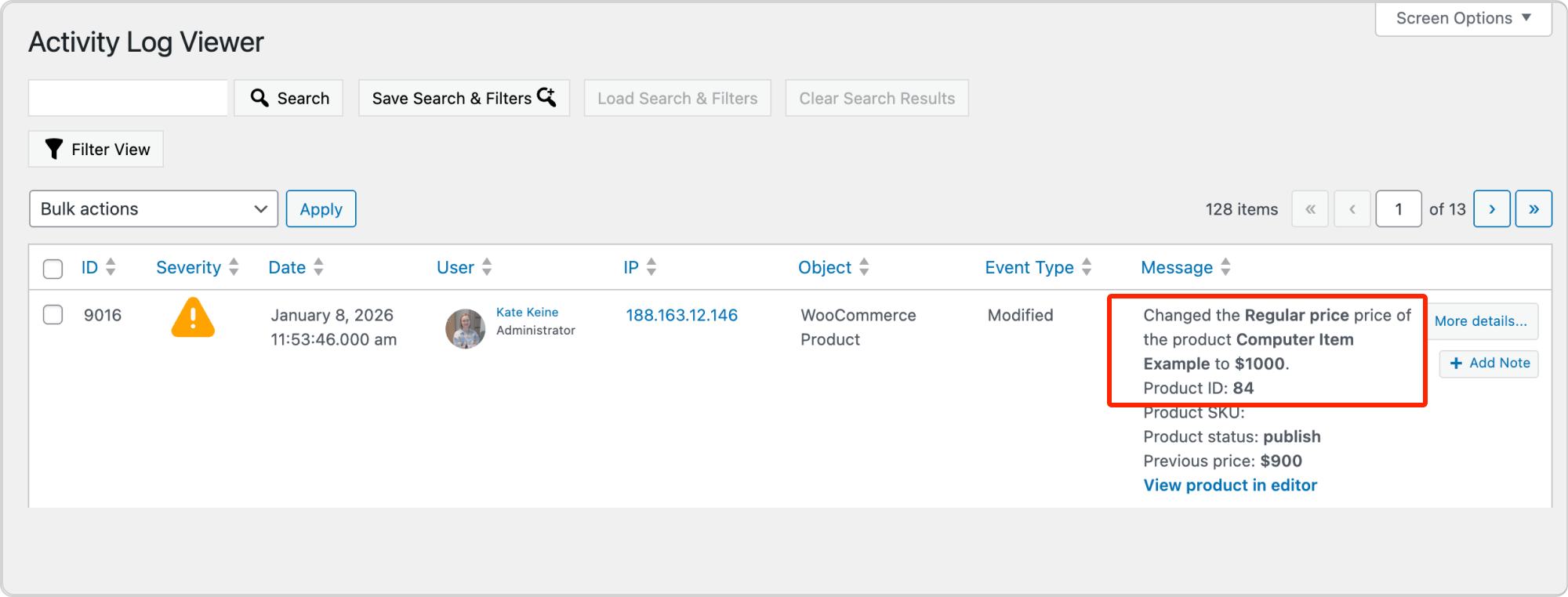
Records changes in plugins like WooCommerce, LMS, membership, forms, SEO, and security tools. For instance, the plugin can record when a product price is changed, an order is updated, or stock quantities are adjusted in WooCommerce.
What are the benefits of having an activity log on your WordPress website?
There are many benefits to keeping an activity log on your WordPress website. These are some of the main ones:
- Investigate unexpected or unexplained events on the website. For instance, you can investigate why a blog post was published or deleted or why a section of a page disappeared.
- Improve user accountability. On websites managed by several administrators, editors, developers, or clients, you can see which user account performed each action.
- Troubleshoot technical problems faster. An activity log helps you review what changed before a problem appeared, making it easier to narrow down the possible cause.
- Support compliance and audit requirements. Activity logs can provide evidence of user access, configuration changes, and security-related events, which supports GDPR, PCI DSS, CCPA, ISO 27001, HIPAA, and other legal and industry regulations.
- Create reports for clients and administrators. You can generate reports that summarize website activity over a selected period, helping document completed work and keep clients informed.
- Add WordPress activity to your centralized logs. WP Activity Log enables you to forward WordPress activity data to your SIEM or other external logging platforms, such as syslog and AWS CloudWatch, so you can monitor it alongside activity from your other systems.
What sort of activity log plugin should you use?
Generally speaking, the more information your activity log plugin can track, the more useful you will find its logs. Some activity log plugins record only events, not their details. This greatly limits the usefulness of the log for troubleshooting technical and security issues.
It is also better to find an activity log plugin that is easy to use, doesn’t require pre-configuration, and starts working automatically upon installation.
There are at least six key criteria for evaluating WordPress activity log plugins:
- Activity coverage – the scope of those activities the plugin can keep a log of.
- Level of detail in the activity logs – the specifics it records within those activities.
- Coverage of changes in third-party plugins – a log of the changes made to other WordPress plugins.
- Interoperability with a large-scale system – the ability for the plugin to be incorporated into a larger system, maybe to send logs to a central logs management system.
- Plugin configuration options – how configurable the plugin is. Can it be configured to meet your specific requirements?
- Additional features – apart from the actual log, you need other features in the plugin to get the best out of the activity log, such as notifications, reports, and other features.
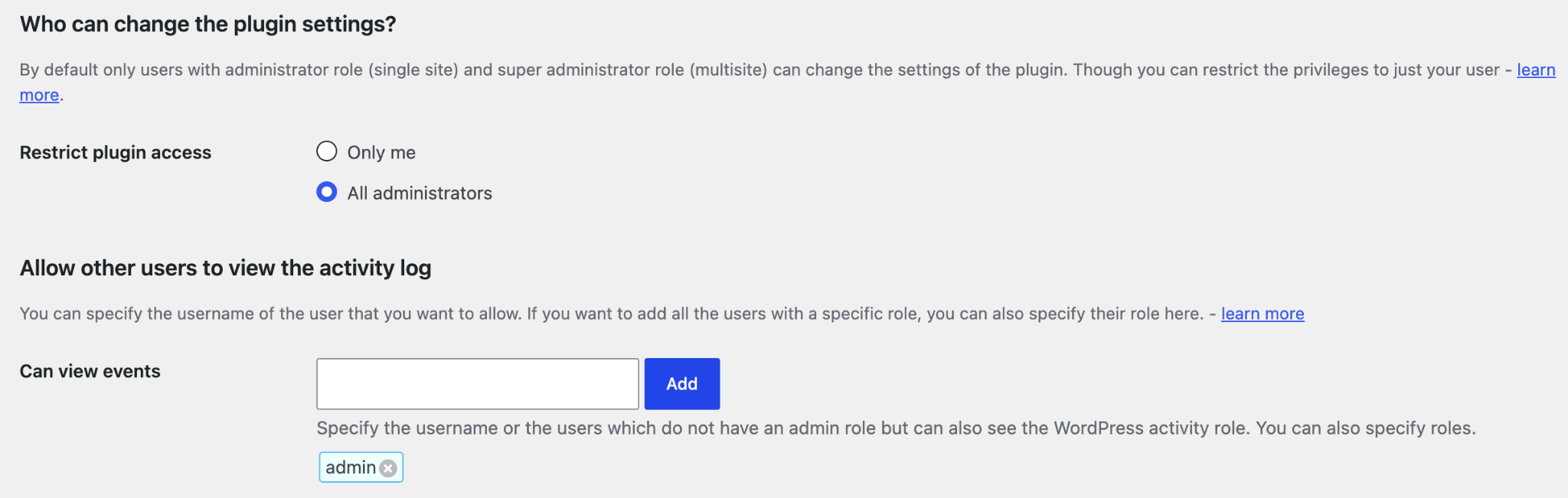
User management is another important consideration, particularly for agencies and larger organizations. The plugin should allow you to control who can view the activity log and manage its settings. This helps prevent unauthorized users from accessing potentially sensitive information.
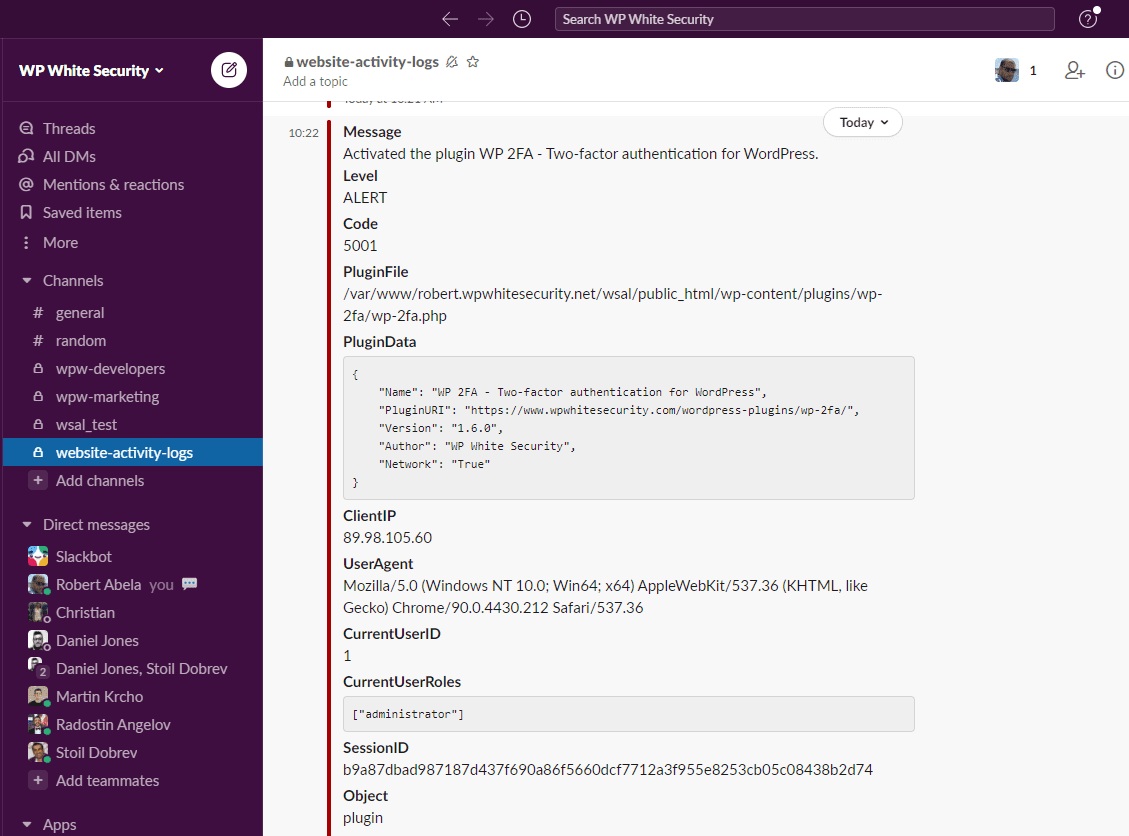
More advanced users should also consider how the plugin exports, archives, or mirrors activity logs. You may need to send events to a central logging system or store them outside WordPress for longer-term analysis. WP Activity Log, for example, can mirror selected events to external services (AWS CloudWatch, Papertrail, Loggly, or Syslog) and send notifications to Slack, allowing teams to monitor important activity without continuously checking each website’s WordPress dashboard.
Gravity Forms and activity logging
If you use Gravity Forms on your WordPress website, it is also important to keep a record of changes made to your forms and their settings. Forms are often used to collect leads, process requests, accept registrations, and handle other important interactions. An unexpected change to a form, notification, or confirmation can therefore affect both your website and your business.
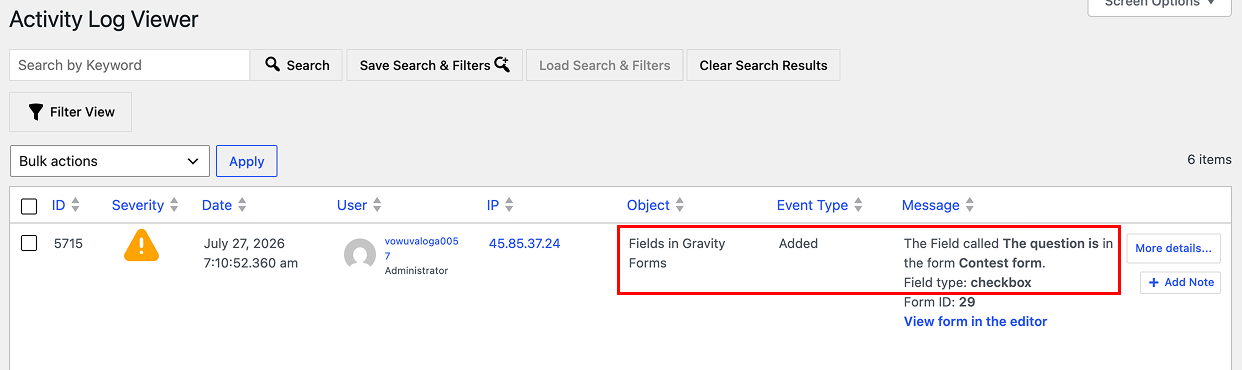
For example, WP Activity Log records a wide range of Gravity Forms activity. This includes when users create, modify, duplicate, activate, deactivate, move to trash, or permanently delete a form. It also records changes to form fields, confirmations, notifications, and Gravity Forms plugin settings.
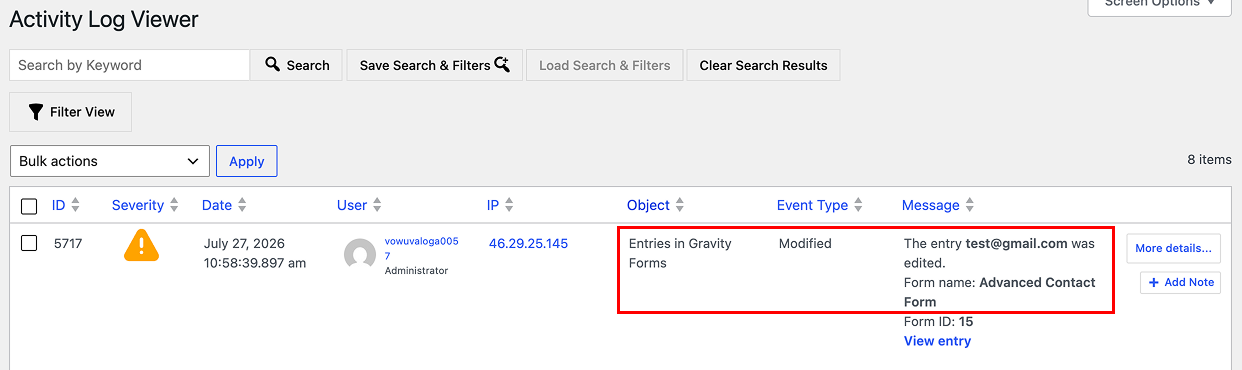
The integration also covers activity related to form entries. For example, it can record when the form entry is modified, marked as read or unread, starred, moved to trash, or permanently deleted.
WP Activity Log also logs when notes are added to or deleted from an entry, when entries are exported, and when forms are imported or exported. Form submissions can also be recorded, including submissions made by logged-in users and, optionally, visitors.
Keep your finger on the pulse of your WordPress website
An activity log gives you a clear record of what is happening on your WordPress website. It helps you monitor user activity, improve accountability, troubleshoot technical problems, and investigate security incidents.
By choosing an activity log plugin with detailed event coverage, useful search and reporting features, you can better understand website changes and respond more quickly when something goes wrong.

Newsletter
If you want to keep up-to-date with what’s happening on the blog sign up for the Gravity Forms newsletter!
“*” indicates required fields