What is the most common problem faced by literally every WordPress user? It’s the WordPress plugin conflict.
And it can be an absolute disaster if you don’t know how to deal with it and what to pay attention to. Imagine you installed a new plugin or updated something, and everything simply stopped working. The entire site crashed. In this article, we are going to cover the possible reasons and scenarios for plugin conflicts and give you practical advice on fixing them. If you have stumbled upon such trouble before, stay tuned.
Why Do WordPress Plugin Compatibility Issues Arise?
If developers do not follow WordPress updates and do not update their plugins, they begin to work incorrectly, giving way to compatibility issues. The same goes for PHP: a plugin written for an older PHP version can break on a newer one, and a new plugin release can require a PHP version your server doesn’t run yet.
Another reason for compatibility problems is a conflict between different plugins and themes when the code of one plugin or theme prevents another from working. Similarly, two plugins can try to accomplish the same task in different ways, and in the end, nothing works.
Here are some more reasons for plugin compatibility issues:
- both plugins load different versions of the same JS script;
- the plugin sets an event handler on some HTML element, for example, a click, in which it uses the preventDefault() and stopImmediatePropagation() methods, which is why the event handlers set by other plugins on the same element will not work;
- plugins use the same filter, and therefore, one overwrites the changes of the other;
- security system of the plugin may give a false positive result, and therefore, certain functions do not work;
- caching, optimization, or CDN layer changes the order in which scripts load (more on this below).
In these cases, the site may stop working as a whole or somehow incorrectly perform specific functions. Forms may not work, loading speed may slow down, individual elements may not be displayed, or pages may not load.
Deleting and reinstalling a plugin is the most common advice online. It helps only when the plugin files are corrupted or an update failed halfway. If the conflict is between two healthy plugins, reinstalling changes nothing because the same code loads again.
How to Prevent WordPress Plugin Problems?
As with any other issue, preventing a breakdown is easier than dealing with the consequences. So here’s a short list of things you can do regularly to avoid compatibility issues.
Do not install outdated plugins
Choose plugins that are updated regularly. Plugins that have not been updated in the last three releases of WordPress are considered outdated. So if the last update of a plugin was 1-2 years ago, choose another one. Outdated plugins are potential security holes, can cause errors due to outdated PHP syntax, or work inefficiently with WordPress core.
A “Tested up to” notification on WordPress.org does not prove a plugin is broken, but it is a reason to test it on staging first. Check the plugin’s PHP requirements too.
Regularly update the installed plugins
After updating the installed WordPress version and plugins, incompatibility may occur, although it was not there before. Sometimes, updates can cause breakages, leading to security issues and incorrect site display. So be vigilant about every new update.
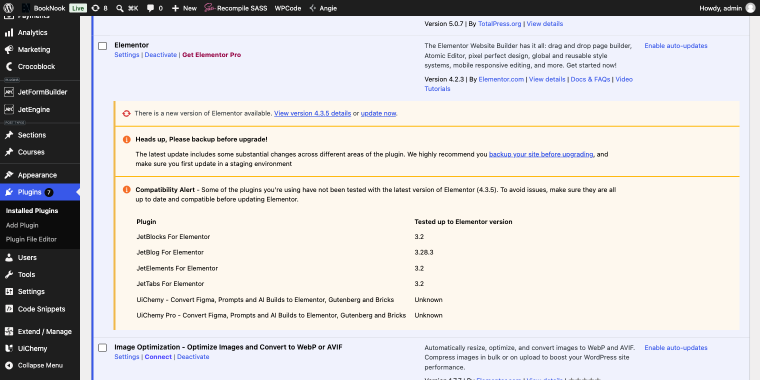
Staying on old versions is not a safe alternative. Skipped updates are one of the most common ways sites get hacked. The goal is to update on your own schedule, after testing, not to avoid updates.
Keep PHP and server limits current
Check your PHP version in WordPress Dashboard > Tools > Site Health > Info > Server.
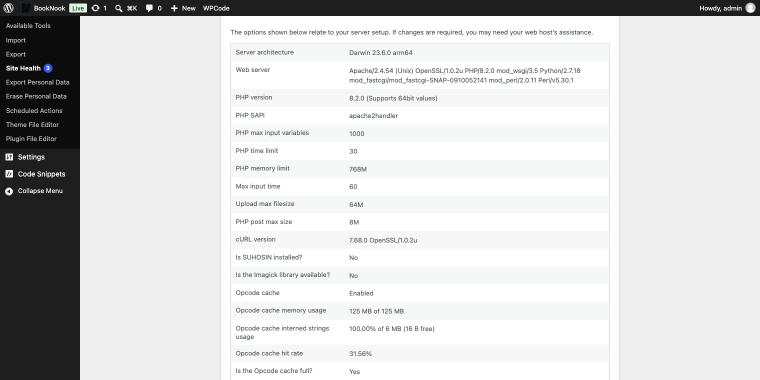
PHP 8.3 or higher is recommended, with a PHP memory limit of 768 MB. Many cheap hosting plans default to far less, and builder-based sites hit that ceiling first (see the memory section below).
Fewer vendors mean fewer moving parts
If you install several plugins from the same developer company, they typically follow the same coding standards and use the same frameworks and libraries. For example, our JetPlugins are developed together and tested against each other. It doesn’t make a conflict impossible, but it narrows down who to ask when one appears. A mix of 20 vendors means 20 different support teams, release schedules, and coding conventions.
Check the developer’s track record before you install
A plugin from an unknown developer is a risk. Before installing, look at:
- the date of the last update and how often updates come out;
- the number of active installations;
- the quality of the changelog (does it say what was fixed, or just “bug fixes”?);
- how quickly the author answers in the support forum.
If the signals are poor, pick another plugin. Poorly written code is the most expensive thing to fix later.
Decide on auto-updates deliberately
Auto-updates are valuable for security: in July 2026, WordPress.org forced automatic updates for sites affected by a critical vulnerability in WordPress 7.0.2. At the same time, if every plugin updates on its own, you lose control over what changed and when, and you can’t quickly track down the cause of a conflict. A practical split:
- Keep core minor and security releases automatic.
- Update major WordPress releases, plugins, and themes manually, on staging first, in small batches.
- If you turn auto-updates off, put a recurring reminder in your calendar. Unmaintained sites get hacked, not just broken.
Test plugins before installing them on a live website
You should not make changes immediately to a running site. Because if there is a conflict, it may take you a long time to restore functionality. And it’s better to check plugins for compatibility issues before your perfect and error-free site stops working. Use the staging copy you set up above.
Read the documentation and changelog before installation
Before installing a plugin on your site, ensure you are familiar with its functionality and understand how to configure it. Documentation helps reduce the chance of errors. The changelog also shows whether the author has recently fixed compatibility issues.
Check the reviews and forum
Users who have previously installed your chosen plugin may have encountered some problems. Open the Reviews tab on WordPress.org and check three things: how many threads are unresolved, whether the author replies, and whether complaints mention conflicts with plugins or themes you already use.
How to Detect the Source of the Problem?
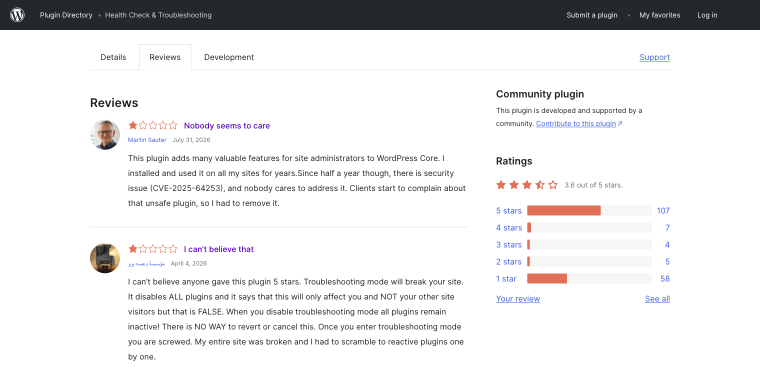
The usual advice is to deactivate all plugins and activate them one by one. Even though there’s a plugin solution for that, the Health Check & Troubleshooting plugin, created by WordPress, was discarded and stopped being supported for some reason.
With 30 active plugins, that means up to 30 rounds, and on a live site, every round shows visitors a broken page. Do it on the staging copy and split the list in half each round instead. For 30 plugins, that finds the culprit in about five rounds.
| Step | Action | Details |
| 1. Prepare | Back up the site and open the staging copy | Confirm the problem reproduces there |
| 2. List | Make a list of active plugins | WordPress Dashboard > Plugins > Installed Plugins. Keep the theme and the plugin the site is built on (such as your page builder) active from the start |
| 3. Split | Deactivate half of the remaining plugins | Use the bulk action |
| 4. Test | Clear the cache and reload the broken page | Use an incognito window |
| 5a. Problem is gone | The source is in the half you deactivated | Reactivate that half and split it again |
| 5b. Problem is still there | The source is in the half that stayed active | Reactivate the other half and split this one |
| 6. Repeat | Go back to step 3 | Stop when one plugin is left |
A conflict always involves at least two parties, and the one that breaks is not always the one at fault. Switch to a default WordPress theme to check whether the theme is part of the problem.
If you can only troubleshoot on the live site, do it in a low-traffic window with your host’s maintenance mode on, and write down every change so you can restore the original state.
If the admin is down, WP-CLI is faster than renaming folders over FTP.
- wp plugin list –status=active shows what runs;
- wp plugin deactivate plugin-slug and wp plugin activate plugin-slug switch plugins one by one.
The latest plugin you’ve installed isn’t necessarily the one to blame. There may be a very old plugin you already forgot about, and it’s messing with the new one. If the split gives confusing results (for example, the problem appears only with a certain combination), switch to the slower method: deactivate all plugins (except the builder, if the entire site is based on it), then activate them one by one, clearing the cache each time. Activate the most non-suspicious and essential plugins first and then the rest in order of importance.
In this way, you will be able to identify conflicting plugins and eliminate the least important one or find a solution in its settings.
What Should You Do if Plugins Are Incompatible?
In each specific case, something different works. And there is no universal recipe. But there is a reliable order of work: confirm it’s a conflict, isolate the cause, read the error, fix.
Useful tips and fixes at this stage
- All errors with the 5xx status code (500-511) are related to communication with the server, particularly HTTP requests. Here is a complete list of network errors. Contact your hosting provider if you see 502, 503, 504, or 505 errors. You most likely have peak loads the server cannot handle, downtime, or something else that only the hosting/server admin is able to fix.
- Parse/syntax errors mean that one of the files is corrupted, and the error message points to the file and the line of code causing the error. As a rule, such errors appear after adding custom code, not a solid plugin, but it can also mean a bug in the code of the updated plugin, etc.
- White screen of death. If Recovery Mode didn’t kick in and you can’t access any page on the website and/or the admin dashboard, use FTP or your hosting file manager to deactivate the potentially guilty plugin: go to wp-content/plugins and rename the suspicious plugin’s folder (e.g., by adding _backup to it). WordPress deactivates it automatically. The same can be done with the theme if it’s suspected. If you don’t know which plugin it is, rename the whole plugins folder, log in, rename it back, and reactivate plugins one by one. Check debug.log first, though. It often names the plugin.
Main Plugin Compatibility Conflicts
Let’s check some of the most common errors.
Insufficient memory: Memory Exhausted Error (PHP memory limit)
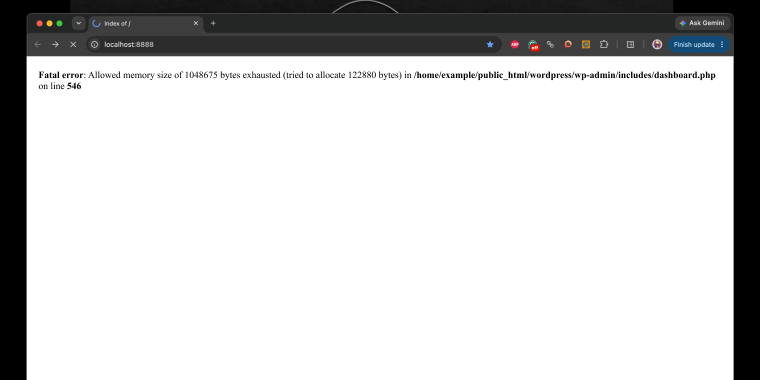
It is a widespread problem on cheap shared hosting plans because the memory allocated for PHP is often strictly limited there. Add this line to wp-config.php (again, above the “stop editing” line) and increase the memory limit:
define( ‘WP_MEMORY_LIMIT’, ‘768M’ );
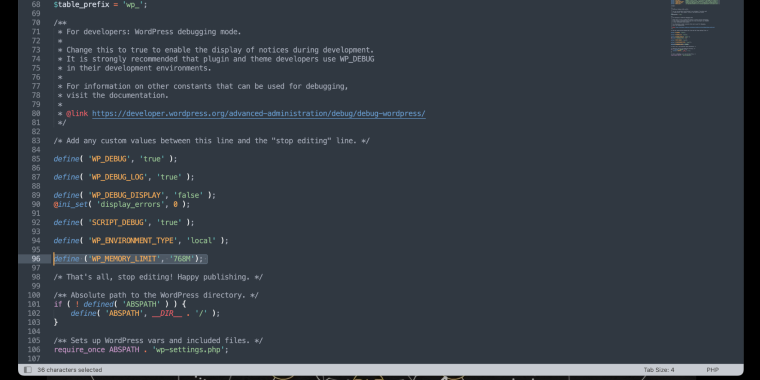
Then, check the changes in a few minutes in WordPress Dashboard > Tools > Site Health > Info > Server after clearing the browser cache. If the value doesn’t change, the host is capping it. Proceed to php.ini (it is often in the hosting panel) and increase the limit there as well. If nothing helps, contact the hosting technical support and possibly upgrade to a more expensive plan.
Memory limit error is a common problem when you install heavy plugins. These are primarily WordPress builders, their add-ons, backup, security, and optimization plugins.
Conflict between the plugin and WordPress core
It is rare. When it happens, the cause is usually WordPress not being updated for a long time, an outdated plugin, or the PHP version. If the error persists after all the updates, replace the plugin because, most likely, its code is botched.
A particular case we could add to this category is when you have added too much custom code, particularly to functions.php. Then, you can comment it out and see if the error disappears. If it does, fix your code – it’s the culprit.
Plugin and theme conflict
First, you need to ensure that the theme, plugin, and WordPress core are up-to-date.
Such a conflict is much less likely with solid and generally popular themes such as Astra, Storefront, Hello Elementor, etc., because they are universal and designed as a basis for plugins. Most often, you are bound to conflicts when using niche-specific themes bought somewhere on ThemeForest. Such themes typically have a built-in booking engine, a calculator, and a different (custom) page builder. It’s a lot of stuff already, and you cannot deactivate it. Therefore, you should use such themes with due caution.
To determine whether the theme is causing the problem, you can activate the default theme instead of the current one. If the error disappears, either change the plugin/theme or hire a coder to create a workaround using the information from debug.log.
Conflict with other plugins
It is the most common reason. As always, you need to update everything first.
Then, deactivate the last installed/updated plugin and see if it helps. But this doesn’t always work because you often update all the plugins at once and notice errors later. That’s why it’s better to look at the type of error and its message – it often tells you exactly where something is wrong. If the message doesn’t help, use the troubleshooting procedure above.
Some conflicts are not caused by one broken plugin but by a bad combination. A plugin that works alone can fail when another plugin hooks into the same filter, loads the same library, or captures the same click. When you find such a pair, check both changelogs and support forums for a known issue, then decide which of the two is less important to your site.
Incompatible plugins
Some plugins are incompatible by default because they do the same job or are mutually exclusive. Just like two antiviruses can cause Windows to crash, some plugin pairs can cause global site glitches:
- never install two or more caching and security plugins;
- never install two or more plugins for SEO optimization;
- check what exceptions your hosting provider has;
- try not to have multiple plugins for the same functionality; if they overlap, conflicts may arise.
JavaScript conflicts: what to check in the browser console
When nothing crashes but a form doesn’t submit, a menu won’t open, or a button does nothing, the cause is often a JavaScript error. One error stops the rest of the script from running, so unrelated features break too.
- Open the page in incognito mode, press F12, and go to the Console tab.
- Reload the page and look for red errors like Uncaught TypeError, jQuery is not defined, or $ is not a function, which point to a script that failed or loaded in the wrong order.
- Click the file link next to the error, and the path (/wp-content/plugins/plugin-name/…) will show which plugin the script belongs to.
- Switch to the Network tab and reload, then look for scripts that return 404 or are blocked, and for the same library loading twice in different versions; both are typical conflict signs.
- Trigger the broken feature (click the button, submit the form) with the Console open. Some errors appear only on interaction.
Once you know the script, the fix is usually one of three: disable the conflicting feature in one of the plugins, add the script to the cache plugin’s exclusion list, or contact the plugin developer with the console error attached. A screenshot of the error saves several rounds of support replies.
Caching plugins and conflicts
It’s essential to talk about caching plugins separately because they do an excellent job of caching files, as well as deferring or lazy loading certain scripts. Because the order of script loading is changed, some elements related to dynamic content (like forms and menus) may not work correctly.
Therefore, it is essential to configure caching/optimization plugins properly. And when there is a conflict because of them, the problem is essentially due to poor settings. Be sure to read the documentation, particularly the troubleshooting articles, and learn how to write exclusions. For example, WP Rocket provides exclusions for each plugin, and they should not be ignored. We also have a comprehensive article on customizing WP Rocket for Crocoblock.
Other caching plugins have their features and exclusions, too. For that matter, it is essential to read the docs and try different settings combinations. A quick way to test: turn off JavaScript delay, deferral, and minification/combining one at a time. The option whose deactivation fixes the problem is the one that needs an exclusion.
Some hosts have built-in caching functionality. It doesn’t always give good results because there are often default settings there. Plus, if you install a caching plugin, everything can be glitchy and slow. So don’t forget to check what’s happening on the hosting side and either deactivate or reconfigure it.
CDN and object cache conflicts
Two more layers sit between your plugins and the visitor, and both are easy to forget.
CDN (for example, Cloudflare) can cache pages with dynamic content, minify or combine scripts, or defer them (Cloudflare’s Rocket Loader does this). Any of these can break forms, pop-ups, and filters. If a problem appears only on the public site and not when you’re logged in, purge the CDN cache and temporarily pause or bypass the CDN. If the problem disappears, turn its optimization features back on one by one.
Object cache (Redis or Memcached) stores database query results and options. After a plugin update or a settings change, stale cached data can make a plugin behave as if nothing changed. Flush the object cache and test again. If your host manages it, look for the option in the hosting panel.
Use backup
If nothing helped you or you didn’t make any critical changes, so you don’t mind rolling back, go back to a version of your site that worked without any problems. Of course, you need to have those backups saved to perform this step.
Useful Plugins for Debugging WordPress Plugin Conflicts
| Query Monitor | Shows slow queries, PHP errors, hooks, and scripts, each labeled with the plugin, theme, or core component responsible. |
| WP-CLI | Lists, deactivates, and activates plugins when the admin is down. |
| Debug Log Manager Tool | Views and searches debug.log and toggles WP_DEBUG from the admin. |
Browser DevTools (Console and Network tabs) and debug.log are free and don’t need a plugin at all. Start with those.
Bonus Tips from the Crocoblock Team
I spoke with our support team, and here’s what they advise you to do when you encounter issues and conflicts due to plugin incompatibility. If something strikes your interest, here is the troubleshooting section, where you can find a lot of useful information, including compatibility.
Check plugin settings
Sometimes, all you need to do to resolve incompatibilities is configure individual plugins properly – this solves a large number of problems. If you need help with this, you can contact the support team of individual plugins.
Contact the plugin developers
If none of the plugins work and there are conflicts, you can submit a custom request, and the developers will help you.
💡 No compatibility issues are the same either way. In each case, you need to look for what caused it and how to fix it.
FAQ
Plugin compatibility is their ability to work simultaneously on the same site without causing problems or errors. In this case, plugins are responsible for different functions and do not interfere with one another.
Each time, a compatibility problem can be caused by different reasons. And it’s your job to figure it out. Start with a backup, enable debug logging, and isolate the cause with the troubleshooting procedure. Then you can update, reconfigure, or remove the plugin that caused the conflict, or contact the development team to help fix the problem.
They are compatible if you have no problems with speed, performance, display, and operation of individual elements. If you want to test the compatibility of a new plugin, do it in a test environment so that you don’t damage your site.
Check your admin email for a Recovery Mode link first. Then open wp-content/debug.log and look for a file path containing /plugins/. If there is no log, rename the plugin folders through FTP one at a time until the site loads.
Usually not. Most conflicts are fixed by deactivating one of the plugins. Permanent damage is rare and mostly comes from a failed update that corrupts data or from editing code without a backup. That’s why the backup comes first.
Not completely. Keep automatic core security updates, and handle major core releases, plugins, and themes manually after testing on staging.
Most likely a JavaScript error. Open the browser console (F12) and look for red errors. A caching plugin that delays or combines scripts is the most common cause.
Crocoblock recommends PHP 8.1 or higher and a PHP memory limit of 768 MB. Check the requirements of every plugin on your site, as some may need a newer PHP version.
Final Thoughts
Compatibility of plugins and themes on WordPress is a familiar problem developers face. It is caused by the fact that WordPress is actively and constantly updated and that different plugins and themes are not being developed by the same teams.
It’s hard to tell right away what exactly caused the breakdown, because thousands of plugin combinations run on millions of sites. The way out is a fixed routine: back up, log errors, isolate with the troubleshooting procedure, read the console, and then fix the specific cause instead of guessing. That won’t remove every conflict, but it makes each one a matter of minutes instead of hours.