
You tap a Snap and get a grey box. Or a photo in chat just hangs there with the spinner going, and “Tap to load” never turns into anything.
Usually there’s more than one suspect. Weak signal, a Snapchat outage, an app version you haven’t updated since spring, a bloated cache, some data saver toggle you flipped months ago and forgot.
Text chats keep working fine through all of it, which is the confusing part.
Below are the fixes for Snaps, chat photos, and Memories that won’t load, on iPhone or Android. Quick checks first. The messy stuff last.
Why Snapchat Pics Stop Loading
Snaps and chat photos don’t live on your phone like gallery pictures do. Every time you tap one, the app pulls it fresh from Snapchat’s servers. Anything that blocks or slows that download leaves you looking at a grey box.
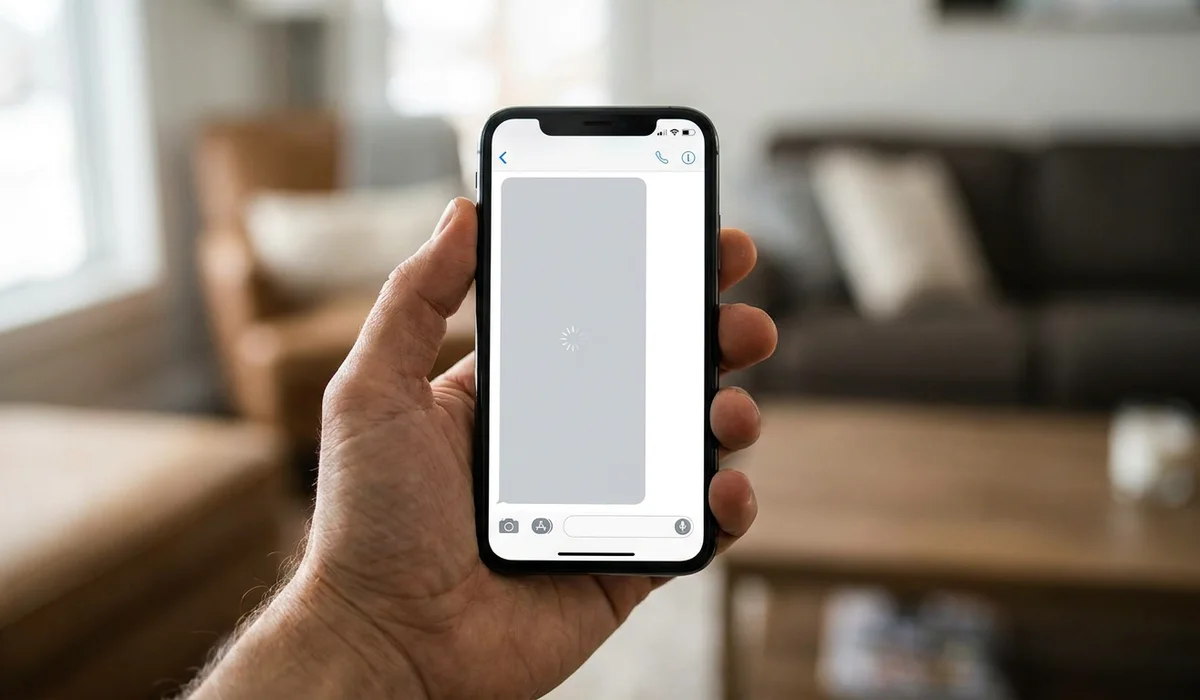
The usual suspects are worth running through before you touch anything:
- Wi-Fi that keeps dropping, or mobile data with one bar
- A Snapchat server outage
- An old version of the app
- A stuffed or corrupted app cache
- Data Saver switched on inside Snapchat
- Low Data Mode on iPhone, Data Saver on Android
- Low Power Mode or Battery Saver choking background data
- Phone storage running near empty
- Photo or storage permissions the app never got
- A VPN routing you through some slow server
- One corrupted conversation thread
Look at that list and count how many a reinstall would actually fix. Not many. When the outage is on Snapchat’s end, or the router is the weak link, or Android has quietly clamped down on background data, deleting the app costs you twenty minutes and puts your Memories on the line.
That’s why reinstalling comes last here. Not first.
How to Fix Snapchat Pics Not Loading
Work through these in order, top to bottom. Change one thing, then go back into Snapchat and tap a Snap that wouldn’t open before. Tapping it is the real test, since the Chat screen can look perfectly normal while the image behind it still refuses to load.
And resist the urge to change five settings at once. Something might fix it, sure, but you won’t know which one did the job, and you’ll be back here next month with the same gray box.
1. Check Your Internet Connection First
Those full bars at the top of your screen lie. Chat text is maybe a few hundred bytes, so it squeaks through on almost nothing, but a photo needs real bandwidth and will spin forever the second the connection goes soft. So the icon tells you very little.
Try these in order, before you go digging into Snapchat’s settings:
- Turn Airplane Mode on, wait about ten seconds, then turn it back off.
- Switch from Wi-Fi to mobile data (or the other direction) and open Snapchat again.
- Unplug the router, leave it alone for roughly 30 seconds, plug it back in.
- On home Wi-Fi? Move closer to the router.
- Open a different app that loads a lot of images and see whether those come through.
That last step is the one worth doing. If pictures load fine on mobile data but stall on Wi-Fi, your home network is the problem and Snapchat was never involved. Saves a lot of pointless reinstalling.
2. Check Whether Snapchat Is Down
Outages are weird about this. Text chats will usually go through fine while photos and videos just sit there failing, and that split is exactly what sends people off reinstalling the app for no reason.
Checking takes about a minute, and it’s worth doing before anything else. A few places tell you fast:
- Check Snapchat Support’s official social accounts for a posted service issue.
- Pull up Downdetector and see if the report graph just spiked.
- Search “Snapchat down” on social platforms and sort by newest posts.
If other people are reporting the same thing right now, the problem isn’t on your end. Put the phone down and come back later. Logging out or uninstalling while the servers are struggling can leave you stuck at a login screen that won’t cooperate either.
3. Force Close Snapchat and Restart Your Phone
An app that’s been open for days can hang onto a network connection that died hours ago, still retrying a route to nowhere. Killing the process clears that out. And it works more often than it has any right to.
iPhone first: swipe up from the bottom of the screen, then flick the Snapchat card up and off. Next, hold either Volume button and the Side button until slide to power off appears, and drag the slider across. Let the phone sit fully off for a few seconds before you power it back on.
Android works about the same way. Pull up recent apps, swipe Snapchat off the stack, then press and hold Power and tap Restart. When the phone is back up, launch Snapchat and tap one of the Snaps that wouldn’t load.
4. Update Snapchat to the Latest Version
Snapchat changes how it fetches and caches media pretty often. Stay on a build that’s a few weeks old and the app slowly falls out of step with what the servers expect, and pictures are usually the first casualty. Chat text keeps working, which throws people off.
To update the app:
- Open the App Store on iPhone. Android users want Google Play.
- Search Snapchat and tap into its listing.
- Hit Update, assuming that button is showing.
- Let the install finish before you reopen the app.
See Open where Update should be? Then you’re already on the newest version. Move on.
While that page is open, flip on automatic updates for Snapchat. It’s a small thing, but it keeps you from hunting down this same broken-image problem again in a month.
5. Clear the Snapchat Cache
Snapchat stashes thumbnails and half-downloaded files on your phone so things load faster next time. Sometimes that pile goes stale, or just gets huge. Then you get grey boxes where photos should be, even on a perfectly good connection.
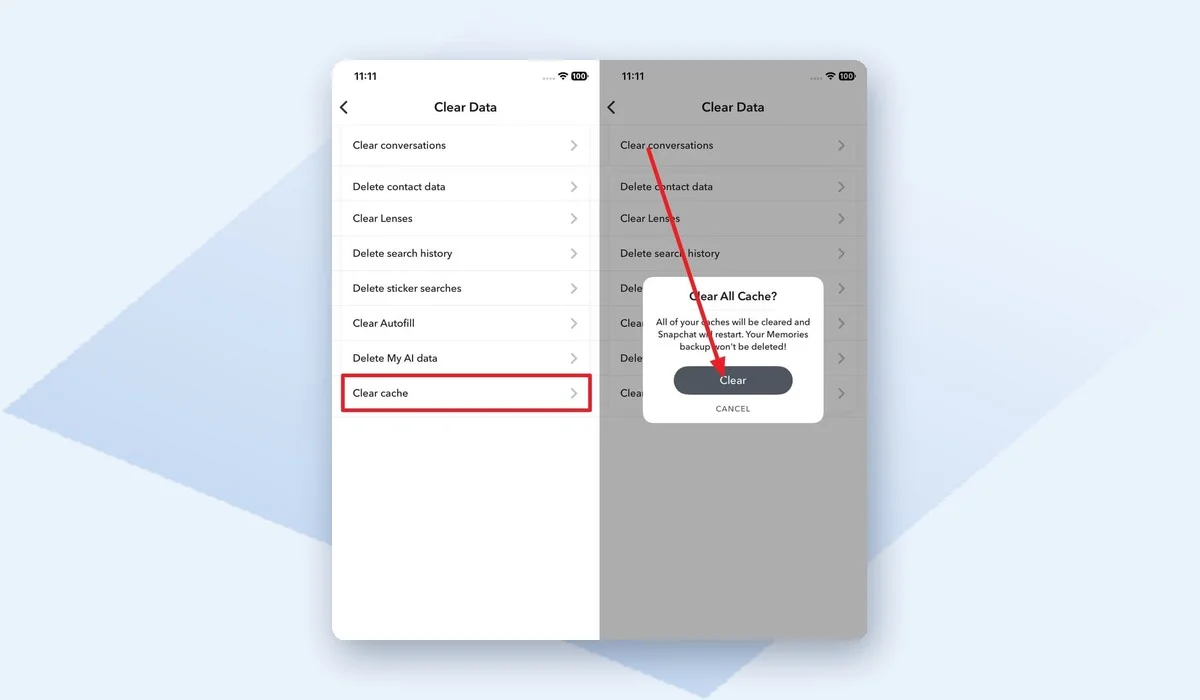
Before anyone panics: clearing the cache doesn’t touch Memories, Snaps or Chats. Snapchat’s own Help Center says so. Most people skip this step because they assume something gets deleted, and that’s a shame, because it fixes grey boxes more often than you’d expect.
On iPhone
The setting is buried a few taps deep in the app, so go slow:
- Tap your profile icon in the top left corner.
- Tap the gear Settings icon in the top right.
- Scroll down to App & Privacy and tap My Privacy & Data.
- Under Manage My Data, tap Clear Cache.
- Confirm when the prompt shows up.
On Android
Nearly the same path, with one extra tap wedged in the middle:
- Open your profile, then the gear Settings icon.
- Scroll to App & Privacy and tap My Privacy & Data.
- Under Manage My Data, tap Clear Data, then Clear Cache.
- Confirm the action.
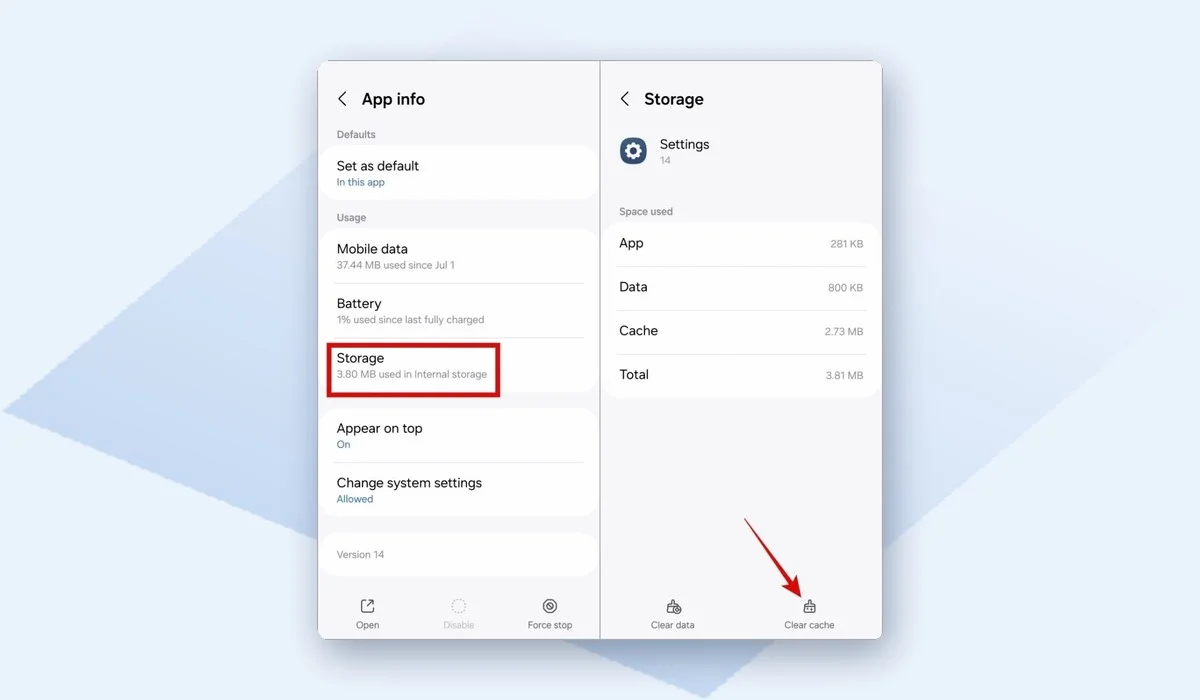
Android has a second route outside the app, at Settings > Apps > Snapchat > Storage > Clear cache. You’ll spot Clear storage and Clear all data on that same screen, and neither one is what you want here. Tapping either logs you out, and your Memories can get hit too.
Now reopen Snapchat and give it a minute to pull back the files it just threw away. The first few pictures might crawl in. That’s normal, and it sorts itself out after a bit of scrolling.
6. Turn Off Data Saver Inside Snapchat
This setting is the direct explanation for that “Tap to load” message. Data Saver blocks Snaps and chat media from downloading on their own, so you tap each one by hand, and on a weak connection those taps keep failing.
To switch it off:
- Tap your profile icon, then the gear Settings icon.
- Scroll down to Data Saver.
- Toggle it off.
- Back out of Settings and open a chat.
Snaps loading by themselves again? Data Saver was your culprit. Leave it off, or flip it back on only when you’re genuinely scraping the bottom of your data plan.
7. Disable Phone Data and Battery Restrictions
Snapchat’s own Data Saver can be switched off and the phone will still strangle background downloads on its own. Hardly anyone connects a battery setting to a blank Snap. So this one hides for weeks before somebody stumbles onto it.
On iPhone
There are two settings behind this, and both need a look:
- Open Settings > Cellular > Cellular Data Options and turn Low Data Mode off.
- Go back out, then into Settings > Battery, where Low Power Mode also needs to be off.
- One more spot: Settings > Wi-Fi, tap the blue info icon next to your network name, and check that Low Data Mode is off there as well.
That third step matters more than it looks. Low Data Mode gets set per Wi-Fi network, so your home network can be throttled while cellular looks totally fine.
On Android
Brands label these menus a bit differently, but you’re looking for something close to this:
- Go to Settings > Network & internet > Data Saver and turn the toggle off.
- Battery Saver is next, either from battery settings or by tapping the tile in your quick settings panel.
- Last one: Settings > Apps > Snapchat, open the battery option, pick Unrestricted.
Images should start loading again after that. You can switch the savers back on later if the battery or data really needs it, though it helps to remember which ones you touched. Saves you hunting around when the gray boxes show up again.
8. Free Up Storage and Check Snapchat’s Permissions
Memories loading grey, blank or empty? That’s the classic low-storage symptom. The app is downloading those images in the background, and when the phone has zero room left, there’s nowhere for them to land.
Shoot for two gigabytes of free space, minimum. Apps nobody opens anymore, old videos, whatever piled up in the downloads folder. Then reopen Memories and give it a minute, since it reloads everything from scratch.
Permissions are the other half of this one. On Android, go to Settings > Apps > Snapchat > Permissions and flip on storage, photos and camera. The iPhone route is shorter: open Settings, scroll until you hit Snapchat, then check what’s listed under Photos, Camera and Cellular Data.
A denied permission usually breaks saving and loading at the same time. So if Snaps won’t save to your camera roll either, this is almost certainly your answer. (Quick thing to rule out, anyway.)
9. Turn Off Your VPN and Try a Different DNS
A VPN shoves your traffic through some distant or overloaded server. Short chat text still squeezes through fine. Photos and videos are heavier, so they stall out partway, and that’s the exact behavior showing up on your screen.
Switching to another VPN server isn’t enough here. Kill the connection entirely, then go back and tap one of the Snaps that wouldn’t load. Loads fine now? Reconnect to a server closer to where you actually are and run the same test before writing off the VPN.
Changing DNS is the fussier option. Sometimes your current DNS just struggles with Snapchat’s media servers, and swapping in Google’s 8.8.8.8 and 8.8.4.4 clears it up. This one fixes it more often than you’d think.
iPhone: open Settings > Wi-Fi, tap the little blue info icon beside your network name, then Configure DNS > Manual. Android buries it a bit deeper. You edit the saved Wi-Fi network and flip IP settings over to Static, and only then do the DNS fields become editable.
10. Last Resorts: Reset Network Settings, Clear the Chat, or Reinstall
Only come down here if everything above failed. Each of these three costs you something. Read the warnings first.
Reset network settings. This clears broken network configurations. It also wipes saved Wi-Fi passwords, Bluetooth pairings and VPN profiles.
On iPhone, go to Settings > General > Transfer or Reset iPhone > Reset > Reset Network Settings. On Android, go to Settings > System > Reset options > Reset Wi-Fi, mobile & Bluetooth.
Clear a single stuck conversation. Run a test first: open three or four other chats and see if images load there.
If every other thread behaves, that one conversation is corrupted, and clearing it from your chat list usually sorts it out. Clearing the conversation deletes the Snaps inside it. Removing the friend is harsher, and should only follow a failed clear.
Reinstall Snapchat. Before you uninstall, open Memories and confirm your Snaps are backed up. Anything stored only on the device can disappear.
Then delete the app, reinstall from the App Store or Google Play, and log back in. Still nothing after a clean install? Contact Snapchat Support through the Help Center and describe the exact symptom, including whether it hits one chat or all of them.
How to Prevent Snapchat Loading Problems
When this keeps happening, it’s usually the same two or three settings flipping back on without anyone touching them. A bit of upkeep goes a long way.
Here’s what cuts down on repeat trouble:
- Let Snapchat update itself. Automatic app updates on.
- Heavy photo and video sender? Clear the Snapchat cache every few weeks.
- Storage matters more than people think. Try to leave 2 to 3 GB free.
- Data Saver and Low Power Mode? Flip them on when the battery or the bill says so, then flip them back off.
- Hop on Wi-Fi now and then and let Memories finish backing up.
- A weekly restart helps. Takes a minute.
- Before blaming Snapchat, load something else. Plenty of these turn out to be network problems.
None of this takes long. That cache clear alone sorts out more grey-image complaints than you’d expect, and doing it on a schedule costs you nothing but a minute.
Frequently Asked Questions
These questions come up constantly whenever Snaps stop loading right.
Does clearing the Snapchat cache delete my Memories or Snaps?
No. Snapchat’s Help Center says the cache is just temporary files the app can rebuild on its own. Memories, saved Snaps and Chats all stay put.
Why do my Snaps say “Tap to load” and never open?
Nine times out of ten, Data Saver is switched on inside Snapchat, so media never downloads on its own. And if Data Saver is already off, the connection is too weak to finish the download.
Why are my Snapchat Memories grey or blank?
Usually low storage. Snapchat has nowhere to write the downloaded images, so you get grey tiles. An old app version does the same thing, so clear some space and update at the same time.
Is Snapchat down right now?
Two places worth checking are Downdetector and Snapchat Support’s social accounts. A spike on Downdetector tells you plenty. If chats send fine but images fail for a lot of people at once, it’s an outage on their end.
Final Thoughts
Do the dull checks first. Is the connection actually working? Is Snapchat down for everybody? Restart the app, then the phone, and let any pending update install.
Still seeing grey boxes? Clear the cache, then go hunting for Data Saver, Low Data Mode and Low Power Mode. Those toggles are behind way more of these cases than people expect.
Save the heavier fixes for last: resetting network settings, clearing a conversation, reinstalling. And back up Memories before anything gets uninstalled.
The exact symptom matters. One chat, every chat, or only Memories, that difference points you at a different fix.
Curious what actually did it for you. The cache clear, or some data-saving switch that had been on for weeks?
Leave a comment with the step that worked. Other readers can skip ahead to it.

With 7+ years in SEO and blogging, I optimize reputable websites for better rankings. I’m passionate about creating detailed guides, especially in gaming and IT.
Where Should We Send
Your WordPress Deals & Discounts?
Subscribe to Our Newsletter and Get Your First Deal Delivered Instant to Your Email Inbox.