
As a ‘first to market’ solution, Disqus is one of the initial installs many will make if they want to enhance WordPress comments. There are plenty of drawbacks though, which means choosing another solution often gives you better control over comment moderation and greater functionality to hand. If you want to migrate from Disqus to GraphComment, for example, your work is straightforward.
In this tutorial, I’ll walk through the steps to migrate from Disqus to GraphComment. While it won’t factor in the specifics of each Disqus WordPress plugin, it will look at the factors you need to know to make sure the process is smooth and error-free.
Fast Facts
- GraphComment is a hosted commenting platform. It lets you replace your current comment section with one offering more functionality, administration options, and a customizable UI.
- A dedicated WordPress plugin lets you setup and manage GraphComment from your dashboard. It also helps when you import comments to (and export from) your site.
- GraphComment’s AI Moderation functionality is available on every plan. However, each only has a certain allocation of analyses.
My GraphComment review goes into more detail on the major differences between it and Disqus. When you make the switch, there are a few changes to how your comments section will work, and how you moderate it.
👉Check out our full GraphComment review post on the WP Mayor blog.
The main one is that GraphComment stores your comments on its own servers and syncs them to your WordPress database as a backup. Disqus doesn’t automatically sync comments to WordPress by default. As such, if you never turn on Disqus’s WordPress sync, exporting your comments is the only way to move them.
Of course, you also have access to GraphComment’s range of functionality, including its AI Moderation tools. In a nutshell, this reads each article for context, flags comments that fit a risk profile, and provides reasoning about its decision. You can see this full overview in GraphComment’s moderation queue and I’ll take a look at it later on.
Before I get into migrating from Disqus to GraphComment, you’ll need to make sure you have some elements in place:
- Full access to your current site using Disqus. I’m going to assume that you run a WordPress site using one of the various plugins that connect to Disqus. I won’t go into detail about all of them here, but there should be an export option within the settings.
- The GraphComment plugin. You won’t need a premium subscription as the free version will be enough to carry out the migration. However, part of the setup process involves opening a free account with GraphComment.
Finally, always make sure you’re running a current site backup. You want to make sure you can restore your site, in case the worst happens and you need to reinstall.
There are seven steps here to get your comments from Disqus to GraphComment. However, some of these steps are quick, so the overall time to completion is within 30 minutes maximum.
The first step is to get your comments out of Disqus.
The biggest time-sink is exporting your comments from Disqus. To do it, head to the Tools > Export screen within Disqus. Here, you’ll see a button to start the process:
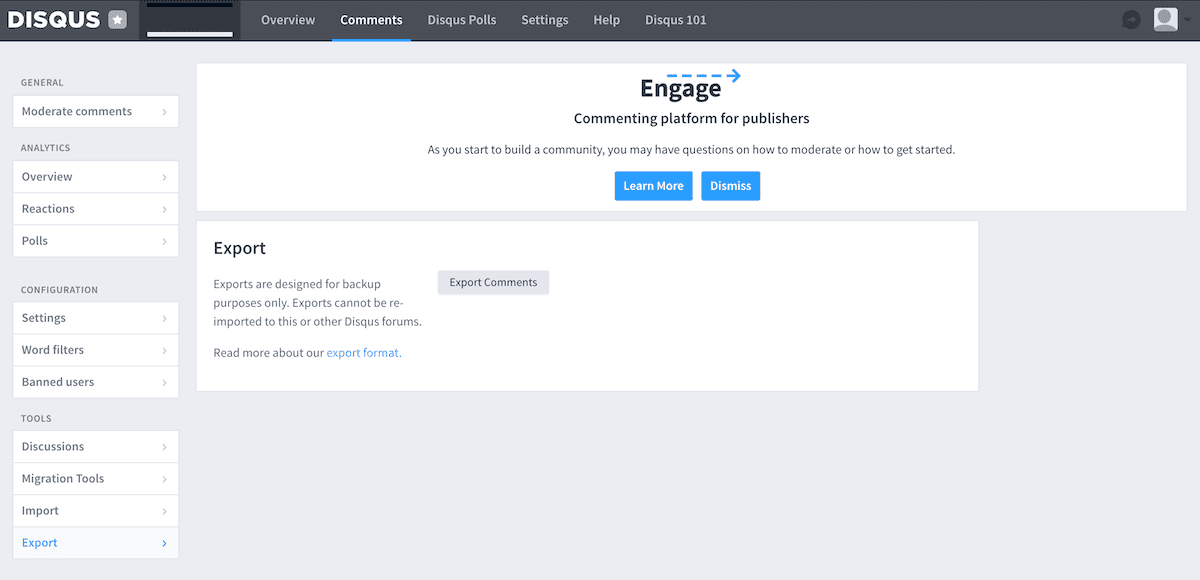
Once you click, Disqus will send you the relevant export file within a set period. This should be instant, but I had to wait a few hours for mine. I also had to make two or three requests. GraphComment has a way around this using the import wizard (which I’ll cover in step three). This approach is fine to use, but if you don’t want to wait, head to step two and look out for the Disqus import process later.
The file I got back was an xml.gz file, which macOS and the Brave browser didn’t like initially. Once you unzip it, GraphComment will be able to work with the file. On the whole, this was a frustrating process and all the more reason to switch to GraphComment!
2. Install GraphComment and Link Your Site
With your Disqus comments export file in hand and safe, you can look to install GraphComment. The full details of how to do this is in my GraphComment review post, so I won’t go over the steps again here.
GraphComment recommends you deactivate and uninstall any other comments plugins. At what point you do this depends on your choice of Disqus plugin. As a rule of thumb, you can probably remove Disqus once you have your export file.
However, I want to reiterate some important points from my review:
- The installation and activation process is similar to many other WordPress plugins.
- GraphComment requires you to create a ‘site’ on its own infrastructure to work with the functionality.
- There’s a quick setup wizard and a longer one of around 13-14 cards once you complete.
The ‘site’ nomenclature can be confusing, but all this means is creating a space within GraphComment for your comments to live. In practice, you’ll work from the WordPress dashboard to moderate your comments.
3. Import the Content File
Note that the GraphComment importer accepts both Disqus XML files and WordPress WXR ones. When you get into setting up your GraphComment site, whether you choose the WordPress or Disqus guided migration sources depends on a few factors:
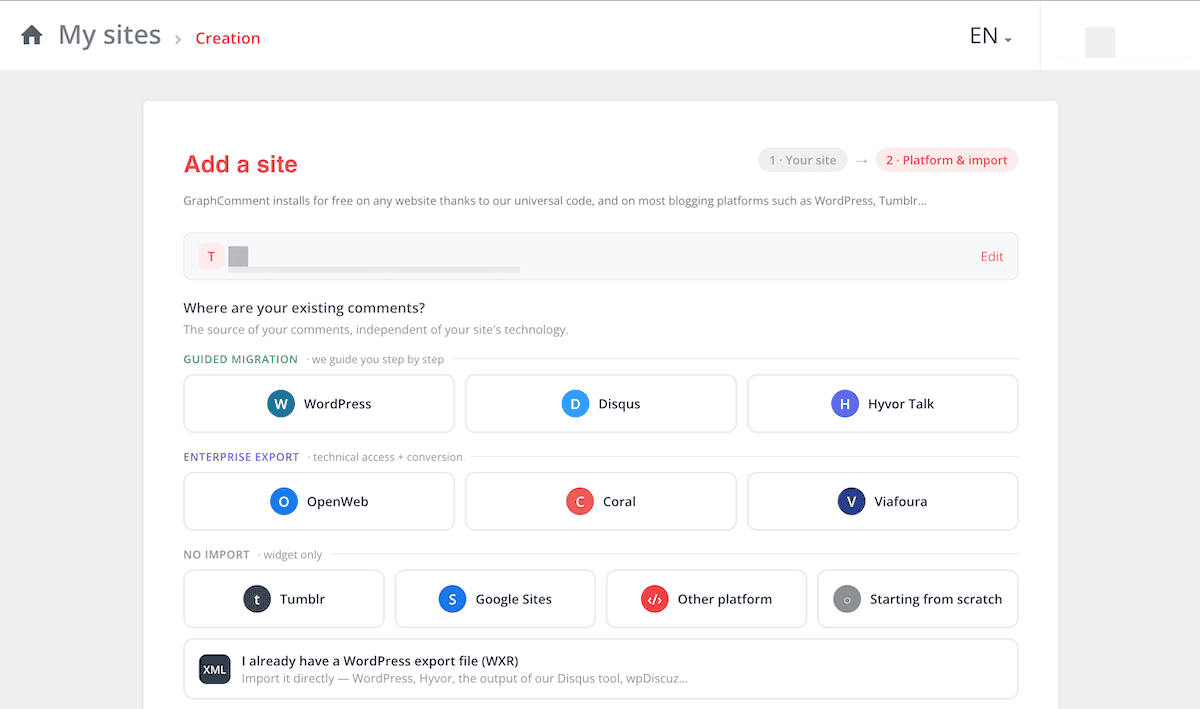
If you didn’t use Disqus’ syncing, the export file is the only approach as the WordPress database won’t contain any comments. If syncing has been enabled, I’d still lean towards the export file as the ‘source of truth’. However, the WordPress guided migration could also work if you know all of the comments in Disqus are also preserved in the database.
However, using that Disqus guided migration setting lets you skip over some of the earlier setup process. Here it is in a nutshell:
- Click the Disqus button. This enables you to connect your Disqus account.
- GraphComment generates the export file you need and sends you an email when it’s ready.
- Drop the export file into the wizard to continue the setup.
The benefit here is speed and that the GraphComment migration calls the Disqus API. This lets your community look the same from the start. For instance, user avatars are part of the export and import.
Regardless, choose your option from the site creation screen. I’m using the export file option. Again, the process is covered in the review, but it’s simply a case of clicking through the menus and finishing the setup.
4. Choose a Moderation Mode and Check the AI Moderation Settings
Part of the setup process includes choosing a moderation style for your comments. GraphComment has three moderation modes to help you:
- Pre-moderation. This holds every comment in Pending until you make a further decision.
- Post-moderation. Here, every comment will be published first, then removed later if required.
- Smart moderation. This uses the author’s reputation to decide on the next course of action.
Smart moderation for me is the best choice here as it takes advantage of GraphComment’s functionality. The AI also takes its decision-making context from reading the article. However, pre-moderation can also work in the right circumstances. Regardless of what you choose, the goal is to have a human decision point in the chain.
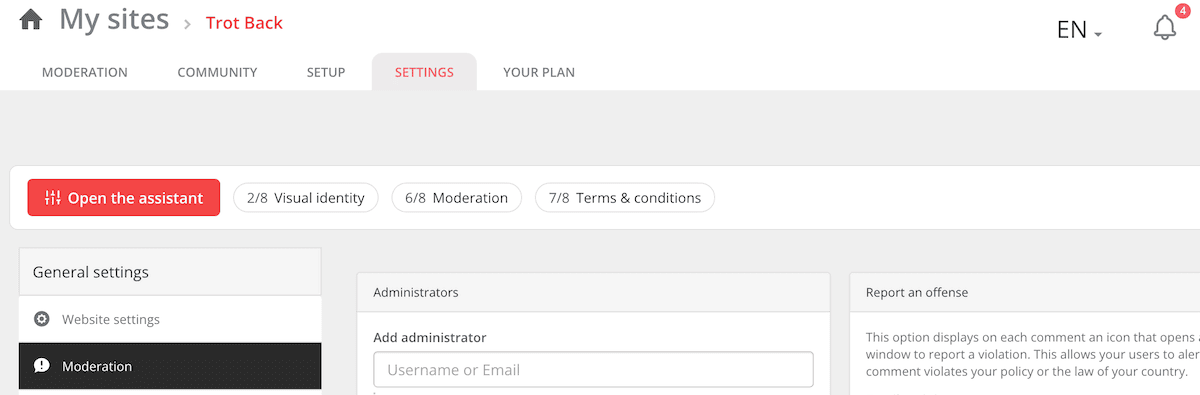
Once you get into the Dashboard > Settings screen, you can click the Moderation link at the top to get back to these options:
Within the General Settings > Moderation tab, scroll down and you’ll see the AI Moderation options:
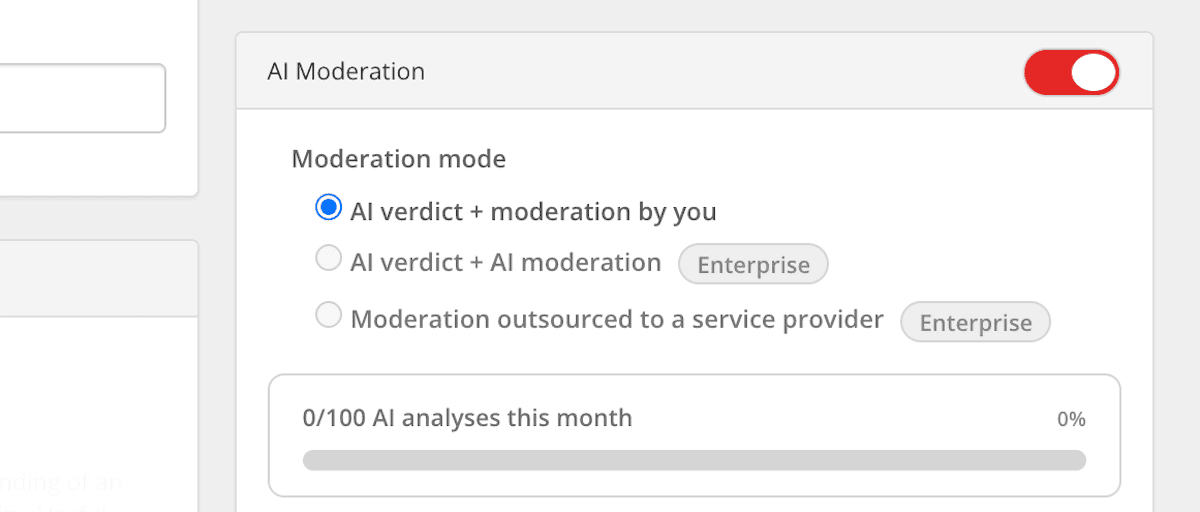
Some of the functionality here is only available on the Enterprise plan, but at its core, you can enter contextual information about your comments section. This will help the AI Moderation tool categorize the comments it comes across.
5. Check That Your Authors, Threads, and Dates Carry Over to GraphComment
At this point, you’ll have comments on site and the GraphComment widget displaying correctly. If this is where you want to move to other business-critical tasks, you can. However, I’d recommend some manual checks before doing so.
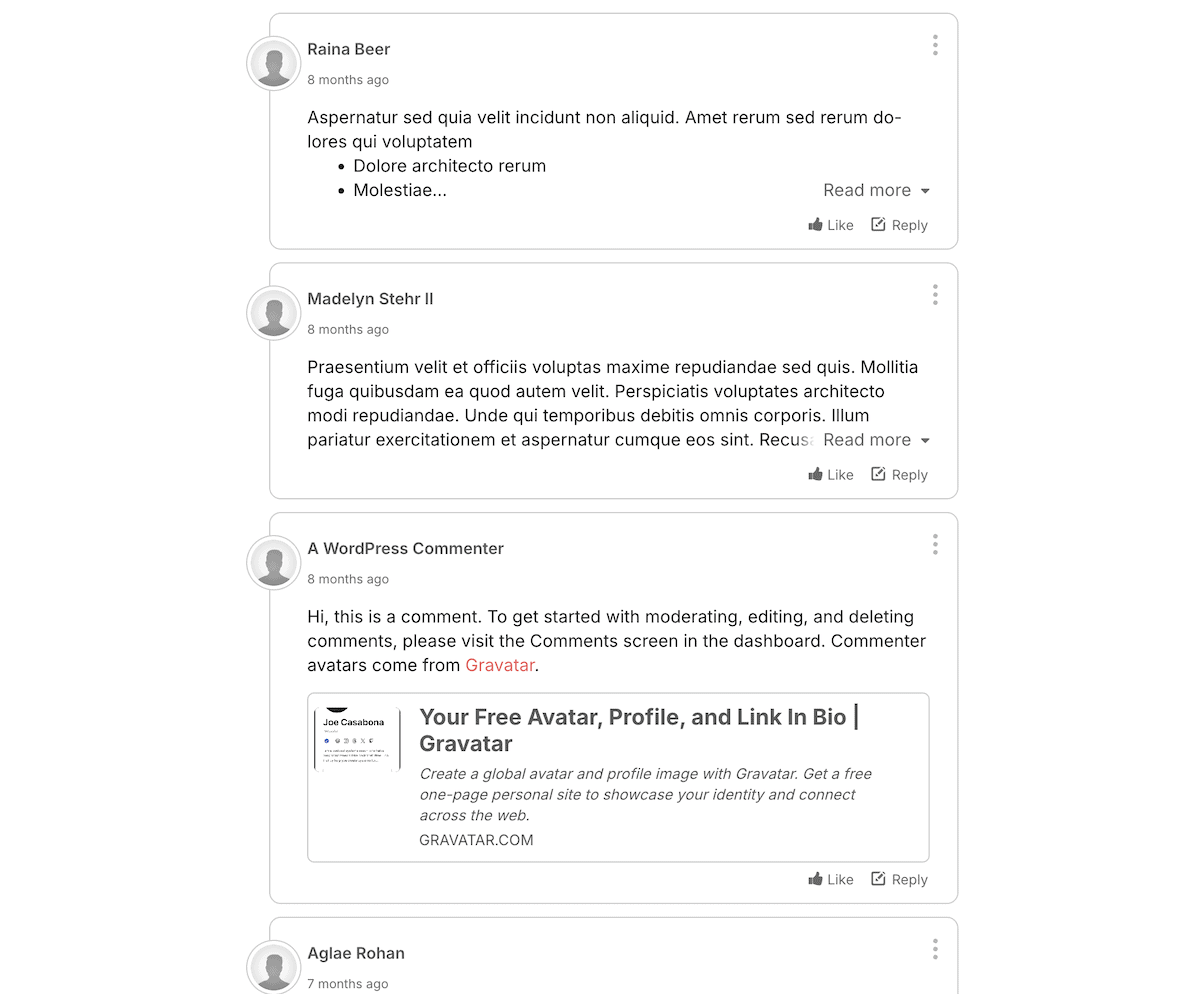
First, head to the front end of your site, to a post that has a comments section. Here, compare the comment count, reply threading, comment author names, and comment timestamps. The best point of comparison is within the Disqus dashboard.
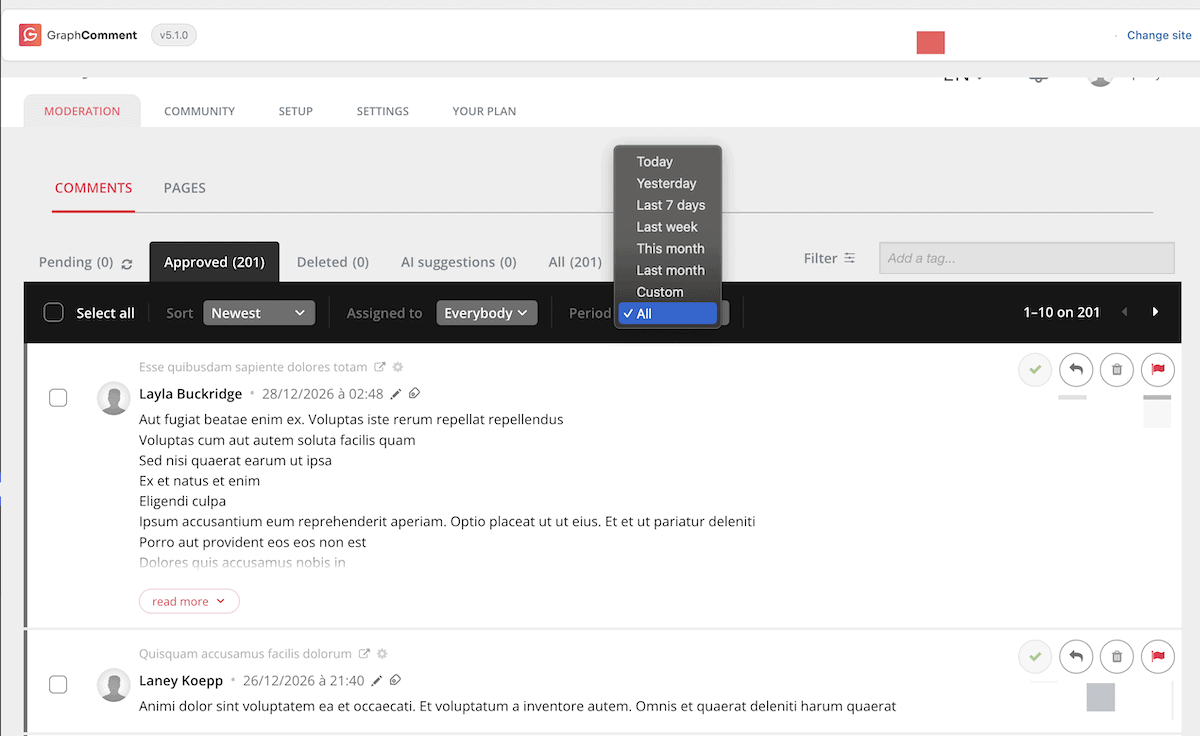
Next, check the status of any imported comments within GraphComment’s Moderation tab. If you don’t see the comments you think should be there, double check that you have the filters above the queue showing you all comments:
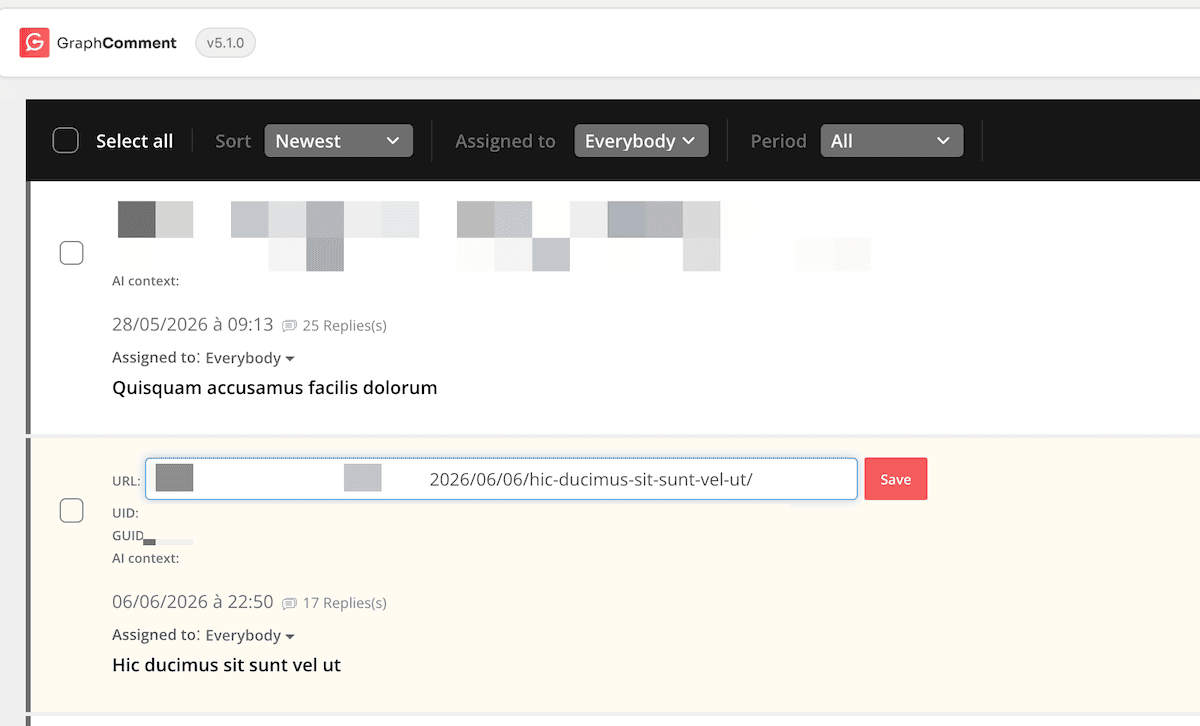
GraphComment links comments to pages using a WordPress GUID, then a custom UID, then the page URL. If (after setting the filters) you have any missing comments, open the GraphComment Pages screen. From here, find the page by its old URL or UID. Next, click the pencil icon, enter the new URL or UID, and save your changes.
With any issues resolved, your next step is much more straightforward.
6. Check That the WordPress Sync Is On
An important step (and one that makes GraphComment superior to Disqus) is to check the status of the WordPress sync. To do this, head to the Plugin Settings > Sync and Backup screen. For me, this was already on.
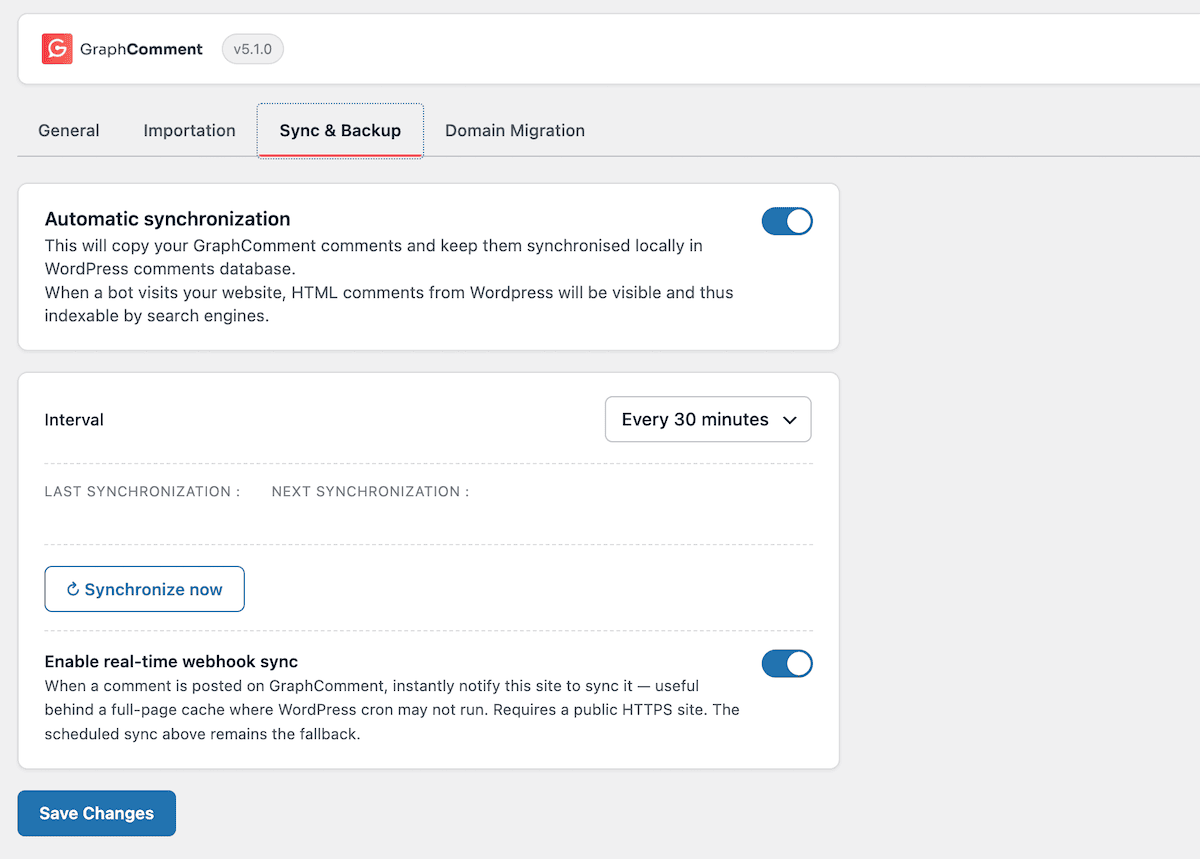
There are two ‘timing interval’ options available: a scheduled sync (that runs on WP-Cron), or a webhook that triggers whenever a new comment arrives. The default is the webhook sync. There’s also a button to force a sync if you choose to.
Syncing comments means that GraphComment will copy any comments into the WordPress database. Any comments that are awaiting moderation will copy over as pending until you make a moderation decision.
7. Review the Moderation Queue for AI Verdicts
For the final step, you can head into the moderation queue and take a look at some of the AI verdicts in place. You could also make some comments as a guest user in the following areas:
- On-topic and useful comments.
- Comments containing promotional URLs.
- Hostile comments towards another user.
- Comments that use blunt or harsh language, but stay within the moderation guidelines.
- Replies inside imported threads.
The GraphComment > Dashboard screen uses five tabs: Pending, Review, Deleted, AI Suggestions, All. For each of the comments you’re checking, take in the verdict, reasoning text, and the AI score for each user profile involved.
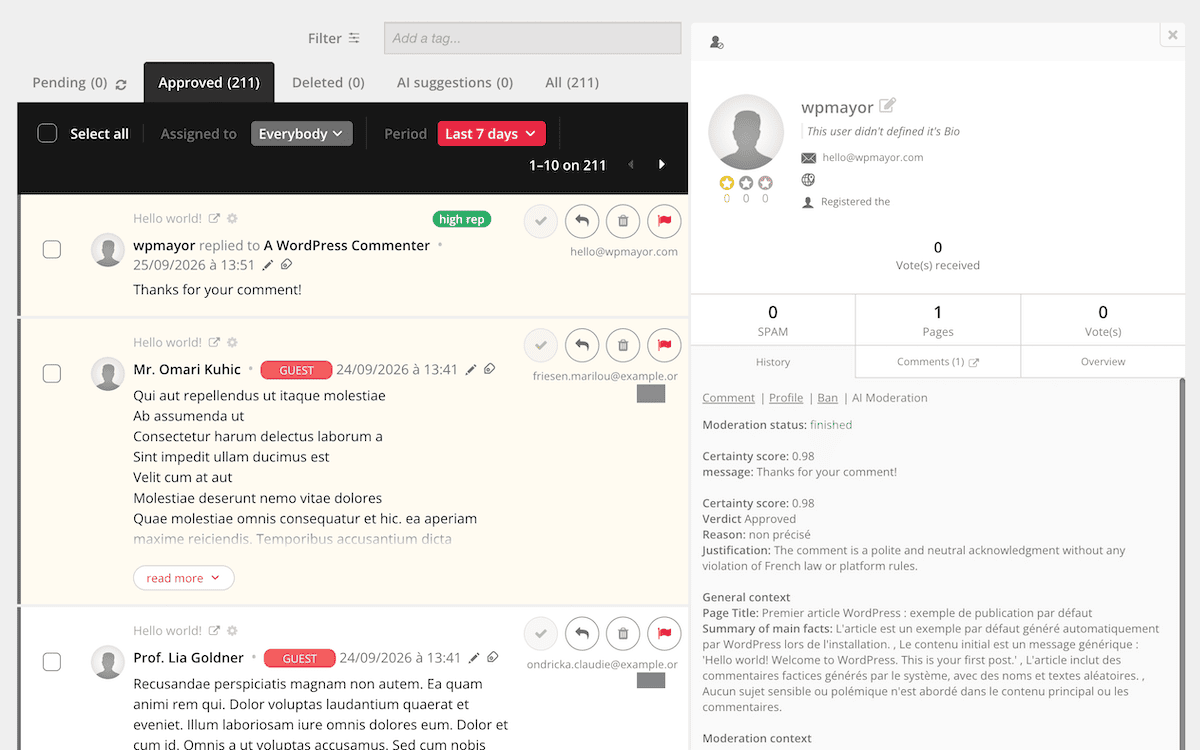
If you spot a reputation label, take a few moments to read its contents and note it down if it’s important to your understanding.
At this point, you can act on the queue using the various options. This is intuitive and straightforward: you simply use the options to work through the queue.
Disqus does aim to solve a common problem with WordPress, in as much as giving you better moderation options and a nicer interface on the front end. However, GraphComment takes this, supercharges it, and makes it more cost-effective and flexible.
Migrating from Disqus to GraphComment is more about handling how to get your comments out of Disqus. The steps to import and set up GraphComment take minutes. It could be that you make the switch without any of your visitors knowing there’s been a change. However, I’d still insist on using a staging site to carry out the full migration first!
Related Articles
Do you have a question about migrating from Disqus to GraphComment? Let me know in the comments section below!