When you import WooCommerce orders from an XML file, each order arrives at its own stage. Some may still be waiting on payment, some may be getting packed, and others may have been completed or refunded months ago.
Every one of them has to land in WooCommerce in exactly that state, along with its customer, associated product(s), and payment details. WooCommerce’s built-in importer can’t handle this because it only imports products.
WP All Import imports WooCommerce orders from XML files of any structure and links each line item to the matching product in your catalog. This guide walks through the import step by step, with a preview check before any order goes live.
What One XML Order Record Carries
In an XML file, each WooCommerce order sits inside its own parent element. Order-level details such as the status, date, payment method, and addresses appear once as individual child elements.
Line items work differently. Each product bought gets its own repeating element inside a container, so an order with three products has three of them.
The table below uses the element names from a WooCommerce order XML file, where each order is a
| Part of the order | XML element in the file | Where it appears in WooCommerce |
|---|---|---|
| Order details | |
General column: date created and status |
| Customer | |
General column: Customer field |
| Payment | |
Payment line under the order number |
| Addresses | |
Billing and Shipping columns |
| Line items | Repeating elements inside |
Items box, one row per product |
| Order total | |
Order Total at the bottom of the Items box |
| Customer note | |
Shipping column |
Two details in this file matter before the import. The status is stored as wc-pending, WooCommerce’s internal name for Pending payment. Each
Other platforms may name and arrange these elements differently. WP All Import reads WooCommerce order XML in whatever structure the source system exports, so you map the elements you need and leave the rest out of the import.
Get WooCommerce Ready for the Order Import
Before uploading the XML file, check four things on the site:
- Products are imported, so the SKUs in the file have something to attach to.
- Customer accounts exist, or guest import is enabled for buyers without one.
- Tax calculations are on under WooCommerce › Settings › General, if the file carries tax amounts.
- Each shipping method named in the file is set up in WooCommerce.
With guest import enabled, WP All Import creates a guest order for any buyer who has no account on the site, so a missing customer record doesn’t cost you the order. Order imports require WP All Import Pro with the WooCommerce Import Add-On, and both support High-Performance Order Storage (HPOS).
Import the Order XML with Automatic Setup
WP All Import’s Automatic Setup assigns each element in an order XML file to a WooCommerce order field before you map anything yourself. You review that mapping on one screen, then run the import or adjust it in Manual Setup.
Load the Order XML File
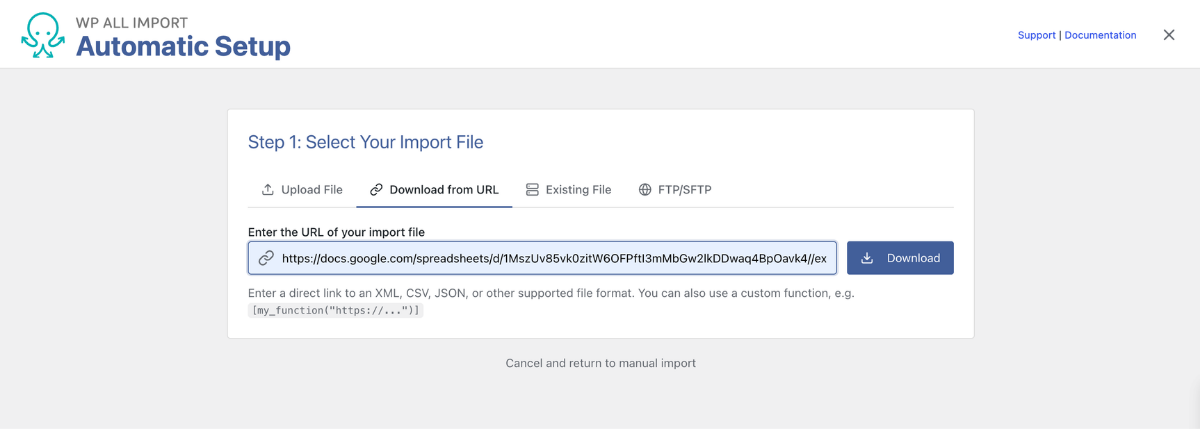
Open All Import › New Import and click Set up automatically, the callout above the manual import options.
Step 1: Select Your Import File offers four sources to import from. Upload File is good for an export saved to your computer, and Existing File reuses one uploaded for an earlier import. When another system publishes the XML file, Download from URL is the ideal option to fetch it from a web address, and FTP/SFTP connects to a server with a password or an SSH private key to pull your import file.
Choose Orders as the Import Type
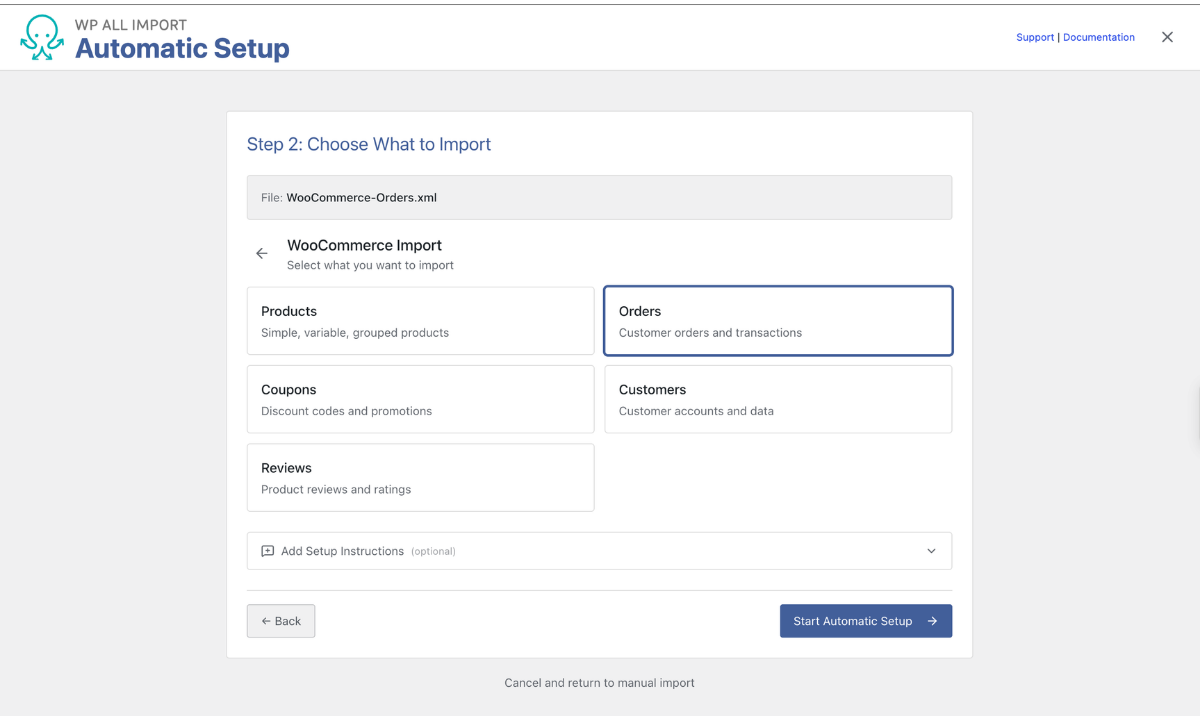
On Step 2: Choose What to Import, click WooCommerce, then Orders. The optional Add Setup Instructions box takes short notes about fields the setup could misread. Write them one per line, in the same quoted style as the placeholder examples:
– ‘OrderTotal is the final amount paid’
– ‘Prices are in USD’
Click Start Automatic Setup, then confirm the data-processing notice by clicking I Understand, Continue.
Check What Automatic Setup Mapped
Your Import Is Ready reports two figures: how many fields were mapped and how many records will be imported. Check the records figure against the number of orders in your file first. The test file for this guide held six orders, and the screen reported six records. A higher figure means each line item is being read as a separate order. In that case, start a manual import instead, where you choose the repeating order element yourself.
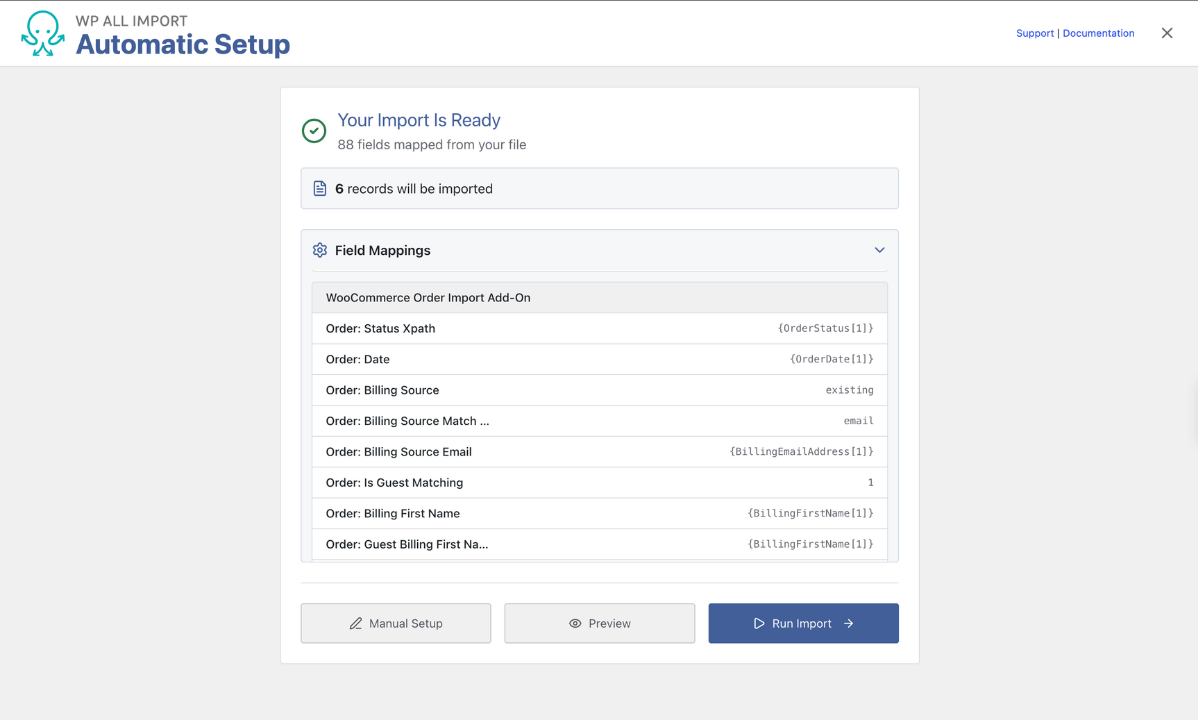
Expand Field Mappings to see which XML element feeds each order field. For this file, Automatic Setup filled in:
- Order details: status from
and date from - Customer: an existing account, found through
, with guest matching on for buyers who have no account - Addresses: every billing and shipping field
- Line items: product, SKU, and quantity from each
- Totals: the order total from
WP All Import’s Automatic Setup configures customer matching on its own, pairing each order with an existing account through the billing email in the file.
Inspect Orders in Preview Before Anything Goes Live
Click Preview on the Your Import Is Ready screen. WP All Import’s WP Admin View loads each order into WooCommerce’s Edit Order screen before the import runs, so problems show up in the place you’d normally manage orders. The arrows at the top step through the records one at a time, numbered by their position in the file.
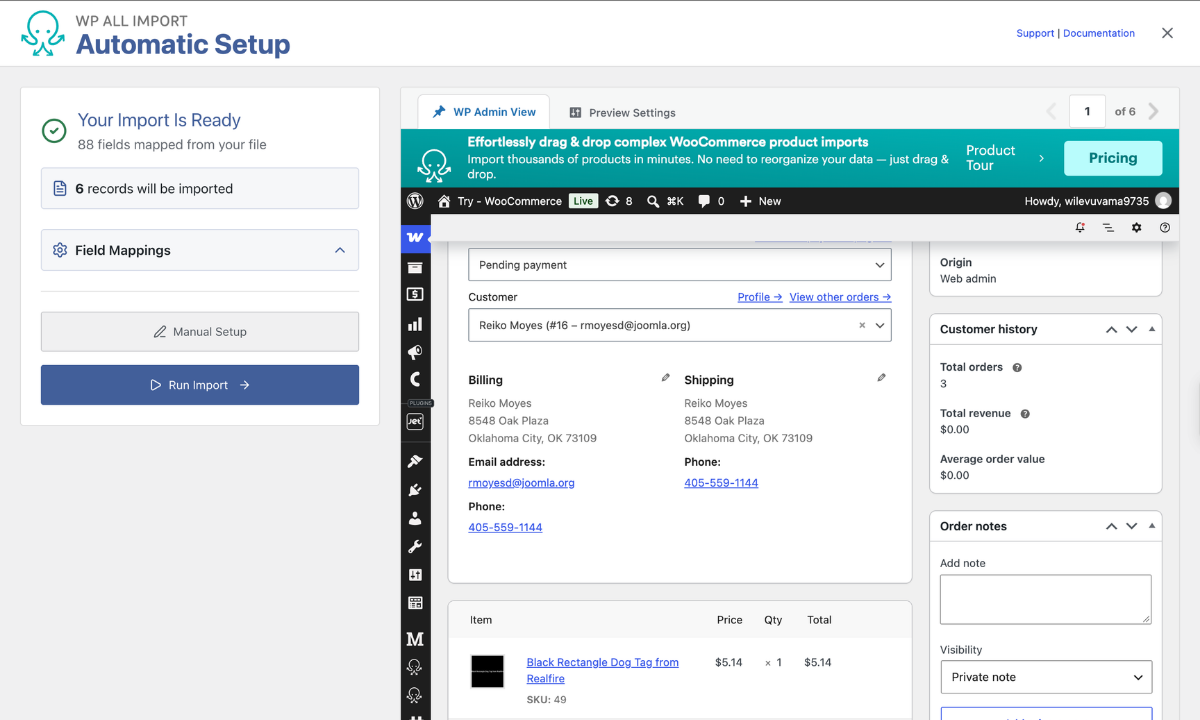
Check three parts of each order:
- Customer: a matched account shows its name and user ID in the Customer field, with Profile and View other orders links beside it.
- Line items: a product found in your catalog appears as a link, with its SKU underneath.
- Status and totals: the status dropdown and Items Subtotal match what the XML file records for that order.
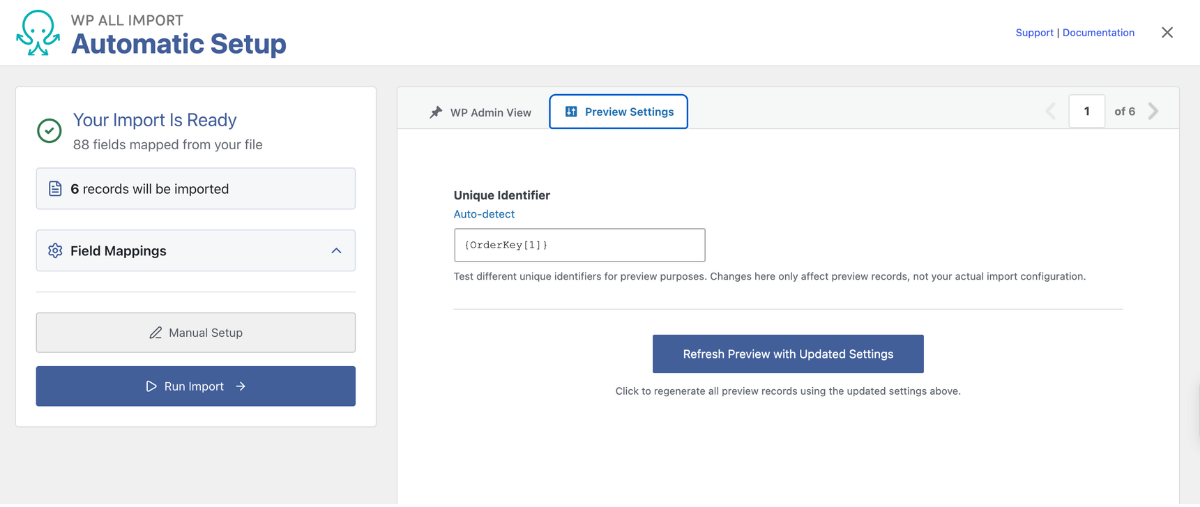
Preview Settings lets you try a different unique identifier and refresh the preview with it. Those changes stay inside the preview and leave the import configuration untouched, so you can test how orders will be matched without committing to anything.
Adjust the Order Import in Manual Setup
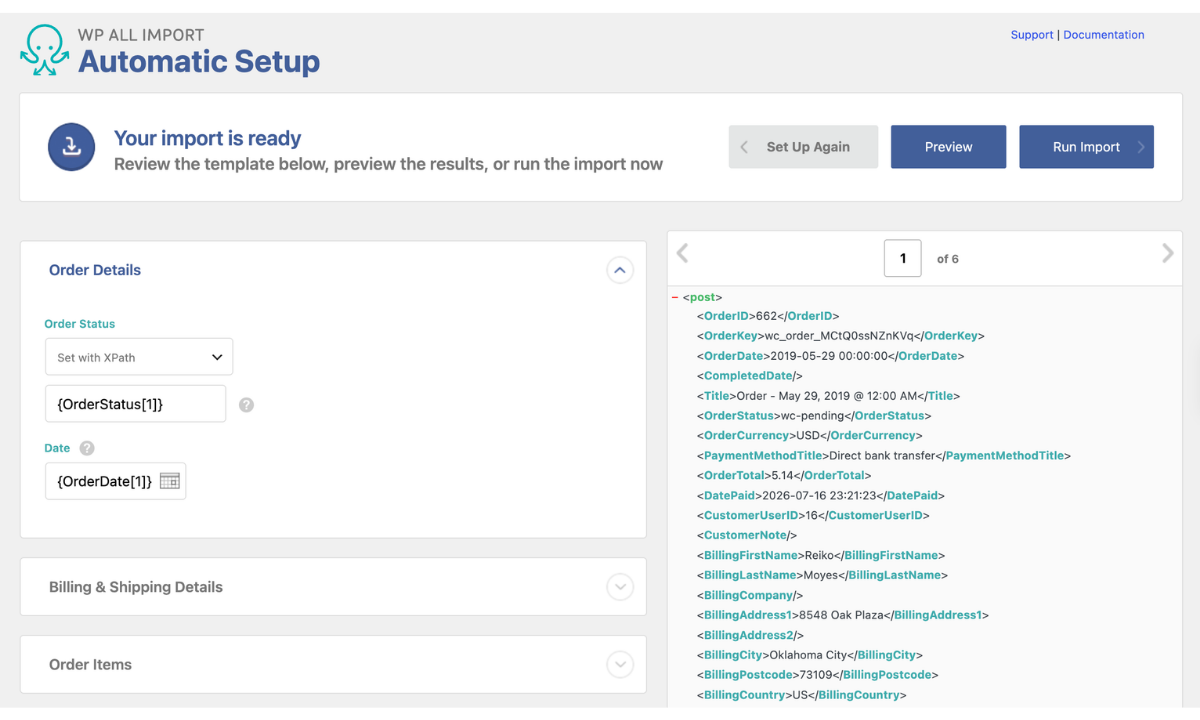
Clicking Manual Setup on the Your Import Is Ready screen opens WP All Import’s drag-and-drop editor with Automatic Setup’s work already in place. The XML file’s elements sit in a panel on the right, and the WooCommerce order sections sit on the left, ready for any field you want to change or add.
Convert Status Values from Another Platform
When the XML file comes from another WooCommerce store, its statuses already match the ones WooCommerce expects, such as wc-pending for Pending payment. Other platforms label their statuses differently, with values such as shipped or awaiting_payment. WP All Import runs PHP functions on import values, so a short function can convert those labels while the orders import. Add it in the Function Editor:
php

function map_order_status( $status ) {

    $statuses = array(

        'awaiting_payment' => 'wc-pending',

        'packing'          => 'wc-processing',

        'shipped'          => 'wc-completed',

    );

    return $statuses[ $status ] ?? $status;

}
Then replace the order status mapping with [map_order_status({OrderStatus[1]})]. Any label that the function doesn’t list passes through unchanged.
Map Elements Automatic Setup Left Out
Any element in the XML file can still be added by dragging it from the right-hand panel onto an order field. Click Preview afterward to confirm the new value lands where you expect.
Run the Import and Keep the Orders Current
Run the Import
If you made changes in Manual Setup, click Continue to Import Settings, then Confirm & Run Import on the summary screen that follows. If Automatic Setup’s mapping did not need any changes, click Run Import on Your Import Is Ready instead.
Either way, WP All Import blocks WooCommerce’s customer emails during an import by default, so buyers don’t receive new confirmations for purchases they made months ago. The Block email notifications during import checkbox on Import Settings controls this setting.
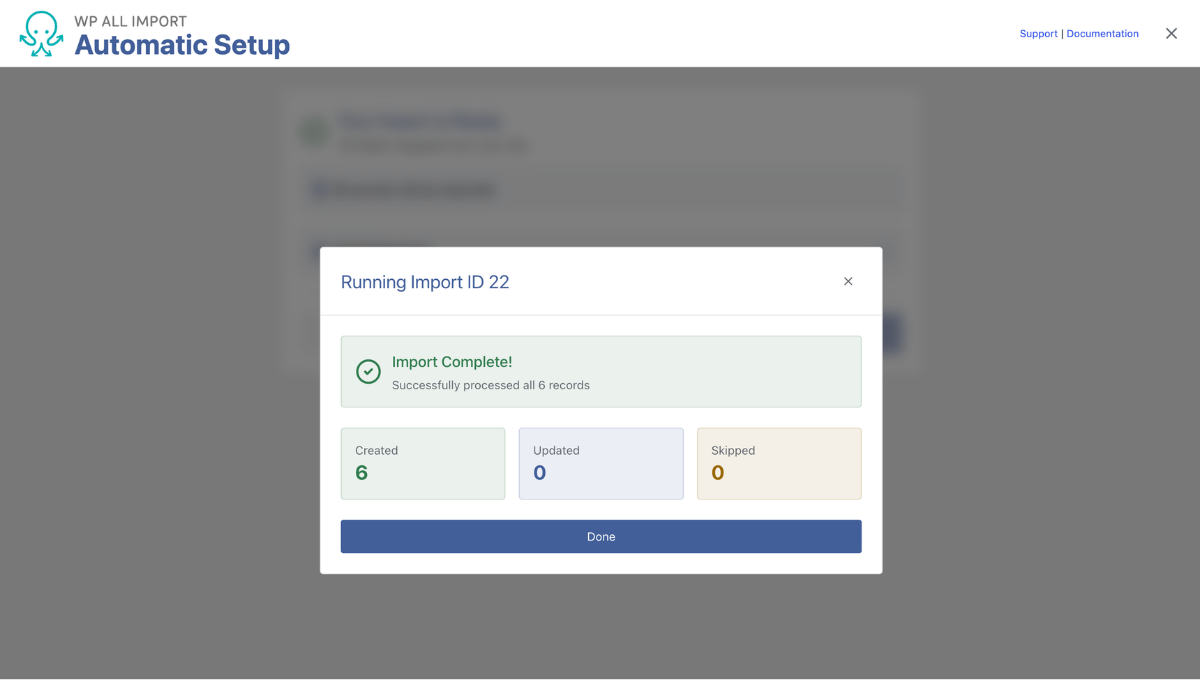
When the run finishes, a summary shows how many orders were created, updated, and skipped. Open WooCommerce › Orders to confirm the new orders are listed with the right statuses and dates.
Import an Updated Version of the XML File
Order data keeps changing after the first import as payments clear and refunds are processed. Re-running the import with a newer file updates the orders it created instead of adding copies, because WP All Import matches each record through its unique identifier.
On the Import Settings screens, choose whether existing orders get updated. You can also skip orders whose data hasn’t changed, which shortens repeat runs on large files.
For a file that another system refreshes regularly, keep Download from URL or FTP/SFTP as the source and set the import to run on its own with Automatic Scheduling.
Final Thoughts — Import WooCommerce Orders from XML
An XML order file can come from another WooCommerce store or from a platform that labels everything its own way, and the import works the same for both. WP All Import maps order XML in whatever structure it arrives in, and Automatic Setup fills in that mapping for you. Before anything is saved, the preview shows each order on WooCommerce’s Edit Order screen, and a short PHP function can convert values such as another platform’s status labels during the import.
And the best part is that the steps don’t change as the job grows. WP All Import handles a one-time file of six orders and a feed that updates every night in the same way, and Automatic Scheduling can take over the repeat runs. If you’re moving the rest of your store too, bring in products and customers first, then try the order import on a staging site before running it on the live store.
Frequently Asked Questions — Import WooCommerce Orders from XML
Can I import WooCommerce orders for customers who don’t have an account?
Yes. WP All Import creates guest orders for buyers who have no account on your site. Automatic Setup turns guest matching on by default, so an order whose billing email doesn’t match an existing customer still imports with its billing and shipping details. If guest matching is switched off, those orders are skipped instead.
How do I export WooCommerce orders to XML?
You can export WooCommerce orders to XML with WP All Export:
- Go to All Export › New Export and choose WooCommerce Orders.
- Click Customize Export File, then drag the order fields you need into the export, or click Add All.
- Open the Export Type panel, select Feed, and choose Simple XML Feed.
- Click Continue, then Confirm & Run Export.
- Download the XML file when the export finishes.
For field options and filters, see How to Export WooCommerce Orders.
How do I import WooCommerce orders from a CSV file?
To import WooCommerce orders from a CSV file, use the same WP All Import process as for XML. Go to All Import › New Import, click Set up automatically, upload the CSV, and choose WooCommerce, then Orders. Automatic Setup maps the columns to order fields the same way it maps XML elements. If an order contains several products, check in the preview that each one appears as its own line item before you click Run Import.
How do I schedule a recurring WooCommerce order import?
WP All Import can run a WooCommerce order import on a schedule:
- Create the import with Download from URL or FTP/SFTP as the file source, so each run fetches the latest file.
- Click Manual Setup, then Continue to Import Settings.
- Set the import to update existing orders, so each run changes orders in place instead of adding copies.
- Open Scheduling Options, choose Automatic Scheduling, and set how often the import runs.
Related Information