
You scroll through your X timeline and half the posts are empty grey rectangles. Some thumbnails spin forever, some never sharpen past a blurry mess, and a few just say “Something went wrong. Try reloading” no matter how many times you tap it.
The usual suspects are pretty boring: a shaky connection, an X server hiccup, Data Saver quietly switched on, stale app cache, a VPN in the way, or a browser extension blocking media on x.com. Almost all of it is fixable in a couple of minutes.
If you use X on an iPhone, an Android phone, or in a desktop browser, this blog post will show you how to fix images that refuse to load, starting with the fastest checks and leaving reinstalling for the very end.
Why X Images Fail to Load
An image isn’t really stored inside a post. The text arrives first, and then your app or browser fires off a second request to X’s media servers asking for the actual picture file. Something breaks in that handoff, and you get a gray box.

That chain includes your network, the app’s stored cache, anything filtering traffic in between, and X’s servers themselves. A photo file is many times the size of the words around it. So when the connection gets flaky, pictures are what drops first.
Here’s what usually turns out to be the culprit:
- Weak or unstable internet connection. Text loads fine, the bigger image files stall out halfway and give up.
- An X server or media outage, which can hit photos while posts still appear normally.
- Data Saver turned on in the X app, which is doing exactly what it promises and holding images back.
- High-quality images limited to Wi-Fi only. Switch to cellular and the photos look mushy, or never arrive.
- A corrupted or bloated app cache. It keeps serving you the old placeholder instead of going back for the real file.
- An outdated X app version that’s fallen behind how X now serves media.
- A VPN, proxy, or Private DNS blocking or misrouting X’s media domains.
- Browser cache and cookie conflicts on x.com. These got worse after the Twitter rebrand.
- Ad blockers or privacy extensions. Media domains get caught in the same net as the trackers.
- Low RAM. Maybe dozens of apps running behind the scenes, or 40 browser tabs. The page has nothing left to work with.
- A deleted post or removed image, which can never load no matter what you do.
Here’s the part most guides skip. A reinstall, a cache wipe, or a router restart cannot fix an X-side outage, a daily viewing limit on an unverified account (X introduced viewing limits in 2023), an account restriction, or a photo the original poster took down. Chasing those with troubleshooting just wastes your afternoon.
One more quick distinction worth making. Images that do load but look soft or washed out? That’s a quality setting nine times out of ten, not a bug and not your cache.
How to Fix Images Not Loading on X
Work down the list in order. Check your timeline after each step.
The first three take about a minute between them and solve most cases, so hold off on the drastic stuff.
1. Confirm Your Internet Connection Is Actually Working
A timeline that loads halfway is usually a weak signal, not a broken app. Text weighs almost nothing, so it slips through. Photos are hundreds of times bigger, and they quietly give up before they finish.
Run through these checks:
- Open another app or website. Does anything load?
- Flip Airplane mode on. Count to five, then flip it back off.
- Drop Wi-Fi and run on mobile data instead (or go the other direction), then pull X open again.
- Still stuck on Wi-Fi? Pull the router’s power for a slow 30 seconds before plugging it back in.
So if the pictures appear the moment you hop to another network, you were fighting the connection all along. Hotel Wi-Fi does this constantly, and the free hotspot at the coffee shop is no better.
2. Check Whether X Is Down for Everyone
The media servers can go down on their own while the rest of X keeps humming along. So posts and replies load fine while every photo slot sits there grey.
Check Downdetector for the last hour of reports. Or search X itself and see who else is griping. It’s a good habit before you start deleting apps off your phone.
If reports spiked recently, stop. Nothing you do on your end helps, and these outages tend to sort themselves out inside an hour or two.
3. Refresh the Feed or Force Stop the App
A failed image request doesn’t get retried. The empty box stays empty until that post loads again from scratch.
Follow these steps:
- Pull down on your timeline to refresh, or hit reload on x.com.
- Still blank? Close the app completely. Swipe it away on iPhone, or go to Settings > Apps > X > Force stop on Android.
- Reopen X and scroll back to the post.
- Nothing? Reboot the phone and give it one more go.
A restart sounds lazy. But it clears whatever network state the app got stuck in, and it fixes more “Something went wrong” errors than you’d expect.
4. Turn Off Data Saver in the X App
Data Saver does what it says. It stops images from downloading so you burn less data, and a timeline full of blocked images looks exactly like a broken app.
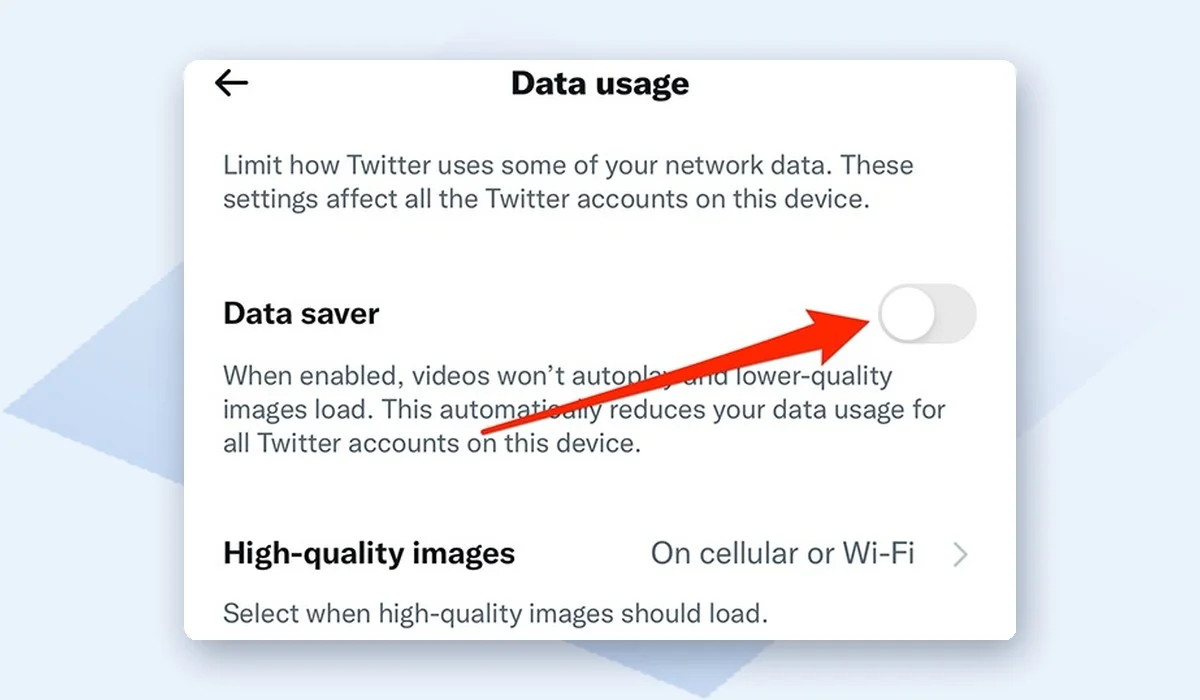
Here’s where that switch lives:
- Tap your profile photo and choose Settings and support.
- Go to Settings and privacy.
- Choose Accessibility, display, and languages.
- Open Data usage.
- Toggle Data saver off.
Refresh the feed afterwards. Posts that already loaded with blocked images can stay blank until they reload.
If someone else set up your phone, or you flipped this on during a trip, there’s a good chance that’s your whole problem.
5. Set High-Quality Images for Both Wi-Fi and Mobile Data
This one is for anyone whose photos look fine at home and terrible on cellular. X keeps separate switches for which connection types load full-resolution media, and out of the box, one of them is usually off. So the app quietly serves you compressed versions the second you leave Wi-Fi.
The path is a long one: Settings and privacy > Accessibility, display, and languages > Data usage > High-quality images. Tick both Mobile data and Wi-Fi there. There’s a matching upload setting on the same screen, useful when your own photos post soft and compressed.
Heads up: with both switched on, your mobile data use climbs. On a tight plan, leave mobile data off and live with the softer previews.
6. Clear the X Cache
X keeps downloaded images on the phone so it isn’t pulling the same photo down every time you scroll past it. When those files go bad, or the folder just gets bloated, you end up with stale thumbnails and empty gray boxes.
Nothing happens to your posts, drafts, DMs or your account. You’re deleting temp files, and the app builds them back on its own.
On Android
The cache button sits in your phone settings, not anywhere inside the app:
- Open Settings > Apps.
- Scroll down to X and tap it.
- Tap Storage.
- Tap Clear cache.
Leave Clear data and Clear storage alone. Those nuke your login and your in-app settings, and then you’re hunting for your password and a 2FA code at the worst possible time.
On iPhone
iOS doesn’t give you a system-level cache button for one app, so this happens inside X. Go to Settings and privacy > Accessibility, display, and languages > Data usage > Media storage and tap Clear media storage.
While you’re on that screen, open Web storage and tap Clear web page storage as well. That dumps cached pages from links you opened in the X browser, and it gets bigger than you’d expect.
7. Update the X App
X changes how it serves media fairly often, and older builds fall out of step. A version that’s a few months behind will load text just fine while the media requests quietly fail in the background.
Search for X in the Google Play Store or the App Store. Tap Update if that button is showing. If the button says Open instead, the app is already current and this isn’t your problem.
Here’s the part people miss. Auto-updates quietly stop working when storage runs low, and nothing warns you about it. So an app you assumed was keeping itself current may have been stuck for weeks.
8. Disable Your VPN, Proxy, or Private DNS
X loads images from separate media domains, not from the same address as the main site. A VPN server, a proxy or a custom DNS provider can block or misresolve those domains while x.com itself loads fine. Hence the half-working page.
Switching to another server won’t tell you much here. Kill the VPN connection outright, then pull down on the timeline to reload it. On Android there’s one more spot to check: Settings > Network & internet > Private DNS, which should sit on Off or Automatic while you test.
This is one of the more common reasons why your VPN slows down apps or breaks media.
If the pictures come back, you don’t have to abandon the VPN. A different server location or DNS provider usually sorts it out for good.
9. Fix Browser Problems on Desktop
On x.com the browser handles caching and filtering, not the app, so the fix list is completely different. Leftover files from the old twitter.com domain cause a fair bit of this.
Clear the browser cache and cookies
Ctrl+Shift+Delete on Windows, Cmd+Shift+Delete on Mac, and the clearing dialog opens. Tick Cached images and files, set a time range of at least the last four weeks, then clear and reload x.com.
Not sure which boxes matter? This guide on how to clear your browser cache walks through Chrome, Safari, Firefox and Edge.
There’s a faster test, though. Press Ctrl+F5 for a hard reload, which forces the page to re-fetch everything instead of reusing cached copies.
Test in an incognito or private window
Open a private window and log into X there. Extensions are off by default in private mode, so if the images suddenly load, you’ve found your culprit.
Switch extensions back on one at a time until the grey boxes return. Ad blockers, privacy tools and script blockers are the usual suspects.
Disable ad blockers and content blockers for x.com
Ad blockers filter media and tracking domains from the same lists, and X’s image servers sometimes get caught in the net. Click the blocker’s icon in your toolbar and pick the option to allow or whitelist this site.
Whitelisting x.com beats switching the blocker off completely. You keep protection everywhere else and stop fighting this again next week.
Try a different browser
Load X in a browser you never use. If images appear there, the trouble is settings or extensions in your main browser, and now you know where to look.
10. Free Up Memory, Then Log Out and Back In
Before a single pixel shows up, your device has to decode the image file in memory. When a phone is holding thirty background apps open, or a browser is sitting on 40 tabs, that decode step just quietly fails. Nothing pops up to tell you. You get gray boxes instead.
So close the background apps and the extra tabs, then reload X and scroll back through the timeline. Still empty? Your session token may be stale, and signing out refreshes it. (This one fixes it more often than you’d think.)
Signing out lives under Settings and support > Settings and privacy, and from there the account menu has the sign out option. Get your password and your two-factor method ready before you tap it. Locked out of the account beats missing photos by a wide margin, and not in a good way.
11. Reinstall the X App as a Last Resort
Last on the list, and that’s on purpose. A reinstall wipes out whatever in-app preferences you changed, kicks you back to the login screen, and almost never catches something the earlier fixes didn’t.
Still here with broken images? Then do it in this order:
- Remove the X app, either from the home screen or your app drawer.
- Reboot the phone first, then install. Leftover junk files tend to stick around otherwise.
- Grab X again from the Google Play Store or App Store.
- Sign back in and scroll the timeline for a minute.
Before blaming the app entirely, test it somewhere else. Try a different account, or a second phone, and see what happens. Images loading fine there but still breaking on your account points away from a software bug.
Usually that means a restriction on the account, or some kind of viewing limit on what you’re trying to see. Reach out to X Help at that point. Reinstalling a second time won’t do a thing.
How to Prevent X Image Loading Problems
Most repeat failures come back to one setting somebody flipped months ago, or a phone with almost no storage left. A little upkeep keeps the grey boxes away.
A few habits head off the repeat problems:
- Leave auto-updates on for X so the app doesn’t sit on an old build for months.
- Turn Data Saver off unless the data plan is actually tight.
- Clear media storage inside the app every month or two, before it balloons.
- A couple of GB of free space is about the floor. Caching needs somewhere to land.
- Put x.com on the ad blocker’s allow list permanently. Toggling it every visit gets old fast.
- If a VPN stays on, find one server that plays nice with X and pin it there. Auto-connect picks bad ones.
- Photos over 5 MB can look broken to everyone else, so resize before posting.
When pictures break again, check Downdetector before touching a single setting. That habit saves about ten minutes of pointless poking around, and it works well past X. Same logic applies when Instagram photos aren’t loading.
Frequently Asked Questions
After the basic fixes run out, the same handful of questions show up. So here they are.
Why are X images blurry instead of loading fully?
Check High-quality images first. If it’s set to Wi-Fi only, cell data gets you a compressed preview and not the actual file. Flip on both Mobile data and Wi-Fi under Data usage > High-quality images.
Weak signal looks identical from the outside. Blurry version loads, then it just sits there, never sharpening.
Does clearing the X app cache delete my account or log me out?
No. Cache is temporary media files and nothing else, so posts, drafts, and your login survive it.
Read the screen before tapping, though. Android stacks three buttons that look alike. Clear cache is the right one, while Clear data and Clear storage log you out and erase your in-app settings.
Why do images load on Wi-Fi but not on mobile data?
The app isn’t broken. It’s a Data usage setting inside X, nearly every time. Start with Data Saver, then the High-quality images toggles.
Both already correct? Then your carrier’s DNS, or a Private DNS entry on Android, may be blocking X’s media domains.
Can a VPN stop X images from loading?
Yes. And this one catches more people than you’d guess.
X serves media from its own domains, separate from the main site. Certain VPN servers and custom DNS providers block or misroute that traffic while x.com itself loads fine. Drop the VPN connection completely and reload. Fastest test there is.
Final Thoughts
Broken images on X look like a serious bug, and most of the time the cause is pretty dull. Start with your own connection, then load Downdetector before you tear anything apart. No point rebuilding your app settings over an outage on X’s end.
If the servers look fine, pull the timeline down to refresh it, or force stop the app and open it again. Then move on to Data Saver, the high-quality image settings, and the cache. In that order.
Reinstalling and logging out should wait until the end. Both eat time and wipe settings, and they fix less than people expect.
The exact symptom matters more than it seems. A blurry photo points somewhere different than a blank grey box, and a “Something went wrong” message is its own thing again.
So which one is on your screen right now? Drop it in the comments along with your device, and narrowing it down gets a lot easier.

With 7+ years in SEO and blogging, I optimize reputable websites for better rankings. I’m passionate about creating detailed guides, especially in gaming and IT.
Where Should We Send
Your WordPress Deals & Discounts?
Subscribe to Our Newsletter and Get Your First Deal Delivered Instant to Your Email Inbox.