The fastest way to post a YouTube video to Instagram is to download the creator’s own YouTube file, edit it into a vertical clip, export it as an MP4, and upload it as an Instagram Reel. Instagram Reels work best in a 9:16 vertical format, so resizing early prevents awkward crops, tiny faces, and cut-off captions [source: Meta].
TLDR: A creator should use the original YouTube file when possible, trim it into a short vertical clip, add captions, and upload it to Instagram as a Reel. For example, a 12-minute YouTube tutorial can become three 35-second Reels, each highlighting one tip and sending viewers to the full video through a bio link or Story link sticker. A small business posting two repurposed clips per week can turn one YouTube video into 8 Instagram posts per month without filming extra content. The cleanest tools for the job are YouTube Studio, CapCut, Canva, Kapwing, VEED, HandBrake, and Meta Business Suite.
Start With the Right Video File
The best method depends on who owns the YouTube video. If the video belongs to the creator, the safest route is simple: download the original file from the computer, cloud storage, or YouTube Studio. If someone else owns it, permission is needed before reposting. That applies even when the clip is public.
It drives creators crazy that a video can be easy to watch but annoying to reuse. A YouTube video may be horizontal, long, and packed with slow setup. Instagram prefers the opposite: vertical, quick, and clear in the first few seconds.
The creator should prepare the video for one of these Instagram placements:
- Reels: Best for reach, short clips, tutorials, highlights, reactions, and product demos.
- Stories: Best for temporary updates, behind-the-scenes clips, and link stickers.
- Feed posts: Best for polished clips that should stay on the profile grid.
- Carousel posts: Best when a video clip is paired with screenshots, quotes, or steps.
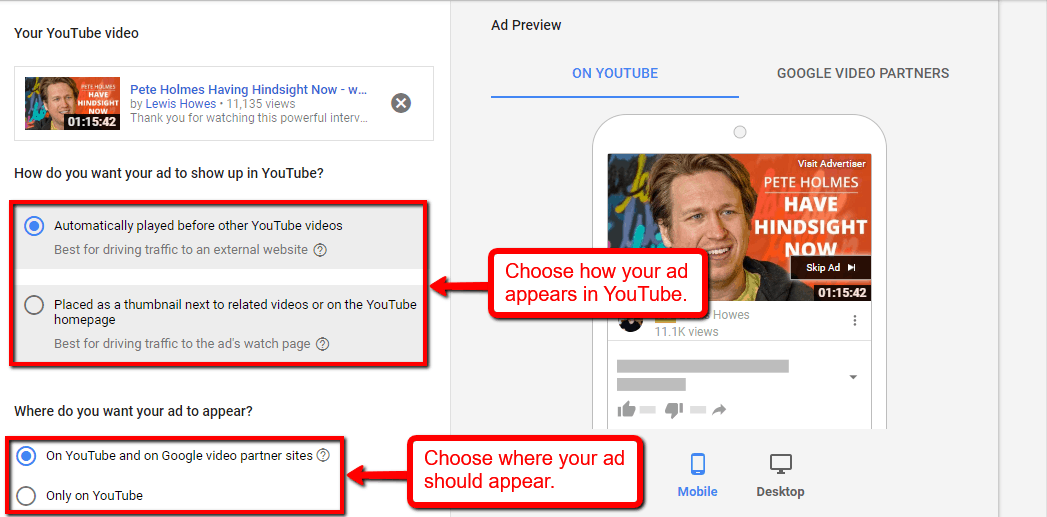
Method 1: Download From YouTube Studio
For owned videos, YouTube Studio is usually the cleanest source. The creator can open YouTube Studio, go to Content, select the video, and use the download option if available. This gives a usable file without sketchy downloader sites or random popups.
- Open YouTube Studio.
- Go to Content.
- Find the video.
- Use the options menu and select Download.
- Save the file locally.
The catch is that downloads from YouTube Studio may not always match the original upload quality. If the creator still has the original file, that file is better. It usually has higher resolution, cleaner audio, and fewer compression artifacts.
Method 2: Use a Cloud Backup or Original Project Export
A creator who edits in Premiere Pro, Final Cut, DaVinci Resolve, CapCut, or iMovie should export a fresh version from the original project. This gives more control over framing, subtitles, music, and pacing.
The recommended export settings are simple:
- Format: MP4
- Resolution: 1080 x 1920 for vertical Reels
- Aspect ratio: 9:16
- Frame rate: 30 fps or the source frame rate
- Audio: AAC, clear voice levels
- Length: Shorter clips usually work better for Reels
Horizontal YouTube footage should not be dumped into Instagram untouched. It often looks small and weak on a phone. A better edit uses crop, zoom, animated captions, and cutaways to keep the frame active.
Best Tools for Turning YouTube Videos Into Instagram Posts
CapCut is a strong choice for quick social edits. It has auto captions, templates, background removal, and easy 9:16 exports. It is especially useful for talking-head videos and tutorials.
Canva works well for branded clips. A creator can place the YouTube video inside an Instagram Reel template, add titles, logos, colors, and end cards. It is less precise than a serious editor, but it is fast.
Kapwing is useful in a browser. It handles resizing, subtitles, trimming, and team review. Honestly, browser editors can add 30 to 60 seconds of waiting during uploads, which feels longer than it should, but they are handy when no editing software is installed.
VEED is a similar browser-based tool. It is helpful for captions, translations, audio cleanup, and simple resizing. It suits creators who want a clean workflow without opening a full editing suite.
HandBrake is best for compression. If the edited video file is huge, HandBrake can reduce the size while keeping decent quality. It is not a creative editor, but it solves file-size headaches.
DaVinci Resolve is best for advanced edits. It offers color correction, audio tools, motion graphics, and precise exports. It has a steeper learning curve, but creators who post often may find it worth the time.
How to Edit a YouTube Video for Instagram
The strongest Instagram version is rarely the full YouTube video. It is a selected moment with a clear hook. The first three seconds matter most. A creator should cut the intro, remove long pauses, and start where the value begins.
A simple structure works well:
- Hook: A bold claim, question, result, or mistake.
- Context: One short line explaining what is happening.
- Value: The best tip, moment, reveal, or step.
- Call to action: “Full video on YouTube” or “Link in bio.”
Captions should be added whenever there is speech. Many Instagram users watch without sound at first. Large captions also help viewers follow fast edits. The text should stay inside safe margins so buttons and usernames do not cover it.
How to Upload the Video to Instagram
After editing, the creator can upload from the Instagram mobile app or schedule through Meta Business Suite. The app is better for quick posting, trending audio, stickers, and final checks. Meta Business Suite is better for planning batches of content.
- Open Instagram.
- Tap the create button.
- Select Reel or Post.
- Choose the edited MP4 file.
- Add a cover image, caption, hashtags, and location if useful.
- Tag people or products when needed.
- Publish or schedule the post.
The caption should not pretend the full YouTube video is on Instagram if only a clip is posted. A clear caption works better: “This is clip 1 from the full guide. Watch the full video through the link in bio.”
Common Mistakes to Avoid
- Posting without permission: Public does not mean free to reuse.
- Leaving the video horizontal: Small horizontal clips often perform poorly on mobile.
- Using tiny captions: If the viewer has to squint, the edit needs fixing.
- Keeping the YouTube intro: Long intros waste the strongest seconds.
- Uploading low-quality downloads: Blurry clips damage trust.
- Skipping the cover: A weak cover can reduce profile clicks.
Best Workflow for Regular Posting
A creator who posts often should build a repeatable process. First, choose one YouTube video. Second, mark three to five strong moments. Third, edit each moment into a separate Reel. Fourth, write captions that point back to the full video.
This turns one long video into a small content library. A podcast episode can become quote clips. A product review can become pros, cons, and final verdict clips. A tutorial can become step-by-step mini lessons.
The best method is not the fanciest one. It is the one that gets clean clips posted on schedule without wrecking quality.
FAQ
Can someone post any YouTube video to Instagram?
No. The person posting needs to own the video or have permission from the rights holder. Reposting another creator’s work without approval can lead to copyright claims or account issues.
What is the best format for posting YouTube videos to Instagram?
MP4 in 9:16 vertical format is the safest choice for Reels. A resolution of 1080 x 1920 works well for most creators.
Should a full YouTube video be uploaded to Instagram?
Usually not. Short clips work better. The creator can post a highlight on Instagram and send viewers to the full YouTube video through a bio link or Story link sticker.
What is the easiest tool for beginners?
CapCut is often the easiest for quick edits, captions, and vertical exports. Canva is better when the creator wants branded layouts and simple templates.
Can Instagram posts include clickable YouTube links?
Regular captions do not support clickable links. A creator can use a link in the bio, a Story link sticker, or a profile link page to send viewers to YouTube.
Why does the YouTube video look blurry on Instagram?
The file may have been compressed too many times, exported at a low resolution, or downloaded from a poor source. Using the original file and exporting at 1080 x 1920 usually improves quality.