Importing a product catalog into WooCommerce usually goes smoothly until it reaches the product images. Unlike names and prices, each image has to be fetched or matched to an existing file, then attached to the right product or variation. A problem at either step leaves a placeholder where the photo should be.
WP All Import downloads WooCommerce product images from URLs or reuses images already in the Media Library, attaching them as it creates the products. This detailed guide covers the full process and the fixes for the most common image problems.
How WooCommerce Stores Product Images
WooCommerce doesn’t store a product’s photos within the product itself. Each image is a file in the WordPress Media Library, and what the product stores is a reference to that file. Importing product images means creating those files and writing the references into the right fields, so it helps to know what those fields are before mapping any columns.
Where WooCommerce Stores Product Images
Each image slot on a product or variation stores the ID of a Media Library attachment.
🖼️ Featured ImageMain product photo_thumbnail_id
🗂️ Product GalleryExtra photos on the product page_product_image_gallery
🎨 Variation ImageOne photo per variation_thumbnail_id
📚 Variation GalleryExtra photos for one variation_product_image_gallery
↓
📁
Media Library Attachment
One file with its own title, alt text, caption, and description.
Shared images: when several products point to the same attachment, its alt text and title appear on every one of them.
Featured Image and Product Gallery
The featured image is the main photo a shopper sees in the shop grid and at the top of the product page. WooCommerce saves it as an attachment ID in a field called _thumbnail_id. Any extra photos belong to the product gallery, which WooCommerce saves as an ordered list of IDs in _product_image_gallery. They appear on the product page in that same order.
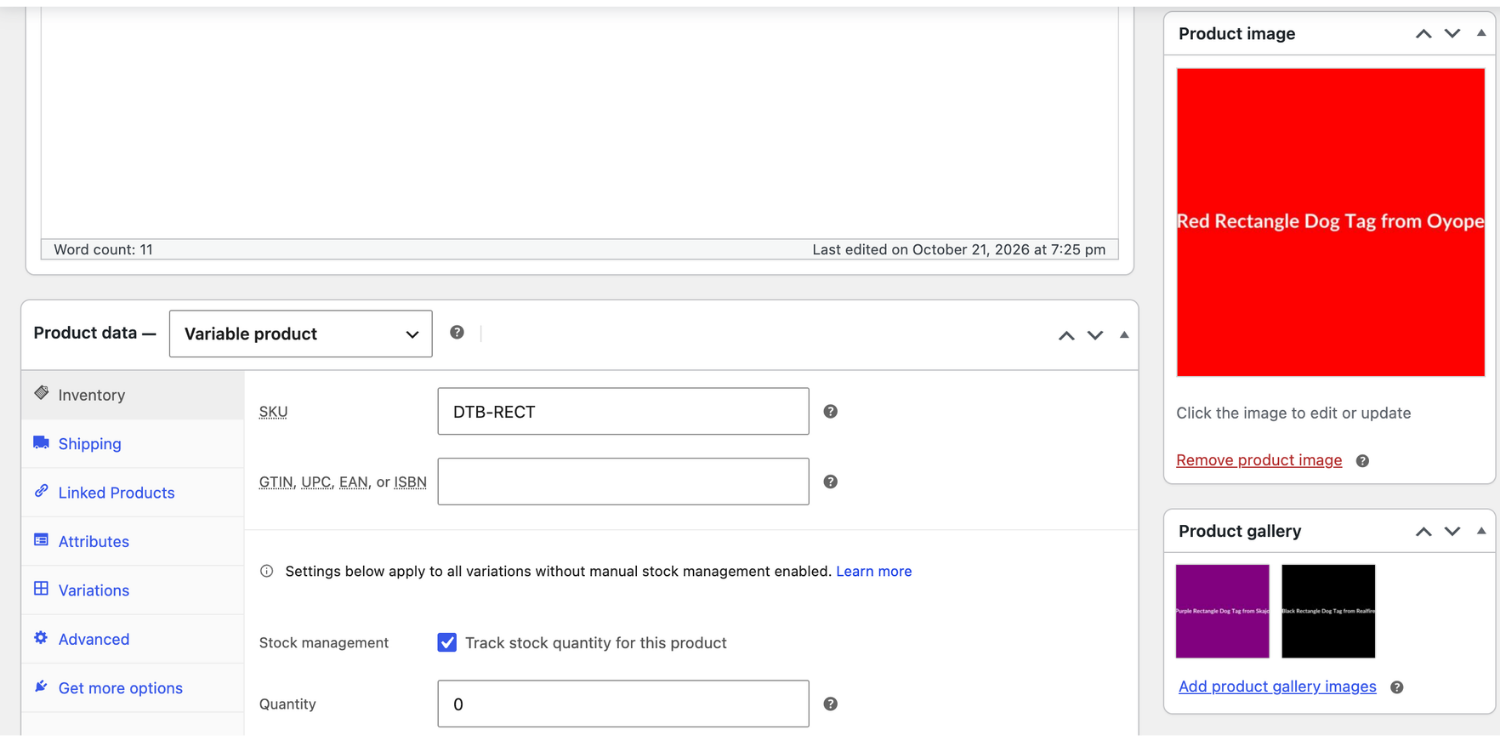
WP All Import treats the first image in each row as the featured image and adds the rest to the gallery, keeping the order they have in the import file.
Variation Images and Variation Galleries
On a variable WooCommerce product, each variation can have its own photo, so a T-shirt sold in several colors can show the right one as soon as a shopper picks it. That photo is stored on the variation itself, in the variation’s own _thumbnail_id.
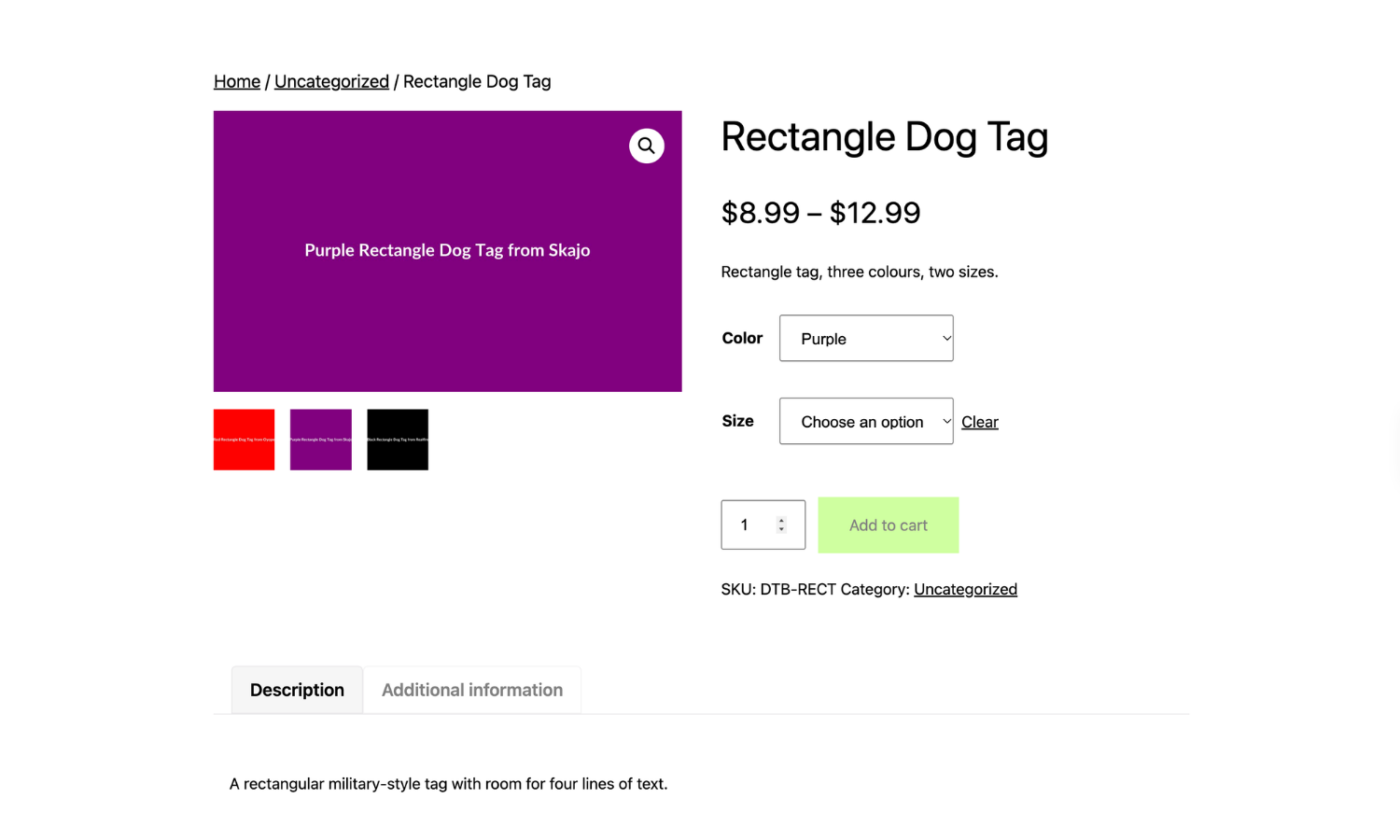
Variation galleries are built into WooCommerce and switched on for every store from version 11.1. On versions 10.9 to 11.0, the feature is off by default and needs enabling at WooCommerce > Settings > Advanced > Features > Variation gallery before a variation’s extra images appear on the product page.
WP All Import imports variation images and variation galleries in the same run as the parent product, from one shared image column or from separate columns.
One Image, One Media Library Attachment
Because products only point to their images, one file can serve any number of products. A photo used on a parent product and on one of its variations is still a single attachment in the Media Library. Its title, alt text, caption and description belong to that file, so every product using it shows the same details.
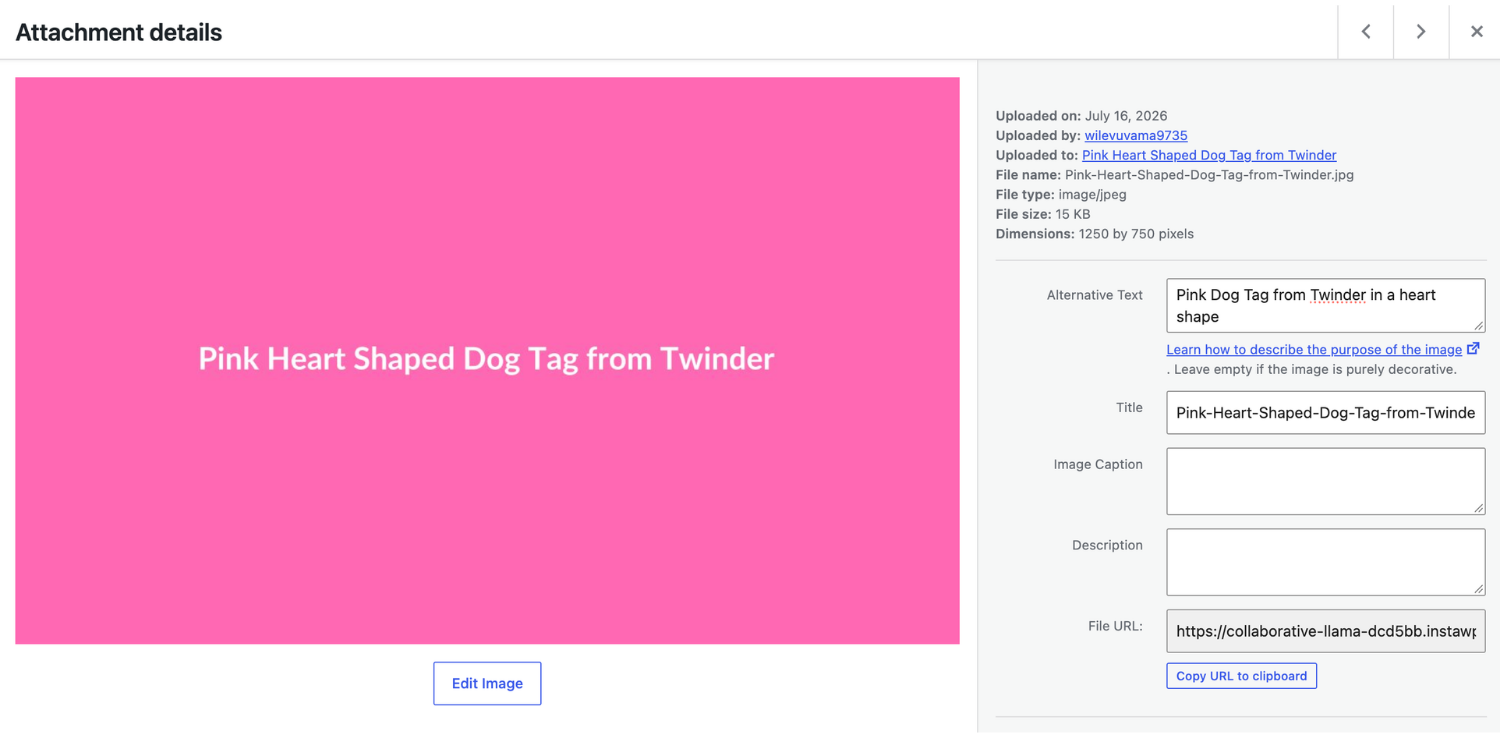
This is also where duplicate images come from. Downloading a URL that’s already in the Media Library creates a second copy, usually with -1 added to the filename. WP All Import avoids this by searching the Media Library by URL or filename before downloading anything, then attaching the file it finds.
Supported Image Formats
Older image formats work on any WordPress server. Newer ones, however, depend on the WordPress version and on the image library the host runs.
| Format | Supported since | What the server needs |
|---|---|---|
| JPEG, PNG, GIF | Long-standing | Nothing extra |
| WebP | WordPress 5.8 | WebP support in GD or Imagick |
| AVIF | WordPress 6.5 | AVIF support in GD or Imagick |
| HEIC / HEIF | WordPress 6.7 | Imagick with HEIC support; converted to JPEG on upload |
JPEG, PNG, and WebP are the safest choices for a large WooCommerce product image import. Before importing a full catalog of AVIF or HEIC files, run a test with a couple of products to confirm that the host can process them.
Where Product Images Can Come From
Supplier feeds usually point to images on the supplier’s own server, while a WooCommerce store owner moving a catalog manually often has a folder of photos sitting on a laptop. WP All Import has three built-in ways to source product images, and any other source needs just one extra step to fit one of them.
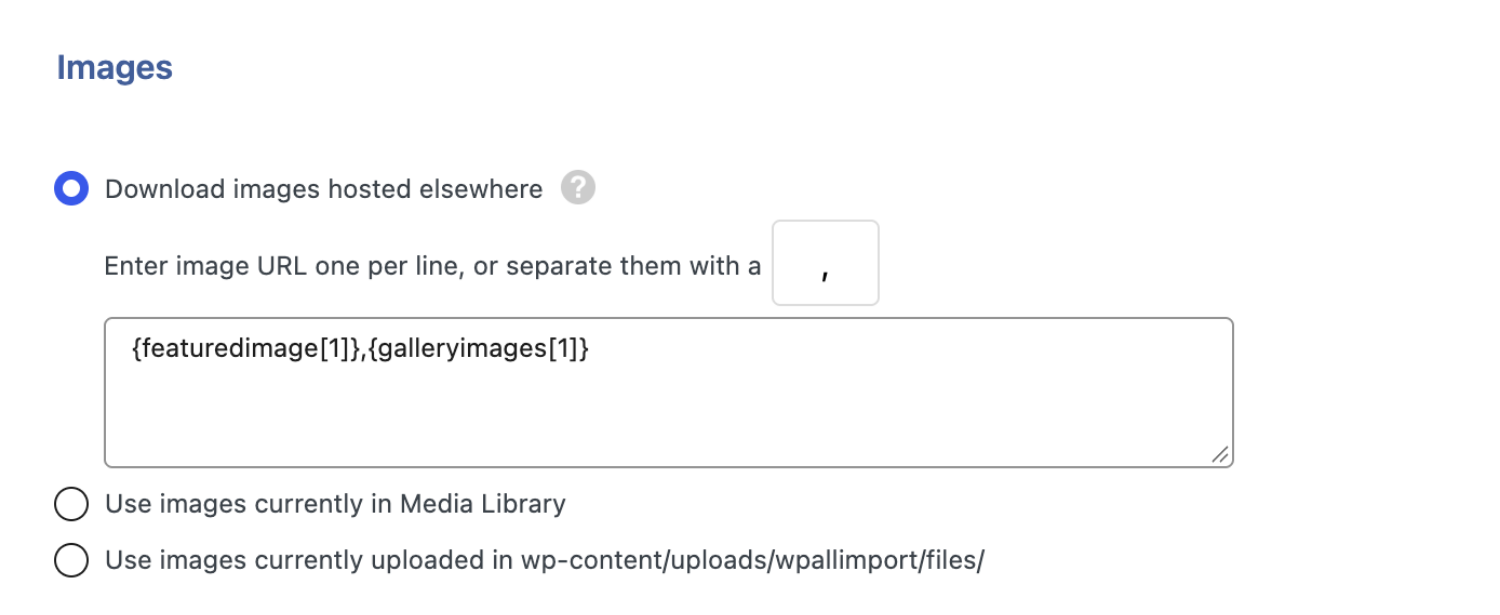
All three options sit at the top of the Images section.
| Option | What goes in the import file | Best for |
|---|---|---|
| Download images hosted elsewhere | Full image URLs starting with http:// or https:// | Supplier feeds and migrations from another store |
| Use images currently in Media Library | Image filenames, such as blue-mug.jpg | Photos already uploaded to WordPress |
| Use images currently uploaded in wp-content/uploads/wpallimport/files/ | Image filenames | Large batches uploaded by FTP or SFTP |
Download images hosted elsewhere is the default, and it’s the option most product image imports use. WP All Import downloads each URL into the Media Library and attaches the new file to its product.
The server folder option skips the download step entirely, since the files are already on the server. WP All Import copies each image into the standard uploads folder when the import runs, and subfolders inside wpallimport/files/ keep big batches organized.
Images from anywhere else need one step before WP All Import can use them:
- Images on a computer: upload them to the website first, by FTP to the wpallimport/files/ folder for example. A ZIP that bundles an import file with its images has to be unzipped first, because WP All Import can’t read images out of an archive.
- Google Drive and Dropbox: a share link opens a preview page rather than the image file, so it needs to be converted to a direct download link. The troubleshooting section covers how.
- A remote FTP or SFTP server: WP All Import can fetch these images with a short custom function, custom_file_download, placed in the image field.
- Images inside product descriptions: the “Scan through post content and import images wrapped in
tags” option downloads images embedded in the description HTML and points the tags at the local copies. The image URLs have to be absolute.
How to Prepare Your Import File
WP All Import doesn’t require WooCommerce product images in any particular layout, so the import file can usually stay as the supplier or old platform exported it. What matters is knowing which layout the file uses, because that decides how the image fields get mapped.
All Images in One Column
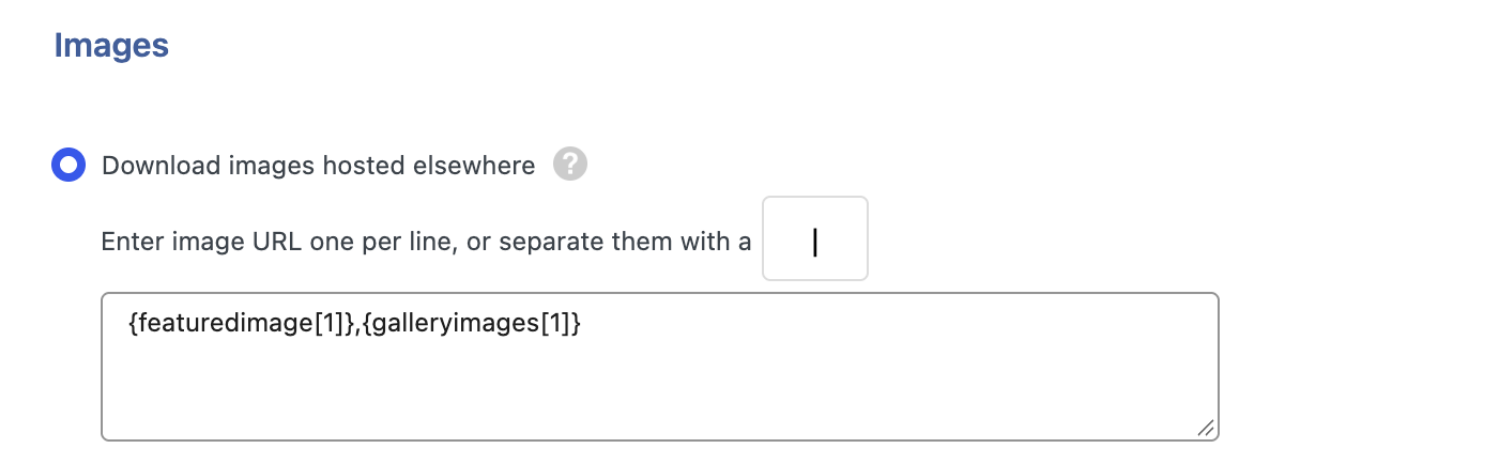
This is the most common layout. Every image URL for a product sits in a single cell, separated by a character such as a comma or a pipe.
SKU,Name,Images
MUG-01,Classic Mug,https://example.com/img/mug-front.jpg|https://example.com/img/mug-side.jpg|https://example.com/img/mug-back.jpg
WP All Import splits the cell on the separator set in the Images section of the Drag and Drop screen. With “Set the first image to the Featured Image” turned on, the first URL becomes the featured image, and the others fill the product gallery in order. The separator defaults to a comma, so a file that uses pipes needs that box changed to |.
A pipe is the safer choice when the file is yours to edit. Some image CDNs, Cloudinary for example, use commas inside their URLs, and a comma separator would cut those URLs in half.
If the column holds filenames instead of full URLs, the folder URL can be added in front of the mapped field, for example: https://example.com/img/{images[1]}.
One Image per Column
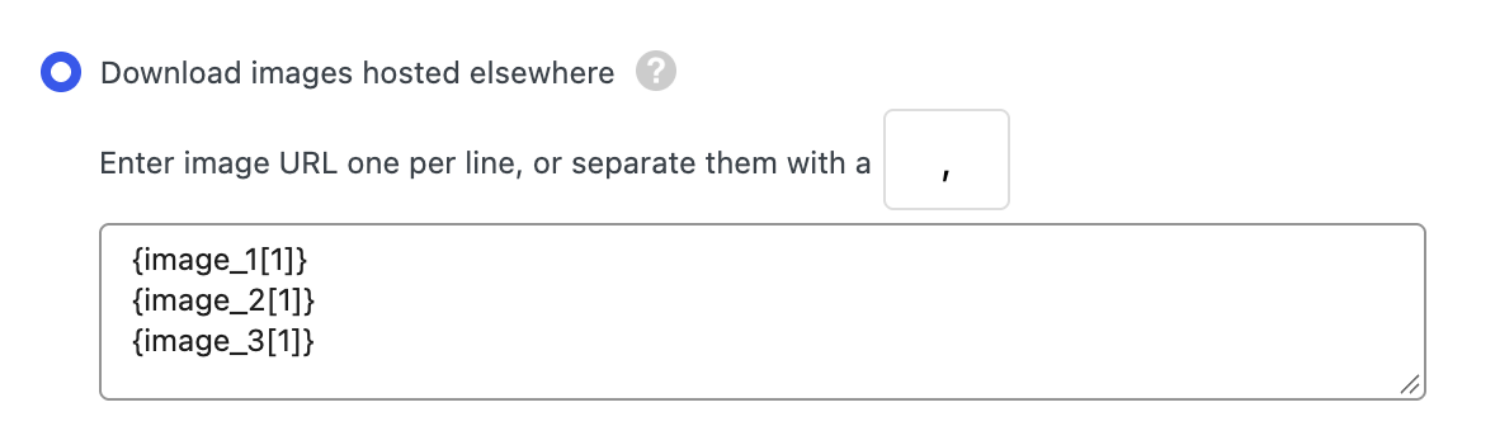
Some exports give each image its own column, such as Image 1, Image 2 and Image 3, and leave the extra columns blank for products with fewer photos. WP All Import ignores blank image values.
On the Drag & Drop screen, the panel on the right shows your file one record at a time. Use the record arrows to find a product that has a value in every image column, then drag each column into the image field on the left, one per line. Products with fewer photos still import correctly because WP All Import skips any image column that’s blank.
XML Image Elements and Attributes
XML feeds usually nest images inside a parent element, often storing each URL in an attribute rather than as text.
xml


  MUG-01
The XPath {images/image/@src} returns every src value as a comma-separated list, and WP All Import imports them all. When a URL is stored in an attribute, drag the attribute itself into the image field, not the element around it. For feeds that need a URL prefix or another change to each image, a FOREACH loop handles one element at a time.
Image Columns for Variable Products
In a variable product import, each variation has its own row that points back to its parent, usually through a parent SKU column. The same split applies to product images.
Images on the parent row belong to the product:
- First image: Becomes the product’s featured image.
- Remaining images: Fill the product gallery, in file order.
Images on a variation row belong to that variation:
- First image: Becomes the variation image.
- Remaining images: Fill the variation gallery (WooCommerce 10.9+ or a supported plugin).
SKU,Parent SKU,Color,Images
TEE-01,,Red|Blue,https://example.com/img/tee-red.jpg|https://example.com/img/tee-blue.jpg
TEE-01-RED,TEE-01,Red,https://example.com/img/tee-red.jpg|https://example.com/img/tee-red-back.jpg
TEE-01-BLU,TEE-01,Blue,https://example.com/img/tee-blue.jpg
WP All Import handles this layout with a single Images column or with separate featured, gallery, and variation image columns. Repeating a URL on several rows doesn’t create extra copies when the Media Library search option is on, because WP All Import attaches the file it already downloaded.
Image Title and Alt Text Columns
Image metadata columns work by position. The first alt text goes to the first image, the second to the second, and so on, so they need the same order and the same separator as the image column.
Images,Image Alt Text
https://example.com/img/mug-front.jpg|https://example.com/img/mug-side.jpg,Classic mug front view|Classic mug side view
Each metadata field in WP All Import has its own separator box, separate from the one for image URLs. If the image URLs are pipe-separated, set the title and alt text separators to | as well. Otherwise, every alt text in the row ends up on the first image.
A shared image keeps a single alt text in the Media Library, so give it the same description on every row that uses it.
How to Import WooCommerce Product Images with Automatic Setup
Automatic Setup is the quickest way to import WooCommerce products together with their images. It reads the import file and maps the image columns along with the rest of the product data, so most product image imports do not need drag and drop at all.
WP All Import’s Automatic Setup maps featured images, product galleries, variation images, and variation galleries, whether the file keeps every image in one column or splits them across several.
Step 1: Start a New Import and Upload Your File
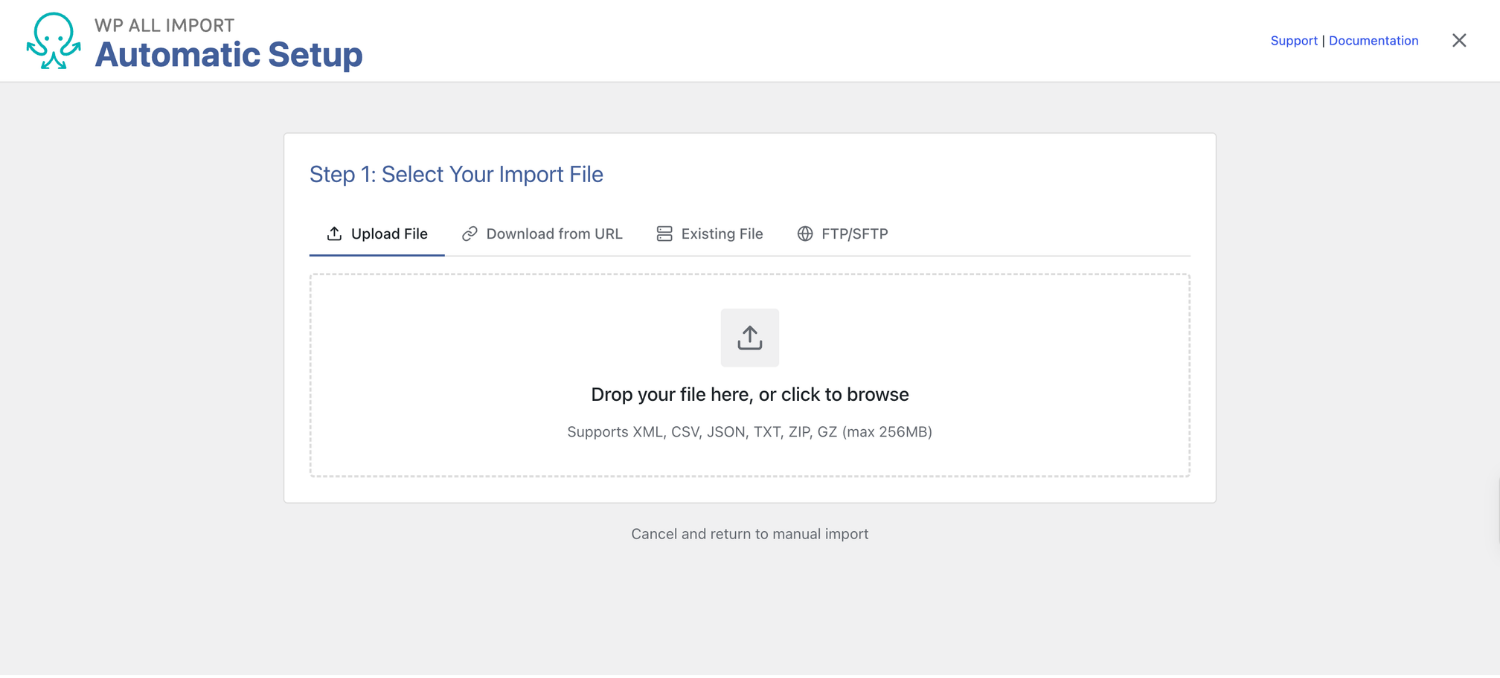
Go to All Import > New Import. The Set up automatically option sits at the top of the screen, above the manual import options. Click it, and in Step 1: Select Your Import File, upload the file that holds your products and their image URLs. WP All Import accepts XML, CSV, JSON and TXT files, and ZIP or GZ archives that contain one of them, up to 256 MB.
Step 2: Choose WooCommerce Products and Review the Image Mappings
After the upload, the Choose What to Import screen asks what the file contains. Select WooCommerce, then Products, and click Start Automatic Setup. Accept the data processing notice that appears, and Automatic Setup starts mapping the file, ticking off each section as it goes, with Images among them.
Optional: use Add Setup Instructions to explain anything unusual about the file, one note per line in the format • 'Rows with a Parent SKU value are variations of that product'. Most product image imports don’t need it.
When it finishes, the Your Import Is Ready screen shows how many fields were mapped and how many records will be imported. Expand Field Mappings and check that the image rows are there before running anything.
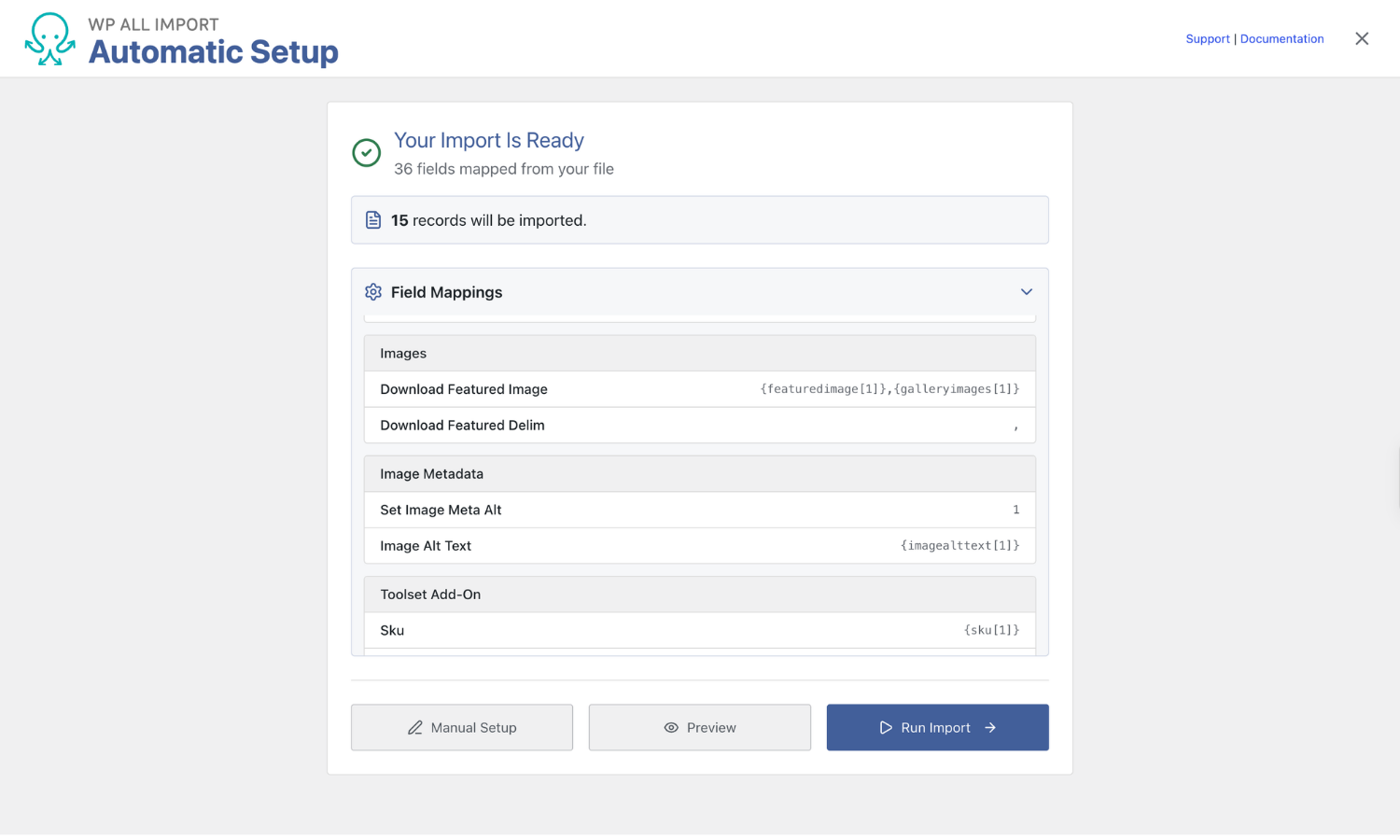
Automatic Setup maps the following from image columns:
| Image field | Mapped by Automatic Setup |
|---|---|
| Featured image | ✅ |
| Product gallery | ✅ |
| Variation image | ✅ |
| Variation gallery | ✅ |
| Image title and alt text | ✅ Check the separator |
Step 3: Confirm the Image Separators in Manual Setup
Files without image title or alt text columns can skip this step.
If the file includes those columns, click Manual Setup on the Your Import Is Ready screen. WP All Import opens the manual import screen with every automatic mapping already filled in.
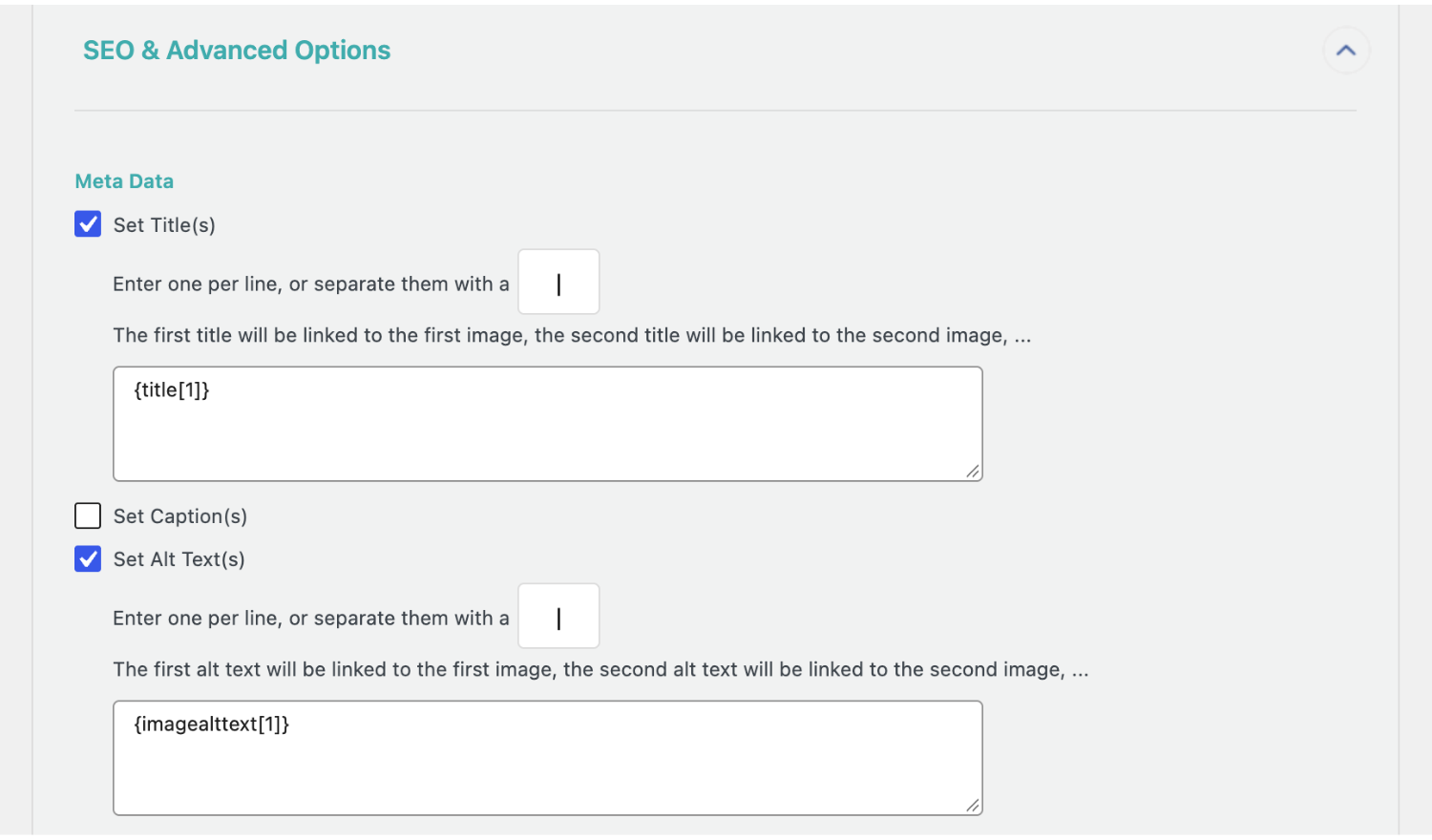
Scroll to the Images section and check that the separator next to the image URLs matches the character the file uses. Then expand SEO & Advanced Options. Under Meta Data, the Set Title(s) and Set Alt Text(s) fields each have their own separator box.
Automatic Setup maps image title and alt text columns correctly but leaves their separator boxes set to a comma. If the file separates image URLs with pipes, change both boxes to |. Otherwise, every title or alt text in a row is saved to the first image as one long string.
Step 4: Run the Import
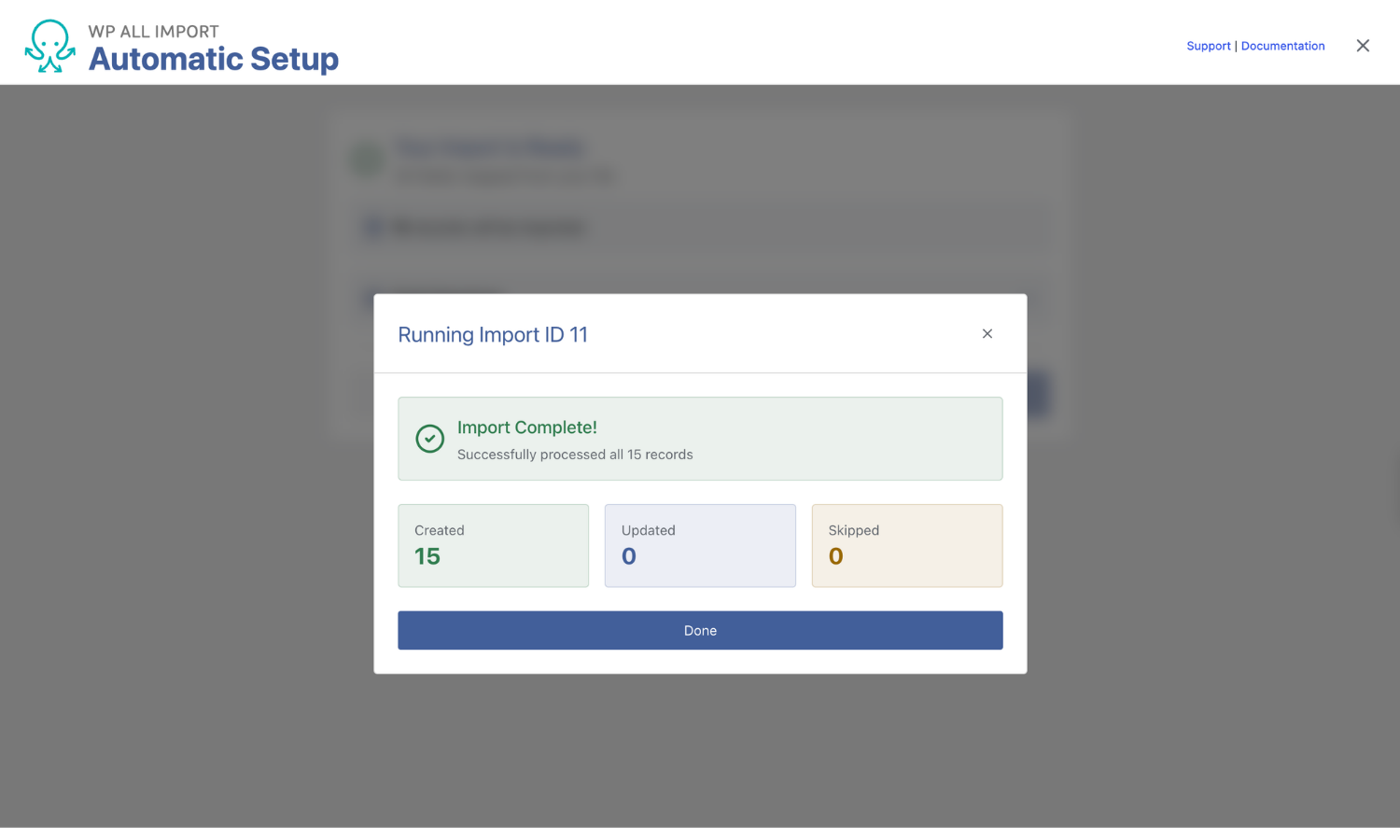
If nothing needed changing in Manual Setup, click Run Import on the Your Import Is Ready screen. When the import finishes, a summary shows how many products were created, updated and skipped.
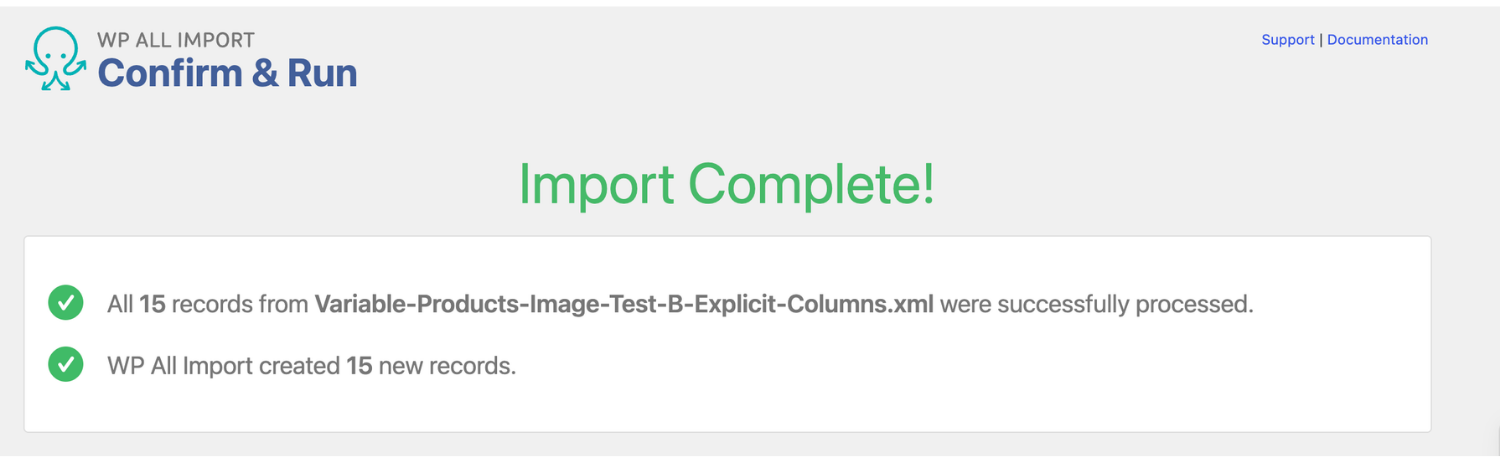
If you made changes in Manual Setup, click Continue to Import Settings, then Continue, then Confirm & Run Import. The Confirm & Run screen shows the same counts once the import is done, along with a View Logs link if anything needs attention.
Images take longer to import than text fields because WP All Import downloads each file. If the summary mentions warnings, open the log before checking the products. A message saying a file “is not a valid image” usually means the image separator doesn’t match the file.
Step 5: Check Your Imported Images
A few quick checks confirm every image landed in the right place:
- Products › All Products: the thumbnail column shows each product’s featured image.
- The product edit screen: the Product gallery box holds the remaining images, in the same order as the file.
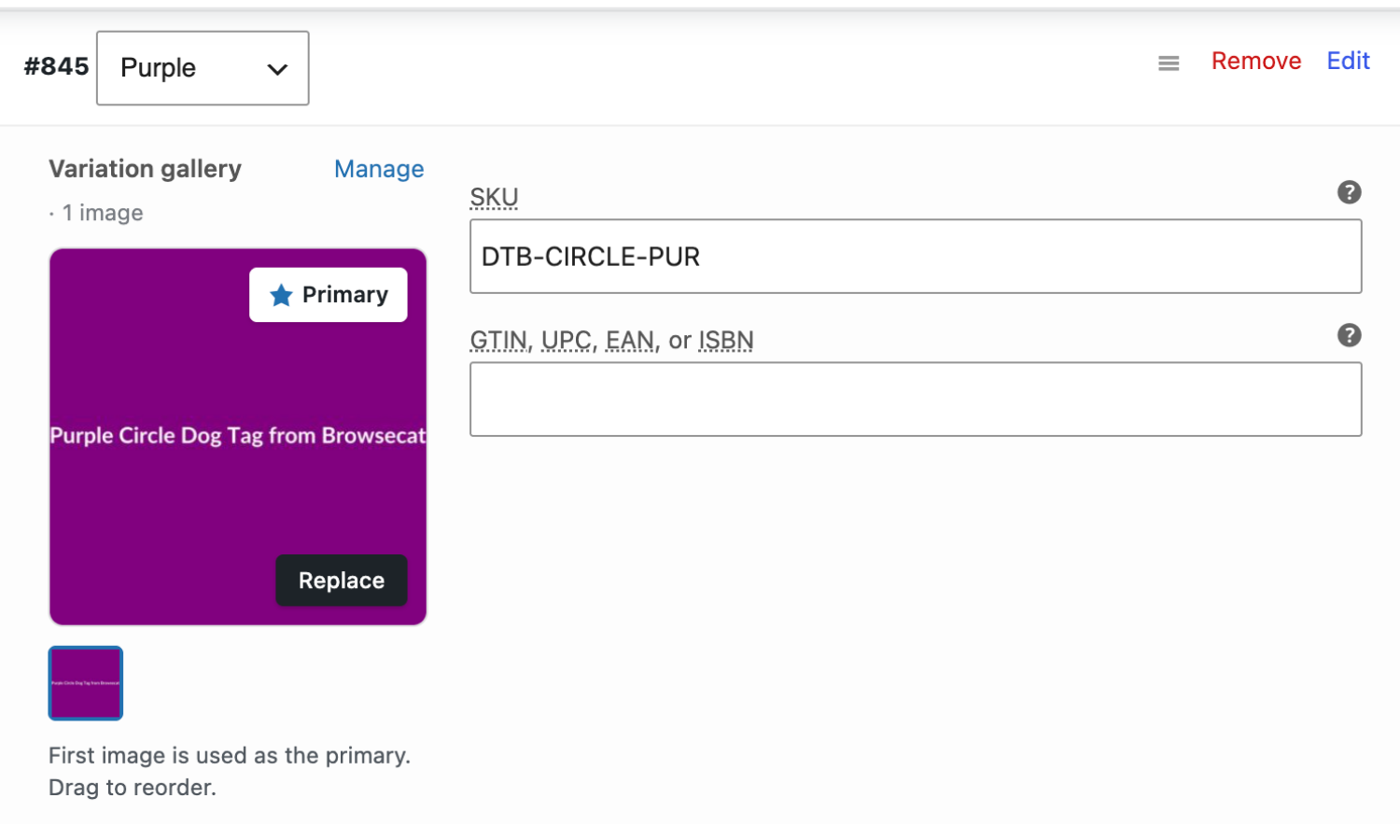
- The Variations tab: each expanded variation shows its own image, plus its gallery if variation galleries are enabled.
- Media › Library: the number of new files matches the number of unique images in the file. A higher number means some images were downloaded twice.

How to Import Product Images with Manual Setup
Manual Setup puts every image setting in front of you, and for a file with one image column, mapping product images takes a single drag. All of those settings sit in the Images section of WP All Import’s Drag & Drop screen, which works from top to bottom.
Choose the Image Source
The radio buttons at the top of the Images section tell WP All Import where to find each image: full URLs to download, filenames to match in the Media Library, or filenames in the wp-content/uploads/wpallimport/files/ folder. The source decides what the mapped column has to contain, so pick it before dragging anything in.
Map Image Fields and Set the Separator
Manual Setup puts every image setting in front of you, whether the import came through Automatic Setup or started from scratch. All of them sit in the Images section of the Drag & Drop screen, which works from top to bottom.
If you came from Automatic Setup, the image field is already mapped, so check that the separator box next to it matches the character your file uses. For a new manual import, drag the image column from the file panel on the right into the image field and set the separator yourself. Images spread across several columns go in one per line.
Image Options
Below the image field, a set of checkboxes controls how WP All Import handles each file. Most product image imports work with the defaults, but a few options are worth knowing before the first run.
| Option | What it does |
|---|---|
| Search the Media Library for existing images | Reuses an image already matched by URL or filename instead of downloading it again |
| Keep images currently in Media Library (default) | Leaves a product’s existing images in place when an import updates it |
| Scan post content for |
Imports images embedded in descriptions (absolute URLs only) |
| Set the first image as the Featured Image (default) | Makes the first mapped image the product’s main photo |
| Create entry as Draft if no images download | Keeps products without images from going live |
| Skip image metadata and sizes during import | Hands thumbnail creation to WP Cron to speed up large imports |
| Attempt to preload images | Downloads a product’s images at the same time, for slow image hosts |
Unchecking Keep images currently in Media Library makes WP All Import remove a product’s current images before importing the new ones. Use it when photos change at the source without their URLs changing. It also turns off the option to skip products whose data hasn’t changed.
SEO & Advanced Options
The SEO & Advanced Options panel at the bottom of the Images section handles image metadata and filenames. Under Meta Data, WP All Import can set a title, caption, alt text and description for every imported image. Each field takes its values in the same order as the images and has its own separator box.
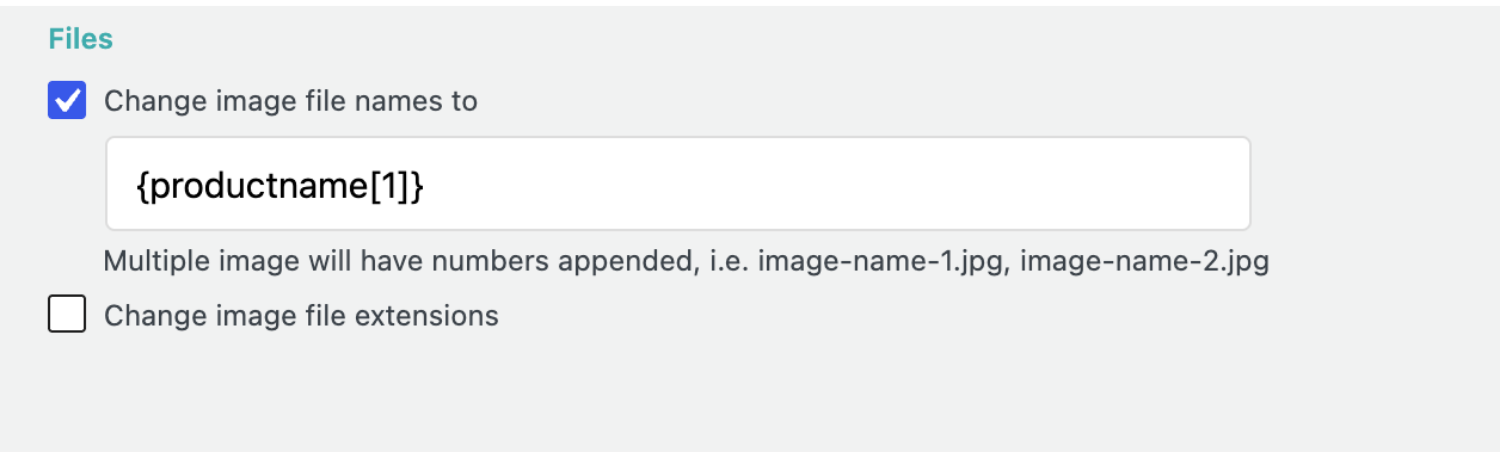
The Files settings below rename images as they’re imported. Change image file names to can build descriptive filenames from the product data, such as the product name, which gives search engines a clearer filename than a supplier’s numbered one. Change image file extensions sets the extension on every imported file.
Test Images with Preview & Test
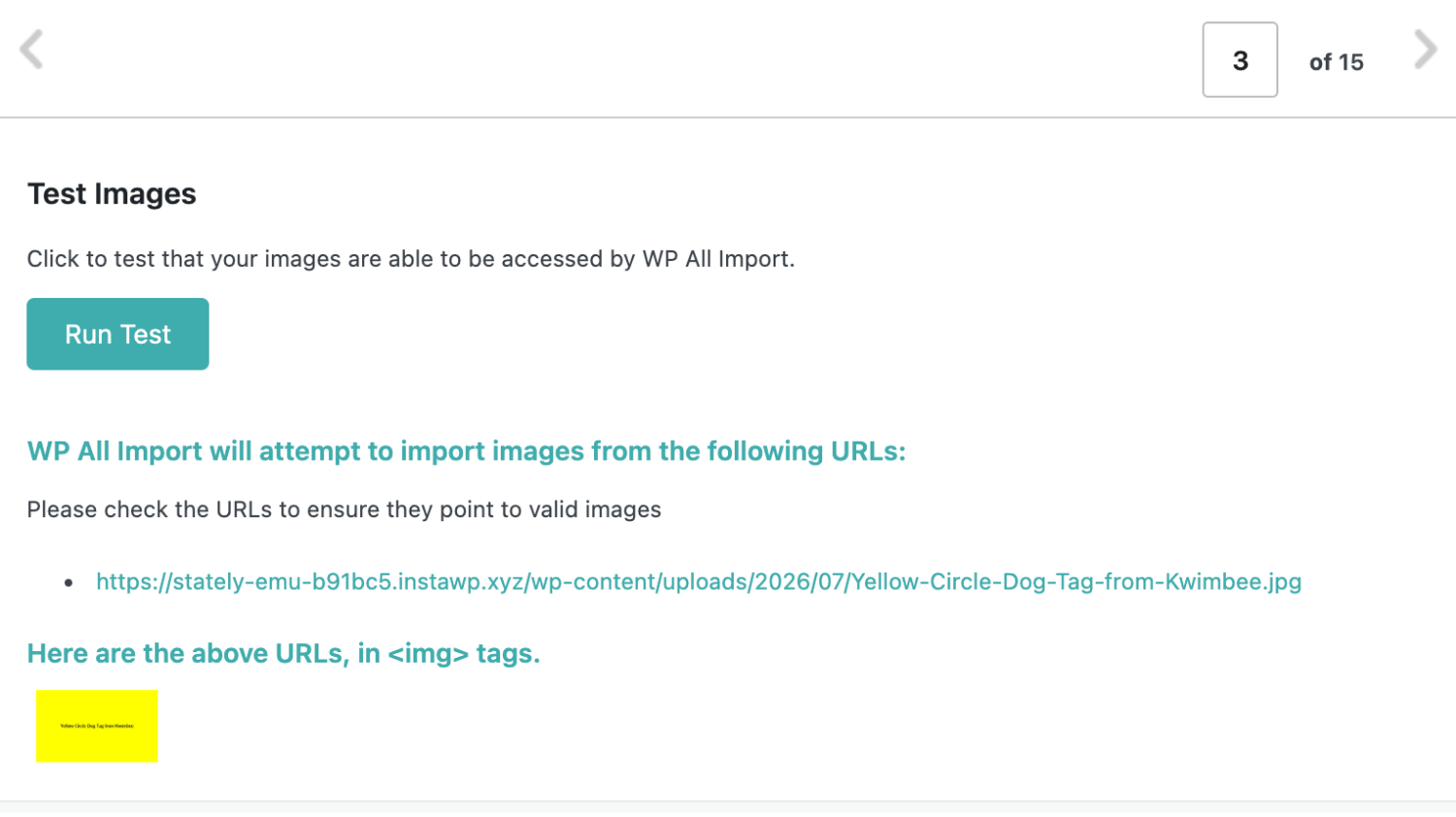
The Preview & Test button under the image field shows the final image URLs WP All Import will use, after any separators, prefixes, or functions are applied. It’s the quickest way to catch a URL that’s been cut in half or joined to the next one. If an image previews correctly but still doesn’t import, see the troubleshooting section.
How to Import Images for Variable Products
Variable products need images at two levels: the parent product’s own photos and an image for each option a shopper can pick. WP All Import imports parent product images and variation images for WooCommerce variable products in a single import, without a second pass to add variation images afterward.
One Image per Variation
The first image on a variation’s row becomes that variation’s image. WP All Import assigns it as it creates the variation, and WooCommerce swaps it in when a shopper selects that option.
A variation with no image imports without errors. WooCommerce simply shows the parent product’s featured image for it instead.
Multiple Images per Variation
Any extra images on a variation row go into that variation’s gallery, as long as the store supports variation galleries:
- WooCommerce 10.9 or later: turn on Variation gallery under WooCommerce › Settings › Advanced › Features.
- Older versions: install WooCommerce Additional Variation Images or Additional Variation Images Gallery for WooCommerce. WP All Import then adds an Import additional variation images option to the Variations tab of the WooCommerce Add-On section. Turn it on.
For other variation gallery plugins, a developer can send the images to them with WP All Import’s pmxi_gallery_image hook.
Reusing Images Across Variations
Variations often share photos. A T-shirt sold in Small and Large usually shows the same blue photo for both sizes, and listing that URL on both rows is fine. With the Media Library search option on, WP All Import downloads the photo once and attaches the same file to every variation that lists it.
That shared file has one title and one alt text, so describe the image itself rather than the size. “Blue cotton T-shirt, front view” works for every variation that uses it.
How to Update Images on Existing WooCommerce Products
Product images change over time. A supplier reshoots a range, or a catalog that launched with placeholders finally gets real photos. WP All Import updates images on WooCommerce products that already exist, matching each row in the import file to its product by SKU so nothing gets created twice.
Three settings in Import Settings control an image update:
- Match existing products. Set the import to update existing products and match them by SKU. Imports set up through Automatic Setup reach these settings through the Manual Setup button.
- Update only what changed. Under Choose which data to update, select images and leave other data unticked, so prices and descriptions stay exactly as they are.
- Keep or replace the current images. This depends on whether the image URLs change along with the photos.
Keep images (default):
- What happens: Existing images stay in place, and images that match by URL are reused.
- Use when: New photos come with new URLs, or for scheduled feeds.
- Speed: Unchanged products can be skipped to save time.
Replace images:
- What happens: The product’s current images are removed before the file’s images are imported.
- Use when: New photos are published at the same URLs.
- Speed: Every product is processed on every run.
To replace images, untick Keep images currently in Media Library in the Images section.
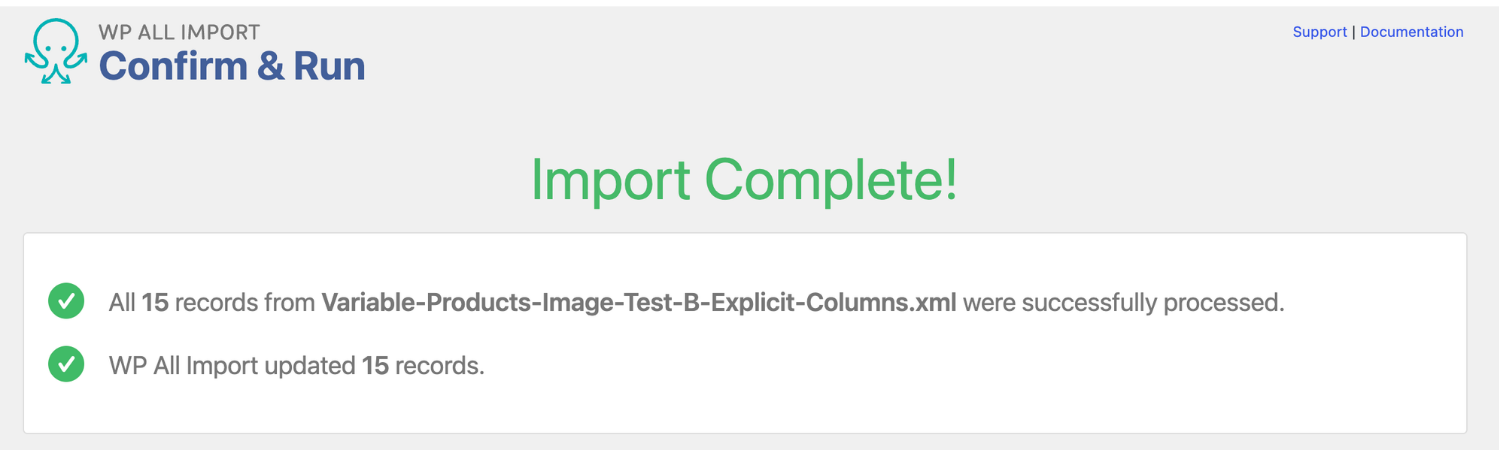
A successful update run reports that every record was processed and that WP All Import updated them.
If the summary says WP All Import created records instead, the import isn’t matching the products already in the store. Check the unique identifier on the Import Settings screen before running it again.
How to Avoid Duplicate WooCommerce Product Images
Duplicate images build up when the same picture is downloaded more than once. It happens when one image appears on several products in the same file, and it happens again every time a scheduled import runs. Each copy gets a -1, -2 or -3 added to its filename, and none of the products show any difference.
Some product import tools treat these duplicates as normal because they can’t check whether an image is already in the Media Library. WP All Import checks before it downloads any product image. With Search through the Media Library for existing images before importing new images turned on, it reuses any image it finds and only downloads the ones that are new.
The search can match images by URL or by filename, and the right choice depends on the file:
Match by URL (default):
- Best when: Image URLs stay the same between imports, as in most supplier feeds.
- Filenames: Safe with generic filenames such as image1.jpg.
Match by filename:
- Best when: The same image can arrive from different URLs, or was uploaded to the Media Library earlier.
- Filenames: Need to be unique across the whole catalog.
For scheduled imports, keep both Search through the Media Library and Keep images currently in Media Library turned on. Together, they let each run reuse what’s already on the site instead of downloading the whole catalog again.
To check an existing store for duplicates, search the Media Library for “-1”. Any results are copies created by earlier uploads or imports.
How to Import Thousands of WooCommerce Product Images
Every WooCommerce product image costs an import two things: the time to download the file, and the time WordPress spends creating thumbnail sizes from it. Across a few hundred products, nobody notices. Across tens of thousands of images, those two steps decide whether an import finishes in an hour or times out partway through.
WP All Import has a setting for each bottleneck, and a few changes to an import file help as well:
Skip image sizes during the import
Turn on Do not generate image metadata or additional image sizes during import. WP All Import hands thumbnail creation to WP Cron, which works through it after the import finishes.
Speed up slow image hosts
Turn on Attempt to preload images when products have several images on a slow server. It downloads each product’s images at the same time instead of one after another.
Avoid downloading anything twice
Keep Search through the Media Library and Keep images currently in Media Library on, so repeat runs only fetch new images.
Skip the download completely
Upload the image files to wp-content/uploads/wpallimport/files/ by FTP and import them by filename.
Turn off what you don’t need
Leave the
Process fewer records at a time
If the import still times out, lower the number of records processed in each iteration under Advanced Settings.
Image optimization plugins compress each image as it arrives, which slows imports and can stop thumbnails being created. Pause them during a large import and run their bulk optimiser afterwards.
WP All Import always downloads images to WordPress first. Stores that serve images from Amazon S3 or another CDN can offload them with a separate plugin once the import is done.
For server-side limits such as memory and execution time, see WP All Import’s guides to slow imports and server configuration.
Handling Product Image SEO During Import
Google relies on an image’s filename and alt text to understand what a product photo shows. Supplier feeds and exports from other platforms rarely help. Product image files arrive named IMG_4471.jpg or 8812730_01.jpg, and alt text is usually missing altogether. WP All Import writes alt text, titles, captions, and descriptions, and renames image files, during the same import that creates the WooCommerce products.
WooCommerce’s built-in product CSV importer has a single Images column but no fields for image metadata. WooCommerce’s own documentation states that its importer cannot add, edit, or update alt text.
Set Alt Text, Titles, Captions, and Descriptions
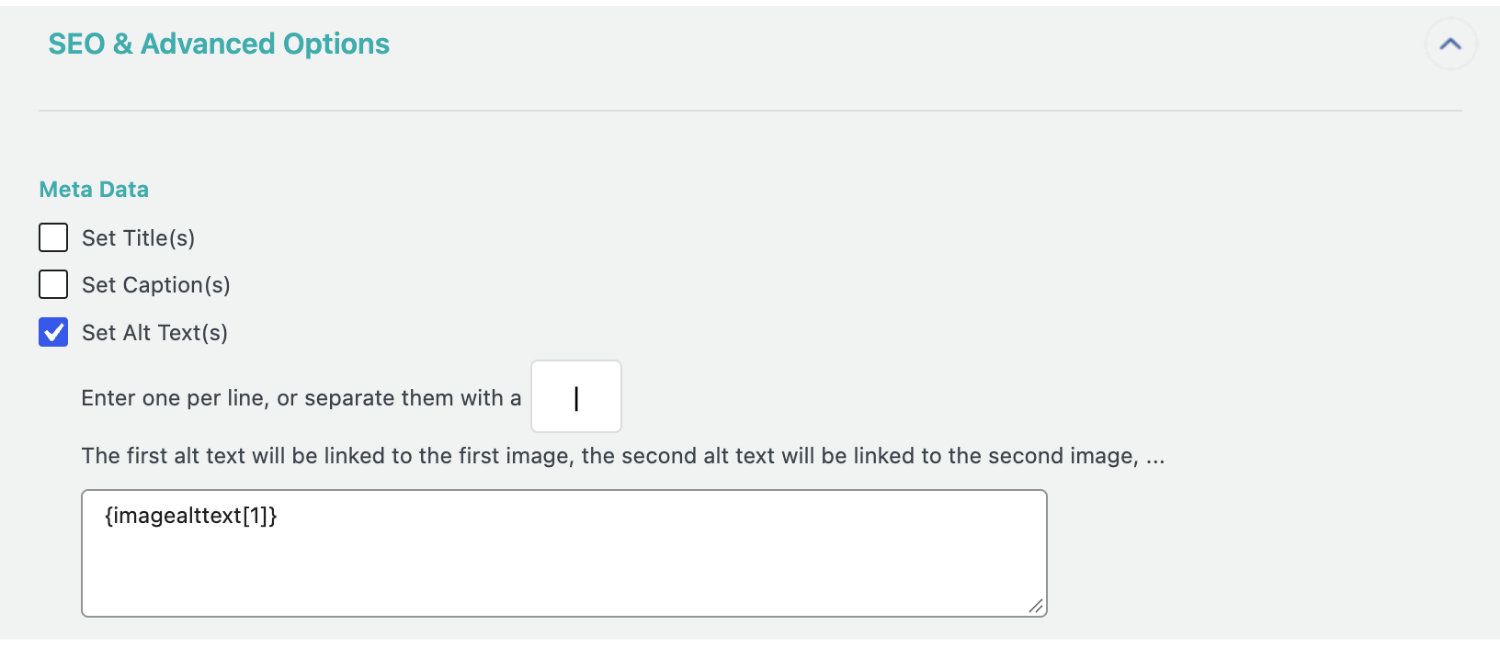
The settings live in the Images section of the WP All Import import template, under SEO & Advanced Options › Meta Data. Tick Set Alt Text(s), Set Title(s), Set Caption(s), or Set Description(s), then drag the matching column from your file into the box, or type static text.
WP All Import assigns image metadata by position. The first alt text value goes to the first image URL in the record, the second value to the second URL, and so on. A single value covers the first image only. In a test import of one product with three images and one alt text value, only the featured image received alt text. Both gallery images were left blank.
To describe every image, list one value per image in your file, in the same order as the image URLs:
Images: red-tag.jpg|yellow-tag.jpg|purple-tag.jpg
Image Alt Text: Red circle dog tag|Yellow circle dog tag|Purple circle dog tag
Each metadata field has its own separator box, and it defaults to a comma. Alt text often contains commas (“Dog tag, red, engraved”), so set the separator to a character your descriptions never use, such as |.
Rename Image Files
Under SEO & Advanced Options › Files, tick Change image file names to and map a field from your file.
For example, mapping the product name field renames a supplier’s IMG_4471.jpg, IMG_4472.jpg, and IMG_4473.jpg for a product called “Leather Dog Collar” to Leather-Dog-Collar.jpg, Leather-Dog-Collar-1.jpg, and Leather-Dog-Collar-2.jpg, respectively.
WP All Import adds the numbered suffixes itself, and it uses the new filenames as the image titles because no title was mapped.
Renaming happens when WP All Import downloads an image. If Search through the Media Library for existing images finds a match, WP All Import reuses that image under its current filename. Alt text and the other metadata fields still update on a reused image. Because one Media Library image can sit on several WooCommerce products, new alt text written to a shared image appears on every product that uses it.
Troubleshooting WooCommerce Product Image Imports
When a WooCommerce product image fails to import, the import log usually explains why. WP All Import records every image it processes in the import log, listed under the product it belongs to. Open the log from the View Logs link on the completion screen.
A healthy image entry shows WP All Import importing the URL and searching the Media Library (if that option is on), then either reusing an existing image or downloading a new one. A failed image import adds a warning that names the URL.
Before changing any settings, paste that URL into a private browser window to test it out. Most image problems turn out to be a URL that doesn’t lead straight to an image file.

Images Show in Preview but Don’t Import
The preview on WP All Import’s Drag & Drop screen shows the image URLs WP All Import plans to use. It doesn’t download them. To confirm a URL returns an image, open Preview & Test in the Images section and run the test there.
A URL that opens in a browser but fails the test usually means the image host blocks requests from servers. Supplier sites with hotlink protection or a strict firewall behave this way. Ask the supplier to allow your server’s IP address, or download the images and import them from your server.
Downloading images from URLs is a WP All Import Pro feature. The free version creates the products without them.
To keep imageless products off the storefront while you fix the cause, tick Create entry as Draft if no images download in the image options. WP All Import then saves any product without a downloaded image as a draft.
“Not a Valid Image” Warnings
This warning means WP All Import reached the address and got back something other than an image file. The server sent a web page instead, often a 404 error or a login screen.
A correct image URL opens in a private browser window as the image alone. If a full page loads around the image or a sign-in form appears, the URL points to a page and needs to be replaced with the file’s direct address.
The same warning appears when several URLs in one cell are read as a single address, which is covered below.
Google Drive and Dropbox Images Won’t Import
A sharing link from Google Drive or Dropbox opens a preview page rather than the image file. WP All Import receives that page and logs a “not a valid image” warning. Both services offer a direct download version of the same link.
- Dropbox: change dl=0 at the end of the link to dl=1.
- Google Drive: set the file’s sharing to “Anyone with the link,” copy the file ID from the share link, and use https://drive.google.com/uc?export=download&id=FILE_ID.
Filenames or Relative Paths Instead of URLs
An image column that reads red-tag.jpg or /images/red-tag.jpg gives WP All Import no domain to download from. The fix depends on where the files live.
- Already in the Media Library: choose the option to use images currently in the Media Library, and WP All Import matches them by filename.
- On your computer: upload them to wp-content/uploads/wpallimport/files/ and choose the server folder option. Subfolders work too.
- On the supplier’s website: type the missing part of the address in front of the mapped field, for example https://supplier.com/images/{image[1]}. For cells with several filenames, the URL import documentation links to a short function that adds the domain to each one.
Multiple Image URLs in One Cell Don’t Import
WP All Import splits a cell of product image URLs using the separator set in the Images section, and that separator defaults to a comma. When a file separates its URLs with pipes (|) or semicolons, the whole cell goes through as one long URL, and it fails as “not a valid image.”
In a test import of 15 variable products, a pipe-separated image column with the separator left at a comma produced 11 of these warnings in one run.
Type the file’s separator into the separator box beside the image field. On an import mapped by Automatic Setup, click Manual Setup on the Your Import Is Ready screen to reach the box.
Missing or Blank Product Thumbnails
A product with gallery images but no thumbnail in the WooCommerce product list has no featured image. That happens when Set the first image to the Featured Image is unticked. If it was ticked, look in the log for a warning on the product’s first URL.
When product images import but the Media Library does not show dimensions for them, the image sizes were never generated. Ticking Do not generate image metadata or additional sizes speeds up an import by handing that work to WP Cron.
On a site where WP Cron is disabled and no server cron replaces it, those jobs never run. Untick the option for future imports and regenerate sizes for existing images with a thumbnail regeneration plugin or wp media regenerate.
AVIF images need WordPress 6.5 or later and a server image library that supports AVIF. HEIC images need WordPress 6.7 or later and Imagick with HEIC support.
Variation Images or Galleries Missing
A variation that shows the parent product’s main image does not have an image of its own. WooCommerce falls back to the parent image whenever a variation’s image field is empty. Check that the variation’s row in the file has an image value and that the column is mapped.
Variation galleries are built into WooCommerce and switched on for every store from version 11.1. On versions 10.9 to 11.0, the feature is off by default and needs enabling at WooCommerce › Settings › Advanced › Features › Variation gallery before a variation’s extra images appear on the product page.
WP All Import’s Automatic Setup maps clearly labeled variation image and variation gallery columns in a WooCommerce product file without any manual field mapping.
Image Titles or Alt Text Contain Several Values
When the first image’s alt text reads “Red tag|Yellow tag|Purple tag” and the other images have none, the metadata separator doesn’t match the file. Each field under SEO & Advanced Options › Meta Data has its own separator box, separate from the image URL separator, and each one defaults to a comma. Set it to the character the file uses.
Images on an FTP or SFTP Server
WooCommerce product images on an FTP or SFTP server need one extra step. For a one-off import, download them, upload them to wp-content/uploads/wpallimport/files/, and import by filename. For a recurring import that pulls fresh product images from the server on each run, WP All Import’s documentation provides a code snippet built on the custom_file_download function.
Images Inside Product Descriptions
WP All Import imports WooCommerce product images from tags in product descriptions when the scan option in the image settings is ticked. The tags must use absolute URLs. https://supplier.com/images/red-tag.jpg imports, and /images/red-tag.jpg doesn’t.
WP All Import vs. WooCommerce’s Built-In Importer
WooCommerce includes a product CSV importer on the Products screen. Image URLs go in a single Images column, separated by commas. The first image becomes the featured image. Images already in the Media Library can be referenced by filename.
| Task | WooCommerce Importer | WP All Import |
|---|---|---|
| Import product images from URLs | ✅ | ✅ |
| Use images already in the Media Library | ✅ | ✅ |
| Import from XML and JSON files as well as CSV | ❌ | ✅ |
| Use any separator between image URLs | ❌ | ✅ |
| Use images uploaded to a server folder | ❌ | ✅ |
| Set image alt text | ❌ | ✅ |
| Set image titles, captions, and descriptions | ❌ | ✅ |
| Rename image files during import | ❌ | ✅ |
| Change image values with PHP functions | ❌ | ✅ |
| Schedule recurring image imports | ❌ | ✅ |
WP All Import imports WooCommerce product images from CSV, XML, and JSON files in whatever layout the file already has, and Automatic Setup maps the image columns without a template to follow. The same import sets alt text and captions and renames image files to match the product. WooCommerce’s own documentation states that its importer cannot add, edit, or update alt text. WooCommerce import packages are listed on the WP All Import pricing page.
Final Thoughts — Importing WooCommerce Product Images
A WooCommerce product import can finish with every price and SKU in place and still leave the shop looking half-built. Products without photos are created like any other products, so the gap appears on the storefront rather than on the import screen.
Most of the time the cause sits in the file, usually an image URL that opens a preview page instead of the actual photo, or a separator that doesn’t match. Opening a few URLs in a private browser window and checking the separator catches both before the import runs.
WP All Import imports WooCommerce featured images, gallery images, and variation images in a single import, and Automatic Setup maps those image columns without manual field mapping. With Media Library search turned on, WP All Import matches previously imported images by URL and reuses them, so running an import again doesn’t create duplicates. Alt text, captions, and SEO-friendly filenames are set in the same run, which means product images reach the Media Library already described for search engines. For a WooCommerce store, that means the image work is done when the import finishes, with no alt text or filenames left to fix by hand afterward.
Frequently Asked Questions — Importing WooCommerce Product Images
How do I bulk upload product images in WooCommerce?
WP All Import bulk uploads WooCommerce product images during a product import. It downloads every image listed in the file and attaches each one to the right product.
- Prepare a CSV, XML, or JSON file with one row per product and the image URLs in one or more columns.
- Go to All Import › New Import and choose Set up automatically.
- Upload the file, select WooCommerce › Products, and click Start Automatic Setup, then I Understand, Continue.
- On the Your Import Is Ready screen, check the image rows in the Field Mappings panel.
- Click Run Import.
How do I add multiple images to a WooCommerce product with a CSV file?
Adding multiple images to a WooCommerce product with a CSV file takes either one cell of image URLs or one column per image. For a single cell, separate the URLs with a character such as a comma or pipe, and enter the same character in the separator box in WP All Import’s Images section. For separate columns, map each column on its own line in the image field. WP All Import makes the first image the featured image and adds the rest to the product gallery, provided Set the first image to the Featured Image is ticked.
Can you import WooCommerce product images from URLs?
Yes, WooCommerce product images can be imported from URLs. WP All Import downloads each image from its URL, saves it to the Media Library, and attaches it to the product in the same import. Each URL must lead directly to the image file, not to a web page that displays it. With Search through the Media Library for existing images before importing new images turned on, WP All Import reuses images it has already downloaded instead of saving duplicate copies.
How do I add alt text to WooCommerce product images during import?
WP All Import adds alt text to WooCommerce product images during the import, using values from the import file.
- Add an alt text column to the file with one value per image, in the same order as the image URLs.
- On the Drag & Drop screen, open SEO & Advanced Options in the Images section. On an import mapped by Automatic Setup, click Manual Setup to reach this screen.
- Under Meta Data, tick Set Alt Text(s) and drag the alt text column into the box.
- Set the separator box beside it to the character the file uses between values.
- Click Continue, then Confirm & Run Import.
Related Information