You start the import, and the progress bar moves fast at first. Around the two-thousandth product, it slows down, then stops with a generic error in the log.
Half the catalog is live, and half is missing. The storefront feels slow too, because every product write competes with the same database shoppers are using.
In this guide, we’ll cover how to manage large WooCommerce product imports and how to get the full catalog in on the first pass.
Why Large WooCommerce Product Imports Fail
An import writes one row at a time, and each row triggers more work than it appears. WordPress saves the product with wp_insert_post(). Every custom field runs through update_post_meta(). Categories and attributes go through wp_set_object_terms().
Each new product import call fires the hooks that other plugins registered. An SEO plugin recalculates a score. A WooCommerce product search plugin reindexes the record. A cache plugin purges its pages. On a store with thirty active plugins, one product import can run code from half of them.
WooCommerce adds its own overhead. Products maintain a lookup table, wp_wc_product_meta_lookup, that holds price, stock, and SKU data for sorting and filtering. WooCommerce 3.6 introduced it to replace expensive meta queries. A second table, wp_wc_product_attributes_lookup, handles attribute filtering. Both get rebuilt after product changes, often in the background through Action Scheduler.
The cost compounds. Ten thousand products with ten fields each means a hundred thousand meta writes before a single image moves. Add eight images per product and twelve registered thumbnail sizes, and the file size stops mattering.
How Many Products Can WooCommerce Import at Once?
WooCommerce sets no limit of its own. The hosting that you use does. On shared hosting, the practical product import limit falls somewhere between 50,000 and 100,000 records, according to WP All Import’s guidance on slow imports. Past that point, imports start timing out or running for hours.
The row count alone does not decide the limit. A catalog of 10,000 variable products with ten variations each behaves like 110,000 separate records. Product images, attributes, and custom fields add weight to every row.
| Catalog size | What usually breaks first | What the job needs |
|---|---|---|
| Up to 5,000 | Nothing, unless images are remote | A standard product import run with default settings |
| 10,000 to 25,000 | PHP timeouts and memory caps | Chunked product imports and tuned PHP limits |
| 50,000 | Database response time and disk space | A VPS, InnoDB tables, and off-peak runs |
| 100,000+ | Lookup table regeneration and server load | Professional server tuning and staged batches |
The tiers in the table are not hard limits, and some stores have gone well past them. WooCommerce sites running WP All Import have imported over 500,000 records, though those runs took weeks of preparation and professional server tuning.
How to Prepare Product Data for a Large WooCommerce Import
Most large product imports fail because of problems in the file, not the server. A spreadsheet row that looks correct to a person can parse into the wrong field, or into nothing at all. Here is what to check before you upload the product data.
Structure the Product Data File for the Importer
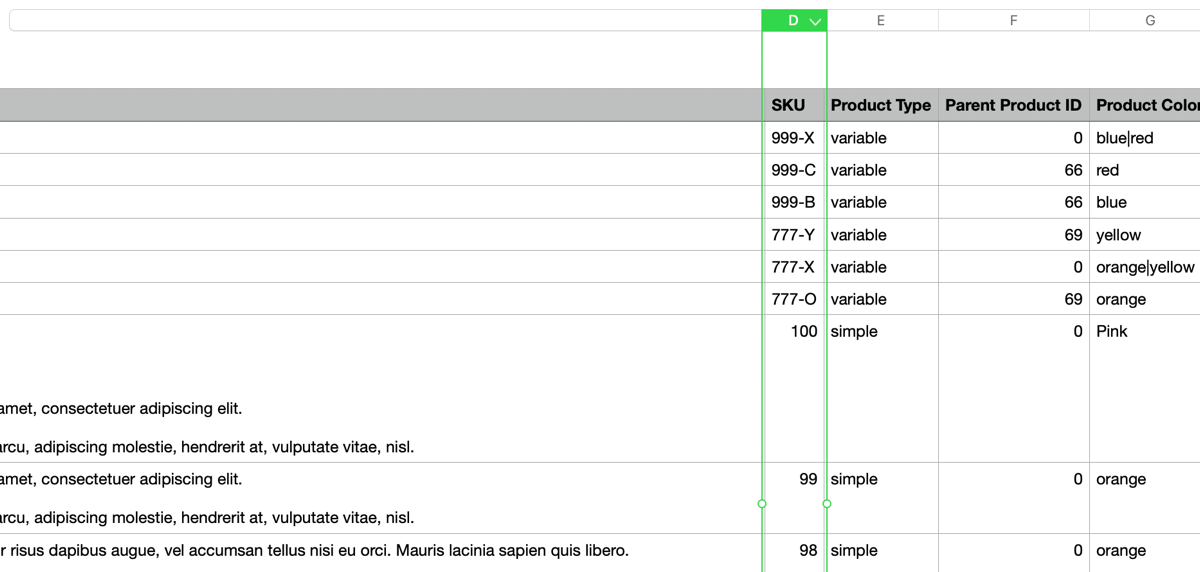
Decide early whether each variation gets its own row. A variable product with ten variations needs eleven rows, or ten rows plus a parent record. The parent must appear before its variations, since the importer reads the file top to bottom.
Every variation row needs a unique SKU and a valid parent reference. A variation that points to the wrong parent imports as an orphan, or gets skipped without an error. The file format causes quieter failures. Keep the file in UTF-8, and confirm the delimiter before the upload.

A spreadsheet is a poor place to assemble 50,000 rows. Row limits, auto-formatting, and locale changes corrupt identifiers. Build the file from the source system or a script whenever possible.
Choose the Identifier Before the First Product Row
The Unique Identifier decides whether a row creates a product or updates one. SKU is the usual choice, and product ID is the safest when the source system has one. Without a stable identifier, a second run creates a second catalog.
Identifiers need exact matches. A trailing space, a case difference, or a leading zero makes two rows look like two products. Composite identifiers solve this for catalogs where a supplier reuses codes across colors or sizes.
Check for Duplicate SKUs Before the Run
Sort the SKU column and look for repeats, both inside the file and against the live catalog. A row that matches an existing product updates it, which may not be the intent for a new item.
WooCommerce checks SKU uniqueness on every product it creates, and that check gets slower as the catalog grows. A 2024 pull request added the wc_product_pre_has_unique_sku filter, which lets code answer that check without running the query. It is a developer hook, not an admin setting. For most stores, it’s better to have a clean SKU column, since it costs nothing during the run.
How to Prepare the Server and Database for a Large WooCommerce Product Import
A large product import is a load test that runs against a live store. Everything below happens before the first row is imported.
Check PHP Memory and Execution Limits
PHP limits decide how much work a single request can finish. Start by raising the memory_limit to at least 512M, and set max_execution_time well above the default. Increase post_max_size and upload_max_filesize if the file exceeds the current cap.

Proxy layers time out as well. Cloudflare drops requests at 100 seconds, regardless of the PHP settings behind it. Database engines matter too. MyISAM tables lock during writes, so convert them to InnoDB before a bulk import. A store on MyISAM will stall for every visitor while the import runs.
Clean the Database Before the Import
A bloated database makes every write slower. Stores that slow down mid-import often carry over a million rows in wp_options, most of them expired transients. Clearing them shortens every query the import makes.
Back up the database and the uploads folder first. Test the cleanup on a copy, since orphaned rows and transients are not always safe to remove by hand.
Run the First Import on Staging
A staging copy shows the real runtime and the real failures without risking the live catalog. Start with 200 products that mirror the full file: simple items, variable products, and items with the most images.
Measure how long that batch takes. Multiply it by the full row count, then decide whether the job needs chunking, a faster server, or both. More setup detail is available in WP All Import’s speed optimization guide.
Why Product Images Slow Down Large WooCommerce Imports
Images are usually the highest single cost in a large product import. Each remote image is a download, then an attachment record, then a resize into every registered thumbnail size.
Twelve registered sizes are common once a theme and a page builder add their own. Ten thousand products with five images each become 600,000 resize operations. The CPU cost of that work often exceeds the download time.
Disk and inode limits arrive next. One image can consume 10 to 30 files on disk, so a 50,000-product catalog with five images each can approach a million files. Hosting capacity planning guides treat media as the largest consumer of both.
None of that work has to happen during the run. Three changes shorten the image portion of a large import. Move the files to the server first and import from that folder, so nothing downloads during the run. Disable image optimization plugins such as Smush or EWWW for the duration. Regenerate thumbnails afterward instead of during the import.
If owning the files matters less than the runtime, large catalogs can also serve images from a CDN. Nothing downloads, nothing gets resized, and the import skips the image work entirely.
Variable Products and Variations in Large Imports
Variable products are where a large import slows down fastest. A parent with ten options becomes eleven records, and each one runs the full save routine. Object caching helps less than expected, since every update flushes what the last one cached.
A few thousand variations can take 30 minutes to an hour. One store planned 4,000 products with 72 variations each, close to 288,000 records. The import stalled at 1,000 products and logged MySQL deadlock errors.
Those failures have two causes worth checking first. Parents have to appear before their variation rows, because the importer reads top to bottom. Each variation also needs its own SKU and a parent reference that resolves to exactly one product.
The count itself is the other cause. A color that changes nothing but the label can be a custom field instead. WooCommerce stops generating variation data past 30 per product by default, so very large sets slow the product page too. Re-imports also leave old variations in place unless the run is told to remove them.
How to Import a Large WooCommerce Product Catalog with WP All Import
WP All Import is a WordPress import plugin that reads CSV, XML, and Excel files and writes them into WooCommerce through automatic mapping. It lets you upload a file, add it from a URL, FTP or SFTP, or from a folder on the server.
The plugin’s Automatic Setup reads the file as it uploads and builds the product mappings for you. Title, SKU, price, stock, categories, attributes, variations, and images all get matched before the first run. You can then check every mapping in the template editor and preview products the way readers will see them.
The template is reusable. Once it exists, you can update the catalog on a schedule through cron, match existing products by SKU instead of duplicating them, and run the import from the command line with WP-CLI when speed matters. The import history log shows what each import created, updated, and skipped.
A few settings make the plugin a better fit for large imports. You can split the file into chunks, so each request stays inside the server’s time limit, and set how many records run per iteration. Turning off duplicate SKU checks removes a cost that grows with the catalog. Skipping products whose data has not changed turns a nightly refresh into minutes instead of hours.
With those settings in place, here is how a large WooCommerce product file goes through WP All Import, step by step.
Step 1: Upload the WooCommerce Product File and Start Automatic Setup
Go to All Import › New Import and click the Set up automatically banner.
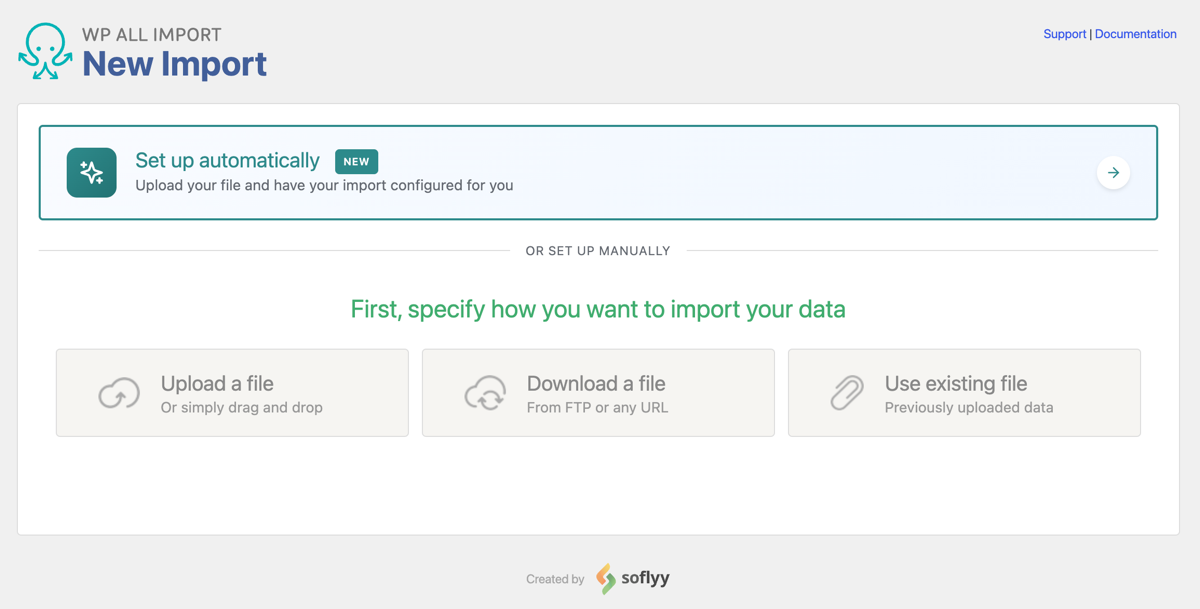
Choose the file source: an upload, a URL or Google Sheets link, an existing file in the plugin’s uploads folder, or an FTP/SFTP server. The wizard accepts files up to 256 MB.

Set Choose What to Import to WooCommerce, then Products.
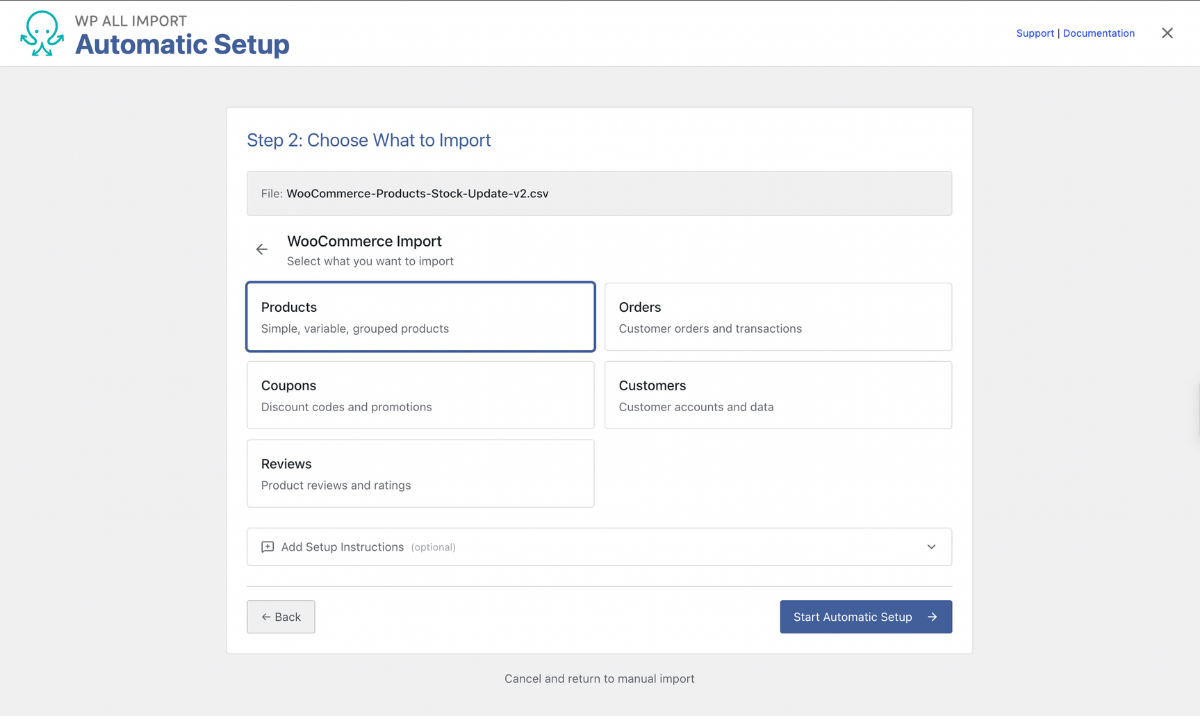
The Add Setup Instructions field takes plain English notes, such as “Variations follow their parent row” or “Images are filenames, not URLs.”
Once you’re ready, click Start Automatic Setup. The plugin parses the file and builds the field mappings for the product record.
Step 2: Review the WooCommerce Product Field Mappings
WP All Import will load the Your Import Is Ready card, which shows the record count and the fields detected in the file.
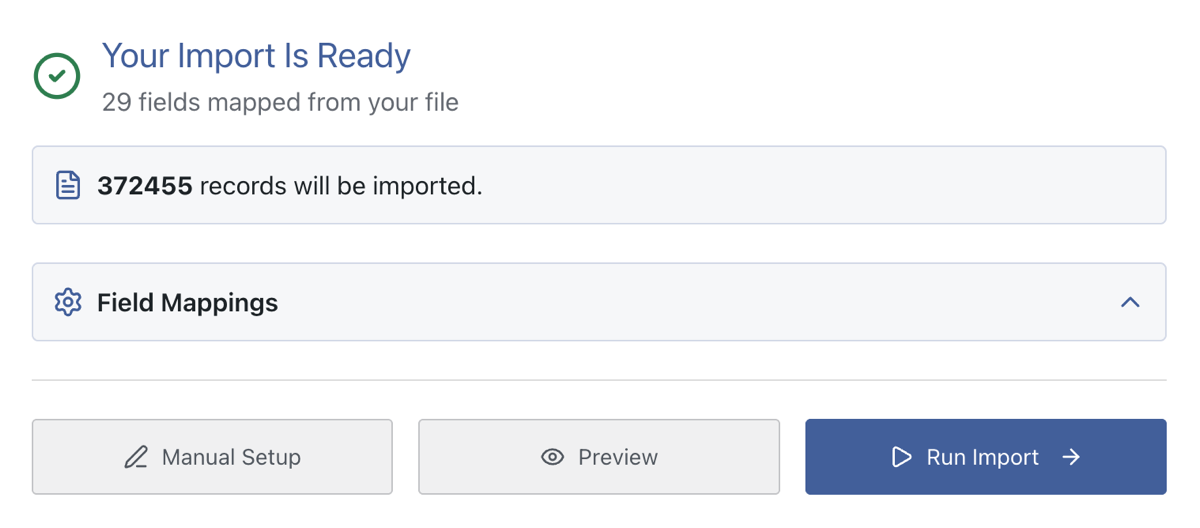
Click Field Mappings to open the field list.
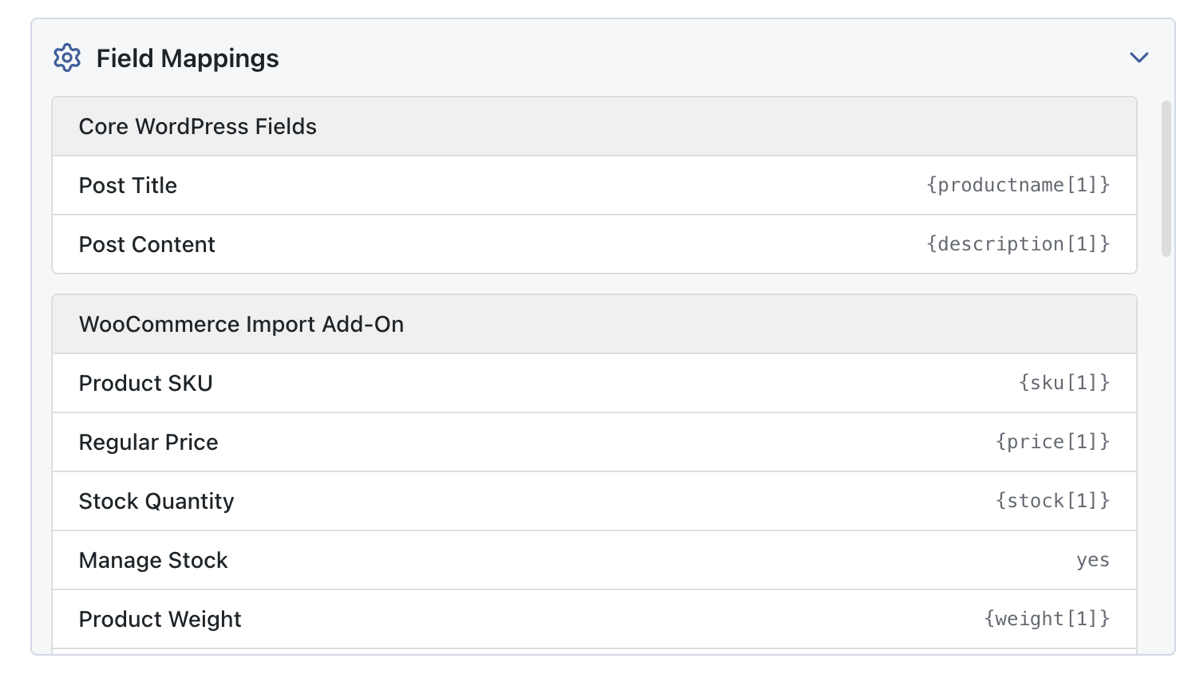
Review the mapping list against your product import file. The fields that decide whether a product is complete are the title, SKU, price, stock, product type, and the image columns. If you spot something that landed in the wrong place, click Manual Setup to open the template editor.
You can also preview products before running the import. It opens a Frontend View and a WP Admin View, so you can check exactly how the product will look in your store. For large files, start with a variable product and one with a gallery.
Step 3: Set the Unique Identifier and Record Matching
Automatic Setup maps the fields for you, and on a small catalog that is usually enough. For a large product import, click Manual Setup, scroll down, and click Continue to Import Settings once you’ve reviewed everything.
On the Import Settings screen, set the Unique Identifier. The Auto-detect button fills it from the file. SKU suits most catalogs, and product ID is faster when the source system provides one.
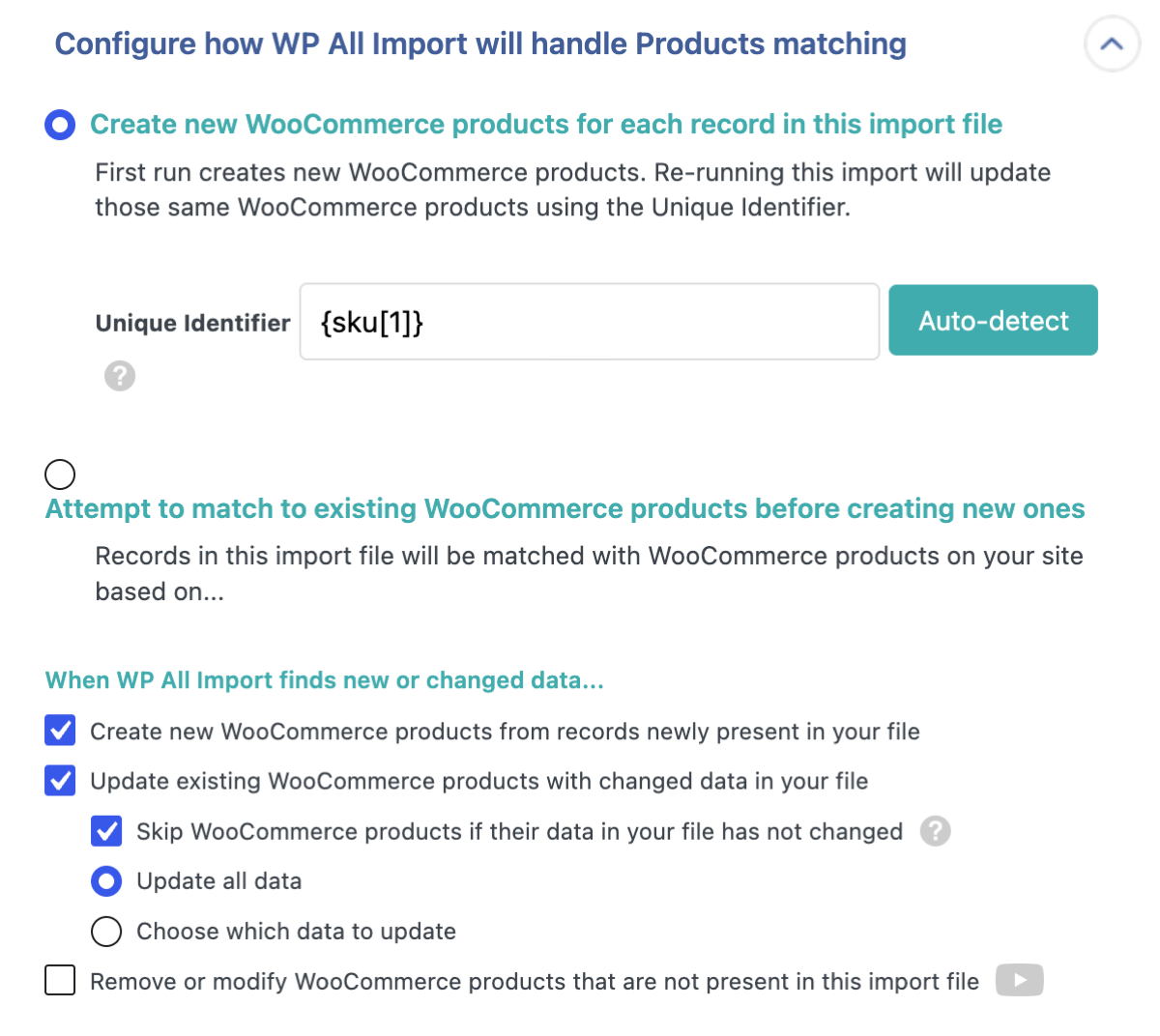
With matching configured, a re-run updates products instead of duplicating them. This is the setting that makes a 50,000-row import repeatable.
Step 4: Configure the Advanced Settings for a Large Import
On the same screen, scroll down to the advanced settings. The Import Speed Optimization panel holds the options that decide how the import divides its work.
In each iteration, process 20 records sets how many rows run per request. Split file up into 1,000 record chunks breaks the file into pieces. Raise the iteration count when CPU or memory runs high, and lower it when requests time out. Those two problems need opposite fixes.
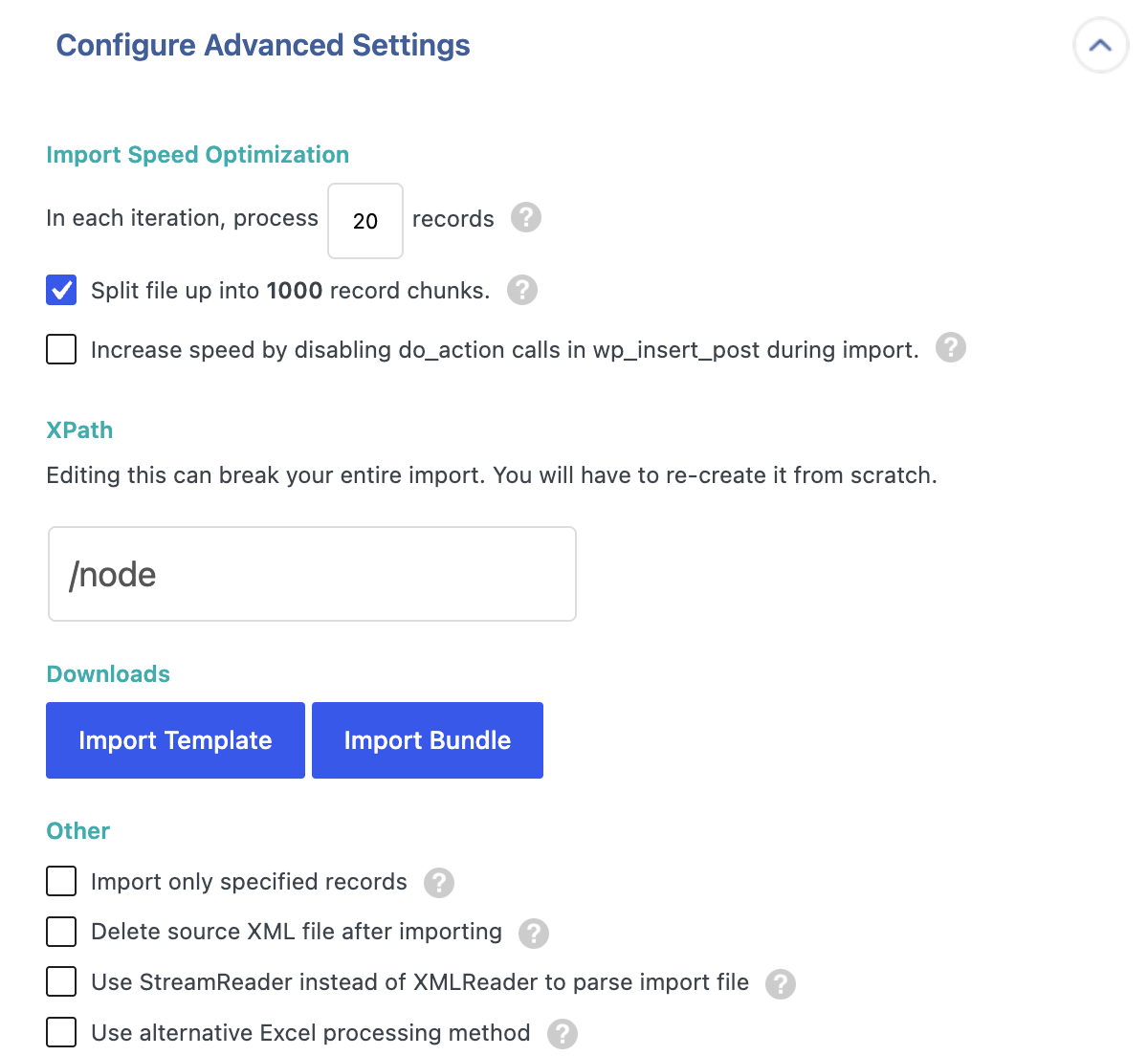
You can also increase speed by disabling do_action calls in wp_insert_post to stop other plugins from reacting to each new product. Check the imported products afterward, since features like SEO scoring will not have run.
Three more options help with large catalogs. Import only specified records limits a run to a row range. Delete source XML after importing frees the disk space the file was using. Skip posts if their data has not changed sits on the Import Settings screen, and it avoids rewriting products that match the file.
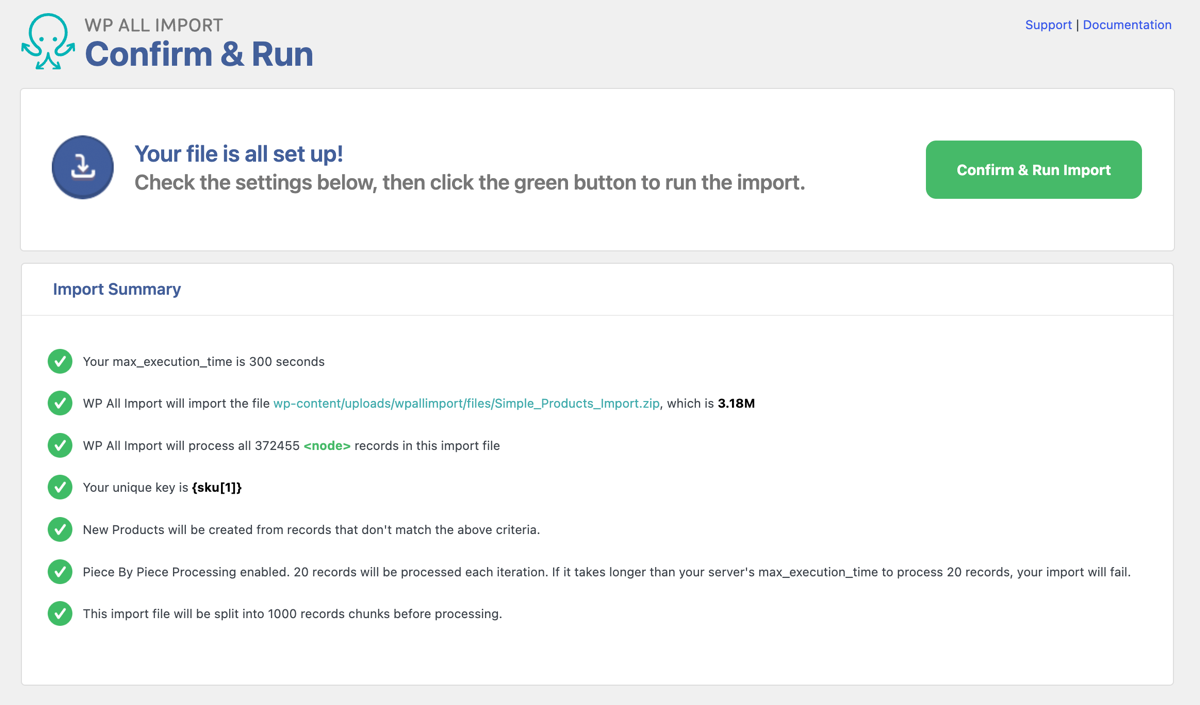
When the settings are in place, click Continue at the bottom of the screen. That opens the summary card, where Run Import starts the job after you confirm.
How to Run Large Product Imports in the Background
A three-hour import is a long time to keep a browser tab open. If you close the laptop, drop the connection, or let the tab sleep, the import stops where it sits. Past a few thousand products, the plugin is better off running on the server.
The simplest way to do that is a cron job. Manual scheduling uses two URLs per import. A trigger URL starts the import on whatever schedule you set. A processing URL runs every two minutes and keeps going until the file finishes. You will find both on the Scheduling Options screen.
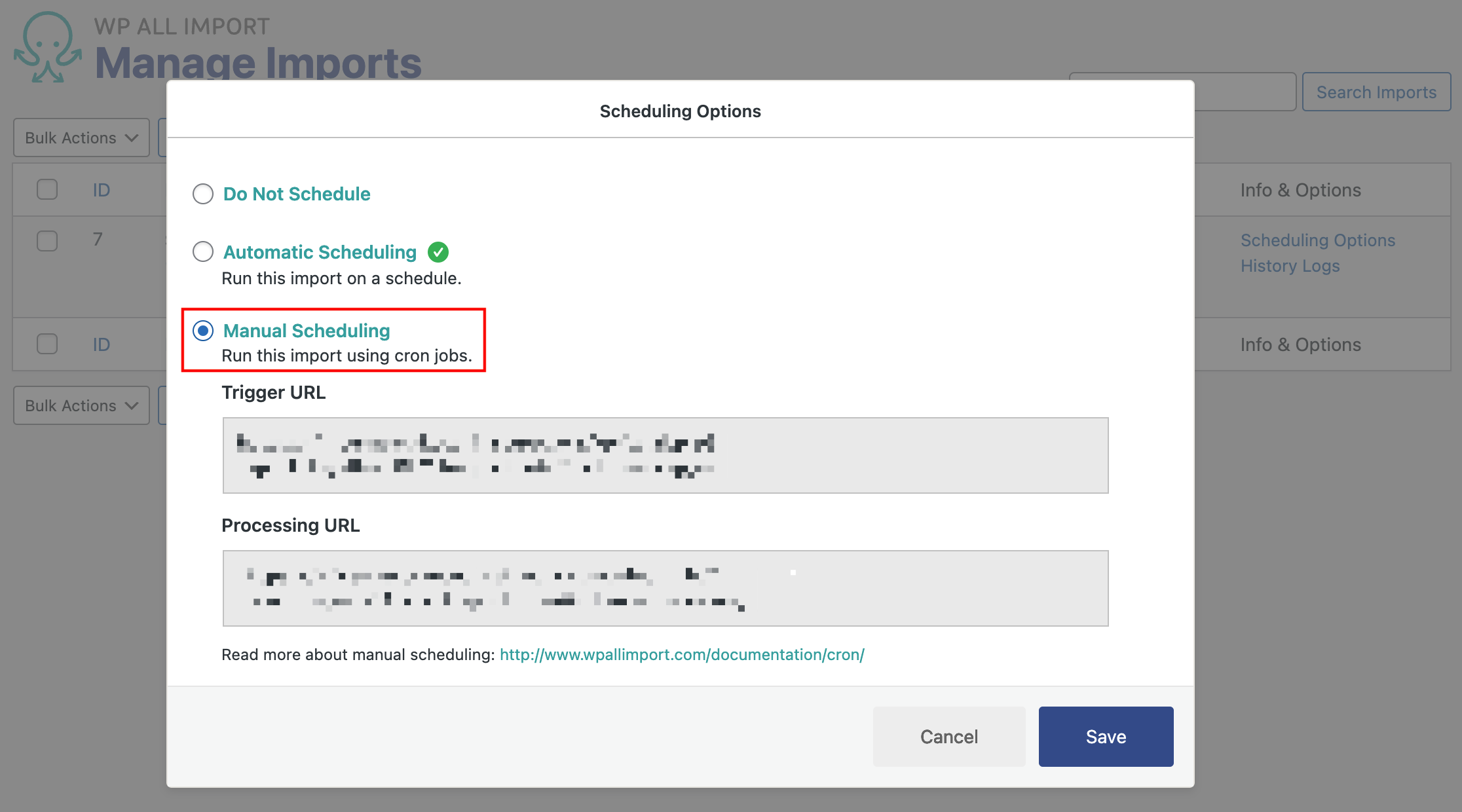
One setting makes or breaks those runs. Set Cron Processing Time Limit to 120 seconds at All Import › Settings, and lower it if the server cuts the script short. Leave Cron Sleep empty unless the import is slowing the storefront for visitors.
If you have SSH access, WP-CLI is the faster route. Imports run through it about 50% faster than in the admin panel. The command is wp all-import run 1 --disable-log, with the import ID taken from the Manage Imports screen.
Both routes are documented in WP All Import’s cron guide and its WP-CLI guide.
How to Verify a Large WooCommerce Product Import
The import finishing is not the same as the import working. A large run can finish with skipped rows, missing variations, or prices that never updated.
Check the Records Against the File
The import history log shows how many records were created, updated, and skipped. Compare that number with the file, and remember that each variation counts as its own record.
Then open a few products in the admin. Pick one simple product, one variable product, and one with a gallery. Check that the SKU, price, stock quantity, and image order all match the source.
Skim the log for warnings while you are there. A row that failed on a missing parent or a duplicate SKU shows up in the log, not in the success count.
Compare Category Pages with Product Pages
WooCommerce reads prices from wp_postmeta on single product pages. Shop and category pages read from wp_wc_product_meta_lookup instead, as this lookup table analysis explains. An interrupted import can write the postmeta without finishing the lookup refresh.
So open a category page and compare its prices with the product pages behind it. A mismatch means the lookup table needs regenerating, and WooCommerce provides a tool for that under WooCommerce › Status › Tools.
One-Time Migration vs Recurring Product Import Sync
A migration runs once and ends with an old system switched off. A sync runs on a schedule and keeps a large WooCommerce product catalog current. The two jobs need different settings, and they tend to fail in different ways.
For a migration, run the full file, check the result, then decide what happens to products missing from the source. Move them to the trash first, since trashing is reversible and deleting is not. Run that cleanup as its own pass, so a mistake stays easy to undo.
For a product sync, the goal is to write as little as possible. Enable Skip posts if their data has not changed, so unchanged rows cost almost nothing. Keep the Unique Identifier stable across feeds, and schedule the run through cron instead of a browser.
One rule prevents a lot of cleanup later: a feed that failed should never trigger deletions. If the export breaks halfway, every product it did not include is still in your catalog.
Daily price and stock feeds should also run off-peak. A large sync competes with shoppers for the same CPU and database connections.
What Is the Best Way to Import a Large Number of Products into WooCommerce?
Large product imports rarely fail because the file is too big. They fail because nobody checked the identifiers, the server, or the way the file divides its work before the first run. Get those three right, and the size of the catalog stops being the problem.
Before you upload the file, put 200 products on a staging copy to see how the server handles them. Keep every parent ahead of its variations in the file, and set the Unique Identifier so a second run updates products instead of creating duplicates.
WP All Import is a WooCommerce product import plugin that handles large catalogs through batching, automatic mapping, and background runs. It reads CSV, XML, and Excel files up to 256 MB, and Automatic Setup builds the product mappings as soon as the file uploads. Chunking and the records per iteration setting keep each request inside your server’s time limit, while the template editor covers products, variations, attributes, categories, and custom fields. Run it through cron or WP-CLI, and a long import no longer needs a browser tab.
A 50,000-product catalog then turns into a scheduled job. The first run takes what it takes, and every run after it only writes what changed.
Frequently Asked Questions – Large WooCommerce Products Import
How many product imports can WooCommerce handle?
WooCommerce has no hard product limit, but hosting does. On shared hosting, imports commonly top out between 50,000 and 100,000 records before timeouts appear. Stores with 100,000 or more products typically run on tuned VPS or dedicated servers with InnoDB tables, object caching, and imports split into batches.
Why does my WooCommerce import stop at the same number every time?
The import is hitting a fixed time or memory limit, not a problem with the file. PHP’s max_execution_time, a low memory_limit, or a proxy timeout such as Cloudflare’s 100-second cap ends the request at the same point each run. Chunking the file and lowering records per iteration fixes it.
How do I import 50,000 products into WooCommerce?
Import 50,000 products into WooCommerce with a batched importer such as WP All Import. Prepare the file with unique SKUs and parents before variations, test 200 rows on staging, then run the full file through cron or WP-CLI. Keep images local and disable image optimization plugins during the run.
Should I split a large product CSV into smaller files?
Splitting helps only when the server cannot process the file in one pass. WP All Import’s chunking setting divides the file internally and lets interrupted runs resume, which achieves the same result without managing multiple files. Split manually when a single file exceeds upload limits.
Why do my product variations fail to import?
Variations fail for three common reasons. The parent product appears after its variation rows, the variation SKU is missing or duplicated, or the product exceeds the server’s memory limit while generating hundreds of variations. Ordering parents first and reducing variation counts fixes most cases.
Do product images slow down a WooCommerce import?
Yes. Each remote image is downloaded, saved as an attachment, and resized into every thumbnail size the theme registers. On catalogs with tens of thousands of images, that work usually exceeds the rest of the import. Importing from a local folder and regenerating thumbnails afterward removes most of it.
How do I avoid duplicate products when re-importing?
Set a Unique Identifier before the first run. WP All Import’s Auto-detect button fills it from the file, and SKU is the usual choice. Every later run then matches rows to existing products and updates them, instead of creating a second copy of the catalog.
Is WP-CLI faster for WooCommerce imports?
Yes. Imports run through WP-CLI process about 50% faster than the same import in the WordPress admin. The command is wp all-import run 1, with the import ID from the Manage Imports screen. Adding --disable-log removes logging overhead on very large runs.
Related Information