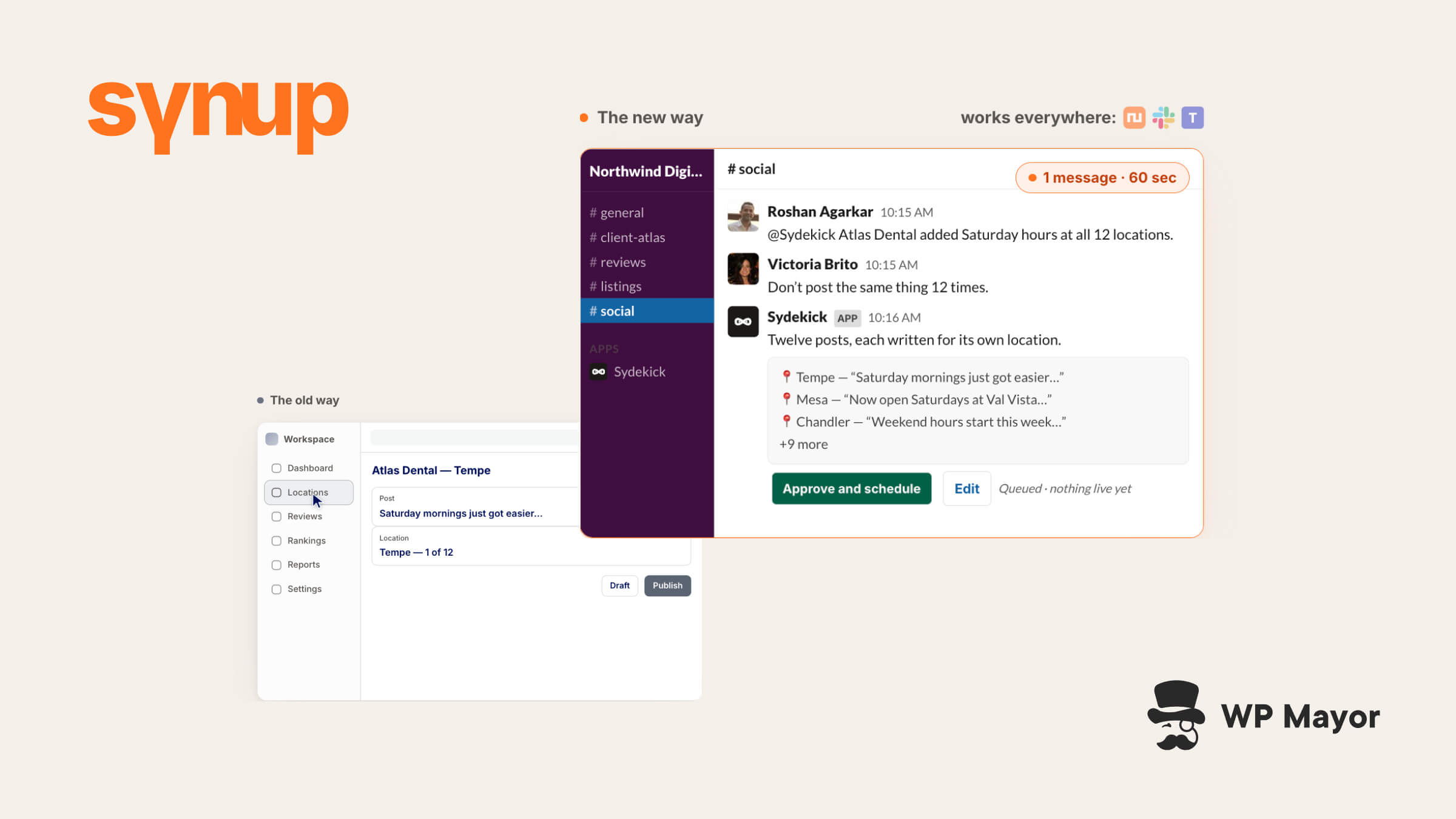
Running an agency likely gives you plenty of repeat work, which is great for your income, but can tank your efficiency. Changing client listings, handling reviews, managing social media, running reports, and all manner of other tasks are necessary for keeping the working relationship solid. My Synup review introduces a potential solution for you.
Synup uses an AI agent to automate much of this repetitive work. This review will look at Synup and how it can help you run better local marketing for your clients.
Synup Review: Fast Facts
- Synup is a platform for local marketing that can act across multiple locations. It uses an AI agent (Sydekick) that takes plain-language requests for listings, reviews, social posts, local search rankings, and more.
- It includes a Model Context Protocol (MCP) server that lets third-party AI tools (such as ChatGPT, Claude, and Cursor) read and act on the data inside Synup.
- Synup starts from $39 per month for one location on annual billing. Higher tiers give you more location slots and resources.
Synup Review: Pricing
Right off the bat, I’m pleased that Synup includes its full functionality on every plan. For each of the four tiers with available pricing, the difference is in the number of locations, parallel agent chats, agent credits, and environment:
- Solo ($39 per month, annual billing). This is for a single location (a single, physical address) and comes with 20,000 credits. You can have one parallel agent chat within a shared environment.
- Premium ($239). There are ten location slots on offer here, with 200,000 credits available and three parallel agent chats within the shared environment. You also get access to white-labelling.
- Pro ($399). The plan includes up to 25 locations, 600,000 credits, and five parallel agent chats. This time, those chats are within a dedicated environment.
- Scale ($719). You get up to 50 locations, ten parallel agent chats (within a dedicated environment), and 1,200,000 agent credits.
If your needs extend beyond these four plans, you can contact the Synup team to discuss the Enterprise tier.
Credits pay for all of the Sydekick messages, generations, scrapes, SEO lookups, drafted posts, and other metered actions Sydekick takes. You’ll also spot an “effective rate per location” on the pricing page. This is a helpful way to set your prices per client based on the per-location rate.
There’s also no difference in functionality between the shared and dedicated environments. This is similar to hosting, in that you can either isolate your agents or share infrastructure between several other Synup accounts.
My recommendation for an agency is to start with Premium. This is because you have multiple location slots and white-labelling. Solo might suit a single-client test, but you’ll typically want to opt for more locations to cover your client base.
I should also note that Synup isn’t only an agency-focused tool. For instance, that Solo plan is also ideal for single-location or one-person businesses. The focus for this post is on agency usage, but the functionality can benefit businesses of all sizes.
Synup Review: What Sydekick Does for Agencies
Your agency might suffer from the same problems as many others: lots of repetitive manual work, search accuracy concerns, and a higher cost of setup than you’d like. This is what the Sydekick AI agent is designed to help you with.
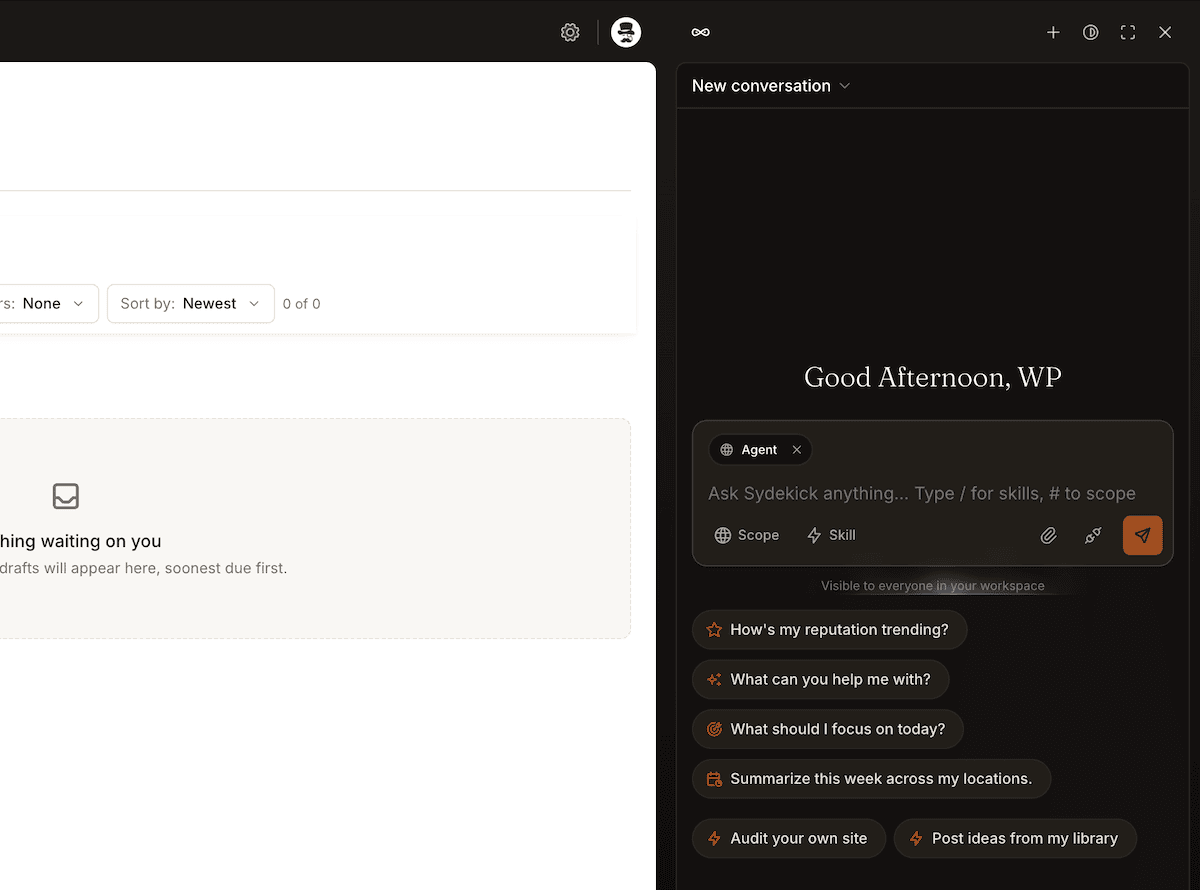
Any request you make sends it away to think it through, search for a solution, build something, or put a process into action. Your job is to first choose a client and location for Sydekick to act on. From there, it works with either a Skill or a Playbook. They are the instructions that determine what actions Sydekick takes and how they’re implemented:
- Skills. These run based on a trigger phrase or the dedicated Skill picker.
- Playbooks. These run on a schedule or on demand.
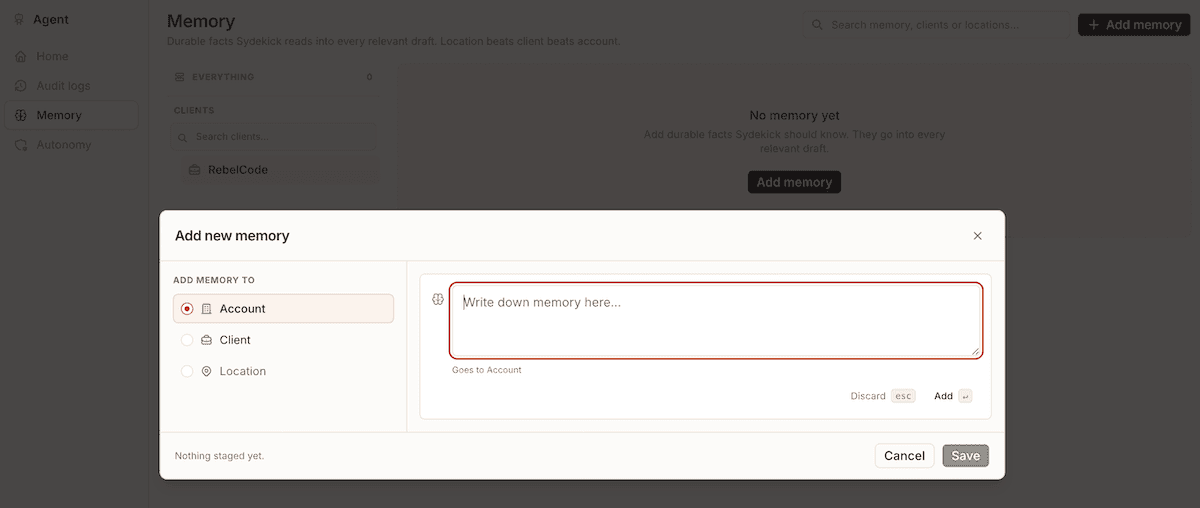
A built-in memory at the location, client, or agency level lets you store insights that then affect future actions.
Using the combination of tools, Skills, and Playbooks, you could issue one instruction that changes the phone numbers for each business location. Sydekick can also publish social content. You could even enlist Sydekick to respond to customer reviews.
Depending on the functionality you use, there are various ways to control the approval of content. For instance, drafted posts appear in the Approvals Inbox, while Skills and Playbooks have toggle switches to set whether Sydekick seeks approval before carrying out tasks. You can also set agent autonomy (more on that shortly).
The audit logs (Agent > Audit logs) let you view agent actions within your Synup account. To find specific actions, you can use the filters and step detail views.
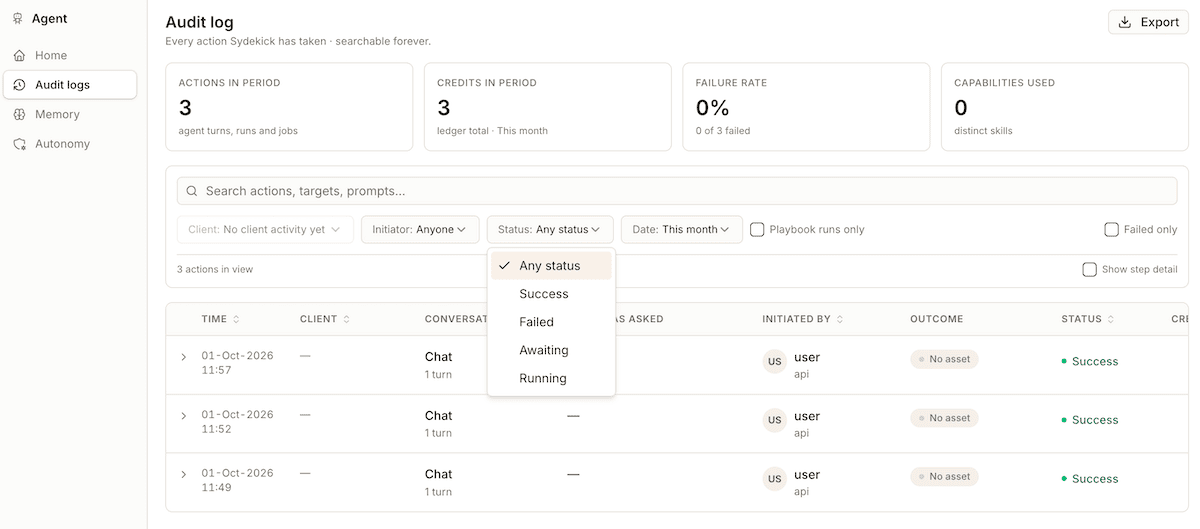
You’ll get the most out of Synup if you have several clients that operate at multiple locations. You may also benefit from having some technical knowledge depending on how you want to use Synup.
Synup Review: Who It Suits and What Sits Around It
Apart from being a good fit for agencies with multi-location clients, Synup is ideal any time you have recurring tasks:
- Managing business listings.
- Responding to and managing reviews.
- Running recurring reporting work.
If you run these tasks on a regular basis, you’d likely benefit from the separate client workspaces, choice of client visibility, team roles, and client portals. For a smaller agency, the value depends on how much recurring listings, reviews, and social work it handles. Choose the package around the locations managed and the work required.
Synup Review: Connecting to Other Services
I’ll get into using Synup properly soon, but its Capabilities screen shows connections to third-party tools and services. You add more using the Add server button. There are hundreds of others in the Discover tab:
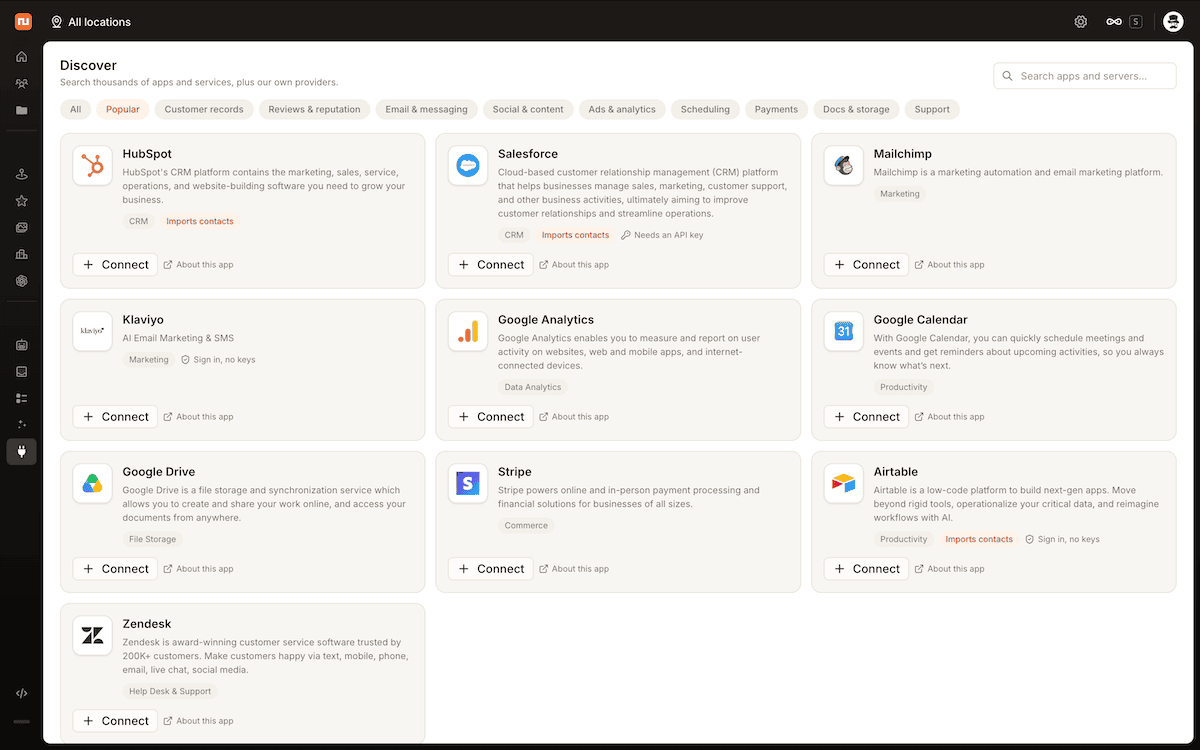
If you want Synup to work with your WordPress site, you may be fine with only using the Discover tab. There’s no dedicated WordPress plugin, though, so you could also consider an MCP endpoint.
Fortunately, I’ve recently reviewed the Novamira plugin, which could be ideal. However, you can use any suitable MCP server. “Suitable” is the key word here, as you want to ensure you’re using trusted MCP servers to keep permissions tight and your project in scope.
When working with any MCP server, it’s a good idea to start with read-only access. You can expand that access once you’re more familiar with the workflow.
Synup Review: Signing Up and Setting Up a Client
Once you sign up for an account, you’ll see the main setup wizard. As an aside, Synup offers a 14-day free trial of its Solo plan.
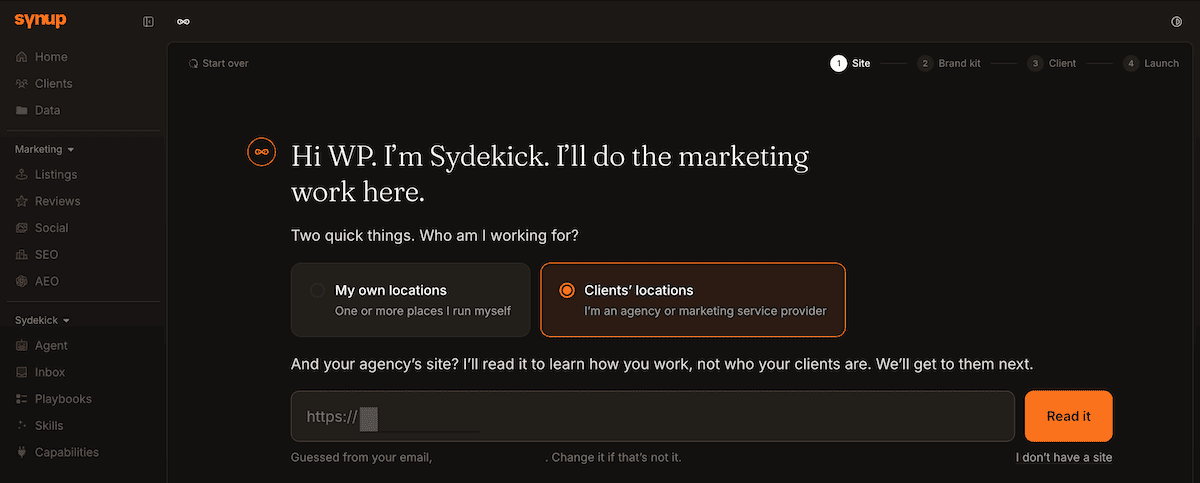
This is a four-step process that asks you to input your website and choose whether Synup works with your locations or clients. From there, you can choose branding…
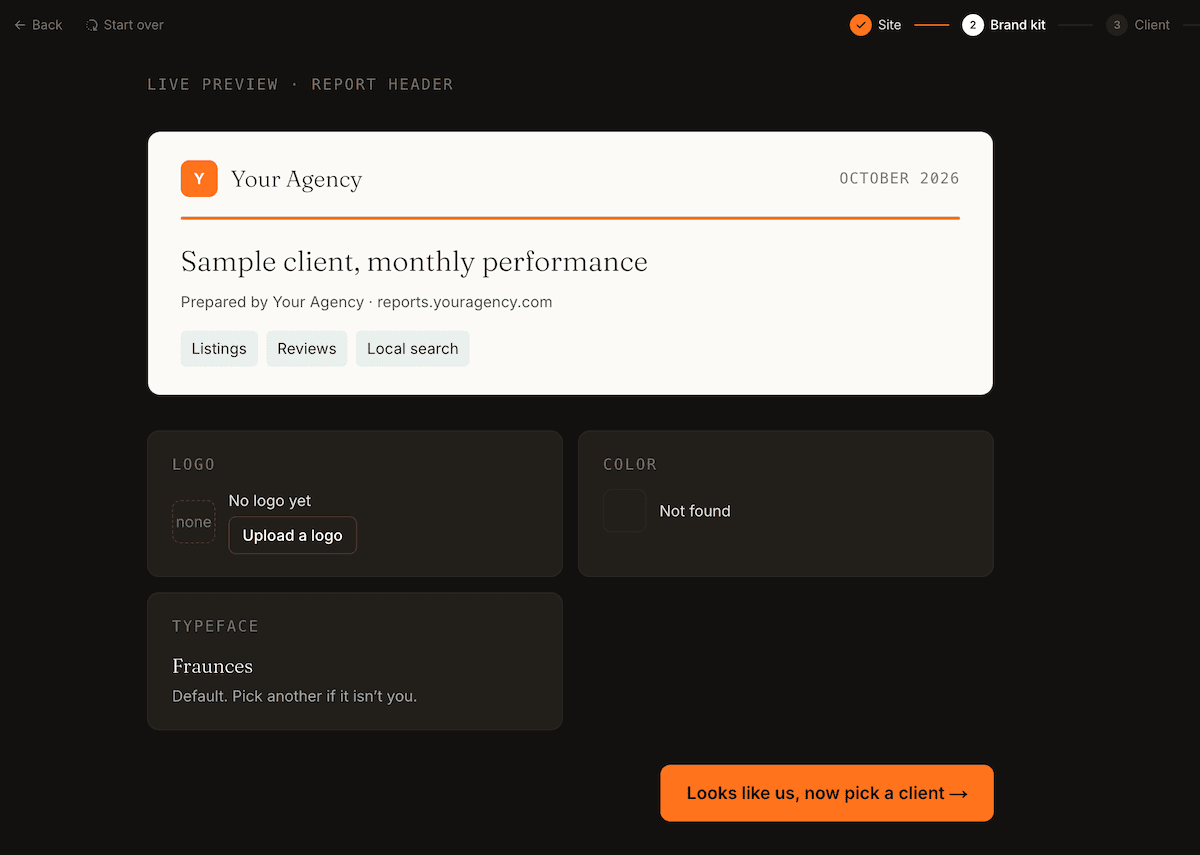
…then pick clients from their Google listings:
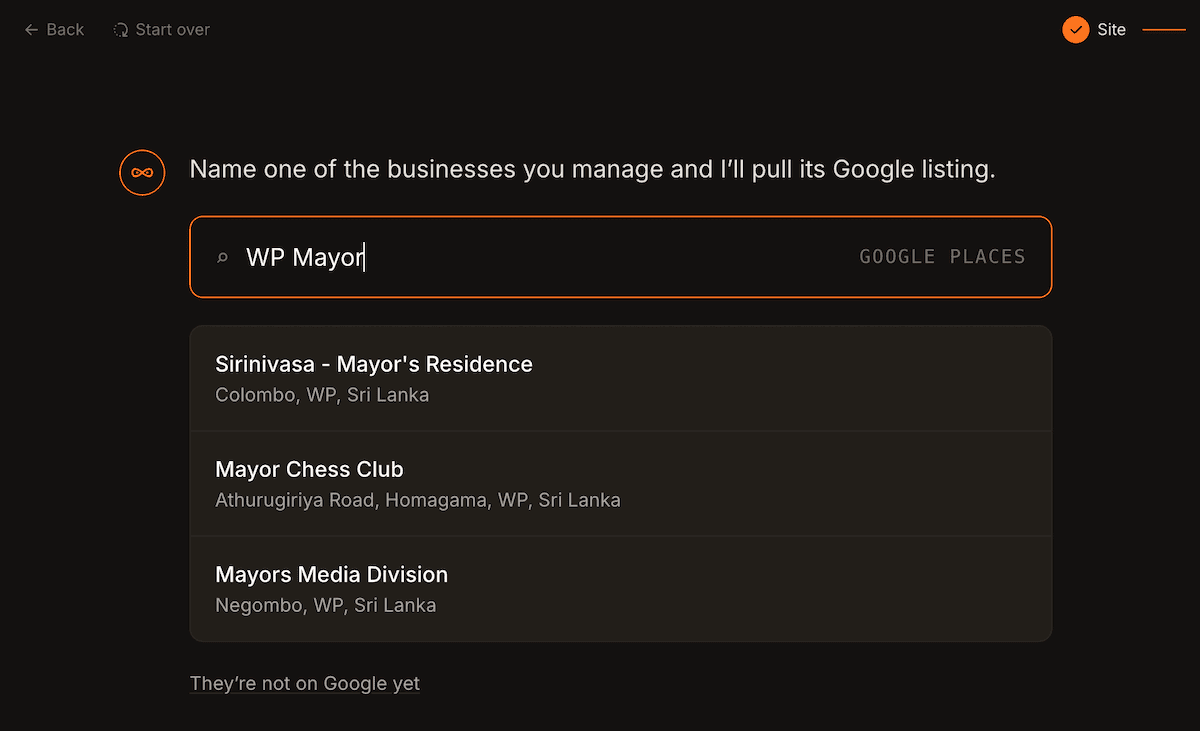
If you can’t find your client (as I couldn’t here with WP Mayor), you can click the They’re not on Google yet link to skip and come back to it later.
The final step of the onboarding is to start forming memory rules. There are some default rules already in place, but you can add as many as you need. You can always amend this (and any other settings) later on.
Using Synup’s Sydekick, Playbooks, Skills, Memory, and More
Once you click through the setup wizard to finish, Synup will show you your new dashboard:
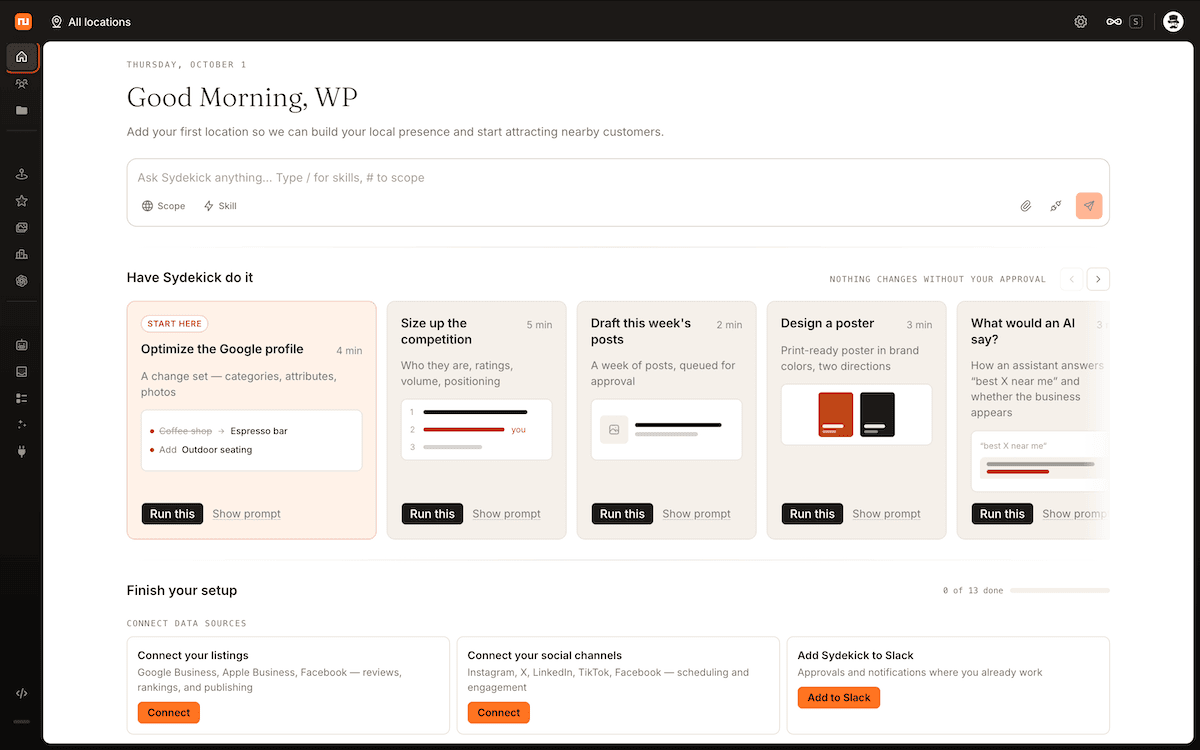
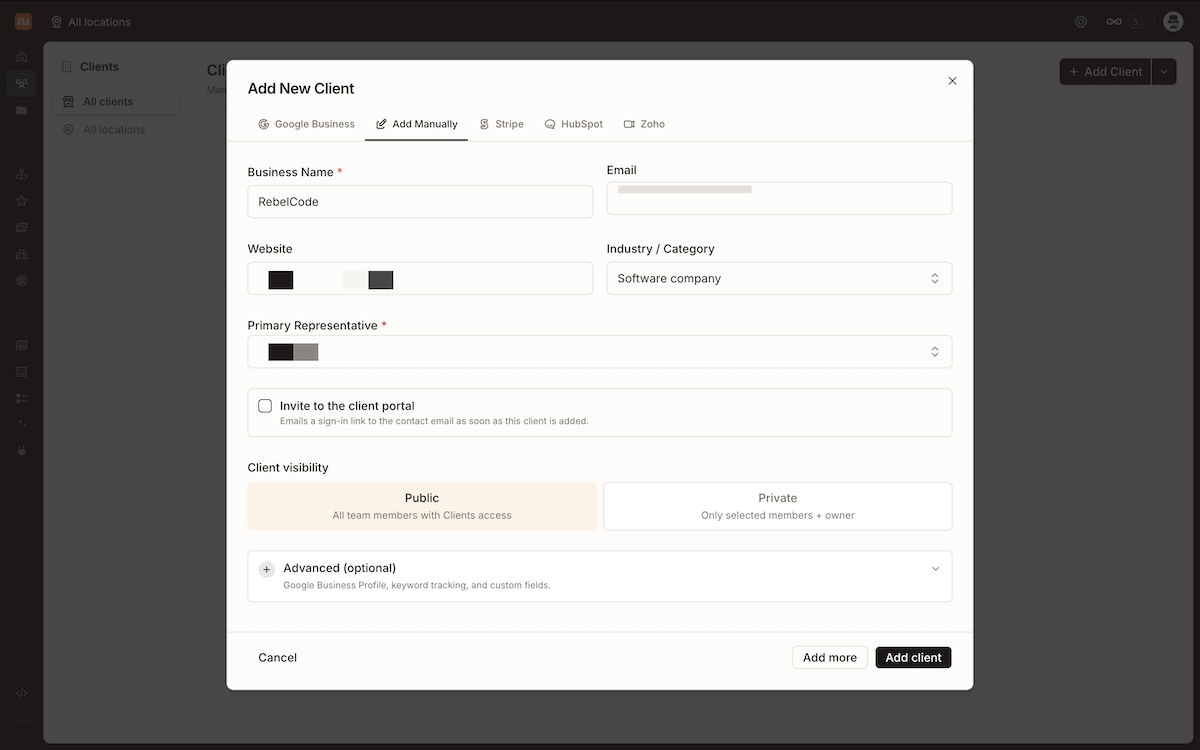
There are various sections here, such as the 14 cards that make up the full setup process. It’s worth spending time on each of these cards to get the most out of Synup. For instance, you’ll want to add a new client if you haven’t already done so from the Clients tab:
Most of your time will be spent using Sydekick, and it’s accessible through the conversational dialog box and Skills list at the top of the screen.
One aspect I like a lot is the subtle hints throughout the interface. They helped me understand nuances of whatever tool I was using:
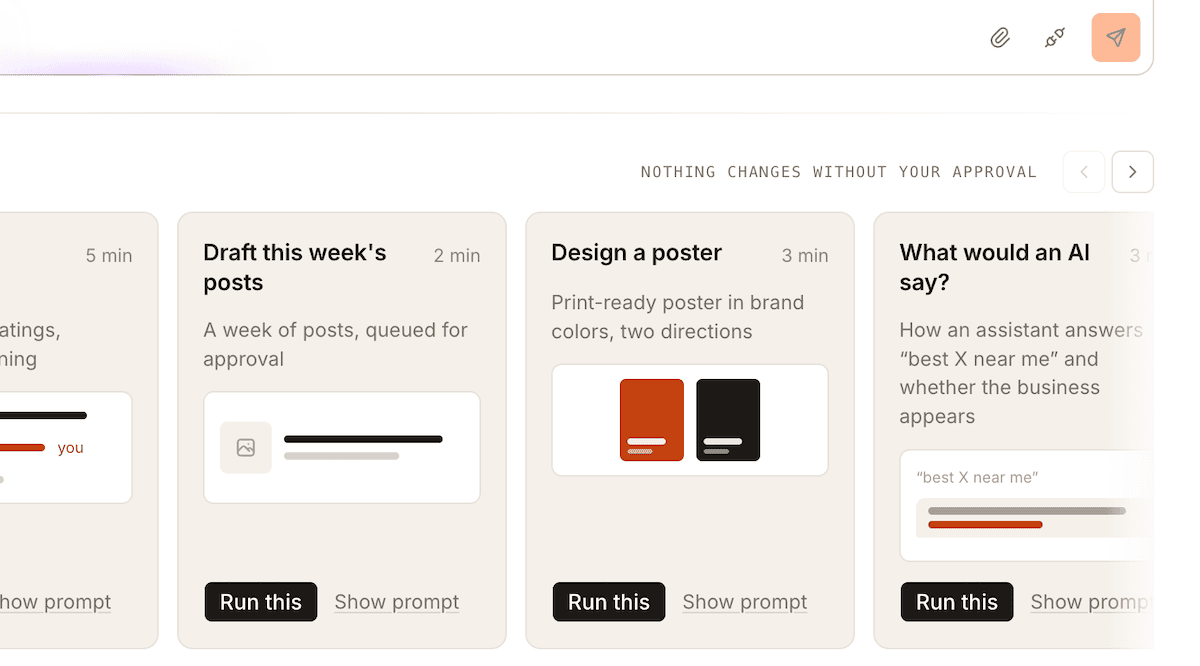
For your first task, you can look at running the selection of tasks Synup shows you on the dashboard, or explore the deeper Playbook library:
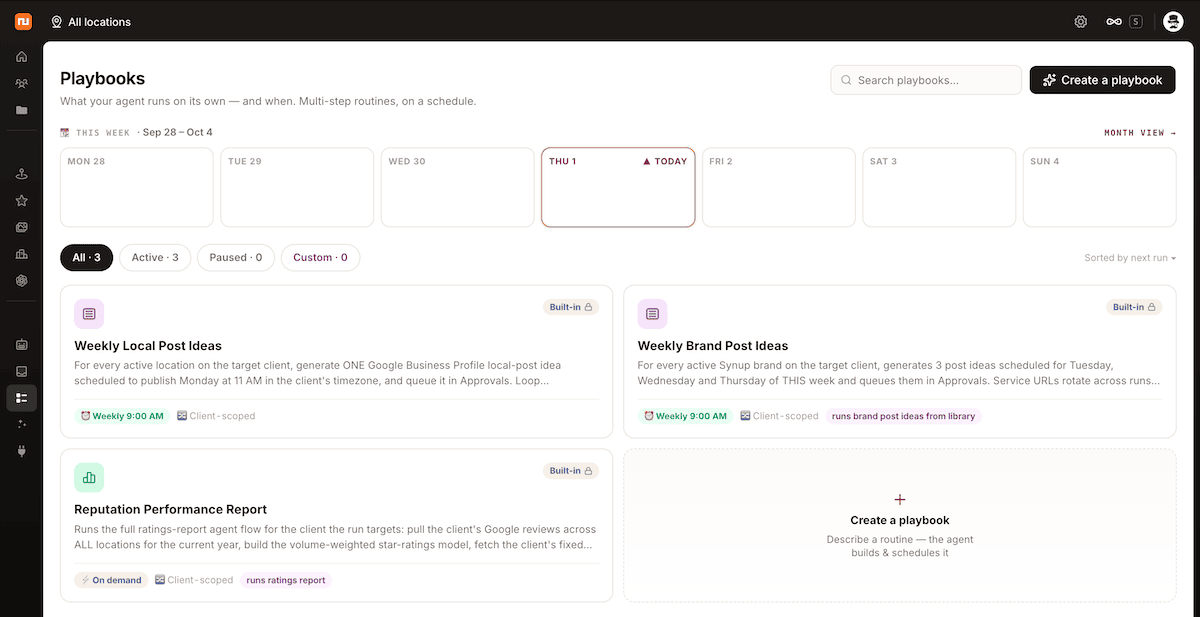
Here, you have a calendar at the top, a list of current Playbooks, and buttons to create new ones. Setting up a new Playbook means running through five steps to launch. Once you describe the task, Sydekick will put together a plan based on your clients and locations:
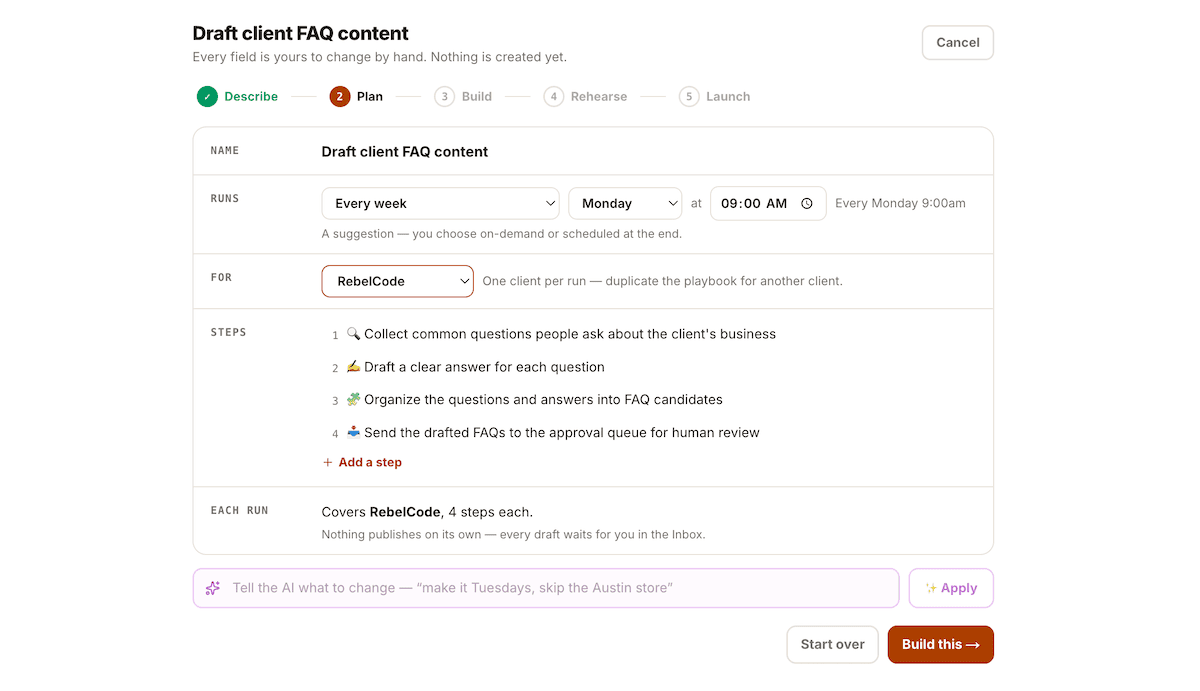
Sydekick then builds the plan into a Playbook, at which point you can rehearse the process and launch it.
To build out your plan, Synup pulls from the memory, which you can find under the Agent > Memory tab:
Also within that Agent screen, you can access the Autonomy settings:
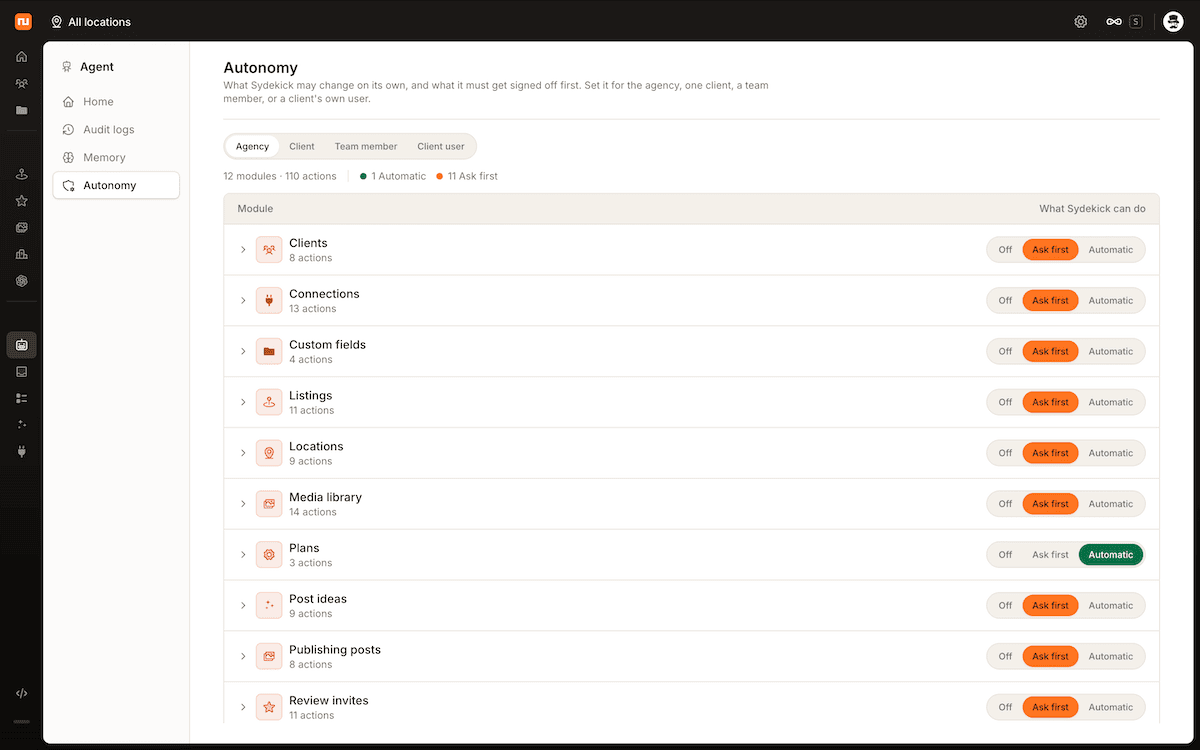
This screen helps you refine your approvals. It lists the various modules (which you can also expand) and gives you a simple toggle selector to make those actions automatic or not. You can drill down through clients and team members to make sure each module and action has the right scope for the job.
Synup Review: Documentation and Support
Synup has two documentation sites: the Help Center and the Knowledge Base. The bulk of content within the Help Center is legacy functionality documentation and FAQs.
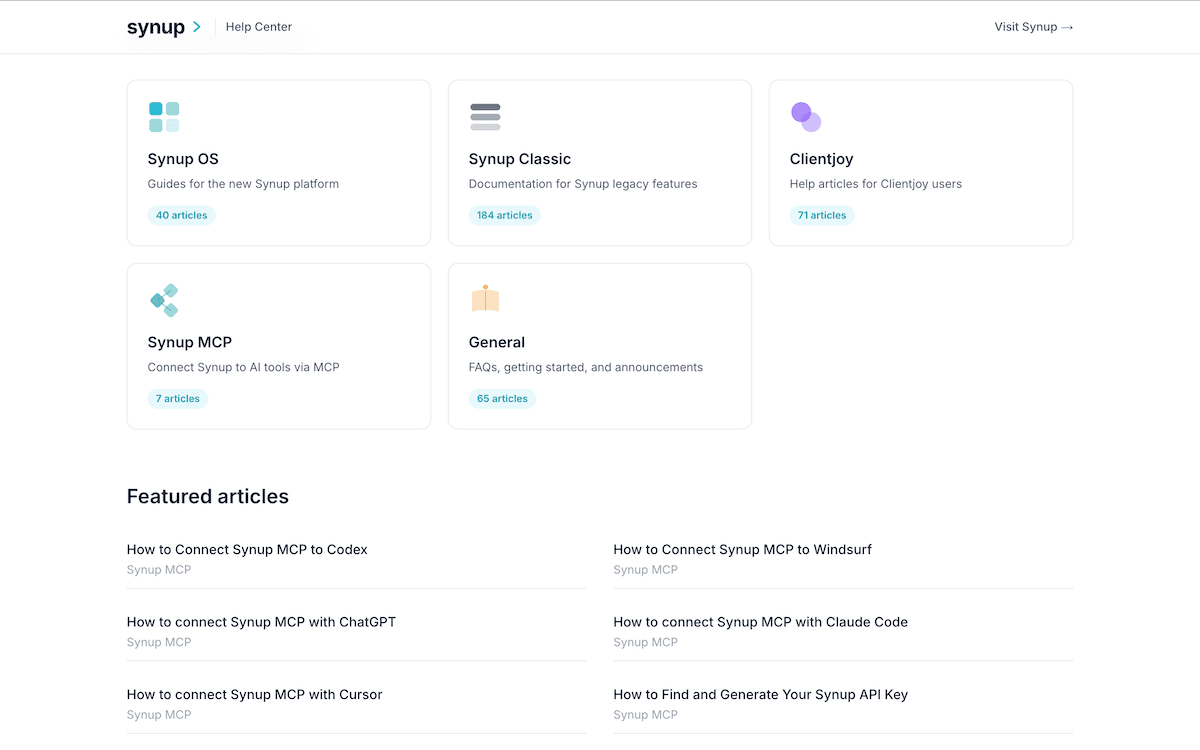
The Knowledge Base has more value for me, as it includes full guides on using Synup and Sydekick.
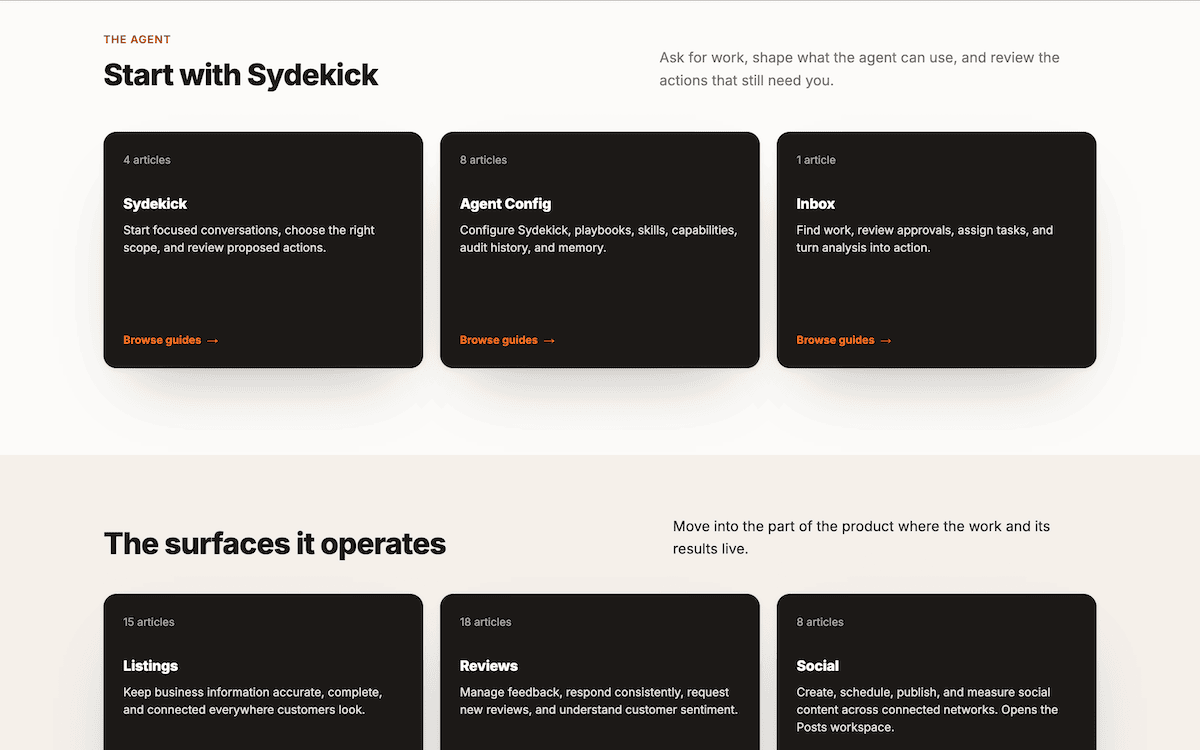
While reading the documentation, I found some inconsistencies between the Knowledge Base and the Help Center. For instance, the app.synup.com login address is used in the Help Center, while ai.synup.com is in the Knowledge Base.
If you’re relaying facets of the documentation to clients, it’s important to check the details. For general support, the Synup support team is only an email away. You can find the email address in the Knowledge Base footer.
Synup Review: Is It Worth Adding to Your Agency Stack?
To answer my question in the heading: Synup and Sydekick are worth your investment, but only if you have either the recurring marketing work or client base and locations to warrant a subscription.
The interface is also excellent and intuitive. I could navigate each screen with ease and carry out the tasks I needed quickly.
The core local marketing tools can be used without a WordPress integration, but if your workflow involves WordPress, you can optionally connect your site through the Discover tab or an MCP server of your choice, but it’s an extra rather than a requirement.
Related Articles
Does this Synup review change how you’d handle your clients’ local marketing work? I’d love to hear your thoughts in the comments section below!